
Minecraft Pocket Edition (PE) on Android offers a world of infinite creativity, but for many players, the vanilla experience, while extensive, eventually gives way to a desire for something more. This “something more” often comes in the form of mods – custom content created by the community that can transform gameplay, introduce new items, creatures, biomes, and even fundamental game mechanics. While the term “mods” in the PC version of Minecraft often implies complex API integrations, Minecraft PE predominantly uses “add-ons,” which are officially supported content packs that can be seamlessly integrated into your game. This comprehensive guide will walk you through everything you need to know about installing these exciting enhancements on your Android device, ensuring a smooth and secure modding experience.

Unlocking New Dimensions: The Allure of Minecraft PE Add-ons
The ability to customize and expand a game is a powerful draw, and Minecraft PE is no exception. Add-ons provide a robust framework for players to inject fresh life into their blocky adventures, opening up virtually limitless possibilities. From altering mob behaviors to introducing entirely new crafting recipes and dimensions, add-ons empower players to craft a truly unique gameplay experience.
What are Add-ons and Why Use Them?
At its core, an add-on for Minecraft PE is a package of files that modifies specific aspects of the game without altering the core game code itself. Unlike traditional PC mods that often require a separate mod loader, Minecraft PE add-ons are designed to be integrated directly through the game’s built-in systems. They typically come in two primary forms:
- Resource Packs: These modify the visual and auditory elements of the game. This includes textures for blocks and items, character skins, user interface elements, and sound effects. A resource pack can make your world look entirely different, from photorealistic to cartoonish, or even themed for specific holidays.
- Behavior Packs: These packs alter how entities (mobs, villagers, players), items, and even certain game mechanics behave. For example, a behavior pack could make zombies stronger, allow pigs to fly, or introduce new custom recipes for unique items.
The combination of resource and behavior packs allows for incredibly intricate and immersive modifications. Players use add-ons to:
- Enhance Visuals: Upgrade graphics, change the sky, add custom animations.
- Expand Gameplay: Introduce new mobs, weapons, tools, and armor.
- Create Unique Experiences: Design custom maps with specific rules or storylines.
- Boost Productivity: Some add-ons can even streamline in-game tasks or provide helpful information, subtly enhancing the player’s efficiency within their digital world.
- Personalize Creativity: For content creators, modding opens new avenues for expressing creativity and sharing unique visions with a wider audience.
Understanding Mod Types for Minecraft PE
While “add-ons” is the official term, the community often uses “mods” interchangeably, reflecting the broader desire for custom content. When searching for content, you’ll encounter various file types, but the most common for direct import into Minecraft PE are:
.mcpackfiles: These are typically resource packs. When opened, Minecraft automatically imports them into your resource pack library..mcaddonfiles: These are usually combined resource and behavior packs, offering a complete modding solution. Opening these files imports both components simultaneously..mcworldfiles: These are entire custom worlds that may come pre-loaded with specific resource and behavior packs, custom structures, or pre-set game rules.
It’s crucial to understand these distinctions as they dictate how you’ll interact with and activate the content within your game. While more advanced modifications might involve manual file placement, the .mcpack and .mcaddon formats are designed for user-friendly, one-tap installation.
Essential Preparations Before You Begin
Before diving into the exciting world of Minecraft PE add-ons, a few preliminary steps will ensure a smooth and frustration-free installation process. Proper preparation not only safeguards your game and device but also optimizes your experience.
Device and Software Requirements
Ensuring your Android device and Minecraft PE installation are ready for add-ons is the first critical step.
- Minecraft PE (Bedrock Edition) Installed: This is obvious, but ensure your game is up-to-date. Newer add-ons often require the latest version of Minecraft PE to function correctly. You can check for updates via the Google Play Store.
- A Reliable File Manager App: While many modern Android devices have a decent built-in file manager, a dedicated third-party app like “Files by Google,” “FX File Explorer,” or “Solid Explorer” can offer better functionality, especially when navigating complex folder structures or managing various file types. You’ll need this to locate and interact with downloaded add-on files.
- Sufficient Storage Space: Add-ons can range in size from a few kilobytes to several megabytes, especially texture-heavy resource packs or complex behavior packs. Ensure your device has enough free storage to accommodate new content and for Minecraft itself to operate efficiently.
- Internet Connection: You’ll need a stable internet connection to download add-on files from various online sources.
Finding Reliable Mod Sources
The internet is teeming with Minecraft add-ons, but not all sources are equally trustworthy. Prioritizing safety and compatibility is paramount to avoid potential issues such as malware, corrupted files, or add-ons that simply don’t work.
- Official Minecraft Marketplace: This is the safest and most convenient option. While many items here are paid, they are curated by Mojang and are guaranteed to be compatible and safe. This route often offers a direct in-game purchase and installation.
- MCPE DL (mcpedl.com): One of the most popular and generally reliable community-driven websites for Minecraft PE add-ons. It hosts a vast collection of free resource packs, behavior packs, maps, and shaders. The community actively reviews content, making it a relatively safe bet. Always read comments and reviews before downloading.
- Add-ons for Minecraft App: Several dedicated apps on the Google Play Store aggregate add-ons. While convenient, exercise caution. Stick to highly-rated apps with positive reviews, and be wary of excessive permissions requests or aggressive advertising.
- Creator Websites/Patreons: Many add-on creators host their content on their personal websites or Patreon pages. These are generally reliable, as you’re downloading directly from the source.
- Avoid Unknown or Shady Websites: If a website looks suspicious, is ridden with pop-up ads, or asks for unusual permissions, steer clear. Always download from reputable sources to protect your device from malware.
When browsing, pay attention to the add-on’s version compatibility (e.g., “Works with Minecraft 1.19+”). Downloading an add-on designed for an older version of Minecraft might lead to crashes or simply prevent the add-on from working.
Step-by-Step Guide to Installing Mods on Android
Once you’ve prepared your device and found an add-on you like, the installation process is surprisingly straightforward, especially with .mcpack and .mcaddon files.
Downloading Your Chosen Add-on
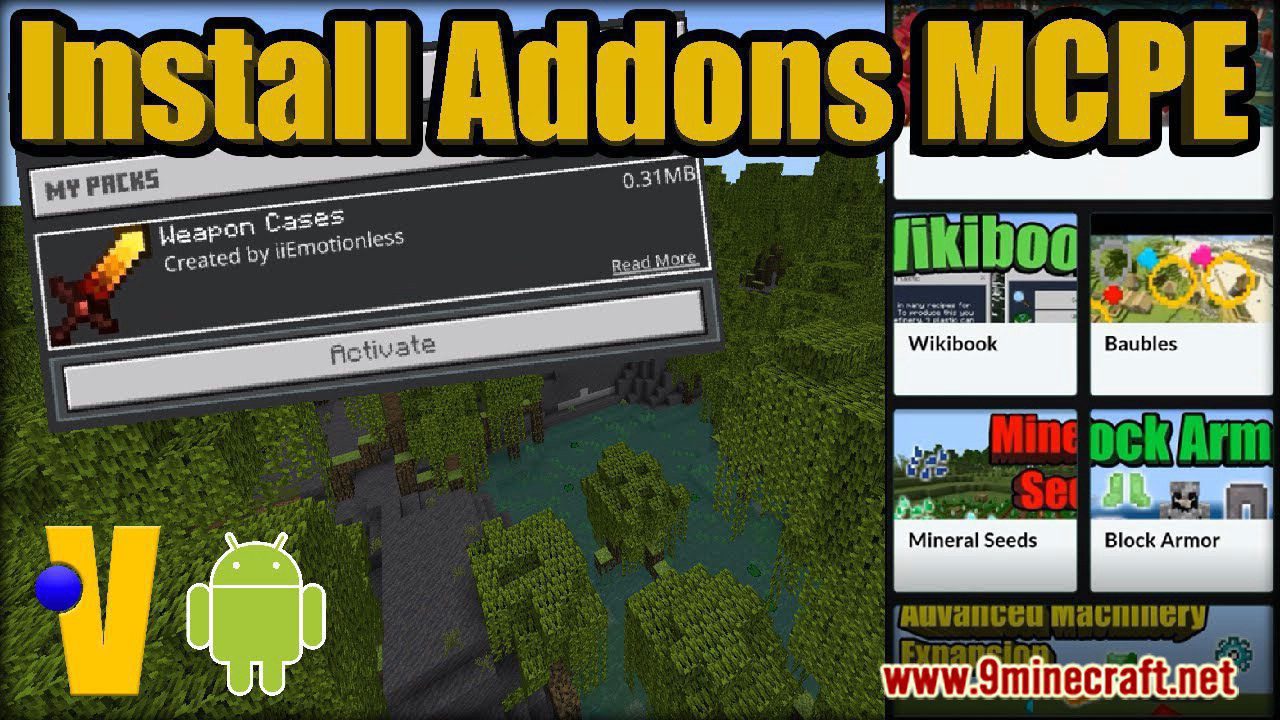
- Select Your Add-on: Navigate to your chosen reliable source (e.g., mcpedl.com) and find the add-on you wish to install.
- Locate the Download Link: Scroll down the add-on’s page until you find the download section. Creators often provide separate links for resource and behavior packs if they aren’t combined into a single
.mcaddonfile. - Initiate Download: Tap the download link. Your browser will typically prompt you to confirm the download. Be cautious of multiple download buttons or misleading ads; always look for direct download links, often labeled with the file name (e.g.,
addon_name.mcaddon). - Confirm Download Location: By default, most downloads go into your device’s “Downloads” folder. Make a mental note of this location, as you’ll need to find the file using your file manager.
Importing Add-ons into Minecraft PE
This is where the magic happens, and for .mcpack and .mcaddon files, it’s incredibly simple.
- Open Your File Manager: Launch the file manager app you installed or your device’s default one.
- Navigate to Downloads: Browse to your “Downloads” folder (or wherever you saved the add-on file).
- Locate the Add-on File: Find the
.mcpack,.mcaddon, or.mcworldfile you just downloaded. - Tap to Open: Simply tap on the add-on file. Your Android system should recognize it as a Minecraft-related file and ask you which app to open it with. Select “Minecraft.”
- Automatic Import: Minecraft will launch and display a notification at the top of the screen, usually saying “Import Started” followed by “Successfully Imported [Add-on Name].” If you’re importing a
.mcworldfile, it will likely start importing the world directly.- If Minecraft doesn’t automatically open: This might happen if you have multiple versions of Minecraft or no default app set. Try long-pressing the file, selecting “Open With,” and then choosing Minecraft. If that doesn’t work, you might need to manually place the files (see advanced tips below, though less common for
.mcpack/.mcaddon).
- If Minecraft doesn’t automatically open: This might happen if you have multiple versions of Minecraft or no default app set. Try long-pressing the file, selecting “Open With,” and then choosing Minecraft. If that doesn’t work, you might need to manually place the files (see advanced tips below, though less common for
Activating Add-ons in Your Game World
Importing an add-on doesn’t automatically activate it in your existing or new worlds. You need to enable it manually.
- Launch Minecraft PE: If it’s not already open after the import.
- Create a New World or Edit an Existing One:
- For a New World: Tap “Play” -> “Create New World” -> “Create New World.”
- For an Existing World: Tap “Play,” then tap the pencil icon next to the world you want to modify.
- Navigate to Add-ons Section: On the left-hand sidebar in the world creation/editing screen, you’ll see sections for “Resource Packs” and “Behavior Packs.”
- Activate Resource Packs:
- Tap “Resource Packs.”
- Under “My Packs,” you’ll find your newly imported add-on. Tap on it.
- Tap “Activate.” It will move to the “Active Packs” section. Ensure it’s above any other resource packs it might conflict with (generally, place newer/specific packs above generic ones).
- Activate Behavior Packs (if applicable):
- Tap “Behavior Packs.”
- Under “My Packs,” find your add-on (if it includes a behavior component). Tap on it.
- Tap “Activate.” It will move to the “Active Packs” section.
- Enable Experimental Gameplay (Crucial for many add-ons!): Many modern add-ons utilize features that are still considered “experimental” by Mojang. Scroll down in the World Settings and toggle on all “Experimental Gameplay” options (e.g., Holiday Creator Features, Upcoming Creator Features, Custom Biomes, etc.). Failing to do this is a common reason why add-ons don’t work.
- Create/Launch World: Once you’ve activated your desired packs and enabled experimental features, tap “Create” (for a new world) or “Play” (for an existing world) to load your game.
You should now see the effects of your installed add-on within your Minecraft world!
Troubleshooting Common Add-on Installation Issues
Even with careful preparation, you might encounter issues. Here’s how to address some of the most common problems.
Add-on Not Appearing or Working
- Check Activation: Double-check that you activated both the resource and behavior packs (if applicable) within the specific world settings.
- Enable Experimental Gameplay: This is the most frequent culprit. Ensure ALL experimental gameplay toggles are enabled for that world.
- Version Incompatibility: The add-on might be designed for a different version of Minecraft. Check the download source for compatibility information.
- Incorrect File Type: Ensure you downloaded a
.mcpack,.mcaddon, or.mcworldfile. Other formats might require different installation methods or be incompatible. - Corrupted Download: Try deleting the downloaded file and downloading it again from a reputable source.
- Too Many Add-ons: Sometimes, too many add-ons, or conflicting ones, can prevent some from loading. Try activating only the problematic add-on to isolate the issue.
Game Crashes and Performance Problems
- Incompatible Add-ons: If your game crashes immediately after loading a world with a new add-on, it’s likely incompatible or poorly made. Try disabling it.
- Resource-Intensive Packs: High-resolution texture packs or complex behavior packs can strain your device’s resources, leading to lag or crashes. If your device struggles, consider lower-resolution alternatives.
- Device Overheating: Extended gameplay with intensive add-ons can cause your Android device to overheat, leading to performance drops or shutdowns. Take breaks and ensure your device has adequate ventilation.
- Clear Cache: Sometimes clearing Minecraft’s cache (via Android’s App Info settings) can resolve minor performance glitches.
Navigating the Add-on Landscape Responsibly
While add-ons offer immense fun, responsible modding is key to a positive experience.
Digital Security and Safe Modding Practices
- Stick to Reputable Sources: As emphasized earlier, downloading from trusted websites like MCPE DL or the official Marketplace significantly reduces the risk of malware. Avoid clicking on suspicious ads or pop-ups.
- Read Reviews: Before downloading, check user comments and reviews on the add-on page. These can offer insights into bugs, compatibility issues, or even potential security concerns flagged by other users.
- Understand Permissions: If an app other than Minecraft itself asks for unusual permissions related to add-ons, be cautious. A legitimate file manager needs storage access, but rarely much else for modding.
- Back Up Your Worlds: Before installing any major add-on, especially one that significantly alters gameplay, it’s wise to back up your important Minecraft worlds. You can do this by copying the world folders from
Android/data/com.mojang.minecraftpe/files/games/com.mojang/minecraftWorlds/to a safe location on your device or cloud storage. This ensures you won’t lose progress if an add-on corrupts a world. - Regular Software Updates: Keep your Android OS and Minecraft PE updated. Updates often include security patches and improved compatibility.
The Future of Minecraft PE Modding
The modding community for Minecraft PE (Bedrock Edition) is constantly evolving. With Mojang’s continued support for add-ons and the introduction of features like ‘Creator API’ experiments, the future promises even more sophisticated and integrated ways for players and developers to customize their game. This focus on creator tools is not just about expanding gameplay; it’s about fostering a vibrant ecosystem where creativity can flourish, potentially even inspiring new career paths for mod developers within the broader digital content creation economy. Understanding how to responsibly engage with this ecosystem is a valuable skill, blending technology proficiency with digital literacy.
By following this guide, you’re now equipped to confidently explore the vast and exciting world of add-ons for Minecraft PE on your Android device. From new adventures to breathtaking visual overhauls, the possibilities are virtually endless. Embrace the power of customization and transform your Minecraft experience today!
aViewFromTheCave is a participant in the Amazon Services LLC Associates Program, an affiliate advertising program designed to provide a means for sites to earn advertising fees by advertising and linking to Amazon.com. Amazon, the Amazon logo, AmazonSupply, and the AmazonSupply logo are trademarks of Amazon.com, Inc. or its affiliates. As an Amazon Associate we earn affiliate commissions from qualifying purchases.