
American Truck Simulator (ATS) offers a captivating experience, transporting players across the vast landscapes of North America, delivering cargo, and building their trucking empire. Its realistic simulation of long-haul trucking, from managing fuel and sleep to navigating diverse terrains and mastering heavy machinery, has garnered a dedicated global following. However, for many enthusiasts, the base game, rich as it is, merely scratches the surface of what’s possible. This is where the vibrant world of modding comes in, transforming your virtual garage, expanding your routes, and injecting an entirely new layer of immersion into your ATS adventures.
This comprehensive guide is designed to empower every ATS player, from the novice truck driver to the seasoned veteran, with the knowledge and confidence to explore, install, and manage mods effectively. By delving into the intricacies of ATS modding, we aim to help you unlock an unprecedented level of customization, ensuring your journey across America is as unique and thrilling as you envision it. This guide aligns perfectly with the “Tech” pillar of our website, focusing on software customization, tutorials, and digital best practices.
The World of ATS Modding: Elevating Your Virtual Trucking Experience
At its core, modding (short for “modifying”) refers to the act of altering a game’s content or functionality through user-created additions. For American Truck Simulator, this translates into an almost limitless array of possibilities, enhancing everything from the visual fidelity of your truck to the economic systems governing your business. Understanding the “why” and “what” of ATS modding is the first step towards transforming your gameplay.
Why Mod Your ATS Experience?
The reasons to dive into ATS modding are as diverse as the community itself. Primarily, mods serve to:
- Enhance Realism and Immersion: Many players seek an even deeper level of realism. Mods can introduce highly detailed truck models that mirror their real-world counterparts with astonishing accuracy, refined engine sounds recorded from actual trucks, realistic weather effects, and improved graphics that make the virtual world indistinguishable from the real one.
- Expand Content and Gameplay: The base game, while extensive, is finite. Mods can introduce new trucks from manufacturers not officially licensed, additional trailers (from specialized cargo to custom designs), new map expansions that broaden the playable area beyond official DLCs, and even new AI traffic patterns or cargo types that add variety to your routes.
- Personalize Your Setup: Beyond realism and content, mods allow for deep personalization. Want a specific paint job that SCS Software doesn’t offer? A custom interior for your favorite rig? Unique accessories like custom light bars, fenders, or interior decor? Mods make it all possible, allowing you to create a trucking experience that is uniquely yours.
- Improve Quality of Life: Some mods focus on practical improvements, such as enhanced GPS options, better camera angles, more realistic physics, or even minor interface tweaks that streamline gameplay without drastically altering the core experience.
- Keep the Game Fresh: For players who have logged hundreds or thousands of hours, mods breathe new life into ATS, offering fresh challenges, new aesthetics, and novel experiences that prevent the game from becoming stale. It’s a testament to the longevity and replayability that a thriving modding community can foster.
What Kinds of Mods Are Available?
The sheer variety of ATS mods can be overwhelming at first glance. However, most fall into several key categories:
- Truck Mods: These are arguably the most popular, introducing new truck models, custom chassis configurations, unique engine and transmission options, and extensive aesthetic modifications for both interior and exterior. From classic American iron to modern heavy haulers, truck mods expand your garage significantly.
- Trailer Mods: Similar to truck mods, these introduce new types of trailers, unique cargo models, and often highly detailed designs that go beyond the game’s default offerings.
- Map Mods: Ambitious and often community-driven, map mods expand the game world, adding new cities, states, or even entirely new regions not present in the official map. Projects like ProMods Canada are prime examples, offering hundreds of new kilometers to explore.
- Sound Mods: These replace the default engine, transmission, brake, and horn sounds with more authentic recordings, greatly enhancing the immersive quality of driving.
- Graphics and Environmental Mods: From improved weather systems and realistic skyboxes to enhanced lighting and texture packs, these mods elevate the visual fidelity of the game world, making sunrises more spectacular and rainstorms more dramatic.
- AI Traffic Mods: These adjust the behavior, density, and variety of AI vehicles on the road, creating a more dynamic and believable traffic flow.
- Physics Mods: For those who desire a different feel for their trucks, physics mods can alter aspects like suspension, cabin sway, braking, and tire grip, offering a more challenging or realistic driving experience.
- Economy and Gameplay Mods: While less common, some mods tweak the in-game economy, adjusting job payments, fuel costs, or even driver behavior to offer a different career progression path.
Getting Started: Essential Preparations Before Modding
Before you download your first .scs file, a little preparation can save you a lot of headaches. Modding, while rewarding, sometimes involves trial and error. A systematic approach ensures a smoother and more enjoyable experience.
Understanding Your Game Directory and Profiles
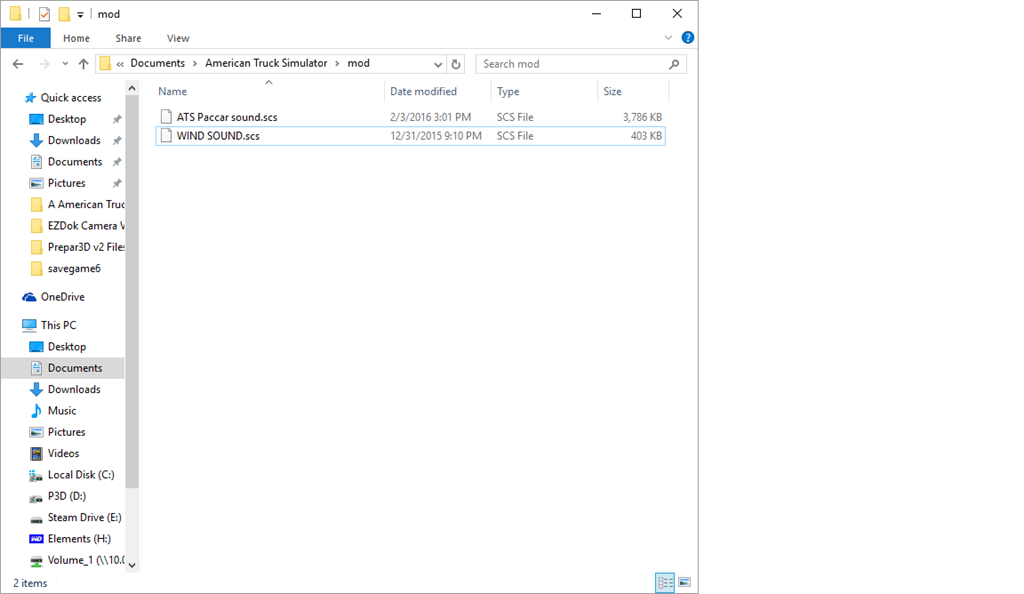
ATS stores most of your game-related data, including profiles, save games, and crucially, your mods, in a specific user directory. On Windows, this is typically located at:
C:Users[YourUsername]DocumentsAmerican Truck Simulator
Inside this folder, you’ll find:
profiles: Contains subfolders for each of your in-game profiles, storing save games, settings, and truck configurations.mod: This is the critical folder where all your downloaded mod files will reside. If it doesn’t exist, the game will create it once you open the Mod Manager, or you can create it manually.log.txt: An important file for troubleshooting. If your game crashes, thegame.log.txt(or simplylog.txt) file here will often contain clues about which mod might be causing issues.
Familiarize yourself with this structure, especially the mod folder.
Backing Up Your Game Files (Crucial Step!)
This cannot be stressed enough: Always back up your game profile before installing new mods, especially large or experimental ones. A corrupted profile can lead to hours of lost progress.
- How to Back Up: Simply navigate to the
Documents/American Truck Simulator/profilesfolder, locate the folder corresponding to your profile (it will have a long alphanumeric name), and copy it to a safe location (e.g., your desktop, an external drive). You can also back up your entireAmerican Truck Simulatorfolder for maximum safety. - Why it’s Crucial: In the event a mod causes crashes, conflicts, or data corruption, you can simply delete the problematic profile and restore your backup, resuming your game from a point before the issue arose. This is a fundamental “digital security” practice in the context of game customization.
Key Modding Terminology
A brief understanding of common terms will help you navigate modding communities and discussions:
- SCS File (.scs): This is the standard file format for ATS mods. All mods you download will typically be in this compressed archive format.
- Mod Manager: An in-game tool within ATS (accessible from the main menu) that allows you to see, activate, deactivate, and set the load order of your installed mods.
- Load Order/Priority: The sequence in which the game processes mods. If two mods modify the same game element, the mod loaded later (higher in the list in Mod Manager) will take precedence. Understanding load order is vital for resolving conflicts.
- Compatibility: Refers to whether a mod works correctly with your current game version and other installed mods. Mods for older game versions might not work, and some mods might conflict with each other.
- Dependencies: Some mods require other specific mods to function. For example, a truck accessory mod might require the base truck mod to be installed first.
- DLC (Downloadable Content): Official expansions for the game, such as new map areas (e.g., Idaho, Wyoming) or truck packs. Many mods are designed to be compatible with specific DLCs or might even require them.
Locating and Acquiring Your First ATS Mods
The internet is teeming with ATS mods, but knowing where to look and what to look for is key to a safe and enjoyable experience. Just like any software download, caution is advised.
Top Modding Communities and Websites
Reliability and community feedback are paramount when choosing where to download mods. Here are some trusted sources:
- SCS Software Forums: The official forums often have a dedicated modding section where creators share their work. These are generally reliable, and you can often find direct feedback from the developers.
- Modding Websites (e.g., ATSMods, ETS2.LT): There are numerous dedicated websites that host ATS mods. While some are excellent, others can be less reputable. Look for sites with active communities, clear download instructions, and user reviews. Be wary of sites that force excessive ads or suspicious redirects.
- Steam Workshop (for ETS2, not directly for ATS in the same way, but some creators cross-post): While ATS doesn’t have a direct Steam Workshop integration for mods like Euro Truck Simulator 2, many creators share their work on other platforms. Correction: While ETS2 has extensive Workshop integration, ATS has a more limited implementation for certain items, so relying on dedicated mod sites is more common for full mods.
- Creator Websites/Patreon: Many professional modders have their own websites or Patreon pages where they host their creations, often offering premium content or early access. Supporting these creators is a great way to ensure the continued development of high-quality mods.
Criteria for Choosing Safe and Compatible Mods
Before hitting the download button, consider these points to mitigate risks:
- Reputation of the Modder: Look for modders with a history of creating quality, bug-free content. Check comments, reviews, and community discussions.
- Mod Version and Game Version Compatibility: Always check if the mod is compatible with your current version of ATS. Game updates (patches) often break older mods. Mod descriptions usually specify the compatible game version (e.g., “Compatible with ATS 1.49”).
- User Reviews and Comments: These are invaluable. Positive feedback often indicates a good mod; negative comments frequently highlight bugs, crashes, or performance issues.
- Clear Instructions and Documentation: A well-made mod will come with clear installation instructions and possibly a readme file detailing its features, known issues, and dependencies.
- Source of Download: Prefer direct downloads from reputable sites or cloud storage (e.g., Google Drive, ShareMods) over obscure file-sharing services that might bundle malware or contain misleading links. This is a direct application of digital security principles.
Downloading Mods: What to Expect (SCS Files)
When you download an ATS mod, it will almost always be in the .scs file format. Sometimes, multiple .scs files will be bundled in a .zip or .rar archive, especially for map mods or complex truck packs.
- Extract if Necessary: If you download a
.zipor.rarfile, you’ll need a program like 7-Zip or WinRAR to extract the.scsfiles contained within. - Locate the
.scsfile(s): Ensure you’ve found the actual.scsfiles. Sometimes, modders include screenshots or readmes within the archive – you only need the.scsfiles for installation. - Read the Readme: Always open any included readme files. They often contain critical information about installation, load order, dependencies, or specific in-game settings required for the mod to function correctly.
The Step-by-Step Guide to Installing ATS Mods
Now for the main event: getting those exciting new additions into your game. The process is straightforward once you understand the core mechanics.
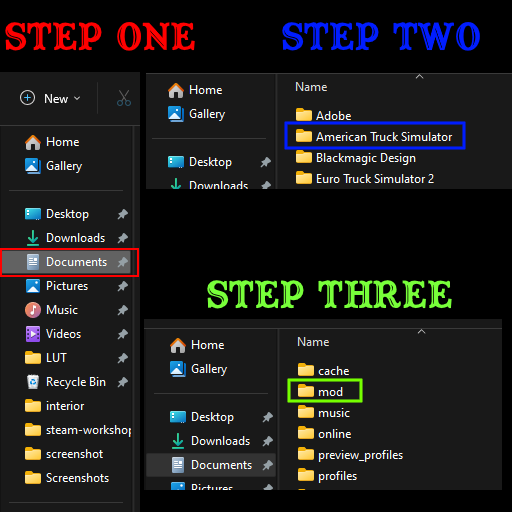
Locating Your ATS Mod Folder
As mentioned, your mod folder is the central hub for all your custom content.
- Navigate to:
C:Users[YourUsername]DocumentsAmerican Truck Simulator - Inside, you should see a folder named
mod. If it’s not there, simply right-click in an empty space, select “New,” then “Folder,” and name itmod(all lowercase).
Moving Your Downloaded Mod Files
This is the simplest part:
- Take all the
.scsfiles you’ve downloaded and extracted. - Copy or Move these
.scsfiles directly into themodfolder you located in the previous step.- Example:
C:Users[YourUsername]DocumentsAmerican Truck Simulatormodmy_awesome_truck.scs
- Example:
It’s good practice to keep your mod folder organized. Some players create subfolders within mod (e.g., trucks, maps, sounds), but ATS itself doesn’t require this – it just reads all .scs files directly within the mod folder.
Activating Mods Within the ATS Game Manager
Once the .scs files are in your mod folder, the game needs to know you want to use them.
- Launch American Truck Simulator.
- From the main game menu, click on the “Mod Manager” button. This is usually located near the “Continue Game” or “Load Game” options.
- In the Mod Manager screen, you will see a list of all detected
.scsfiles on the left (available mods). On the right, you’ll see a list of currently active mods. - To activate a mod: Select it from the left list and click the right-pointing arrow button (or double-click it) to move it to the active mods list on the right.
- To deactivate a mod: Select it from the right list and click the left-pointing arrow button (or double-click it) to move it back to the available mods list.
Mod Priority: Understanding the Load Order
This is often the most confusing but crucial aspect of mod management, especially when using multiple mods. The order in which mods appear in the active mods list (on the right side of the Mod Manager) dictates their priority.
- Higher Priority = Later Load: Mods listed higher up in the active mods list (closer to the top) have higher priority. This means if two mods modify the same game asset (e.g., both change the same truck sound, or both add a new texture to the same road), the mod that is higher in the list will “win” and its changes will be applied.
- General Rules for Load Order (Common Practices):
- Map Mods: Usually placed at the very top, as they form the foundation of the game world. If you have multiple map mods (e.g., a base map mod and a connector mod), follow the specific instructions provided by the map mod creators.
- Traffic/AI Mods: Often placed relatively high.
- Truck/Trailer Mods: Can vary. Sometimes base truck models need to be higher than accessory mods for that truck.
- Sound Mods: Generally placed lower than truck/trailer mods unless they are specifically designed to override engine sounds of a specific truck mod.
- Graphics/Weather Mods: Can vary. Sometimes placed higher to ensure environmental changes are consistent.
- Smallest Mods/Fixes: Often placed highest to ensure their specific fixes override any broader changes.
- Always Consult Mod Descriptions: The most reliable way to set load order is to follow the instructions provided by the mod author. They know how their mod interacts with others best.
- Adjusting Priority: In the Mod Manager, select an active mod and use the up/down arrow buttons to change its position in the list.
- Once you’ve activated your desired mods and set their load order, click the “Confirm Changes” button at the bottom of the Mod Manager.
- The game will then return to the main menu. Click “Continue Game” or “Load Game” to load your profile. If all goes well, your new mods should now be active in your game!
Troubleshooting and Advanced Mod Management
Even with careful preparation, modding can sometimes lead to issues. Knowing how to troubleshoot and manage your mod library effectively is an essential skill.
Common Modding Issues and Solutions
- Game Crashes on Startup/Load: This is the most common issue and usually indicates a mod conflict or an incompatible mod.
- Solution: Deactivate all newly installed mods. Re-enable them one by one (or in small batches) to identify the culprit. Check the
game.log.txtfile (in yourDocuments/American Truck Simulatorfolder) after a crash – it often contains error messages pointing to the problematic mod.
- Solution: Deactivate all newly installed mods. Re-enable them one by one (or in small batches) to identify the culprit. Check the
- Missing Textures/Invisible Trucks/Glitchy Graphics: Often caused by incorrect load order or a broken/outdated mod.
- Solution: Review the mod’s load order instructions. Ensure it’s compatible with your game version and any other relevant mods (e.g., a truck mod compatible with a specific chassis mod).
- Mod Not Appearing In-Game: You’ve activated it, but it’s not showing up.
- Solution: Double-check that the
.scsfile is in the correctmodfolder. Verify it’s activated in the Mod Manager. Ensure there are no dependencies missing.
- Solution: Double-check that the
- Poor Performance/Low FPS: Too many complex mods, especially high-resolution graphics or large map mods, can strain your system.
- Solution: Prioritize essential mods. Remove purely aesthetic ones that significantly impact performance. Ensure your game drivers are updated. Adjust in-game graphics settings.
- Game Updates Breaking Mods: When SCS Software releases a new game version, many older mods will temporarily become incompatible.
- Solution: Be patient. Mod authors usually update their creations within days or weeks of a major patch. Check mod pages for updates. Consider rolling back your game version on Steam if you absolutely need an old mod (though this isn’t always recommended as it locks you out of new content).
How to Safely Remove Mods
If a mod is causing problems or you simply don’t want it anymore:
- Deactivate in Mod Manager: First, go into the game’s Mod Manager and deactivate the mod. Click “Confirm Changes.”
- Load Game and Save: Load your game profile. If the mod added items to your truck (e.g., a custom part), you might want to remove those parts in-game (e.g., at a service station) before saving. This helps prevent “ghost” parts.
- Exit Game: Quit ATS completely.
- Delete from Mod Folder: Navigate to your
Documents/American Truck Simulator/modfolder and delete the corresponding.scsfile(s).
Following these steps ensures a clean removal and prevents leftover data from causing future issues.
Keeping Your Mods Updated
Mod authors frequently release updates to fix bugs, add new features, or ensure compatibility with new ATS game versions.
- Regularly Check Mod Sources: Periodically revisit the websites or forums where you downloaded your mods to see if new versions are available.
- Backup Before Updating: Even when updating, it’s a good practice to back up your game profile, just in case the new mod version introduces an unexpected issue.
- Replace Old Files: When updating a mod, always replace the old
.scsfile in yourmodfolder with the new one. Do not keep both.

The Future of ATS Modding and Community Engagement
The American Truck Simulator modding scene is a testament to the creativity and dedication of its community. It’s a dynamic ecosystem constantly evolving with new tools, more complex modifications, and increasingly ambitious projects. Engaging with this community is a rewarding experience:
- Participate in Forums: Share your experiences, ask questions, and help others.
- Support Mod Authors: Many modders dedicate countless hours to their craft. Consider donating via Patreon or PayPal if you enjoy their work. This directly contributes to the quality and quantity of future mods.
- Learn to Create Your Own: For the truly ambitious, learning to create your own mods using tools like SCS Blender Tools can be a fascinating journey into game development and a powerful way to bring your unique vision to the game.
By embracing modding, you’re not just playing American Truck Simulator; you’re becoming an active participant in its ongoing evolution. From customizing your rig to exploring vast, user-created worlds, mods open up a highway of possibilities, ensuring that your trucking adventures remain fresh, exciting, and deeply personal. Happy trucking, and may your mod folder always be full of compatible, high-quality content!
aViewFromTheCave is a participant in the Amazon Services LLC Associates Program, an affiliate advertising program designed to provide a means for sites to earn advertising fees by advertising and linking to Amazon.com. Amazon, the Amazon logo, AmazonSupply, and the AmazonSupply logo are trademarks of Amazon.com, Inc. or its affiliates. As an Amazon Associate we earn affiliate commissions from qualifying purchases.