
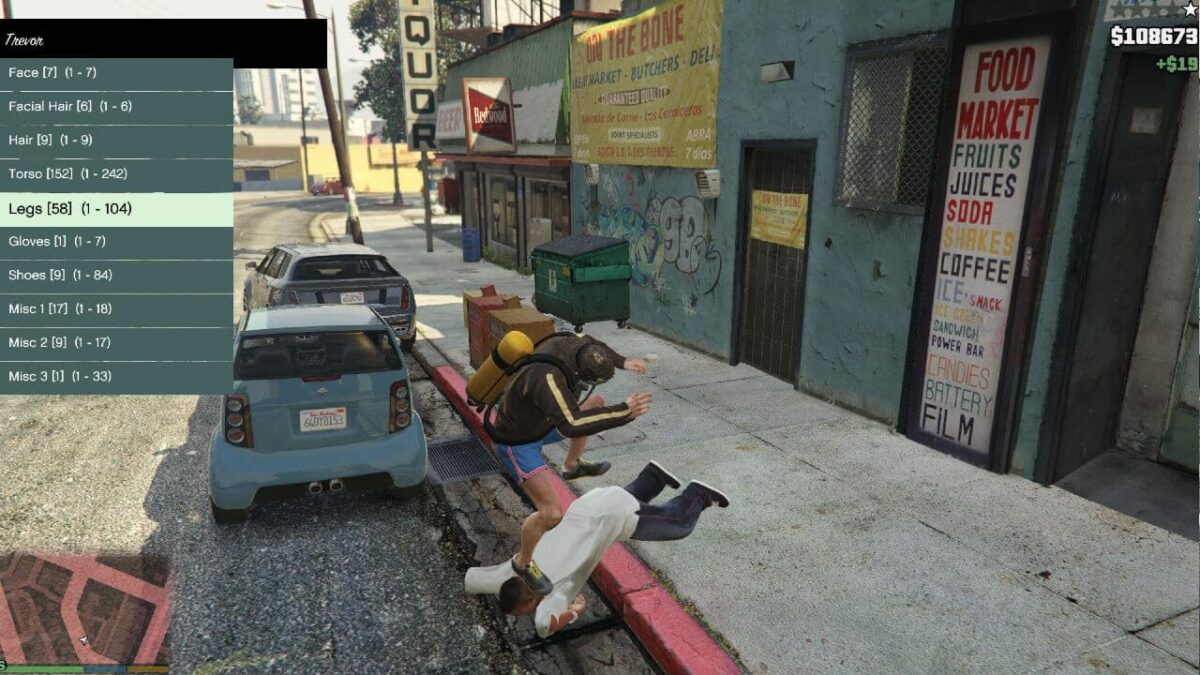
Grand Theft Auto V, even years after its initial release, remains a titan in the open-world gaming genre, captivating millions with its expansive map, compelling story, and endless possibilities for mayhem. Yet, for many PC players, the official content is just the beginning. The true longevity and creative potential of GTA V are unleashed through its vibrant modding community. Mods can transform the game, from subtle graphical enhancements and quality-of-life improvements to entirely new vehicles, weapons, missions, and even gameplay mechanics that Rockstar never envisioned.
For newcomers, the world of GTA V modding can seem daunting, a labyrinth of files, tools, and technical jargon. However, with the right guidance, installing mods on your PC version of GTA V is a rewarding process that can inject fresh life into your game. This comprehensive guide will demystify the process, walking you through the essential tools, techniques, and best practices to transform your Grand Theft Auto V experience. Prepare to unlock a universe of custom content and make Los Santos truly your own.
Understanding GTA V Modding Essentials
Before diving into the actual installation process, it’s crucial to understand the foundational elements and tools that make GTA V modding possible. A solid grasp of these prerequisites will ensure a smoother, more stable modding experience and help you troubleshoot potential issues down the line.
Prerequisites for a Smooth Modding Experience
To embark on your modding journey, a few fundamental items and skills are essential:
-
A Legitimate Copy of GTA V (PC Version): This is non-negotiable. Pirated copies often have modified files or lack necessary updates, making mod installation unstable or impossible. Ensure your game is fully updated to the latest version.
-
Stable Internet Connection: You’ll need this to download various modding tools and the mods themselves.
-
Adequate PC Specifications: While GTA V itself runs on a wide range of hardware, adding numerous or graphics-intensive mods can significantly increase resource demands. Ensure your system can handle the additional load.
-
Basic File Management Knowledge: You’ll be navigating folders, copying, pasting, and creating new directories. Familiarity with your operating system’s file explorer is a must.
-
An Archiving Tool (e.g., WinRAR, 7-Zip): Most mods and tools come compressed in
.zip,.rar, or.7zformats, requiring one of these programs to extract their contents.
Key Modding Tools You’ll Need
The modding community has developed several indispensable tools that act as the backbone for almost every mod you’ll encounter. Understanding their purpose is key:
-
Script Hook V: Developed by Alexander Blade, this is arguably the most critical tool for script-based mods. It injects a “hook” into the game process, allowing external
.asiscripts to interact with the game’s engine. Most trainers, new gameplay mechanics, and advanced scripts rely on Script Hook V. It also includes an ASI Loader (dinput8.dll), which allows the game to load.asifiles. -
Script Hook V .NET: For mods written using the .NET framework (typically
.csfiles), this extension provides the necessary framework for them to run alongside Script Hook V. -
OpenIV: This powerful tool is a file editor and archive manager for GTA V (and other Rockstar games). It allows you to view, extract, and replace files within the game’s proprietary
.rpfarchives, which store most of the game’s assets like models, textures, and data files. OpenIV is crucial for installing replacement vehicle mods, custom maps, and any mod delivered as an.oivpackage. It also introduces the vital “mods folder” concept. -
Community Script Hook V .NET (or similar UI library): Many script mods, especially those with in-game menus, require additional libraries like NativeUI to display graphical user interfaces. Always check a mod’s requirements.
-
Heap Adjuster / Packfile Limit Adjuster: For players who install a vast number of add-on vehicles, maps, or other extensive content, GTA V’s default memory limits can be exceeded, leading to crashes. These tools modify the game’s internal limits, allowing for a much larger volume of custom content.
The Importance of Backups
This cannot be stressed enough: always back up your game files before modding. Even experienced modders encounter issues, and having a clean backup is your best defense against corrupted installations, game crashes, or needing to re-download the entire game.
-
What to Back Up:
-
Your entire GTA V installation directory: This is the most comprehensive backup. Copy the whole folder to a separate drive or location.
-
The
updatefolder: Located in your main game directory, this folder contains many crucial game data files. -
Specific
.rpfarchives: If you plan to modify a particular archive (e.g.,x64e.rpffor specific vehicle models), make a copy of it first. -
Your
modsfolder (once created): This allows you to easily revert changes within your modded environment.
-
Setting Up Your Modding Environment
With the necessary tools downloaded and an understanding of their roles, it’s time to prepare your GTA V installation for mods. This setup ensures that your modded files are isolated from the original game files, simplifying future updates and troubleshooting.
Creating the ‘mods’ Folder
This is a cornerstone of safe GTA V modding and is primarily managed through OpenIV.
-
Locate Your GTA V Directory: This is typically
C:Program FilesRockstar GamesGrand Theft Auto Vfor Rockstar Warehouse versions orC:Program Files (x86)SteamsteamappscommonGrand Theft Auto Vfor Steam versions. -
Launch OpenIV: When you open OpenIV for the first time, it will prompt you to specify your GTA V installation path. Select the correct folder.
-
Install ASI Manager: In OpenIV, go to “Tools” -> “ASI Manager.” Install “ASI Loader” and “OpenIV.asi.” The ASI Loader (
dinput8.dll) allows.asiplugins (like Script Hook V) to work. OpenIV.asi enables OpenIV’s “mods folder” functionality. -
The ‘mods’ Folder Magic: Once OpenIV.asi is installed, whenever you attempt to edit an
.rpfarchive within OpenIV, it will prompt you to copy it to your “mods folder.” Always choose to copy to the ‘mods’ folder. This creates a duplicate of the original game archive (e.g.,update.rpf) within a newly createdmodsdirectory in your main GTA V folder (Grand Theft Auto Vmodsupdateupdate.rpf). All your modifications will then be applied to these duplicated files, leaving the originals untouched. This is vital for game updates and for easily reverting changes.
Installing Script Hook V and Script Hook V .NET
These tools are relatively straightforward to install:
-
Download Script Hook V: Always get it from the official developer’s website (e.g.,
dev-c.com). Be wary of other sources, as they might provide outdated or malicious versions. -
Extract Files: Open the downloaded
.zipfile. You’ll typically find three files:ScriptHookV.dll,dinput8.dll(the ASI Loader), andNativeTrainer.asi. -
Copy to Game Directory: Copy
ScriptHookV.dllanddinput8.dlldirectly into your main GTA V installation directory (e.g.,C:Program FilesRockstar GamesGrand Theft Auto V). TheNativeTrainer.asiis an optional sample trainer; you can copy it if you want an immediate in-game mod menu, but it’s not essential for other mods to work. -
Install Script Hook V .NET (if required): Download the latest version from its GitHub page or a trusted modding site. Extract the contents and copy
ScriptHookVDotNet.asi,ScriptHookVDotNet.dll, andScriptHookVDotNet3.dll(or similar version-specific files) into your main GTA V directory. -
Create a ‘scripts’ Folder: Many script-based mods (especially
.csor.luascripts) are placed into ascriptsfolder within your main GTA V directory. If it doesn’t exist, create it:Grand Theft Auto Vscripts.
Installing Different Types of Mods
GTA V mods come in various forms, each requiring a slightly different installation approach. Understanding these methods is key to successfully integrating new content into your game.
Installing Script-Based Mods (.asi, .lua, .cs)
Script mods add new functionalities, trainers, or gameplay elements.
-
ASI Mods: These are
.asifiles that typically extend Script Hook V.-
Method: Simply copy the
.asifile into your main GTA V directory. If it’s a menu or trainer, it might have an associated.inior.xmlconfiguration file; place these alongside the.asifile. -
Example: A simple time-warp mod or a police radio enhancement.
-
-
.NET Scripts (.cs) / Lua Scripts (.lua): These scripts usually go into a designated
scriptsfolder.-
Method: After installing Script Hook V .NET and creating the
scriptsfolder (Grand Theft Auto Vscripts), extract the mod’s.cs,.vb,.js, or.luafiles (and any associated folders) directly into thisscriptsdirectory. -
Example: A mod that lets you teleport, spawn objects, or adds a custom minimap.
-
Installing Replacement Mods (Vehicles, Pedestrians, Textures)
Replacement mods swap existing game assets with custom ones. This primarily uses OpenIV and the “mods folder” system.
-
Open OpenIV and Enable Edit Mode: Launch OpenIV and click “Edit Mode” at the top right of the window.
-
Navigate to the Target Archive: Use OpenIV’s browser to locate the
.rpfarchive containing the files you want to replace. Common locations include:-
modsupdatex64dlcpackspatchdayXdlc.rpfx64levelsgta5(for common vehicles, weapons, peds) -
modsx64e.rpflevelsgta5vehicles.rpf(for specific vehicles) -
Crucial Step: When you first navigate to an
.rpffile you intend to modify, OpenIV will likely prompt you to “Copy to ‘mods’ folder.” Always select this option. This ensures you’re editing a copy, not the original game file.
-
-
Drag and Drop: Once you’re in the correct archive within your
modsfolder, simply drag and drop the new mod files (e.g.,.yft,.ytd,.ybnfor vehicles) from your downloaded mod folder directly into OpenIV. -
Disable Edit Mode: Once done, you can disable “Edit Mode” in OpenIV.
Installing OIV Package Mods
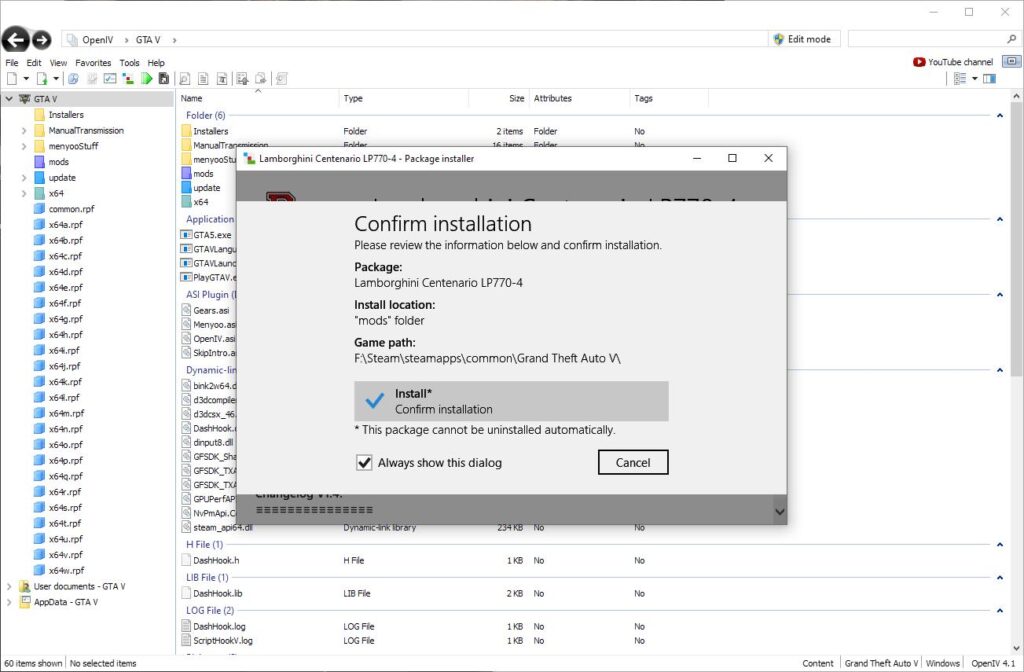
Some complex mods, especially large overhauls or collections, come as .oiv packages, which are automated installers for OpenIV.
-
Download the .oiv File: Save the
.oivfile to a convenient location. -
Open OpenIV: Launch OpenIV.
-
Launch Package Installer: Go to “Tools” -> “Package Installer.”
-
Select .oiv: Browse to and select the
.oivfile. -
Follow Prompts: The installer will guide you. Always choose “Install to mods folder” if prompted, ensuring your original game files remain untouched.
-
Confirm Installation: Once complete, the mod will be integrated.
Installing Add-On Mods (Vehicles, Peds, Maps)
Add-on mods introduce entirely new content without replacing existing game files, making them very popular. This typically involves creating new dlcpacks and editing the dlclist.xml.
-
Create Mod Folder Structure:
-
Navigate to
modsupdatex64dlcpacksin OpenIV (remembering to copyupdate.rpftomodsif you haven’t already). -
Create a new folder here, named exactly as the mod instructions specify (e.g.,
myaddoncar). -
Inside this new folder, create another folder named
dlc.rpf. -
Copy the
dlc.rpffile provided with your mod intomodsupdatex64dlcpacksmyaddoncardlc.rpf.
-
-
Edit
dlclist.xml:-
Navigate to
modsupdateupdate.rpfcommondatain OpenIV. -
Right-click on
dlclist.xmland choose “Edit.” -
Scroll to the bottom of the list and add a new line within the
<Item>tags, pointing to your newdlcpack:<Item>dlcpacks:myaddoncar</Item> -
Save the
dlclist.xmlfile.
-
Troubleshooting Common Modding Issues
Modding, while rewarding, can occasionally lead to problems. Here are some common issues and their solutions:
Game Crashing on Startup
-
Outdated Script Hook V: This is the most frequent cause after a game update. Wait for the Script Hook V developer to release an updated version.
-
Corrupted Game Files: Verify the integrity of your game files through Steam or Epic Games Launcher.
-
Too Many Mods / Resource Limits: If you have many add-on vehicles or complex scripts, install a Heap Adjuster and Packfile Limit Adjuster to increase game memory limits.
-
Conflicting Mods: Two mods trying to modify the same game aspect can cause crashes. Try removing recently added mods one by one to isolate the culprit.
Mods Not Appearing/Working
-
Incorrect File Placement: Double-check that all mod files (e.g.,
.asi,.dll,.cs,.yft) are in their correct directories. -
Missing Prerequisites: Ensure Script Hook V, Script Hook V .NET, OpenIV ASI Manager, and any other required libraries are correctly installed.
-
Editing Original Files: Ensure you are making changes within your
modsfolder via OpenIV, not the original game files. -
Mod Incompatibility: The mod might be outdated or incompatible with your current GTA V game version. Check the mod’s description and comments for compatibility information.
-
dlclist.xmlErrors: For add-on mods, verify that the entry indlclist.xmlis correctly formatted and points to the rightdlcpackfolder.
Update Breakage
Rockstar Games occasionally releases updates for GTA V. These updates often break Script Hook V and can cause instability with other mods.
-
Solution: Be patient. Wait for mod developers (especially Script Hook V’s) to release updated versions of their tools. Do not try to run an outdated Script Hook V with a new game version; it will likely crash.
-
Prevention: Before a game update, consider backing up your entire modded game folder. Some modders keep a separate “clean” GTA V installation for online play to avoid these issues.
Infinite Loading Screen
This often points to an issue with dlclist.xml or a problem with an add-on mod.
- Solution: Revert your
dlclist.xmlto a previous backup, or meticulously check each entry for typos. Remove recently added add-on mods one by one to find the problematic one.
Best Practices and Safety Considerations
Modding is a dynamic activity, and adopting best practices will help you avoid issues and enjoy your enhanced game securely.
Mod Source Reliability
-
Trusted Websites: Always download mods from reputable sites like GTA5-Mods.com or Nexus Mods. These sites often have community review systems, ratings, and virus scanning.
-
Read Comments and Descriptions: Before downloading, read the mod’s description carefully and check the comment section. Users often report bugs, compatibility issues, or even malicious content.
-
Virus Scans: Even from trusted sites, it’s wise to run a quick virus scan on downloaded files, especially
.exeor.dllfiles, before placing them in your game directory.
Online vs. Offline Modding: A Critical Warning
This is perhaps the most important rule of GTA V modding:
-
NEVER go online with mods enabled. Rockstar Games employs anti-cheat systems, and playing GTA Online with any active mods (even harmless visual ones) will almost certainly result in a ban. This can range from a temporary suspension to a permanent ban of your account.
-
Solution: Script Hook V automatically disables itself when you attempt to enter GTA Online. However, other types of mods (like those installed with OpenIV) might still be active. If you want to play GTA Online, it’s highly recommended to either:
-
Remove all mods: A tedious process.
-
Use a dedicated mod manager: Tools like “GTAV Mod Manager” can enable/disable entire mod setups quickly.
-
Have a separate, clean GTA V installation: Maintain two copies of the game – one for modding offline and one for playing GTA Online.
-
Keeping Your Game Updated (Carefully)
-
Automatic Updates: If you have automatic game updates enabled, be prepared for potential mod breakage after an official patch.
-
Manual Control: Some players prefer to disable automatic updates and update GTA V manually only after verifying that their essential modding tools have been updated for the new game version.
Read Mod Instructions Carefully
Every mod is unique. While this guide covers general principles, many mods have specific, detailed instructions that must be followed precisely. Neglecting to read them is a common cause of installation failures.
Responsible Modding
Support the modding community by reporting bugs to developers, leaving constructive feedback, and considering donations if a mod significantly enhances your experience. Avoid distributing copyrighted or malicious content.
The world of GTA V modding is vast and exciting, offering countless hours of renewed gameplay and creative expression. By following these guidelines, arming yourself with the right tools, and approaching the process with a degree of caution, you’ll be well-equipped to transform your Grand Theft Auto V experience into something truly unique and personal. Happy modding!
aViewFromTheCave is a participant in the Amazon Services LLC Associates Program, an affiliate advertising program designed to provide a means for sites to earn advertising fees by advertising and linking to Amazon.com. Amazon, the Amazon logo, AmazonSupply, and the AmazonSupply logo are trademarks of Amazon.com, Inc. or its affiliates. As an Amazon Associate we earn affiliate commissions from qualifying purchases.