
The landscape of desktop computing has shifted dramatically over the last decade, with Linux emerging as a formidable sanctuary for developers, privacy advocates, and, increasingly, gamers. While Windows has long been the default choice for the gaming community, the advent of the Steam Deck and the maturation of the Wine compatibility layer have proven that high-performance gaming on open-source kernels is not just possible—it is often superior in terms of system overhead and customization. Among the titles that have maintained a consistent presence on the platform, Minecraft: Java Edition stands out. Because it is built on the Java programming language, it is inherently cross-platform, yet installing it on Linux involves nuances that vary between distributions like Ubuntu, Fedora, and Arch.

This comprehensive guide explores the technical architecture of Minecraft on Linux, providing detailed installation workflows, performance optimization strategies, and security considerations for the modern user.
1. Understanding the Technical Foundation: Java and Linux Compatibility
Before diving into the terminal commands, it is essential to understand the underlying technology that allows Minecraft to run. Unlike most modern AAA titles that rely on Windows-specific DirectX APIs, Minecraft (specifically the Java Edition) operates within the Java Virtual Machine (JVM). This abstraction layer allows the same code to run on a variety of operating systems.
Java Runtime Environment (JRE) Requirements
Minecraft is sensitive to the version of Java installed on your system. While older versions of the game utilized Java 8, modern versions (1.18 and later) require Java 17 or higher. On Linux, users generally choose between the proprietary Oracle JDK and the open-source OpenJDK. For the vast majority of users, OpenJDK is the recommended path due to its inclusion in official repositories and its adherence to open-source principles.
Java Edition vs. Bedrock Edition
It is a common point of confusion for new Linux users: which version can they play? Minecraft: Java Edition is the only version with native Linux support. The Bedrock Edition (found on Windows 10/11, Xbox, and mobile) is written in C++ and utilizes DirectX, making it incompatible with Linux without specialized, community-made wrappers or Android emulators. For the most stable and authentic experience, Linux users should focus on the Java Edition.
System Prerequisites and Drivers
While Minecraft is often perceived as a “low-poly” game, its reliance on procedural generation and high-resolution textures can be taxing on hardware. For Linux users, ensuring your graphics drivers are up to date is paramount. NVIDIA users should opt for the proprietary drivers available in their distribution’s hardware manager, while AMD and Intel users benefit from the high-performance, open-source Mesa drivers already integrated into the Linux kernel.
2. Step-by-Step Installation Methods for Major Distributions
Linux offers multiple ways to install software, ranging from native packages to containerized formats. The “best” method often depends on your specific distribution and your desire for system stability versus cutting-edge features.
Installing via the Official Debian/Ubuntu (.deb) Package
For users on Ubuntu, Linux Mint, or Pop!_OS, Mojang provides a native Debian package. This is often the most straightforward entry point for beginners.
-
Download: Navigate to the official Minecraft website and download the
Minecraft.debfile. -
Installation: Open your terminal and navigate to your Downloads folder. Run the command:
sudo apt install ./Minecraft.deb -
Dependencies: This command handles the installation of necessary dependencies, including the launcher’s graphical interface requirements. Once finished, Minecraft will appear in your application menu.
Leveraging Flatpak for Universal Compatibility
If you are using a “bleeding-edge” distribution like Fedora or a specialized one like Elementary OS, the Flatpak version is often the superior choice. Flatpak bundles the application with all its required libraries, preventing “dependency hell.”
-
Setup Flathub: Ensure Flatpak is installed on your system and add the Flathub repository.
-
Install: Execute
flatpak install flathub com.mojang.Minecraft. -
Benefits: The Flatpak version runs in a sandboxed environment, providing an extra layer of security by limiting the game’s access to your personal files and system configuration.
Arch Linux and the AUR (Arch User Repository)
Arch Linux users have access to the AUR, which contains community-maintained scripts to build and install the launcher. Using an AUR helper like yay, the installation is as simple as:
yay -S minecraft-launcher
This method ensures that the launcher is integrated directly into the system’s package management system, allowing for seamless updates alongside the OS.
3. Beyond the Stock Launcher: Third-Party Solutions
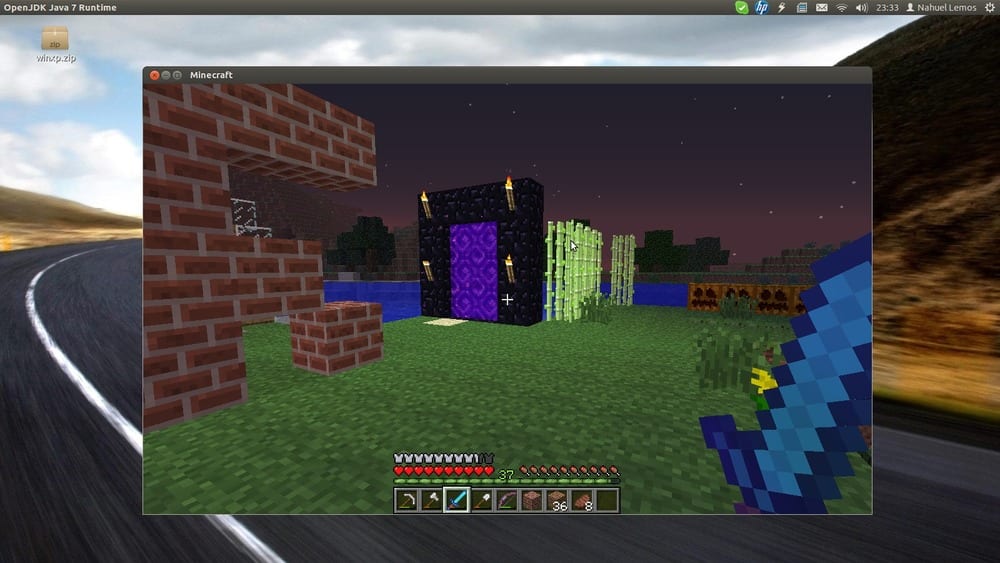
For the Linux power user, the official Minecraft launcher can feel restrictive. The Linux community has developed several sophisticated alternatives that offer better performance, better mod management, and the ability to manage multiple game versions simultaneously.
Prism Launcher: The Open-Source Standard
Prism Launcher (a fork of the popular PolyMC and MultiMC) is widely considered the gold standard for Minecraft on Linux. It is lightweight, allows for the creation of independent “instances,” and provides direct integration with mod platforms like CurseForge and Modrinth.
-
Instance Management: You can have one instance for a pure “Vanilla” experience and another for a heavy “Technic” modpack, each with its own Java version and memory settings.
-
Ease of Use: Prism makes it incredibly easy to download and install specialized loaders like Fabric or Forge with a single click, bypassing the tedious manual installation of .jar files.
MultiMC and the Philosophy of Portability
MultiMC paved the way for modern third-party launchers. Its philosophy is rooted in portability and cleanliness. It does not scatter files across your home directory; instead, everything remains within the folder where MultiMC is installed. For users who value a clean /home partition, MultiMC remains a top-tier choice.
4. Technical Optimization and Performance Tuning
Linux users often pride themselves on system efficiency. To get the highest possible frames per second (FPS) and the lowest latency, a few technical adjustments are necessary.
Replacing OptiFine with the Sodium/Iris Stack
While OptiFine was the historical king of performance, modern Minecraft versions on Linux perform significantly better using the Sodium rendering engine on the Fabric loader. Sodium utilizes modern OpenGL features to drastically reduce CPU overhead.
- Iris Shaders: If you want visual fidelity, Iris allows you to run shaders on top of Sodium with performance that often doubles what is achievable on Windows under similar hardware conditions.
JVM Argument Optimization
The way Java manages memory (Garbage Collection) can cause “stuttering” in Minecraft. By default, the launcher might only allocate 2GB of RAM. For a smooth experience, especially with high render distances, you should adjust the JVM arguments in your launcher settings.
-
Memory Allocation: Set
-Xmx4G(for 4GB) or higher, depending on your system’s total RAM. -
Aikar’s Flags: Many server administrators recommend “Aikar’s Flags,” a specific set of Java arguments designed to optimize garbage collection and prevent lag spikes. Implementing these in your client launcher can result in a much smoother frame-time graph.
Utilizing Gamemode
gamemode is a daemon developed by Feral Interactive for Linux. It allows games to request a set of optimizations be temporarily applied to the host OS, such as setting the CPU governor to “performance” mode and increasing the process priority.
- To use it, ensure
gamemodeis installed and prefix your launch command withgamemoderun.
5. Security and Maintenance in the Linux Environment
One of the primary reasons users migrate to Linux is security. However, gaming still introduces risks, particularly when downloading community-made mods and shaders.
Sandboxing and Permissions
If you are concerned about security, using the Flatpak version of Minecraft is highly recommended. You can use an application called Flatseal to manage the permissions of the Minecraft Flatpak. For instance, you can revoke its access to your entire home folder and only allow it to see a specific “Games” directory, preventing any malicious mod from accessing your sensitive documents.
Managing Java Updates and Security Patches
Because Minecraft relies on Java, keeping your JRE updated is a security necessity. Linux package managers make this easy, but you must ensure you aren’t stuck on an end-of-life (EOL) Java version. Regularly running sudo apt update && sudo apt upgrade (or the equivalent for your distro) ensures that any vulnerabilities found in the OpenJDK are patched promptly.
Digital Sovereignty and Mod Safety
Always source your mods from reputable platforms like Modrinth or CurseForge. On Linux, it is easy to inspect the contents of a .jar file or monitor network activity using tools like nethogs or Wireshark. This transparency is a core advantage of the Tech-centric Linux ecosystem, allowing users to verify exactly what their software is doing in the background.

Conclusion
Installing Minecraft on Linux is more than just a way to play a game; it is an exercise in leveraging the power of open-source software to create a highly optimized, secure, and customizable environment. Whether you choose the simplicity of the official .deb package or the advanced features of the Prism Launcher, Linux provides a robust foundation that often outperforms its proprietary counterparts. By understanding the nuances of the Java Virtual Machine, utilizing modern rendering engines like Sodium, and practicing smart security through sandboxing, you can transform your Linux workstation into the ultimate Minecraft machine. The synergy between the world’s most popular sandbox game and the world’s most flexible operating system offers a digital experience that is truly second to none.