
In the relentless pursuit of optimal PC performance, managing CPU temperatures stands as a critical challenge. As processors become more powerful and demanding, traditional air cooling often struggles to keep pace, leading to thermal throttling and reduced longevity. Liquid cooling emerges as a superior solution, offering not only enhanced thermal management but also quieter operation and often a more aesthetically pleasing build. This comprehensive guide will walk you through the process of installing an All-In-One (AIO) liquid cooler on your CPU, transforming your system’s cooling capabilities.
The Imperative for Liquid Cooling: Why Make the Switch?
The decision to transition from air cooling to liquid cooling is often driven by a combination of performance needs, acoustic considerations, and aesthetic preferences. Understanding the fundamental advantages of liquid cooling helps solidify its position as a go-to solution for enthusiasts and power users.
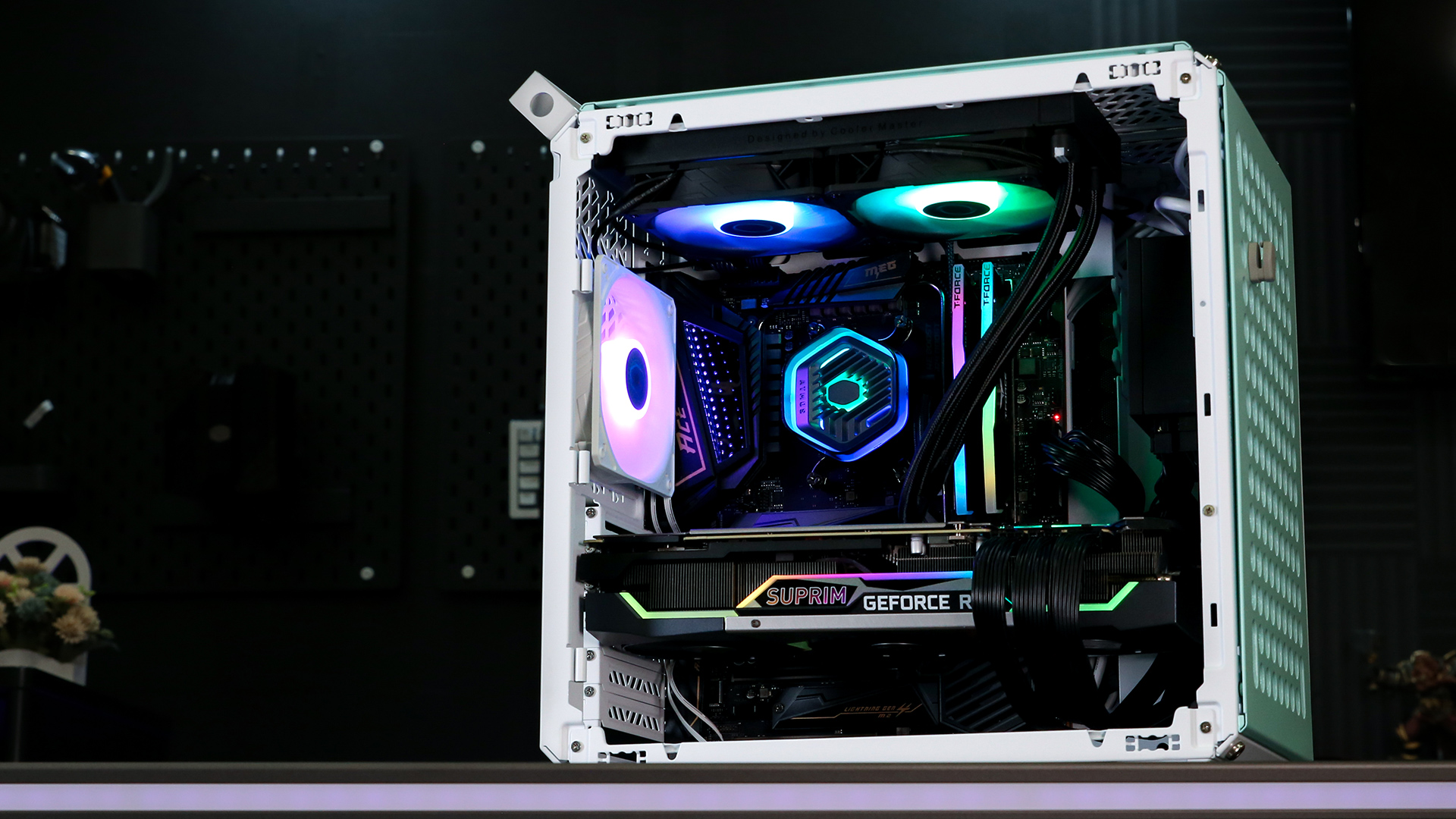
Understanding CPU Thermal Dynamics
Modern CPUs generate significant heat, especially under heavy loads from gaming, video editing, or complex computations. This heat, if not dissipated efficiently, can cause the CPU to automatically reduce its clock speed (thermal throttling) to prevent damage. While effective for protection, throttling severely impacts performance. Liquid cooling, with its higher thermal conductivity and capacity, excels at transferring heat away from the CPU more rapidly and efficiently than air-based solutions. The coolant, typically water-based, absorbs heat from the CPU cold plate and carries it to a radiator, where it is dispersed into the environment by fans. This continuous cycle ensures that the CPU operates within optimal temperature ranges, allowing it to maintain peak performance longer.
AIO vs. Custom Loops: Choosing Your Solution
When venturing into liquid cooling, you’ll primarily encounter two types: All-In-One (AIO) coolers and custom liquid cooling loops. An AIO cooler is a sealed, self-contained unit that comes pre-filled and requires no maintenance beyond occasional dusting. It consists of a CPU block/pump, radiator, and tubing, making it an excellent choice for beginners due to its ease of installation and reliability. It offers significantly better performance than most air coolers without the complexity of a full custom loop.
Custom liquid cooling loops, on the other hand, offer the ultimate in performance and aesthetic customization. They involve individually selecting and assembling components like a CPU block, GPU block, pump, reservoir, radiator(s), tubing, and fittings. While offering superior cooling potential and a unique visual appeal, custom loops demand a much higher financial investment, extensive technical knowledge, and regular maintenance. For the purpose of this guide, and for most users seeking a substantial upgrade, we will focus on the more accessible and widely adopted AIO liquid cooler installation.
The Performance and Aesthetic Edge
Beyond raw thermal performance, liquid cooling brings several other compelling benefits. AIO coolers often operate more quietly than high-performance air coolers, as larger radiators and lower fan speeds can achieve the same or better cooling efficiency. This results in a more pleasant computing experience, especially during demanding tasks. Aesthetically, AIO coolers offer a cleaner, less cluttered look inside the PC case. The sleek tubing and integrated RGB lighting found on many models can significantly enhance the visual appeal of your build, transforming it into a centerpiece. Furthermore, the absence of a large air cooler tower frees up space around the CPU socket, improving airflow to other components and making RAM installation or removal much easier.
Essential Preparations and Compatibility Checks
Before you embark on the physical installation, thorough preparation is paramount. This stage involves gathering the necessary tools, verifying component compatibility, and readying your existing system. Skipping these steps can lead to frustrating roadblocks, potential damage, or the realization that your chosen cooler won’t fit.
Gathering Your Arsenal: Tools and Components
A successful installation hinges on having the right equipment at hand. For an AIO liquid cooler installation, you’ll need:
-
Your AIO Liquid Cooler: Ensure it’s out of the box and all components are accounted for (radiator, fans, CPU block/pump, mounting hardware, thermal paste – sometimes pre-applied).
-
Screwdriver Set: A magnetic Phillips head screwdriver is essential for most PC screws. A smaller one might be useful for tighter spots.
-
Thermal Paste (if not pre-applied): A small tube of high-quality thermal paste will ensure optimal heat transfer.
-
Rubbing Alcohol (IPA) and Lint-Free Cloths: For cleaning old thermal paste from the CPU and ensuring a clean surface for the new paste.
-
Anti-Static Wrist Strap: While not strictly mandatory for experienced builders, it’s a good practice to prevent static discharge from damaging sensitive components.
-
Zip Ties or Velcro Straps: For efficient cable management after installation.
-
Your PC Case and Motherboard Manuals: These will be invaluable for identifying fan headers, understanding case clearances, and confirming mounting points.
Ensuring System Compatibility: The Critical First Step
Compatibility is the cornerstone of any PC build or upgrade. Before purchasing an AIO cooler, diligently check the following:
-
CPU Socket Compatibility: Your AIO cooler must support your CPU’s socket type (e.g., Intel LGA1700, LGA1200, AMD AM5, AM4). This information is always listed on the cooler’s packaging and specifications.
-
Case Clearance: This is crucial.
-
Radiator Size: AIO coolers come in various radiator sizes (e.g., 120mm, 140mm, 240mm, 280mm, 360mm, 420mm). Your PC case must have mounting points that accommodate your chosen radiator size. Common mounting locations include the top, front, or rear of the case. Consult your case manual for specific radiator support.
-
Radiator Thickness + Fans: Remember to account for the combined thickness of the radiator and its fans, especially if mounting in a tight spot like the top of the case where it might interfere with RAM or motherboard heatsinks.
-
-
RAM Clearance: Some larger AIO pump blocks can conflict with tall RAM heat spreaders. While less common with AIOs than with massive air coolers, it’s worth a quick visual check or reference to user reviews if you have particularly tall RAM modules.
-
Motherboard Fan Headers: Ensure your motherboard has enough fan headers (CPUFAN, AIOPUMP, SYSFAN) to power the cooler’s pump and fans. Most AIOs require at least one CPUFAN header for the pump and additional headers for the fans, or a fan splitter/controller can be used.
Preparing Your System for the Upgrade
Once compatibility is confirmed, prepare your existing PC:
-
Power Down and Disconnect: Completely shut down your computer, unplug it from the wall, and press the power button a few times to drain any residual power.
-
Open the Case: Remove the side panel(s) of your PC case to gain full access to the internal components.
-
Remove Old Cooler (if applicable):
-
If you have an existing air cooler, carefully unmount it from the CPU. This usually involves unclipping retention arms or unscrewing spring-loaded screws from the backplate/mounting bracket.
-
Gently twist the cooler slightly before lifting to break the thermal paste seal.
-
Using rubbing alcohol and a lint-free cloth, thoroughly clean off all old thermal paste from the CPU IHS (Integrated Heat Spreader). Be gentle and ensure no residue remains.
-
Step-by-Step AIO Liquid Cooler Installation
With preparations complete, we can now proceed with the physical installation of your AIO liquid cooler. This section will guide you through mounting the radiator and fans, securing the CPU block, and connecting all necessary cables.
Mounting the Radiator and Fans: Airflow Matters
The radiator, paired with its fans, is responsible for dissipating heat. Its placement and fan orientation are critical for optimal cooling.
-
Determine Radiator Location: Based on your case’s compatibility, decide where to mount the radiator (front, top, or rear).
-
Front Mount (Intake): Often ideal for maximizing CPU cooling, pulling cool air from outside the case directly over the radiator. However, this means warmer air is then pushed into the case, potentially affecting GPU temperatures.
-
Top Mount (Exhaust): Common and generally recommended, as it expels hot air from the case, maintaining overall positive or neutral pressure. This usually involves mounting the fans to push air up and out of the case through the radiator.
-
Rear Mount (Exhaust): Typically only for smaller 120mm or 140mm radiators, also expelling hot air.
-
-
Attach Fans to Radiator: Most AIO fans are designed to push air through the radiator. Ensure the fan blades are oriented correctly (airflow direction is usually indicated by arrows on the fan frame). Use the longer screws provided with your AIO to attach the fans to one side of the radiator.
-
Mount Radiator Assembly to Case: Carefully position the radiator assembly (fans attached) against the chosen mounting points in your case. Use the shorter screws provided by the AIO manufacturer (or your case screws, if applicable) to secure the radiator to the chassis. Do not overtighten.
Securing the CPU Block/Pump: The Heart of the System

The CPU block, which often integrates the pump, is the component that makes direct contact with your CPU. Proper mounting is essential for efficient heat transfer.
-
Install Backplate (if required): Most AIOs require a backplate to be installed behind the motherboard for structural support. Align the standoffs with the motherboard’s CPU mounting holes and push the backplate through from the rear.
-
Attach Mounting Standoffs: Screw the appropriate standoffs onto the backplate from the front side of the motherboard. Ensure they are finger-tight.
-
Apply Thermal Paste: If your AIO’s cold plate doesn’t have pre-applied thermal paste, apply a pea-sized dot or a thin line of thermal paste to the center of your CPU’s Integrated Heat Spreader (IHS). This small amount will spread evenly under pressure. Do not apply too much, as it can hinder thermal transfer.
-
Mount CPU Block/Pump: Carefully align the CPU block over the standoffs, ensuring the cold plate makes even contact with the CPU. Lower the block gently and then secure it by tightening the retention screws in a diagonal pattern (e.g., top-left, bottom-right, top-right, bottom-left). Tighten until snug, but do not overtighten, as this can damage the CPU or motherboard. The goal is firm, even pressure.
Connecting Power and Control Cables
With the physical components in place, it’s time to connect the electrical lifelines.
-
Connect Pump Power: The pump typically connects to a dedicated AIOPUMP header or the CPUFAN header on your motherboard. If using the CPU_FAN header, ensure you disable “PWM control” or set it to “Full Speed” in the BIOS to ensure the pump always runs at 100% for optimal flow. Some AIOs might use a SATA power connector for the pump, so consult your manual.
-
Connect Fan Power: Connect the radiator fans to either a fan splitter (often included with AIOs) and then to a SYSFAN header, or directly to individual SYSFAN headers on your motherboard.
-
Connect RGB/ARGB Cables (if applicable): If your AIO has RGB lighting, connect the relevant cables to an RGB or ARGB header on your motherboard. Ensure you are connecting to the correct type (3-pin ARGB vs. 4-pin RGB) to avoid damage. Some AIOs use their own proprietary RGB controller or USB header for software control. Consult your AIO manual carefully.
Post-Installation Procedures and System Optimization
The physical installation is just half the battle. To ensure your new liquid cooler performs optimally and integrates seamlessly, several crucial post-installation steps and optimizations are necessary.
Cable Management and Final System Checks
Before closing up your case, take the time for proper cable management. This isn’t just for aesthetics; it also improves airflow within the case by preventing cables from obstructing pathways. Use zip ties or Velcro straps to neatly route pump, fan, and RGB cables along the case’s existing cable management channels. Ensure no cables are snagged in fans or interfering with moving parts.
Once cables are tidy, perform a final visual inspection:
-
Double-check all electrical connections (pump, fans, RGB).
-
Ensure the CPU block is firmly seated and not wobbly.
-
Verify no tools or loose screws are left inside the case.
-
Make sure all fan blades can spin freely without obstruction.
First Boot and BIOS Configuration
With the system reassembled, it’s time for the moment of truth: the first boot.
-
Initial Power-Up: Connect your monitor, keyboard, and mouse. Power on your PC.
-
Enter BIOS/UEFI: Immediately press the designated key (often DEL, F2, F10) to enter your motherboard’s BIOS/UEFI settings.
-
Verify Fan/Pump Speeds: Navigate to the “Monitor” or “Hardware Monitor” section.
-
Pump Speed: Ensure your AIO pump is detected and running at a constant, high speed (typically 100% or “Full Speed”). If it’s connected to the CPU_FAN header, you may need to set that header to PWM/DC “Full Speed” mode, ignoring temperature curves, as pump performance is generally constant, not variable.
-
Fan Curves: For the radiator fans, you can leave them on the motherboard’s default “Standard” or “Silent” profiles initially, or manually create a custom fan curve based on CPU temperature. A good starting point is to have them ramp up linearly with temperature, becoming more aggressive at higher temperatures (e.g., 50% at 40°C, 75% at 60°C, 100% at 75°C+).
-
-
Save and Exit: Save your BIOS settings and exit. Your system should now boot into your operating system.
Stress Testing and Temperature Monitoring for Stability
Once in your OS, it’s crucial to confirm that your new cooler is performing as expected.
-
Install Monitoring Software: Download and install reliable monitoring software such as HWMonitor, HWiNFO64, or Corsair iCUE/NZXT CAM (if your AIO supports it for more advanced control). These tools will display real-time CPU temperatures, fan speeds, and pump speeds.
-
Run a Stress Test: Use a CPU stress testing utility like Prime95 (small FFTs for maximum heat), Cinebench, or AIDA64 (System Stability Test – CPU only). Run the stress test for at least 15-30 minutes.
-
Monitor Temperatures: Observe your CPU temperatures during the stress test.
-
Idle Temps: Expect idle temperatures to be significantly lower than with air cooling, typically in the 25-40°C range depending on ambient temperature.
-
Load Temps: Under full load, CPU temperatures should remain well within safe operating limits, ideally below 80°C, with excellent coolers keeping them below 70°C. If temperatures quickly spike or exceed 90°C, immediately stop the stress test and review your installation (especially thermal paste application and CPU block seating).
-
-
Adjust Fan Curves (if necessary): If load temperatures are higher than desired, you can fine-tune your fan curves in the BIOS or through your motherboard’s software utility to be more aggressive, increasing fan RPM at specific temperature thresholds. Conversely, if noise is an issue and temperatures are very low, you can dial back the fan speeds.
Troubleshooting Common Issues and Maintaining Your System
Even with careful installation, minor hitches can occur. Knowing how to diagnose and resolve common issues, along with establishing a maintenance routine, will ensure your liquid cooling system provides years of reliable service.
Diagnosing High Temperatures or Unusual Noises
High temperatures after installation are the most concerning issue and usually point to an installation error.
-
High Temps:
-
Pump Not Running: Check the pump’s power connection and BIOS settings. Is the pump header set to full speed? Is it receiving power? Listen for a faint hum from the pump.
-
Improper CPU Block Seating: The most common culprit. Re-seat the CPU block, ensuring even pressure and correct thermal paste application. You might have forgotten to remove the plastic film from the cold plate!
-
Fan Orientation: Are the radiator fans pushing air in the correct direction? Ensure they’re exhausting hot air or intaking cool air as intended.
-
Lack of Airflow: Is the case itself well-ventilated? Are other case fans properly configured?
-
-
Unusual Noises:
-
Fan Noise: Ensure no cables are hitting fan blades. Check if fan screws are loose. If a fan makes a grinding noise, it might be defective.
-
Pump Noise: A subtle hum is normal. A loud grinding, gurgling, or rattling noise can indicate air trapped in the pump or a failing pump. Try gently tilting your PC case while it’s running to dislodge air bubbles. Ensure the radiator is mounted with the tubes at the bottom, if possible, to keep air pockets away from the pump.
-
Long-Term Maintenance Best Practices
AIO coolers are largely maintenance-free, but a few simple steps can prolong their lifespan and performance:
-
Dust Removal: Routinely (every 3-6 months) clean dust from the radiator fins and fans using compressed air. Dust accumulation severely hinders heat dissipation.
-
Visual Inspection: Periodically check tubing for kinks, cracks, or signs of leakage. While rare in AIOs, early detection can prevent catastrophe.
-
Firmware/Software Updates: Keep your motherboard BIOS and any AIO-specific control software updated. These updates often include performance enhancements or bug fixes.

When to Consider Professional Assistance
While installing an AIO cooler is a manageable DIY project for most, there are instances where professional help is advisable:
-
Persistent High Temps/Issues: If you’ve tried all troubleshooting steps and still face critical temperature issues or unresolvable noise.
-
Lack of Confidence: If you’re completely new to PC building and feel overwhelmed, a professional can ensure a safe and correct installation.
-
Custom Loop Complications: For custom liquid cooling loops, which are significantly more complex, professional installation or expert guidance is often recommended to avoid leaks and ensure optimal performance.
By following this comprehensive guide, you’ve not only equipped your CPU with superior cooling capabilities but also gained valuable insight into the intricacies of PC hardware. Enjoy the benefits of lower temperatures, quieter operation, and unleashed performance that liquid cooling brings to your system.
aViewFromTheCave is a participant in the Amazon Services LLC Associates Program, an affiliate advertising program designed to provide a means for sites to earn advertising fees by advertising and linking to Amazon.com. Amazon, the Amazon logo, AmazonSupply, and the AmazonSupply logo are trademarks of Amazon.com, Inc. or its affiliates. As an Amazon Associate we earn affiliate commissions from qualifying purchases.