
The intersection of two dominant operating systems, Windows and Linux, has long been a point of fascination and practical utility for developers, system administrators, and tech enthusiasts alike. While Windows 10 reigns supreme in desktop market share, Linux offers an unparalleled open-source environment, renowned for its stability, security, and a vast array of powerful tools. The ability to integrate or run Linux directly within a Windows 10 environment bridges the gap between these two worlds, offering the best of both.
This comprehensive guide delves into the various methods for installing and running a Linux operating system on your Windows 10 machine. Whether you’re looking to dip your toes into the open-source ecosystem, enhance your development workflow, or simply explore new software environments, understanding these installation pathways is crucial. We will explore the seamless integration offered by Windows Subsystem for Linux (WSL), the robust separation of dual booting, and the flexible isolation of virtual machines, providing step-by-step instructions and insights to empower you with a hybrid computing experience.
Why Integrate Linux with Windows 10?
The decision to install Linux alongside or within Windows 10 is often driven by a desire to leverage the unique strengths of both operating systems. While Windows provides a familiar and widely supported environment for productivity and gaming, Linux excels in areas like server management, software development, and specialized scientific computing.
Harnessing Dual Ecosystem Strengths
Integrating Linux offers a versatile computing environment. You can continue to use your favorite Windows applications for daily tasks, creative work, or gaming, while simultaneously gaining access to the robust command-line tools, open-source development frameworks, and powerful scripting capabilities that Linux provides. This synergy allows users to benefit from the extensive hardware support and broad application ecosystem of Windows alongside the flexibility and power of Linux. For instance, developers might prefer to compile code or manage containers in a native Linux environment while still using Windows-based IDEs or design tools.
Enhancing Development and Productivity
For software developers, system administrators, and data scientists, Linux is often the preferred OS due to its developer-centric tools and environments. Installing Linux on Windows 10 means you don’t have to choose between your primary OS and your development environment. You can develop web applications with Apache, Nginx, MySQL, PHP (LAMP stack), or Python/Django, use Git for version control, and compile code in a POSIX-compliant environment without ever leaving your Windows desktop. This setup dramatically streamlines workflows, reduces context switching, and offers a more authentic representation of common deployment environments. The efficiency gained from having powerful command-line utilities and scripting languages readily available can significantly boost productivity.
Exploring Diverse Software Environments
Beyond development, integrating Linux opens up a world of free and open-source software (FOSS) applications that may not be available or function optimally on Windows. This includes specialized tools for networking, security auditing, scientific computing, and various niche applications developed by the open-source community. It’s also an excellent way for students and enthusiasts to learn about different operating systems, explore system administration, and gain a deeper understanding of computing principles without needing dedicated hardware. The ability to experiment with various Linux distributions, each with its own package manager and philosophy, provides an invaluable learning experience.
Method 1: Windows Subsystem for Linux (WSL)
The Windows Subsystem for Linux (WSL) represents Microsoft’s groundbreaking effort to bring a native Linux experience directly into Windows 10. It allows users to run a full Linux distribution (like Ubuntu, Debian, or openSUSE) without the overhead of a traditional virtual machine or the complexity of dual-booting.
Understanding WSL: A Seamless Integration
WSL acts as a compatibility layer for running Linux binary executables natively on Windows. It’s not a virtual machine in the traditional sense, nor is it a dual-boot setup. Instead, it provides a Linux kernel interface compatible with Windows, allowing Linux binaries to interact with the underlying hardware and file system. This means you can launch a Linux terminal, execute Linux commands, install Linux applications, and even run graphical Linux applications (with WSL 2 and X server integration) directly from your Windows desktop. WSL 2, in particular, offers a significant performance boost and full system call compatibility by running a real Linux kernel in a lightweight utility virtual machine.
Prerequisites for WSL
Before you begin, ensure your system meets these basic requirements:
-
Windows 10 Version: You need Windows 10 version 1903 or higher, with Build 18362 or higher (for WSL 2, version 2004, Build 19041 or higher is recommended).
-
System Architecture: WSL supports x64 systems. Arm64 devices can also run WSL.
-
Virtualization Enabled (for WSL 2): To run WSL 2, you’ll need to enable virtualization in your computer’s BIOS/UEFI settings. Look for settings like “Intel VT-x,” “AMD-V,” “Virtualization Technology,” or “SVM Mode.”
Step-by-Step WSL Installation
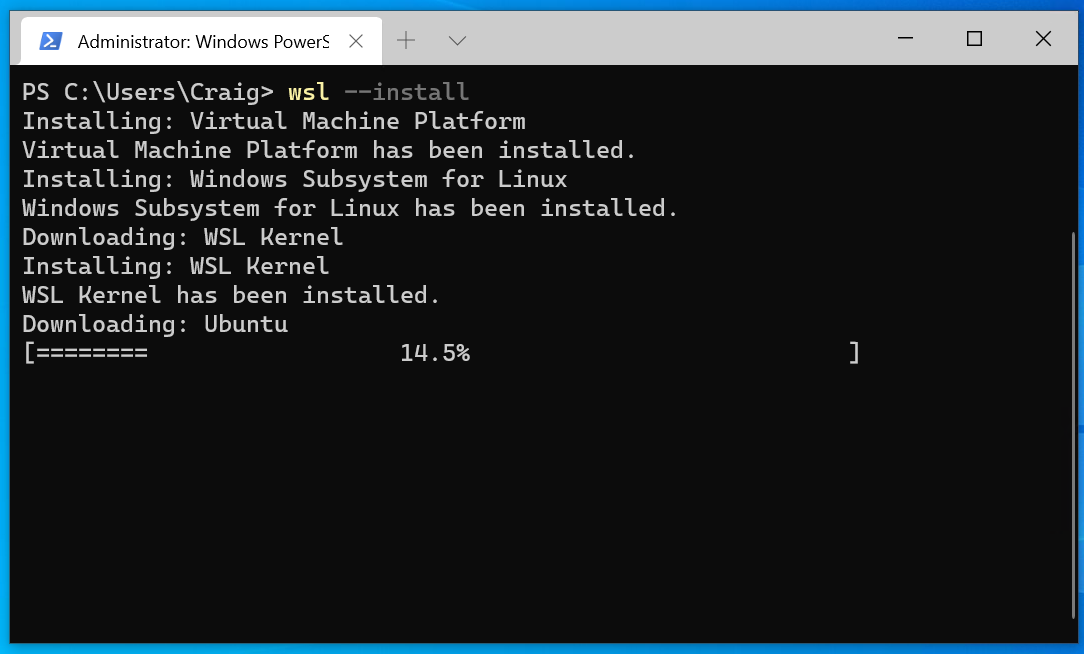
The installation process for WSL has been significantly simplified over time:
-
Enable WSL Feature:
-
Open PowerShell as an administrator.
-
Execute the command:
dism.exe /online /enable-feature /featurename:Microsoft-Windows-Subsystem-Linux /all /norestart -
For WSL 2, also enable the Virtual Machine Platform:
dism.exe /online /enable-feature /featurename:VirtualMachinePlatform /all /norestart -
Restart your computer.
-
-
Set WSL 2 as Default (Optional, Recommended):
-
After restarting, open PowerShell as an administrator.
-
Execute:
wsl --set-default-version 2(This ensures any new distributions you install will use WSL 2).
-
-
Install a Linux Distribution:
-
Open the Microsoft Store.
-
Search for your preferred Linux distribution (e.g., “Ubuntu,” “Debian,” “Kali Linux”).
-
Click “Get” or “Install” to download and install it.
-
-
Launch and Configure:
-
Once installed, launch the distribution from your Start Menu.
-
The first time it runs, you’ll be prompted to create a username and password for your Linux environment.
-
Basic WSL Usage and Management
-
Launching: Simply search for your installed distribution in the Start Menu and click its icon. A new terminal window will open.
-
File Access: You can access your Windows files from within WSL under
/mnt/c/(for your C: drive) and your Linux files from Windows Explorer by typing\wsl$in the address bar. -
Updating: Always update your Linux distribution regularly:
sudo apt update && sudo apt upgrade(for Debian/Ubuntu based systems). -
Shutting Down: To gracefully shut down a running WSL distribution or all distributions:
wsl --terminate <DistroName>orwsl --shutdown.
Method 2: Dual Booting Linux and Windows 10
Dual booting involves installing two operating systems on the same computer, allowing you to choose which one to load during startup. This method offers the highest performance for both operating systems, as each runs directly on the hardware without any virtualization layer.
The Dual Boot Advantage and Considerations
The primary advantage of dual booting is native performance. Both Windows and Linux get full access to your hardware resources, making it ideal for resource-intensive tasks, gaming, or when you need every bit of performance from your Linux installation. However, it means you can only use one OS at a time. Switching between them requires a reboot.
Considerations include:
-
Partitioning: You’ll need to create a separate partition for Linux, which involves resizing your existing Windows partition.
-
Bootloader: Linux will install its own bootloader (GRUB) to manage the choice between operating systems.
-
Backup: Always back up your Windows data before attempting a dual boot installation, as partitioning carries a small risk of data loss.
Essential Preparations for Dual Booting
-
Backup Your Data: This is paramount. Use a reliable backup solution to save all important files from your Windows installation to an external drive or cloud storage.
-
Create a Windows Recovery Drive: In case something goes wrong, a recovery drive can help you repair or reinstall Windows.
-
Disable Fast Startup in Windows: Fast Startup can sometimes interfere with Linux’s ability to access your Windows partition correctly, leading to data corruption.
-
Go to
Control Panel > Hardware and Sound > Power Options > Choose what the power buttons do. -
Click “Change settings that are currently unavailable.”
-
Uncheck “Turn on fast startup (recommended).”
-
-
Disable Secure Boot and Fast Boot in BIOS/UEFI: These settings can prevent Linux from booting. Access your computer’s BIOS/UEFI settings during startup (often by pressing F2, F10, F12, or Del) and disable them.
-
Shrink Your Windows Partition: You’ll need unallocated space for Linux.
-
Right-click the Start button and select “Disk Management.”
-
Right-click your main Windows partition (usually C:) and select “Shrink Volume.”
-
Enter the amount of space you want to dedicate to Linux (at least 30-50GB recommended) and click “Shrink.”
-
-
Create a Bootable Linux USB Drive:
-
Download the ISO image of your desired Linux distribution (e.g., Ubuntu, Fedora).
-
Use a tool like Rufus (for Windows) or Etcher (cross-platform) to write the ISO to a USB flash drive (at least 8GB).
-

Partitioning Your Hard Drive
When you boot from the Linux USB and reach the installation type, you’ll choose “Something else” or “Manual partitioning.”
You’ll typically create at least two partitions for Linux:
-
Root partition (
/): This is where the core Linux system files will reside. A minimum of 20GB is usually recommended, formatted asext4. -
Swap partition: Acts as virtual memory. A good rule of thumb is 1.5x your RAM if you have 8GB or less, or 4GB if you have more.
-
Home partition (
/home– optional but recommended): This separates your personal files from the system, making reinstallation easier. Allocate the remaining space here, formatted asext4.
Make sure to select your bootloader installation device to the root of your hard drive (e.g., /dev/sda not /dev/sda1).
Installing Linux Alongside Windows
-
Boot from USB: Restart your computer and press the appropriate key (often F12, F2, F10) to access the boot menu. Select your USB drive.
-
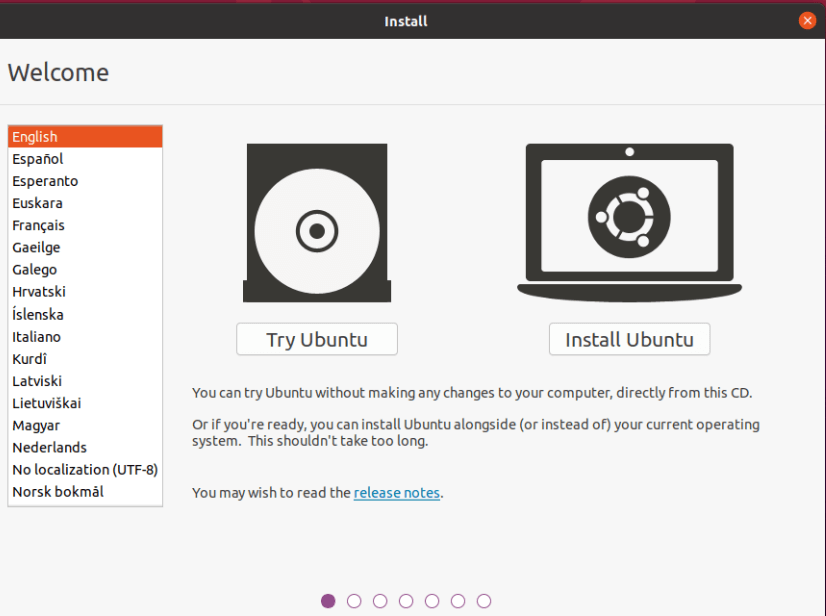
Live Environment (Optional): Many distributions offer a “Try Linux” option, allowing you to test it before installing.
-
Start Installation: Choose “Install [Distribution Name]”.
-
Language and Keyboard Layout: Select your preferences.
-
Network Configuration: Connect to your Wi-Fi or wired network.
-
Installation Type: Select “Something else” or “Manual partitioning” to use the free space you created earlier.
-
Partitioning: Create your root, swap, and home partitions as described above.
-
Time Zone and User Creation: Set your time zone and create your user account.
-
Begin Installation: Review the summary and proceed. The installer will copy files and configure the system.
-
Restart: Once installation is complete, remove the USB drive and restart. You should now see the GRUB bootloader, allowing you to choose between Linux and Windows.
Managing Your Dual Boot Environment
-
Boot Order: GRUB typically defaults to Linux. You can configure GRUB’s timeout and default OS using tools like GRUB Customizer within Linux.
-
File Access: Linux can usually read and write to Windows (NTFS) partitions. Windows cannot natively read Linux (ext4) partitions without third-party software.
-
Updates: Keep both operating systems updated independently. Windows updates can sometimes overwrite the GRUB bootloader, requiring you to repair it from a Linux live USB.
Method 3: Running Linux in a Virtual Machine
Virtualization offers the most flexible and safest way to run Linux on Windows 10, creating an isolated environment that behaves like a separate computer. This method is ideal for experimentation, testing, or when you need to run both operating systems simultaneously.
The Virtualization Approach: Isolation and Flexibility
A virtual machine (VM) is a software-based emulation of a physical computer. It runs an entire operating system (the “guest OS,” in this case, Linux) on top of your existing operating system (the “host OS,” Windows 10). The VM provides virtualized hardware (CPU, RAM, storage, network interface) to the guest OS.
Key benefits include:
-
Isolation: The guest OS is completely isolated from the host, meaning any issues within the Linux VM won’t affect your Windows installation.
-
Flexibility: You can easily create, clone, delete, or suspend VMs. Run multiple Linux distributions side-by-side.
-
Snapshots: Take snapshots of your VM’s state, allowing you to revert to a previous configuration if something goes wrong.
-
Simultaneous Operation: Run Linux and Windows concurrently without rebooting.
Choosing Your Virtualization Software
Several excellent virtualization platforms are available for Windows 10:
-
VirtualBox (Oracle VM VirtualBox): Free, open-source, and highly popular. Excellent for beginners and advanced users alike.
-
VMware Workstation Player: Free for personal use, professional-grade features. Offers robust performance and integrations.
-
Hyper-V (Windows built-in): Available on Windows 10 Pro, Enterprise, and Education editions. A native Microsoft solution, integrates well with the OS.
Setting Up a Virtual Machine for Linux
We’ll use VirtualBox as an example due to its popularity and accessibility:
-
Download and Install VirtualBox: Get the latest version from the official VirtualBox website.
-
Download Linux ISO: Obtain the ISO image of the Linux distribution you wish to install.
-
Create a New Virtual Machine:
-
Open VirtualBox and click “New.”
-
Provide a name for your VM (e.g., “Ubuntu Linux”).
-
Select “Type: Linux” and choose the appropriate “Version” (e.g., “Ubuntu (64-bit)”).
-
Allocate RAM: Give it at least 2GB (4GB or more is better for modern distributions).
-
Hard Disk: Select “Create a virtual hard disk now” and click “Create.”
-
Choose “VDI (VirtualBox Disk Image)” and “Dynamically allocated.”
-
Allocate Disk Size: A minimum of 20-30GB is recommended for the virtual hard disk.
-
-
Configure VM Settings:
-
Right-click your new VM in VirtualBox and select “Settings.”
-
System > Processor: Allocate 2 CPU cores or more if your host CPU allows.
-
Display > Screen: Increase Video Memory to 64MB or 128MB.
-
Storage > Controller: IDE > Empty: Click the “disk” icon and select “Choose a disk file…” to browse and select your downloaded Linux ISO. This mounts the ISO as a virtual CD/DVD drive.
-
Network (Optional): Ensure “Attached to: NAT” is selected for basic internet access.
-
Click “OK.”
-
Installing Linux within the VM
-
Start the VM: Select your VM in VirtualBox and click “Start.”
-
Boot from ISO: The VM will boot from the mounted Linux ISO. Follow the on-screen instructions for installing the Linux distribution.
-
Installation Process: The steps are very similar to a standard Linux installation, but within the virtual environment:
-
Choose language, keyboard layout.
-
Select “Erase disk and install [Distribution Name]” (this only affects the virtual disk, not your physical hard drive).
-
Create username and password.
-
Proceed with the installation.
-
-
Remove Installation Media: After installation, the VM will prompt you to restart. Before restarting, unmount the ISO file from the VM’s storage settings to ensure it boots from the virtual hard drive.
-
Install Guest Additions (Highly Recommended): Once Linux is installed and running in the VM, go to the VirtualBox menu bar, click
Devices > Insert Guest Additions CD Image.... Then, within the Linux VM, navigate to the virtual CD drive, open a terminal, and run the installation script (sudo sh VBoxLinuxAdditions.run). This enhances integration, enabling features like clipboard sharing, drag-and-drop, and seamless mouse integration.
Optimizing Your Virtual Linux Experience
-
Resource Allocation: Adjust RAM and CPU cores in VM settings if performance is an issue.
-
Shared Folders: Configure shared folders between your Windows host and Linux guest to easily exchange files (requires Guest Additions).
-
Snapshots: Take snapshots before major system changes to create restore points.
-
Full Screen/Seamless Mode: VirtualBox Guest Additions allow for full-screen display and seamless integration of Linux windows with your Windows desktop.
Post-Installation and Further Exploration
Regardless of your chosen installation method, a few final steps and considerations will enhance your Linux experience on Windows 10.
Initial Configuration and Updates
Immediately after installation, it’s crucial to perform initial configurations and updates:
-
Update Your System: Open a terminal in your Linux environment and run
sudo apt update && sudo apt upgrade -y(for Debian/Ubuntu-based systems) or equivalent commands for your distribution. This ensures you have the latest security patches and software. -
Install Essential Software: Install your preferred web browser, text editor, development tools, and other utilities.
-
Configure Dotfiles: For developers, setting up your
.bashrc,.zshrc,.vimrc, or other configuration files is a common next step. -
Adjust Display Settings: If you’re using a VM or dual boot, ensure your display resolution and refresh rate are optimized.
Essential Linux Commands for Windows Users
Familiarizing yourself with basic Linux commands is fundamental to navigating the terminal:
-
ls: List directory contents -
cd <directory>: Change directory -
pwd: Print working directory -
mkdir <directory>: Create a new directory -
rm <file>/rm -r <directory>: Remove files/directories -
cp <source> <destination>: Copy files/directories -
mv <source> <destination>: Move/rename files/directories -
sudo: Execute a command with superuser privileges -
man <command>: Display the manual page for a command -
apt(Debian/Ubuntu) ordnf/yum(Fedora/RHEL): Package management commands
Best Practices for Maintaining Your Setup
-
Regular Backups: Back up your Linux home directory and critical configuration files.
-
Keep Both OSes Updated: Regularly update both your Windows 10 and Linux installations.
-
Monitor Disk Space: Especially important for VMs and dual boots to prevent performance degradation.
-
Learn the Linux Philosophy: Embrace the open-source ethos, learn how to use the command line effectively, and explore the vast resources available in the Linux community.
-
Experiment Safely: Virtual machines are excellent for experimenting with new software or system changes without risking your main installation.
Troubleshooting Common Issues
-
Bootloader Problems (Dual Boot): If Windows updates overwrite GRUB, you may need to boot from a Linux live USB and use tools like Boot-Repair to restore GRUB.
-
Performance Issues (VM): Ensure adequate RAM and CPU allocation, and always install Guest Additions for better performance and integration.
-
Network Connectivity (WSL/VM): Check your host’s network settings. For VMs, try different network adapter settings (NAT, Bridged).
-
Disk Space Full: Use commands like
df -hin Linux to identify large files or directories consuming space.
By following these guidelines, you can successfully integrate Linux into your Windows 10 workflow, unlocking a powerful and flexible computing experience that caters to a wide range of needs, from casual exploration to advanced development. The choice of method depends on your specific requirements for performance, isolation, and ease of use, but each offers a valuable pathway to harnessing the full potential of both operating systems.
aViewFromTheCave is a participant in the Amazon Services LLC Associates Program, an affiliate advertising program designed to provide a means for sites to earn advertising fees by advertising and linking to Amazon.com. Amazon, the Amazon logo, AmazonSupply, and the AmazonSupply logo are trademarks of Amazon.com, Inc. or its affiliates. As an Amazon Associate we earn affiliate commissions from qualifying purchases.