
In an increasingly interconnected and multi-platform digital world, the ability to leverage the strengths of different operating systems is a significant advantage for developers, power users, and curious enthusiasts alike. Windows 10, with its widespread adoption, often serves as the primary gateway, yet the allure of Linux—its open-source nature, robust command-line interface, vast customization options, and often superior performance for specific tasks—is undeniable. The thought of installing Linux, however, often conjures images of complex partitions, bootloaders, and potential data loss, deterring many from exploring its full potential.
This guide aims to demystify the process of integrating a Linux environment into a Windows 10 setup. Far from being a niche pursuit, running Linux alongside or even within Windows has become a streamlined and accessible endeavor, offering unparalleled flexibility. Whether you’re a developer needing Linux tools, a student learning system administration, or simply curious about a different OS, you no longer have to choose between Windows and Linux. This article will explore the primary, most effective methods for achieving this coexistence, detailing the steps, prerequisites, and considerations for each approach, enabling you to harness the power of both worlds.
Understanding Your Linux Integration Options
Before diving into the technical steps, it’s crucial to understand the various methodologies available for running Linux on a Windows 10 machine. Each method offers distinct advantages and caters to different user needs and technical proficiencies. Selecting the right approach from the outset can save time and prevent frustration, ensuring a seamless experience that aligns with your specific goals.
Dual Booting: The Traditional Coexistence
Dual booting involves installing Linux on a separate partition of your hard drive, allowing you to choose between Windows 10 and Linux each time you start your computer. This method provides a native, full-performance experience for both operating systems, as each runs directly on your hardware without virtualization overhead. It’s akin to having two separate computers on a single machine.
Pros:
-
Full access to hardware resources (CPU, GPU, RAM) for both OSes.
-
Best performance for demanding tasks on Linux (e.g., gaming, video editing, heavy development).
-
Complete isolation between the two operating systems.
Cons:
-
Requires partitioning your hard drive, which can be intimidating and potentially risky if not done carefully.
-
Switching between OSes requires a full system reboot.
-
One OS cannot directly access the applications or running processes of the other without rebooting.
Virtualization: Linux in a Sandbox
Virtualization involves running Linux as a “guest” operating system within a “host” operating system (Windows 10) using specialized software like VirtualBox or VMware Workstation Player. The virtual machine (VM) creates a simulated hardware environment where Linux can be installed and run in a window, much like any other application. This method is often the safest and easiest for beginners.
Pros:
-
No partitioning required; Linux runs as a file on your Windows file system.
-
Safer, as any issues within the VM typically won’t affect your host Windows system.
-
Easy to create, clone, snapshot, and delete virtual environments.
-
Can run both Windows and Linux simultaneously without rebooting.
Cons:
-
Performance overhead due to the virtualization layer; Linux may not run as fast as natively.
-
Limited direct access to certain hardware components (e.g., advanced GPU features without specific passthrough configurations).
-
Requires sufficient RAM and CPU resources to run two operating systems concurrently.
Windows Subsystem for Linux (WSL): Seamless Integration
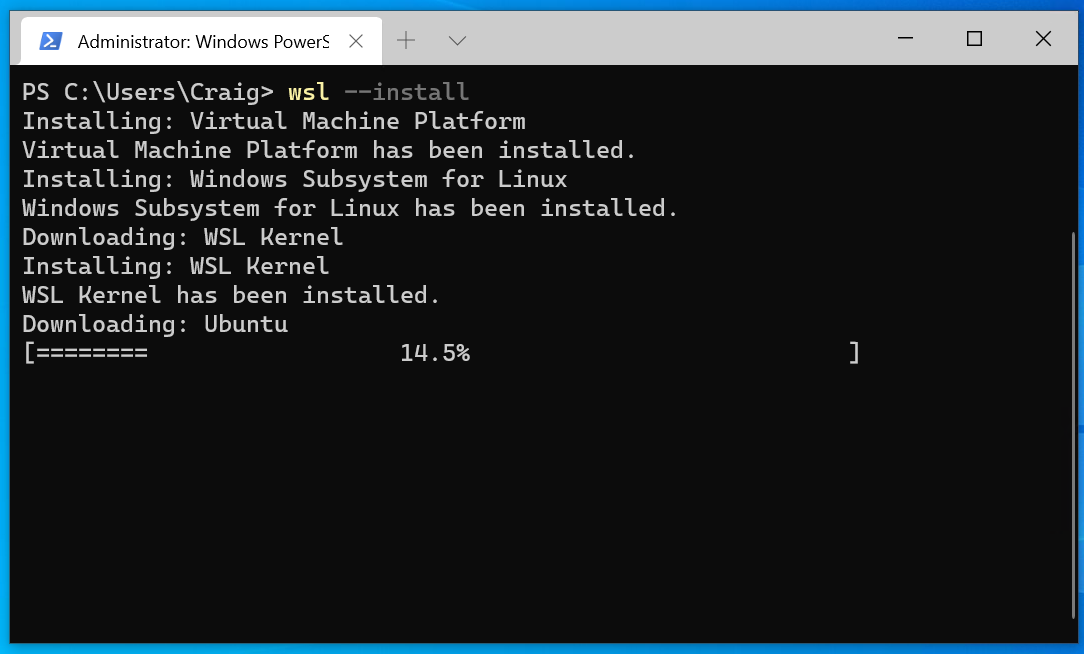
WSL is a compatibility layer developed by Microsoft that allows users to run a Linux command-line environment directly on Windows 10, without the overhead of a traditional virtual machine or the complexity of dual-booting. It essentially allows you to install various Linux distributions (like Ubuntu, Debian, Fedora) from the Microsoft Store and run their command-line tools and applications alongside your Windows applications. WSL2, the latest iteration, utilizes a lightweight VM for improved performance and full system call compatibility.
Pros:
-
Extremely easy and quick to set up.
-
No need to allocate disk space or manage partitions.
-
Excellent performance, especially with WSL2, which uses a real Linux kernel.
-
Seamless interoperability between Windows and Linux file systems and tools.
-
Can run Linux GUI applications with third-party X servers.
Cons:
-
Primarily command-line oriented; full desktop Linux environments are less straightforward to achieve natively (though possible with X servers).
-
Not a full, bare-metal Linux installation, so some very low-level hardware interactions might differ.
-
Best suited for development, scripting, and server-side tasks rather than a full desktop replacement.
Method 1: Installing Linux via Virtual Machine
For many, especially those new to Linux or who need to run specific Linux-based tools without altering their primary Windows setup, a virtual machine offers the ideal balance of safety, flexibility, and ease of use. This section will guide you through setting up a Linux distribution using Oracle VirtualBox, a popular free and open-source virtualization software.
Prerequisites for Virtualization
Before you begin, ensure your system is ready:
-
Hardware Virtualization Enabled: Most modern CPUs support virtualization (Intel VT-x or AMD-V). You’ll need to enable this in your computer’s BIOS/UEFI settings. The exact steps vary by manufacturer, but generally involve restarting your PC, pressing a specific key (e.g., F2, F10, Del) to enter BIOS, and locating a setting under “CPU Configuration,” “Virtualization Technology,” or similar.
-
Sufficient System Resources: Allocate at least 4GB of RAM (8GB recommended) for a comfortable experience, and ensure you have ample free disk space (20-30GB for the Linux installation itself, plus space for VirtualBox software).
-
Download VirtualBox: Obtain the latest version of VirtualBox from the official Oracle VirtualBox website and install it on your Windows 10 machine.
-
Download Linux ISO: Choose your preferred Linux distribution (e.g., Ubuntu Desktop, Linux Mint) and download its ISO image file from the official website. This file is the installation media for your virtual machine.
Setting Up Your Virtualization Software
Once VirtualBox is installed, launch it.
-
Create a New Virtual Machine: Click “New” (or Machine > New) in the VirtualBox manager.
-
Name and OS Type: Give your virtual machine a descriptive name (e.g., “Ubuntu 22.04 VM”). VirtualBox will often auto-detect the OS type (Linux) and version based on the name.
-
Memory Size: Allocate RAM for your VM. A minimum of 2GB is recommended for most desktop Linux distributions; 4GB is better for smoother performance. Do not exceed half of your physical RAM to ensure your host OS remains responsive.
-
Hard Disk: Select “Create a virtual hard disk now” and click “Create.” Choose “VDI (VirtualBox Disk Image)” for the hard disk file type. For storage on physical hard disk, select “Dynamically allocated” – this means the virtual disk file will only grow as you use space inside the VM, rather than immediately consuming the full allocated size. Allocate a size for the virtual hard disk (e.g., 25-50 GB). This is the maximum space your Linux VM can use.
Creating and Configuring the Linux VM
After creating the VM, it will appear in the left panel of the VirtualBox manager. Before starting it, we need to make a few more configurations.
-
Settings: Select your new VM and click “Settings” (or Machine > Settings).
-
System > Processor: Increase the number of CPUs if your host machine has multiple cores. Two cores are usually sufficient for general use.
-
Display > Screen: Increase the “Video Memory” to at least 64MB or 128MB for a smoother graphical experience. Enable “3D Acceleration” if available.
-
Storage: Under the “Storage” section, select the empty CD/DVD drive icon under “Controller: IDE.” Click the small disc icon next to “Optical Drive” on the right, then “Choose a disk file…” Navigate to and select the Linux ISO file you downloaded earlier. This virtually inserts the installation disc into your VM.
-
Network (Optional but Recommended): Ensure “Adapter 1” is set to “NAT” (Network Address Translation). This allows your VM to access the internet through your host’s network connection.
Performing the Linux Installation
Now you’re ready to install Linux within the virtual machine.
-
Start the VM: Select your VM in the VirtualBox manager and click “Start.”
-
Follow Installation Prompts: The VM will boot from the Linux ISO. Follow the on-screen instructions for your chosen Linux distribution.
-
Language and Keyboard Layout: Select your preferences.
-
Installation Type: Choose “Erase disk and install [Linux Distro]” (don’t worry, this only erases the virtual disk, not your physical hard drive).
-
Location, User, and Password: Set these details as prompted.
-
-
Completion: Once the installation is complete, the installer will prompt you to restart. During the restart, VirtualBox will likely ask you to “remove the installation medium.” Confirm this, or manually eject the virtual ISO by going to Devices > Optical Drives > Remove disk from virtual drive.
-
Install Guest Additions: After Linux boots, log in. To enhance integration (e.g., better display resolution, shared clipboard, drag-and-drop), go to Devices > Insert Guest Additions CD Image… from the VirtualBox menu. Follow the prompts within Linux to install them (usually involves running a script in the terminal).

Method 2: Embracing Windows Subsystem for Linux (WSL)
For developers and users primarily interested in Linux command-line tools and environments without the overhead of a full desktop GUI or a traditional VM, WSL is a revolutionary solution that brings Linux native functionality directly into Windows 10. With the advent of WSL2, performance is significantly improved, making it an incredibly powerful tool.
Enabling WSL Features on Windows 10
The setup process for WSL is remarkably straightforward.
-
Check Windows Version: Ensure your Windows 10 version is 1903 or higher, with Build 18362 or higher (for WSL2). You can check this by typing
winverin the Start menu. -
Enable WSL Feature: Open PowerShell as an administrator and run the following command:
dism.exe /online /enable-feature /featurename:Microsoft-Windows-Subsystem-Linux /all /norestart -
Enable Virtual Machine Platform (for WSL2): If you intend to use WSL2 (highly recommended for performance), you also need to enable the Virtual Machine Platform feature. Run this in an administrative PowerShell:
dism.exe /online /enable-feature /featurename:VirtualMachinePlatform /all /norestart -
Restart Your Computer: After running both commands, restart your PC to apply the changes.
-
Set WSL2 as Default (Optional but Recommended): Open PowerShell as an administrator and run:
wsl --set-default-version 2This ensures any newly installed Linux distributions will run on WSL2.
Installing a Linux Distribution from the Microsoft Store
With WSL enabled, installing a Linux distribution is as simple as downloading an app.
-
Open Microsoft Store: Search for “Linux” in the Microsoft Store.
-
Choose Your Distribution: Select your preferred distribution (e.g., Ubuntu, Debian, Kali Linux, openSUSE). Ubuntu is a popular choice for beginners due to its extensive documentation.
-
Install: Click “Get” or “Install” to download and install the distribution.
-
Launch and Initialize: Once installed, click “Launch” from the Store, or find your distribution in the Start menu. The first time you launch it, it will take a few moments to decompress and install.
-
Create User Account: You will be prompted to create a new Unix username and password. This is separate from your Windows account.
Initial Setup and Usage
After installation, you’ll have a fully functional Linux command-line environment.
-
Basic Commands: You can immediately start using Linux commands:
-
ls: list files -
cd: change directory -
sudo apt update && sudo apt upgrade: update and upgrade installed packages (for Debian/Ubuntu)
-
-
File System Access:
-
From Linux, you can access your Windows drives under
/mnt/c/,/mnt/d/, etc. -
From Windows, you can access your Linux file system by typing
\wsl$in File Explorer or by opening your distribution in the Start menu and navigating to theC:UsersYourUserAppDataLocalPackages[DistroName]LocalStaterootfsdirectory.
-
-
Running GUI Applications (Advanced): While WSL is primarily for command-line, it’s possible to run Linux GUI applications by installing an X server (like VcXsrv) on Windows and configuring your Linux environment to connect to it. This allows applications like GIMP, Firefox, or VS Code (Linux version) to run visually on your Windows desktop.
Method 3: Dual Booting Windows 10 and Linux
For those who demand the absolute best performance from their Linux installation and are comfortable with disk partitioning, dual booting offers the most authentic Linux experience. This method requires careful planning and execution, as it directly modifies your hard drive’s partition scheme.
Essential Preparations for Dual Boot
Before proceeding, backing up your entire Windows 10 system and important data is paramount. Any mistake in partitioning could lead to data loss.
-
Backup Data: Use Windows’ built-in backup tools or third-party software to create a full system image and back up personal files.
-
Create a Windows Recovery Drive: This can be invaluable if something goes wrong.
-
Disable Fast Startup: In Windows, go to Control Panel > Power Options > Choose what the power buttons do > Change settings that are currently unavailable. Uncheck “Turn on fast startup (recommended).” This prevents file system corruption issues when dual-booting.
-
Disable Secure Boot (Optional, but sometimes necessary): Some Linux distributions may have issues booting with Secure Boot enabled. You can disable it in your BIOS/UEFI settings.
Shrinking Your Windows Partition
Linux needs its own dedicated space. You’ll shrink your existing Windows partition to create unallocated space.
-
Disk Management: Right-click the Start button and select “Disk Management.”
-
Shrink Volume: Locate your main Windows partition (usually C:). Right-click it and select “Shrink Volume…”
-
Enter Amount: Enter the amount of space you want to shrink in MB (e.g., 50000 MB for 50 GB, 100000 MB for 100 GB). This will be your Linux space. Click “Shrink.” You should now see “Unallocated” space.
Creating a Bootable Linux USB Drive
You’ll need a bootable USB drive to install Linux.
-
Download Linux ISO: Get the ISO file for your preferred Linux distribution (e.g., Ubuntu).
-
Download USB Creator Tool: Download a tool like Rufus (for Windows) or Etcher (cross-platform).
-
Create Bootable USB:
-
Insert a USB drive (at least 8GB).
-
Open Rufus/Etcher, select your USB drive, the downloaded Linux ISO, and create the bootable drive. This will erase all data on the USB.
-
Performing the Linux Installation for Dual Boot
This is the most critical step.
-
Boot from USB: Restart your computer. During startup, press the designated key (e.g., F2, F10, F12, Esc) to enter your boot menu and select your USB drive to boot from.
-
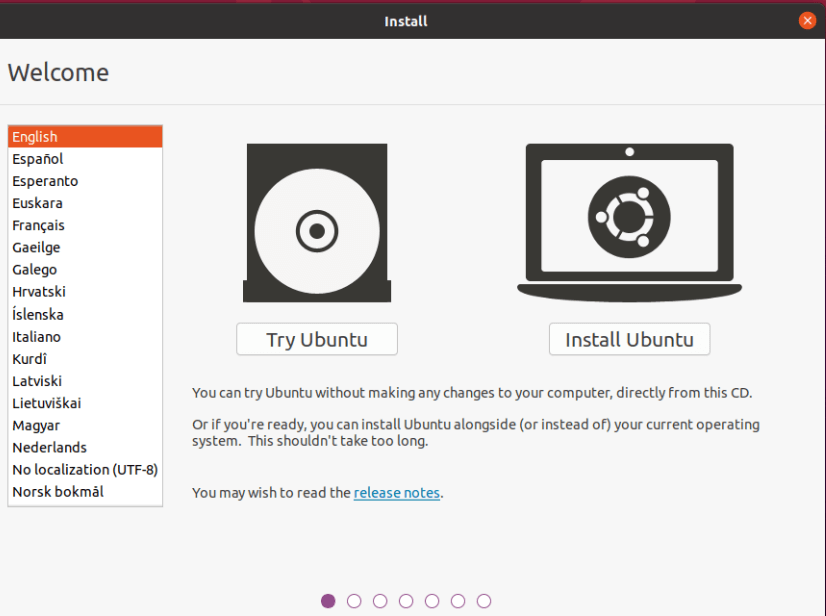
Start Installer: Choose “Try Ubuntu without installing” or “Install Ubuntu” (or your chosen distro) from the GRUB menu. It’s often a good idea to “Try” first to ensure hardware compatibility.
-
Installation Type: When the installer asks for “Installation type,” this is where extreme caution is needed.
-
Crucial Step: Choose “Something else” (or “Manual partitioning”). DO NOT select “Erase disk and install [Linux Distro]” unless you intend to completely remove Windows.
-
Partitioning: Locate the “free space” or “unallocated space” you created earlier.
-
Root Partition (
/): Select the free space, click the+button, create a new primary partition, set its size (e.g., 20-50 GB), set “Use as” to “Ext4 journaling file system,” and “Mount point” to/. -
Swap Area: (Optional, but recommended) Create another logical partition, typically 1-2 times your RAM size, and set “Use as” to “swap area.”
-
Home Partition (
/home): (Optional, for advanced users) Allocate the remaining space to a/homepartition (Ext4). This keeps your personal files separate from the system, making reinstallation easier.
-
-
Bootloader Installation: Crucially, at the bottom of the partitioning screen, ensure “Device for boot loader installation” is set to your main hard drive (e.g.,
/dev/sdaor/dev/nvme0n1), not a specific partition number like/dev/sda1. This ensures GRUB (the Linux bootloader) can detect both Windows and Linux.
-
-
Continue Installation: Proceed with the rest of the installation (language, keyboard, timezone, user account).
-
Restart: Once installation is complete, remove the USB drive when prompted and restart your computer.
Post-Installation: Bootloader Management
Upon reboot, you should be presented with the GRUB bootloader menu, allowing you to choose between Linux and Windows 10.
-
Default Boot: GRUB will typically default to Linux. If you want Windows to be the default, you can configure GRUB using tools like GRUB Customizer within Linux.
-
Updates: When you update your Linux kernel or install new Windows updates, GRUB should automatically detect and update its boot entries. If not, running
sudo update-grubin the Linux terminal usually resolves it.
Choosing the Right Method and Post-Installation Steps
The best method for you depends entirely on your needs and comfort level.
-
Virtual Machine: Ideal for experimenting, learning, running specific apps in isolation, or if you need to frequently switch between OSes without rebooting. Safest for beginners.
-
WSL: Perfect for developers, system administrators, or anyone needing robust Linux command-line tools for scripting, coding, and server management, deeply integrated with Windows.
-
Dual Booting: Best for users who require native Linux performance for resource-intensive tasks, desire a full-fledged Linux desktop experience, or prefer complete OS isolation. Most involved setup.
Essential Post-Installation Tasks
Regardless of your chosen method, a few post-installation steps are generally recommended:
-
Update Your System: Always run system updates immediately after installation (e.g.,
sudo apt update && sudo apt upgradefor Debian/Ubuntu). -
Install Essential Software: Install your preferred web browser, office suite, development tools, media players, etc.
-
Configure System Settings: Adjust display resolution, power management, themes, and network settings to your liking.
-
Install Drivers (Dual Boot/VM): For dual-booted systems or VMs, ensure all necessary drivers (especially graphics) are installed for optimal performance. VirtualBox Guest Additions are crucial for VMs.
Conclusion
The era of choosing between Windows and Linux is largely behind us. With the advent of sophisticated virtualization technologies, the revolutionary Windows Subsystem for Linux, and the enduring reliability of dual-booting, integrating a Linux environment into your Windows 10 workflow has never been more accessible or versatile. Each method offers a unique pathway to harnessing the power of open-source computing, whether for development, learning, or simply expanding your technological horizons.
By carefully considering your needs and following the detailed steps outlined in this guide, you can confidently set up your preferred Linux environment. This blend of operating systems empowers you to tackle diverse computing challenges, experiment with new technologies, and ultimately, become a more agile and proficient digital user in today’s multi-OS landscape. Embrace the flexibility, and unlock a new realm of possibilities on your Windows 10 machine.
aViewFromTheCave is a participant in the Amazon Services LLC Associates Program, an affiliate advertising program designed to provide a means for sites to earn advertising fees by advertising and linking to Amazon.com. Amazon, the Amazon logo, AmazonSupply, and the AmazonSupply logo are trademarks of Amazon.com, Inc. or its affiliates. As an Amazon Associate we earn affiliate commissions from qualifying purchases.