
The world of digital entertainment is constantly evolving, and for many, the desire to have a unified and customizable media experience is paramount. Kodi, a free and open-source media player software, has long been a favorite among tech enthusiasts for its ability to organize and play a vast array of media files, stream content from various sources, and be extended with add-ons. However, the question of how to get this powerful application onto a Roku streaming device often arises. While Roku is known for its user-friendly interface and curated app store, it’s not a platform that directly supports Kodi installation in the same way a PC or an Android box might. This means that the process involves a few more steps and a slight workaround.
This guide will demystify the process, exploring the nuances of installing Kodi on a Roku device. We’ll delve into why it’s not a direct installation, the necessary prerequisites, and the most effective methods to achieve your goal. Whether you’re looking to consolidate your media library or explore a world of streaming possibilities, understanding the path to integrating Kodi with Roku is key.
Understanding the Roku Ecosystem and Kodi’s Nature
Before diving into the “how-to,” it’s crucial to understand why installing Kodi on Roku isn’t as straightforward as downloading an app from the Roku Channel Store.
Roku’s App Store Philosophy
Roku’s business model relies heavily on its curated app store. Developers must go through a rigorous approval process to have their applications officially listed. This ensures a certain level of quality, security, and adherence to Roku’s platform guidelines. Kodi, being an open-source project with a vast and often user-generated ecosystem of add-ons, doesn’t fit neatly into this controlled environment. Many of these add-ons can be used to access copyrighted content, which Roku, as a platform provider, needs to distance itself from to avoid legal complications.
Furthermore, Roku devices are designed with specific hardware limitations and operating system architectures. Directly porting an application like Kodi, which is built for more general-purpose operating systems like Windows, macOS, Linux, and Android, requires significant adaptation. Roku’s platform is more restrictive, prioritizing stability and a seamless user experience through its own developed applications and those vetted for its store.
The Open-Source Advantage and Its Implications
Kodi’s strength lies in its open-source nature. This allows for unparalleled flexibility and customization. Developers worldwide contribute to its development, creating a massive library of add-ons that can tap into virtually any media source imaginable. This includes official streaming services, but also unofficial channels that stream content from various internet sources.
While this flexibility is a major draw for users seeking a comprehensive media hub, it also presents a challenge for platforms like Roku. The unofficial nature of many Kodi add-ons means they operate in a legal gray area. Roku, to maintain its reputation and avoid potential legal repercussions, has a policy against facilitating access to unauthorized or pirated content. Therefore, you won’t find an official Kodi channel in the Roku Channel Store.
This doesn’t mean it’s impossible to use Kodi with Roku, but rather that the connection requires an intermediary or a different approach. Instead of installing Kodi onto the Roku device itself, the common and effective methods involve using Kodi on another device and then “casting” or “mirroring” that content to your Roku.
The Indirect Approach: Leveraging Other Devices
Given the limitations of direct installation, the most common and effective ways to enjoy Kodi content on your Roku involve using Kodi on a different device and then streaming its output to your Roku. This essentially uses your Roku as a display for your Kodi setup.
Method 1: Screen Mirroring from a Computer or Mobile Device
Screen mirroring allows you to display the entire screen of your computer or mobile device on your Roku. This is a versatile method that works for any application running on the mirrored device, including Kodi.
Prerequisites for Screen Mirroring:
- Roku Device: Ensure your Roku is powered on and connected to the same Wi-Fi network as the device you intend to mirror from.
- Computer (Windows 10/11 or macOS) or Mobile Device (Android):
- Windows: Your computer needs to support Miracast. Most modern laptops and desktops do.
- Android: Your Android device needs to support screen mirroring (often called “Cast,” “Smart View,” or similar).
- macOS: While macOS doesn’t have a direct “mirroring” feature akin to Miracast for Roku, you can achieve a similar effect using third-party apps or by using AirPlay if you have an Apple TV connected to your Roku setup (though this adds another layer). For direct Roku mirroring from macOS without AirPlay, you’ll typically need to explore specific casting software.
- Kodi Installed and Running: You’ll need to have Kodi installed and configured on the device you’re mirroring from. This could be a dedicated media server, a laptop, or even a powerful smartphone.
- Same Wi-Fi Network: Crucially, both your Roku and the device you are mirroring from must be connected to the same local area network (Wi-Fi).
Steps for Screen Mirroring:
- Enable Screen Mirroring on Roku:
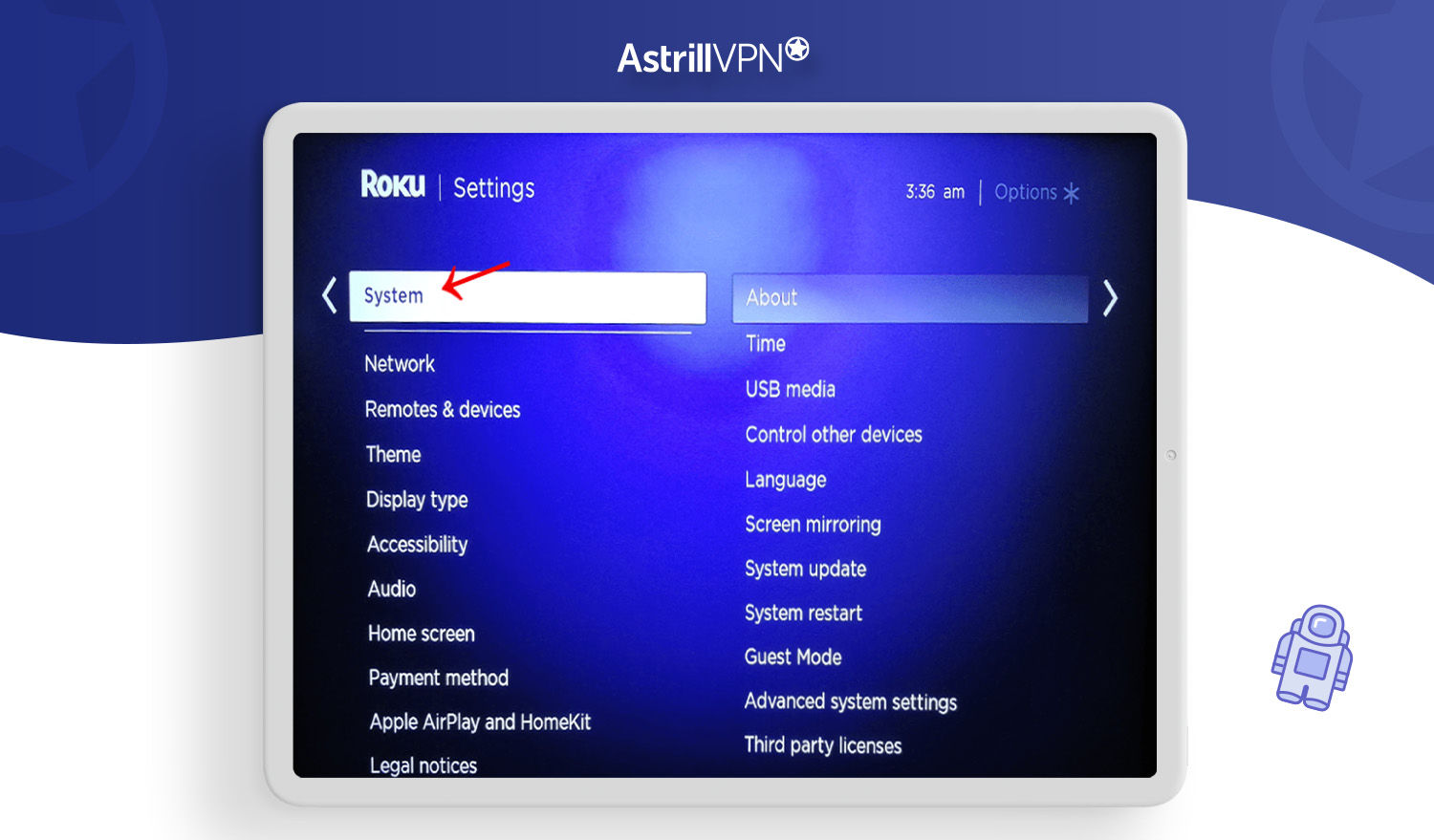
- On your Roku device, navigate to Settings.
- Select System.
- Choose Screen mirroring.
- Select Screen mirroring mode. You can choose between “Prompt” (which requires you to approve each mirroring request) or “Never prompt” (which allows mirroring without asking). For ease of use, “Prompt” is generally recommended.
- Initiate Mirroring from Your Device:
- Windows:
- Press Windows Key + K to open the “Connect” pane.
- Your Roku device should appear in the list of available wireless displays.
- Click on your Roku device’s name to connect.
- Android:
- Open the Quick Settings panel (swipe down from the top of the screen).
- Look for an option like Cast, Smart View, Wireless Display, or Screen Cast.
- Tap on it. Your Roku device should appear in the list.
- Select your Roku device’s name.
- Windows:
- Launch Kodi and Play Content:
- Once the mirroring is established, you should see your computer or mobile device’s screen on your TV via the Roku.
- Open Kodi on your source device.
- Navigate to your desired media and begin playback. The video and audio should now be playing on your TV.
Pros of Screen Mirroring:
- Universality: Works with any app on the source device, not just Kodi.
- No Additional Hardware: Relies on built-in device capabilities.
- Simplicity (once set up): Relatively easy to initiate.
Cons of Screen Mirroring:
- Resource Intensive: Drains battery on mobile devices and consumes resources on computers.
- Potential for Lag: Performance can vary depending on network strength and device capabilities, leading to choppy playback or audio sync issues.
- Interface on TV: You’re seeing your entire device interface, not a clean Kodi interface on the TV.
Method 2: Using Kodi as a DLNA Server and Roku’s DLNA Player
Another effective indirect method involves setting up Kodi to act as a Digital Living Network Alliance (DLNA) server. DLNA allows devices on a network to share media. Roku devices have built-in support for DLNA playback.
Prerequisites for DLNA:
- Roku Device: Connected to your network.
- Kodi Installed on a Server Device: This could be a PC, a Network Attached Storage (NAS) device, or even a Raspberry Pi running Kodi. The key is that this device is always on and accessible on your network.
- DLNA Enabled in Kodi: Kodi needs to be configured to act as a DLNA server.
- Same Wi-Fi Network: All devices must be on the same network.
Steps to Configure Kodi as a DLNA Server:
- Enable DLNA Server in Kodi:
- Open Kodi on your server device.
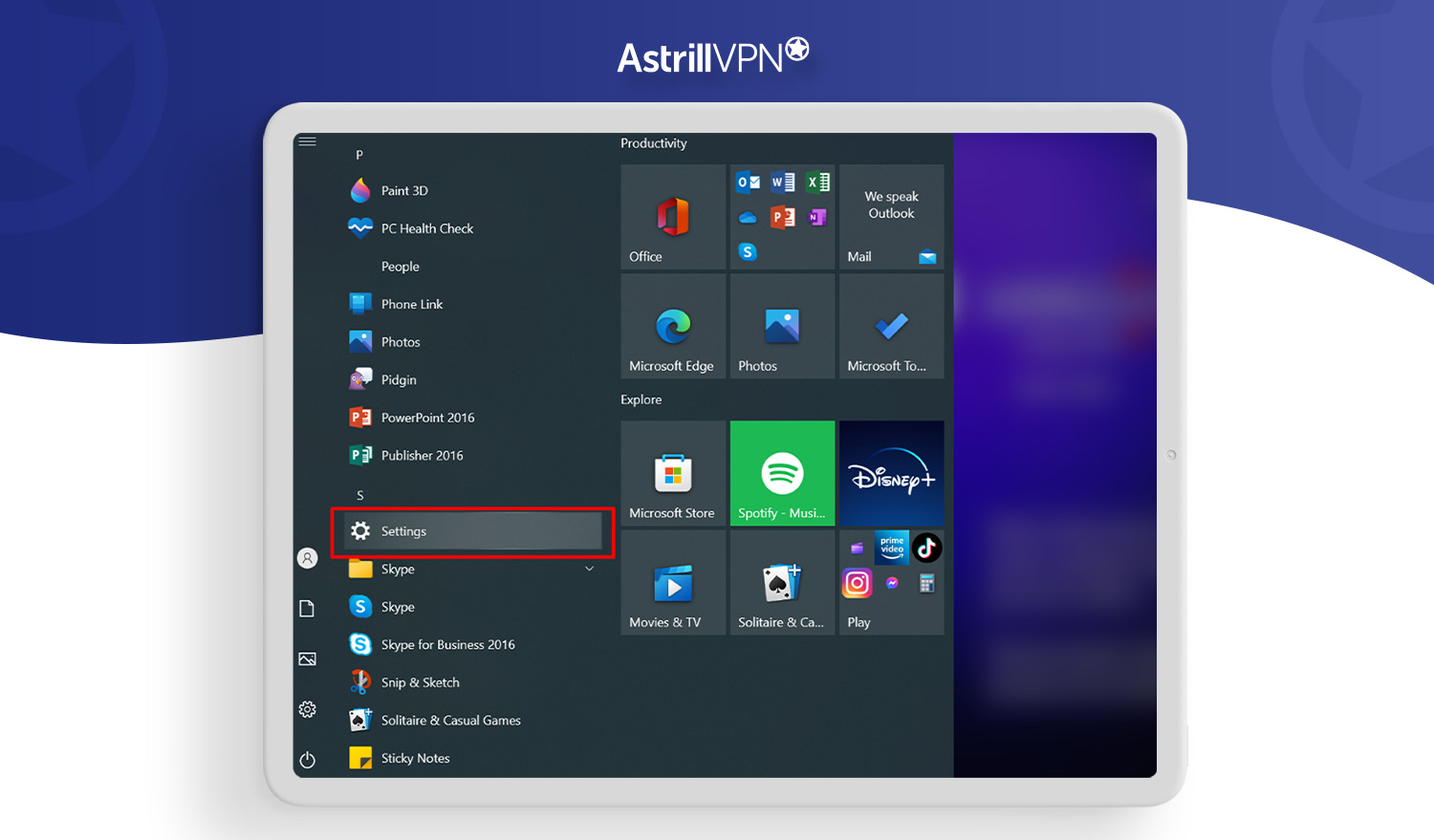
- Navigate to Settings (the gear icon).
- Go to Services.
- Select UPnP/DLNA.
- Enable “Allow remote control via UPnP”.
- Enable “Share my libraries”. This will make your Kodi media libraries (Movies, TV Shows, Music) available to other DLNA-compatible devices on your network.
- Ensure “Enable UPnP DLNA” is turned on.
- Access DLNA Media on Roku:
- On your Roku device, go to the Home screen.
- Scroll down and look for the “Media” or “Plex” channel (depending on your Roku model and installed channels). Roku often has a generic “Media” channel that can scan for DLNA servers. If you don’t see a dedicated media player, you might need to install a Plex channel or a third-party DLNA player app from the Roku Channel Store.
- Open the media player app. It should automatically scan your network for DLNA servers.
- You should see your Kodi server listed. Select it.
- Navigate through your Kodi media libraries (Movies, TV Shows, etc.) and select the content you want to play.
Pros of DLNA:
- Less Resource Intensive on Source: Once set up, the Kodi server doesn’t need constant active interaction during playback.
- Centralized Media: Great for managing a large media library stored on a dedicated server.
- Clean Interface: You’re navigating media directly within the Roku’s media player interface.
Cons of DLNA:
- Limited Functionality: You’re primarily limited to playing media files that Kodi has indexed. Advanced Kodi features like add-ons that stream directly from the internet might not be easily accessible or playable through the Roku’s DLNA client.
- Setup Can Be Tricky: Ensuring UPnP/DLNA is correctly configured and accessible across your network can sometimes require troubleshooting.
- Not All Roku Models May Have a Native DLNA App: You might need to install a third-party app from the Roku Channel Store, which can vary in quality.
Method 3: Using a Dedicated Streaming Device with Kodi
For the most seamless Kodi experience on a TV, the most direct method is to use a streaming device that natively supports Kodi and then connect that device to your TV. While this doesn’t technically put Kodi on your Roku, it’s often the preferred solution for dedicated Kodi users who also have a Roku.
Examples of Devices that Natively Run Kodi:
- Android TV Boxes: Many affordable Android TV boxes are designed to run Kodi smoothly. You can install Kodi directly from the Google Play Store or sideload it.
- Amazon Fire TV Stick/Cube: While Amazon’s platform is somewhat curated, you can sideload Kodi onto Fire TV devices. This involves enabling developer options and installing the APK file.
- Raspberry Pi: A popular and cost-effective option for building a dedicated Kodi media center. You can install dedicated OSes like LibreELEC or OSMC, which are optimized for running Kodi.
- Windows/macOS/Linux Computers: You can install Kodi on your computer and then connect it to your TV via HDMI.
How it relates to Roku:
In this scenario, you would have your Roku device for accessing standard streaming services (Netflix, Hulu, etc.) and a separate device running Kodi connected to another HDMI port on your TV. You simply switch input sources on your TV to access Kodi.
Pros of Dedicated Kodi Device:
- Full Kodi Experience: Access to all add-ons, customizations, and features without compromise.
- Optimized Performance: Devices designed for Kodi generally offer better performance and stability.
- No Workarounds Needed: Direct installation and use.
Cons of Dedicated Kodi Device:
- Additional Hardware Cost: Requires purchasing another device.
- Multiple Remotes: You’ll need to manage the remote for the Kodi device and your Roku remote.
- Takes Up an Extra HDMI Port: Requires an available HDMI input on your TV.
Important Considerations for Using Kodi
Regardless of the method you choose to integrate Kodi with your Roku setup, there are several important points to keep in mind.
Add-ons and Legality
The vast majority of Kodi’s appeal comes from its extensive library of add-ons. However, it’s crucial to distinguish between official, legitimate add-ons and those that offer access to pirated or unauthorized content.
- Official Add-ons: These are typically found in the official Kodi repository or from reputable third-party developers. Examples include add-ons for services like YouTube, Plex, BBC iPlayer, and many others that you might find on your Roku through official apps.
- Unofficial Add-ons: Many add-ons are developed by independent users and can provide access to live TV, movies, and sports from sources that may not have the rights to distribute that content. Using these add-ons can expose you to legal risks and potential security vulnerabilities.
It is essential to be aware of the legal implications of accessing copyrighted material without proper authorization. Using unofficial add-ons to stream pirated content is illegal in many countries. Furthermore, some unofficial add-ons may contain malware or compromise your digital security. Always prioritize official and reputable sources for your streaming needs.
Network Stability and Speed
Whether you’re screen mirroring or using DLNA, a stable and fast home network is paramount. A weak Wi-Fi signal or an insufficient internet speed can lead to buffering, choppy playback, and a generally frustrating viewing experience.
- Wi-Fi Strength: Ensure your Roku and your Kodi source device are within a reasonable range of your Wi-Fi router. Consider using a Wi-Fi extender or mesh network if you have dead zones.
- Internet Speed: For streaming high-definition content, a minimum internet speed of 15-25 Mbps is generally recommended. If you’re streaming 4K content, you’ll need even more bandwidth.
- Network Congestion: If many devices are using your network simultaneously, it can impact streaming performance. Consider prioritizing your streaming devices if your router supports Quality of Service (QoS) settings.
Performance Limitations
Roku devices are designed to be lightweight and efficient for their intended purpose: streaming from official channels. They are not built to run complex applications like Kodi directly. Attempting to push them beyond their capabilities through screen mirroring can lead to performance issues. Therefore, the methods described involving screen mirroring or DLNA are workarounds, and while they can be effective, they may not always provide the same smooth experience as a dedicated Kodi device.
Conclusion
While you cannot directly install Kodi on a Roku device in the traditional sense, this does not mean you cannot enjoy the power and flexibility of Kodi with your Roku setup. The most effective methods involve using Kodi on another device and then streaming its output to your Roku.
Screen mirroring offers a straightforward way to display your entire device screen, including Kodi, on your TV, making it versatile for any application. Alternatively, using Kodi as a DLNA server allows you to stream your media library to your Roku’s media player. For the ultimate Kodi experience, investing in a dedicated device that natively runs Kodi remains the most robust solution.
By understanding the limitations of the Roku platform and leveraging these indirect methods, you can successfully integrate Kodi into your home entertainment system, bringing a world of customizable media playback to your television. Always remember to use Kodi responsibly and legally, prioritizing official add-ons and respecting copyright laws.
aViewFromTheCave is a participant in the Amazon Services LLC Associates Program, an affiliate advertising program designed to provide a means for sites to earn advertising fees by advertising and linking to Amazon.com. Amazon, the Amazon logo, AmazonSupply, and the AmazonSupply logo are trademarks of Amazon.com, Inc. or its affiliates. As an Amazon Associate we earn affiliate commissions from qualifying purchases.