
In the dynamic world of cybersecurity, Kali Linux stands as a titan – a specialized operating system renowned for its extensive collection of penetration testing, ethical hacking, and digital forensics tools. For aspiring security professionals, seasoned ethical hackers, and curious tech enthusiasts alike, mastering Kali Linux is a fundamental step. However, diving directly into a bare-metal installation can be daunting and potentially disruptive to your primary system. This is where virtualization shines, offering a sandboxed, flexible, and safe environment for experimentation.
VirtualBox, a free and open-source virtualization software from Oracle, provides an accessible gateway to running Kali Linux without altering your host operating system. It allows you to create isolated virtual machines (VMs) that function like independent computers, enabling you to test, learn, and develop your skills without risk. This comprehensive guide will walk you through every step of installing Kali Linux within VirtualBox, ensuring a smooth setup and preparing you to embark on your cybersecurity journey.

Why Kali Linux in a Virtual Machine? The Power of Virtualization
Before we delve into the technicalities, let’s briefly understand why installing Kali Linux in VirtualBox is an intelligent choice, particularly for those new to the operating system or cybersecurity in general.
Firstly, safety and isolation are paramount. Running Kali Linux in a VM creates a secure, isolated environment. Any actions performed within the virtual machine, even potentially risky experiments with network scanning or exploit development, are contained within that virtual space and cannot directly impact your host operating system. This sandboxed approach is invaluable for learning and testing.
Secondly, flexibility and experimentation are greatly enhanced. With VirtualBox, you can create, clone, and delete VMs with ease. This means you can experiment with different configurations, snapshot your system at various stages (providing a quick rollback point), and even run multiple operating systems simultaneously without the need for complex dual-boot setups or dedicated hardware. It’s an ideal playground for trying out new tools, breaking things without consequence, and rebuilding with a click.
Finally, resource management and portability offer practical benefits. VirtualBox allows you to allocate specific amounts of RAM, CPU cores, and storage to your Kali Linux VM, ensuring it has the resources it needs without monopolizing your host system. Furthermore, virtual machines can be easily transferred between different host computers, making your Kali environment portable and accessible wherever you go. For anyone focused on Digital Security and leveraging powerful Software tools, VirtualBox provides an unbeatable platform.
By the end of this guide, you will have a fully functional Kali Linux environment ready for exploration, secure in the knowledge that your primary system remains untouched. Let’s begin the installation process.
Section 1: Pre-Installation Preparations – Gathering Your Tools
A successful installation begins with thorough preparation. This section will guide you through acquiring the necessary software and ensuring your system meets the basic requirements.
Understanding Prerequisites
Before downloading anything, ensure your host computer (the machine running VirtualBox) meets a few fundamental criteria:
- Sufficient RAM: While Kali Linux can run on as little as 1GB of RAM, a minimum of 4GB is highly recommended for the virtual machine to ensure a smooth, responsive experience, especially when running resource-intensive security tools. This means your host machine should ideally have 8GB or more total RAM.
- Adequate CPU Power: A modern dual-core or quad-core processor is generally sufficient. Ensure your CPU supports hardware virtualization (Intel VT-x or AMD-V), which is typically enabled in your system’s BIOS/UEFI settings. Most modern computers have this enabled by default.
- Available Disk Space: You’ll need at least 20-25GB of free disk space for the Kali Linux installation, but we recommend allocating 40-50GB for future tool installations, updates, and personal files. This space will be used by the virtual hard disk.
- Stable Internet Connection: Essential for downloading files and for post-installation updates.
Downloading VirtualBox
VirtualBox is the foundation of our virtual environment. It’s free and available for Windows, macOS, and Linux.
- Navigate to the Official Oracle VirtualBox Website: Open your web browser and go to www.virtualbox.org/wiki/Downloads.
- Select Your Host Operating System: On the downloads page, you’ll find “VirtualBox platform packages.” Choose the package corresponding to your host operating system (e.g., “Windows hosts,” “macOS hosts,” “Linux distributions”).
- Download and Install: Click the appropriate link to download the installer. Once downloaded, run the installer file. For most users, accepting the default installation options is perfectly fine. The installation process is straightforward, much like installing any other application on your system. You may be prompted to install device drivers during the process; allow these to proceed.
Obtaining the Kali Linux ISO Image
The Kali Linux ISO image is the installation file for the operating system itself. It contains all the necessary components to set up Kali in your virtual machine.
- Visit the Official Kali Linux Website: Open your web browser and go to www.kali.org/get-kali/.
- Choose the Correct Image: On the “Download Kali Linux” page, you will see several options. For a standard VirtualBox installation, we recommend the “Installer Images” section.
- Select the 64-bit version unless you have a specific reason to use the 32-bit one (most modern computers are 64-bit).
- Look for the
kali-linux-[version]-installer-amd64.isofile. This provides a clean, graphical installation experience.
- Download the ISO: Click the download icon (usually a down arrow or a direct link) next to the chosen version. Be aware that the ISO file is large (typically 3-4 GB), so the download may take some time depending on your internet speed.
- Verify the Download (Crucial for Security!): After the download is complete, it’s highly recommended to verify the integrity and authenticity of the ISO file. Kali Linux provides SHA256 checksums on their download page.
- Locate the SHA256 checksum for your downloaded file on the Kali website.
- On Windows, you can open PowerShell and use
Get-FileHash -Algorithm SHA256 "pathtokali.iso". - On macOS/Linux, open a terminal and use
sha256sum /path/to/kali.iso. - Compare the output of your command with the checksum provided on the Kali website. They must match exactly. This step confirms that your download is not corrupted and has not been tampered with. This is a critical Digital Security practice.
Once VirtualBox is installed and you have a verified Kali Linux ISO, you’re ready to create your virtual machine.
Section 2: Setting Up Your Virtual Machine in VirtualBox – Crafting the Environment
Now that you have all the necessary files, it’s time to configure VirtualBox to host your Kali Linux installation. This involves creating a new virtual machine and allocating resources to it.
Creating a New Virtual Machine
- Open VirtualBox Manager: Launch the VirtualBox application. You’ll see the VirtualBox Manager window.
- Click ‘New’: In the VirtualBox Manager toolbar, click the “New” button (usually a blue star or a plus icon). This will open the “Create Virtual Machine” wizard.
- Name and Type:
- Name: Give your virtual machine a descriptive name, such as “Kali Linux” or “KaliHackerVM.”
- Machine Folder: You can leave the default location or choose a different directory on a drive with ample free space.
- ISO Image: Click the dropdown arrow and “Other…” to browse for the Kali Linux ISO file you downloaded earlier. Select it. VirtualBox might automatically detect the OS Type.
- Type: Select “Linux.”
- Version: Select “Debian (64-bit)” since Kali Linux is based on Debian.
- Click “Next.”
Allocating Memory (RAM)
On the “Hardware” screen:
- Base Memory (RAM): This is crucial for performance. As discussed, allocate a minimum of 2048 MB (2 GB), but 4096 MB (4 GB) is strongly recommended for a smoother experience, especially when running multiple tools. Do not allocate more than half of your host system’s total RAM to avoid slowing down your host.
- Processors: Allocate at least 2 CPU cores to the virtual machine for better responsiveness. If your host has many cores, you can allocate more, but avoid over-allocating to prevent resource contention.
- Click “Next.”
Creating a Virtual Hard Disk
On the “Virtual Hard Disk” screen:
- Virtual Hard Disk: Choose “Create a Virtual Hard Disk Now.” This will create a file on your host system that acts as the hard drive for your virtual machine.
- Disk Size: Allocate at least 25 GB, but 40-50 GB is a more practical recommendation to accommodate future updates and tools. You can drag the slider or type in the value.
- Click “Next.”
Review the summary of your settings and click “Finish” to create the virtual machine. Your new VM will now appear in the left pane of the VirtualBox Manager.
Configuring VM Settings (Advanced, but Recommended)
Before starting the installation, let’s fine-tune a few settings for optimal performance and convenience:
- Select Your VM: In the VirtualBox Manager, click on your newly created “Kali Linux” VM.
- Click ‘Settings’: Click the “Settings” button in the toolbar.
- System Settings:
- Motherboard: Ensure “Enable I/O APIC” is checked. You can also tick “Enable EFI (special OSes only)” if you want a modern boot process, but it’s not strictly necessary for Kali.
- Processor: Confirm the number of processors (cores) you allocated. Ensure “Enable PAE/NX” is checked.
- Acceleration: Ensure “Enable VT-x/AMD-V” is checked, as well as “Enable Nested Paging.” These leverage your CPU’s hardware virtualization capabilities.
- Display Settings:
- Screen: Set “Video Memory” to 128 MB (maximum).
- Check “Enable 3D Acceleration” for better graphical performance.
- Storage Settings:
- Under “Storage Devices,” you should see a CD icon labelled “Controller: IDE” and underneath it, your Kali Linux ISO. If not, click on the “Empty” CD icon, then on the “Optical Drive” icon on the right, and choose “Choose a disk file…” to select your Kali Linux ISO. This step is crucial for the VM to boot from the installation media.
- Network Settings:
- Adapter 1: The default “NAT” (Network Address Translation) setting is usually sufficient for most users. It allows the VM to access the internet using your host’s network connection.
- For more advanced scenarios, such as making your Kali VM accessible from other devices on your local network or for specific penetration testing labs, you might switch to “Bridged Adapter” later. For now, NAT is fine.
- Shared Clipboard and Drag’n’Drop (Optional, but Handy):
- Go to “General” -> “Advanced” tab.
- Set “Shared Clipboard” to “Bi-directional.”
- Set “Drag’n’Drop” to “Bi-directional.”
- These features will be enabled after installing VirtualBox Guest Additions, significantly improving your workflow.
Click “OK” to save all your settings. Your virtual machine is now perfectly configured and ready for the Kali Linux installation process.
Section 3: Performing the Kali Linux Installation – Bringing Your VM to Life
With your virtual machine configured, it’s time to install Kali Linux. This section guides you through the step-by-step installation process within the VM.
Starting the Virtual Machine
- Select and Start: In the VirtualBox Manager, select your “Kali Linux” VM and click the “Start” button (the green arrow).
- Boot Menu: The VM will power on and boot from the Kali Linux ISO. You’ll be presented with the Kali GRUB boot menu.
- Choose “Graphical Install” for the easiest and most user-friendly installation experience. Use the arrow keys to navigate and press Enter.

Initial System Configuration
Follow the on-screen prompts for the initial setup steps:
- Language: Select your preferred language (e.g., “English”).
- Location: Select your geographical location (e.g., “United States”). This helps set time zones and locales.
- Keyboard Layout: Choose your keyboard layout (e.g., “American English”).
- Network Configuration:
- Hostname: Enter a hostname for your Kali machine (e.g., “kali” or “kali-vm”). This is how your machine will identify itself on a network.
- Domain Name: You can leave this blank unless you’re part of a specific network domain.
- User and Password Setup: This is a crucial Digital Security step.
- Full Name for the New User: Enter your full name or a descriptive name.
- Username for your Account: Choose a username (e.g., “kaliuser”). Avoid “root” for daily use.
- Choose a Password for the New User: CREATE A STRONG, UNIQUE PASSWORD. This is your primary defense against unauthorized access. Remember it!
- Re-enter password to verify: Type the password again.
Disk Partitioning
This step defines how Kali Linux will use the virtual hard disk you allocated. For a VirtualBox installation, the simplest and recommended option is to use the entire disk.
- Partitioning Method: Select “Guided – Use the entire disk.”
- Select Disk: Choose the virtual disk provided by VirtualBox. It will typically be identified as
VBOX HARDDISKor a similar name, with the size you allocated (e.g.,SCSI1 (0,0,0) (vda) - 42.9 GB VirtualBox Harddisk).- WARNING: Ensure you select the VirtualBox disk and not a physical hard drive from your host system. In a VM, this risk is minimal, but always double-check.
- Partitioning Scheme: Select “All files in one partition (recommended for new users).” This creates a single root partition and a swap partition, which is perfectly adequate for a VM.
- Finish partitioning and write changes to disk: Review the proposed partition layout. If everything looks correct, select “Yes” to write the changes to the virtual disk.
- This action will erase any data on the virtual disk, which is fine since it’s a new, empty disk.
Installing GRUB Boot Loader
The GRUB boot loader is essential for your Kali Linux VM to start up.
- Install the GRUB boot loader to the primary drive? Select “Yes.”
- Device for boot loader installation: Select the
VBOX HARDDISKor/dev/sda(the virtual hard disk you just partitioned). Do NOT select your host machine’s drives.
Finalizing Installation
The installer will now copy files and configure the system. This process can take some time.
- Install system: Wait for the installation to complete.
- Reboot: Once the installation finishes, you will be prompted to reboot. Click “Continue.”
- Remove Installation Media (Important!): As the VM reboots, quickly go to the VirtualBox Manager window, select your Kali VM, then go to “Devices” -> “Optical Drives” and uncheck the Kali Linux ISO or select “Remove disk from virtual drive.” This ensures the VM boots from the newly installed operating system on its virtual hard disk, not back into the installer. If you miss this, simply let it boot into the installer again, shut down the VM, and remove the ISO image.
Your Kali Linux installation is now complete! You should be greeted by the Kali Linux login screen.
Section 4: Post-Installation Essentials for Kali Linux – Optimizing Your Environment
Congratulations, Kali Linux is installed! However, there are a few crucial post-installation steps to optimize your experience, enhance usability, and ensure your system is up-to-date and secure.
Logging In and Initial Setup
- Login: At the Kali Linux login screen, enter the username and password you created during the installation.
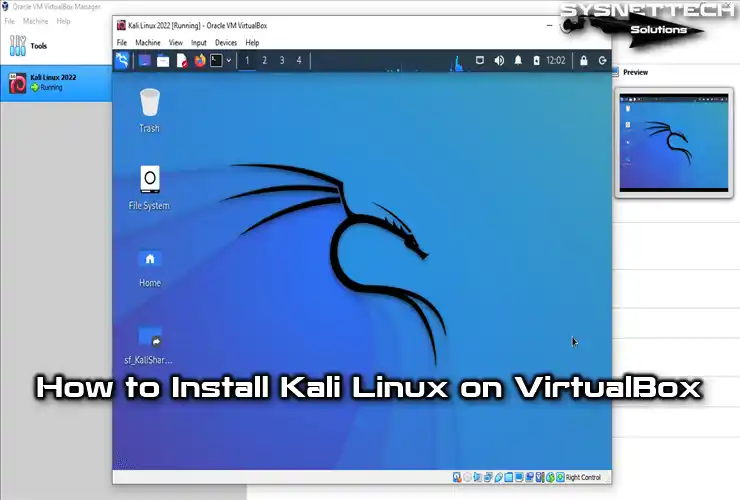
- Familiarize Yourself: Take a moment to explore the Kali desktop environment. By default, Kali uses the XFCE desktop, known for being lightweight and efficient. You’ll find the main menu (often a Kali dragon icon) in the top-left corner, providing access to all the pre-installed security tools categorized logically.
Installing VirtualBox Guest Additions
This is arguably the most important post-installation step for any VM. VirtualBox Guest Additions are a set of device drivers and system applications that enhance communication between the host and guest operating systems, providing:
- Better video support (higher resolutions, 3D acceleration).
- Seamless mouse integration.
- Shared clipboard (copy-paste between host and guest).
- Drag and drop functionality.
- Shared folders for easy file transfer.
- Ensure Updates are Done First (Optional but good practice): While you can install Guest Additions directly, it’s often smoother after ensuring your system packages are updated. We’ll cover updates in the next step, but if you want, run
sudo apt update && sudo apt full-upgrade -yfirst. - Insert Guest Additions CD Image: With your Kali Linux VM running, go to the VirtualBox Manager menu bar (at the top of your host screen) and click “Devices” -> “Insert Guest Additions CD image…” This will “mount” a virtual CD containing the Guest Additions installer inside your Kali VM.
- Install Guest Additions:
- Open a terminal in Kali Linux (often found in the application menu or via a keyboard shortcut like Ctrl+Alt+T).
- Navigate to the mounted CD-ROM directory. It’s usually mounted under
/media/cdromor/media/cdrom0. You might need to confirm the path by runningls /media. - Execute the installer script:
bash

cd /media/cdrom

sudo ./VBoxLinuxAdditions.run
- You might encounter messages about missing dependencies or kernel headers. If so, install them:
bash

sudo apt install -y build-essential dkms linux-headers-$(uname -r)
Then retrysudo ./VBoxLinuxAdditions.run.
- Reboot: After the installation completes, reboot your Kali Linux VM:
bash

sudo reboot
Upon reboot, you should notice improved display resolution, seamless mouse integration, and the shared clipboard/drag-and-drop features working.
Updating and Upgrading Kali Linux
Keeping your Kali Linux installation up-to-date is critical for security and to ensure all your tools are running the latest versions with bug fixes and new features.
- Open Terminal: Launch a terminal in your Kali Linux VM.
- Update Package Lists: First, update the list of available packages:
bash

sudo apt update
This command fetches the latest information about packages from the Kali repositories. - Full System Upgrade: Next, perform a full system upgrade. This will install all new package versions and remove obsolete ones:
bash

sudo apt full-upgrade -y
The-yflag automatically confirms prompts, saving you keystrokes. This process can take a while, depending on how many updates are available. - Clean Up (Optional but Recommended):
bash

sudo apt autoremove -y

sudo apt clean
These commands remove any no longer needed dependencies and clear the local repository cache, freeing up disk space.
Performing these updates regularly (at least once a week) is a fundamental practice in Digital Security and helps maintain a robust and functional environment.
Taking a Snapshot
VirtualBox snapshots are incredibly useful for experimentation. A snapshot records the state of your VM at a specific point in time, allowing you to revert to that state later if something goes wrong or if you want to save a pristine configuration.
- Shut Down Kali VM: It’s best to take snapshots when the VM is powered off or in a saved state. Shut down your Kali Linux VM from within the guest OS.
- Take Snapshot: In the VirtualBox Manager, select your “Kali Linux” VM.
- Click on “Snapshots” in the top right pane.
- Click the “Take” button (or the camera icon).
- Give your snapshot a descriptive name (e.g., “Fresh Install – Guest Additions & Updates”) and an optional description.
- Click “OK.”
Now, if you experiment with Kali and something breaks, you can easily revert to this snapshot, saving you from a full reinstallation.
Section 5: Embracing Your New Kali Linux Environment – The Journey Begins
With Kali Linux successfully installed, optimized, and snapshotted in VirtualBox, you’re now equipped to explore the vast world of cybersecurity tools and techniques.
Exploring Kali’s Tools
Kali Linux comes pre-loaded with hundreds of tools, organized into categories within the application menu. Take some time to browse through them:
- Information Gathering: Reconnaissance tools like
nmap,dnsrecon,maltego. - Vulnerability Analysis: Tools for scanning systems for weaknesses, such as
nessus,openvas. - Web Application Analysis: Tools for testing web applications, including
burp suite,nikto,sqlmap. - Database Assessment: Tools like
sqlninja. - Password Attacks: Utilities for cracking passwords, like
hashcat,john the ripper. - Wireless Attacks: Tools for Wi-Fi penetration testing, such as
aircrack-ng. - Reverse Engineering: Tools like
radare2. - Exploitation Tools: Frameworks like
Metasploit. - Forensics: Tools for digital investigations.
Remember that with great power comes great responsibility. Kali Linux tools are incredibly potent and should only be used for ethical purposes, on systems you have explicit permission to test, or in sandboxed lab environments. Unauthorized use of these tools can have serious legal consequences.
Next Steps and Learning Resources
Your installation is complete, but your learning journey has just begun. Cybersecurity is a field of continuous learning.
- Kali Linux Documentation: The official Kali Linux documentation (docs.kali.org) is an invaluable resource for understanding the system and its tools.
- Online Platforms: Websites like TryHackMe and Hack The Box offer structured learning paths and practical labs to hone your hacking skills in a legal and ethical environment.
- Forums and Communities: Engage with the cybersecurity community on forums, Reddit (e.g., r/hacking, r/kalilinux), and Discord servers.
- Books and Courses: Invest in reputable books and online courses covering topics like network security, penetration testing methodologies, and specific Kali tools.
- Practice: The best way to learn is by doing. Set up your own vulnerable labs (e.g., using other VMs with intentionally vulnerable software) and practice with the tools.
Conclusion
Installing Kali Linux in VirtualBox is a fundamental step for anyone interested in cybersecurity, offering a safe, flexible, and powerful environment for learning and experimentation. By following this comprehensive guide, you have successfully navigated the process of setting up your virtual machine, installing Kali Linux, and performing essential post-installation configurations, including the critical VirtualBox Guest Additions and system updates.
You now possess a fully functional, optimized, and secure Kali Linux sandbox – a powerful asset in your digital security toolkit. Remember the ethical implications of using these sophisticated tools and always prioritize responsible and authorized testing. This installation is not just a technical achievement; it’s the opening of a door to a challenging yet rewarding field. Embrace the learning, stay curious, and continue to explore the intricate landscape of technology and digital security. Your journey into ethical hacking and cybersecurity mastery has truly begun.
aViewFromTheCave is a participant in the Amazon Services LLC Associates Program, an affiliate advertising program designed to provide a means for sites to earn advertising fees by advertising and linking to Amazon.com. Amazon, the Amazon logo, AmazonSupply, and the AmazonSupply logo are trademarks of Amazon.com, Inc. or its affiliates. As an Amazon Associate we earn affiliate commissions from qualifying purchases.