
In the vast landscape of software development and deployment, Java remains a cornerstone, powering everything from enterprise-level applications to mobile utilities and desktop tools. A fundamental component of the Java ecosystem is the JAR file – Java Archive. These versatile packages encapsulate compiled Java classes, resources, and metadata into a single, portable unit. For developers, system administrators, and even end-users, understanding how to properly install and execute JAR files is an essential skill, unlocking a world of applications and utilities. This guide delves deep into the mechanisms behind JAR files, walks you through the installation process, addresses common pitfalls, and provides crucial insights into best practices for secure and efficient execution.

Understanding JAR Files and Their Significance
Before diving into the mechanics of installation, it’s vital to grasp what a JAR file is and why it holds such importance in the tech world. It’s more than just an archive; it’s a meticulously crafted container designed for portability and ease of distribution.
What is a JAR File?
At its core, a JAR (Java Archive) file is a package file format based on the popular ZIP file format. It’s specifically designed to aggregate multiple Java class files, associated metadata, resources (text, images, audio files), and sometimes even a manifest file, into a single, compressed file. This consolidation serves several critical purposes: it simplifies distribution, reduces file size, and provides a platform-independent way to deploy Java applications. Think of it as a self-contained application bundle for Java programs.
The Role of JARs in the Java Ecosystem
JAR files are ubiquitous in the Java ecosystem. They are the standard way to distribute Java libraries, which are collections of code that other Java applications can use. When you download a piece of Java software, whether it’s an integrated development environment (IDE) plugin, a command-line tool, or a desktop application, it’s often packaged as one or more JAR files. Furthermore, they facilitate the concept of “executable JARs,” which contain a Main-Class entry in their manifest file, allowing them to be run directly, similar to an executable program in other operating systems. This packaging makes Java applications inherently portable, meaning a JAR file compiled on one operating system can typically run on any other operating system that has a compatible Java Runtime Environment (JRE) installed.
Common Use Cases for JAR Files
The utility of JAR files extends across numerous applications:
-
Distributing Libraries: Developers commonly share reusable code modules as JARs, allowing other projects to easily incorporate them.
-
Deploying Applications: Many desktop Java applications are distributed as executable JARs, providing a straightforward way for end-users to run them.
-
Web Applications: While often deployed as WAR (Web Archive) files in application servers, the underlying components within WARs are frequently JARs.
-
Plugins and Extensions: Many large software platforms, particularly IDEs like Eclipse or IntelliJ IDEA, use JARs to package plugins and extensions.
-
Command-Line Tools: Many utility scripts and tools written in Java are distributed as JARs, offering powerful functionalities accessible via the terminal.
Essential Prerequisites for Running JARs
While JAR files are designed for portability, they aren’t entirely standalone. To “install” and run a JAR file, your system needs the appropriate Java environment configured. This foundational step is often overlooked but is crucial for seamless execution.
Java Runtime Environment (JRE) vs. Java Development Kit (JDK)
The most critical prerequisite is the Java Runtime Environment (JRE). The JRE contains all the necessary components to run Java applications, including the Java Virtual Machine (JVM) and core Java class libraries. It’s what an end-user typically needs. The Java Development Kit (JDK), on the other hand, includes the JRE plus development tools like compilers (javac), debuggers, and other utilities for creating Java applications. If you’re only looking to run existing JAR files, the JRE is sufficient. If you plan to develop Java applications, you’ll need the JDK. It’s worth noting that recent JDK versions often bundle a private JRE, making separate JRE installation less common for developers.
Verifying Your Java Installation
Before attempting to run a JAR, it’s wise to confirm that Java is installed and properly configured on your system. You can do this through your command line or terminal:
-
Open Command Prompt (Windows) or Terminal (macOS/Linux).
-
Type
java -versionand press Enter.
If Java is installed, you will see output similar to:
java version "17.0.2" 2022-01-18 LTS

Java(TM) SE Runtime Environment (build 17.0.2+8-LTS-52)

Java HotSpot(TM) 64-Bit Server VM (build 17.0.2+8-LTS-52, mixed mode, sharing)
If you get an error message like “java is not recognized as an internal or external command,” it means Java is either not installed or not correctly added to your system’s PATH environment variable. In this scenario, you’ll need to download and install a suitable JRE or JDK from Oracle, AdoptOpenJDK, OpenJDK, or another vendor.
Setting Up Environment Variables (if needed)
On some systems, particularly after a manual Java installation, you might need to configure the JAVA_HOME environment variable and add the Java bin directory to your system’s PATH. This ensures that the operating system can locate the java executable. While modern installers often handle this automatically, it’s a common troubleshooting step:
-
JAVA_HOME: Points to the root directory of your Java installation (e.g.,C:Program FilesJavajdk-17.0.2). -
PATH: Should include%JAVA_HOME%bin(Windows) or$JAVA_HOME/bin(macOS/Linux) to make thejavacommand globally accessible.
Consult your operating system’s documentation for detailed steps on managing environment variables, as this can vary significantly.
Step-by-Step Methods for Executing JAR Files
Once your Java environment is correctly set up, running JAR files is generally straightforward. There are a few primary methods, each suitable for different scenarios.
The Simplest Approach: Double-Clicking
For many executable JAR files, particularly those designed as desktop applications, the simplest method is to just double-click them.
-
How it works: When you double-click a
.jarfile, your operating system attempts to open it with the default application associated with JAR files. If Java is properly installed and configured, the OS will launch the Java Runtime Environment, which then executes the JAR. -
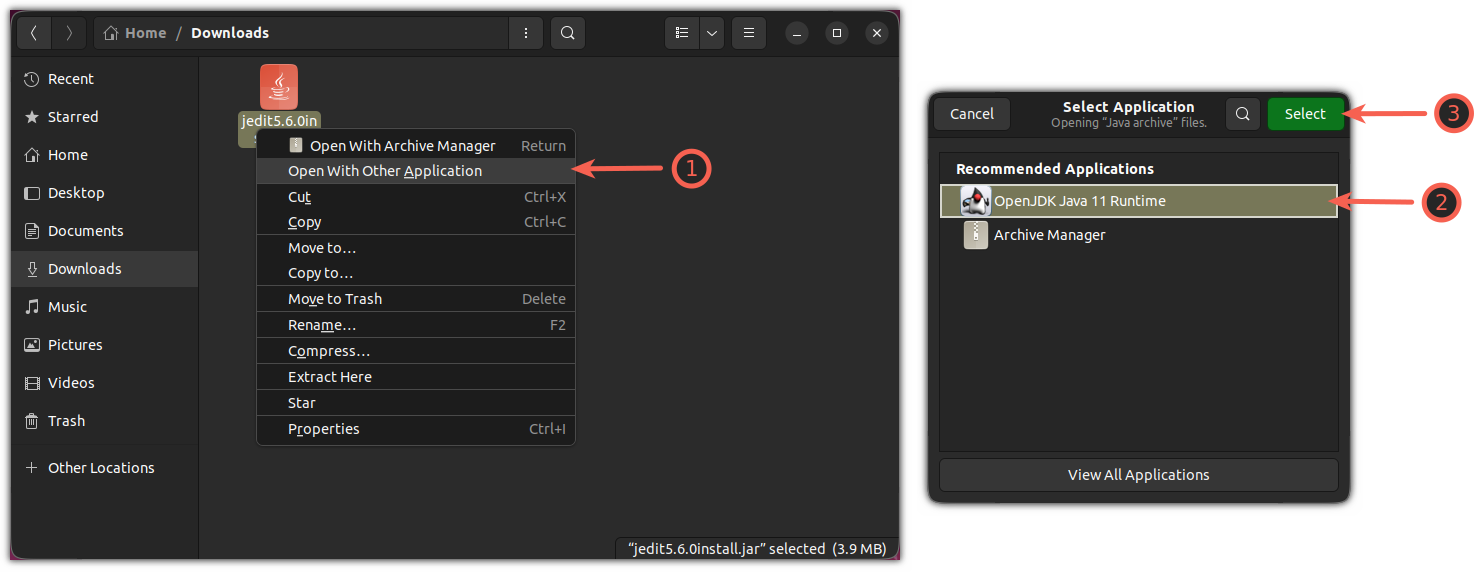
Prerequisites: This method relies on correct file associations. On Windows, if a JAR opens with an archiving tool (like WinRAR or 7-Zip) instead of running, the file association needs to be corrected. Right-click the
.jarfile, select “Open with,” and choose “Java(TM) Platform SE binary” or similar. On macOS and Linux, this usually works out of the box if Java is installed. -
Limitations: This method is ideal for graphical user interface (GUI) applications but offers limited control over execution parameters, such as specific Java versions or command-line arguments.
Running JARs from the Command Line (CLI)
The command line provides the most robust and flexible way to execute JAR files, offering fine-grained control and access to error messages. This is the preferred method for server-side applications, command-line tools, and debugging.
-
Open Command Prompt (Windows) or Terminal (macOS/Linux).
-
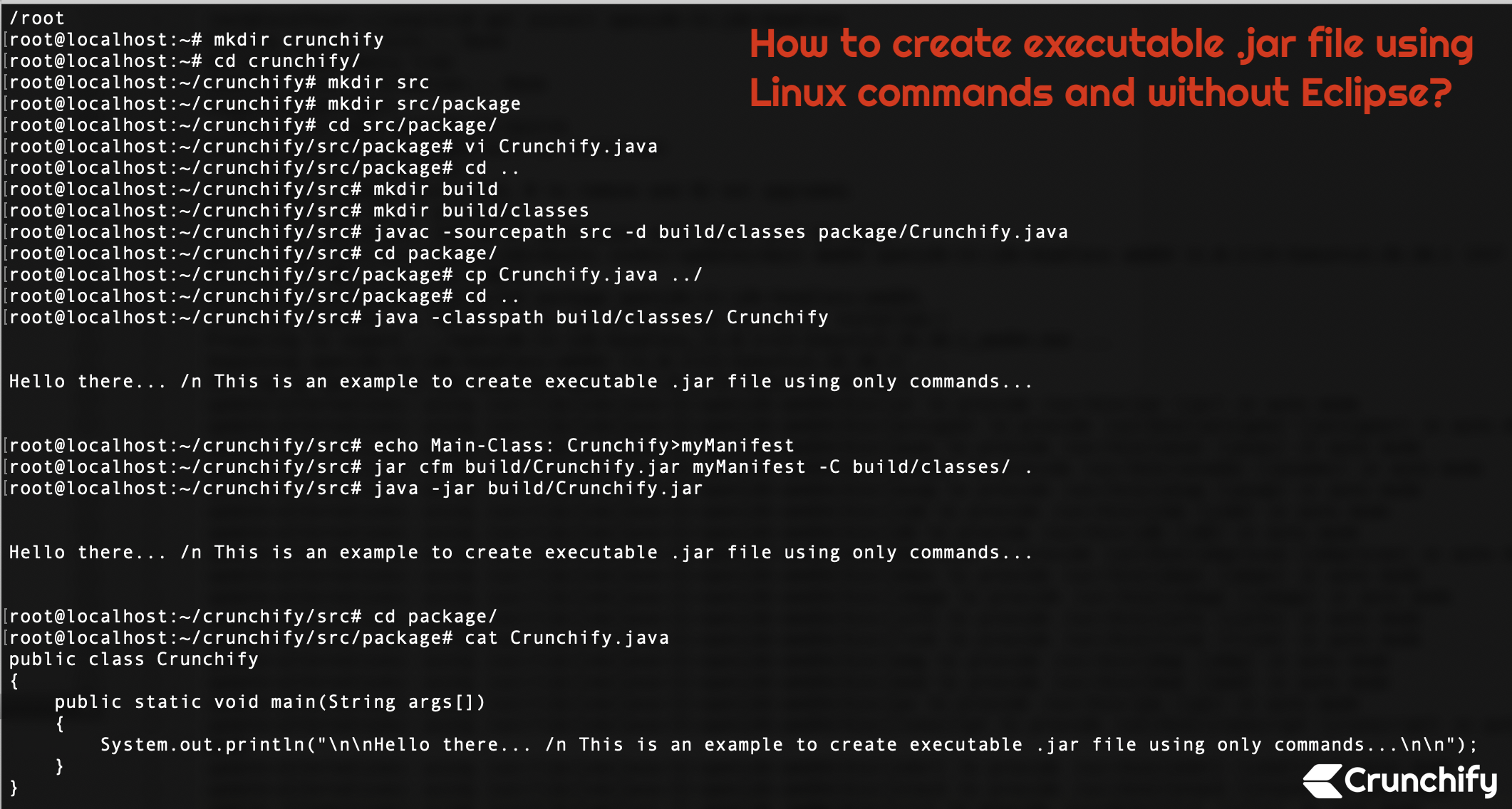
Navigate to the directory where your JAR file is located. You can use the
cdcommand (e.g.,cd C:UsersYourUserDownloadsorcd ~/Desktop). -
Execute the JAR using the
java -jarcommand:java -jar YourApplication.jarReplace
YourApplication.jarwith the actual name of your JAR file. -
Press Enter. The Java application will start. Any output (e.g., logs, results) will typically appear in the terminal window.
Executing JARs with Specific Java Versions
If you have multiple Java versions installed (e.g., JDK 8, JDK 11, JDK 17), you might need to specify which version should be used to run a particular JAR, especially if the application requires an older or newer Java version.
-
Locate the
javaexecutable for the desired version. This will typically be in thebindirectory of that specific JDK/JRE installation (e.g.,C:Program FilesJavajdk-11binjava.exe). -
Use the full path to the
javaexecutable in your command:"C:Program FilesJavajdk-11binjava.exe" -jar YourApplication.jar(On macOS/Linux, adjust the path accordingly, e.g.,
/Library/Java/JavaVirtualMachines/jdk-11.jdk/Contents/Home/bin/java -jar YourApplication.jar)
This ensures that your application runs in its intended environment, avoiding compatibility issues.
Using Executable JAR Wrappers
For end-users, especially on Windows, a JAR file might not feel like a native application. Developers often create “wrappers” (e.g., .exe files for Windows, .app bundles for macOS) that bundle the JAR and a specific JRE, or simply invoke the JAR using the system’s Java. Tools like Launch4j (for Windows) or native application builders can create these wrappers, providing a more polished user experience by making the Java application feel like a native executable. This method simplifies installation for the end-user as they don’t need to manually verify Java installations or use the command line.
Troubleshooting Common JAR Installation and Execution Issues
Despite Java’s robustness, you might encounter issues when trying to run JAR files. Understanding the common error messages and their solutions is key to efficient troubleshooting.
“No Main Manifest Attribute” Error
This is a very common error for beginners. It means the META-INF/MANIFEST.MF file inside your JAR does not specify a Main-Class entry.
-
Cause: The JAR is not an “executable JAR.” It might be a library JAR (intended to be used by other applications) or an executable JAR that was not built correctly to specify its main entry point.
-
Solution: If it’s a library, it’s not meant to be run directly. If it’s supposed to be an application, ensure the JAR was built with the
Main-Classattribute in its manifest. If you are a user, contact the developer. If you are a developer, use build tools like Maven or Gradle, or thejarcommand with theeoption (e.g.,jar cfe YourApplication.jar YourMainClass *.class) to correctly specify the main class when creating the JAR.
“Cannot Find Main Class” Error
Similar to the above, but distinct. This error indicates that the Main-Class attribute is present in the manifest, but the Java Runtime cannot locate the specified class within the JAR or its classpath.
-
Cause: A typo in the
Main-Classentry, the class file itself is missing from the JAR, or the class is in an unexpected package structure. -
Solution: Verify the exact fully qualified name of your main class (e.g.,
com.example.MyApp.MainClass) matches theMain-Classentry inMANIFEST.MF. Decompile or inspect the JAR content to ensure the class file exists in the expected location.
File Association Problems
This issue primarily affects double-clicking on JAR files, especially on Windows. Instead of running, the JAR might open as an archive in a ZIP utility.
-
Cause: The
.jarfile extension is incorrectly associated with an archiving program instead of the Java Runtime Environment. -
Solution (Windows): Right-click the
.jarfile, select “Open with,” then “Choose another app.” Navigate toC:Program FilesJavajre<version>bin(orjdk<version>bin) and selectjavaw.exe. Check the “Always use this app to open .jar files” box. On macOS/Linux, ensure Java is installed; these systems usually handle associations better.
Permissions and Security Warnings
Sometimes, particularly when downloading JARs from the internet, you might encounter security warnings or permission issues.
-
Cause: Operating system security features might block execution of files from unknown sources. Java’s own security policy might also restrict operations if the JAR is unsigned or requesting elevated permissions.
-
Solution: For OS warnings, right-click the file, go to properties, and “Unblock” it on Windows. For macOS, you might need to go to System Preferences > Security & Privacy and explicitly allow the app. For Java security warnings, ensure your Java security settings (in the Java Control Panel) are not overly restrictive for trusted applications. Always ensure the JAR comes from a trustworthy source before bypassing security warnings.
Outdated Java Version Conflicts
Running a JAR compiled with a newer Java version on an older JRE, or vice-versa, can lead to UnsupportedClassVersionError or other runtime exceptions.
-
Cause: Java applications are compiled for a specific bytecode version. An older JRE cannot run bytecode from a newer Java version. While a newer JRE can often run older bytecode, this isn’t always guaranteed, and modern applications might leverage newer APIs.
-
Solution: Identify the Java version required by the JAR (often specified in documentation or error messages). Install the appropriate JRE/JDK version and use the command-line method to explicitly run the JAR with that specific Java executable, as described in the “Executing JARs with Specific Java Versions” section.
Best Practices and Security Considerations
While JAR files offer immense utility and portability, it’s paramount to approach their installation and execution with a security-first mindset, especially when dealing with untrusted sources.
Always Verify the Source
The most critical security practice is to never run a JAR file from an unknown or untrusted source. JAR files are executable code; running a malicious JAR is akin to running any other virus or malware.
- Action: Only download JARs from official websites, reputable software repositories, or trusted developers. Be wary of unsolicited JAR files or those from suspicious links.
Keeping Your Java Up-to-Date
Regularly updating your Java Runtime Environment (JRE) or Java Development Kit (JDK) is crucial. Updates often include critical security patches, performance improvements, and bug fixes.
- Action: Enable automatic updates for your Java installation or regularly check for new versions on the official Oracle or OpenJDK websites. Running an outdated Java version can expose your system to known vulnerabilities.
Understanding JAR Permissions
Historically, signed JARs could request elevated permissions (e.g., access to local file system, network) and users would be prompted to grant them. While modern Java security models have shifted, understanding permissions is still vital.
- Insight: Be cautious if a JAR application seems to be requesting unusual permissions or attempting operations that seem beyond its stated purpose. While a well-behaved application might need network access, one asking for full system access without clear justification should raise red flags.
Sandboxing and Virtual Environments
For highly sensitive applications, or when you absolutely must run a JAR from a questionable source for testing or analysis, consider using a sandboxed environment or a virtual machine.
- Action: Tools like Docker containers or virtual machines (e.g., VirtualBox, VMware) can isolate the execution of a JAR from your main operating system, preventing potential malware from affecting your primary system. This is an advanced but highly effective security measure for dealing with unknown executables.
In conclusion, mastering the installation and execution of JAR files is a fundamental skill for anyone interacting with Java applications. By understanding the underlying concepts, correctly configuring your Java environment, employing the appropriate execution methods, and diligently adhering to security best practices, you can confidently and effectively harness the power of Java archives to run a diverse range of software.
aViewFromTheCave is a participant in the Amazon Services LLC Associates Program, an affiliate advertising program designed to provide a means for sites to earn advertising fees by advertising and linking to Amazon.com. Amazon, the Amazon logo, AmazonSupply, and the AmazonSupply logo are trademarks of Amazon.com, Inc. or its affiliates. As an Amazon Associate we earn affiliate commissions from qualifying purchases.