
In the vibrant ecosystem of Apple’s iOS, the App Store stands as the primary gateway for users to discover and install applications. However, for a myriad of reasons, ranging from developer testing to accessing unofficial utilities or specialized software, users might encounter files ending with the .ipa extension. These are iOS App Store Package files, and understanding how to install them, often referred to as “sideloading,” unlocks a new dimension of control and customization over your device.
This guide delves into the world of IPA file installation, offering a comprehensive look at the various methods available. Whether you’re a developer testing your latest creation, a business deploying internal tools, or simply an enthusiast seeking alternative apps, mastering IPA installation is a valuable skill. We’ll explore the technical aspects, practical tutorials, and crucial security considerations, aligning with the core tenets of our website: empowering you with tech knowledge, understanding brand implications, and even exploring potential financial efficiencies.

Understanding IPA Files and Why Sideloading Matters
Before diving into the “how-to,” it’s essential to grasp what an IPA file is and the diverse motivations behind installing apps outside the traditional App Store framework. This foundational knowledge is key to navigating the iOS landscape with confidence and security.
What is an IPA File?
An IPA file (iOS App Store Package) is essentially an archive file format that stores an iOS application. Much like an .exe file on Windows or an .dmg on macOS, an IPA file contains all the necessary components of an iOS app: the binary for the ARM architecture, resources like images and sounds, and a property list (Info.plist) that describes the app’s metadata. Every app you download from the App Store is, at its core, an IPA file packaged and signed by Apple.
When you install an app from the App Store, Apple’s systems handle the unpacking, verification, and installation process seamlessly. However, when you obtain an IPA file directly, you bypass this automated system, requiring manual intervention or the use of specific tools to get the app onto your device.
The Rationale Behind Sideloading: Why Go Beyond the App Store?
The decision to sideload an IPA file is often driven by specific needs or circumstances that the official App Store cannot address. These reasons span various categories, from development to privacy and even business strategy, impacting how individuals and organizations leverage technology.
-
Developer Testing and Beta Programs: For app developers, sideloading is indispensable. It allows them to test their applications on physical devices before submitting them to Apple for review. Early beta versions of apps are frequently distributed as IPA files to a select group of testers, providing crucial feedback loops outside the public App Store environment. This is a core “Tech” application, facilitating the development lifecycle of “Software” and “Apps.”
-
Accessing Unofficial or Custom Applications: Sometimes, an app might not meet Apple’s stringent App Store guidelines, or it might be a highly specialized tool designed for a niche purpose not intended for mass distribution. This could include emulators, unofficial utilities, modified versions of existing apps, or custom-developed “AI Tools” for specific tasks. Sideloading provides the pathway to use such applications.
-
Region-Locked or Unavailable Apps: Certain applications might only be available in specific geographic regions or have been removed from the App Store entirely. If you have access to the IPA file, sideloading can circumvent these restrictions, offering a way to retain access to valuable “Apps” or services.
-
Maintaining Older Versions of Apps: App updates, while generally beneficial, can sometimes remove features, change user interfaces drastically, or introduce compatibility issues with older devices. Sideloading an older IPA version allows users to stick with a preferred app experience, enhancing “Productivity” by avoiding disruptive changes.
-
Corporate and Enterprise Deployment: Businesses often develop proprietary internal applications not meant for the public App Store. These apps can streamline workflows, manage internal systems, or provide custom “AI Tools” tailored to specific operational needs. Sideloading via enterprise distribution methods ensures secure deployment of these vital tools to employees, forming a crucial part of “Brand Strategy” and “Corporate Identity” by enhancing internal efficiency and “Digital Security” through controlled distribution.
-
Personal Customization and Experimentation: For tech enthusiasts, sideloading offers a sense of greater control over their devices. It enables experimentation with alternative app experiences, custom user interfaces, or innovative features not yet sanctioned by Apple. This taps into the broader “Technology Trends” of personalization and user empowerment.
While the App Store offers convenience and security, sideloading IPA files provides a powerful alternative for those with specific requirements. However, this flexibility comes with responsibilities, particularly concerning “Digital Security” and device stability.
Essential Prerequisites Before You Begin
Embarking on the journey of sideloading IPA files requires more than just an IPA file itself. There are specific device, software, and account requirements, along with critical security considerations that must be addressed to ensure a smooth and safe process. Overlooking these steps can lead to frustration, potential security risks, or even compromise your device.
Device and Software Requirements
To successfully install an IPA file, you’ll need the right tools at your disposal. These are the fundamental components of your sideloading toolkit:
-
An iOS Device: This is self-explanatory – an iPhone, iPad, or iPod Touch running a compatible version of iOS/iPadOS. Ensure your device has enough free storage space for the app you intend to install.
-
A Computer (Mac or Windows PC): Most sideloading methods require a desktop or laptop computer.
- macOS: Essential for Xcode-based methods.
- Windows: Supports tools like Sideloadly and AltStore (often requiring iTunes to be installed for device drivers).
- Ensure your computer’s operating system is up-to-date.
-
USB Cable: A reliable USB-to-Lightning or USB-C cable is needed to connect your iOS device to your computer. Wireless sideloading is possible with some tools (like AltStore after initial setup), but a wired connection is usually required for the first installation.
-
Internet Connection: Required for downloading tools, IPA files, and authenticating with Apple’s servers.
-
An Apple ID: Crucial for signing applications. You can use your regular Apple ID, but for more advanced or frequent sideloading, a dedicated Apple ID might be preferable to keep your main account separate from signing activities, particularly if you’re concerned about potential account issues, though unlikely.
-
Specific Sideloading Tools (e.g., AltStore, Sideloadly, Xcode): These will be discussed in detail in the next section. They are the software bridges that enable the transfer and signing of IPA files.
Navigating Security Considerations
The convenience of sideloading comes with inherent risks that must be understood and mitigated. Prioritizing “Digital Security” is paramount when installing applications from sources outside the App Store.
-
Source Verification: This is the golden rule of sideloading. ONLY download IPA files from trusted sources. Unverified IPA files can contain malware, spyware, or other malicious code that can compromise your personal data, device security, or even financial information. Always confirm the reputation of the developer or distributor. This directly impacts “Digital Security” and protects your “Money” (financial data).
-
Apple ID Security: While most tools use your Apple ID to sign apps, they don’t typically store your credentials. However, be cautious of any tool that asks for your Apple ID password directly. Use app-specific passwords if available or advisable for extra security, though most modern tools handle signing via a secure process.
-
Revocation Risks: Applications sideloaded with a free Apple Developer account (which is what most users leverage via tools like AltStore or Sideloadly) are signed for a period of seven days. After this period, the app’s certificate expires, and the app will cease to open unless it’s “refreshed” or re-signed. Enterprise certificates can last longer but are also subject to revocation by Apple if abuse is detected. This continuous maintenance impacts “Productivity” and requires awareness.
-
Device Stability and Performance: Unofficial or poorly developed IPA files can lead to device instability, crashes, battery drain, or unexpected behavior. Stick to well-known and reputable IPA sources to minimize these issues.
-
Warranty and Support: While sideloading generally doesn’t void your device’s warranty (unlike jailbreaking), Apple Support may refuse to assist with issues directly stemming from sideloaded applications. This is a minor consideration but worth noting.
By understanding and preparing for these prerequisites and security concerns, you lay the groundwork for a successful and relatively safe sideloading experience.
Diverse Methods for Installing IPA Files
The landscape of IPA installation offers several distinct pathways, each suited for different user needs, technical proficiencies, and application types. From user-friendly third-party tools to professional developer environments, choosing the right method is crucial for a smooth experience.
Method 1: Sideloading Tools (AltStore, Sideloadly, Cydia Impactor – Modern Approaches)
These tools have emerged as the most popular and accessible options for the average user. They simplify the complex signing process, allowing users to install IPA files with relative ease, primarily leveraging Apple’s free developer provisioning profiles.
AltStore
AltStore is a free, open-source application that allows you to sideload apps (.ipa files) onto your iOS device. What sets AltStore apart is its ability to “refresh” or re-sign your sideloaded apps directly on your device, without needing to connect to a computer every seven days. This makes it a highly convenient option for maintaining long-term access to unofficial apps.
How it Works:
- Installation: Install AltServer (the companion application) on your Windows or macOS computer.
- Initial Setup: Connect your iOS device to your computer via USB. Use AltServer to install AltStore onto your iOS device. This initial installation requires your Apple ID credentials for signing, which are sent directly to Apple’s servers for authentication, not stored by AltStore.
- Sideloading Apps: Once AltStore is on your device, you can download IPA files directly to your iPhone/iPad, then open them with AltStore to install. AltStore manages the signing process itself.
- Refreshing Apps: AltStore uses Wi-Fi synchronization (after initial setup) or a direct USB connection to automatically refresh your app signings every seven days, as long as AltServer is running on your computer on the same Wi-Fi network.
Pros: Self-refreshing apps on-device, user-friendly interface, actively developed.
Cons: Requires AltServer to be running on a computer periodically for refreshes, initial setup can be a bit tricky for some.
Sideloadly
Sideloadly is another popular desktop-based tool for Windows and macOS, offering a straightforward way to sideload IPA files. It’s often seen as a spiritual successor to the now-defunct Cydia Impactor.
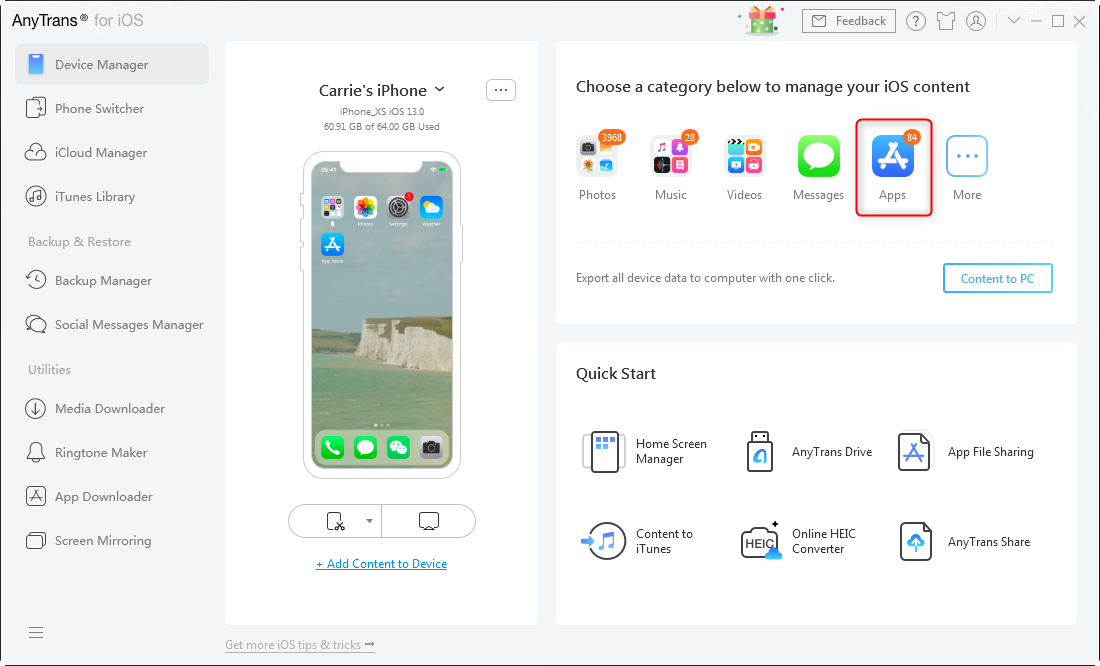
How it Works:
- Download: Download and install Sideloadly on your Windows or macOS computer.
- Connect Device: Connect your iOS device to your computer via USB.
- Input Apple ID: Open Sideloadly, drag and drop the IPA file into the application, and enter your Apple ID. Sideloadly uses this to sign the app with your free developer certificate.
- Install: Click “Start,” and Sideloadly will install the app onto your device.
Pros: Simple drag-and-drop interface, supports both free and paid Apple Developer accounts, works on both Windows and macOS.
Cons: Apps need to be re-signed every seven days by connecting to a computer and running Sideloadly again. This can be a minor “Productivity” hindrance.
Cydia Impactor (Historical Note & Context)
Cydia Impactor was once the go-to tool for sideloading, especially prevalent in the jailbreaking community. It utilized a similar method to Sideloadly, allowing users to sign and install IPA files. However, due to changes in Apple’s developer certificate requirements, Cydia Impactor largely ceased to function reliably for free developer accounts around 2019. While still mentioned in older guides, it’s generally not a viable option for most users today. Its legacy, however, paved the way for tools like Sideloadly and AltStore, demonstrating the constant evolution in “Software” tools to adapt to “Technology Trends.”
Method 2: Xcode (For Developers and Advanced Users)
Xcode is Apple’s integrated development environment (IDE) for macOS, primarily used by developers to create iOS, macOS, watchOS, and tvOS applications. It offers the most official way to install IPA files, especially for apps you are actively developing or have the source code for. This method is fundamental for anyone interested in “Software” development or custom “Apps.”
How it Works:
- Xcode Installation: Download and install Xcode from the Mac App Store on a macOS computer.
- Connect Device: Connect your iOS device to your Mac via USB.
- Add Apple ID: In Xcode, go to Preferences > Accounts and add your Apple ID. This will enable Xcode to create a free personal development team for you.
- Create New Project (Optional for IPA): If you have the source code, you’d open or create a project, select your device as the target, and click the “Run” button. Xcode compiles and installs the app.
- Installing Pre-built IPA (More Complex): While Xcode is primarily for building from source, you can install pre-built IPA files using specific functionalities or third-party Xcode plugins. A common approach for an already compiled IPA is to use a utility like Apple Configurator 2 (also from the Mac App Store) or through the “Devices and Simulators” window in Xcode (Window > Devices and Simulators), where you can drag and drop an IPA onto your device. However, this method usually requires the IPA to be signed with a provisioning profile that includes your device, or signed with an Enterprise certificate. For simple sideloading of any IPA, tools like Sideloadly are generally easier.
Pros: Official Apple method, required for active development, robust debugging capabilities.
Cons: Requires a Mac, higher learning curve, not designed for simply “installing any IPA” without source code or proper signing. Relevant for “Tech” professionals in “Software” development.
Method 3: Enterprise Distribution & MDM (For Businesses and Organizations)
For larger organizations, manually sideloading individual apps onto dozens or hundreds of devices is impractical. Apple provides robust solutions for “Enterprise Distribution” and Mobile Device Management (MDM) that allow businesses to securely deploy custom, in-house applications to their employees without going through the public App Store. This is crucial for “Brand Strategy,” “Corporate Identity,” and “Digital Security” within a professional context.
How it Works:
- Apple Developer Enterprise Program: Organizations enroll in this program, which grants them an Enterprise Distribution Certificate. This certificate allows them to sign their own applications for internal distribution without the 7-day expiration limit of free developer accounts.
- Internal App Development: Custom “Apps” or “AI Tools” are developed in-house to meet specific business needs.
- MDM Solution: An MDM solution (e.g., Jamf, Microsoft Intune, VMware Workspace ONE) is used to manage and deploy these apps. Employees’ devices are enrolled in the MDM, allowing the IT department to push apps, enforce security policies, and manage device configurations remotely.
- Over-the-Air (OTA) Installation: Apps can be distributed wirelessly via a secure web portal (often managed by the MDM). Users simply tap a link, and the app is installed, much like from the App Store.
Pros: Scalable, secure, bypasses App Store review, full control over app features and deployment, ideal for “Corporate Identity” and “Productivity.”
Cons: Requires enrollment in the Apple Developer Enterprise Program (annual fee), requires an MDM solution, higher initial setup complexity. This method is directly relevant to “Business Finance” and “Brand Strategy.”
Method 4: Official App Store (The Standard, But with Caveats)
While the focus of this article is on installing IPA files outside the App Store, it’s important to acknowledge the App Store itself as the primary, and safest, method of app distribution.
How it Works:
- Browse/Search: Users browse or search for applications directly on their iOS device via the App Store app.
- Download & Install: With a tap, the app is downloaded, verified, and installed automatically by Apple’s secure infrastructure.
Pros: Utmost security, convenience, automatic updates, vetted apps, no technical knowledge required.
Cons: Strict review guidelines (some apps won’t be approved), limited customization, potential for region restrictions, no access to older versions. This is the baseline “Apps” experience against which all sideloading methods are compared.
Each of these methods offers a unique approach to getting applications onto an iOS device. The choice depends on your specific goals, your technical comfort level, and the nature of the application you wish to install.
Risks, Best Practices, and Longevity of Sideloaded Apps
While sideloading IPA files offers unparalleled flexibility, it’s crucial to approach it with a clear understanding of the associated risks and to adopt best practices to protect your device and data. Furthermore, managing the lifespan of sideloaded apps requires a proactive approach.
Understanding the Potential Downsides
Stepping outside the walled garden of the App Store introduces several vulnerabilities that users should be acutely aware of. These factors directly impact your “Digital Security,” device stability, and overall user experience.
-
Malware and Security Risks: This is the most significant concern. IPA files from untrusted sources can be vectors for malware, spyware, ransomware, or other malicious code. Such apps could steal personal data, access your contacts, photos, or even banking information, directly compromising your “Money” and privacy. Apple’s App Store vetting process, while not flawless, significantly reduces this risk. When sideloading, you become the primary security gatekeeper.
-
Device Instability and Performance Issues: Unofficial or poorly coded applications can lead to crashes, freezes, excessive battery drain, or general system instability. These apps might not be optimized for your specific iOS version or device model, degrading your overall “Productivity” and user experience.
-
Privacy Concerns: Sideloaded apps, especially those from unknown developers, might have excessive permissions or engage in data collection practices that you are unaware of or uncomfortable with. Always review app permissions if possible and be wary of apps requesting unnecessary access to your device features.
-
Revocation and Expiration: As discussed, apps signed with a free Apple Developer account expire every seven days. This means your app will stop working unless re-signed. Enterprise certificates can also be revoked by Apple if the terms of the enterprise program are violated, leading to widespread app failure within an organization. This constant need for maintenance can be a significant “Productivity” drain if not managed properly.
-
Lack of Official Support: Sideloaded apps do not receive official support from Apple. If you encounter issues, troubleshooting assistance will be limited to the app’s developer (if available) or community forums.
Tips for a Secure Sideloading Experience
Mitigating the risks associated with sideloading involves a combination of caution, common sense, and proactive measures. Adopting these best practices will enhance your “Digital Security” and ensure a smoother experience.
-
Source Verification is Paramount: ALWAYS download IPA files only from reputable and trusted sources. If you’re unsure, search for reviews, developer information, or community consensus. Avoid random links or torrents.
-
Use a Dedicated Apple ID (Optional but Recommended): While not strictly necessary for tools like AltStore or Sideloadly, some users prefer to use a secondary Apple ID for signing sideloaded apps. This compartmentalizes potential issues, though direct security risks to your Apple ID are minimal with legitimate sideloading tools.
-
Keep Your iOS Device Updated: Apple regularly releases iOS updates that patch security vulnerabilities. Running the latest stable iOS version ensures you have the most up-to-date security protections in place.
-
Backup Your Device Regularly: Before experimenting with new sideloaded apps, perform a full backup of your iOS device to iCloud or your computer. This allows you to restore your device to a previous stable state if something goes wrong. This is crucial for protecting your “Digital Security” and data.
-
Monitor App Permissions: Be mindful of the permissions an app requests upon installation or first use. If an app seems to be asking for access it doesn’t need (e.g., a simple game requesting access to your microphone and contacts), reconsider installing it.
-
Understand the Tools You Use: Familiarize yourself with how AltStore, Sideloadly, or Xcode work. Understand their limitations and requirements to avoid common pitfalls.
Managing App Revokes and Re-signing
The 7-day expiry limit for apps signed with a free Apple Developer account is a reality of sideloading. Effective management of this can significantly impact your “Productivity” and reliance on these apps.
-
AltStore for On-Device Refreshing: If long-term access to apps without constant computer connection is a priority, AltStore is your best bet. Ensure AltServer is running on your computer (and on the same Wi-Fi network) periodically to allow AltStore to refresh your apps automatically.
-
Sideloadly for Manual Re-signing: If you use Sideloadly, set a reminder to connect your device to your computer and re-sign your apps before the 7-day period expires. You can often re-sign an app even if it has expired, but it’s smoother if done proactively.
-
Consider a Paid Apple Developer Account (For specific needs): For those requiring longer signing periods (1 year) without constant re-signing, enrolling in the Apple Developer Program (which costs $99/year) allows you to sign apps for a full year. This is a “Money” investment but can significantly reduce maintenance for critical sideloaded apps, especially for businesses or serious developers.
-
Enterprise Certificate Management: For businesses, a robust MDM solution coupled with vigilant monitoring of enterprise certificates is essential to prevent widespread app outages due to revocation. This directly influences “Business Finance” and “Corporate Identity” by ensuring continuous operational efficiency.
By understanding these risks, implementing best practices, and actively managing your sideloaded applications, you can leverage the power of IPA files while minimizing potential drawbacks, ensuring your technology serves you effectively and securely.
Conclusion
The ability to install IPA files opens a valuable pathway to extend the functionality and personalize the experience of your iOS device, moving beyond the confines of the official App Store. Whether driven by the needs of “Tech” development, the strategic objectives of “Brand” management, or the pursuit of “Money”-saving custom “Apps,” understanding sideloading is a powerful asset in today’s digital landscape.
We’ve explored the diverse motivations for sideloading, from developer testing and accessing unique “Apps” to facilitating enterprise deployment. We’ve also delved into the essential prerequisites, including the necessary hardware, software, and crucial “Digital Security” considerations that underpin every successful installation. From user-friendly tools like AltStore and Sideloadly to the professional environment of Xcode and the enterprise-grade solutions of MDM, a method exists for almost every user profile and situation.
However, with this newfound flexibility comes responsibility. The importance of sourcing IPA files from trusted origins, understanding the implications of app revocations, and adhering to best practices for “Digital Security” cannot be overstated. By being informed and cautious, you can harness the full potential of your iOS device without compromising its integrity or your personal data.
As technology continues to evolve, the dynamics between app developers, platform owners, and end-users will undoubtedly shift. Mastering the art of IPA installation positions you at the forefront of this evolution, ready to explore new “Technology Trends,” customize your digital life, and leverage “Apps” that truly meet your unique needs, whether for personal “Productivity” or strategic business advantage. This guide equips you with the knowledge to navigate this exciting realm intelligently and securely.
aViewFromTheCave is a participant in the Amazon Services LLC Associates Program, an affiliate advertising program designed to provide a means for sites to earn advertising fees by advertising and linking to Amazon.com. Amazon, the Amazon logo, AmazonSupply, and the AmazonSupply logo are trademarks of Amazon.com, Inc. or its affiliates. As an Amazon Associate we earn affiliate commissions from qualifying purchases.