
In the tightly controlled ecosystem of Apple’s iOS, the App Store stands as the primary gateway for users to download and install applications. This model ensures a high level of security, quality, and user experience. However, there are legitimate reasons why an iPhone user might want to venture beyond the App Store and install applications from other sources – a process commonly known as “sideloading.” This guide delves into the world of IPA files, explains why you might want to install them, and provides a detailed walkthrough of the most popular and reliable methods, empowering you to take greater control over your iPhone’s software.

Whether you’re a developer testing your latest creation, an enthusiast eager to try a beta app not yet on the App Store, or simply looking to run an older version of an app no longer available, understanding how to install IPA files is a valuable skill for any tech-savvy iPhone owner. We’ll explore various techniques, from developer-centric tools like Xcode to user-friendly sideloading utilities like AltStore and Sideloadly, ensuring you can choose the method that best fits your needs and technical comfort level.
Understanding IPA Files and the World of Sideloading
Before we dive into the “how-to,” it’s crucial to grasp what an IPA file is and what “sideloading” truly entails within the iOS context. This foundational knowledge will not only help you navigate the installation process but also understand the implications and potential risks involved.
What is an IPA File?
An IPA (iOS App Store Package) file is essentially an archive file format used by Apple’s iOS operating system to store and distribute mobile applications. Think of it as the .exe file for Windows or the .apk file for Android. Inside an IPA file, you’ll find all the necessary components for an iOS application, including the app’s binary code, resources (like images, sounds, and icons), and metadata (such as the app’s name, version, and developer).
When you download an app from the official App Store, Apple’s servers deliver an IPA file to your iPhone, which the operating system then unpacks and installs. However, IPA files can also be obtained from sources other than the App Store, such as directly from developers, open-source repositories, or dedicated sideloading platforms.
Why Sideload Apps on Your iPhone?
The decision to sideload an application often stems from specific needs that the official App Store cannot fulfill. Here are some common motivations:
- Developer Testing: For app developers, sideloading is indispensable. It allows them to install and test their applications directly on physical devices during the development cycle, long before submitting them to Apple for review and App Store publication.
- Beta and Pre-Release Apps: Many companies and independent developers offer beta versions of their apps to gather feedback before a public release. These betas are often distributed as IPA files that users can sideload.
- Custom or Modified Apps: Enthusiasts might want to install custom versions of apps with added features, tweaks, or modified interfaces not approved by Apple. This includes themes, ad-blockers, or specialized tools.
- Discontinued or Region-Locked Apps: Sometimes, an app might be removed from the App Store or become unavailable in certain geographical regions. Sideloading can be a way to continue using such applications if you have access to their IPA file.
- Open-Source Projects: Many open-source iOS applications are not published on the App Store due to various reasons (e.g., specific functionalities, lack of developer resources for maintenance). Their IPA files are often freely available for compilation and sideloading.
- Restoring Older App Versions: If a new update to an app introduces unwanted changes or removes beloved features, sideloading an older IPA version can be a way to revert to a more preferred experience, provided you have the older file.
Risks and Considerations of Sideloading
While sideloading offers considerable flexibility, it’s crucial to be aware of the potential risks involved:
- Security Vulnerabilities: The biggest concern is security. When you install an app from an unknown source, you bypass Apple’s rigorous security checks. Malicious IPA files could contain malware, spyware, or other harmful code designed to compromise your device or steal your personal data. Always download IPA files from trusted developers and reputable sources.
- App Stability and Performance: Sideloaded apps might not be as stable or performant as App Store versions. They might be beta releases, poorly optimized, or incompatible with your iOS version, leading to crashes or unexpected behavior.
- Certificate Revocation: Most sideloading methods rely on developer certificates. These certificates can be revoked by Apple, causing your sideloaded apps to stop working until you reinstall them or refresh their certificates. This is a common frustration for non-developer accounts.
- No Automatic Updates: Sideloaded apps do not receive automatic updates through the App Store. You’ll have to manually monitor for new versions and reinstall them, which can be cumbersome.
- Potential Warranty Issues: While sideloading itself generally doesn’t void your iPhone’s warranty (unless it involves jailbreaking), installing apps that significantly alter system behavior could potentially complicate support claims.
Given these considerations, always proceed with caution and only sideload apps from sources you explicitly trust.
Method 1: Sideloading with AltStore and Sideloadly (User-Friendly & No Jailbreak)
For most users who want to sideload apps without jailbreaking their device or needing a full developer account, utilities like AltStore and Sideloadly offer an excellent balance of ease of use and functionality. Both tools leverage Apple’s developer provisioning system to sign and install apps, requiring you to refresh them periodically.
A. Using AltStore
AltStore is a popular and open-source alternative app store for iOS that allows you to sideload IPA files directly from your iPhone. It works by using your own Apple ID to sign apps, bypassing Apple’s typical restrictions. The magic happens via AltServer, a companion application that runs on your computer.
Prerequisites:
- A Windows PC or macOS computer.
- Your iPhone or iPad.
- Your Apple ID and password (these are sent to Apple for signing, not to AltStore developers).
- iTunes (Windows users: download directly from Apple’s website, not Microsoft Store) or Music/Finder (macOS users).
- iCloud (Windows users: download directly from Apple’s website, not Microsoft Store).
- An active internet connection.
Step-by-Step Installation:
- Install AltServer on Your Computer:
- Visit the official AltStore website (altstore.io) and download
AltServerfor your operating system (Windows or macOS). - Windows: Install
AltServer. Ensure iTunes and iCloud are also installed (the non-Microsoft Store versions for Windows). Run iTunes and sync your iPhone once. Then, close iTunes. Right-click theAltServericon in the system tray and choose “Install Mail Plug-in” (macOS) or “Install AltStore” (Windows, though often it’s “Install AltStore” in the system tray menu). - macOS: Install the
AltServerapplication. Open Mail, go to Mail > Preferences > General > Manage Plug-ins, and enable theAltPlugin. Restart Mail.
- Visit the official AltStore website (altstore.io) and download
- Connect Your iPhone: Connect your iPhone to your computer using a USB cable. Ensure your computer trusts the device.
- Install AltStore App on Your iPhone:
- On your computer, click the
AltServericon in your system tray (Windows) or menu bar (macOS). - Select “Install AltStore” and choose your connected iPhone from the list.
- You’ll be prompted to enter your Apple ID and password. This information is sent directly to Apple for developer certificate generation, not to AltStore.
- After a few moments, the AltStore app icon should appear on your iPhone’s home screen.
- On your computer, click the
- Trust the Developer Profile:
- On your iPhone, go to Settings > General > VPN & Device Management.
- Under “Developer App,” tap your Apple ID email address.
- Tap “Trust [Your Apple ID]” and confirm.
- Sideload an IPA File using AltStore:
- Open AltStore on your iPhone.
- Go to the “My Apps” tab.
- Tap the “+” icon in the top left corner.
- Browse and select the IPA file you want to install from your iPhone’s files (e.g., from Downloads, iCloud Drive, or other cloud storage).
- AltStore will sign and install the app. This may take a few moments.
- The newly installed app will appear on your home screen and within the “My Apps” section of AltStore.
- Refresh Your Apps:
- Sideloaded apps installed via AltStore will expire after 7 days (for free Apple IDs). To keep them working, you need to “refresh” them.
- Connect your iPhone to the computer running
AltServer(or ensure both are on the same Wi-Fi network if you’ve enabled Wi-Fi syncing in iTunes/Finder and AltServer). - Open AltStore on your iPhone, go to “My Apps,” and tap “Refresh All.”
- Do this at least once every 7 days to prevent your apps from expiring.
B. Using Sideloadly
Sideloadly is another excellent, free utility that allows you to sideload IPA files onto your iOS device. It functions similarly to AltStore by using your Apple ID to sign apps, but it offers a slightly different workflow and user interface.
Prerequisites:
- A Windows PC or macOS computer.
- Your iPhone or iPad.
- Your Apple ID and password.
- iTunes (Windows users: download directly from Apple’s website, not Microsoft Store) or Music/Finder (macOS users).
- iCloud (Windows users: download directly from Apple’s website, not Microsoft Store).
- An active internet connection.
Step-by-Step Installation:
- Install Sideloadly on Your Computer:
- Visit the official Sideloadly website (sideloadly.io) and download the appropriate version for your operating system.
- Install the application. Ensure iTunes and iCloud (non-Microsoft Store versions for Windows) are also installed.
- Connect Your iPhone: Connect your iPhone to your computer via a USB cable. Make sure your device is recognized by your computer.
- Prepare Sideloadly:
- Open Sideloadly on your computer.
- It should automatically detect your connected iPhone. If not, select it from the “Device” dropdown.
- Enter your Apple ID in the “Apple ID” field.
- Select the IPA File:
- Drag and drop the IPA file you wish to install into the “IPA file” section of Sideloadly, or click the “IPA icon” to browse for it.
- Start the Sideloading Process:
- Click the “Start” button.
- You will be prompted to enter your Apple ID password. Again, this is sent to Apple for signing.
- Sideloadly will begin signing and installing the app onto your iPhone. This process can take a few minutes.
- Trust the Developer Profile:
- Once the installation is complete, you’ll see a “Done” message in Sideloadly.
- On your iPhone, go to Settings > General > VPN & Device Management.
- Under “Developer App,” tap your Apple ID email address.
- Tap “Trust [Your Apple ID]” and confirm.
- Launch Your Sideloaded App:
- The newly installed app icon should now appear on your iPhone’s home screen. You can tap it to launch the app.
- Refreshing Apps with Sideloadly:
- Similar to AltStore, apps installed with a free Apple ID via Sideloadly will expire after 7 days.
- To refresh them, reconnect your iPhone to your computer, open Sideloadly, select your device, and click the “Refresh” button (usually found next to your device name or within an advanced settings menu, depending on the Sideloadly version).
Method 2: Sideloading with Xcode (For Developers & Mac Users)
Xcode is Apple’s integrated development environment (IDE) for macOS, used to build apps for Apple platforms. It’s the most “official” way to sideload apps if you’re a developer, as it uses your developer account (free or paid) to sign and deploy applications directly to your devices.
Prerequisites:
- A Mac computer running macOS.
- Xcode installed from the Mac App Store.
- An iPhone or iPad.
- An Apple ID (a free developer account is sufficient for up to 3 apps, 7-day expiry).
- A USB cable to connect your iPhone to your Mac.
Step-by-Step Installation:
- Connect Your iPhone: Plug your iPhone into your Mac using a USB cable.
- Open Xcode: Launch Xcode on your Mac.
- Add Your Apple ID to Xcode:
- Go to Xcode > Preferences (or Settings) > Accounts.
- Click the “+” button in the bottom left corner and select “Apple ID.”
- Enter your Apple ID and password, then click “Sign In.”
- Create a New Xcode Project (Temporary):
- From the Xcode welcome screen, select “Create a new Xcode project.”
- Choose a template (e.g., “App” under iOS). Click “Next.”
- For “Product Name,” “Organization Identifier,” and “Bundle Identifier,” enter unique values (e.g., “MySideloadApp,” “com.yourname,” “com.yourname.MySideloadApp”). These don’t matter much as you’re not actually building this project. Click “Next” and save the project to a location on your Mac.
- Select Your Device and Signing Team:
- In the Xcode project navigator, select the project name at the top (usually next to the play/stop buttons).
- In the “Signing & Capabilities” tab, ensure “Automatically manage signing” is checked.
- Select your Apple ID from the “Team” dropdown menu. If there’s an issue, Xcode might prompt you to fix it.
- At the top of Xcode (next to the play/stop buttons), select your connected iPhone from the scheme dropdown menu (it should show your device’s name, e.g., “My iPhone”).
- Install the IPA File:
- In Xcode, go to Window > Devices and Simulators.
- Select your connected iPhone from the “Devices” tab.
- Click the “+” button at the bottom of the “Installed Apps” list.
- Browse and select the IPA file you want to install from your Mac.
- Xcode will sign and install the app onto your iPhone. This may take a few moments.
- Trust the Developer Profile:
- On your iPhone, go to Settings > General > VPN & Device Management.
- Under “Developer App,” tap your Apple ID email address.
- Tap “Trust [Your Apple ID]” and confirm.
- Launch the App: The newly installed app icon should appear on your iPhone’s home screen.
Note: Apps sideloaded with a free Apple ID via Xcode will also expire after 7 days. To re-sign them, simply repeat step 6, reinstalling the IPA. If you have a paid Apple Developer Program membership ($99/year), your apps will remain signed for a full year.
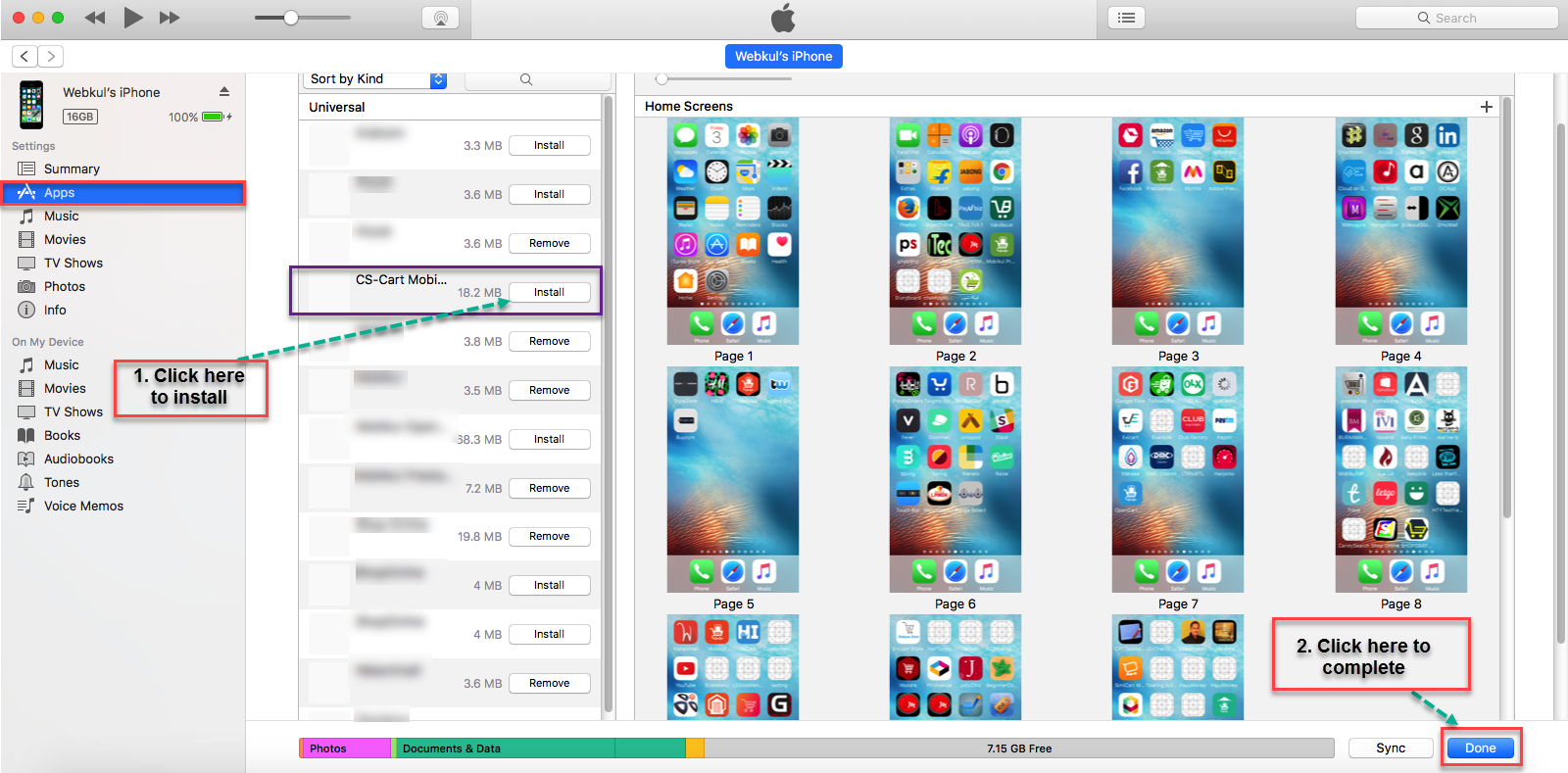
Method 3: Sideloading via Jailbreaking (Advanced & High Risk)
Jailbreaking refers to the process of removing software restrictions imposed by Apple on iOS. A jailbroken iPhone grants users root access to the operating system, allowing for deep customization and the installation of apps and tweaks from unofficial sources that are otherwise impossible to install on a stock iOS device. While jailbreaking was once common, its popularity has waned due to increased iOS security, fewer compelling reasons for the average user, and the significant risks involved.
What is Jailbreaking?
Jailbreaking exploits vulnerabilities in iOS to gain elevated privileges. Once jailbroken, users can install “tweaks” and applications from alternative app stores like Cydia, which offer functionalities not permitted by Apple. For sideloading IPA files, jailbreaking allows for tools that permanently sign applications or bypass certificate requirements altogether.
How Jailbreaking Enables IPA Installation:
On a jailbroken device, you can use tweaks like “AppSync Unified” and file managers like “Filza” or “iFile” to install unsigned or expired IPA files directly on your device without needing a computer-based signing utility or regular refreshing. AppSync Unified effectively tricks iOS into believing that all IPA files are properly signed and valid.
General Process (Highly Varies by iOS Version and Device):
- Perform a Jailbreak: This is the most complex step and requires finding a compatible jailbreak tool for your specific iPhone model and iOS version (e.g., unc0ver, checkra1n, Taurine). This process carries significant risks.
- Install Cydia (or other package manager): Most jailbreak tools automatically install Cydia, which is a package manager for jailbroken devices.
- Add Repositories: In Cydia, you’ll add repositories (sources) that contain the AppSync Unified tweak.
- Install AppSync Unified: Search for and install “AppSync Unified” from a trusted repository.
- Install IPA Files: Once AppSync Unified is installed, you can use a file manager app (like Filza, installed from Cydia) to navigate to an IPA file on your device (e.g., downloaded from Safari) and tap it to install.
Risks of Jailbreaking:
- Security Vulnerabilities: Jailbreaking opens your device to potential security threats. Malicious actors could exploit the root access to compromise your data.
- Voiding Warranty: Apple does not support jailbroken devices, and the process can void your warranty, making it impossible to receive official support or repairs.
- Instability and Performance Issues: Jailbreaking can lead to system instability, app crashes, battery drain, and general performance degradation.
- Loss of Data: The jailbreaking process itself carries a risk of data loss or device bricking if not performed correctly.
- Lack of Updates: Updating a jailbroken device typically removes the jailbreak, and new iOS versions often patch the vulnerabilities used by jailbreak tools, meaning you might have to wait for a new jailbreak or stay on an older iOS version.
- Difficulty: Jailbreaking is not a straightforward process and requires a significant level of technical understanding.
Recommendation: For the vast majority of users, jailbreaking is overkill and introduces more problems than it solves. Stick to the AltStore/Sideloadly methods unless you have a very specific, advanced use case and are fully aware of the risks.
Troubleshooting Common Sideloading Issues
Even with the most reliable methods, you might encounter issues when sideloading IPA files. Here are some common problems and their solutions:
1. “Untrusted Developer” Error
- Problem: After installing an app, when you try to open it, you get a popup saying “Untrusted Developer.”
- Solution: This is normal for apps installed outside the App Store. Go to Settings > General > VPN & Device Management. Under “Developer App,” tap the developer name (usually your Apple ID email) and then tap “Trust [Developer Name]” and confirm.
2. App Crashing on Launch or Not Installing
- Problem: The app installs but crashes immediately, or the installation fails.
- Solutions:
- IPA File Corruption: The IPA file itself might be corrupt or incomplete. Try downloading it again from a reputable source.
- Compatibility: The app might not be compatible with your iOS version or iPhone model. Check the app’s requirements.
- Signing Issue: The signing process might have failed. For AltStore/Sideloadly, ensure iTunes/iCloud are correctly installed (the non-Microsoft Store versions for Windows) and that your internet connection is stable. For Xcode, ensure your Apple ID is correctly configured.
- Expired Certificate (especially for AltStore/Sideloadly): If the app was working and suddenly stopped, its 7-day certificate might have expired. Connect your iPhone to your computer running AltServer/Sideloadly and refresh the app.
3. “Could Not Find AltServer” or Connection Issues
- Problem: AltStore can’t connect to AltServer on your computer.
- Solutions:
- Ensure AltServer is Running: Verify that
AltServeris actively running on your computer. - Same Wi-Fi Network: For wireless refreshing, ensure both your iPhone and computer are on the same Wi-Fi network.
- USB Connection: If wireless isn’t working, try connecting your iPhone to your computer via USB.
- Firewall/Antivirus: Your computer’s firewall or antivirus software might be blocking the connection. Temporarily disable them or add exceptions for AltServer.
- iTunes Wi-Fi Sync: For wireless AltStore refreshing, ensure “Sync with this iPhone over Wi-Fi” is enabled in iTunes/Finder.
- Ensure AltServer is Running: Verify that
4. Sideloaded Apps Keep Expiring (7-Day Limit)
- Problem: Apps installed with a free Apple ID stop working after 7 days.
- Solution: This is an intentional limitation by Apple for free developer accounts. You must refresh your apps using AltStore/Sideloadly (or reinstall via Xcode) before the 7-day period expires. If you have a paid Apple Developer Program membership, this limit extends to 365 days.
5. “Maximum Number of Apps Installed” Error
- Problem: You can’t install more apps with your free Apple ID.
- Solution: A free Apple ID can only have up to 3 actively signed apps (including AltStore itself) at any given time. If you need to install a new one, you’ll have to remove an existing sideloaded app first.
Frequently Asked Questions (FAQs)
Q: Is sideloading illegal?
A: No, sideloading is not inherently illegal. Apple provides the tools (Xcode) for developers to test their own applications on their devices. However, installing pirated or unauthorized versions of copyrighted applications is illegal. Always ensure you have the legal right to use the IPA files you are installing.
Q: Does sideloading void my iPhone’s warranty?
A: Generally, no. Sideloading via methods like AltStore, Sideloadly, or Xcode uses Apple’s legitimate developer signing process. It doesn’t modify the core iOS system. However, jailbreaking definitely voids your warranty and can lead to Apple refusing service.
Q: Can I install cracked apps using these methods?
A: While these methods technically allow you to install any IPA file, including potentially cracked ones, doing so is illegal and unethical. This guide focuses on legitimate uses of sideloading, such as installing beta versions, open-source projects, or apps you have developed yourself. We strongly advise against installing pirated software.
Q: Do sideloaded apps receive automatic updates?
A: No. Apps installed outside the App Store do not get automatic updates. You will need to manually obtain the updated IPA file and reinstall/refresh it using your chosen sideloading method.
Q: Can I remove a sideloaded app like a regular App Store app?
A: Yes, you can remove a sideloaded app by long-pressing its icon on the home screen and selecting “Remove App,” just like any other application.
Conclusion
Installing IPA files on your iPhone opens up a world of possibilities beyond the confines of the official App Store, catering to developers, beta testers, and users seeking more control over their device’s software. From the robust, developer-focused environment of Xcode to the user-friendly convenience of AltStore and Sideloadly, there are accessible methods for nearly everyone.
However, with this newfound freedom comes responsibility. Always prioritize digital security by downloading IPA files from trusted sources, understanding the potential risks, and being diligent with app refreshing. While the Apple App Store offers unparalleled security and convenience, mastering the art of sideloading empowers you to explore custom functionalities, test innovative applications, and truly make your iPhone experience your own, all while navigating the technological landscape with informed choices.
aViewFromTheCave is a participant in the Amazon Services LLC Associates Program, an affiliate advertising program designed to provide a means for sites to earn advertising fees by advertising and linking to Amazon.com. Amazon, the Amazon logo, AmazonSupply, and the AmazonSupply logo are trademarks of Amazon.com, Inc. or its affiliates. As an Amazon Associate we earn affiliate commissions from qualifying purchases.