
Ubuntu, a popular and user-friendly Linux distribution, has become a go-to operating system for developers, tech enthusiasts, and even everyday users seeking a stable and powerful platform. Whether you’re looking to dive into the world of open-source software, experiment with new technologies, or simply want a robust alternative to proprietary operating systems, understanding how to install and manage software on Ubuntu is a fundamental skill. This guide will walk you through the essential methods of software installation in Ubuntu, catering to the diverse interests covered by our website, from cutting-edge tech trends to the strategic branding of your digital presence, and even the financial implications of your tech choices.
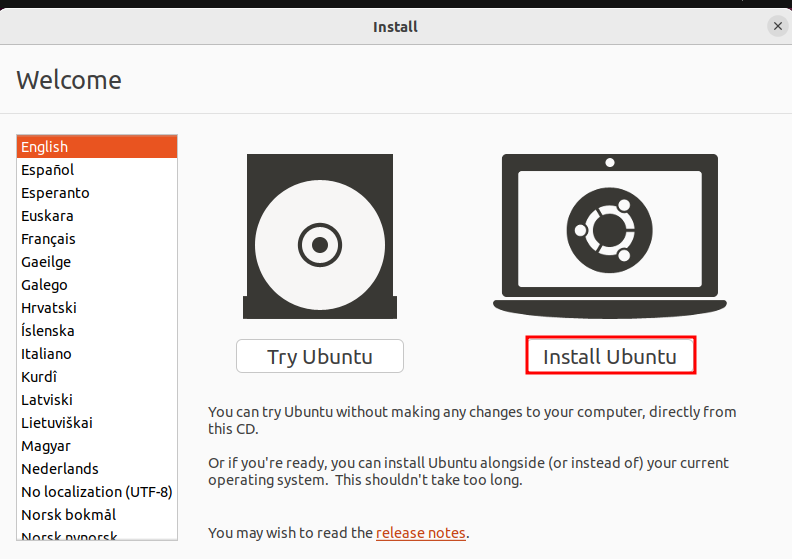
The beauty of Ubuntu lies in its package management system, which simplifies the process of installing, updating, and removing software. Unlike the fragmented approach seen in some other operating systems, Ubuntu offers a centralized and efficient way to manage your applications. We’ll explore the primary tools and techniques, ensuring you can confidently install everything from essential productivity apps to specialized AI tools and development environments.
Understanding Ubuntu’s Package Management Ecosystem
At its core, Ubuntu relies on the Advanced Packaging Tool (APT) for managing software. APT is a powerful command-line utility that interacts with repositories – online sources of software packages. These repositories contain pre-compiled applications and their dependencies, meticulously organized and verified to ensure compatibility and stability within the Ubuntu ecosystem. Understanding how APT works is crucial for mastering software installation.
The Power of the Command Line: APT Commands You Need to Know
While graphical interfaces exist, the command line remains the most efficient and versatile way to interact with APT. Mastering a few basic commands will significantly enhance your Ubuntu experience.
Updating Your Package Lists
Before installing any new software, it’s paramount to ensure your system has the latest information about available packages. This is achieved by updating the package lists.
sudo apt update
The sudo command grants administrative privileges, which are necessary for system-wide operations. apt update downloads the latest package information from configured repositories. This command doesn’t install or upgrade any software; it simply refreshes the local database of available packages.
Upgrading Installed Packages
Once your package lists are updated, you can then upgrade all installed packages to their latest available versions. This is a critical step for maintaining security and ensuring you’re running the most stable and feature-rich versions of your software.
sudo apt upgrade
This command will present you with a list of packages that have available updates and ask for your confirmation to proceed. It’s generally recommended to perform regular upgrades to keep your system secure and up-to-date.
Installing New Software Packages
The most fundamental command for installing new software is:
sudo apt install <package_name>
Replace <package_name> with the exact name of the software you wish to install. For example, to install the popular text editor nano, you would run:
sudo apt install nano
APT will then download the package and any necessary dependencies, and install them on your system. You’ll be prompted to confirm the installation.
Searching for Software Packages
If you’re unsure of the exact package name or want to see if a particular application is available in the Ubuntu repositories, you can use the apt search command:
apt search <keyword>
This will list all packages whose names or descriptions match your <keyword>. For instance, apt search "image editor" would reveal various image editing tools available.
Removing Software Packages
When you no longer need a piece of software, you can remove it using the apt remove command:
sudo apt remove <package_name>
This command removes the specified package but may leave behind configuration files. If you want to remove both the package and its configuration files, use:
sudo apt purge <package_name>
To free up disk space by removing packages that were automatically installed as dependencies but are no longer needed by any installed software, you can use:
sudo apt autoremove
Software Repositories: The Source of Your Applications
Ubuntu’s software is distributed through repositories. These are servers that store vast collections of software packages. By default, Ubuntu is configured to connect to official Ubuntu repositories. However, you can add Personal Package Archives (PPAs) to gain access to newer versions of software or applications not available in the official repositories.
Adding a PPA:
To add a PPA, you’ll typically use the add-apt-repository command:
sudo add-apt-repository ppa:<ppa_name>
After adding a PPA, it’s essential to update your package lists again to incorporate the new software sources:
sudo apt update
Removing a PPA:
You can remove a PPA using the add-apt-repository --remove command or by manually editing the /etc/apt/sources.list.d/ directory.
sudo add-apt-repository --remove ppa:<ppa_name>
sudo apt update

Caution: While PPAs can be incredibly useful, exercise caution when adding them from untrusted sources. Malicious PPAs can potentially harm your system. Always ensure the source of a PPA is reputable.
Beyond APT: Alternative Installation Methods
While APT is the primary method for installing software on Ubuntu, other approaches are valuable depending on your needs and the type of software you’re installing. These methods offer flexibility and access to a broader range of applications, particularly for niche software, proprietary applications, or bleeding-edge development tools.
Installing Software with Snap Packages
Snap is a universal package management system developed by Canonical, the company behind Ubuntu. Snaps are containerized applications that include all their dependencies, ensuring they run consistently across different Linux distributions. This approach simplifies installation and reduces conflicts.
To install a snap package, you use the snap command:
sudo snap install <snap_name>
For example, to install the popular communication app Slack:
sudo snap install slack
You can search for available snaps using:
snap find <keyword>
Snaps are also excellent for accessing the latest versions of AI tools and cutting-edge applications that may not yet be available through traditional APT repositories. This aligns with our interest in staying ahead of technology trends.
Installing Software with Flatpak
Flatpak is another universal package management system designed for sandboxing applications. Similar to snaps, Flatpak packages bundle their dependencies, allowing them to run consistently across various Linux distributions.
To install Flatpak on Ubuntu, you first need to install the Flatpak package itself:
sudo apt install flatpak
Then, you’ll need to add the Flathub repository, the primary source for Flatpak applications:
flatpak remote-add --if-not-exists flathub https://flathub.org/repo/flathub.flatpakrepo
Now you can install applications using the flatpak install command. For instance, to install the image editor GIMP:
flatpak install flathub org.gimp.GIMP
You can search for Flatpak applications on the Flathub website or using:
flatpak search <keyword>
Flatpak is increasingly used for distributing creative and productivity applications, making it a valuable tool for professionals focused on design and brand development who require specific software.
Installing from Source Code (For Advanced Users)
In some cases, software may not be available as a pre-packaged binary through APT, Snap, or Flatpak. For these situations, you can compile and install software directly from its source code. This is a more involved process and generally recommended for experienced users or developers.
The typical steps involve:
- Downloading the source code: This is usually in the form of a compressed archive (e.g.,
.tar.gz,.zip). - Extracting the archive:
bash

tar -xvf <archive_name>.tar.gz

cd <extracted_directory>
- Configuring the build: This step checks your system for dependencies and prepares the build environment.
bash

./configure
You might need to install development tools and libraries first usingsudo apt install build-essential. - Compiling the source code:
bash

make
- Installing the compiled software:
bash

sudo make install
Note: Installing from source can be complex, and managing these installations can be challenging. It’s generally preferable to use package managers whenever possible. However, for niche libraries or the very latest development versions of software, this method can be indispensable.
Integrating Software Installation with Your Workflow and Brand
The way you install and manage software on Ubuntu can significantly impact your productivity, your digital security, and even how you present yourself professionally.
Boosting Productivity with the Right Tools
Choosing the right software and installing it efficiently is key to maximizing your productivity. Whether you’re a writer, a developer, a designer, or a financial analyst, Ubuntu offers a vast ecosystem of tools.
- For Tech & Development: Install essential development tools like compilers (
build-essential), version control systems (git), and integrated development environments (IDEs) like VS Code or Atom. For AI and machine learning, you might install Python with libraries like TensorFlow or PyTorch. - For Brand & Design: Install graphic design software like GIMP (image manipulation), Inkscape (vector graphics), or Blender (3D modeling). For content creation and website management, you might install CMS tools or markdown editors.
- For Money & Finance: Install spreadsheet software like LibreOffice Calc, financial management tools, or specialized charting applications. If you’re involved in online income or business finance, you might install accounting software or tools for managing e-commerce platforms.
By using apt, snap, or flatpak, you ensure that your software is managed cleanly, reducing the likelihood of conflicts that could hinder your workflow. This efficiency directly contributes to your overall output and professional effectiveness.
Digital Security: A Paramount Concern
The act of installing software is also a gateway to potential security risks.
- Trustworthy Sources: Always prioritize official repositories. When using PPAs, snaps, or flatpaks, verify the source and community reputation. A compromised application can lead to data breaches, identity theft, or system instability.
- Regular Updates: As highlighted earlier,
sudo apt upgradeis not just for new features; it’s crucial for patching security vulnerabilities. Promptly applying updates minimizes your system’s exposure to known threats. - Understanding Permissions: Be mindful of the permissions software requests during installation, especially when dealing with proprietary applications or less common installation methods.
A secure Ubuntu system is fundamental for protecting your personal finances, sensitive business data, and your personal brand’s reputation.

Personal and Corporate Branding in the Digital Age
Your choice of operating system and the software you use can subtly influence your personal and corporate brand. Using a stable, secure, and efficient platform like Ubuntu demonstrates a level of technical proficiency and an appreciation for open-source solutions.
- Showcasing Technical Acumen: For tech professionals, being comfortable and adept at using Linux environments can be a significant asset.
- Efficiency and Reliability: A well-managed system where software is installed and updated without issues reflects a methodical and reliable approach to work.
- Cost-Effectiveness and Sustainability: For businesses, leveraging the power of open-source software and Ubuntu can demonstrate a commitment to cost-effectiveness and sustainable technology practices, which can be a positive aspect of a corporate identity.
In conclusion, mastering software installation in Ubuntu is more than just a technical skill; it’s a foundational element for effective productivity, robust digital security, and building a strong professional presence in the interconnected digital world. By understanding and utilizing the tools at your disposal – from the powerful APT to the modern Snap and Flatpak systems – you can tailor your Ubuntu experience to meet the demands of technology, the nuances of branding, and the intricacies of managing your finances.
aViewFromTheCave is a participant in the Amazon Services LLC Associates Program, an affiliate advertising program designed to provide a means for sites to earn advertising fees by advertising and linking to Amazon.com. Amazon, the Amazon logo, AmazonSupply, and the AmazonSupply logo are trademarks of Amazon.com, Inc. or its affiliates. As an Amazon Associate we earn affiliate commissions from qualifying purchases.