
Grand Theft Auto IV, a seminal title in open-world gaming, continues to captivate players more than a decade after its initial release. While its gritty narrative and immersive Liberty City backdrop offered countless hours of entertainment, the game’s true longevity and revitalized appeal often stem from the vibrant and ingenious modding community. For those seeking to push the boundaries of their gaming experience, modding GTA IV introduces a universe of possibilities, from enhanced graphics and realistic vehicles to entirely new gameplay mechanics and character customizations. This guide delves into the intricate process of installing GTA IV mods, providing a detailed, step-by-step tutorial designed to empower both novice and experienced users in transforming their digital playground. Emphasizing digital security, software utility, and a seamless integration process, we’ll navigate the technical landscape of modding, ensuring your journey into a personalized Liberty City is as smooth and rewarding as possible.

The Enduring Appeal of GTA IV Modding
Despite its age, Grand Theft Auto IV maintains a dedicated player base, largely thanks to the transformative power of community-created modifications. These mods inject new life, address perceived shortcomings, and offer unique ways to experience a familiar world. Understanding why modding remains so popular for a game released in 2008 is key to appreciating the effort involved and the rewards reaped.
Breathing New Life into Liberty City
From the moment GTA IV launched, players were drawn into its dark, atmospheric depiction of Liberty City. However, technology evolves rapidly, and what once looked cutting-edge can eventually show its age. This is where mods truly shine. Graphic overhauls can dramatically enhance textures, lighting, weather effects, and draw distances, making the game look competitive even against contemporary titles. Imagine cruising through a photorealistic Broker, complete with enhanced reflections, vibrant sunsets, and meticulously detailed road surfaces. Beyond visuals, gameplay mods can introduce features never dreamed of by Rockstar, from sophisticated car handling models to entirely new missions, police systems, or even the ability to fly through the city as a superhero. These enhancements not only improve the aesthetic and functional aspects of the game but also extend its replayability indefinitely, saving players the cost of constantly buying new games and offering a deeply personalized gaming experience.
The Creative Canvas of the Modding Community
The Grand Theft Auto modding scene is a testament to the collective creativity and technical prowess of its community. Thousands of individuals worldwide contribute their time and skills, developing tools, scripts, textures, and models that push the game’s engine to its limits. This collaborative spirit fosters an environment where innovation thrives, constantly introducing fresh content that keeps the game feeling current and exciting. The sheer volume and variety of available mods mean that every player can tailor their experience precisely to their preferences, turning GTA IV into a truly bespoke digital environment. This democratization of content creation, where players become developers, is a hallmark of the PC gaming ecosystem and a powerful driver for the longevity of titles like GTA IV. For tech enthusiasts, it’s a fascinating look into reverse-engineering, software development, and community-driven innovation.
Essential Preparations: Setting the Stage for Successful Modding
Before diving into the exciting world of custom content, thorough preparation is paramount. Modding, while rewarding, involves altering core game files. Without proper precautions, you risk corrupting your game installation, leading to crashes, instability, or even forcing a complete reinstallation. This section outlines the critical steps to ensure a smooth, secure, and reversible modding process.
Safeguarding Your Game: The Indispensable Backup
This cannot be stressed enough: Always back up your original game files before installing any mods. Think of it as your digital safety net. Should a mod cause unforeseen issues, a proper backup allows you to restore your game to its pristine, unmodded state without having to download and reinstall gigabytes of data.
How to create a backup:
- Locate your GTA IV installation directory:
- Steam Version: Typically
C:Program Files (x86)SteamsteamappscommonGrand Theft Auto IV - Rockstar Games Launcher Version: Usually
C:Program FilesRockstar GamesGrand Theft Auto IV - Retail Disc Version: Often
C:Program Files (x86)Rockstar GamesGrand Theft Auto IV
- Steam Version: Typically
- Copy the entire
Grand Theft Auto IVfolder to a safe location on your hard drive, perhaps namedGrand Theft Auto IV - ORIGINAL BACKUP. - Alternatively, for more granular control, at the very least, back up the
pcfolder (which contains crucial.imgarchives likemodels,data, andtextures) and thecommonfolder. However, a full game folder backup is the safest approach.
This initial investment of time will save you countless headaches and potential data loss in the long run. It’s a fundamental principle of digital security when dealing with software modifications.
Understanding Game Versions and Compatibility
GTA IV has undergone several updates, leading to different game versions. Crucially, the “Complete Edition” (often sold digitally today) and older retail versions (patched to 1.0.7.0 or 1.0.8.0) can behave differently with mods. Many older mods were developed for specific patches, particularly 1.0.7.0, which is often considered the “golden” version for modding due to its stability and extensive mod support. Newer “Complete Edition” installations often come with significant changes, making some legacy tools and mods incompatible or requiring specific workarounds.
- Identify your game version: You can usually find this by right-clicking on
GTAIV.exe(orLaunchGTAIV.exe), selectingProperties, thenDetails. The product version will be listed. - Downgrading (if necessary): If you have the Complete Edition and wish to use older mods, you might need to “downgrade” your game to version 1.0.7.0 or 1.0.8.0 using community-made downgraders. Search for “GTA IV Downgrader” online; these tools typically automate the process, but always download from reputable modding sites. Be aware that downgrading can be complex and might break compatibility with certain online features or the Rockstar Games Launcher itself.
Compatibility is key. Always check the mod’s description for supported game versions to avoid frustration.
Core Modding Tools: Your Digital Toolkit
To effectively install most GTA IV mods, you’ll need a suite of essential utilities. These tools act as bridges, allowing you to inject custom files and scripts into the game’s proprietary archives.
- OpenIV: This is arguably the most critical tool for GTA IV modding. OpenIV is a multi-purpose editor and archive manager for Rockstar Games titles, allowing you to view, edit, and replace files within the game’s
.imgand.rpfarchives. It’s indispensable for installing visual mods (vehicles, textures, weapons) and for navigating the game’s file structure.- Download: Search for “OpenIV” on reputable modding sites (e.g., GTA5-Mods.com, GTA4-Mods.com).
- Installation: Run the installer and point it to your GTA IV directory when prompted. Ensure you also install the “ASI Manager” components within OpenIV (Tools -> ASI Manager) as it installs the ASI Loader and OpenIV.asi, which are crucial for many mods to function.
- ASI Loader: This allows the game to load custom
.asi(Application Specific Interface) plugins. Many advanced mods, including script hooks and trainers, come in the form of.asifiles. OpenIV’s ASI Manager usually installs this. - Script Hook IV: This library enables the use of custom scripts (often written in C# or .NET languages) that add new functionality or alter gameplay. It provides an interface for developers to interact with the game’s engine.
- Download: Search for “Script Hook IV” (often found on Alexander Blade’s website or GTA4-Mods.com).
- Installation: Extract the contents (typically
ScriptHook.dll,dinput8.dll,NativeTrainer.asifor an included trainer) into your main GTA IV directory. Thedinput8.dllcomponent is the ASI Loader provided by Script Hook IV. If you already installed ASI Loader via OpenIV,dinput8.dllwill overwrite it; this is usually fine as long as only onedinput8.dllis present.
- .NET Script Hook (optional, but highly recommended for many mods): Similar to Script Hook IV, but specifically for mods written using the .NET framework (C#, VB.NET). Many complex script mods utilize this.
- Download: Search for “.NET Script Hook” (often found on GTA4-Mods.com).
- Installation: Extract the contents (
ScriptHookDotNet.asi,ScriptHookDotNet.dll,ScriptHookDotNet.xml) into your main GTA IV directory.
Always download these tools from trusted sources to avoid malware. Keeping them updated is also essential for compatibility with newer mods and game versions.
Step-by-Step Mod Installation: Unleashing Custom Content
With your game backed up and your essential tools installed, you’re ready to begin integrating mods. Mod installation varies depending on the type of modification. This section outlines the general procedures for the most common mod categories.
Integrating Script Mods for Enhanced Gameplay
Script mods are powerful additions that can introduce entirely new mechanics, functionalities, or subtle tweaks to gameplay. These often come as .asi files or as a combination of .asi and .cs (C# script) files.
- Download the script mod: Obtain the mod from a reputable source.
- Read the mod’s instructions carefully: This is crucial, as some scripts have specific installation requirements or dependencies.
- Extract the mod files: Use an archiving tool (like 7-Zip or WinRAR) to extract the downloaded archive.
- Place the files:
- If the mod consists of a
.asifile (e.g., a trainer, a new camera mod), place it directly into your main GTA IV installation directory. - If the mod includes
.csfiles (C# scripts) or other related files, these usually go into ascriptsfolder within your main GTA IV directory. If this folder doesn’t exist, create it. Some .NET Script Hook mods might require you to place them in a specific subfolder withinscripts.
- If the mod consists of a
- Verify prerequisites: Ensure you have Script Hook IV and .NET Script Hook installed and up-to-date if the mod requires them.
Once installed, launch the game. Script mods typically activate automatically, or they might require a specific key combination (often detailed in the mod’s readme file) to open their menu or activate their features.
Visual Transformations: Installing Vehicle and Texture Mods
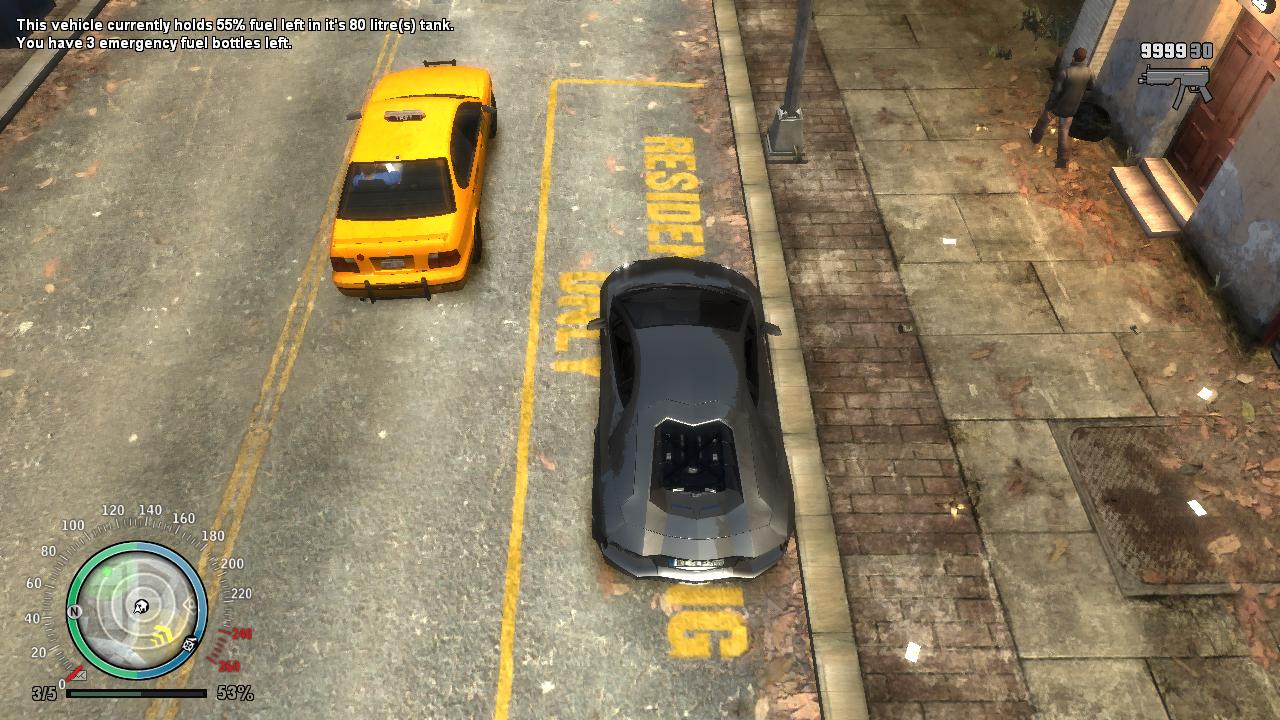
Visual mods, such as custom vehicles, enhanced textures, and new weapons, require OpenIV to replace existing game assets. This process involves navigating the game’s internal archives.
- Download the visual mod: Find your desired car, weapon, or texture pack.
- Extract the mod files: You’ll typically find files with extensions like
.wft(model file) and.wtd(texture dictionary) for vehicles, or various image formats (.dds,.png) for texture replacements. - Open OpenIV: Launch OpenIV and select “Grand Theft Auto IV.”
- Enable “Edit Mode”: This is a critical step. Click the “Edit Mode” button (or press F6) in OpenIV. You’ll see a warning; confirm. Without Edit Mode, you cannot make changes.
- Locate the target file: The mod’s readme will specify which game file(s) you need to replace. For vehicles, this is usually within
pcmodelscdimagesvehicles.img. For textures, it could be inpctexturesvehicles.img,pctexturesweapon_textures.img, or various.imgfiles within thecommondataandpcdatafolders.- Example for a car mod (e.g., replacing the “Sultan”):
- Navigate to
pcmodelscdimagesvehicles.img. - Find the original
sultan.wftandsultan.wtdfiles. - Click the “Replace” button (or right-click the file and select “Replace”).
- Browse to the downloaded mod files (
sultan.wftandsultan.wtdfrom the mod) and select them.
- Navigate to
- Example for a car mod (e.g., replacing the “Sultan”):
- Rebuild (if prompted): For certain archives, after multiple replacements, OpenIV might prompt you to “Rebuild.” This optimizes the archive and is generally a good idea.
- Close OpenIV and launch the game: The new visuals should now be present.
Important Note for OpenIV: Many mods, especially larger texture packs or car packs, will instruct you to use a “mods” folder. To do this, within OpenIV, go to Tools -> ASI Manager and ensure OpenIV.ASI and ASI Loader are installed. This creates a mods folder in your main GTA IV directory. You can then copy the pc and common folders (or specific .img files) into mods, and perform your edits there. This makes modding much safer, as OpenIV will prioritize files in the mods folder, leaving your original game files untouched. This is highly recommended for maintaining game integrity.
Advanced Modding Considerations: Trainer and Complex Packages
Some mods go beyond simple file replacements or scripts. Trainer applications, for instance, allow in-game manipulation of weather, time, spawning vehicles, or character abilities. While many trainers come as .asi scripts (like Native Trainer with Script Hook IV), others are standalone executables. Always exercise caution with standalone executables, downloading only from highly trusted sources.
Complex mod packages, such as complete overhauls or graphical enhancement suites, might come with their own installers or detailed instructions that consolidate multiple types of mods. For these, meticulously following the provided README files is paramount, as they often involve specific installation orders, configuration tweaks, or even manual file merges.
Navigating Challenges and Maintaining Your Modded Game
Modding, by its nature, introduces variables that can lead to unforeseen issues. Knowing how to troubleshoot common problems and maintain your modded installation is crucial for a stable and enjoyable experience.
Troubleshooting Common Mod Conflicts and Crashes
The most frequent issues in a modded GTA IV installation are crashes to desktop, game freezes, or inexplicable bugs. These are almost always due to:
- Mod Conflicts: Two or more mods trying to alter the same game file or script function simultaneously.
- Incorrect Installation: Files placed in the wrong directory, missing dependencies (like Script Hook IV), or an incompatible game version.
- Outdated Mods/Tools: Using a mod or tool not designed for your current game version.
- Hardware Limitations: While less common for GTA IV, extremely demanding graphical overhauls can strain older systems.
Troubleshooting Steps:
- Review Recent Changes: What was the last mod you installed before the problem started? Remove it or disable it.
- Check Mod Descriptions: Did you miss a specific instruction or dependency?
- One Mod at a Time: For new modders, install one mod, test the game, then proceed to the next. This helps isolate problematic mods.
- Check Log Files: Script Hook IV and .NET Script Hook often generate log files in your GTA IV directory (e.g.,
ScriptHookDotNet.log). These can provide clues about which scripts are failing. - Verify Game Files (Steam/Rockstar Launcher): If you suspect core game files are corrupted (and you haven’t used a
modsfolder with OpenIV), use Steam’s “Verify Integrity of Game Files” or the Rockstar Games Launcher’s equivalent. Warning: This will revert any changes made to original game files, effectively uninstalling most mods.
Best Practices for Mod Management and Digital Security
Beyond troubleshooting, proactive measures can significantly improve your modding experience:
- Organize Your Downloads: Create a dedicated folder for all your downloaded mods, complete with their original archives and
READMEfiles. This makes it easy to find specific mod files or refer to instructions later. - Read Everything: Before installing any mod, read the entire description, installation instructions, and user comments. This often highlights known issues, dependencies, or compatibility quirks.
- Reputable Sources Only: Download mods only from well-established and trusted modding websites (e.g., GTA4-Mods.com, Nexus Mods). Avoid obscure sites or direct downloads from forums without verifying the source. This is crucial for preventing malware or corrupted files.
- Maintain Your Backup: Periodically update your game backup, especially after a successful batch of mod installations that you’re happy with.
- Consider Mod Managers (Limited for GTA IV): While GTA IV lacks a universal, robust mod manager like those for Skyrim or Fallout, OpenIV’s “mods” folder functionality acts as a rudimentary one, allowing you to isolate changes. For simple script mods, manual management is usually the norm.
Reverting Changes and Ensuring Game Stability
If all else fails, or if you simply wish to start over, knowing how to revert changes is vital:
- Restore from Backup: The easiest and most reliable method. Delete your current modded GTA IV folder and replace it with your clean, unmodded backup.
- OpenIV’s “Revert” Function: If you used OpenIV to replace specific files and followed the “mods” folder recommendation, you can simply delete the
modsfolder, and OpenIV will revert to using the original game files. If you made direct edits to the original game files, you’ll need to restore them manually from your backup. - Uninstall ASI/Script Loader Components: Manually delete
dinput8.dll,ScriptHook.dll,ScriptHookDotNet.asi,ScriptHookDotNet.dll, and any other.asifiles from your main GTA IV directory. - Verify Game Files (Steam/Rockstar Launcher): As mentioned, this will revert most changes to original game files.
Regular maintenance, coupled with careful installation practices, will ensure that your modded Liberty City remains a stable and enjoyable place to explore.
The Future of Your Modded Liberty City
Embracing modding for Grand Theft Auto IV is more than just installing new files; it’s about engaging with a vibrant community and unlocking the full creative potential of a classic game. By meticulously following the steps outlined in this guide, you’ve not only personalized your gaming experience but also gained valuable insights into software modification, digital asset management, and crucial cybersecurity practices.
Exploring Further Modding Possibilities
This guide provides a solid foundation, but the world of GTA IV modding is vast and continually evolving. Once comfortable with the basics, consider exploring:
- Advanced Graphics Mods: ENBSeries, ReShade, and complete texture overhauls can transform the game into a visual masterpiece. These often require more detailed configuration.
- Sound Mods: Custom radio stations, weapon sounds, or ambient city noises can enhance immersion.
- Pedestrian and AI Mods: Altering the behavior or appearance of Liberty City’s inhabitants.
- Mission and Map Mods: Though less common, some ambitious projects introduce entirely new areas or story content.
- Multiplayer Modding (with caution): Projects like “CitizenFX” or “FiveM” (though primarily for GTA V, similar concepts exist for older titles) can enable custom multiplayer experiences, but always be aware of potential bans if not used correctly or on dedicated modded servers.
Remember to always consult the mod’s documentation and community forums for guidance on complex installations.

Contributing to the Modding Ecosystem
As you become more proficient, you might even consider contributing back to the modding community. This could involve:
- Providing Feedback: Reporting bugs, suggesting improvements, or simply thanking mod creators.
- Creating Your Own Mods: Learning basic scripting (e.g., C#) or 3D modeling can open up the possibility of developing your unique content. This is a fantastic way to develop tech skills relevant to software development.
- Sharing Knowledge: Helping other players with installation or troubleshooting challenges on forums.
The journey of modding Grand Theft Auto IV is one of continuous discovery and empowerment. It transforms a beloved game into a personalized masterpiece, offering endless hours of renewed enjoyment and a practical lesson in digital customization and responsibility. So, go forth, mod responsibly, and enjoy your uniquely tailored Liberty City!
aViewFromTheCave is a participant in the Amazon Services LLC Associates Program, an affiliate advertising program designed to provide a means for sites to earn advertising fees by advertising and linking to Amazon.com. Amazon, the Amazon logo, AmazonSupply, and the AmazonSupply logo are trademarks of Amazon.com, Inc. or its affiliates. As an Amazon Associate we earn affiliate commissions from qualifying purchases.