
The graphics processing unit (GPU) is the powerhouse of the modern computing experience. Whether you are a high-end gamer pushing the limits of 4K ray tracing, a creative professional rendering complex 3D environments, or an office worker managing multiple high-resolution displays, the GPU is the engine driving every pixel on your screen. However, the hardware itself is only half of the equation. To translate physical circuits and transistors into fluid motion and vibrant colors, your operating system requires a specialized piece of software: the graphics driver.
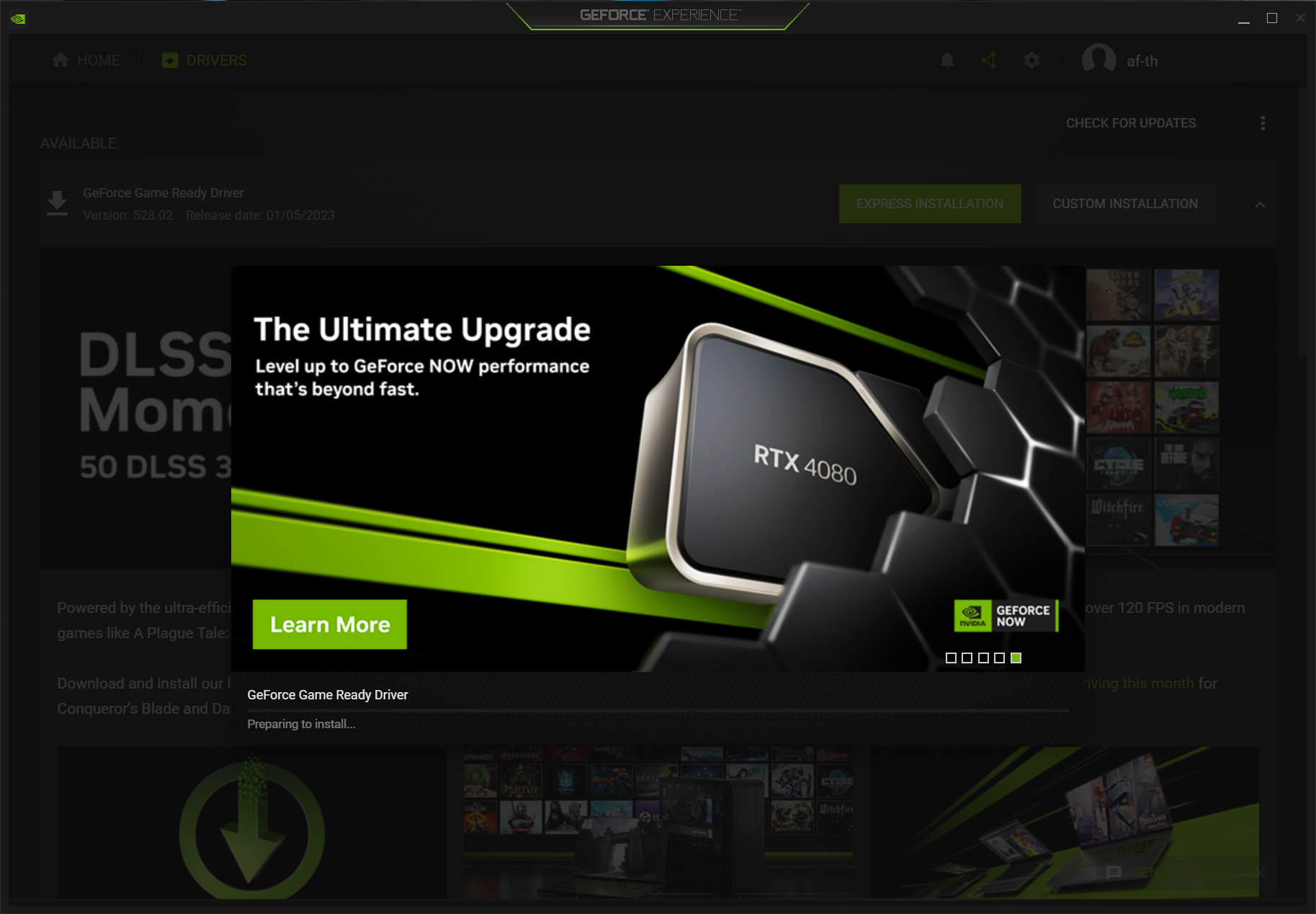
A graphics driver acts as the translator between your computer’s operating system and the graphics hardware. Without an up-to-date or correctly installed driver, your system may resort to generic “Basic Display Adapters,” resulting in poor resolution, stuttering performance, and the inability to run resource-intensive applications. In this guide, we will explore the technical nuances of identifying your hardware, the various methods of installation, and how to maintain a stable environment for your digital workspace.
Understanding the Role of Graphics Drivers in Modern Computing
To appreciate the installation process, one must understand why graphics drivers are updated so frequently compared to other hardware components. Unlike a keyboard or a mouse, which use standardized protocols, GPUs are incredibly complex processors that handle thousands of concurrent tasks. Software developers constantly release new games, professional suites, and AI-driven tools that require the GPU to perform operations in ways the hardware designers might not have initially envisioned.
Manufacturer updates (from NVIDIA, AMD, and Intel) typically include several key enhancements:
-
Performance Optimization: New drivers often contain “game-ready” profiles that specifically optimize how the GPU handles a new title’s rendering pipeline.
-
Bug Fixes: As software evolves, conflicts can arise between the OS and the hardware. Drivers patch these stability issues.
-
Feature Expansion: Updates can unlock hardware-level features like AI-assisted upscaling (DLSS or FSR), frame generation, and improved power management.
-
Security Patches: Like any software, drivers can have vulnerabilities that malicious actors might exploit to gain low-level access to a system.
By maintaining current drivers, you ensure that your hardware is operating at its theoretical peak efficiency while remaining secure against modern threats.
Identifying Your Graphics Hardware and Operating System
Before you can install a driver, you must accurately identify the hardware residing in your machine. There are three major players in the GPU market: NVIDIA (GeForce), AMD (Radeon), and Intel (Iris Xe, Arc, or UHD Graphics).
Using Built-in System Tools
The most direct way to identify your GPU on a Windows system is through the Device Manager. By right-clicking the Start button and selecting “Device Manager,” you can expand the “Display adapters” section. This will list the specific model of your graphics card. For a more detailed technical overview, you can use the DirectX Diagnostic Tool. Press Win + R, type dxdiag, and navigate to the “Display” tab. This provides the chip type, the driver version currently installed, and the total memory available to the GPU.
Third-Party Diagnostics
For enthusiasts who require deeper insights—such as BIOS versions, memory type (GDDR6 vs GDDR6X), or thermal limits—tools like GPU-Z are industry standards. These lightweight applications provide a comprehensive snapshot of the hardware, ensuring you don’t accidentally download a driver for a mobile (laptop) variant when you are using a desktop card, or vice versa. Identifying whether you have an “Integrated” GPU (built into the CPU) or a “Dedicated” GPU (a separate card) is crucial, as many modern laptops use both in a configuration known as “hybrid graphics.”
The Step-by-Step Installation Process for Major Brands
Once you have identified your hardware, you have three primary paths for installation: automatic updates through the OS, manufacturer-specific utility software, or manual installation from the official website.
Method 1: NVIDIA GeForce Systems
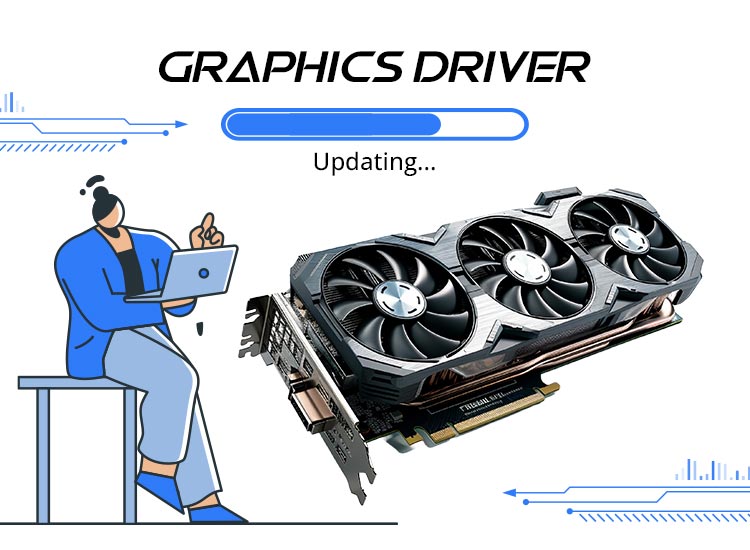
NVIDIA offers two types of drivers: Game Ready Drivers (GRD) and Studio Drivers (SD). For gamers, GRDs provide the latest optimizations. For video editors and 3D artists, SDs prioritize stability in creative applications like Adobe Premiere or Autodesk Maya.
-
GeForce Experience: This is NVIDIA’s companion app. Once installed, it scans your system and notifies you when a new driver is available. You simply click “Download” and then select “Express Installation.”
-
Manual Download: Visit the NVIDIA Driver Downloads page. You must select the Product Type, Product Series, and Product Model. After downloading the
.exefile, run it as an administrator. During installation, you will have the choice between a standard install and a “Custom” install. Custom installation allows you to perform a “Clean Install,” which wipes previous settings—a highly recommended step if you are experiencing glitches.
Method 2: AMD Radeon Systems
AMD utilizes a unified software suite known as Adrenalin.
-
Adrenalin Edition: Similar to NVIDIA’s software, Adrenalin manages everything from driver updates to overclocking and recording. To update, open the software, go to the “Home” tab, and check for updates in the top right corner.
-
AMD Auto-Detect: If you are unsure of your specific model, AMD provides an “Auto-Detect and Install” tool on their website. This small utility scans your hardware and fetches the exact package needed for your specific version of Windows.
Method 3: Intel Graphics and Arc
With Intel’s entry into the high-performance gaming market with Arc GPUs, their driver process has become more robust.
-
Intel Driver & Support Assistant (DSA): This web-based tool is the most efficient way to keep Intel graphics updated. It runs in the background and alerts you via the system tray when a new version is ready.
-
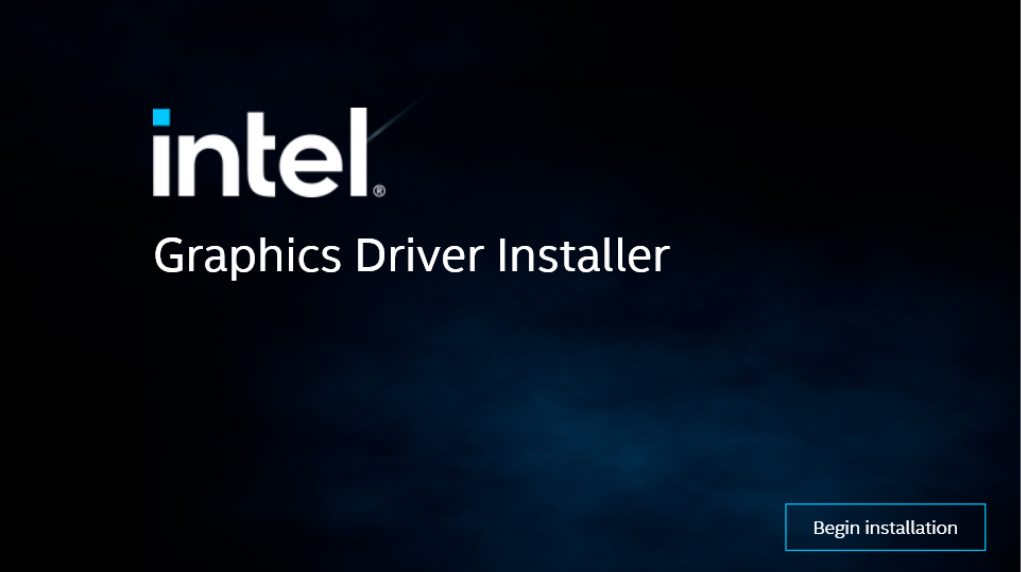
Manual Installation: For those using Intel Arc or Iris Xe, the Intel Download Center allows for direct downloads of the installer. Like the others, it is a straightforward “Next-Next-Finish” process, but it often requires a system reboot to finalize the integration with the Windows kernel.
Advanced Troubleshooting: Clean Installs and Using DDU
Sometimes, a standard installation is not enough. If you are switching from an NVIDIA card to an AMD card, or if your drivers have become corrupted due to a power outage or a failed Windows update, you may experience “driver conflict.” This manifests as Blue Screens of Death (BSOD), screen flickering, or the “TDR” (Timeout Detection and Recovery) error.
The Display Driver Uninstaller (DDU) Workflow
In the tech community, the gold standard for fixing driver issues is a utility called Display Driver Uninstaller (DDU). This tool removes every trace of previous driver files, registry keys, and folders that the standard uninstaller often leaves behind.
-
Preparation: Download the latest driver for your GPU from the manufacturer and store it on your desktop. Download the DDU utility.
-
Safe Mode: For DDU to work effectively, you must boot Windows into Safe Mode. This prevents the OS from loading the active driver, allowing the software to delete the files without “in use” errors.
-
The Wipe: Run DDU and select “Clean and restart.” The tool will strip the system of all graphics-related software.
-
Offline Installation: To prevent Windows Update from automatically installing an old, generic driver the moment you reboot, it is best to disconnect from the internet. Once back in normal Windows mode, run the driver installer you downloaded earlier. This ensures a “pristine” software environment.
Optimizing for the Future: AI and Real-Time Driver Management
The landscape of graphics drivers is shifting from static files to dynamic, AI-driven ecosystems. Modern drivers are no longer just about pushing frames; they are about intelligent resource allocation.
AI Upscaling and Frame Generation
Technologies like NVIDIA DLSS (Deep Learning Super Sampling) and AMD FSR (FidelityFX Super Resolution) are now baked into the driver level. When you install these drivers, you are essentially installing trained AI models. These models allow your GPU to render a game at a lower resolution and use machine learning to upscale the image to 4K, significantly boosting performance without a noticeable loss in visual quality. Keeping drivers updated is mandatory for these features, as the AI models are refined and updated regularly.
Professional and Creative Stability
In the professional tech sector, the concept of “Software Certified Drivers” is paramount. Many enterprise-level applications, such as SolidWorks or DaVinci Resolve, certify specific driver versions for use. If you are using your hardware for business-critical tasks, the “latest” driver is not always the “best” driver. In these cases, installing the version recommended by the software vendor is the standard professional practice.
Environmental and Power Efficiency
Recent driver updates have also focused on “Green Tech” and power efficiency. Both AMD and NVIDIA have introduced features that limit frame rates during idle scenes or cap power consumption based on the monitor’s refresh rate. This not only extends the lifespan of the hardware by reducing heat but also lowers the energy footprint of high-performance workstations.
Conclusion
Installing graphics drivers is a fundamental skill for anyone operating in the modern digital landscape. While the process has become significantly more automated over the last decade, understanding the manual steps and the underlying technical requirements ensures that you remain in control of your hardware. Whether you are performing a simple update through an app or a deep system clean with DDU, the goal remains the same: a stable, high-performance visual experience that allows your hardware to meet the demands of tomorrow’s software.
aViewFromTheCave is a participant in the Amazon Services LLC Associates Program, an affiliate advertising program designed to provide a means for sites to earn advertising fees by advertising and linking to Amazon.com. Amazon, the Amazon logo, AmazonSupply, and the AmazonSupply logo are trademarks of Amazon.com, Inc. or its affiliates. As an Amazon Associate we earn affiliate commissions from qualifying purchases.