
In today’s digital landscape, the phrase “install Google” extends far beyond merely downloading a single application. It signifies the strategic integration of a comprehensive ecosystem of tools, services, and platforms that have become indispensable for personal productivity, business operations, and navigating the vastness of the internet. From the foundational act of creating a Google account to deploying advanced analytics and advertising tools, “installing Google” is about empowering your digital life, optimizing your online presence, and even enhancing your financial strategies. This article will guide you through the multifaceted process of integrating Google into your tech stack, illuminating its impact on technology trends, brand development, and financial empowerment.
Establishing Your Google Ecosystem: The Essentials
At its core, “installing Google” begins with setting up the foundational elements that unlock its vast potential. These initial steps are crucial for creating a seamless, interconnected experience across all your devices and online activities, laying the groundwork for digital security, productivity, and personal branding.
Setting Up Your Google Account
The Google Account is the central nervous system of your Google ecosystem. It’s not just a login; it’s your digital passport, enabling personalized access to an expansive suite of services, from email and cloud storage to productivity applications and entertainment. Without it, the full power of Google remains largely untapped.
Why It’s Foundational:
Creating a Google Account is the gateway to personalization and synchronization. It allows Google to learn your preferences (with your permission), offer tailored experiences, and most importantly, keep your data, settings, and activity synchronized across all your devices. This means your contacts, calendar events, browsing history, and document drafts are instantly accessible whether you’re on your desktop, laptop, or smartphone. From a Tech perspective, it embodies the essence of cloud computing and unified digital identity, streamlining user experience and enhancing accessibility.
Step-by-Step Creation:
- Navigate to the Google Account creation page: Open your web browser and go to
accounts.google.com/signup. - Provide Basic Information: Enter your first name, last name, and choose a desired username. Google will suggest available usernames if your preferred one is taken.
- Create a Strong Password: This is critical for security. Use a combination of uppercase and lowercase letters, numbers, and symbols. Google will assess the strength of your password as you type.
- Enter Your Phone Number (Optional but Recommended): A phone number is invaluable for account recovery and setting up two-factor authentication, significantly bolstering your security.
- Provide a Recovery Email Address (Optional but Recommended): Similar to a phone number, a recovery email acts as a backup access point if you ever lose access to your primary account.
- Enter Your Birthdate and Gender: This information helps Google personalize services and ensure age-appropriate content.
- Review Privacy and Terms: Read through Google’s Privacy Policy and Terms of Service. It’s important to understand how your data is handled.
- Agree and Create Account: Once satisfied, click “I agree” to finalize the process.
Benefits for Productivity and Personal Branding:
With a Google Account, you gain immediate access to Gmail, Google Drive, Google Calendar, Google Photos, and more. This suite of tools directly impacts productivity, allowing for seamless communication, document collaboration, and efficient schedule management. From a Brand perspective, your Google Account is often tied to your personal or professional online identity. A professional Gmail address, for example, can enhance credibility, while a well-managed Google profile contributes to your overall digital footprint.
Installing the Google Chrome Browser
While a Google Account is the engine, Google Chrome is often the primary vehicle through which most users interact with the Google ecosystem and the internet at large. Its widespread adoption is a testament to its speed, security features, extensive customization options, and deep integration with Google services.
The Primary Gateway:
Chrome is more than just a browser; it’s a powerful internet navigation tool designed for efficiency and versatility. Its lightweight design, coupled with robust security protocols and a vast library of extensions, makes it a preferred choice for millions. For Tech enthusiasts and everyday users alike, Chrome offers a stable and performant browsing experience.
Step-by-Step Installation on Desktop (Windows/Mac/Linux):
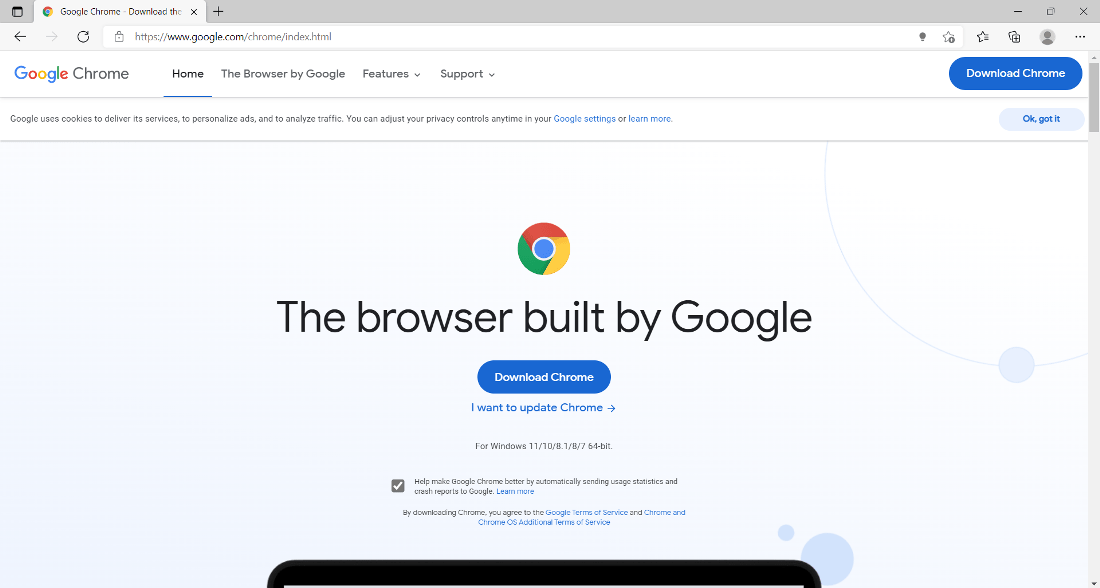
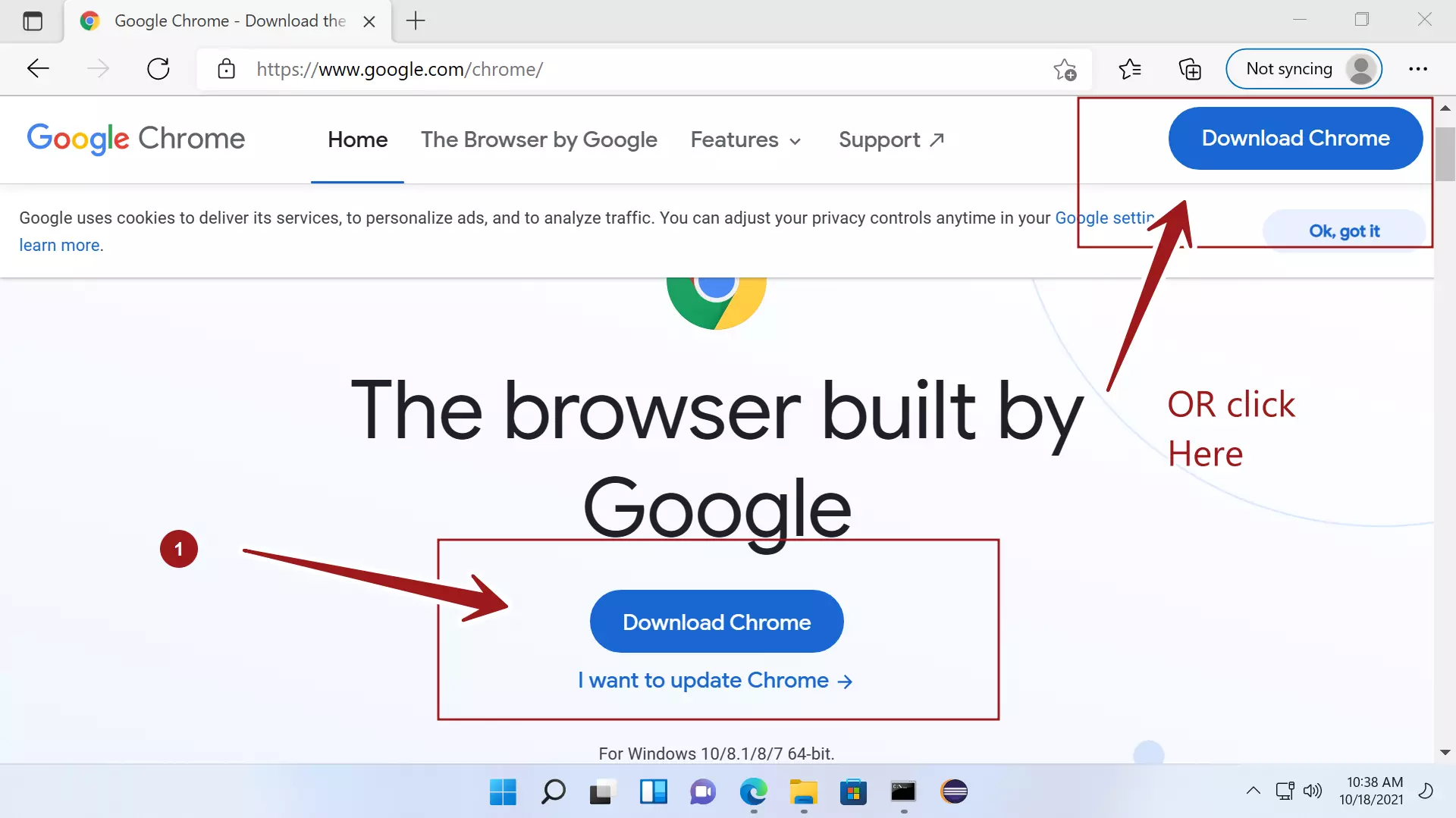
- Open an existing browser: Use any pre-installed browser (e.g., Microsoft Edge, Safari, Firefox) to navigate to the official Chrome download page:
google.com/chrome. - Click “Download Chrome”: The website will typically auto-detect your operating system and offer the correct version.
- Accept Terms and Download: Read the terms of service and click “Accept and Install” or “Download Chrome.”
- Run the Installer:
- Windows: Locate the downloaded
.exefile (usually in your “Downloads” folder) and double-click it. Follow the on-screen prompts; the installer will download and set up Chrome automatically. - macOS: Locate the downloaded
.dmgfile. Double-click it, then drag the “Google Chrome” icon into your “Applications” folder. You may need to authenticate with your administrator password. - Linux: Instructions vary slightly depending on your distribution. Typically, you’ll download a
.deb(Debian/Ubuntu) or.rpm(Fedora/OpenSUSE) package. You can install it via your system’s package manager or command line (e.g.,sudo dpkg -i google-chrome-stable_current_amd64.deb).
- Windows: Locate the downloaded
- Launch Chrome: Once installed, Chrome will likely launch automatically. You can then sign in with your Google Account to sync bookmarks, history, and settings.
Step-by-Step Installation on Mobile (Android/iOS):
- Android: Chrome is often pre-installed on Android devices. If not, or if you need an update:
- Open the Google Play Store.
- Search for “Google Chrome.”
- Tap “Install” or “Update.”
- iOS (iPhone/iPad):
- Open the App Store.
- Search for “Google Chrome.”
- Tap “Get” (and authenticate with Face ID/Touch ID/password).
Benefits: Speed, Extensions, and Security:
Chrome’s benefits are numerous. Its optimized rendering engine ensures quick page loads. The Chrome Web Store offers a vast ecosystem of extensions that can enhance Productivity (e.g., ad blockers, grammar checkers, note-taking tools), improve Digital Security (e.g., password managers, VPN extensions), and integrate with other AI Tools. Regular security updates and features like Safe Browsing protect users from malicious websites and phishing attempts, reinforcing the Tech aspect of digital safety.
Making Google Your Default Search Engine
Once Chrome is installed, or even if you prefer another browser, setting Google as your default search engine ensures that every search query you type into your address bar or search box leverages Google’s powerful algorithms. This is a subtle yet significant “installation” that optimizes your daily information retrieval.
Why Convenience Matters:
For many, the first interaction with the internet is through a search engine. Google’s unparalleled indexing capabilities and sophisticated algorithms provide highly relevant results almost instantly. Making it your default saves time and ensures you’re consistently using a robust search tool, critical for efficient Productivity and rapid access to information, whether for Tech troubleshooting, Brand research, or Money management.
Steps to Set Google as Default:
-
Google Chrome:
- Click the three-dot menu (top-right) and select “Settings.”
- In the left sidebar, click “Search engine.”
- Under “Search engine used in the address bar,” select “Google” from the dropdown. (It’s usually the default).
-
Mozilla Firefox:
- Click the three-line menu (top-right) and select “Settings.”
- In the left sidebar, click “Search.”
- Under “Default Search Engine,” select “Google.”
-
Microsoft Edge:
- Click the three-dot menu (top-right) and select “Settings.”
- In the left sidebar, click “Privacy, search, and services.”
- Scroll down to “Services” and click “Address bar and search.”
- Under “Search engine used in the address bar,” select “Google.”
-
Apple Safari (macOS):
- Open Safari.
- Go to “Safari” in the menu bar and select “Preferences.”
- Click the “Search” tab.
- From the “Search engine” dropdown menu, select “Google.”
This small change significantly streamlines your workflow, making every search command instant and effective, directly contributing to personal Productivity.
Integrating Google’s Power Across Your Devices
Beyond the browser and the core account, Google offers a vast array of dedicated applications designed to extend its capabilities across all your digital devices. These installations are crucial for maximizing convenience, productivity, and seamless interaction with your digital world, whether you’re managing files, navigating cities, or communicating with others.
Installing Key Google Mobile Applications
Mobile devices have become our primary interface with the digital world, and Google’s suite of mobile apps is central to this experience. Installing these apps transforms your smartphone or tablet into a powerful hub for communication, navigation, entertainment, and productivity. This is where Apps and Gadgets truly converge with Tech innovation.
Overview of Essential Apps:
- Gmail: The cornerstone of communication, offering robust email management, spam filtering, and integration with other Google services.
- Google Maps: Essential for navigation, local search, and exploring new places. Its real-time traffic updates and public transport options make it invaluable for urban dwellers and travelers.
- YouTube: The world’s largest video-sharing platform, offering endless entertainment, educational content, and a powerful channel for Brand building for creators and businesses.
- Google Drive: Your cloud storage solution, allowing you to store, share, and access documents, photos, and videos from anywhere. Crucial for Productivity and file management.
- Google Photos: A smart gallery that automatically backs up your photos and videos, offering powerful search capabilities and organization features.
- Google Calendar: An intuitive scheduling tool that integrates with Gmail and other apps, helping you manage your time effectively.
- Google Meet: For video conferencing, facilitating remote work and virtual meetings.
- Google Keep: A simple yet powerful note-taking app for capturing ideas on the go.

Installation Process (General Steps for Android/iOS):
The process is straightforward for both major mobile platforms, leveraging their respective app stores.
-
For Android Devices (Google Play Store):
- Unlock your Android device and open the Google Play Store app (the colorful triangle icon).
- Tap the search bar at the top and type the name of the Google app you wish to install (e.g., “Gmail,” “Google Maps”).
- From the search results, tap on the desired app.
- Tap the “Install” button.
- The app will download and install automatically. Once complete, you can usually find it on your home screen or in your app drawer.
- Open the app and sign in with your Google Account if prompted.
-
For iOS Devices (Apple App Store):
- Unlock your iPhone or iPad and open the App Store app (the blue icon with a white ‘A’).
- Tap the “Search” tab at the bottom-right corner.
- Type the name of the Google app (e.g., “YouTube,” “Google Drive”) into the search bar and tap “Search.”
- Tap on the desired app from the results.
- Tap the “Get” button (or the cloud icon if you’ve previously downloaded it).
- You may be asked to authenticate with Face ID, Touch ID, or your Apple ID password.
- The app will download and install. Once done, it will appear on your home screen.
- Open the app and sign in with your Google Account.
These mobile installations are critical for maintaining continuity in your digital life, ensuring that your work, communication, and personal information are always at your fingertips, aligning perfectly with modern Technology Trends and demands for mobility.
Leveraging Google Desktop Applications and Tools
While many Google services are web-based, dedicated desktop applications and specialized tools offer enhanced functionality, deeper system integration, and offline access, further solidifying Google’s presence in your daily workflow. These installations bridge the gap between cloud and local computing, crucial for Productivity and specific Tech needs.
-
Google Drive for Desktop:
- What it does: This application syncs files between your computer and Google Drive in the cloud. It creates a virtual drive on your computer, allowing you to access and manage your Drive files directly from File Explorer (Windows) or Finder (macOS) without needing to download them all locally. Any changes you make locally are automatically synced to the cloud.
- Installation: Download from
google.com/drive/download/. Run the installer, sign in with your Google Account, and configure sync preferences. - Benefits: Seamless file access and backup, efficient collaboration, reduced local storage needs. This is a cornerstone for Business Finance and Online Income strategies that rely on cloud collaboration.
-
Google Workspace (Docs, Sheets, Slides, etc.):
- What it does: While primarily web-based, these applications (Google Docs, Sheets, Slides, Forms, etc.) are deeply integrated into the Google ecosystem. They are “installed” in the sense that they become part of your default workflow, often accessible through Chrome shortcuts or progressive web apps (PWAs) that behave like native applications. For businesses, adopting Google Workspace is a strategic “installation” of a full productivity suite.
- Installation: Access via
workspace.google.comor directly through your Google Account. For PWA-like experience, in Chrome, go to a Workspace app, click the three-dot menu, select “More tools,” then “Create shortcut” and check “Open as window.” - Benefits: Real-time collaboration, automatic saving, version history, accessibility from any device. For Brand Strategy and Corporate Identity, consistent document creation and sharing within a unified platform are invaluable.
-
Google Meet Desktop App/PWA:
- What it does: While Google Meet is web-based, you can “install” it as a Progressive Web App (PWA) for a more app-like experience on your desktop, separate from your main browser window.
- Installation: Open Google Meet in Chrome, then click the “Install” icon (a monitor with a down arrow) in the address bar, or go to the three-dot menu -> “Install Google Meet.”
- Benefits: Dedicated window, easier access, potentially better performance for video calls, crucial for modern Productivity and remote work.
-
Google Earth Pro:
- What it does: A powerful desktop application for exploring the world with advanced features not available in the web version, including GIS data import/export, measurement tools, and higher-resolution imagery.
- Installation: Download from
google.com/earth/versions/. Run the installer for your OS. - Benefits: Detailed geographical analysis, mapping, and visualization, particularly useful for specific professional Tech applications or educational purposes.
These desktop tools signify a deeper level of Google integration, allowing users to harness specific capabilities directly from their operating system, enhancing overall Productivity and enabling more complex tasks that require robust desktop software.
Advanced Google Integration for Productivity and Business
Once the foundational Google elements are in place, the next step is to optimize your experience and leverage Google’s more specialized tools for advanced productivity, personal branding, and even revenue generation. This section delves into refining your Google usage and utilizing its powerful business-oriented services, touching upon Digital Security, Marketing, and Financial Tools.
Optimizing Your Google Experience
Merely installing Google tools is only half the battle; optimizing their use is key to unlocking their full potential. This involves intelligent configuration, leveraging complementary features, and prioritizing digital hygiene. These practices are central to advanced Tech literacy and maximizing Productivity.
-
Syncing Across Devices:
- Chrome Sync: Ensure you’re signed into Chrome with your Google Account on all devices. This synchronizes bookmarks, browsing history, saved passwords, open tabs, and extensions, creating a truly unified browsing experience. Access settings via
chrome://settings/syncSetup. - Google Account Sync: On mobile, ensure your Google Account is syncing contacts, calendar, Gmail, and other app data. This is typically managed in your device’s settings under “Accounts” -> “Google.”
- Benefit: Uninterrupted workflow, whether you start a task on your laptop and finish on your phone, enhancing overall Productivity.
- Chrome Sync: Ensure you’re signed into Chrome with your Google Account on all devices. This synchronizes bookmarks, browsing history, saved passwords, open tabs, and extensions, creating a truly unified browsing experience. Access settings via
-
Utilizing Google Extensions:
- The Chrome Web Store hosts thousands of extensions that can dramatically extend Chrome’s functionality. These are crucial for tailoring your browser to specific needs.
- Productivity: Extensions like “Grammarly” for writing, “Toggl Track” for time management, or “Momentum” for dashboard personalization.
- Digital Security: Password managers (e.g., “LastPass,” “1Password”), ad blockers (e.g., “uBlock Origin”), and VPN extensions (e.g., “NordVPN”).
- AI Tools: Many AI-powered writing assistants, research tools, and summarizers integrate as Chrome extensions.
- Installation: Visit the Chrome Web Store (
chrome.google.com/webstore), search for extensions, and click “Add to Chrome.” - Caution: Only install extensions from reputable sources, as they can sometimes pose security risks.
-
Privacy and Security Settings:
- Two-Factor Authentication (2FA): This is non-negotiable for robust account security. Enabling 2FA requires a second verification step (e.g., a code from your phone) in addition to your password, making it significantly harder for unauthorized users to access your account. Set this up at
myaccount.google.com/security. - Privacy Checkup: Google provides a step-by-step guide to review and adjust your privacy settings, including what data Google collects and how it’s used. Access this at
myaccount.google.com/privacycheckup. - Password Manager: Use Google’s built-in password manager (synced via your account) or a third-party extension to create and store strong, unique passwords for every site.
- Benefit: Protects your personal data, financial information, and digital identity, fundamental to Digital Security in an increasingly interconnected world.
- Two-Factor Authentication (2FA): This is non-negotiable for robust account security. Enabling 2FA requires a second verification step (e.g., a code from your phone) in addition to your password, making it significantly harder for unauthorized users to access your account. Set this up at
These optimizations transform your Google setup from a collection of tools into a finely tuned, secure, and highly productive digital workspace.
Google for Brand and Money: Beyond Personal Use
For businesses, entrepreneurs, and individuals looking to monetize their online presence, Google offers a suite of specialized tools that are less about “installation” in the traditional sense and more about strategic integration and configuration. These are powerful Financial Tools and Marketing platforms that drive growth, enhance Brand Strategy, and generate Online Income.
-
Google My Business (GMB):
- What it is: A free tool that allows businesses to manage their online presence across Google, including Search and Maps.
- Installation/Setup: Claim and verify your business listing at
business.google.com. Fill out all relevant information: address, phone number, website, hours, photos, and services. - Impact on Brand: Enhances local visibility, allows customer reviews (critical for reputation management), and provides a direct channel for customer interaction. It’s a cornerstone for local Brand Strategy and increasing foot traffic for physical businesses.
- Impact on Money: Drives leads, calls, and website visits from local searches, directly contributing to revenue.
-
Google Analytics:
- What it is: A powerful web analytics service that tracks and reports website traffic. It provides invaluable insights into who visits your site, how they find it, what they do there, and how effectively your site converts visitors into customers.
- Installation: Create an account at
analytics.google.com. You’ll receive a tracking code (JavaScript snippet) that needs to be “installed” (pasted) into the<head>section of every page on your website. Modern website builders (e.g., WordPress, Shopify) often have dedicated plugins or fields for this. - Impact on Brand: Helps understand user behavior, measure marketing campaign effectiveness, and identify areas for website improvement, directly influencing your digital Marketing and Brand Strategy.
- Impact on Money: Optimizing conversion rates, understanding ROI of marketing spend, and identifying revenue opportunities are direct outcomes of effective Google Analytics usage, making it a crucial Financial Tool for businesses.
-
Google Ads (formerly Google AdWords):
- What it is: Google’s online advertising platform where businesses can bid to display concise advertisements, service offerings, product listings, or videos to web users.
- Installation/Setup: Create an account at
ads.google.com. You’ll then set up campaigns, target keywords, design ads, and set budgets. This is a continuous process of optimization. - Impact on Brand: Increases brand visibility, reaches target audiences with specific messaging, and establishes market presence.
- Impact on Money: A primary driver for Online Income and Business Finance. Google Ads allows businesses to generate leads, drive sales, and achieve specific marketing objectives with measurable ROI, making it an essential Marketing channel for many.
-
Google Workspace for Business (Professional Email, Collaboration Tools):
- What it is: The business-grade version of Google’s productivity suite, offering custom email addresses (e.g.,
you@yourcompany.com), enhanced security, increased cloud storage, and advanced administration controls. - Installation/Setup: Sign up at
workspace.google.com. This involves configuring DNS records for your domain to point to Google’s mail servers. - Impact on Brand: A professional email address enhances Corporate Identity and credibility. Shared drives and consistent collaborative tools streamline internal and external communications, reinforcing a professional image.
- Impact on Money: Improves operational efficiency, reduces IT overhead (as it’s cloud-managed), and facilitates remote work, contributing positively to Business Finance and overall Productivity.
- What it is: The business-grade version of Google’s productivity suite, offering custom email addresses (e.g.,
These advanced integrations demonstrate how “installing Google” evolves from personal software deployment to strategic business solutions, directly influencing Technology Trends, shaping Brand Strategy, and acting as powerful Financial Tools for growth and revenue generation.
Conclusion
The journey of “installing Google” is a comprehensive dive into the heart of the modern digital experience. It begins with the fundamental step of establishing a Google Account and installing the Chrome browser, forming the bedrock of personal productivity and digital security. From there, it expands into a rich ecosystem of mobile and desktop applications, each designed to enhance specific aspects of your daily life – from communication and navigation to cloud storage and collaboration.
However, the true power of “installing Google” is realized when these tools are optimized and integrated for advanced purposes, particularly in the realms of brand building and financial growth. Google’s sophisticated platforms for analytics, advertising, and business management are not mere software; they are strategic assets that enable companies and individuals to understand their audience, expand their reach, and generate significant online income.
In essence, “how to install Google” is less about a single download button and more about intelligently adopting a suite of powerful technologies that continually evolve. By thoughtfully integrating Google’s offerings into your tech stack, optimizing their settings, and leveraging their advanced capabilities, you are not just installing software; you are installing a framework for enhanced productivity, a stronger brand presence, and a fortified pathway to financial success in an ever-connected world.
aViewFromTheCave is a participant in the Amazon Services LLC Associates Program, an affiliate advertising program designed to provide a means for sites to earn advertising fees by advertising and linking to Amazon.com. Amazon, the Amazon logo, AmazonSupply, and the AmazonSupply logo are trademarks of Amazon.com, Inc. or its affiliates. As an Amazon Associate we earn affiliate commissions from qualifying purchases.