
Welcome to the definitive guide on installing Go, Google’s powerful and efficient programming language, often referred to as Golang. In the rapidly evolving landscape of technology, Go has emerged as a cornerstone for building scalable, high-performance applications, from web servers and APIs to command-line tools and microservices. For developers, tech enthusiasts, and businesses looking to optimize their software infrastructure, understanding how to properly set up a Go environment is a fundamental step. This comprehensive tutorial will walk you through the entire installation process across major operating systems, ensure your environment is correctly configured, and even help you run your first Go program, laying the groundwork for your journey into this exciting programming paradigm.
Understanding Go: Why It Matters for Developers and the Tech Ecosystem
Before diving into the mechanics of installation, it’s crucial to grasp why Go has garnered such immense popularity and why its integration into your tech stack is a strategic move. Conceived at Google in 2007 by Robert Griesemer, Rob Pike, and Ken Thompson, Go was designed to address the challenges of modern software development, particularly in an era of multi-core processors, networked systems, and large codebases. Its core philosophy revolves around simplicity, efficiency, and reliability.
From a technical standpoint, Go stands out due to its blazing-fast compilation times, built-in concurrency features (goroutines and channels), garbage collection, and a robust standard library. These features empower developers to build applications that are not only performant but also easier to maintain and scale. For businesses, this translates directly into tangible benefits: reduced operational costs through efficient resource utilization, faster development cycles due to Go’s clear syntax and strong tooling, and improved reliability for mission-critical services.
In the broader context of technology trends, Go is at the heart of many leading-edge projects. Cloud-native technologies like Kubernetes and Docker are written in Go, underscoring its capabilities in infrastructure and distributed systems. Its adoption by major companies and startups alike signals its reliability and future relevance in various domains, from FinTech (Money) and data processing to AI tools and web services (Tech). Integrating Go into your skill set or your company’s technology portfolio is not just about adopting another language; it’s about investing in a future-proof technology that aligns with high performance, scalability, and modern development practices. As you embark on this installation journey, remember that you’re preparing to leverage a tool that is shaping the future of software, offering a competitive edge in a fast-paced digital world.
Preparing for Installation: Essential Pre-checks and Considerations
Before you begin the Go installation process, a few preliminary checks and considerations can save you time and potential headaches. These steps ensure your system is ready and help you choose the most appropriate installation method.
Firstly, verify your system’s architecture. Go supports a wide range of operating systems and architectures, including Windows, macOS, Linux, and even some BSD variants, across 32-bit and 64-bit systems. Most modern computers are 64-bit, but it’s always good to confirm. This will guide your choice of the correct Go distribution package.
Secondly, check for existing Go installations. If you’ve previously experimented with Go or another developer used your machine, you might have an older version installed. You can check this by opening a terminal or command prompt and typing go version. If Go is installed, this command will output the version number. If it’s an older version you wish to upgrade, or if you encounter issues, it’s often best to completely uninstall the old version before installing a new one, though in many cases, a new installation will simply overwrite the old one. For a clean slate, removing the $GOROOT directory (where Go is installed) and removing Go-related entries from your PATH environment variable can be beneficial.
Thirdly, determine your target Go version. While it’s generally recommended to install the latest stable version of Go to benefit from the newest features, performance improvements, and security patches, specific project requirements might dictate an older version. Always refer to the official Go download page (go.dev/dl) for the most up-to-date and secure distributions. Downloading from unofficial sources is highly discouraged due to potential security risks and stability issues.
Finally, ensure you have administrative privileges on your machine. Installation often requires writing to system directories, which necessitates elevated permissions. With these prerequisites in mind, you’re ready to proceed to the platform-specific installation guides.
Step-by-Step Installation Guides for Major Operating Systems
The installation process for Go varies slightly depending on your operating system. Below, we provide detailed instructions for Windows, macOS, and Linux, covering the most common and recommended methods.
Installing Go on Windows
For Windows users, the simplest and most recommended way to install Go is by using the official MSI installer package. This package automates the installation process, including setting up necessary environment variables.
-
Download the MSI Installer:
- Navigate to the official Go download page: go.dev/dl.
- Locate the “Windows” section and download the latest stable
goX.Y.Z.windows-amd64.msiinstaller (where X.Y.Z is the version number). Ensure you select theamd64version for 64-bit systems, which is standard for most modern computers.
-
Run the Installer:
- Once the download is complete, double-click the
.msifile to launch the installer. - Follow the prompts in the installation wizard. The installer will typically suggest installing Go to
C:Program FilesGoby default. It’s generally advisable to accept this default location unless you have a specific reason to change it. - The installer will automatically add the
C:Program FilesGobindirectory to your system’sPATHenvironment variable, making thegocommand accessible from any command prompt.
- Once the download is complete, double-click the
-
Verify the Installation:
- After the installation finishes, open a new Command Prompt or PowerShell window (ensure it’s a new window, as existing ones might not pick up the updated PATH variable).
- Type the command:
go version - You should see output similar to
go version goX.Y.Z windows/amd64, confirming that Go has been successfully installed and is recognized by your system.
If for some reason the PATH variable wasn’t updated or you chose a custom installation directory, you might need to manually add C:yourcustomgopathbin to your system’s PATH environment variable. You can do this via “System Properties” -> “Environment Variables.”
Installing Go on macOS
macOS users have a couple of straightforward options for installing Go: using the official PKG installer or via Homebrew, a popular package manager for macOS. The PKG installer is generally preferred for a clean, system-wide installation.
-
Download the PKG Installer:
- Go to the official Go download page: go.dev/dl.
- Find the “macOS” section and download the latest stable
goX.Y.Z.darwin-amd64.pkginstaller. Again,darwin-amd64is for 64-bit Intel-based Macs, anddarwin-arm64is for Apple Silicon (M1/M2) Macs. Choose the one appropriate for your machine.
-
Run the Installer:
- Open the downloaded
.pkgfile. - Follow the on-screen instructions. The installer will typically install Go to
/usr/local/go. This is the recommended default location. - The installer automatically adds
/usr/local/go/binto yourPATHenvironment variable in/etc/paths.d/go, ensuring thegocommand is available system-wide.
- Open the downloaded
-
Verify the Installation:
- Open a new Terminal window.
- Type:
go version - You should see output like
go version goX.Y.Z darwin/amd64(ordarwin/arm64), indicating a successful installation.
Alternative: Installing Go via Homebrew (Recommended for managing development tools)
If you use Homebrew, you can install Go with a single command:
- Open Terminal.
- Run:
brew install go - Homebrew handles the download, installation, and PATH configuration. Verify with
go version.
Installing Go on Linux
Linux offers the most flexibility for Go installation, with options ranging from official archives to package managers. The recommended method is to download the official binary release and extract it.
-
Download the Tarball:
- Visit the official Go download page: go.dev/dl.
- Locate the “Linux” section and download the latest stable
goX.Y.Z.linux-amd64.tar.gzarchive.
-
Extract the Archive:
- Open a terminal.
- Navigate to your Downloads directory or wherever you saved the file.
- Extract the archive to
/usr/local(or a location of your choice). This requires superuser privileges:
bash

sudo rm -rf /usr/local/go # Optional: remove previous installation

sudo tar -C /usr/local -xzf goX.Y.Z.linux-amd64.tar.gz
- This command extracts the
godirectory into/usr/local, resulting in/usr/local/go.
-
Set Environment Variables (
PATHandGOPATH):- You need to add
/usr/local/go/binto yourPATHenvironment variable so your shell can find thegocommand. You also need to setGOPATH, which specifies the location of your workspace. - Open your shell’s configuration file (e.g.,
~/.bashrc,~/.profile,~/.zshrc) in a text editor. - Add the following lines to the end of the file:
bash

export PATH=$PATH:/usr/local/go/bin

export GOPATH=$HOME/go # This is a common choice for your Go workspace

export PATH=$PATH:$GOPATH/bin # Add GOPATH/bin to PATH for executables
- Save and close the file.
- Apply the changes by sourcing the file or opening a new terminal:
bash

source ~/.bashrc # Or ~/.profile, ~/.zshrc
- You need to add
-
Verify the Installation:
- In the terminal, type:
go version - You should see output like
go version goX.Y.Z linux/amd64, confirming a successful installation.
- In the terminal, type:
Alternative: Using Package Managers (with caution)
Some Linux distributions provide Go packages through their repositories (e.g., sudo apt install golang-go on Debian/Ubuntu, sudo dnf install golang on Fedora). However, these versions are often older than the official releases. For serious development, using the official tarball is generally recommended to ensure you have the latest stable version and full control over your Go environment.
Post-Installation: Verifying Your Go Setup and First Steps
Once you’ve completed the platform-specific installation steps, it’s essential to perform a final verification to ensure everything is correctly configured. This includes confirming your Go version, checking critical environment variables, and then taking the crucial first step of running a simple Go program.
Confirming Your Installation
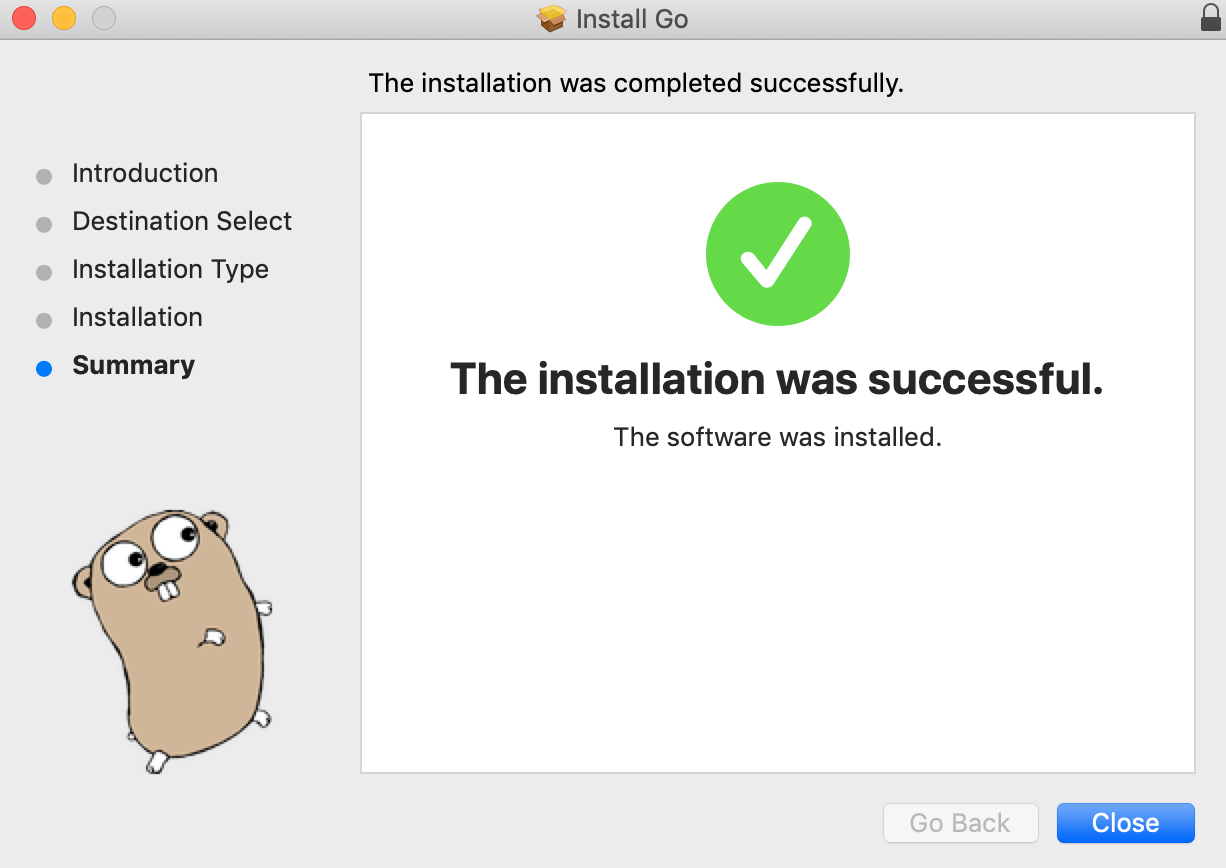
The primary way to confirm a successful installation is by checking the Go version. This not only tells you if Go is accessible but also which version is currently active.
- Check Go Version:
- Open a new terminal or command prompt window.
- Execute the command:
go version - Expected Output:
go version goX.Y.Z [OS/Architecture](e.g.,go version go1.22.1 darwin/amd64). If you see this, Go is installed and found in your system’s PATH.
- Inspect Go Environment Variables:
- The
go envcommand provides a detailed list of all Go environment variables, includingGOROOT(where Go is installed) andGOPATH(your workspace). - Execute the command:
go env - Review the output to ensure
GOROOTpoints to your Go installation directory (e.g.,/usr/local/goon Linux/macOS,C:Program FilesGoon Windows) andGOPATHpoints to your intended workspace directory (e.g.,$HOME/goon Linux/macOS,C:UsersYourUsergoon Windows). - These variables are crucial for Go’s functionality, dictating where it finds its core binaries and where your Go projects, packages, and compiled executables will reside.
- The
Setting Up Your Go Workspace (GOPATH)
While modern Go development (using Go Modules, introduced in Go 1.11) has made GOPATH less critical for individual project structures, it still serves a vital role for global tools and is important for understanding Go’s directory conventions. By default, the GOPATH is usually set to $HOME/go (or C:UsersYourUsergo on Windows).
If you need to change your GOPATH or confirm it, you do so by setting the environment variable:
- Linux/macOS: Add
export GOPATH=$HOME/mygopathto your~/.bashrc(or~/.zshrc,~/.profile) file, replacing$HOME/mygopathwith your desired path. Remember tosourcethe file afterward. - Windows: Go to “System Properties” -> “Environment Variables” and add or edit the
GOPATHsystem variable to your preferred directory (e.g.,D:GoProjects).
It’s also good practice to ensure $GOPATH/bin is in your system’s PATH variable (export PATH=$PATH:$GOPATH/bin), so any executables compiled from your Go projects (or installed via go install) are accessible globally.
Your First Go Program: “Hello, World!”
Now that Go is installed and configured, let’s write and run your very first Go program. This classic “Hello, World!” example confirms that your Go environment is fully operational and ready for development.
-
Create a Project Directory:
- Inside your
GOPATH(or any directory if you’re using Go Modules, which is common practice now), create a new directory for your project. bash
mkdir -p $GOPATH/src/hello
cd $GOPATH/src/hello
(Or create a directory likemy-first-go-appoutsideGOPATHif you plan to use Go Modules, thencdinto it.)
- Inside your
-
Create a Go Module (Modern Approach):
- If you’re using a directory outside
GOPATH/src(which is the recommended modern way), you’ll initialize a Go module:
bash

go mod init example.com/hello
Replaceexample.com/hellowith a unique module path, typically your domain name followed by the project name.
- If you’re using a directory outside
-
Write the “Hello, World!” Code:
-
Inside your
hellodirectory, create a file namedmain.go. -
Open
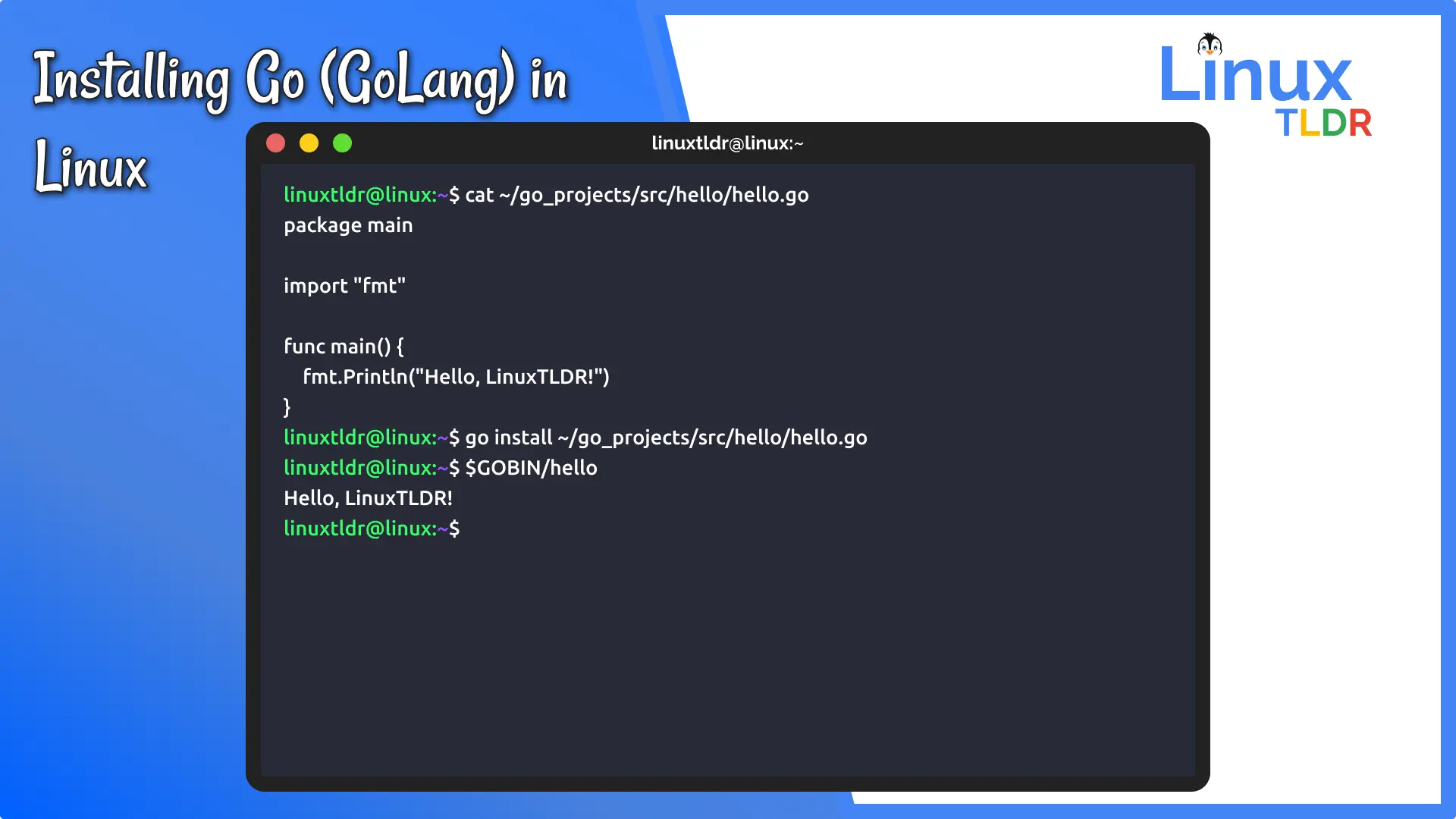
main.goin a text editor and paste the following code:package main import "fmt" func main() { fmt.Println("Hello, Go Enthusiast!") }package maindeclares the package as an executable program.import "fmt"imports the “format” package, which provides functions for formatted I/O.func main()is the entry point of every executable Go program.fmt.Println()prints the string to the console.
-
-
Run Your Program:
-
There are two primary ways to run your Go program:
go run(for quick execution):
bash

go run main.go
This command compiles and runs the program in a single step.go build(to create an executable binary):
bash

go build -o myhello main.go

./myhello # On Linux/macOS

.myhello.exe # On Windows
go buildcompiles yourmain.gofile into an executable binary (e.g.,myhelloon Linux/macOS,myhello.exeon Windows) in your current directory. You can then run this binary directly. This is useful for distributing your applications.
-
Expected Output for both methods:
Hello, Go Enthusiast!
-
Congratulations! You’ve successfully installed Go, configured your environment, and executed your first Go program. This milestone marks the beginning of your journey into building powerful and efficient applications with Golang, aligning perfectly with the latest software development trends and productivity goals (Tech).
Troubleshooting Common Installation Issues
Even with detailed guides, you might encounter issues during installation or initial setup. Here are some common problems and their solutions, helping you get back on track quickly.
1. go: command not found or The term 'go' is not recognized
This is the most frequent issue and almost always points to an incorrect or unrefreshed PATH environment variable.
- Solution:
- Verify
PATH: Ensure the directory containing thegoexecutable (e.g.,/usr/local/go/binon Linux/macOS,C:Program FilesGobinon Windows) is correctly added to your system’sPATH. - Refresh Shell: After modifying
PATH, open a new terminal or command prompt window. Existing windows might not reflect the changes. For Linux/macOS, you can also runsource ~/.bashrc(or your respective shell config file) to reload the environment variables in the current session. - Check Spelling and Case: Environment variable names and paths are often case-sensitive on Linux/macOS.
- Verify
2. Permissions Errors During Installation or Extraction
If you’re installing Go to system-wide directories (like /usr/local on Linux/macOS), you’ll need administrative privileges.
- Solution:
- Use
sudo: On Linux/macOS, prefix yourtarormkdircommands withsudoif you’re installing to a protected directory. - Check Directory Permissions: Ensure the user running the
gocommands has read/execute permissions for theGOROOTandGOPATHdirectories.
- Use
3. Go Version Mismatch or Unexpected Behavior
This can happen if you have multiple Go installations or if your PATH points to an older version.
- Solution:
- Check
go env GOROOT: This tells you which Go installation your shell is currently referencing. - Inspect
PATHorder: On Linux/macOS, if you have multiplegobinaries in different directories listed in yourPATH, the shell will use the first one it finds. Adjust the order of entries in yourPATHif necessary. - Clean Uninstall: If issues persist, consider performing a clean uninstall of all Go versions, manually deleting
GOROOTandGOPATHdirectories, and then reinstalling the desired version.
- Check
4. GOPATH Issues (e.g., packages not found)
While GOPATH is less critical for module-aware projects, it still matters for global tools or older codebases.
- Solution:
- Set
GOPATHexplicitly: Ensure theGOPATHenvironment variable is set and points to an existing, accessible directory. - Add
$GOPATH/bintoPATH: If you install tools withgo install, they land in$GOPATH/bin. Ensure this directory is in yourPATHso you can run these tools directly. - Go Modules: For new projects, embrace Go Modules. Initialize your project with
go mod initand let Go manage dependencies in a project-specificpkgcache, makingGOPATH‘s role primarily for global tools.
- Set
5. Proxy or Network Issues During go get or go mod download
If you’re behind a corporate proxy or have network restrictions, Go’s module downloading commands might fail.
- Solution:
- Configure Proxy: Set the
HTTP_PROXY,HTTPS_PROXY, andNO_PROXYenvironment variables to point to your proxy server.
bash

export HTTP_PROXY="http://proxy.example.com:8080"

export HTTPS_PROXY="http://proxy.example.com:8080"

export NO_PROXY="localhost,*.local"
- Check Firewall: Ensure your firewall isn’t blocking Go from accessing the internet to download modules.
- Configure Proxy: Set the
By systematically going through these troubleshooting steps, you can resolve most common Go installation and setup problems, ensuring a smooth development experience. For more in-depth solutions, the official Go documentation and community forums (like Stack Overflow) are invaluable resources.
Conclusion: Empowering Your Tech Journey with Go
You’ve now successfully navigated the intricate yet rewarding process of installing Go, setting up your development environment, and even executing your inaugural “Hello, World!” program. This journey, from understanding Go’s architectural advantages to troubleshooting potential hiccups, marks a significant step in your technical prowess. Go’s commitment to efficiency, concurrency, and clear syntax makes it an invaluable asset in today’s fast-paced digital landscape, whether you’re building high-performance microservices, robust APIs, or cutting-edge AI tools.
As a platform dedicated to Technology, Brand, and Money, we emphasize that mastering tools like Go directly contributes to all three pillars. Technologically, you’re embracing a language that powers cloud infrastructure and modern applications. For your “Brand,” whether personal or corporate, proficiency in Go demonstrates a commitment to innovation, quality, and forward-thinking development practices. From a “Money” perspective, Go’s efficiency translates into lower operational costs, faster time-to-market, and the ability to build scalable solutions that directly impact business growth and financial performance.
Your installation is not merely a software setup; it’s an investment in a skill that will open doors to new opportunities, enable you to contribute to groundbreaking projects, and build applications that are truly robust and future-proof. We encourage you to delve deeper into Go’s extensive documentation, explore its vibrant community, and start building your next great idea. The world of concurrent programming, efficient systems, and scalable solutions awaits you. Happy coding!
aViewFromTheCave is a participant in the Amazon Services LLC Associates Program, an affiliate advertising program designed to provide a means for sites to earn advertising fees by advertising and linking to Amazon.com. Amazon, the Amazon logo, AmazonSupply, and the AmazonSupply logo are trademarks of Amazon.com, Inc. or its affiliates. As an Amazon Associate we earn affiliate commissions from qualifying purchases.