
The GNU Compiler Collection (GCC) is the industry standard for C and C++ development. While it was originally built for Unix-like systems, its power, reliability, and ubiquity have made it an essential tool for developers working on Windows. Whether you are a student learning the fundamentals of memory management, a researcher working on cross-platform performance, or a developer building high-performance systems, having GCC on your Windows machine is a fundamental requirement.
Installing GCC on Windows can feel daunting because Windows does not natively support the GNU toolchain. However, through the use of MinGW (Minimalist GNU for Windows) or MSYS2, you can create a seamless development environment that brings the full power of Linux-based compilation to your Windows desktop.
Understanding the GCC Toolchain and MinGW
Before diving into the installation, it is important to understand what you are actually installing. GCC is a compiler suite that transforms your human-readable source code into machine code that the processor can execute. Because Windows uses different system calls and executable formats (PE/COFF) compared to the ELF format used by Linux, you cannot simply run the Linux version of GCC on Windows.
The Role of MinGW
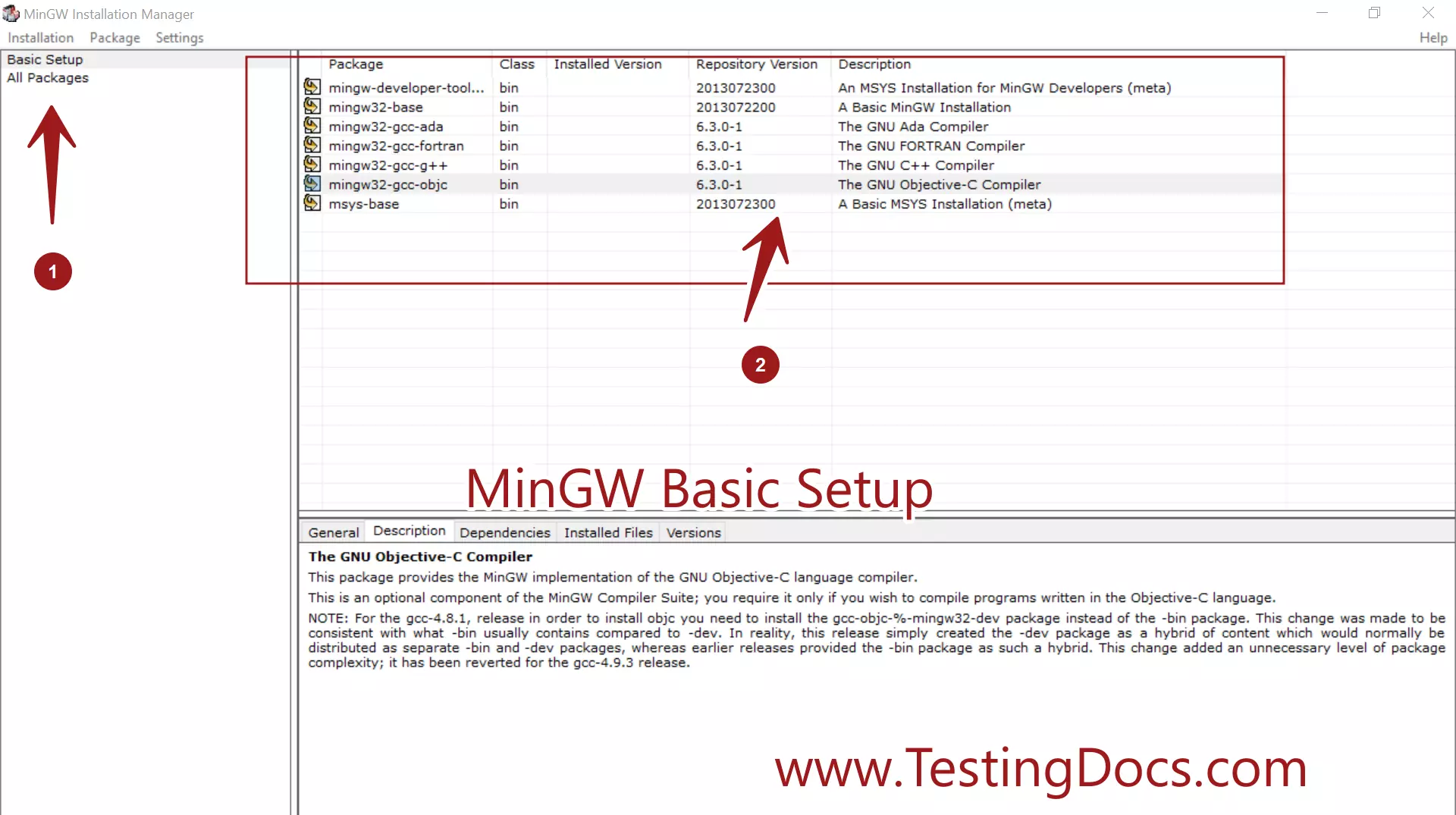
MinGW (Minimalist GNU for Windows) is a port of the GNU Compiler Collection intended for use on Windows. It provides headers and import libraries that allow you to compile programs that use the Windows API. When you install GCC on Windows, you are essentially installing a specialized build of GCC that has been cross-compiled or specifically configured to generate Windows-native binaries.
MSYS2: The Modern Standard
While the original MinGW project has been largely superseded in terms of maintenance, the MSYS2 environment is the current gold standard for GCC installation on Windows. MSYS2 provides a Unix-like emulation layer and, more importantly, a package management system (Pacman) that makes updating your compiler and libraries as simple as a single command line entry.
Step-by-Step Installation via MSYS2
Using MSYS2 is the most robust way to set up GCC. It ensures that you have access to the latest versions of the compiler and that your environment remains manageable as your projects grow in complexity.
Step 1: Downloading and Installing MSYS2
First, visit the official MSYS2 website. Download the installer for 64-bit Windows. Run the installer and follow the default prompts. It is recommended to install MSYS2 in a directory without spaces, such as C:msys64, to avoid path-related errors in complex build scripts.
Step 2: Updating the Package Database
Once the installation is complete, the MSYS2 terminal will launch automatically. Before installing anything, you must update the package database and core system packages. Run the following command:
pacman -Syu
The terminal will prompt you to close the window if core updates are applied. Do so, then reopen the MSYS2 terminal and run the update command once more until it reports that there is nothing left to update.
Step 3: Installing the GCC Toolchain
With the system updated, you can now install the actual compiler. The mingw-w64 package contains the GCC compiler for both 32-bit and 64-bit architectures. Execute the following command in the MSYS2 terminal:
pacman -S mingw-w64-ucrt-x86_64-gcc
This will fetch the necessary files, including the C and C++ compilers, linker, and debugger (GDB). When prompted, confirm the installation by typing ‘Y’.
Configuring Environment Variables
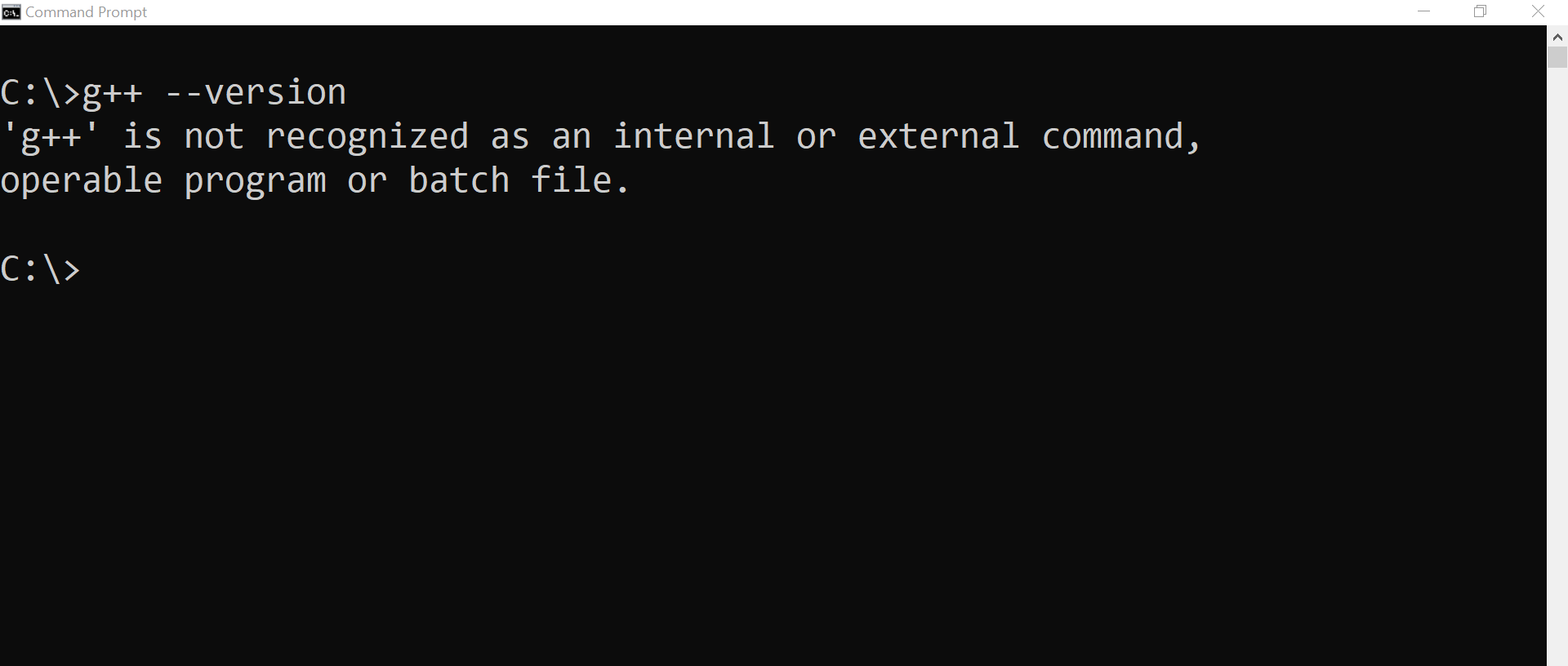
A common frustration for new developers is that the system cannot find the gcc command even after installation. This is because the path to the executable is not yet registered in the Windows Environment Variables.
Locating the Bin Folder
Navigate to the directory where you installed MSYS2. If you used the default path, you will find your executables in C:msys64ucrt64bin. This folder contains gcc.exe, g++.exe, and gdb.exe.
Editing System PATH
- Press the Windows key and search for “Edit the system environment variables.”
- Click the “Environment Variables” button.
- Under “System variables,” find the “Path” variable and click “Edit.”
- Click “New” and paste the path to your bin folder (e.g.,
C:msys64ucrt64bin). - Click “OK” on all windows to save.
After this, you should be able to open any standard Command Prompt or PowerShell window, type gcc --version, and see the output confirming that the compiler is correctly configured.
Verifying the Installation and Running Your First Program
Once the path is set, it is crucial to verify that everything is configured correctly. A “Hello World” test is the traditional way to ensure that the compiler can create, link, and run an executable.
Writing the Code
Create a new folder for your development projects. Inside this folder, create a file named hello.c using your preferred text editor (VS Code, Notepad++, or even Vim). Enter the following code:
#include <stdio.h>

int main() {
    printf("Hello, GCC on Windows is working perfectly!n");
    return 0;
}
Compiling and Executing
Open your Command Prompt or PowerShell in the folder where hello.c is saved. Compile the code using the GCC command:
gcc hello.c -o hello.exe
This command instructs GCC to take hello.c, compile it, and link it into an executable named hello.exe. If there are no syntax errors, the command will complete silently. You can then run the resulting program by typing:
.hello.exe
If you see the message printed to the console, congratulations: you have successfully installed and configured the GNU C Compiler on your Windows machine.
Managing GCC and Advanced Development Tips
With GCC installed, you have the backbone of a powerful development environment. However, as your C programming skills progress, you may need to manage different versions of the compiler or integrate it into larger build systems.
Handling Multiple Versions
If you are working on legacy projects that require specific compiler versions, you might consider using a version manager or maintaining separate MSYS2 environments. MSYS2’s advantage is that it keeps the toolchain isolated from your primary Windows system files, which prevents the “dependency hell” often associated with installing software on Windows.
Integrating with VS Code
While you can compile via the command line, most professional developers prefer an Integrated Development Environment (IDE). Visual Studio Code is an excellent choice. By installing the C/C++ extension by Microsoft, VS Code will automatically detect your GCC installation via the Path variable. This allows you to use features like IntelliSense, real-time error checking, and one-click debugging. To set up debugging, create a launch.json file in your VS Code workspace and point the “miDebuggerPath” to the gdb.exe file located in your MSYS2 bin directory.
Troubleshooting Common Issues
- Missing DLLs: If your compiled program complains about a missing
.dllfile when you run it outside the MSYS2 terminal, it is usually because the MSYS2bindirectory is not in your system PATH. - Permission Denied: Ensure your terminal is running with appropriate permissions, especially if you have installed MSYS2 in a protected system directory like
Program Files. - Compiler Not Found: If
gccis still not recognized, restart your computer. Windows environment variables sometimes require a fresh shell session or a system reboot to propagate correctly.
By mastering the installation and configuration of GCC, you have unlocked the ability to compile, test, and deploy C code with the same performance and portability that powers much of the modern internet. From here, the transition to more complex tasks—such as using make files for large projects or linking third-party libraries—becomes a natural evolution of your development workflow.