
In today’s digitally interconnected world, efficiency and accessibility are paramount. For many, Gmail serves as the central hub for personal and professional communication. The ability to quickly access your inbox without navigating through browser tabs or application launchers can significantly streamline your workflow and boost productivity. This is precisely where the convenience of having a dedicated Gmail icon directly on your desktop comes into play.
This article, grounded in the core principles of technology and productivity that define our website’s focus, will guide you through the straightforward process of placing the Gmail icon on your desktop. We’ll explore why this seemingly small customization can have a noticeable impact on your digital habits and touch upon how such simple tech optimizations align with broader trends in digital efficiency and personal branding. While the primary focus is a technical tutorial, we’ll also briefly consider the underlying motivations for such customization, linking it to the desire for a more personalized and user-friendly digital environment – a concept that resonates with brand and marketing strategies focused on user experience.
Understanding the Need for a Desktop Gmail Icon
Before diving into the “how-to,” let’s establish why this functionality is so desirable for a significant portion of computer users. The digital landscape is characterized by an ever-increasing number of applications, websites, and services we interact with daily. In this context, minimizing friction points and optimizing access to frequently used tools becomes a key strategy for enhancing productivity.
Bridging the Gap Between Web and Desktop
Gmail, being a web-based application, traditionally resides within your internet browser. While browsers themselves can be minimized, requiring a click to bring them back to the forefront, this still represents a cognitive and physical step. A desktop icon, however, acts as a direct gateway. Clicking it can either launch your default browser directly to Gmail or, in some more advanced setups, open a dedicated browser window solely for Gmail, effectively giving it a standalone application feel.
This distinction is important. For users who juggle multiple browser tabs for research, work, and personal tasks, a dedicated Gmail icon means one less item to hunt for within their browser. It’s about reducing the mental overhead associated with finding your email. Think of it like having your most-used tool readily available on your workbench instead of stored away in a drawer.
Enhancing Productivity and Workflow
The impact on productivity can be surprisingly significant. Imagine this scenario: you’re working on a document, need to quickly check an important email, or send a reply. Without a desktop icon, you might:
- Switch to your browser.
- Locate the Gmail tab (which might be one of many).
- Click on it to bring it into focus.
- Wait for it to load (if it had been inactive).
- Perform your email task.
- Switch back to your document.
With a desktop icon, this process can be as simple as:
- Double-clicking the Gmail icon.
- Performing your email task.
This reduction in steps, repeated over numerous instances throughout the day, can free up valuable seconds and minutes, allowing you to stay more focused on your primary tasks. This is a micro-optimization that aligns with larger productivity principles advocated in the tech world, where even small efficiencies contribute to overall effectiveness.
Personalization and Digital Identity
Beyond pure functionality, the act of customizing your desktop with shortcuts to your most-used applications is also an exercise in personalizing your digital space. For some, the desktop is an extension of their personal brand. Having the Gmail icon prominently displayed signifies its importance in their daily operations, much like a strategically placed logo signifies a company’s identity. This aligns with concepts in personal branding and corporate identity where visual cues and accessibility play a crucial role in how users interact with and perceive a service or individual.
Installing the Gmail Icon on Your Desktop: A Step-by-Step Guide
The method for creating a Gmail desktop icon can vary slightly depending on your operating system (Windows or macOS). We will cover the most common and straightforward approaches for each.
For Windows Users
Windows offers a very user-friendly way to create shortcuts to websites.
Method 1: Using Google Chrome (Recommended for Chrome Users)
Google Chrome, being one of the most popular browsers and developed by Google itself, offers a built-in feature to create application shortcuts for websites. This method is often the cleanest and most integrated.
Step 1: Open Gmail in Google Chrome
Launch Google Chrome and navigate to mail.google.com. Ensure you are logged into your Gmail account.
Step 2: Access the “Create Shortcut” Option
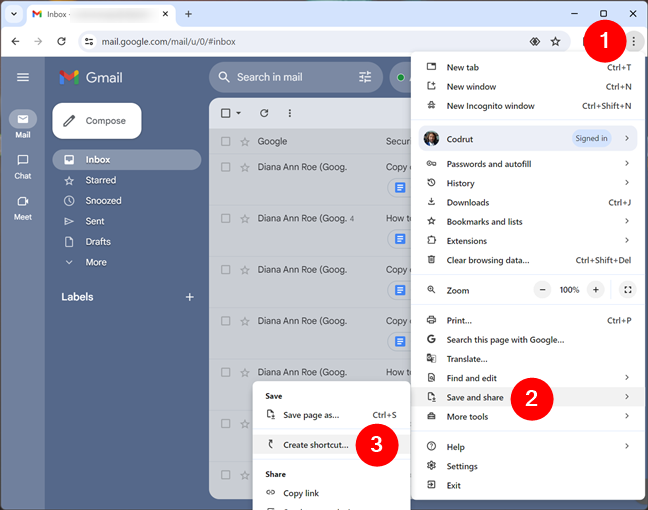
Once Gmail is loaded, click on the three vertical dots in the top-right corner of the Chrome window to open the “Customize and control Google Chrome” menu. Hover over “More tools.”
Step 3: Select “Create shortcut”
From the “More tools” submenu, select “Create shortcut.”
Step 4: Configure the Shortcut
A small dialog box will appear. You’ll see “Gmail” as the default name. You have two important options here:
- “Open as window”: If you check this box, Gmail will open in its own dedicated window, separate from your regular Chrome tabs. This mimics the experience of a standalone application. It’s an excellent option for maximizing focus.
- “Add to desktop”: This is the crucial checkbox that ensures the shortcut lands directly on your desktop.
Step 5: Create the Shortcut
Click the “Create” button. You should now see a Gmail icon on your desktop. Double-clicking it will either launch Gmail in its own window (if you selected “Open as window”) or open it in your default Chrome profile.
Method 2: Creating a Shortcut Manually
If you don’t use Chrome, or prefer a more general approach, you can manually create a shortcut to the Gmail website.
Step 1: Right-Click on Your Desktop
Go to your desktop, right-click on an empty area, and select “New” > “Shortcut.”
Step 2: Enter the Location of the Item
In the “Type the location of the item” field, enter the following URL: https://mail.google.com
Step 3: Click “Next”
Click the “Next” button.

Step 4: Name Your Shortcut
In the “Type a name for this shortcut” field, you can enter “Gmail” or any other name you prefer.
Step 5: Click “Finish”
Click the “Finish” button. A basic shortcut icon will appear on your desktop.
Step 6: Customizing the Icon (Optional but Recommended)
By default, this shortcut might have a generic browser icon. To make it look like the Gmail icon:
- Right-click on the newly created shortcut and select “Properties.”
- In the “Shortcut” tab, click the “Change Icon…” button.
- You might see a warning about a missing file; click “OK.”
- In the “Change Icon” window, click “Browse…”
- You will need to locate the Gmail icon file. A common place to find browser icons is within the browser’s installation directory. For Chrome, this is typically
C:Program FilesGoogleChromeApplicationchrome.exeorC:Program Files (x86)GoogleChromeApplicationchrome.exe. Select the executable file, and you should see a selection of icons. Choose the Gmail icon that best represents it. Alternatively, you can search online for “Gmail icon png” and download an icon file, then browse to that file in this step. - Click “OK” on the “Change Icon” window and then “Apply” and “OK” on the Properties window.
For macOS Users
macOS also provides straightforward methods for creating website shortcuts that can function similarly to desktop icons.
Method 1: Using Safari (Built-in Browser)
Step 1: Open Gmail in Safari
Launch Safari and go to mail.google.com. Log in to your account.
Step 2: Drag the Icon to the Desktop
Look at the address bar in Safari. To the left of the URL (the “https://mail.google.com”), you’ll see a small icon (usually an “i” in a circle or a padlock, depending on the site’s security). Click and drag this icon directly onto your desktop.
Step 3: Rename the Shortcut (Optional)
A file will appear on your desktop, likely named “Gmail.html” or similar. You can rename this file to just “Gmail” by clicking on it once and then clicking on the name to edit it.
Step 4: Accessing Gmail
Double-clicking this file will open Gmail in Safari.
Method 2: Using Google Chrome on macOS
If you primarily use Chrome on your Mac, the process is very similar to Windows.
Step 1: Open Gmail in Google Chrome
Launch Google Chrome and go to mail.google.com. Sign in.
Step 2: Access “Create Shortcut”
Click the three dots in the top-right corner of Chrome to open the menu. Go to “More tools” and then select “Create shortcut.”
Step 3: Configure and Create
A dialog box will appear.
- “Open as window”: Check this box if you want Gmail to open in its own dedicated window, separate from other Chrome tabs.
- Click the “Create” button.
This will create an application-like shortcut for Gmail, which will appear in your Applications folder, and you can then drag it to your Dock or Desktop for easier access.
Method 3: Using Third-Party Apps (For More Advanced Customization)
For macOS users seeking a more integrated “app-like” experience for web services, third-party applications like WebCatalog or Screebl (though Screebl is more about keyboard shortcuts) can be used. These applications essentially wrap a website into a standalone application. While this goes slightly beyond a simple icon on the desktop, it offers a robust solution for users who want to treat web services as native applications. You would install one of these apps, then add Gmail as a “web app” within that program. This often includes features like custom icons, notifications, and sandboxed browsing.
Beyond the Icon: Optimizing Your Gmail Workflow
Having the Gmail icon on your desktop is a fantastic first step towards a more efficient digital life. However, true productivity often involves a deeper dive into how you manage your communications and digital tools.
Leveraging Gmail’s Built-in Features
Gmail itself is a powerful tool with many features that can enhance productivity. Consider exploring:
- Keyboard Shortcuts: Enable keyboard shortcuts in Gmail settings to navigate, compose, and manage emails with lightning speed. This is crucial for serious productivity enthusiasts.
- Smart Compose and Smart Reply: These AI-powered features suggest phrases and replies, saving you time on repetitive writing.
- Labels and Filters: Organize your inbox effectively using labels and filters to automatically sort incoming mail. This prevents your inbox from becoming a chaotic mess.
- Multiple Inboxes: For power users, configuring multiple inboxes can provide at-a-glance views of important email categories.
- Tasks and Calendar Integration: Seamlessly create tasks from emails or schedule events directly from your inbox.
Integrating Gmail with Other Productivity Apps
The true power of digital tools often lies in their integration. The desktop icon is just a gateway; what you do with it matters. Consider how Gmail can work in concert with:
- Cloud Storage (Google Drive, Dropbox): Easily attach files from cloud services or save email attachments directly to them.
- Project Management Tools (Asana, Trello): Convert emails into actionable tasks in your preferred project management system.
- Note-Taking Apps (Evernote, OneNote): Save important email content as notes for future reference.
The Bigger Picture: Personal Branding and Digital Presence
In a world where our digital interactions increasingly define us, every customization and optimization matters. The act of placing a Gmail icon on your desktop is a small but tangible step in curating your digital workspace to reflect your priorities and enhance your personal brand. It communicates a desire for efficiency and a well-managed digital presence. Just as a well-designed website or a consistent social media profile contributes to a strong brand, a streamlined and personalized digital workspace can enhance your perceived professionalism and effectiveness.
This focus on user experience and accessibility is a cornerstone of modern marketing and brand strategy. By making a frequently used tool easily accessible, you are, in essence, improving the “user experience” of your own digital life. This principle extends to how companies design their applications and websites – aiming to reduce friction and make interaction as intuitive and efficient as possible.
Conclusion
Installing the Gmail icon on your desktop is a simple yet effective way to enhance your digital productivity. Whether you’re a Windows user leveraging Chrome’s built-in features or a macOS user utilizing Safari’s drag-and-drop functionality, the process is quick and offers immediate benefits. This minor adjustment can lead to significant time savings and a more focused workflow by reducing the steps required to access your email.
By making Gmail more accessible, you’re not just improving your immediate workflow; you’re taking a small but significant step in managing your digital identity and personal brand. In the broader context of technology trends, this customization aligns with the ongoing drive for greater efficiency, personalization, and seamless integration of digital tools. Embrace these small optimizations, and you’ll find yourself better equipped to navigate the ever-evolving digital landscape.
aViewFromTheCave is a participant in the Amazon Services LLC Associates Program, an affiliate advertising program designed to provide a means for sites to earn advertising fees by advertising and linking to Amazon.com. Amazon, the Amazon logo, AmazonSupply, and the AmazonSupply logo are trademarks of Amazon.com, Inc. or its affiliates. As an Amazon Associate we earn affiliate commissions from qualifying purchases.