
In the ever-evolving landscape of technology, version control systems stand as the bedrock of modern software development. Among them, Git reigns supreme, serving as an indispensable tool for individual developers and large-scale teams alike. When paired with Ubuntu, a robust and widely-adopted Linux distribution known for its stability and developer-friendly environment, Git becomes an even more potent force, enabling seamless collaboration, efficient code management, and streamlined project workflows.
This comprehensive guide is designed to walk you through the process of installing Git on your Ubuntu system. Whether you’re a seasoned developer setting up a new machine or a curious beginner eager to dive into the world of coding, understanding how to properly install and configure Git is a fundamental skill. We’ll cover everything from preparing your system to the various installation methods, essential post-installation configurations, and even a glimpse into its basic usage, ensuring you’re well-equipped to leverage the full power of this crucial technology.

Understanding Git and Its Importance in Modern Tech
Before we delve into the installation specifics, it’s essential to grasp what Git is and why it has become the de facto standard for version control in the tech industry. Git is not just a tool; it’s a paradigm shift in how developers manage their code, track changes, and collaborate on projects, directly impacting productivity and the overall integrity of software development cycles.
The Core Principles of Version Control
At its heart, Git is a Distributed Version Control System (DVCS). This means that every developer working on a project has a complete copy of the repository, including its full history, on their local machine. This decentralization offers several significant advantages over older, centralized systems:
- Tracking Changes: Git meticulously records every modification made to your codebase. This allows you to see who made what changes, when, and why, providing a detailed audit trail for your project.
- Reversion Capabilities: Made a mistake? Git enables you to easily revert to any previous state of your project. This “time machine” functionality is a lifesaver, allowing developers to experiment freely without fear of irrevocably breaking their code.
- Seamless Collaboration: Git truly shines in team environments. It provides powerful tools for multiple developers to work on the same project simultaneously, merging their contributions efficiently and resolving conflicts systematically. This fosters a highly productive and collaborative workflow, critical for the rapid pace of modern software development.
- Branching and Merging: One of Git’s most powerful features is its branching model. Developers can create isolated “branches” to work on new features, bug fixes, or experimental changes without affecting the main codebase. Once the work is complete and tested, these branches can be seamlessly “merged” back into the main project. This flexibility significantly enhances development agility and reduces the risk of introducing unstable code.
From a productivity standpoint, Git minimizes downtime caused by lost work or conflicting changes. From a digital security perspective, it acts as an invaluable backup system, ensuring that no change is truly lost, and every alteration can be traced back to its origin.
Ubuntu: A Developer’s Playground
Ubuntu, a popular open-source operating system based on Debian Linux, has solidified its position as a favorite among developers. Its robust foundation, user-friendly interface (especially the desktop versions), and extensive package repositories make it an ideal environment for development tasks.
Here’s why Ubuntu is often the OS of choice for developers running tools like Git:
- Stability and Reliability: Ubuntu is known for its rock-solid performance, providing a stable platform for long development sessions.
- Open Source Philosophy: As an open-source OS, Ubuntu aligns perfectly with the open-source nature of many development tools, including Git. This means easy access to source code, community support, and a vast ecosystem of compatible software.
- Vast Community and Support: The Ubuntu community is enormous and highly active, offering abundant resources, forums, and documentation to help resolve any issues or answer questions you might encounter.
- Package Management: Ubuntu’s
APT(Advanced Package Tool) system simplifies software installation and management, making it incredibly easy to install and update development tools like Git with just a few commands. - Server and Cloud Prowess: Ubuntu is also a dominant force in server and cloud computing environments. Developing on Ubuntu often means your development environment closely mirrors your production environment, reducing deployment headaches.
The synergy between Git’s robust version control capabilities and Ubuntu’s developer-centric environment creates a powerful combination that boosts efficiency, fosters collaboration, and ultimately contributes to the successful delivery of high-quality software.
Preparing Your Ubuntu System for Git Installation
Before you proceed with installing Git, it’s a good practice to ensure your Ubuntu system is up-to-date. This step helps in maintaining system integrity, resolving potential dependency conflicts, and ensuring you have access to the latest versions of necessary packages. Think of it as spring cleaning for your operating system – a small investment of time that prevents bigger headaches down the line.
System Updates and Prerequisites
Performing a system update involves two primary commands: apt update and apt upgrade.
-
Updating Package Lists:
The first command fetches the latest package information from Ubuntu’s repositories. This doesn’t install new software but rather updates your system’s knowledge of what software is available and where to find it.sudo apt updateYou’ll be prompted for your user password.
sudostands for “superuser do” and grants administrative privileges, which are necessary for system-wide changes. -
Upgrading Installed Packages:
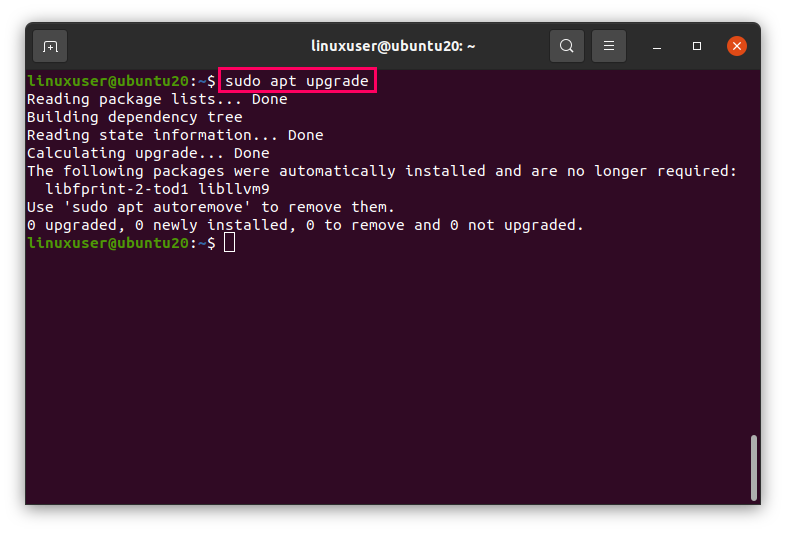
After updating the package lists, the next command upgrades all currently installed packages to their latest versions, based on the newly updated lists. This is crucial as it ensures all underlying system components are current, which can prevent issues with new software installations.sudo apt upgradeDuring this process, you might be asked to confirm the installation of new packages or removal of old ones. Simply press
Yand thenEnterto proceed. In some cases, especially if kernel updates are involved, you might be prompted to restart your system after the upgrade is complete. While not strictly necessary for Git installation, a restart is often recommended for system stability if major components were updated.
By performing these steps, you ensure that your Ubuntu system is in optimal condition to install Git, minimizing the chances of encountering outdated dependencies or conflicts during the installation process. This foundational step is a cornerstone of good system administration and critical for any new software deployment.
Step-by-Step Git Installation Methods on Ubuntu
There are primarily two ways to install Git on Ubuntu: using the APT package manager or compiling it from source. For the vast majority of users, the APT method is recommended due to its simplicity and reliability. However, installing from source offers flexibility for those who need the absolute latest features or a very specific version.
Method 1: Installing Git via APT (Recommended for Most Users)
The Advanced Package Tool (APT) is Ubuntu’s command-line utility for managing software packages. It’s the easiest and most common way to install software, including Git. The versions of Git available via APT are usually very stable and well-tested.
-
Open Terminal:
PressCtrl + Alt + Tto open a new terminal window. This is where you’ll enter the commands. -
Install Git:
With your system updated (as per the previous section), you can now install Git using a single command:sudo apt install gitThis command tells APT to find the Git package in the repositories and install it, along with any necessary dependencies. You will be asked to confirm the installation by typing
Yand pressingEnter. -
Verification:
Once the installation is complete, verify that Git has been successfully installed and check its version by running:git --versionYou should see output similar to
git version 2.34.1(the exact version number may vary depending on your Ubuntu release and when you updated). This confirms that Git is installed and accessible from your command line.
Why APT is Recommended:
- Simplicity: One command does it all.
- Stability: APT repositories usually contain well-tested and stable versions of software.
- Maintenance: Easy to update Git in the future using
sudo apt upgrade. - Dependency Management: APT automatically handles all necessary dependencies.
Method 2: Installing Git from Source (For Latest Features or Specific Versions)
Installing Git from source code gives you the most control over the version you install and allows you to access the very latest features that might not yet be available in Ubuntu’s default APT repositories. This method is generally for advanced users or those with specific requirements.
-
Install Build Dependencies:
First, you need to install the tools and libraries required to compile Git from its source code:sudo apt update sudo apt install libcurl4-gnutls-dev libexpat1-dev gettext libz-dev libssl-dev build-essentialbuild-essential: Provides compilers (like GCC) and other necessary build tools.libcurl4-gnutls-dev: Required for Git’s networking capabilities (e.g., fetching from HTTPS repositories).libexpat1-dev: Required for XML parsing.gettext: For internationalization.libz-dev: For compression.libssl-dev: For secure connections (HTTPS/SSH).
-
Download the Git Source Code:
Visit the official Git project website (kernel.org/pub/software/scm/git/) or its GitHub repository to find the latest stable release. You can download the tarball directly usingwget. Replacex.x.xwith the desired version number (e.g.,2.44.0).wget https://www.kernel.org/pub/software/scm/git/git-x.x.x.tar.gzFor example:
wget https://www.kernel.org/pub/software/scm/git/git-2.44.0.tar.gz -
Extract and Navigate:
Extract the downloaded archive and change into the new directory:tar -xf git-x.x.x.tar.gz cd git-x.x.x -
Compile and Install:
Now, configure, compile, and install Git:make configure ./configure --prefix=/usr/local make sudo make installmake configure: Prepares the build system../configure --prefix=/usr/local: Configures the build process.--prefix=/usr/localspecifies that Git will be installed under/usr/local, which is a common location for software installed from source.make: Compiles the source code. This step can take a few minutes.sudo make install: Installs the compiled binaries and man pages to the specified--prefix.
-
Verification:
As with the APT method, verify the installation and version:git --versionThis should now show the version you just compiled and installed.
When to Use from Source:
- You need a very specific Git version not available via APT.
- You want the absolute latest features (often unstable development builds).
- You need to customize the build options for a particular environment.
For most users, the APT method is vastly simpler and sufficient.
Post-Installation Configuration and Essential Setup
Installing Git is just the first step. To make it truly useful and integrate it seamlessly into your development workflow, you need to perform some essential post-installation configurations. These steps ensure that your contributions are correctly attributed and that Git behaves in a way that enhances your productivity.
Verifying the Git Installation
After either installation method, the first thing to do is to re-verify that Git is correctly installed and accessible system-wide.
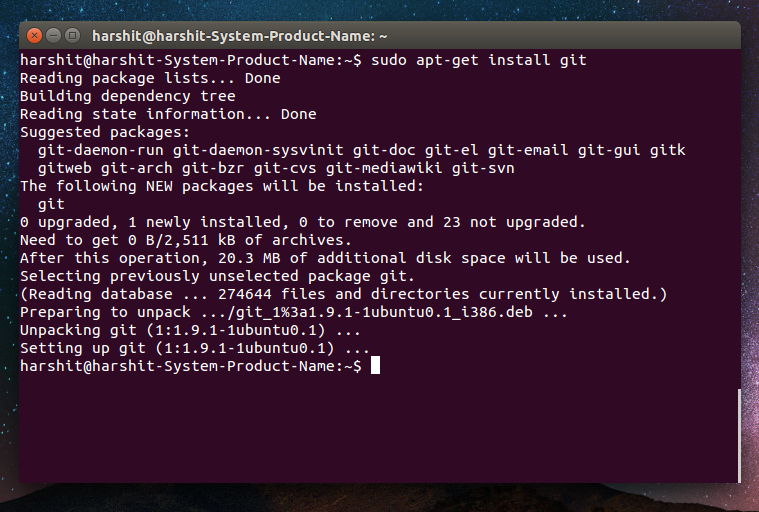
git --version
This command confirms that the Git executable is in your system’s PATH and returns the version number. If you get an error like “command not found,” it means Git wasn’t installed correctly or its path isn’t configured. Double-check the installation steps or, if you installed from source, ensure /usr/local/bin (or wherever you installed it) is in your PATH environment variable.
Configuring Your User Information
This is a critically important step. Git uses your name and email address to identify you as the author of your commits. This information is embedded in every change you make and is vital for tracking contributions in collaborative projects.
-
Set Your User Name:
git config --global user.name "Your Name"Replace
"Your Name"with your actual name or a consistent identifier you use for your contributions. -
Set Your User Email:
bash

git config --global user.email "your.email@example.com"
Replace"your.email@example.com"with the email address you wish to associate with your Git commits. This email is often linked to your GitHub, GitLab, or Bitbucket account.
The --global flag ensures that these settings apply to all Git repositories on your system. If you need different credentials for a specific project (e.g., a work project versus a personal one), you can run these commands without --global inside that project’s directory, and the local settings will override the global ones.
To verify your configuration, you can list all your Git settings:
git config --list
This will display all global and local settings, confirming your user.name and user.email.
Setting the Default Branch Name (Optional but Recommended)
Historically, the default branch in Git was often named master. However, there’s been a shift in the developer community towards using main or other descriptive names for the primary branch. It’s good practice to configure Git to use main as the default for new repositories you initialize.
git config --global init.defaultBranch main
This command ensures that whenever you run git init to start a new repository, its initial branch will be named main instead of master. This promotes consistency across projects and aligns with current industry best practices, particularly when working with platforms like GitHub.
Enhancing Your Git Experience (Optional)
Beyond the basic setup, a few optional configurations can significantly enhance your Git experience and boost your productivity.
-
Aliases:
Aliases are shortcuts for longer Git commands. They can save a lot of typing. For instance, you can aliasgit statustogit st.git config --global alias.st status git config --global alias.co checkout git config --global alias.br branch git config --global alias.ci commitNow, instead of typing
git status, you can simply typegit st. -
Text Editor:
When Git needs you to write a commit message or perform an interactive rebase, it will open a text editor. You can configure your preferred editor:# For Nano git config --global core.editor "nano" # For Vim git config --global core.editor "vim" # For VS Code (if installed and in PATH) git config --global core.editor "code --wait"The
--waitflag for VS Code is important, as it tells Git to wait until you close the editor before proceeding. -
Credential Helper:
If you’re frequently pushing to remote repositories (like GitHub) over HTTPS, you might find yourself typing your username and password repeatedly. Git’s credential helper can cache these for you.git config --global credential.helper storeThe
storehelper will store your credentials unencrypted on disk. For more secure options, especially on shared machines, you might usecache(which caches credentials for a short time) or a platform-specific credential manager (e.g.,gnome-keyringon Ubuntu).
By taking the time to configure these settings, you’ll streamline your Git workflow, reduce repetitive tasks, and ensure that your development environment is tailored to your preferences, contributing to greater overall productivity.
Getting Started with Git: Basic Workflow and Next Steps
With Git successfully installed and configured on your Ubuntu system, you’re now ready to begin leveraging its power for your projects. Understanding a few fundamental commands will enable you to start tracking your code immediately.
Initiating a Repository
There are two primary ways to start working with Git on a project:
-
Starting a New Project: If you’re beginning a brand-new project, navigate to your project directory in the terminal and initialize a Git repository:
cd my-new-project
git init
This command creates a hidden
.gitdirectory, which is where Git stores all its version control data for your project. -
Cloning an Existing Project: If you want to work on a project that already exists in a remote repository (e.g., on GitHub), you’ll “clone” it:
git clone https://github.com/username/repository-name.gitThis command downloads a complete copy of the repository, including its entire history, to your local machine.
The Add-Commit Cycle
The core workflow in Git revolves around staging changes and committing them.
-
Making Changes: You modify your project files (e.g.,
index.html,style.css,script.js). -
Staging Changes: Once you’ve made a logical set of changes, you “stage” them. Staging tells Git which changes you want to include in your next commit.
git add . # Stages all changes in the current directory and its subdirectories # OR git add index.html # Stages specific files -
Committing Changes: After staging, you “commit” the changes. A commit is a snapshot of your project at a specific point in time, along with a descriptive message.
git commit -m "Initial project setup: added basic HTML structure"The
-mflag allows you to provide a short, inline commit message. For more detailed messages, omit-m, and Git will open your configured text editor. -
Checking Status: At any point, you can check the status of your repository to see which files have been modified, staged, or are untracked:
git status
Connecting to Remote Repositories
For collaboration and secure backups, you’ll typically connect your local repository to a remote one (like GitHub, GitLab, or Bitbucket).
-
Add a Remote: If you initialized a new local repository, you’ll need to tell it about its remote counterpart:
git remote add origin https://github.com/username/my-new-project.gitoriginis the conventional name for the primary remote repository. -
Pushing Changes: To send your local commits to the remote repository:
git push -u origin mainThe
-uflag (or--set-upstream) is used the first time you push a branch to tell Git to associate your localmainbranch with the remoteorigin/mainbranch. Subsequent pushes can be justgit push. -
Generating SSH Keys (Recommended for Secure Authentication):
For a more secure and convenient way to interact with remote repositories, especially platforms like GitHub, generate an SSH key pair:ssh-keygen -t ed25519 -C "your_email@example.com"Follow the prompts, then add your public key (usually
~/.ssh/id_ed25519.pub) to your GitHub/GitLab account settings. This allows you to push and pull without repeatedly entering your password.
This basic workflow forms the foundation of using Git. As you become more comfortable, you’ll explore advanced features like branching, merging, rebasing, and stashing, which further amplify Git’s power and your development productivity.
Conclusion
Installing Git on Ubuntu is a foundational step for anyone engaging in software development in the modern era. Whether you chose the straightforward APT method or opted for the more customizable source compilation, you’ve now equipped your system with an indispensable tool that will streamline your workflows, enhance collaboration, and safeguard your code’s history.
By taking the time to properly configure your user information, set preferences, and understand the basic commands, you’ve laid a solid groundwork for a productive development journey. Git’s capabilities extend far beyond what we’ve covered here, offering a rich ecosystem of features for complex version control, team collaboration, and robust project management. Continue exploring its documentation, practice regularly, and embrace the power of distributed version control. Your path to efficient and secure software development has officially begun!
aViewFromTheCave is a participant in the Amazon Services LLC Associates Program, an affiliate advertising program designed to provide a means for sites to earn advertising fees by advertising and linking to Amazon.com. Amazon, the Amazon logo, AmazonSupply, and the AmazonSupply logo are trademarks of Amazon.com, Inc. or its affiliates. As an Amazon Associate we earn affiliate commissions from qualifying purchases.