
The Microsoft Store serves as the centralized, secure gateway for acquiring applications, games, and media on the Windows operating system. By consolidating software distribution into a single digital storefront, Microsoft has streamlined the user experience, moving away from the fragmented, often risky, landscape of downloading executables from third-party websites. Whether you are setting up a new PC or simply looking to expand your utility suite, mastering the Microsoft Store is essential for maintaining a secure and optimized computing environment.
Understanding the Microsoft Store Ecosystem
The Microsoft Store is more than just a digital catalog; it is an integrated service that bridges the gap between software developers and end-users. Unlike traditional installation methods—where you download an installer, run a wizard, and manually manage updates—the Microsoft Store automates the deployment and maintenance life cycle.

Why Prioritize the Microsoft Store?
Security remains the primary benefit of utilizing the store. Every application submitted to the Microsoft Store undergoes a rigorous verification process. This vetting significantly reduces the risk of malware, adware, or trojan-horse programs that frequently plague software downloaded from unofficial, unverified sources. Furthermore, the store manages dependencies automatically. If an app requires specific runtime libraries or frameworks to function, the Microsoft Store installs them seamlessly, preventing the “DLL hell” or configuration errors common in manual installations.
Platform Compatibility and Requirements
To make the most of the Microsoft Store, ensure your system is running an updated version of Windows 10 or Windows 11. Most modern applications are optimized for the Universal Windows Platform (UWP) or packaged Win32 apps (MSIX), which are designed to run in a sandboxed environment. This sandboxing ensures that applications have limited access to your system’s core files, enhancing overall stability and making uninstallation cleaner, as these apps rarely leave behind registry junk or stray folders.
Step-by-Step Installation Process
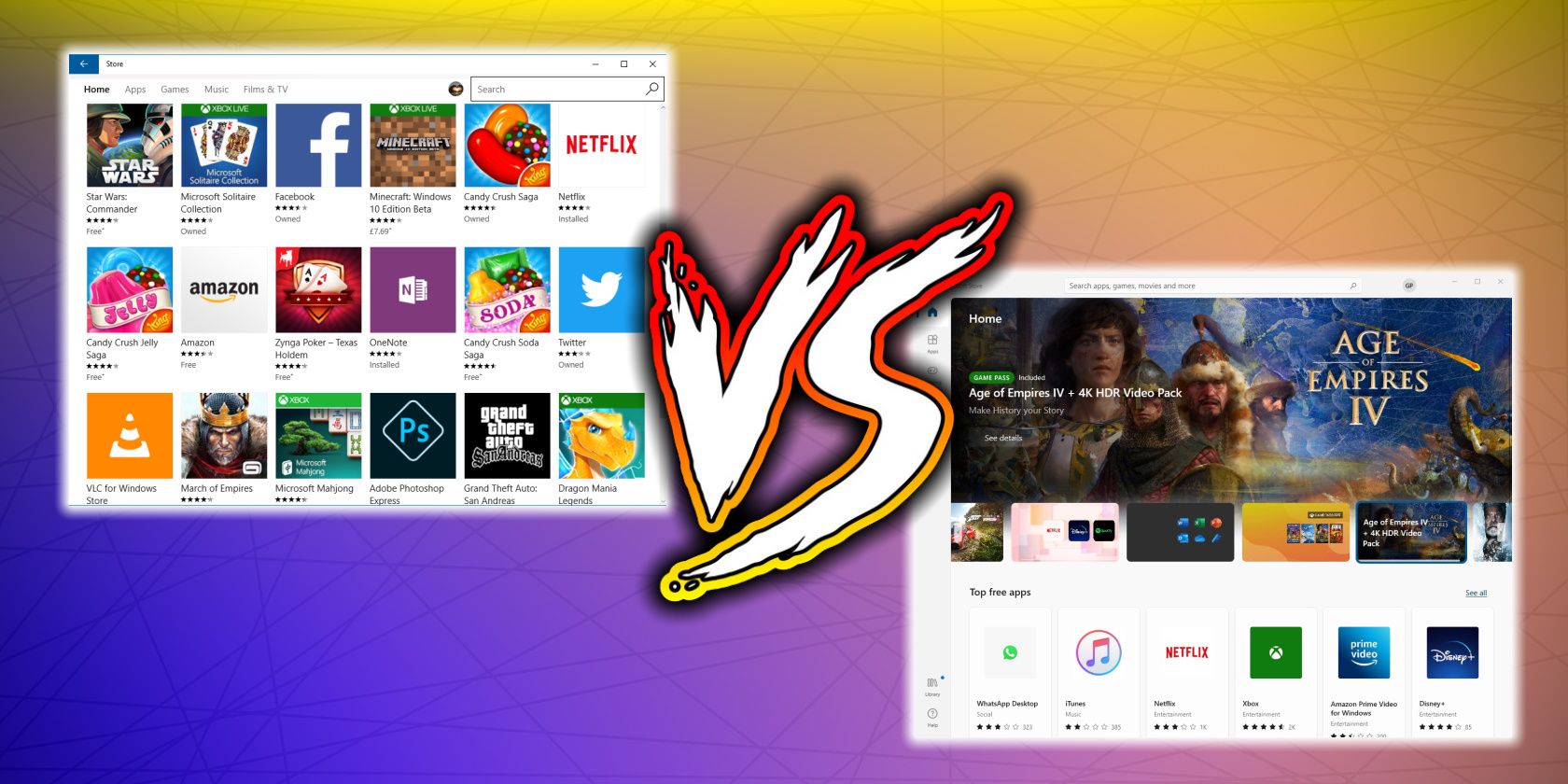
Installing software from the Microsoft Store is designed to be intuitive. While the interface has evolved significantly from the early days of Windows 8, the fundamental workflow remains consistent.
Searching and Navigating the Interface
Launch the Microsoft Store by clicking the icon on your taskbar or searching for “Microsoft Store” in the Start Menu. Once open, utilize the search bar at the top to find specific applications. If you are browsing, use the categories sidebar to filter by “Games,” “Apps,” or “Movies & TV.”
When you select an application, the product page provides critical metadata:
- User Reviews and Ratings: Essential for gauging the stability and utility of the software.
- System Requirements: Always check the “System Requirements” section at the bottom of the page to ensure your hardware meets the minimum standards, especially for gaming titles.
- Publisher Information: Verify that the publisher is legitimate, especially when searching for common utility tools.
Executing the Download and Installation
Once you have navigated to the app page, simply click the “Get” or “Install” button. The download progress bar will appear. Depending on the size of the application and your internet connection speed, this may take anywhere from a few seconds to several minutes. Once the process is complete, the app will automatically integrate into your Start Menu under the “Recently Added” section or within the alphabetical app list.
Managing App Permissions
During or immediately after the first launch of a new application, Windows may prompt you to grant specific permissions, such as access to your location, microphone, or camera. It is a best practice to review these requests. You can manage these settings at any time by navigating to Settings > Privacy & Security on your computer. Limiting access to only what is necessary for the app to function is a key tenet of digital hygiene.
Troubleshooting Common Installation Issues
Despite the streamlined design, users occasionally encounter errors during the installation phase. Most of these issues are tied to account authentication, network connectivity, or corrupted temporary files.
Resolving Authentication and Account Errors
The Microsoft Store is tied directly to your Microsoft Account. If you receive an error regarding account synchronization, try signing out and signing back in. You can do this by clicking your profile icon in the top right corner of the store window. Additionally, ensure that your device is correctly linked to your account in the system settings, as some paid software or subscriptions require the PC to be registered as a “trusted device.”
Fixing Connectivity and Cache Problems
If downloads are stuck at “Pending” or fail to start, the store cache may be corrupted. You can reset the Microsoft Store cache without losing your apps or settings by using the built-in command tool:
- Press
Windows Key + Rto open the “Run” dialog box. - Type
wsreset.exeand press Enter. - A blank command prompt window will appear. Do not close it; wait for it to process.
- Once the command finishes, the Microsoft Store will automatically reopen, refreshed and ready to use.
If this does not resolve the issue, check your internet connection and ensure that you have not inadvertently disabled Windows Update. The store relies heavily on the Windows Update service to fetch background dependencies.
Advanced Management and Maintenance
Once you have successfully populated your PC with your preferred tools, the responsibilities shift from installation to maintenance. The Microsoft Store simplifies the ongoing management of your software portfolio.
Automating Updates
One of the most significant advantages of the Microsoft Store is its ability to handle updates in the background. By default, Windows is configured to automatically download and install updates for store-acquired apps. You can verify your settings by opening the Microsoft Store, clicking the “Library” icon (usually in the bottom-left corner), and selecting “Get updates.” This ensures that you are always running the latest version, which frequently includes security patches and performance optimizations.
Moving or Uninstalling Applications
If you find that an application is no longer needed or is taking up too much space on your primary drive, management is straightforward. Navigate to Settings > Apps > Installed Apps. Here, you can search for the specific software and select “Uninstall.” Because these apps are installed via the store’s managed architecture, the uninstallation process is comprehensive, typically removing all associated files and configurations, keeping your system lean.

Expanding Your Ecosystem
The Microsoft Store is increasingly becoming a destination for more than just standard software. It now hosts browser extensions, themes, and specialized development tools like the Windows Subsystem for Linux (WSL) and various command-line interfaces. By centralizing these tools, Microsoft has made it easier for power users to provision a new machine quickly. Instead of hunting for download links across disparate developer websites, you can simply open your library in the Microsoft Store and click “Install” on your frequently used tools to sync your environment across multiple devices.
Ultimately, the Microsoft Store represents a shift toward a more secure and predictable computing experience. By leveraging the store as your primary source for software, you benefit from a curated ecosystem that prioritizes compatibility, security, and ease of maintenance. As Windows continues to evolve, the integration between the operating system and the storefront will only become tighter, making this installation method the standard for both casual users and professionals alike.
aViewFromTheCave is a participant in the Amazon Services LLC Associates Program, an affiliate advertising program designed to provide a means for sites to earn advertising fees by advertising and linking to Amazon.com. Amazon, the Amazon logo, AmazonSupply, and the AmazonSupply logo are trademarks of Amazon.com, Inc. or its affiliates. As an Amazon Associate we earn affiliate commissions from qualifying purchases.