
In the ever-evolving landscape of digital entertainment, few games have managed to capture the global imagination quite like Fortnite. Since its initial release, this groundbreaking title from Epic Games has transcended mere gameplay to become a cultural phenomenon, a digital meeting place, and a competitive battleground all rolled into one. Its unique blend of battle royale action, creative building mechanics, and a constantly updating universe of collaborations and seasonal content has cemented its status as a cornerstone of modern gaming.
But before you can join the millions of players dropping onto the island, navigating its vibrant biomes, or expressing your individuality through a vast array of emotes and skins, there’s a crucial first step: installation. Whether you’re a seasoned PC gamer, a console enthusiast, or looking to experience the action on the go, getting Fortnite set up correctly is your gateway to endless hours of fun. This comprehensive guide, crafted with the insights from our expertise in Tech tutorials and software deployment, will walk you through every step of installing Fortnite across various platforms, ensuring a smooth and successful entry into its dynamic world. From understanding system requirements to troubleshooting common issues, we’ll equip you with all the knowledge you need to get into the game and experience firsthand why Fortnite continues to captivate players of all ages and backgrounds.

Unpacking the Phenomenon: Why Fortnite Captivates Millions
Fortnite isn’t just a game; it’s a social hub, a canvas for creativity, and a testament to the power of a continuously evolving digital product. At its core, it’s famous for its “Battle Royale” mode, where 100 players parachute onto an island, scavenge for weapons and resources, build defensive structures, and fight to be the last one standing as a shrinking storm circle pushes them closer together. This thrilling last-person-standing format, combined with a unique building mechanic that allows players to construct walls, ramps, and floors on the fly, offers an unparalleled strategic depth.
Beyond the main Battle Royale, Fortnite has expanded into a metaverse of experiences, including “Save the World” (a cooperative player-vs-environment mode), “Creative” (where players design and share their own custom maps and games), and more recently, “LEGO Fortnite,” “Rocket Racing,” and “Fortnite Festival” – new game modes that significantly broaden its appeal. This constant innovation and fresh content, often featuring crossovers with major franchises from Marvel to Star Wars, musicians, and popular culture icons, ensures that the game remains fresh and engaging. It’s a masterclass in digital brand strategy, consistently refreshing its identity and offerings to retain its massive audience and attract new players. Its free-to-play model also removes a significant barrier to entry, allowing anyone with a compatible device to jump in and experience the action, a clear boon for accessibility and community growth. This guide focuses on getting you into this multifaceted universe, starting with the installation process that varies slightly depending on your chosen platform.
Preparing for Battle: System Requirements and Essential Checks
Before embarking on your Fortnite installation journey, it’s crucial to ensure your chosen device is ready for the challenge. Meeting the game’s system requirements isn’t just about getting it to run; it’s about ensuring a smooth, enjoyable experience free from frustrating lag or crashes. Neglecting these checks can lead to significant headaches down the line, potentially impacting your gameplay and overall enjoyment.
Minimum & Recommended Specifications for PC/Mac
For PC and Mac users, understanding the hardware demands is paramount. Fortnite, while scalable, performs best on systems that meet or exceed its recommended specifications.
Minimum System Requirements (PC):
- Operating System: Windows 10/11 64-bit
- Processor: Intel Core i3-3225 3.3 GHz or equivalent
- RAM: 8 GB RAM
- Video Card: Intel HD 4000 on PC; AMD Radeon Vega 8
- DirectX: Version 11 or 12
- Storage: At least 26 GB of free space (game size can fluctuate with updates)
Recommended System Requirements (PC):
- Operating System: Windows 10/11 64-bit
- Processor: Intel Core i5-7300U 3.5 GHz or equivalent
- RAM: 16 GB RAM
- Video Card: Nvidia GTX 960, AMD R9 280, or equivalent DX11 compatible GPU with 2GB VRAM
- DirectX: Version 11 or 12
- Storage: SSD recommended, with ample free space
Minimum System Requirements (Mac):
- Operating System: macOS Mojave 10.14.6 or later (note: Epic Games has ended official support for macOS, so the experience may vary and new updates are not guaranteed)
- Processor: Intel Core i3-3225 3.3 GHz
- RAM: 8 GB RAM
- Video Card: Intel HD 4000
- Storage: At least 26 GB of free space
Important Considerations: While Macs can run Fortnite, Epic Games formally ended support for macOS following a legal dispute with Apple in August 2020. This means that newer game updates and features may not be available on Mac, and the game’s performance or compatibility may degrade over time. For the optimal experience on Apple hardware, cloud gaming services (discussed later) might be a more viable option.
Ensuring a Smooth Download: Internet & Storage Considerations
Beyond raw processing power, your internet connection and available storage space are critical for a seamless installation. Fortnite is a large game, and its updates are frequent and substantial.
- Internet Connection: A stable, high-speed internet connection is essential. Given the game’s size (tens of gigabytes), a slow or intermittent connection can turn the download process into a prolonged ordeal, potentially leading to corrupted files or failed installations. Wired Ethernet connections are generally more stable than Wi-Fi, especially for large downloads.
- Storage Space: Always ensure you have significantly more free space than the stated minimum requirement. Game installations often require additional temporary space during the unpacking and patching process. Furthermore, as Fortnite receives continuous updates, its footprint will grow. An SSD (Solid State Drive) is highly recommended over a traditional HDD (Hard Disk Drive) for faster loading times and a generally smoother in-game experience. If your drive is nearing capacity, consider freeing up space by uninstalling old programs, deleting unnecessary files, or moving large media files to an external drive. These digital security and productivity tips are not just for Fortnite but are good practice for maintaining a healthy system.
Taking these preparatory steps ensures that when you hit that “install” button, your system is fully prepared to handle the demands of Fortnite, setting the stage for a smooth and enjoyable introduction to the game.
The Core Installation Journey: A Multi-Platform Guide
Fortnite’s availability across a multitude of devices is a key factor in its broad appeal. While the core game remains the same, the installation process varies significantly depending on whether you’re playing on a computer, a dedicated console, or a mobile device. This section breaks down each platform’s specific steps, ensuring you can get Fortnite running no matter your preferred gaming setup.
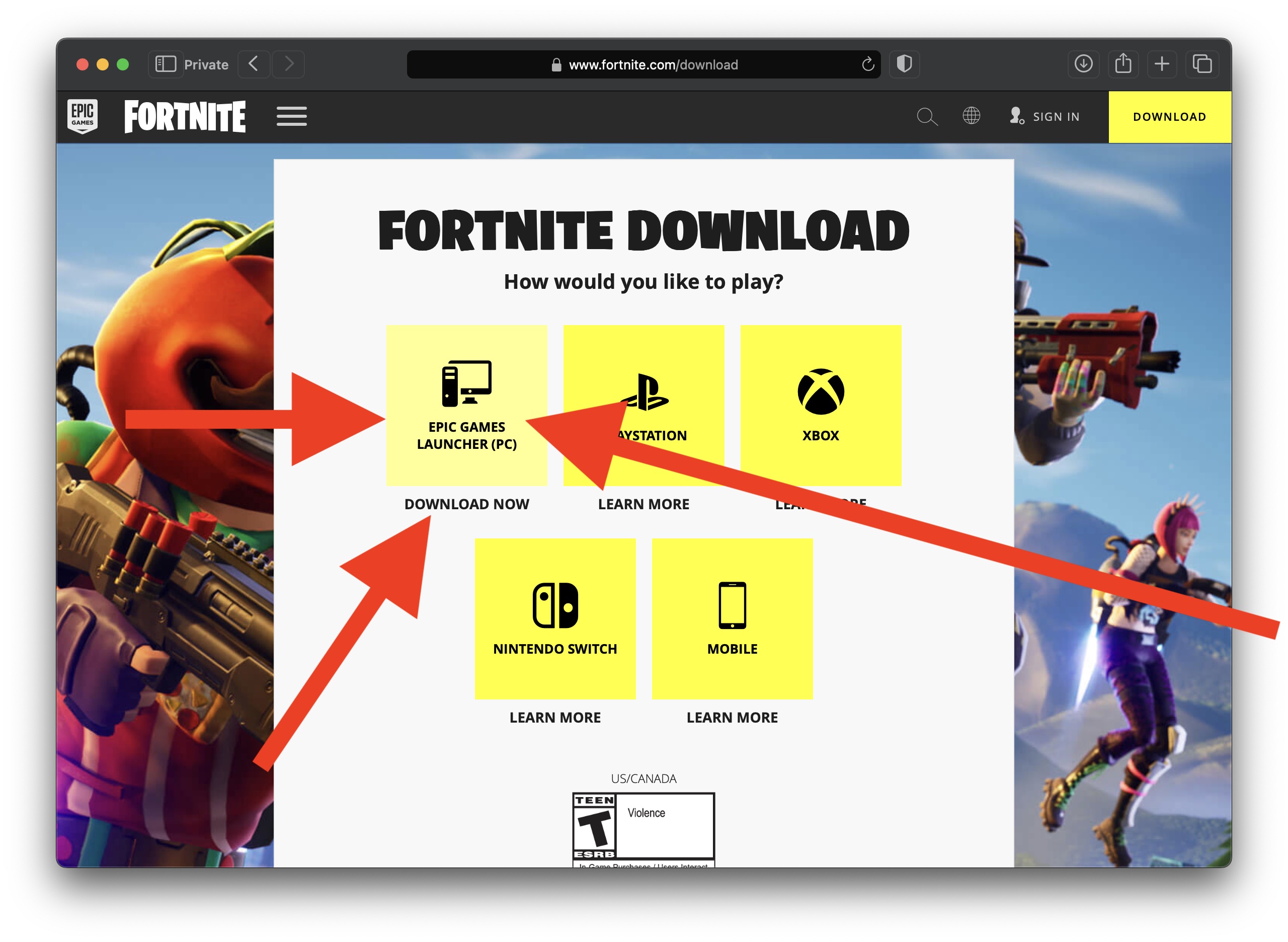
Installing Fortnite on PC and Mac: The Epic Games Launcher Method
For computer users, the Epic Games Launcher is the central hub for downloading, installing, and managing Fortnite. It’s Epic’s proprietary platform, similar to Steam or Battle.net.
-
Download the Epic Games Launcher:
- Open your web browser and navigate to the official Epic Games website:
epicgames.com. - Look for a prominent “Download Epic Games Launcher” button, usually found in the top right corner or central to the homepage. Click it.
- Once the download is complete, locate the installer file (e.g.,
EpicInstaller-<version>.msior.exe) in your downloads folder and run it. - Follow the on-screen prompts to install the launcher. This typically involves agreeing to terms, choosing an installation directory, and clicking “Install.”
- Open your web browser and navigate to the official Epic Games website:
-
Create or Log In to Your Epic Games Account:
- After the launcher installation finishes, it will open automatically.
- You’ll be prompted to log in or create an account. If you already have an Epic Games account (perhaps from playing Rocket League or another Epic title), simply enter your credentials.
- If you’re new, click “Sign Up” and follow the instructions. You can register using your email, or link existing accounts like Google, Facebook, PlayStation, Xbox, or Nintendo. Creating an account is free and essential for saving your progress and accessing cross-platform features. Ensure you choose a strong, unique password and consider enabling two-factor authentication (2FA) for enhanced digital security – a crucial tip for any online account.
-
Find and Install Fortnite:
- Once logged in, you’ll be on the Epic Games Launcher’s home screen.
- Fortnite is often featured prominently. If not, click on the “Store” tab in the left sidebar.
- Use the search bar at the top right to type “Fortnite” and press Enter.
- Click on the Fortnite game tile.
- On the game’s page, look for the “Get” or “Install” button. Since Fortnite is free-to-play, it will typically say “Get.” Click this button to add it to your library.
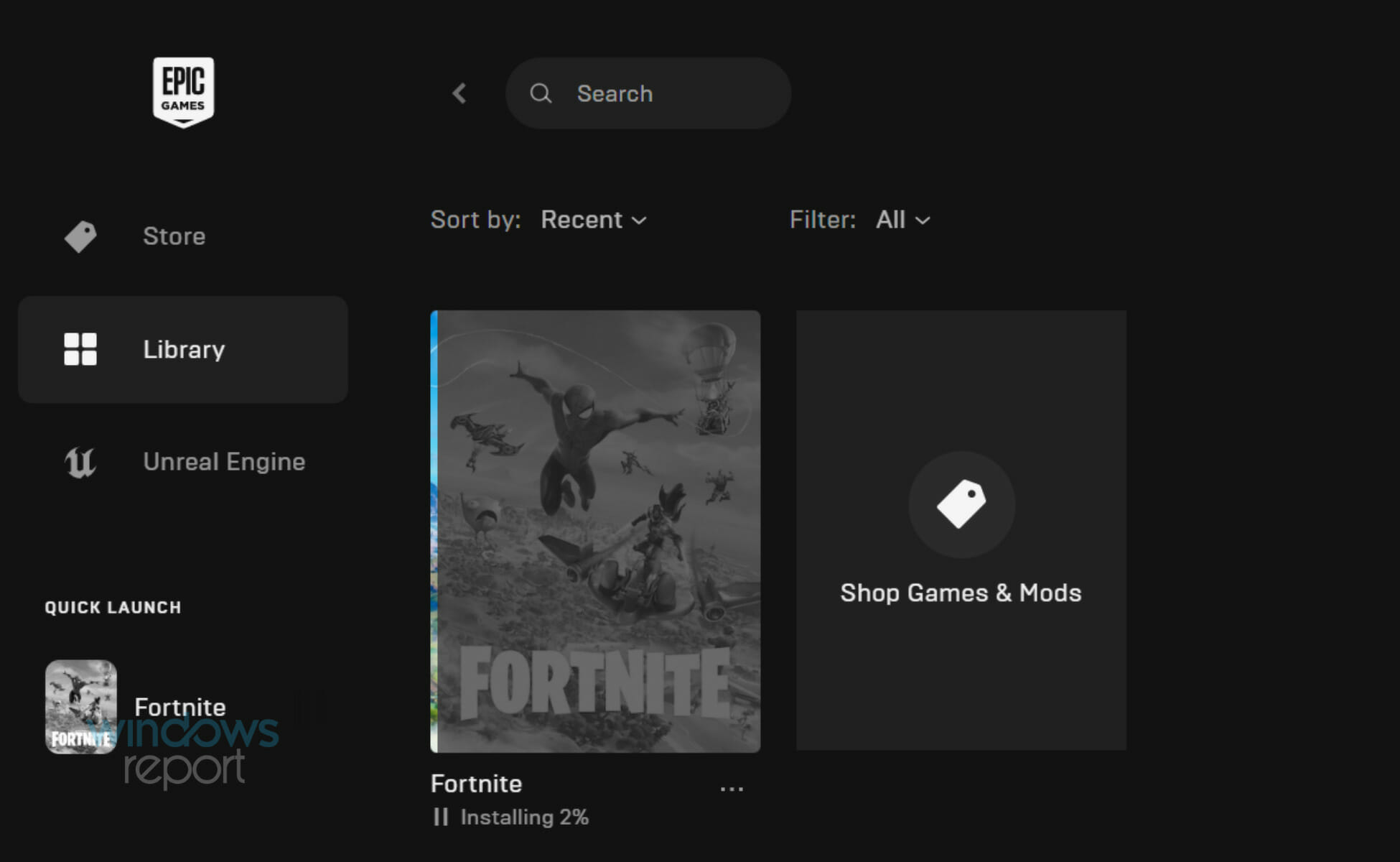
- After “purchasing” it (for $0.00), navigate to the “Library” tab in the left sidebar.
- Find Fortnite in your library and click on it.
- You’ll be asked to choose an installation directory (where the game files will be stored). By default, it’s usually
C:Program FilesEpic GamesFortnite. You can change this if you wish, but ensure you have enough space on the selected drive. - Click “Install.” The launcher will begin downloading the necessary game files. This process can take a considerable amount of time depending on your internet speed and the game’s current size. You can monitor the progress in the “Downloads” section of the launcher.
-
Launch and Play:
- Once the download and installation are complete, the “Install” button will change to “Launch.”
- Click “Launch” to start Fortnite. The first launch might involve some initial setup or updates.
- Congratulations! You’re now ready to drop into the battle.
Console Conquest: PlayStation, Xbox, and Nintendo Switch Installation
Installing Fortnite on dedicated gaming consoles is generally a more streamlined process than on PC, as console operating systems are optimized for gaming and have integrated storefronts.
-
Access Your Console’s Digital Store:
- PlayStation (PS4/PS5): Navigate to the PlayStation Store.
- Xbox (Xbox One/Series X|S): Open the Microsoft Store or Games & Apps.
- Nintendo Switch: Select the Nintendo eShop icon from the HOME Menu.
-
Search for Fortnite:
- Within the store, use the search function (usually represented by a magnifying glass icon) to type “Fortnite.”
-
Download and Install:
- Select the official Fortnite game from the search results.
- On the game’s product page, you should see a “Download,” “Get,” or “Free” button. Click this to initiate the download.
- The console will automatically begin downloading and installing the game. You can usually monitor the progress from your console’s home screen or download manager.
- Link Your Epic Games Account (Optional but Recommended):
- Once Fortnite is installed and you launch it for the first time, you’ll be prompted to log in to an Epic Games account or create one.
- It is highly recommended to link an existing Epic Games account (or create a new one) even on consoles. This allows you to carry over V-Bucks, skins, and progress across different platforms (known as cross-progression) and enables cross-play with friends on other devices. If you choose not to link, a new, anonymous Epic account will be created for you on that console, which can limit cross-platform functionality.
Mobilizing Your Mission: Fortnite on Android and Cloud Gaming Options for iOS
Mobile gaming has become a powerhouse, and Fortnite has a significant presence, though its journey on iOS has been unique due to platform disputes.
Fortnite on Android: Direct from Epic Games
Due to a long-standing dispute with Google, Fortnite is not available on the Google Play Store. Android users must download it directly from Epic Games.
-
Adjust Security Settings (One-time step):
- Before downloading, you need to allow installations from “unknown sources” on your Android device. This setting’s exact location varies by Android version and device manufacturer but is typically found under:
Settings > Security & Privacy > Install unknown appsorSettings > Apps & Notifications > Special app access > Install unknown apps. - Find your web browser (e.g., Chrome) in this list and toggle on “Allow from this source.” Remember to disable this setting after installation for better security.
- Before downloading, you need to allow installations from “unknown sources” on your Android device. This setting’s exact location varies by Android version and device manufacturer but is typically found under:
-
Download the Epic Games App:
- Open your mobile web browser (e.g., Chrome) and go to
fortnite.com/android. - Tap the “Get it on the Epic Games App” button. This will download the
EpicGamesApp.apkfile. - Once the download is complete, open the downloaded
.apkfile from your notifications or downloads folder. - Follow the prompts to install the Epic Games app.
- Open your mobile web browser (e.g., Chrome) and go to
-
Install Fortnite via the Epic Games App:
- Open the newly installed Epic Games app.
- You’ll see Fortnite prominently displayed. Tap on it.
- Tap the “Install” button. The app will download and install Fortnite to your device. This can be a large download, so ensure you’re on a stable Wi-Fi connection.
- Once installed, you can launch Fortnite directly from the Epic Games app or from your device’s app drawer. Log in with your Epic Games account, and you’re ready to play.
Fortnite on iOS: Cloud Gaming Alternatives
Fortnite is currently unavailable for direct download on the Apple App Store due to an ongoing legal dispute between Epic Games and Apple. This means you cannot natively install the game on iPhones or iPads. However, iOS users can still access Fortnite through cloud streaming services. This leverages cutting-edge technology to stream the game from powerful remote servers directly to your device.
-
Xbox Cloud Gaming:
- Open Safari on your iPhone or iPad and navigate to
xbox.com/play. - Log in with a Microsoft account. You don’t need an Xbox console or an Xbox Game Pass Ultimate subscription to play Fortnite via this service, as Epic Games partnered with Microsoft to offer it for free.
- Find Fortnite in the library and launch it. The game will stream directly to your device, playable via touch controls or a connected Bluetooth controller.
- Open Safari on your iPhone or iPad and navigate to
-
NVIDIA GeForce NOW:
- Open Safari on your iPhone or iPad and go to
play.geforcenow.com. - Log in with an NVIDIA account. GeForce NOW offers a free tier with session limits (e.g., one-hour play sessions) and queue times, as well as paid tiers for priority access and longer sessions.
- Link your Epic Games account within GeForce NOW settings.
- Search for Fortnite and launch it. This service essentially streams a PC version of Fortnite to your device.
- Open Safari on your iPhone or iPad and go to
These cloud gaming options provide a workaround for iOS users, allowing them to experience Fortnite even without a native app installation. While they require a strong, stable internet connection for a smooth experience, they are excellent examples of how cloud technology is making gaming more accessible across various platforms, bypassing platform-specific app store restrictions.
Navigating Common Pitfalls and Optimizing Your Experience
Even with the clearest instructions, technology can sometimes present unexpected hurdles. Encountering issues during or after installation is not uncommon, but most problems have straightforward solutions. Beyond troubleshooting, optimizing your Fortnite setup ensures you get the best possible performance and maintain a secure gaming environment.
Troubleshooting Installation & Launch Issues
When facing difficulties, a systematic approach to troubleshooting is key. Here are common issues and their resolutions:
-
Download Stuck or Extremely Slow:
- Check Internet Connection: Ensure your Wi-Fi is stable or your Ethernet cable is securely connected. Try restarting your router and modem.
- Pause and Resume: In the Epic Games Launcher or console download manager, try pausing the download and then resuming it. This can sometimes refresh the connection.
- Close Other Applications: Bandwidth-heavy applications (streaming, other downloads) can hog your internet speed. Close them during the Fortnite download.
- Firewall/Antivirus: Temporarily disable your firewall or antivirus to see if it’s interfering. If it resolves the issue, add an exception for the Epic Games Launcher and Fortnite executables. Remember to re-enable them afterwards.
-
Installation Errors (e.g., “Disk Write Error,” “Not Enough Space”):
- Verify Disk Space: Double-check that your chosen installation drive has ample free space, not just the minimum required. Remember to account for temporary files during installation.
- Run as Administrator: For PC users, right-click the Epic Games Launcher shortcut and select “Run as administrator.” This can resolve permission-related issues.
- Check Disk Health: On Windows, run
chkdsk(Command Prompt as admin:chkdsk /f /r) to check for disk errors. For Mac, use Disk Utility. - Reinstall Launcher (Last Resort): If all else fails, uninstall the Epic Games Launcher completely, delete any remaining Epic Games folders (often in Program Files and AppData/ProgramData), restart your computer, and then reinstall the launcher from scratch.
-
Game Won’t Launch or Crashes on Startup:
- Restart Your Device: A simple restart can often resolve temporary software glitches.
- Update Graphics Drivers: Outdated graphics drivers are a common cause of crashes. Visit the website of your GPU manufacturer (NVIDIA, AMD, Intel) and download the latest drivers for your specific card.
- Verify Game Files: In the Epic Games Launcher, go to your Library, click the three dots next to Fortnite, and select “Verify.” This checks for corrupted or missing game files and downloads replacements.
- DirectX/Runtime Libraries: Ensure you have the latest versions of DirectX and other necessary runtime libraries (like Visual C++ Redistributable). Epic Games Launcher usually handles this, but manual updates can sometimes help.
- Check System Requirements: Revisit the minimum requirements. If your system is barely meeting them, performance and stability issues are more likely.
- Close Background Programs: Other applications running in the background can consume system resources, leading to crashes. Close unnecessary apps before launching Fortnite.
-
Account Login Problems:
- Check Credentials: Double-check your Epic Games username and password. Pay attention to case sensitivity.
- Reset Password: If you’re unsure, use the “Forgot Password” link on the Epic Games website or launcher.
- Account Status: Ensure your account hasn’t been suspended or banned (though this would usually come with a notification).
- Internet Connection: A stable internet connection is required to authenticate your login.
Post-Installation Optimization: Settings, Updates, and Security
Once Fortnite is up and running, a few extra steps can significantly enhance your experience, improve performance, and keep your account safe.
-
Optimizing In-Game Settings:
- Performance vs. Fidelity: In Fortnite’s video settings, you’ll find numerous options. For competitive play or if you have a mid-range system, prioritize “Performance” mode (PC) or lower settings like “View Distance,” “Shadows,” “Post Processing,” and “Effects” to “Low” or “Medium.” This will boost your frames per second (FPS), leading to smoother gameplay.
- Resolution: Playing at your monitor’s native resolution is ideal, but if you’re struggling with FPS, slightly lowering it can help.
- Frame Rate Limit: Set your frame rate limit slightly above your monitor’s refresh rate (e.g., 144 FPS for a 120Hz monitor) or unlimited if you have a powerful GPU and a high refresh rate monitor.
- Motion Blur: Almost universally, turning off motion blur is recommended as it can obscure targets and doesn’t offer a competitive advantage.
-
Keeping the Game and Drivers Updated:
- Fortnite Updates: The Epic Games Launcher automatically checks for and applies Fortnite updates. For consoles, updates are usually downloaded automatically. Always ensure your game is up-to-date to access new content, bug fixes, and performance improvements.
- Graphics Drivers: Regularly update your graphics card drivers. NVIDIA, AMD, and Intel frequently release new drivers that include game-specific optimizations and bug fixes. Keeping these current is one of the easiest ways to maintain optimal performance.
- Operating System Updates: Keep your Windows or macOS (if applicable) updated. OS updates often include security patches and performance enhancements that can indirectly benefit gaming.
-
Digital Security Best Practices:
- Two-Factor Authentication (2FA): This is paramount. Enable 2FA on your Epic Games account immediately. It adds an extra layer of security, requiring a code from your phone or email in addition to your password, making it much harder for unauthorized users to access your account. Epic Games even rewards players with a free in-game emote for enabling 2FA.
- Strong, Unique Passwords: Use a complex password that isn’t shared with other online accounts. Consider using a password manager.
- Beware of Phishing: Be cautious of suspicious emails or messages claiming to be from Epic Games. Always verify the sender and never click on links from untrusted sources, especially those asking for login credentials. Epic Games will never ask for your password via email.
- Link Accounts Securely: If linking console accounts to your Epic Games account, do so through the official Epic Games website or launcher only.
By addressing potential problems proactively and maintaining your system and account securely, you ensure that your Fortnite experience remains as smooth and enjoyable as possible, allowing you to focus on the fun of the game rather than technical frustrations.
Beyond Installation: Diving into the World of Fortnite
With Fortnite successfully installed and optimized on your chosen platform, the true adventure begins. You’ve navigated the technical requirements, conquered the download queues, and secured your digital identity. Now, you’re ready to parachute onto the vibrant island, where every match offers a unique story of survival, strategy, and often, hilarious antics.
Fortnite is more than just a battle royale; it’s a dynamic ecosystem constantly evolving with new seasons, events, and game modes. Explore the diverse offerings, from the classic Battle Royale to the creative freedom of LEGO Fortnite, the high-octane racing of Rocket Racing, or the rhythmic challenges of Fortnite Festival. Each mode provides a fresh perspective on the Fortnite universe, catering to different playstyles and preferences.
Embrace the vibrant community, team up with friends, customize your avatar, and discover why millions worldwide have made Fortnite their virtual home. Remember to stay updated with the latest game patches and maintain your account’s security. The digital world of Fortnite awaits – drop in, build, fight, and create your legend!
aViewFromTheCave is a participant in the Amazon Services LLC Associates Program, an affiliate advertising program designed to provide a means for sites to earn advertising fees by advertising and linking to Amazon.com. Amazon, the Amazon logo, AmazonSupply, and the AmazonSupply logo are trademarks of Amazon.com, Inc. or its affiliates. As an Amazon Associate we earn affiliate commissions from qualifying purchases.