
Fortnite, a global cultural phenomenon, has captivated millions with its unique blend of fast-paced battle royale action, creative building mechanics, and a vibrant, ever-evolving metaverse. More than just a game, it’s a social hub, a canvas for digital expression, and a testament to the power of a well-executed free-to-play model. For PC gamers, diving into the world of Fortnite offers an unparalleled experience, leveraging the platform’s graphical fidelity and control precision. If you’re eager to join the millions of players descending onto the island, this comprehensive guide will walk you through every step of installing Fortnite on your PC, ensuring a smooth and optimized experience from start to finish.
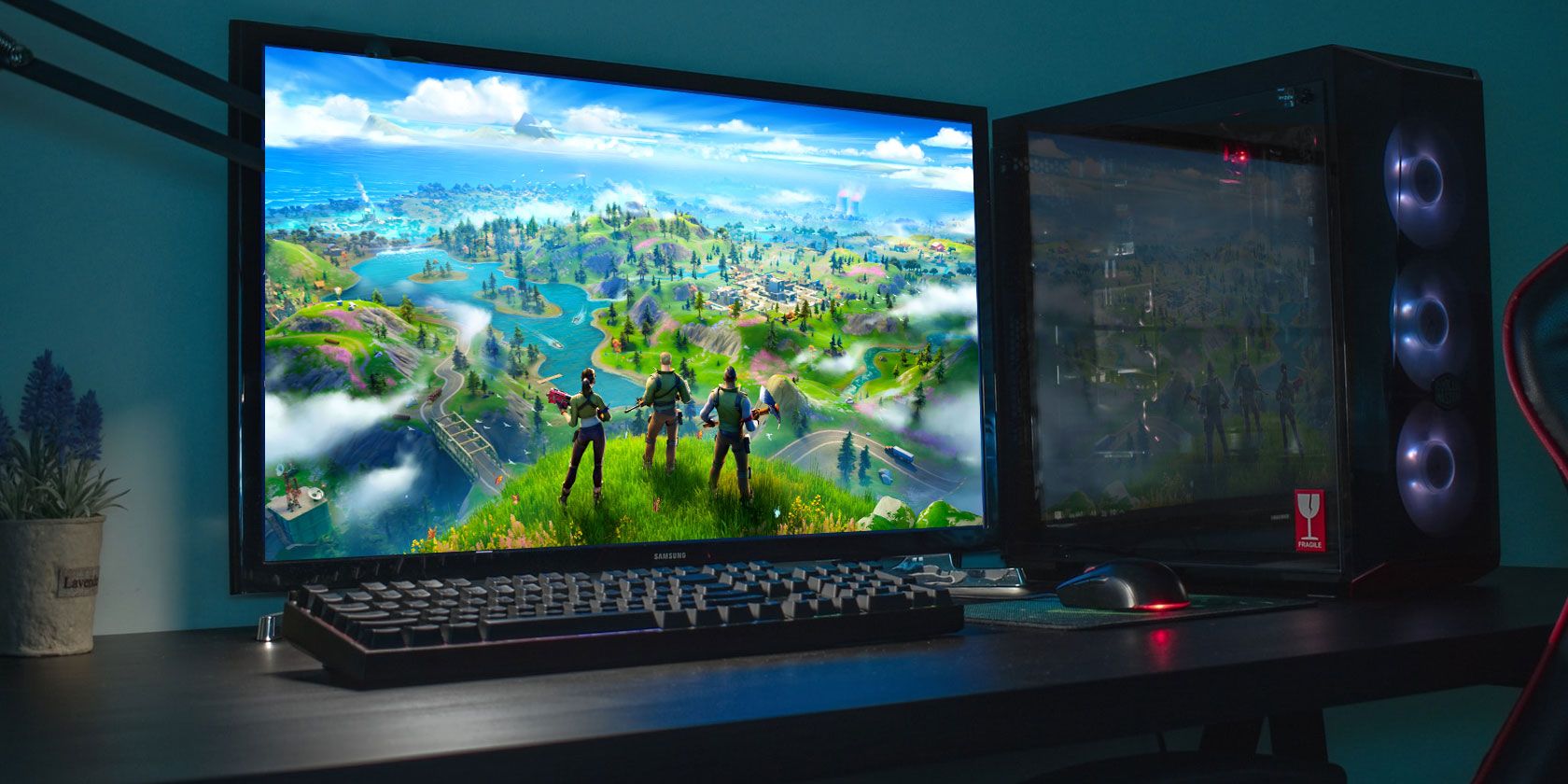
This article, tailored for readers interested in the intersection of gaming and the broader themes of technology, brand strategy, and digital finance, will not only provide a detailed installation tutorial but also delve into the technological backbone, the brilliant branding, and the economic model that underpins Fortnite’s enduring success. Prepare to learn not just how to install Fortnite, but also why it continues to dominate the digital landscape.
Unlocking the Phenomenon: Why Fortnite?
Before we jump into the technicalities of installation, let’s briefly understand what makes Fortnite such a compelling experience and why it aligns so well with our website’s core interests. At its heart, Fortnite is a free-to-play battle royale game where 100 players parachute onto an island, scavenge for weapons and resources, and battle it out until only one remains. However, its distinguishing feature is the ability to build structures – walls, ramps, and roofs – on the fly, adding a strategic layer unseen in other battle royale titles. Beyond the core Battle Royale mode, Fortnite has expanded significantly to include ‘Save the World’ (a cooperative player-vs-environment experience), ‘Creative’ (where players can design their own maps and games), and more recently, entirely new experiences like LEGO Fortnite, Rocket Racing, and Fortnite Festival, transforming it into a true metaverse platform.
From a Tech perspective, Fortnite is a marvel. It runs on Epic Games’ own Unreal Engine, a leading game development tool that constantly pushes the boundaries of graphics, physics, and real-time rendering. The game’s consistent updates, cross-platform play capabilities (allowing PC players to compete with console and mobile users), and robust infrastructure demonstrate cutting-edge technological prowess. For Brand enthusiasts, Fortnite is a masterclass in brand building and strategic partnerships. Epic Games has cultivated a vibrant brand identity through iconic characters, regular seasonal themes, and unprecedented collaborations with major franchises like Marvel, Star Wars, and popular music artists. This continuous innovation keeps the brand fresh and relevant. Finally, from a Money standpoint, Fortnite exemplifies a highly successful free-to-play business model. While the game itself costs nothing to download and play, it generates billions through cosmetic microtransactions (skins, emotes, gliders) and Battle Passes, offering a blueprint for online income and digital economy strategies. Understanding these facets enriches the installation process, turning it from a mere task into an entry point to a fascinating digital ecosystem.
Pre-Installation Checklist: Are You Ready for Battle?
Before you even think about downloading Fortnite, it’s crucial to ensure your PC is prepared. Overlooking these preliminary steps can lead to frustrating installation issues or a sub-par gaming experience. This section will guide you through verifying your system’s readiness and setting up the necessary accounts.
Minimum vs. Recommended: Decoding System Requirements
The first and most critical step is to check if your PC meets Fortnite’s system requirements. While the game is designed to be accessible on a wide range of hardware, understanding the difference between minimum and recommended specifications is key to managing your expectations regarding performance and visual quality.
Minimum System Requirements (for basic functionality):
- OS: Windows 10/11 64-bit
- Processor: Core i3-3225 3.3 GHz
- Memory: 8 GB RAM
- Video Card: Intel HD 4000 on PC; AMD Radeon Vega 8
- Storage: At least 25 GB of free space (may increase with updates)
Recommended System Requirements (for a smoother, more enjoyable experience):
- OS: Windows 10/11 64-bit
- Processor: Core i5-7300U 3.5 GHz, AMD Ryzen 3 3300U, or equivalent
- Memory: 16 GB RAM
- Video Card: NVIDIA GeForce GTX 960, AMD Radeon R9 280, or equivalent DX11 GPU; DX12 GPU with 2 GB VRAM
- Storage: SSD (Solid State Drive) recommended for faster loading times, at least 25 GB of free space.
Why these matter: Meeting the minimum requirements will allow you to run the game, but likely at lower frame rates and graphic settings, potentially impacting your competitive edge. Adhering to the recommended specifications, particularly for RAM and GPU, will ensure a fluid experience with higher frame rates and better visual fidelity, which is crucial for identifying enemies and reacting quickly in intense build battles. An SSD significantly reduces loading times, getting you into the action faster. Take a moment to check your PC’s specifications (you can usually find this by right-clicking “This PC” or “My Computer” and selecting “Properties” or by searching “System Information” in the Windows search bar). If your system is borderline, consider updating your drivers, freeing up storage space, or even a minor hardware upgrade if feasible.
Setting Up Your Epic Games Account
Fortnite is published by Epic Games, and thus requires an Epic Games account to download, install, and play. If you don’t already have one, creating an account is a simple and free process. This account will serve as your digital identity within the Epic Games ecosystem, tracking your progress, purchases, and friends across various Epic titles.
- Visit the Epic Games Website: Open your web browser and navigate to the official Epic Games website (www.epicgames.com).
- Sign Up: Look for the “Sign In” button, usually in the top right corner. Clicking it will present options to log in or sign up. Choose “Sign Up.”
- Choose Your Method: You can sign up using various methods: directly with your email address, or by linking an existing account from Google, Facebook, PlayStation, Xbox, Nintendo, or Steam. Using an existing account can streamline the process.
- Fill in Details: If signing up with email, you’ll need to provide your country, first name, last name, display name (your in-game name), email address, and a strong password. Ensure your display name is something you like, as this is how others will see you in Fortnite.
- Agree to Terms: Read and accept the Epic Games Terms of Service and Privacy Policy.
- Verify Your Account: Epic Games will send a verification email to the address you provided. Open this email and click the verification link to activate your account. This is an important digital security step, preventing unauthorized access to your account.
Having an Epic Games account ready beforehand ensures a seamless transition to the next step: downloading the game launcher.
The Installation Journey: A Step-by-Step Guide
With your PC prepped and your Epic Games account established, you’re ready for the main event: downloading and installing Fortnite. This process involves two primary stages: installing the Epic Games Launcher and then using the launcher to install Fortnite itself.
Downloading the Epic Games Launcher
The Epic Games Launcher is the central hub for all Epic Games titles, including Fortnite. It acts as a digital storefront, library manager, and update client rolled into one.
- Navigate to the Fortnite Website: Open your web browser and go to the official Fortnite website (www.fortnite.com). Alternatively, you can go directly to the Epic Games Store website (www.epicgames.com/store).
- Find the Download Button: On the Fortnite website, you’ll typically see a prominent “Download” or “Play Free” button. On the Epic Games Store, look for “Get Epic Games” or “Download Epic Games Launcher” in the top right corner.
- Initiate Download: Click the download button. This will usually trigger a small installer file (e.g., “EpicInstaller.msi”) to download to your computer. Save it to a location you can easily find, such as your “Downloads” folder.
- Run the Installer: Once the download is complete, locate the installer file and double-click it. Windows User Account Control (UAC) might ask for permission; click “Yes” to allow the installer to run.
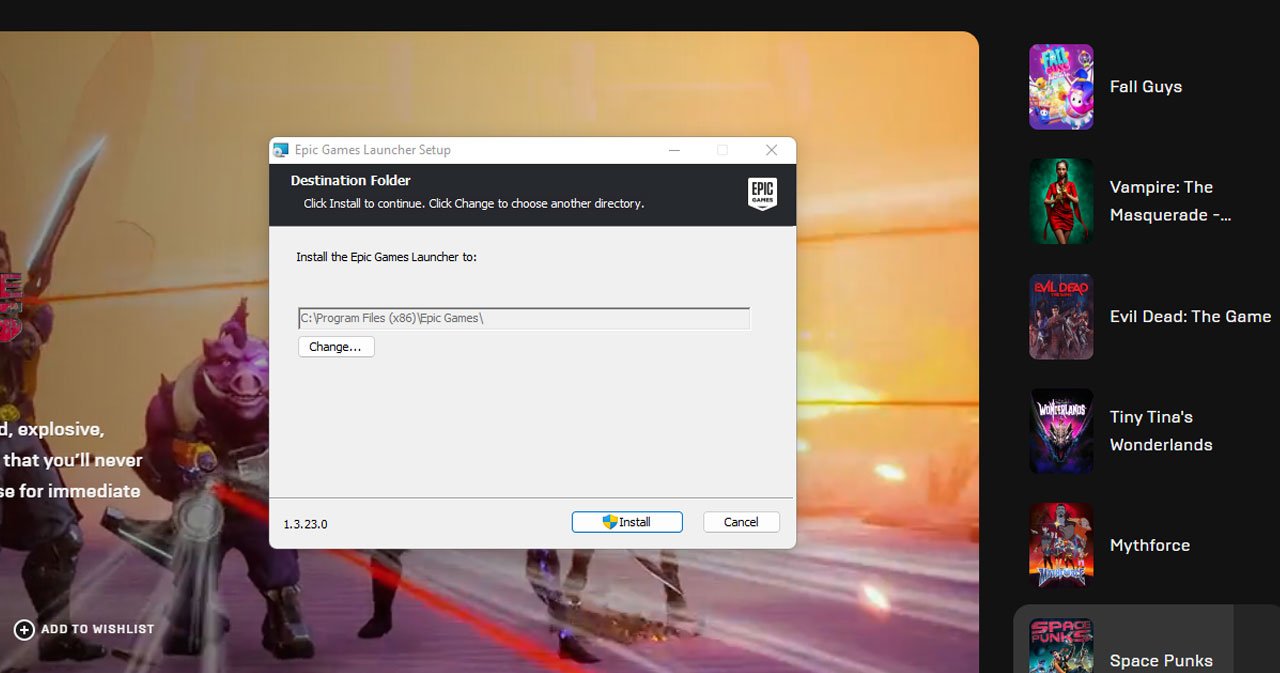
- Follow Installation Prompts: The Epic Games Launcher installer is straightforward. You’ll be prompted to choose an installation directory (the default is usually fine for most users) and agree to the license agreement. Click “Install” and let the process complete. This typically takes only a few minutes.
- Launch the Epic Games Launcher: Once the installation is finished, you’ll usually have an option to “Run Epic Games Launcher” immediately. If not, you can find a shortcut on your desktop or in your Start Menu.
Navigating the Launcher and Installing Fortnite
With the launcher successfully installed, it’s time to get Fortnite itself.
- Log In to the Launcher: When you first open the Epic Games Launcher, you’ll be prompted to log in. Use the Epic Games account credentials you created earlier. If you signed up using a third-party account (Google, PlayStation, etc.), select that option and follow the authentication steps.
- Access the Store: Once logged in, you’ll see the main interface of the Epic Games Launcher. Navigate to the “Store” section, usually found on the left-hand sidebar or at the top.
- Search for Fortnite: In the Store, use the search bar (often at the top right) to type “Fortnite” and press Enter. Fortnite should appear as the top result.
- Select Fortnite: Click on the Fortnite game tile to go to its dedicated store page.
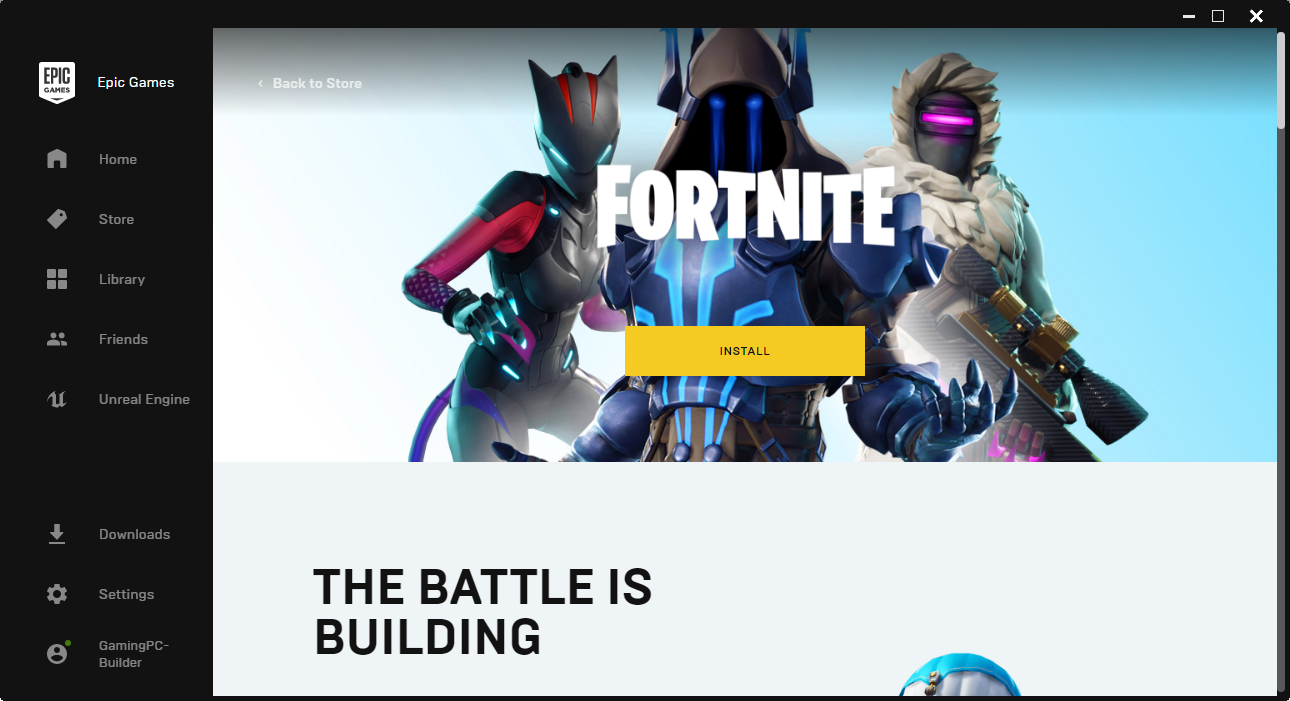
- Initiate Installation: On the Fortnite store page, you’ll see a prominent “Get” or “Install” button (since it’s a free game, it often says “Get” first, which adds it to your library, then “Install”). Click this button.
- Choose Installation Location: The launcher will then ask you to choose an installation directory for Fortnite. By default, it will suggest a location within your Epic Games folder. If you have an SSD, it’s highly recommended to install Fortnite on it for optimal loading times and performance. Ensure you have at least 25-30 GB of free space available. You can also choose whether to create a desktop shortcut.
- Review and Begin Download: Once you’ve selected the directory, click “Install.” The launcher will begin downloading the game files. The download size can be substantial (tens of gigabytes), so ensure you have a stable internet connection. You can monitor the download progress in the “Library” section or by clicking “Downloads” at the bottom of the launcher.
- Wait for Installation: After the download is complete, the launcher will automatically proceed with the installation process, extracting and organizing the game files. This might take some time depending on your PC’s speed.
- Launch Fortnite: Once the installation is 100% complete, the “Install” button on the Fortnite page in your Library will change to “Launch.” Click this button to start playing Fortnite!
Congratulations! You have successfully installed Fortnite on your PC.
Post-Installation Essentials: Optimizing Your Fortnite Experience
Installing the game is just the first step. To truly get the most out of your Fortnite experience, it’s crucial to perform some post-installation checks and optimizations. This ensures smooth gameplay, competitive performance, and resolves common issues before they become major headaches.
Keeping Your Game Updated
Fortnite is a live-service game, meaning Epic Games regularly releases updates. These updates can include new content, bug fixes, balance changes, and performance improvements. Staying up-to-date is vital for several reasons:
- Access to New Content: New seasons, events, weapons, and cosmetics are introduced regularly.
- Performance and Stability: Updates often include optimizations that can improve frame rates and reduce crashes.
- Security: Patches can address potential vulnerabilities, enhancing your digital security.
- Compatibility: To play with others, you generally need to be on the latest game version.
The Epic Games Launcher usually handles updates automatically. When you open the launcher, it will check for available updates for your installed games. If Fortnite has an update, it will typically begin downloading it before you can launch the game. It’s a good practice to open the launcher a few minutes before you plan to play, allowing it time to apply any necessary patches. If an update isn’t automatically detected, you can often manually check for updates by right-clicking Fortnite in your Library or checking its options menu within the launcher.
Optimizing In-Game Settings for Performance
Even if you meet the recommended system requirements, tweaking your in-game settings can significantly improve your frame rate and overall gameplay experience, especially in a fast-paced competitive game like Fortnite.
- Launch Fortnite: Start the game and go to the main menu.
- Access Settings: Click the three horizontal lines (hamburger menu) in the top left or top right corner, then select “Settings.”
- Video Settings (Most Impactful):
- Display Mode: Fullscreen is generally best for performance as it dedicates resources solely to the game.
- Resolution: Match your monitor’s native resolution.
- Frame Rate Limit: Set this to match your monitor’s refresh rate (e.g., 60 Hz monitor = 60 FPS limit) or slightly higher if your PC can consistently maintain it. If you have a high refresh rate monitor (144Hz, 240Hz), set it to “Unlimited” or your monitor’s max refresh rate.
- 3D Resolution: This is a crucial slider. Reducing it renders the game at a lower resolution internally, then scales it up, providing a significant FPS boost at the cost of some visual clarity. Start at 100% and reduce in increments if needed.
- View Distance: Set to “Medium” or “Far.” “Epic” is resource-intensive.
- Shadows: Set to “Off” or “Low” for a major FPS gain. Shadows are often distracting in competitive play.
- Anti-Aliasing: “Off” or “Low” if you prioritize FPS.
- Textures: Depends on your VRAM. “High” for 4GB+ VRAM, “Medium” or “Low” for less.
- Effects: “Low” for competitive play.
- Post Processing: “Low” or “Off.”
- V-Sync: “Off” unless you experience severe screen tearing and your monitor doesn’t support FreeSync/G-Sync. V-Sync introduces input lag.
- Motion Blur: “Off.” This can make the game look blurry during fast movements.
- Show FPS: Turn this “On” to monitor your frame rate in-game and see the impact of your changes.
- Advanced Graphics (if available/applicable):
- Rendering Mode: “Performance Mode (Alpha)” or “DirectX 12” are often preferred for competitive play. Performance Mode offers the highest FPS by simplifying graphics significantly. DirectX 12 might offer better performance on newer hardware after an initial shader compilation phase. Experiment to see what works best for your system.
- Mesh: “High” is usually preferred for better visibility of builds, even in performance mode.
The key is to find a balance between visual quality and a stable, high frame rate. For competitive play, a consistent 60+ FPS is often prioritized over stunning graphics.
Common Installation Issues and Troubleshooting Tips
Even with careful preparation, you might encounter issues. Here are some common problems and their solutions:
- “Installation Failed” / “Unable to Install”:
- Check Disk Space: Ensure you have enough free space on the selected drive. Fortnite requires a significant amount of data.
- Run as Administrator: Right-click the Epic Games Launcher shortcut and select “Run as administrator.”
- Temporarily Disable Antivirus/Firewall: Security software can sometimes interfere with downloads and installations. Remember to re-enable it afterward.
- Corrupt Download: Clear the Epic Games Launcher’s cache. You might need to uninstall and reinstall the launcher.
- Internet Connection: Ensure a stable internet connection during download.
- “Fortnite Not Launching” / “Crash on Startup”:
- Update Graphics Drivers: Outdated GPU drivers are a common culprit. Visit NVIDIA, AMD, or Intel’s website to download the latest drivers for your graphics card.
- Verify Game Files: In the Epic Games Launcher, go to your Library, find Fortnite, click the three dots (…), and select “Verify.” This checks for corrupted or missing game files.
- Restart PC: A classic but often effective solution.
- Check System Requirements: Double-check that your PC still meets the minimum requirements, especially after game updates.
- DirectX Version: Ensure your Windows installation has the necessary DirectX version (DX11 or DX12, depending on your in-game settings).
- Reinstall Fortnite: As a last resort, uninstalling and reinstalling the game can resolve deeply rooted issues.
- Poor Performance / Low FPS:
- Adjust In-Game Settings: Refer to the optimization tips above.
- Close Background Applications: Other programs consuming CPU or RAM can impact game performance.
- Monitor Temperatures: Overheating components can cause throttling and performance drops. Ensure your PC’s cooling is adequate.
- Update Windows: Ensure your operating system is up-to-date.
For persistent issues, the Epic Games support website has a comprehensive knowledge base, and their support team can provide personalized assistance. Remember to provide as much detail as possible about your system and the issue when contacting support.
Beyond the Battle Royale: Fortnite’s Broader Impact
Fortnite’s appeal extends far beyond its engaging gameplay. It has become a fascinating case study across technology, brand, and money – the very pillars of our website. Understanding these broader implications provides a richer context for your newly installed game.
Technological Prowess and Future Trends
Fortnite is a showcase for the Unreal Engine, Epic Games’ flagship game development technology. Its ability to deliver high-fidelity graphics, real-time physics, and dynamic environments is impressive. Furthermore, Fortnite’s continuous innovation in Tech trends is noteworthy:
- Cross-Platform Play: Fortnite pioneered seamless cross-platform functionality, allowing players on PC, consoles, and mobile devices to play together. This was a significant technological hurdle that set a new standard for multiplayer gaming.
- Live Service Evolution: The game constantly evolves with new seasons, events, and gameplay mechanics, demonstrating a robust backend infrastructure capable of rapid deployment and scaling for millions of concurrent users. This model keeps players engaged and returning.
- User-Generated Content (UGC) and the Metaverse: With the introduction of Creative Mode, and more recently, the Unreal Editor for Fortnite (UEFN) and experiences like LEGO Fortnite, Rocket Racing, and Fortnite Festival, Epic is actively building a true metaverse. This empowers creators to build and monetize their own games and experiences within the Fortnite ecosystem, hinting at the future of digital entertainment and collaboration. This focus on UGC aligns with burgeoning Tech trends around decentralized creation and community-driven content.
- AI Integration: As AI tools become more prevalent, their integration into game development, from asset generation to intelligent NPC behavior, will likely continue to shape Fortnite’s future, enhancing player experiences and streamlining development.
Epic Games: A Masterclass in Brand Building
Fortnite’s sustained popularity is also a testament to Epic Games’ masterful Brand Strategy. They’ve built more than just a game; they’ve cultivated a cultural phenomenon:
- Consistent Identity and Evolution: Fortnite maintains a distinct, vibrant, and playful aesthetic, yet is unafraid to evolve its narrative, characters, and island layout with each new season. This constant freshness keeps the brand exciting.
- Strategic Collaborations: Epic Games has forged unprecedented partnerships with major entertainment franchises (Marvel, Star Wars, DC Comics, etc.) and popular culture icons (artists like Travis Scott, Ariana Grande, various athletes). These collaborations introduce new audiences, generate massive hype, and reinforce Fortnite’s position as a cross-cultural touchstone. This is a prime example of successful co-branding and leveraging existing intellectual property.
- Community Engagement: Epic actively engages with its community through events, social media, and by incorporating player feedback. This fosters a sense of ownership and loyalty among its vast player base.
- Esports and Competitive Scene: By nurturing a thriving competitive esports scene with significant prize pools, Epic elevates Fortnite’s brand beyond casual gaming, attracting professional players and spectators, and adding another layer of prestige.
The Free-to-Play Model and Digital Economy
From a Money perspective, Fortnite is an exemplary model of a successful free-to-play (F2P) game, generating billions in revenue while remaining accessible to everyone:
- Low Barrier to Entry: The F2P model removes any upfront cost, significantly lowering the barrier for entry and allowing the game to reach a massive global audience. This strategy has proven immensely profitable in the digital era.
- Cosmetic Microtransactions: Fortnite’s revenue primarily comes from optional cosmetic items (skins, emotes, gliders, pickaxes) that do not affect gameplay. This ethical monetization strategy ensures a level playing field while offering players ways to personalize their experience.
- Battle Pass System: The seasonal Battle Pass offers a tiered reward system for consistent play, incentivizing engagement and providing excellent value for a relatively small, recurring purchase. It’s a key driver of recurring revenue.
- Creator Economy: With UEFN and the “Island Creator Program,” Epic is building a robust creator economy, allowing creators to earn money based on player engagement with their content. This is a forward-thinking approach to shared revenue models and demonstrates how individuals can generate online income within a larger platform, a topic highly relevant to financial literacy and side hustles in the digital age. The digital security surrounding these transactions and creator payouts is also a critical consideration.
These aspects highlight how Fortnite is more than just a game; it’s a dynamic digital ecosystem that continually pushes boundaries in technology, brand management, and innovative economic models.
Now that Fortnite is installed and optimized, and you understand its broader significance, you’re not just ready to play – you’re ready to experience a piece of the future of digital entertainment. Load up the game, choose your landing spot, and join the global phenomenon. The Battle Bus awaits!
aViewFromTheCave is a participant in the Amazon Services LLC Associates Program, an affiliate advertising program designed to provide a means for sites to earn advertising fees by advertising and linking to Amazon.com. Amazon, the Amazon logo, AmazonSupply, and the AmazonSupply logo are trademarks of Amazon.com, Inc. or its affiliates. As an Amazon Associate we earn affiliate commissions from qualifying purchases.