
Typography is the silent ambassador of your digital workspace. Whether you are a graphic designer refining a high-stakes branding project, a student formatting a thesis, or a professional creating a presentation that demands clarity and impact, the ability to manipulate your operating system’s font library is an essential technical skill. Fonts dictate readability, mood, and hierarchy, yet many users remain restricted to the default system typefaces simply because they are unsure how to expand their library.
Installing custom fonts—whether downloaded from reputable foundries, open-source repositories like Google Fonts, or creative marketplaces—is a straightforward process once you understand the underlying file structures. This guide provides a comprehensive walkthrough for managing your font library across various operating systems, ensuring your computer is equipped with the typography necessary for any creative or professional endeavor.

Understanding Font Formats and Compatibility
Before diving into the installation process, it is important to distinguish between the file types you will encounter. Not all font files are created equal, and understanding these differences will save you from compatibility headaches later on.
The Standard Formats: OTF vs. TTF
The two most common file extensions you will encounter are .otf (OpenType Font) and .ttf (TrueType Font).
TrueType fonts, developed by Apple and Microsoft in the late 1980s, are the older, widely compatible standard. They are excellent for general use but sometimes lack the advanced typographical features required for professional typesetting.
OpenType fonts are the modern industry standard. They are more versatile, capable of containing a much larger character set, and support advanced features like ligatures, stylistic alternates, and swashes. If you have the option, OpenType is generally the preferred choice for professional design work. When you download a font, ensure the file is unzipped; most font distributors provide files in a .zip archive, and you must extract them before your operating system can recognize the files as installable assets.
Installing Fonts on Windows
Windows 10 and 11 have streamlined the font management process significantly. There are three primary ways to handle installations, ranging from the simplest drag-and-drop method to the centralized Settings menu.
Method 1: The Direct Installation
The most efficient way to install a font on Windows is to locate the unzipped .otf or .ttf file in your File Explorer, right-click it, and select “Install.” This will automatically trigger the Windows Font Viewer, which copies the file into the system’s font directory and registers it for use in your applications.
Method 2: The Settings Menu
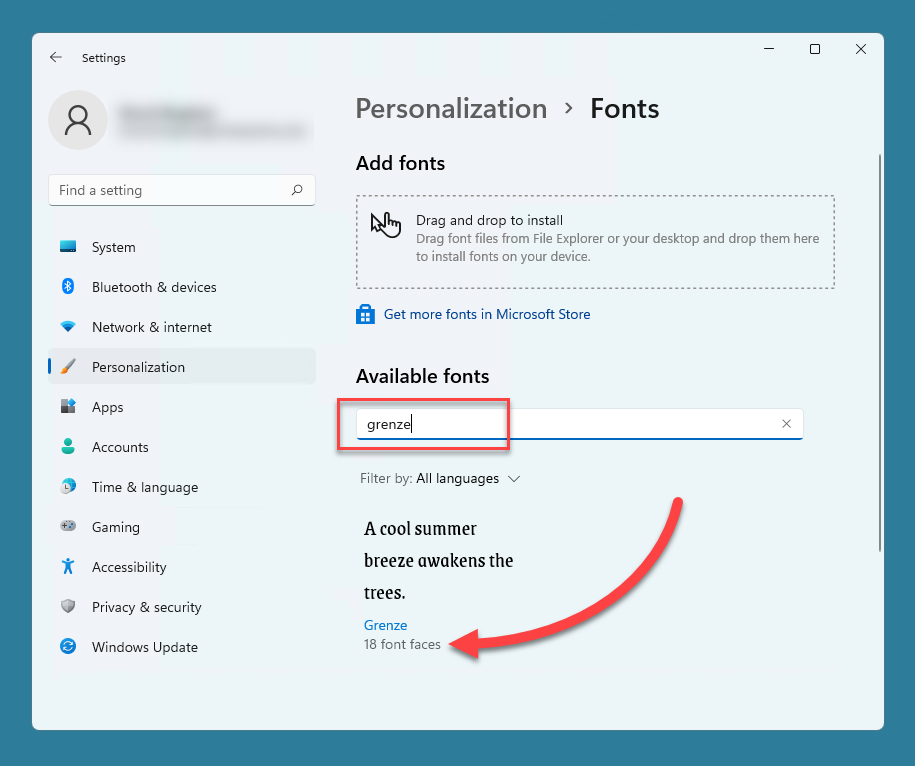
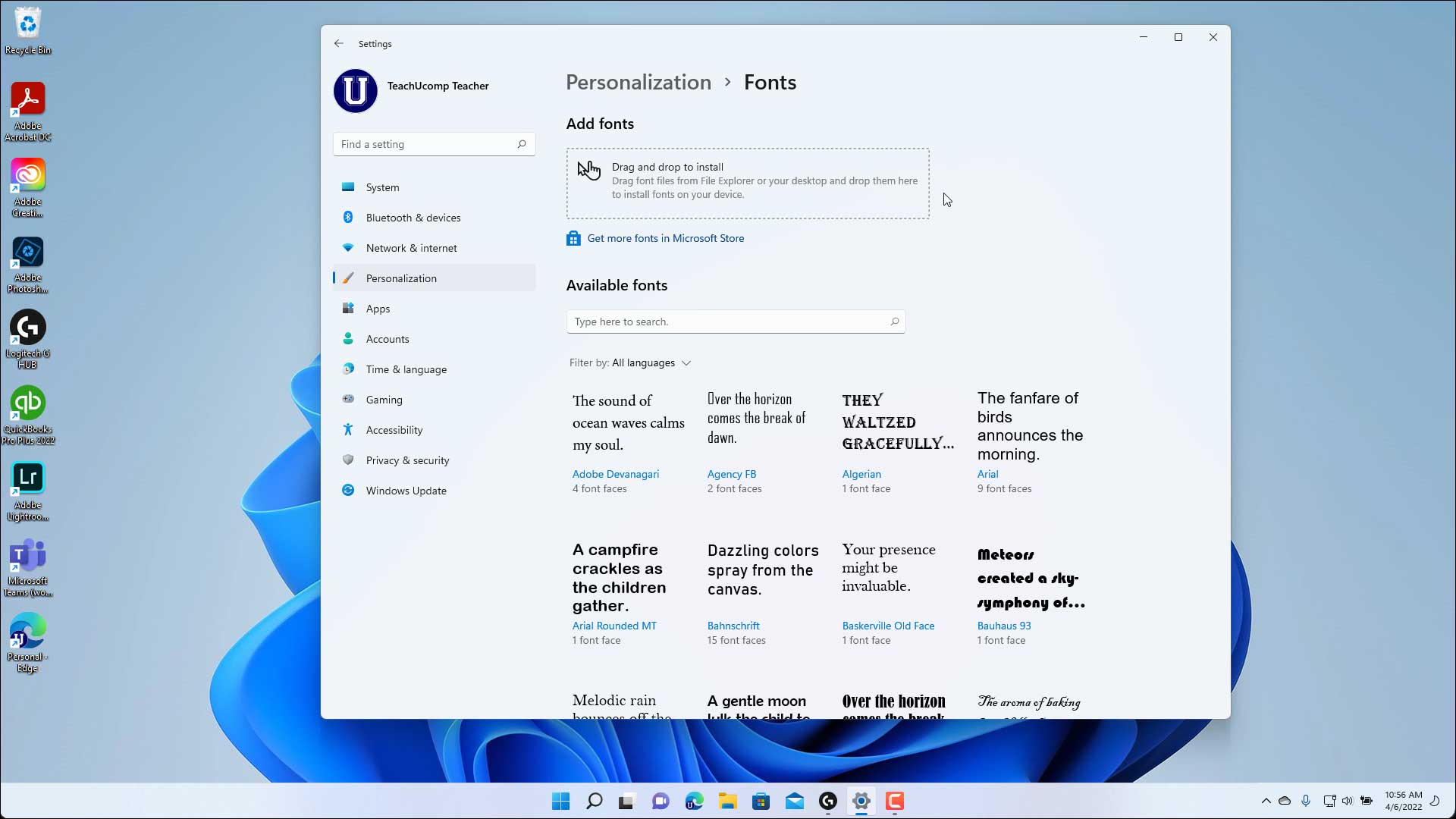
For those who prefer a management-based approach, navigate to Settings > Personalization > Fonts. This interface provides a visual overview of all installed fonts. You can simply drag and drop your downloaded font files into the “Drag and drop to install” box located at the top of the window. This method is particularly useful if you need to bulk-install a font family, as the system will process all selected files at once.
Method 3: For All Users
If you are working in an office environment or on a shared computer, you may want a font to be available to all user accounts. Right-click the font file and select “Install for all users.” This action requires administrative privileges and places the file into the C:WindowsFonts system folder rather than your local user profile.
Installing Fonts on macOS
Apple’s macOS handles typography with a high degree of precision, utilizing the “Font Book” application as the central hub for all font management. The process is elegant and highly reliable.
Using Font Book
Font Book is the native application that handles font installation, activation, and validation. To install a font:
- Double-click the font file (either
.otfor.ttf). - A preview window will appear, displaying the typeface’s characteristics.
- Click the “Install Font” button at the bottom of the window.
- Font Book will automatically validate the file to ensure it isn’t corrupted and then add it to your library.
Managing and Organizing
If you have a large library of fonts, do not simply install everything. Excessive font installation can lead to slower system performance and cluttered application menus. Use Font Book to create “Collections.” By grouping fonts into categories—such as “Serif,” “Sans-Serif,” or specific project-based folders—you can toggle sets on and off. This keeps your system lean and ensures your design software (like Adobe Illustrator or Figma) remains responsive.
Best Practices for Font Management
Installing fonts is easy, but maintaining a healthy system requires discipline. Overloading your operating system with thousands of fonts is one of the most common reasons for slow software startup times.
Avoiding Font Bloat
Every time you launch a design application, the software has to load your system’s font library into memory. If you have 5,000 fonts installed, your software will take significantly longer to load than if you have a curated set of 200. Periodically audit your installed fonts. If you haven’t used a specific typeface in six months, remove it. You can always reinstall it later if the need arises.
Verifying Font Integrity
Occasionally, free fonts downloaded from obscure websites can be corrupted or poorly coded, leading to crashes in your software. Before using a font in a production environment, use your system’s built-in font viewer (Font Book on Mac or Font Viewer on Windows) to check for warnings. If the system flags the file as “unsupported” or “corrupted,” it is safer to delete the file and seek an alternative version from a verified foundry.
Licensing Considerations
When installing fonts, remember that “free” does not always mean “free for commercial use.” Many fonts are licensed for personal projects only. If you are using a font for a logo, marketing material, or any commercial product, ensure you have the appropriate license. Reading the license.txt file usually included in the download folder is a professional necessity. Failing to respect typography licensing can lead to legal complications for you or your clients.
Troubleshooting Common Issues
Despite the simplicity of the installation process, you may occasionally run into issues where a font does not appear in your preferred software.
Restarting Applications
The most common solution to this problem is a simple restart. Most design software (such as Photoshop, InDesign, or Microsoft Word) scans for available fonts only upon launch. If you install a font while an application is open, the software will not see it. Close the application, wait a moment, and reopen it; the font should then appear in your character list.
Conflict Resolution
Sometimes, you may have multiple versions of the same font family (e.g., an old version of “Helvetica” and a newer “Helvetica Neue”) that conflict with one another. If you experience erratic behavior—such as bold text appearing thin or symbols rendering as empty boxes—use your Font Manager to disable or delete duplicate fonts. Keeping only the most up-to-date version of a font family ensures stability across all your creative tools.
By following these procedures, you transition from a passive user to an active curator of your digital environment. Mastering the installation and management of fonts is a foundational step in elevating the quality of your output and ensuring that your work is backed by the right tools for the job.
aViewFromTheCave is a participant in the Amazon Services LLC Associates Program, an affiliate advertising program designed to provide a means for sites to earn advertising fees by advertising and linking to Amazon.com. Amazon, the Amazon logo, AmazonSupply, and the AmazonSupply logo are trademarks of Amazon.com, Inc. or its affiliates. As an Amazon Associate we earn affiliate commissions from qualifying purchases.