
In the ever-evolving digital landscape, where visual appeal and seamless user experience reign supreme, fonts play an often-underestimated yet pivotal role. For macOS users, understanding how to effectively install and manage fonts is more than just a technical skill; it’s a gateway to unlocking greater creativity, enhancing professional brand identity, and optimizing productivity. Whether you’re a designer crafting a compelling visual narrative, a marketer perfecting your brand’s voice, a writer seeking the ideal typeface for your manuscript, or simply someone looking to personalize their Mac experience, mastering font installation is fundamental.
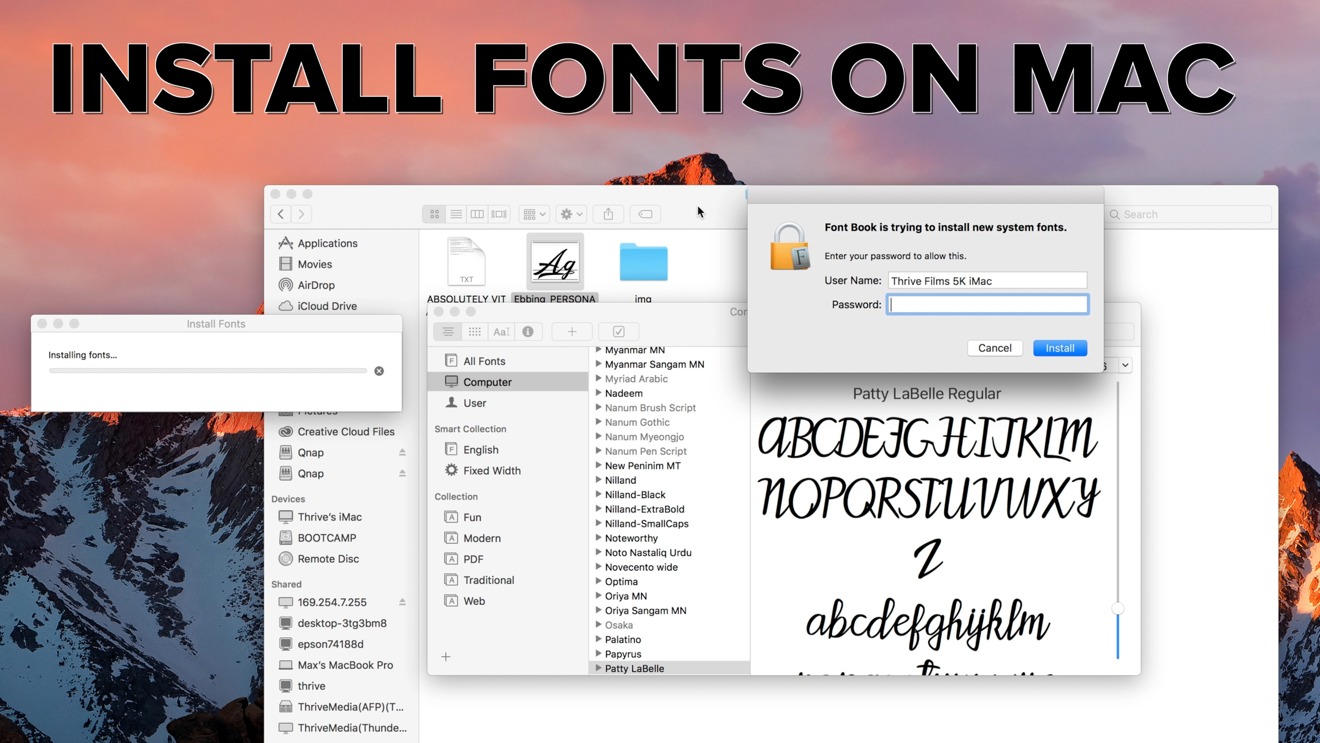
This guide will walk you through the straightforward process of installing fonts on macOS, delve into the robust capabilities of Font Book, and explore the broader implications of font choice across technology, branding, and even financial strategy. By the end, you’ll not only know how to install fonts but also why it matters for your digital endeavors.
The Essentials: Installing Fonts on macOS
Apple’s macOS, known for its intuitive design and powerful tools, simplifies the process of adding new fonts to your system. Unlike older operating systems that sometimes required navigating complex system folders, macOS integrates font management directly and elegantly. The primary tool for this is Font Book, a built-in application that serves as your central hub for all things typography.
Before you begin, ensure you have your desired font files downloaded. Most fonts come in common formats like TrueType Font (.ttf), OpenType Font (.otf), or sometimes PostScript fonts. These are typically packaged in a .zip or .rar archive, so you’ll need to decompress them first. Once you have the individual font files ready, you can proceed with installation using one of two primary methods.
Method 1: The Drag-and-Drop Approach
This is arguably the simplest and most intuitive way to install fonts on macOS, perfectly aligning with Apple’s user-friendly philosophy.
- Locate Your Font Files: After downloading and unzipping your font package, navigate to the folder containing the individual font files (e.g., “MyFont-Regular.ttf,” “MyFont-Bold.otf,” etc.).
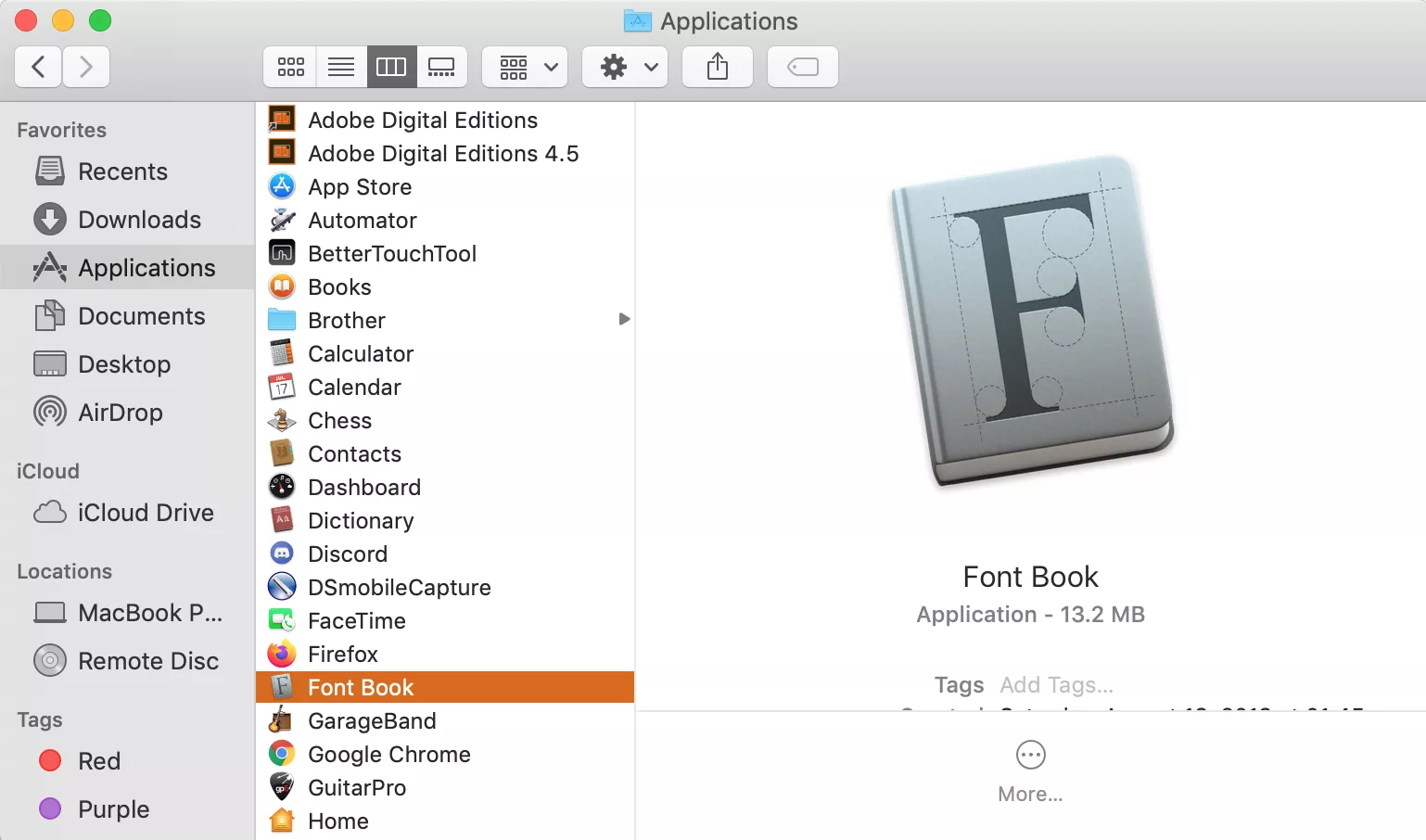
- Open Font Book: You can find Font Book in your Applications folder, or simply use Spotlight Search (Cmd + Spacebar) and type “Font Book.”
- Initiate the Drag: Select one or more font files from your Finder window.
- Drag to Font Book: Click and drag the selected font files directly into the Font Book application window. You can drop them into the “All Fonts” section or a specific collection if you’ve already set one up (more on collections later).
- Confirm Installation: Font Book will automatically open a small “Font Validation” window, providing a preview of the font and checking for any obvious errors. If no issues are found, simply click the “Install Checked Fonts” button. If errors are detected, Font Book will flag them, giving you the option to proceed with caution or discard the potentially corrupted font.
Once installed, the font will be immediately available across most macOS applications, including text editors, creative suites like Adobe Creative Cloud, and productivity tools like Microsoft Office or Apple’s Pages, Keynote, and Numbers.
Method 2: Double-Click and Confirm
This method is equally straightforward and preferred by many for its directness when installing just a few fonts.
- Locate Your Font Files: As with the drag-and-drop method, ensure your font files are extracted and accessible in a Finder window.
- Double-Click the Font File: Simply double-click on any
.ttfor.otffont file. - Preview in Font Book: macOS will automatically open Font Book and display a preview window for that specific font. This window shows you how the font looks at various sizes and allows you to inspect its characteristics.
- Click “Install Font”: In the lower right corner of the preview window, you’ll see an “Install Font” button. Click it.
- Validation and Completion: Font Book will perform a quick validation check. If the font is valid, it will be added to your system. If there are issues, you’ll be notified.
Both methods achieve the same result: your new font is integrated into your macOS environment, ready for use in any application that supports font selection. This simplicity is a hallmark of macOS’s approach to user experience, enabling even novices to customize their digital workspace effectively.
Understanding Font Book: Your macOS Font Manager
While installing fonts is simple, Font Book is far more than just an installer. It’s a powerful utility that provides comprehensive control over your entire font library. For anyone serious about digital productivity, design, or branding, understanding Font Book’s features is crucial.
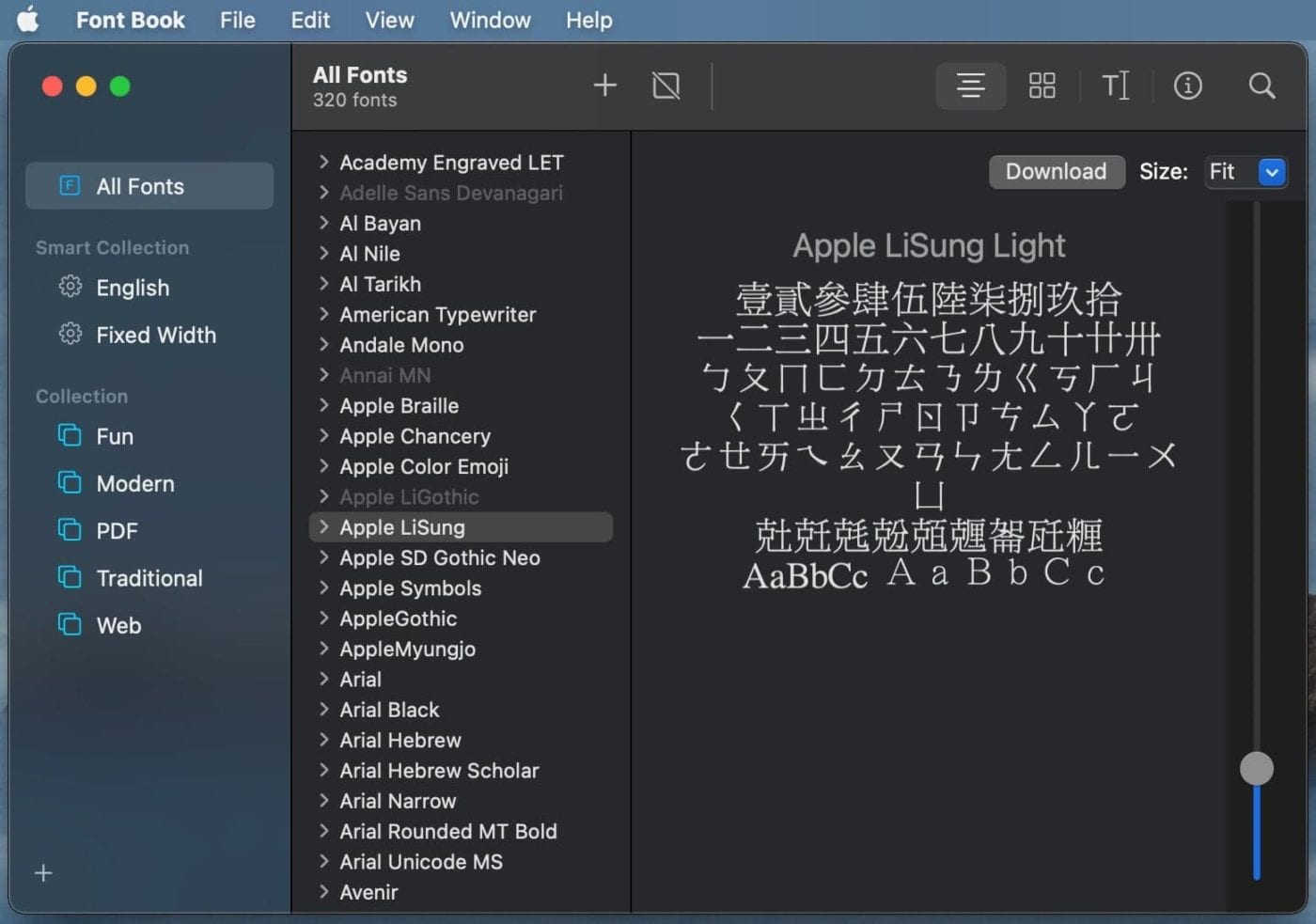
Upon opening Font Book, you’ll see a three-pane interface:
- Collections: On the left, you can organize your fonts into custom collections (e.g., “Design Fonts,” “Brand Fonts,” “Web Fonts”).
- Fonts List: The middle pane displays all fonts within the selected collection or “All Fonts.”
- Preview Pane: The right pane shows a detailed preview of the currently selected font, allowing you to see its various weights, styles, and sample text.
This robust management system underpins the efficiency of any macOS user, preventing the clutter and performance issues that can arise from an unmanaged font library.
Mastering Font Management with Font Book
Effective font management goes beyond simply installing new typefaces; it involves organizing, validating, and optimizing your font collection for both aesthetic appeal and system performance. Font Book provides the tools to become a true typographer of your own digital domain.
Previewing and Organizing Your Font Collection
One of Font Book’s most valuable features is its ability to preview fonts before and after installation. The preview pane allows you to cycle through different sample texts and sizes, helping you decide if a font is the right fit for your project or brand.
Collections: For users with extensive font libraries, collections are indispensable. Imagine you’re working on a new corporate identity project. You can create a “Corporate Brand X” collection and add all approved fonts for that brand into it. This ensures consistency and quick access, saving valuable time and reducing errors. For personal branding, you might have a “Resume Fonts” collection, ensuring your professional documents always look their best. To create a collection:
- Click the
+button at the bottom of the “Collections” sidebar. - Name your new collection.
- Drag fonts from “All Fonts” into your new collection.
This organizational power contributes significantly to productivity, allowing designers and content creators to streamline their workflow and maintain brand consistency across various platforms and projects.
Validating and Resolving Font Issues
Not all font files are created equal. Some may be corrupted, incomplete, or contain conflicting data, which can lead to system instability, application crashes, or fonts not appearing correctly. Font Book’s validation feature is a critical line of defense against these issues.
- Validate Fonts: Go to
File > Validate Fontsor select specific fonts and right-click to choose “Validate Fonts.” Font Book will scan the selected fonts for common problems such as missing glyphs, incorrect tables, or conflicting IDs. - Identify Problems: If issues are found, Font Book will display a warning icon (yellow triangle) or an error icon (red circle with a line) next to the problematic font. It will also provide a brief description of the issue.
- Resolve Issues:
- Disable Font: For minor conflicts or fonts you don’t use frequently but don’t want to delete, you can disable them. Select the font and go to
Edit > Disable [Font Name]. Disabled fonts won’t load, saving system resources, but remain in your Font Book for later reactivation. - Remove Font: If a font is severely corrupted or you simply no longer need it, select it and press
Delete(orEdit > Remove [Font Name]). Confirm your action, and the font will be removed from your system. - Resolve Duplicates: Font Book automatically detects duplicate fonts. When duplicates are found, it often offers to resolve them by disabling the older or less suitable version. You can manually review and choose which version to keep.
- Disable Font: For minor conflicts or fonts you don’t use frequently but don’t want to delete, you can disable them. Select the font and go to
Proper validation and management of font issues are crucial for maintaining system performance and digital security. Corrupted fonts can sometimes be exploited or simply lead to frustrating software behavior, making this a core aspect of responsible tech usage.
Differentiating Font Types: TrueType, OpenType, and PostScript
While the installation process is largely the same, understanding the common font types can offer insights into their capabilities and historical context.
- TrueType (.ttf): Developed by Apple in the late 1980s and later adopted by Microsoft, TrueType fonts are one of the most common formats. They contain both screen and printer font data in a single file, ensuring consistency between what you see on screen and what prints. They are widely compatible across operating systems.
- OpenType (.otf): A collaborative effort between Adobe and Microsoft, OpenType is an extension of TrueType. It supports a wider range of characters (useful for multilingual text), includes advanced typographic features like ligatures, alternate characters, and small caps, and can store up to 65,536 glyphs. OpenType is the preferred format for professional typography due to its versatility and rich features.
- PostScript Type 1: Older than TrueType and OpenType, PostScript fonts (often consisting of a screen font and a printer font) were once the standard for professional publishing. While still supported by macOS, they are gradually being phased out in favor of OpenType due to its superior capabilities and cross-platform compatibility.
Knowing these distinctions helps users appreciate the nuances of typography, especially when selecting fonts for specific design projects that require advanced features or broad language support.
Beyond Installation: The Strategic Impact of Fonts
The choice of typeface extends far beyond mere aesthetics; it carries significant strategic weight across personal and corporate branding, influences productivity, and can even have financial implications. In an increasingly visual world, fonts are a silent language that communicates professionalism, creativity, trustworthiness, and brand personality.
Fonts as a Cornerstone of Brand Identity
Personal Branding: For individuals, fonts contribute directly to personal branding. A consistent, thoughtfully chosen typeface for your resume, portfolio, personal website, or email signature immediately conveys attention to detail and professionalism. A creative professional might opt for a unique, modern sans-serif, while a financial advisor might prefer a classic, authoritative serif. These choices subconsciously build trust and reinforce your personal brand narrative, which can be critical for career advancement or attracting new clients.
Corporate Identity: For businesses, fonts are an integral part of corporate identity and marketing strategy. They are as crucial as a logo or color palette in defining a brand’s visual voice. Think of iconic brands: Coca-Cola’s flowing script, Google’s friendly sans-serif, or the authoritative serif of The New York Times. Each typeface contributes to instant recognition and evokes specific emotions and associations.
- Consistency: Using a consistent set of fonts across all marketing materials – website, advertisements, social media, product packaging, and internal documents – reinforces brand recognition and professionalism.
- Legibility and Readability: Strategic font choice ensures that your message is not only seen but easily understood. Poor font choices can lead to frustration and disengagement, undermining your marketing efforts.
- Emotional Connection: Fonts evoke emotions. A playful script might suit a children’s toy brand, while a sleek geometric sans-serif could be perfect for a tech startup. Aligning font aesthetics with brand values creates a deeper, more resonant connection with the audience.
Design professionals leverage fonts to craft experiences that speak volumes without uttering a word. Investing time in selecting and managing the right fonts is, therefore, an investment in brand equity and reputation.
Sourcing Fonts: Free vs. Licensed & the Monetary Aspect
The digital realm offers a vast ocean of fonts, ranging from free downloads to premium, professionally licensed typefaces. Understanding the implications of each choice, especially regarding financial and legal aspects, is vital.
Free Fonts: Platforms like Google Fonts, DaFont, Font Squirrel, and Font Space offer thousands of fonts at no cost. These are excellent resources for personal projects, quick mock-ups, or for those just starting out. However, “free” doesn’t always mean “without restrictions.”
- Licensing: Always check the license. Many free fonts are “for personal use only,” meaning commercial use (for a business, a client project, or anything that generates income) is prohibited without purchasing a commercial license. Using a personal-use-only font for commercial purposes can lead to legal issues.
- Quality: While many high-quality free fonts exist, some may lack full character sets, proper kerning, or robust multi-language support compared to their paid counterparts.
Paid/Licensed Fonts: Professional-grade fonts are often purchased from reputable foundries or marketplaces like Adobe Fonts (included with Creative Cloud subscriptions), MyFonts, Fontspring, and Fonts.com.
- Investment: The cost of a professional font family can range from a few dollars to hundreds or even thousands for extensive sets with multiple weights and styles. This is an investment in quality, functionality, and legal compliance.
- Commercial Use: Licensed fonts typically come with clear commercial use agreements, granting you the legal right to use them in various business applications. Understanding the terms (e.g., desktop license, web license, app license) is critical for business finance and avoiding legal pitfalls.
- Features: Paid fonts often come with extensive character sets, OpenType features, meticulous kerning pairs, and dedicated support, offering a superior typographic experience for professional design projects.
Monetary Implications: For freelancers, designers, and small businesses, the choice between free and paid fonts can directly impact online income and business finance.
- Cost-Benefit Analysis: While free fonts save upfront costs, they might limit commercial potential or lead to legal fees if licenses are ignored. Professional, licensed fonts are a legitimate business expense that adds value, professionalism, and legal security to client work, ultimately enhancing earning potential.
- Side Hustles: For those pursuing design-related side hustles, a small investment in a versatile, commercially licensed font family can elevate the quality of their work and attract more lucrative opportunities. It’s a tool, much like premium software, that justifies its cost through increased output quality and professionalism.
Optimizing Your Digital Workflow and Security
Efficient font management also plays a critical role in overall tech productivity and digital security.
Productivity Gains: A cluttered font library can slow down applications, especially graphic design software that needs to load all active fonts. Disabling unused fonts or organizing them into collections helps applications launch faster and run more smoothly. Furthermore, quickly finding the right font saves countless hours for designers and content creators, enabling them to meet deadlines and produce higher-quality work. This aspect of productivity is vital for anyone whose work relies on visual communication.
Digital Security: Fonts, like any other files downloaded from the internet, can harbor malicious code or lead to system vulnerabilities if sourced from untrustworthy sites.
- Reputable Sources: Always download fonts from well-known and reputable foundries, marketplaces, or aggregators. Avoid dubious websites that promise premium fonts for free without clear licensing.
- Font Book Validation: As discussed, Font Book’s validation tool is your first line of defense against corrupted or problematic font files that could potentially destabilize your system.
- System Performance: Overloading your system with thousands of active fonts can degrade performance. Font Book allows you to manage this load by disabling fonts you don’t frequently use, thus optimizing your Mac’s speed and responsiveness.
Adhering to best practices in font sourcing and management is not just about aesthetics; it’s about maintaining a secure, efficient, and reliable digital environment.
Troubleshooting Common Font Challenges
Even with macOS’s user-friendly nature, you might occasionally encounter issues with fonts. Knowing how to troubleshoot these common problems can save you frustration and keep your workflow smooth.
Dealing with Corrupted or Duplicate Fonts
- Corrupted Fonts: If a font causes an application to crash, appears with strange characters, or fails Font Book validation, it’s likely corrupted.
- Solution: Select the problematic font in Font Book, choose
File > Validate Fonts. If it shows errors, select the font and pressDeleteto remove it. Then, try downloading a fresh copy of the font from a reputable source and reinstalling it.
- Solution: Select the problematic font in Font Book, choose
- Duplicate Fonts: macOS will often detect duplicate fonts automatically. These can occur if you install the same font from different sources or if an older version already exists.
- Solution: When Font Book flags duplicates, it typically offers to resolve them automatically. If not, go to
Edit > Resolve Duplicates. Font Book will show you the duplicate versions, allowing you to choose which one to keep active and which to disable or remove. Generally, it’s best to keep the newest or most feature-rich version (often an OpenType version over an older TrueType).
- Solution: When Font Book flags duplicates, it typically offers to resolve them automatically. If not, go to
When Fonts Don’t Appear: Advanced Tips
Sometimes, even after installation, a font might not show up in an application’s font menu.
- Restart Applications: The first and simplest step is to quit and restart the application you’re trying to use the font in. Many applications only load their font list upon launch.
- Restart Your Mac: If restarting the application doesn’t work, a full system restart can often resolve deeper caching issues.
- Check Font Book Status: Ensure the font is enabled in Font Book (it shouldn’t have a small dot next to it, indicating it’s disabled). If it’s disabled, select it and go to
Edit > Enable [Font Name]. - Clear Font Caches (Advanced): macOS maintains font caches to speed up font loading. Sometimes these caches can become corrupted.
- Caution: Only attempt this if other solutions fail, as incorrect cache clearing can cause temporary display issues.
- Method: Use a system utility like CleanMyMac X or OnyX (reputable third-party tools) to clear font caches safely. Alternatively, you can use Terminal commands, but this is recommended only for experienced users. A safer manual method involves navigating to
~/Library/Caches/and deleting folders starting withcom.apple.ATSandcom.apple.FontRegistry. Remember to restart your Mac after clearing caches.
- Verify Font Location: Font Book manages fonts in specific locations. Most user-installed fonts go into
~/Library/Fonts/(for your user only) or/Library/Fonts/(for all users on the Mac). System fonts are in/System/Library/Fonts/. Avoid tampering with system fonts.
By systematically addressing these issues, you can maintain a robust and reliable font environment on your macOS device, ensuring uninterrupted productivity and creative flow.
Conclusion
Installing and managing fonts on macOS is a fundamental skill that underpins much of our digital interaction, from crafting compelling documents to designing captivating brand identities. With Font Book, Apple provides a remarkably intuitive and powerful tool to effortlessly expand, organize, and troubleshoot your typographic library.
Beyond the technical steps, however, lies a deeper appreciation for the strategic role fonts play. They are silent ambassadors of your brand, both personal and corporate, shaping perceptions and conveying messages with subtle power. They are critical components of an efficient digital workflow, impacting everything from application performance to creative output. And in an increasingly commercialized digital space, understanding font licensing has real monetary and legal implications for businesses and freelancers alike.
By embracing the straightforward methods for installation, leveraging Font Book’s comprehensive management features, and thoughtfully considering the broader impact of your font choices, you empower yourself to create, communicate, and brand more effectively in the digital age. So go ahead, explore the vast world of typography, and let your macOS speak volumes through the perfect typeface.
aViewFromTheCave is a participant in the Amazon Services LLC Associates Program, an affiliate advertising program designed to provide a means for sites to earn advertising fees by advertising and linking to Amazon.com. Amazon, the Amazon logo, AmazonSupply, and the AmazonSupply logo are trademarks of Amazon.com, Inc. or its affiliates. As an Amazon Associate we earn affiliate commissions from qualifying purchases.