
In the ever-evolving landscape of technology, the way we install and manage software on our computers is undergoing a significant transformation. Traditional package managers, while effective for their time, often present challenges in terms of dependency management, version conflicts, and cross-distribution compatibility. This is where Flatpak emerges as a modern, revolutionary solution. If you’ve encountered the term “Flatpak” and wondered about its utility, or if you’re looking for a streamlined and reliable way to install applications on your Linux system, this guide is for you.
Flatpak is an open-source application packaging and distribution system designed to simplify the installation and updating of applications across various Linux distributions. Its core philosophy is to provide sandboxed applications that run independently of the host system, ensuring a more stable and secure user experience. This approach tackles many of the frustrations users have faced with traditional software installation methods, such as the “dependency hell” that can plague complex software suites.
Understanding the Power of Flatpak
Before diving into the installation process, it’s crucial to understand why Flatpak has gained such traction within the Linux community and beyond. Its advantages are rooted in its innovative design and its commitment to user-centric software management.
Why Choose Flatpak?
The decision to adopt Flatpak for your software needs is driven by a compelling set of benefits that address common pain points in desktop Linux usage:
- Cross-Distribution Compatibility: One of Flatpak’s most significant selling points is its ability to run applications on virtually any Linux distribution. This means that developers can create a single Flatpak package for an application, and users on Fedora, Ubuntu, Debian, Arch Linux, and many others can install it without worrying about distribution-specific compatibility issues. This drastically reduces the burden on developers and ensures users get the latest software regardless of their chosen Linux flavor.
- Sandboxing for Security and Stability: Flatpak applications run in isolated environments called “sandboxes.” This isolation means that an application cannot access or modify files outside its designated sandbox unless explicitly granted permission. This dramatically enhances security by preventing malicious or poorly written applications from harming your system. Furthermore, if a Flatpak application crashes or misbehaves, it is less likely to affect the stability of your entire operating system.
- Access to Up-to-Date Software: Many Linux distributions, particularly those focused on stability like Debian Stable or Ubuntu LTS, often ship with older versions of applications to ensure a robust and tested system. Flatpak allows users to install much newer versions of their favorite applications directly from developers or trusted repositories, bypassing the slower release cycles of distribution-specific packages. This is particularly beneficial for users who need the latest features or performance improvements offered by cutting-edge software.
- Simplified Dependency Management: Gone are the days of wrestling with intricate dependency trees and conflicting libraries. Flatpak packages bundle all the necessary libraries and dependencies an application needs to run. This means you don’t have to worry about whether your system has the correct version of a particular library installed; the Flatpak runtime handles it.
- Easy Updates and Rollbacks: Flatpak’s update mechanism is designed to be straightforward. You can update all your Flatpak applications with a single command. In the event that an update causes issues, Flatpak also supports easy rollbacks to previous versions, providing a safety net for your software.
- Developer-Friendly Packaging: For software developers, Flatpak offers a standardized and efficient way to distribute their applications to a wide audience. It simplifies the build and release process, allowing them to focus more on creating great software and less on managing complex packaging for numerous Linux distributions.
Flatpak vs. Traditional Package Managers
To truly appreciate Flatpak, it’s helpful to contrast it with the traditional package managers commonly found on Linux systems, such as APT (Debian/Ubuntu), DNF/YUM (Fedora/CentOS/RHEL), and Pacman (Arch Linux).
| Feature | Flatpak | Traditional Package Managers (e.g., APT, DNF) |
|---|---|---|
| Distribution | Independent of the host system | Relies on distribution-specific repositories |
| Dependencies | Bundled within the Flatpak package | Managed by the distribution’s repositories |
| Application Versions | Can be very recent, often bleeding-edge | Often tied to distribution release cycles |
| Isolation | Sandboxed, runs in its own environment | Runs directly on the host system |
| Compatibility | Works across most Linux distributions | Distribution-specific |
| Installation | flatpak install |
apt install, dnf install, pacman -S |
| Updates | flatpak update |
apt upgrade, dnf upgrade, pacman -Syu |
This comparison highlights how Flatpak offers a more flexible and modern approach to software installation, particularly for users who prioritize access to the latest software and a cleaner system environment.
Installing Flatpak: Getting Started
The process of installing Flatpak itself is straightforward and typically involves adding the Flatpak repository to your system and then installing the flatpak command-line utility. The exact steps can vary slightly depending on your specific Linux distribution, but the general principles remain the same.
Step 1: Installing the Flatpak Package Manager
Most modern Linux distributions either come with Flatpak pre-installed or make it readily available in their default repositories.
-
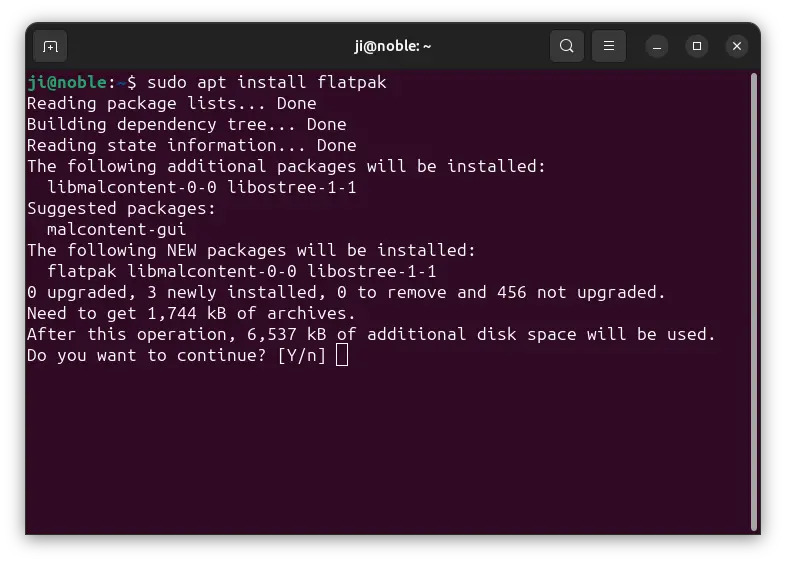
For Debian/Ubuntu and derivatives:
Open your terminal and run the following commands:sudo apt update sudo apt install flatpakThis will update your package list and install the Flatpak package.
-
For Fedora:
Fedora usually has Flatpak installed by default. If for some reason it’s not, you can install it with:sudo dnf install flatpak -
For Arch Linux and derivatives:
On Arch Linux, you can install Flatpak using pacman:sudo pacman -S flatpak -
For openSUSE:
Use zypper to install Flatpak:sudo zypper install flatpak
Step 2: Adding the Flathub Repository
Flathub is the primary and most comprehensive repository for Flatpak applications. It’s where you’ll find the vast majority of applications packaged as Flatpaks. To add Flathub to your system, open your terminal and execute the following command:
flatpak remote-add --if-not-exists flathub https://flathub.org/repo/flathub.flatpakrepo
This command does two things:
flatpak remote-add: This is the Flatpak command to add a new remote repository.--if-not-exists flathub: This ensures that if you already have a remote named “flathub,” the command won’t throw an error.https://flathub.org/repo/flathub.flatpakrepo: This is the URL of the Flathub repository definition file.
After running this command, you’ve successfully integrated Flathub with your Flatpak installation.
Step 3: Rebooting Your System (Recommended)
While not always strictly necessary for the flatpak command to work, a reboot is often recommended after installing new system-level components like Flatpak. This ensures that all system services and paths are correctly updated and that your desktop environment properly recognizes the new software management system.
Managing Flatpak Applications
Once Flatpak is installed and Flathub is added, you can start installing and managing applications. Flatpak provides a set of command-line tools for this purpose, and there are also graphical front-ends that simplify the process further.
Installing Applications from the Command Line
To install an application using Flatpak from the terminal, you need to know the application’s unique ID. You can search for applications on Flathub’s website or use the flatpak search command.
Let’s say you want to install the popular text editor gedit. You would first search for it:
flatpak search gedit
This will list available applications matching “gedit.” You’ll likely see an entry with an ID like org.gnome.gedit. Once you have the correct ID, you can install it:
flatpak install flathub org.gnome.gedit
This command will download the gedit Flatpak and its required runtimes from Flathub and install it on your system. You might be prompted to confirm the installation and accept any required permissions.
Finding and Installing Applications Graphically
For users who prefer a graphical interface, there are excellent front-ends that integrate with Flatpak. The most popular ones are:
-
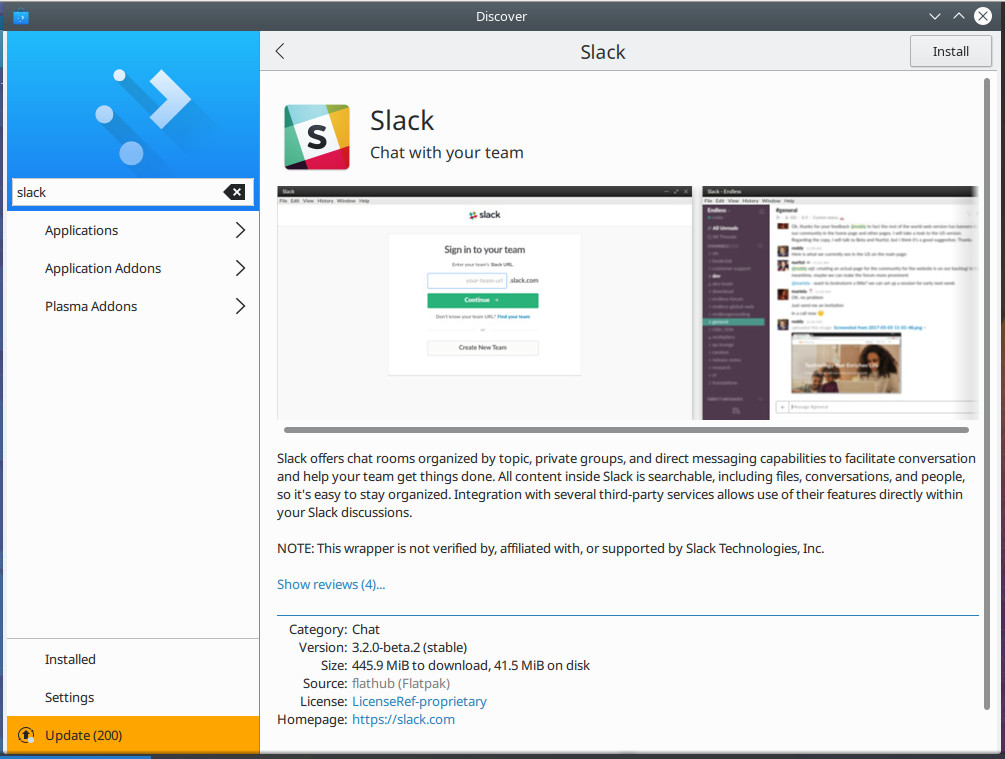
GNOME Software (Software Center): If you’re using the GNOME desktop environment, GNOME Software is your go-to. Once Flatpak and Flathub are set up, GNOME Software will automatically display Flatpak applications alongside your distribution’s native packages. You can simply search for an application and click “Install.”
-
KDE Discover: For KDE Plasma users, Discover serves a similar purpose. It seamlessly integrates Flatpak applications, allowing for easy searching and installation through a user-friendly interface.
-
Plasma Discover: If you are using a different desktop environment but have installed
flatpakand added theflathubrepository, you might be able to install a graphical frontend likeplasma-discoverorgnome-softwareto manage your Flatpak applications visually.
Updating and Removing Applications
Keeping your Flatpak applications up-to-date is as easy as installing them:
To update all installed Flatpak applications:
flatpak update
This command will check Flathub and any other configured remotes for newer versions of your installed applications and their runtimes, downloading and installing them.
To remove a Flatpak application:
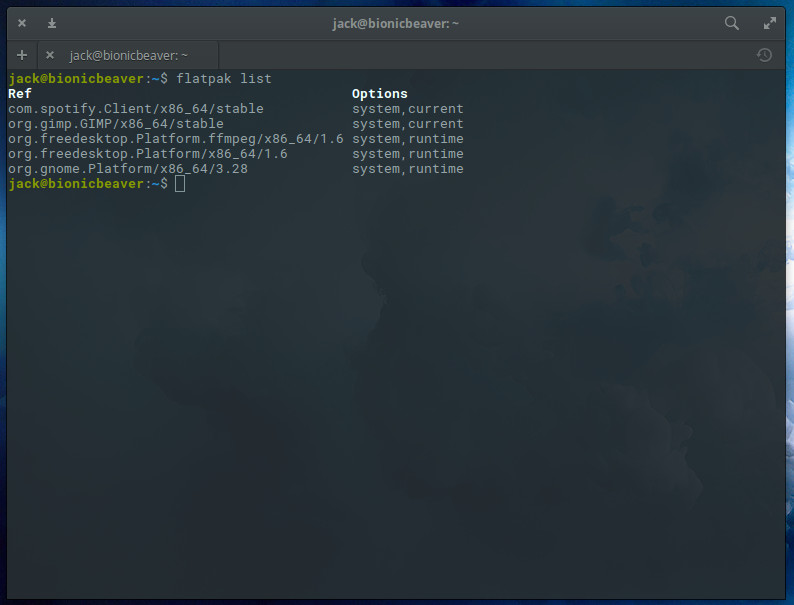
First, list your installed Flatpak applications to find the exact ID:
flatpak list
Then, use the uninstall command with the application’s ID:
flatpak uninstall org.gnome.gedit
This will remove the application and its associated data from your system.
Managing Runtimes
Flatpak applications rely on “runtimes,” which are collections of shared libraries that applications use. When you install an application, Flatpak automatically downloads and installs the necessary runtimes. However, over time, you might accumulate unused runtimes. You can list them and clean them up:
To list all installed runtimes:
flatpak list --runtime
To uninstall unused runtimes:
flatpak uninstall --unused
This command is a good practice to keep your system clean and free up disk space.
Troubleshooting Common Issues
While Flatpak is designed to be robust, you might encounter occasional issues. Here are some common problems and their solutions:
Application Not Launching
If a Flatpak application fails to launch, here are a few things to check:
- Permissions: Ensure the application has the necessary permissions. Sometimes, an application might require access to specific hardware or files that it hasn’t been granted by default. You can manage permissions using the
flatsealgraphical tool (installable via Flatpak:flatpak install flathub com.github.tchx84.Flatseal). - Dependencies: Although Flatpak handles dependencies, ensure your system has the basic Flatpak runtime installed and that your system’s package manager is up-to-date.
- Logs: Check the Flatpak logs for error messages. You can often find more information by running the application from the terminal:
flatpak run org.gnome.gedit.
Installation Errors
If you encounter errors during installation, try the following:
- Network Connectivity: Ensure you have a stable internet connection.
- Disk Space: Verify that you have enough free disk space for the application and its runtimes.
- Repository Issues: Sometimes, a temporary issue with the Flathub repository might occur. Try running the command again later.
- System Updates: Ensure your base system is fully updated using your distribution’s native package manager (
sudo apt update && sudo apt upgrade,sudo dnf upgrade, etc.).
Graphical Frontend Not Showing Flatpak Apps
If you’ve installed Flatpak and added Flathub, but your software center doesn’t display Flatpak applications:
- Restart Software Center: Close and reopen your software center application.
- Reboot: A system reboot can often resolve integration issues.
- Check Backend: Ensure the Flatpak backend for your software center is enabled. This is usually automatic, but some distributions might require specific packages.
Conclusion: Embracing the Future of Software Management
Flatpak represents a significant leap forward in how we interact with software on Linux. By providing sandboxed, cross-distribution applications with simplified dependency management and easy updates, it addresses many of the long-standing challenges of desktop Linux. Whether you’re a seasoned Linux user looking to streamline your workflow or a newcomer seeking a more consistent and secure software experience, mastering Flatpak is an investment in a more modern and efficient digital life.
From its origins in the drive for greater application portability and stability, Flatpak has matured into a vital component of the Linux ecosystem. Its ability to deliver cutting-edge software without compromising system integrity makes it an indispensable tool for anyone serious about maximizing their productivity and enjoying the latest technological advancements. So, take the plunge, install Flatpak, and unlock a world of applications managed with unparalleled ease and security.
aViewFromTheCave is a participant in the Amazon Services LLC Associates Program, an affiliate advertising program designed to provide a means for sites to earn advertising fees by advertising and linking to Amazon.com. Amazon, the Amazon logo, AmazonSupply, and the AmazonSupply logo are trademarks of Amazon.com, Inc. or its affiliates. As an Amazon Associate we earn affiliate commissions from qualifying purchases.