
The modern Linux ecosystem thrives on flexibility and choice, offering users an unparalleled level of control over their computing experience. However, this diversity, while powerful, has historically presented challenges for software distribution. Developers often face the arduous task of packaging their applications for numerous distributions, each with its own package manager, library versions, and dependencies. This fragmentation has led to inconsistencies, delayed updates, and a sometimes frustrating user experience. Enter Flatpak, a revolutionary universal packaging system designed to streamline application deployment and management on Linux.
Flatpak provides a sandboxed environment for applications, ensuring they run consistently across different Linux distributions without interfering with the host system. It promises a future where installing the latest software is as simple and reliable as it is on other major operating systems. If you’ve ever struggled with dependency hell, outdated software in your distribution’s repositories, or simply desired a more secure way to run third-party applications, Flatpak is a solution worth exploring. This comprehensive guide will walk you through the process of installing Flatpak on various Linux distributions, demystifying its core concepts, and equipping you with the knowledge to leverage its full potential. By the end of this article, you’ll not only have Flatpak up and running but also understand why it’s becoming an indispensable tool for Linux users and developers alike.
Understanding Flatpak: The Future of Linux Application Delivery
The quest for a universal packaging solution on Linux has been long and multifaceted. While traditional package managers like apt, dnf, and pacman serve their distributions well, they struggle with cross-distribution compatibility and often lag behind in providing the absolute latest software versions. This is where modern solutions like Flatpak step in, aiming to abstract away the complexities of the underlying system and deliver applications in a self-contained, secure manner.
What is Flatpak?
At its core, Flatpak is a framework for distributing desktop applications on Linux. It operates on a concept known as “sandboxing,” where each application runs in an isolated environment, separate from the rest of your system. This isolation means that Flatpak applications come bundled with most of their necessary dependencies, ensuring they function correctly regardless of the host system’s specific library versions. Think of it as a mini-operating system for each application, complete with its own filesystems and runtimes.
Flatpak leverages OSTree, a hybrid image/package system, to efficiently store and manage application data. When you install a Flatpak application, it doesn’t download every single dependency anew if they are part of a shared “runtime.” Runtimes are base sets of common libraries (like GNOME or KDE) that multiple Flatpak applications can share, optimizing disk space and download times. This architecture allows developers to target a stable runtime rather than hundreds of different Linux distribution versions, significantly simplifying their packaging efforts.
Why Choose Flatpak? Benefits for Users and Developers
The advantages of Flatpak extend to both ends of the software development and consumption spectrum:
-
For Users:
-
Universal Compatibility: Install the same application package on virtually any Linux distribution that supports Flatpak, eliminating “works on my machine” issues caused by varying system libraries.
-
Access to Latest Software: Developers can publish updates directly to Flathub (the primary Flatpak app store), allowing users to get the newest features and bug fixes much faster than waiting for distribution maintainers to package them.
-
Enhanced Security (Sandboxing): Applications run in an isolated container, limiting their access to your system’s files and resources. This reduces the risk of malicious software impacting your entire system and provides a safer environment for untrusted applications.
-
Stable and Consistent Experience: Flatpak applications include their own dependencies, ensuring they behave predictably regardless of changes to your core system libraries.
-
Simplicity: A single set of commands for searching, installing, updating, and removing applications, consistent across all distributions.
-
-
For Developers:
-
“Build Once, Run Anywhere”: Package your application once and distribute it to a vast user base across diverse Linux distributions.
-
Reduced Support Burden: Fewer compatibility issues means less time spent troubleshooting distribution-specific problems.
-
Faster Release Cycles: Publish updates directly to users without relying on slow distribution review processes.
-
Control Over Dependencies: Bundle the exact library versions your application needs, preventing breakage from system-wide library updates.
-
In essence, Flatpak is a powerful step towards making Linux a more accessible and user-friendly platform for everyday computing, offering a robust, secure, and consistent way to manage applications.
Preparing Your Linux System for Flatpak
Before you dive into installing Flatpak itself, it’s prudent to ensure your system is ready. While Flatpak is designed for broad compatibility, a few preliminary checks and understanding the general installation process will make your journey smoother.
Essential Pre-installation Checks
Flatpak relies on core Linux functionalities that are standard on most modern distributions. However, a few basic requirements should be noted:
-
Internet Connection: You’ll need an active internet connection to download Flatpak packages and applications.
-
Administrative Privileges: Installation typically requires
sudoaccess, as you’ll be modifying system-wide packages and repositories. -
Basic Command-Line Familiarity: While graphical tools exist, the most robust and universal way to install and manage Flatpak is through the terminal. This guide will focus on command-line instructions.
-
Up-to-Date System: It’s always a good practice to update your system’s existing packages before adding new ones. This can help prevent potential dependency conflicts. Open your terminal and run the appropriate update command for your distribution (e.g.,
sudo apt update && sudo apt upgradefor Debian/Ubuntu,sudo dnf upgrade --refreshfor Fedora,sudo pacman -Syufor Arch).
Adding the Flatpak Repository (General Approach)
While some distributions come with Flatpak pre-installed or readily available in their official repositories, others might require adding a specific Flatpak repository first. The process generally involves ensuring the necessary flatpak package is available through your system’s package manager. The exact commands vary by distribution, but the underlying principle is the same: tell your system where to find the Flatpak software. Once Flatpak itself is installed, the next crucial step is adding Flathub, which is the official and largest repository for Flatpak applications.
Step-by-Step Installation Across Major Linux Distributions
Installing Flatpak is straightforward on most modern Linux distributions. Below, we provide detailed instructions for some of the most popular operating systems, ensuring you can get Flatpak up and running regardless of your chosen environment. Remember to replace [username] with your actual username if prompted for a restart command specific to session restart, or simply reboot the system.
Ubuntu/Debian-based Systems
Ubuntu and Debian, along with their numerous derivatives (like Pop!_OS, Linux Mint except where noted later, Elementary OS), share the apt package manager.
-
Add the Flatpak PPA (Personal Package Archive) if not already available in official repos (Optional, but recommended for latest versions):
sudo add-apt-repository ppa:flatpak/stable -
Update your system’s package list:
sudo apt update -
Install Flatpak:
sudo apt install flatpak -
Install the GNOME Software Flatpak plugin (optional, but recommended for graphical management):
sudo apt install gnome-software-plugin-flatpak -
Reboot your system or log out/in to ensure Flatpak is fully integrated:
reboot(Or simply log out and back in from your desktop session.)
Fedora Workstation
Fedora, especially its Workstation edition, has excellent Flatpak integration. Flatpak is often pre-installed or easily available in its official repositories.
-
Install Flatpak (if not already installed):
sudo dnf install flatpak -
Install the GNOME Software Flatpak plugin (optional, for graphical management):
sudo dnf install gnome-software-flatpak -
Reboot your system or log out/in:
reboot(Or simply log out and back in from your desktop session.)
Arch Linux and Derivatives
Arch Linux, Manjaro, EndeavourOS, and other Arch-based distributions use the pacman package manager.
-
Install Flatpak:
sudo pacman -S flatpak -
Install the GNOME Software Flatpak plugin (optional, for graphical management):
sudo pacman -S gnome-software-flatpak -
Reboot your system or log out/in:
reboot(Or simply log out and back in from your desktop session.)
openSUSE Leap/Tumbleweed
openSUSE utilizes the zypper package manager.
-
Install Flatpak:
sudo zypper install flatpak -
Install the Discover Flatpak backend (for graphical management, if using KDE Plasma):
sudo zypper install plasma-discover-flatpak(For GNOME users,
gnome-software-flatpakmay be preferred, if available in your repos) -
Reboot your system or log out/in:
reboot(Or simply log out and back in from your desktop session.)
Linux Mint (Specific Notes)
Linux Mint, being a derivative of Ubuntu, uses apt. However, recent versions of Linux Mint (e.g., Mint 20 and later) have Flatpak support integrated very well, and in some cases, it’s pre-installed or enabled by default. If not, the Ubuntu/Debian instructions generally apply.
-
Check if Flatpak is already installed:
flatpak --versionIf it returns a version number, you’re good to go.
-
If not installed, use the Ubuntu/Debian instructions:
sudo apt update sudo apt install flatpak sudo apt install gnome-software-plugin-flatpak # Or mintinstall-flatpak if available -
Reboot your system or log out/in.
Integrating Flathub and Managing Flatpak Applications
Once Flatpak itself is installed, the next critical step is to configure Flathub. Flathub is the de-facto app store for Flatpak applications, offering a vast collection of popular software. Without adding Flathub as a remote, your Flatpak installation will be largely empty.
Adding the Flathub Remote: Your Gateway to Apps
Flathub is a remote repository, and you need to explicitly add it to your Flatpak configuration. This only needs to be done once.
-
Add the Flathub repository:
flatpak remote-add --if-not-exists flathub https://flathub.org/repo/flathub.flatpakrepoThis command tells Flatpak where to find applications from Flathub. The
--if-not-existsflag prevents errors if you’ve already added it. -
Update Flatpak’s local cache of remotes (optional but good practice):
flatpak updateThis command will also update any existing Flatpak applications you might have.
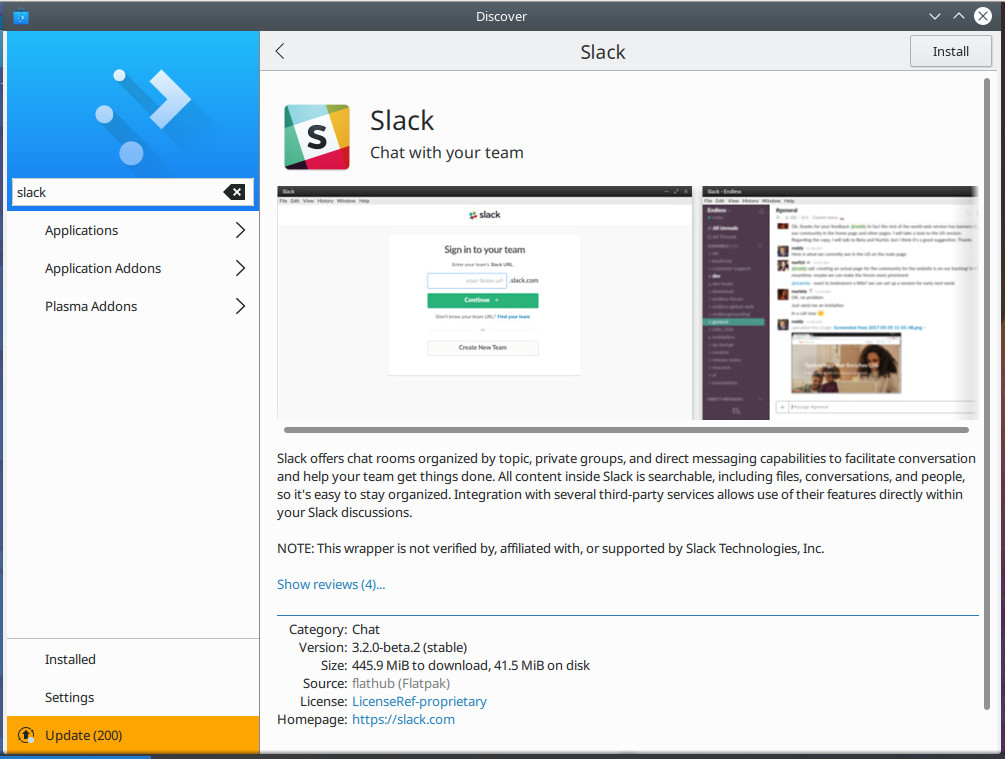
After adding Flathub, you can start exploring and installing applications. If you’ve installed a graphical software center plugin (like gnome-software-plugin-flatpak or plasma-discover-flatpak), Flathub applications will now appear alongside your distribution’s native packages in your graphical software center.
Basic Flatpak Commands: Search, Install, Run, Update, Uninstall
While graphical tools are convenient, mastering the basic Flatpak command-line interface provides the most control and is universally applicable.
-
Searching for Applications:
flatpak search [app_name]Example:
flatpak search gimpwill list all Flatpak applications related to “GIMP.” The output will typically show the application ID (e.g.,org.gimp.GIMP), which you’ll need for installation. -
Installing Applications:
flatpak install flathub [application_id]You’ll be prompted to confirm the installation and the necessary runtimes.
Example:
flatpak install flathub org.gimp.GIMP -
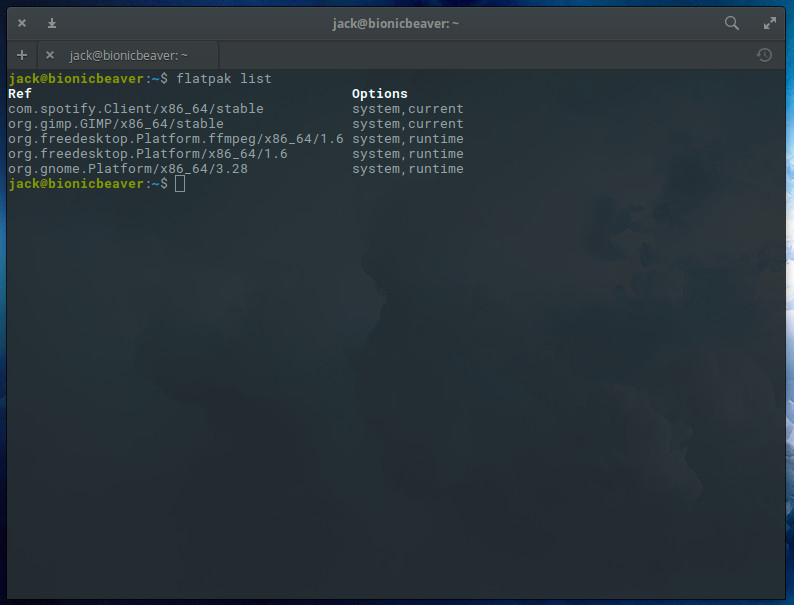
Listing Installed Applications:
flatpak listThis command displays all installed Flatpak applications and their runtimes.
-
Running Applications:
flatpak run [application_id]Example:
flatpak run org.gimp.GIMP -
Updating Applications:
flatpak updateThis command updates all installed Flatpak applications and their runtimes. For a specific application:
flatpak update [application_id] -
Uninstalling Applications:
flatpak uninstall [application_id]Example:
flatpak uninstall org.gimp.GIMPFlatpak will also ask if you want to remove any associated runtimes that are no longer used by other applications, which is generally a good idea to free up disk space.
-
Removing Unused Runtimes and Data:
flatpak uninstall --unusedThis command is useful for cleaning up disk space by removing runtimes that no longer have any applications depending on them.
Troubleshooting Common Flatpak Issues and Advanced Tips
While Flatpak is designed for reliability, like any software system, you might encounter occasional hiccups. Knowing how to diagnose and resolve common issues, along with understanding a few advanced tips, can significantly enhance your Flatpak experience.
Resolving Installation and Runtime Errors
-
“Error: remote ‘flathub’ not found”: This usually means you haven’t added the Flathub remote yet. Run
flatpak remote-add --if-not-exists flathub https://flathub.org/repo/flathub.flatpakrepo. -
“Error: Can’t install xxx: No such ref ‘xxx’ in remote ‘flathub'”: Double-check the application ID. Ensure it’s correct and that the application actually exists on Flathub. You can verify by visiting flathub.org or using
flatpak search. -
Permissions Issues: If you encounter
permission deniederrors when trying to install or update Flatpak, ensure you are usingsudofor system-wide commands (likeflatpak remote-addorflatpak installif installing system-wide). If you’re managing user-specific Flatpaks (flatpak install --user), ensure your user has appropriate permissions to its home directory. -
Outdated System: Sometimes, an older kernel or system libraries can cause issues. Always ensure your host Linux system is fully updated before attempting Flatpak operations.
-
Restart Required: After installing Flatpak or a new Flatpak application, sometimes a full system reboot or at least logging out and back into your desktop session is necessary for the system to recognize the new paths and configurations. If an application isn’t appearing in your menu, try a restart.
-
Slow Downloads/Network Issues: Flatpak downloads can be large due to included runtimes and dependencies. Ensure you have a stable internet connection. If downloads are excessively slow, it might be a network issue on your end or a temporary bottleneck on the Flathub mirrors.
Maintaining Your Flatpak Environment
Regular maintenance ensures your Flatpak applications remain up-to-date and your system doesn’t accumulate unnecessary data.
-
Regular Updates: Make it a habit to run
flatpak updateperiodically. This not only updates applications but also their underlying runtimes, bringing security patches and performance improvements. -
Cleanup Unused Runtimes: After updating or uninstalling applications, run
flatpak uninstall --unused. This command cleans up any runtimes that are no longer needed by any installed applications, saving valuable disk space. -
Checking for Broken Installations: While rare, if you suspect a Flatpak application is corrupted, you can try to reinstall it:
flatpak uninstall [app_id]followed byflatpak install flathub [app_id]. -
Resetting Application Data: If a Flatpak application is misbehaving due to corrupted settings or data, you can reset its user data:
flatpak uninstall --delete-data [application_id]This removes all user-specific data associated with the Flatpak, effectively resetting it to a fresh installation state. Be cautious, as this will delete your documents and settings for that app.
Security Best Practices with Flatpak
Flatpak’s sandboxing significantly enhances security, but you can further strengthen it:
-
Review Permissions: While Flatpak applications are sandboxed by default, they still request certain permissions (e.g., access to your home directory, camera, microphone). You can review and modify these permissions using the
flatpak permissionscommand or graphical tools like Flatseal (a Flatpak app itself, available on Flathub, that provides a GUI for Flatpak permissions).-
Install Flatseal:
flatpak install flathub com.github.tchx84.Flatseal -
Run Flatseal:
flatpak run com.github.tchx84.Flatseal
-
-
Only Install from Trusted Remotes: Stick primarily to Flathub. While you can add other Flatpak remotes, ensure they are from trusted sources.
-
Keep Flatpak and Runtimes Updated: Updates often include security fixes for both the Flatpak system itself and the runtimes applications depend on.
By following these guidelines, you can ensure a smooth, secure, and efficient experience with Flatpak on your Linux system. Its robust design and community support make it an excellent choice for modern application management.
Conclusion
Flatpak stands as a pivotal innovation in the Linux landscape, addressing long-standing challenges in software distribution and management. By providing a universal, sandboxed packaging format, it simplifies the lives of both developers and end-users, ushering in an era of consistent, secure, and up-to-date application availability across diverse Linux distributions.
Throughout this guide, we’ve dissected the essence of Flatpak, from its foundational concepts and compelling advantages to its practical installation across a spectrum of Linux operating systems. We’ve equipped you with the precise commands to integrate Flathub – your gateway to a vast ecosystem of applications – and demonstrated how to seamlessly search, install, run, update, and remove Flatpak software. Furthermore, we’ve provided essential troubleshooting tips and highlighted best practices for maintaining a healthy and secure Flatpak environment, empowering you to tackle common issues with confidence.
Embracing Flatpak is more than just installing another piece of software; it’s adopting a philosophy that streamlines your Linux experience, granting you access to the latest applications with unparalleled ease and enhanced security. Whether you’re a seasoned Linux user seeking efficiency or a newcomer eager for a smooth software journey, Flatpak is an indispensable tool that bridges the gap between traditional Linux fragmentation and the desire for a unified, modern application ecosystem. By following the steps outlined here, you are now well-prepared to harness the full power of Flatpak, transforming how you interact with applications on your Linux machine and making your digital life more convenient and robust.
aViewFromTheCave is a participant in the Amazon Services LLC Associates Program, an affiliate advertising program designed to provide a means for sites to earn advertising fees by advertising and linking to Amazon.com. Amazon, the Amazon logo, AmazonSupply, and the AmazonSupply logo are trademarks of Amazon.com, Inc. or its affiliates. As an Amazon Associate we earn affiliate commissions from qualifying purchases.