
In an era defined by rapid technological advancement and an increasing demand for personalized digital experiences, the Amazon Firestick TV has emerged as a quintessential gadget for modern homes. Far more than just a simple streaming device, it represents a nexus where convenience, affordability, and a vast ecosystem of entertainment converge. This comprehensive guide will walk you through the entire installation process, from unboxing to advanced customization, ensuring you harness the full potential of your Firestick. We’ll delve into how this device fits into the broader technological landscape, its financial implications for savvy consumers, and even how it reinforces brand loyalty in the digital age.

Unpacking the Firestick Revolution: Why Smart Streaming Matters
The advent of smart streaming devices like the Amazon Firestick has fundamentally reshaped how we consume media. Gone are the days of rigid broadcasting schedules and limited channel selections. Today, a world of content is available at our fingertips, on demand, and tailored to our individual preferences. The Firestick TV isn’t just a gadget; it’s a gateway to this new paradigm of digital consumption, deeply intertwined with the overarching themes of technology, finance, and brand identity in our connected world.
The Convergence of Technology and Entertainment
At its core, the Firestick TV is a testament to the power of technological innovation. It packs sophisticated hardware and intuitive software into a compact, HDMI-dongle form factor, transforming any standard television into a smart TV. This seamless integration of cutting-edge technology allows users to access a staggering array of streaming services, including Netflix, Hulu, Disney+, Amazon Prime Video, and countless others, all through a single, unified interface. Beyond just streaming movies and TV shows, the Firestick offers access to music apps, casual games, fitness programs, and even productivity tools, effectively making your TV a multimedia hub. Its underlying Android-based operating system, Fire OS, is continually refined to offer a smooth, responsive user experience, powered by regular software updates that introduce new features and enhance security. This constant evolution is a hallmark of modern tech trends, focusing on user-centric design and continuous improvement.
The Financial Freedom of Cord-Cutting
One of the most compelling arguments for adopting a Firestick TV, especially for those mindful of their finances, is its pivotal role in the “cord-cutting” movement. Traditional cable subscriptions are notorious for their high monthly costs, often laden with hidden fees and channels many subscribers never watch. The Firestick, by contrast, empowers users to curate their entertainment à la carte. By subscribing only to the streaming services they genuinely value, individuals can drastically reduce their monthly expenditures, channeling those savings towards other financial goals, be it investing, building an emergency fund, or pursuing side hustles. This shift isn’t just about saving money; it’s about financial control and intelligent resource allocation. For many, a Firestick is an investment that pays for itself multiple times over within the first year, providing premium entertainment without the premium price tag of legacy television providers. It aligns perfectly with principles of personal finance focused on maximizing value and minimizing unnecessary expenses.
Amazon’s Vision: Branding Your Home Entertainment
The Amazon Firestick TV is not just a standalone product; it’s a critical component of Amazon’s sprawling ecosystem. From a branding perspective, the Firestick serves as a powerful extension of the Amazon brand into the most intimate space of your home: the living room. It seamlessly integrates with other Amazon services like Prime Video, Amazon Music, and even Alexa, creating a cohesive and user-friendly experience that reinforces customer loyalty. By embedding Alexa voice control directly into the remote, Amazon further enhances its brand presence, making interaction with the device intuitive and hands-free. This strategic integration reinforces Amazon’s corporate identity as a technology giant that prioritizes convenience and connectivity. For the end-user, it offers a personalized “branding” of their entertainment, allowing them to craft a media experience that reflects their individual tastes and preferences, all within a familiar and trusted Amazon framework.
Your Pre-Installation Checklist: Gearing Up for Seamless Setup
Before you dive into the exciting world of smart streaming, a brief preparation phase will ensure a smooth and frustration-free installation. Think of this as laying the digital groundwork for your future entertainment hub. Having everything ready beforehand saves time and prevents common setup snags, a fundamental principle for efficient technology deployment.
Essential Hardware and Network Requirements
To begin, you’ll need a few key components. Naturally, the Amazon Firestick device itself, which typically comes with a power adapter and cable, and the Alexa Voice Remote. Beyond that, you’ll need a television with an available HDMI port – most modern flat-screen TVs have multiple. Ensure your TV is easily accessible to plug in the device. A stable, high-speed Wi-Fi internet connection is absolutely critical for the Firestick to function optimally. Streaming high-definition content requires a decent bandwidth, so if your internet speed is lacking, you might encounter buffering issues. Consider upgrading your internet plan or optimizing your router placement if you anticipate heavy streaming usage. A reliable power outlet near your TV is also essential for the Firestick’s power adapter.
Account Preparation: Amazon and Beyond
The Firestick operates within the Amazon ecosystem, meaning an active Amazon account is mandatory for registration and full functionality. If you don’t already have one, creating an Amazon account is a quick and free process that also opens doors to Amazon’s vast online marketplace and services. Having your Amazon login credentials (email and password) readily available will expedite the setup process. Additionally, consider which streaming services you intend to use (e.g., Netflix, Hulu, Disney+). While you don’t need to log into them immediately during Firestick setup, having their account information handy will allow you to quickly download and sign into these apps once your Firestick is up and running. This proactive approach to account management is a savvy digital security and productivity tip, ensuring all necessary access details are secured and accessible.
Step-by-Step Installation: From Unboxing to Unleashing Entertainment
Now, with your preparations complete, let’s embark on the core process of installing your Amazon Firestick TV. Each step is designed to be straightforward, guiding you through the physical connections and digital configurations necessary to bring your smart streaming device to life.
Physical Setup: Connecting Your Firestick
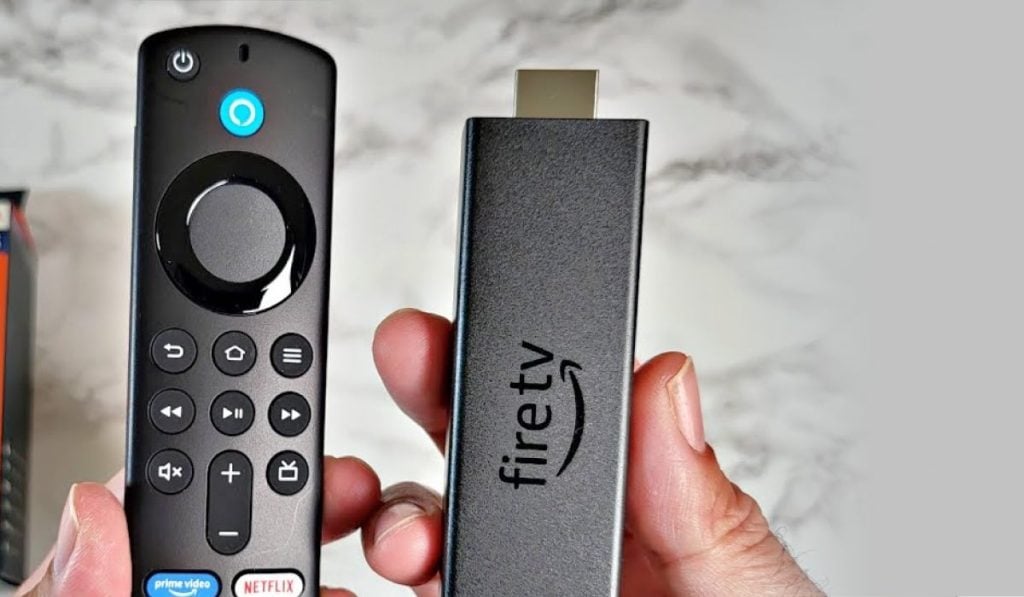
- Unbox Your Firestick: Carefully remove the Firestick device, power adapter, USB cable, and Alexa Voice Remote from the packaging. Insert the included AAA batteries into the remote.
- Connect the Power: Plug one end of the USB cable into your Firestick and the other end into the power adapter.
- Connect to TV: Plug the Firestick directly into an available HDMI port on your television. If space is tight or the Firestick blocks other ports, use the included HDMI extender cable (if provided) to give it more clearance.
- Plug into Power Outlet: Plug the power adapter into an active electrical outlet. Using the provided power adapter is highly recommended over relying solely on your TV’s USB port, as TV USB ports often don’t supply enough power for optimal Firestick performance, which can lead to stability issues.
Initial Configuration: Powering Up and Pairing the Remote
- Turn on Your TV and Select Input: Power on your television and use your TV remote to select the correct HDMI input channel to which your Firestick is connected (e.g., HDMI 1, HDMI 2). You should see the Amazon Fire TV logo appear on your screen.
- Pair the Alexa Voice Remote: Once the Firestick boots up, it will prompt you to press the Home button (the button with a house icon) on your Alexa Voice Remote. Hold it down for about 5-10 seconds until the remote successfully pairs with your Firestick. If it doesn’t pair immediately, ensure the batteries are inserted correctly and try again.
Network Connection and Software Updates
- Select Your Language: Use the remote to navigate and select your preferred language.
- Connect to Wi-Fi: The Firestick will scan for available Wi-Fi networks. Select your home Wi-Fi network from the list. If your network is password-protected (which it should be for digital security), enter the password using the on-screen keyboard. Press the Play/Pause button or the center select button on your remote to confirm.
- Check for Software Updates: After connecting to Wi-Fi, your Firestick will automatically check for and download any available software updates. This is a crucial step as updates often include performance enhancements, new features, and important security patches. Allow this process to complete entirely; your device might restart a few times. This ensures your device benefits from the latest technological advancements and digital security measures.
Amazon Account Registration and Personalization
- Register Your Firestick: You will be prompted to sign in with your Amazon account. Use your Amazon email address and password. If you don’t have an Amazon account, you’ll have the option to create one. This step links the device to your Amazon profile, enabling access to your Prime Video library, purchase history, and personalized recommendations, further deepening the Amazon brand integration into your entertainment.
- Personalization Options: The Firestick will then guide you through a few personalization settings:
- Save Wi-Fi Password to Amazon: You can choose to save your Wi-Fi password to your Amazon account for easier setup of future Amazon devices. This offers convenience but consider your personal digital security preferences.
- Parental Controls: If you have children, you can set up parental controls to restrict access to certain content or require a PIN for purchases.
- Profile Setup: You may be asked to create user profiles if you have multiple family members, allowing each person to have their own personalized watch history and recommendations.
- App Preferences: You might be prompted to select some popular streaming apps you want pre-installed. You can always add or remove apps later.
Navigating the Interface and Installing Essential Apps
- Tour the Firestick Interface: Once setup is complete, you’ll land on the Firestick home screen. Take a moment to familiarize yourself with the layout. The main navigation bar usually includes Home, Find, Live, Apps, and Settings.
- Install Your Favorite Apps:
- Navigate to the “Apps” section or the “Find” menu.
- You can browse categories, search for specific apps (e.g., Netflix, YouTube, Spotify), or check out the “Appstore” for popular selections.
- Select an app and click “Get” or “Download.” The app will download and install.
- Once installed, launch the app and sign in with your respective streaming service credentials.
- Start Streaming! With your apps installed and accounts logged in, you are now ready to explore a world of entertainment.
Optimizing Your Firestick Experience: Beyond Basic Streaming
Installing your Firestick is just the beginning. To truly maximize your investment and elevate your digital lifestyle, understanding how to optimize its performance and leverage advanced features is key. This transforms the Firestick from a simple streaming device into a powerful, integrated media and smart home hub.
Enhancing Performance and Digital Security
To ensure your Firestick runs smoothly and your data remains private, consider these optimizations:
- Clear Cache Regularly: Like any computing device, apps on your Firestick accumulate cache data, which can slow down performance over time. Go to
Settings > Applications > Manage Installed Applications, select an app, and chooseClear Cache. Do this periodically for frequently used apps. - Manage Storage: If your Firestick starts feeling sluggish, you might be running low on storage. Uninstall unused apps (
Settings > Applications > Manage Installed Applications > Uninstall) or clear data from heavy apps. - Utilize a VPN (Virtual Private Network): For enhanced digital security and privacy, especially if you’re concerned about internet service provider (ISP) tracking or geo-restrictions, installing a VPN app on your Firestick is highly recommended. VPNs encrypt your internet traffic and mask your IP address, offering a crucial layer of protection in today’s digital landscape. This aligns with best practices in digital security and privacy.
- Keep Software Updated: Regularly check for system updates under
Settings > My Fire TV > About > Check for Updates. Staying current ensures you have the latest features and security patches.
Advanced Features and Smart Home Integration
The Firestick’s capabilities extend beyond basic streaming:
- Voice Commands with Alexa: Leverage the Alexa Voice Remote to search for content, launch apps, control playback, check weather, or even manage smart home devices. Just press and hold the microphone button and speak your command.
- Screen Mirroring: Most Firestick models support screen mirroring (Miracast), allowing you to project content from compatible smartphones or tablets onto your TV screen. Go to
Settings > Display & Sound > Enable Display Mirroringon your Firestick. - Smart Home Control: If you have other Alexa-compatible smart home devices (like smart lights, thermostats, or security cameras), you can integrate them with your Firestick. Use voice commands through your Firestick remote to control these devices directly from your couch, transforming your entertainment center into a central smart home hub. This exemplifies productivity through technology integration.
- Sideloading Apps: For tech-savvy users, the Firestick’s Android base allows for “sideloading” apps not available in the Amazon Appstore. This requires enabling “Apps from Unknown Sources” in
Settings > My Fire TV > Developer Options. Exercise caution when sideloading, as apps from unofficial sources can pose security risks.
Maximizing Value: Smart Investments for Your Entertainment Hub
Considering your Firestick as a long-term investment in your home entertainment provides opportunities to enhance its value:
- High-Quality Accessories: Consider a good quality HDMI cable if your TV is far from the Firestick. A Bluetooth keyboard and mouse can also be useful for browsing or using web browsers on your Firestick.
- Subscription Management: Regularly review your streaming subscriptions to ensure you’re only paying for services you actively use. Many users cycle through subscriptions to maximize content variety while minimizing monthly costs – a clever personal finance strategy.
- Explore Free Content: Beyond paid subscriptions, the Firestick offers access to numerous free streaming services and apps (e.g., Pluto TV, Tubi, Peacock Free Tier), providing immense value without additional financial outlay.
- Gaming: While not a dedicated gaming console, the Firestick can play casual games. Consider investing in a compatible Bluetooth game controller for a more enjoyable gaming experience.
Troubleshooting Common Hurdles and Sustaining Your Setup
Even with the most meticulous setup, technological devices can sometimes encounter minor issues. Knowing how to troubleshoot common problems ensures minimal disruption to your entertainment and extends the longevity of your Firestick investment.
Addressing Connectivity and Performance Issues
- No Power/No Signal: Double-check all physical connections: power adapter to outlet, USB cable to Firestick, and Firestick to HDMI port. Ensure your TV is on the correct HDMI input.
- Remote Not Responding: Replace batteries. Re-pair the remote by holding the Home button for 5-10 seconds. If all else fails, a new remote might be necessary.
- Wi-Fi Connectivity Problems: Restart your Firestick (
Settings > My Fire TV > Restart). Also, restart your home router by unplugging it for 30 seconds and plugging it back in. Ensure your Wi-Fi password is correct. Move your Firestick closer to the router if possible, or consider a Wi-Fi extender. - Buffering or Lagging: This is usually due to slow internet or network congestion. Try restarting your router. Close unused apps on your Firestick. Clear cache for streaming apps. If issues persist, consider upgrading your internet plan.
- Apps Crashing or Freezing: Try force-closing the app (
Settings > Applications > Manage Installed Applications > [App Name] > Force Stop). If that doesn’t work, clear the app’s cache and data (though clearing data will log you out). As a last resort, uninstall and reinstall the app. - Firestick is Slow: Clear app caches, uninstall unused apps to free up storage, and restart the device regularly.
Future-Proofing Your Smart Streaming Investment
To ensure your Firestick continues to deliver value, consider these long-term strategies:
- Regular Maintenance: Periodically clear caches, uninstall unused apps, and check for system updates. This keeps the device running smoothly and securely.
- Security Best Practices: Be mindful of what apps you install, especially if sideloading. Use strong, unique passwords for all your streaming services. A VPN remains a strong recommendation for privacy.
- Explore New Features: Amazon frequently updates Fire OS, adding new functionalities. Stay informed about these updates to leverage the latest technology the device has to offer.
- Consider Upgrades: As technology evolves, newer Firestick models offer improved processors, better Wi-Fi (e.g., Wi-Fi 6), and enhanced picture quality (e.g., 4K, HDR). While your current Firestick might serve you well for years, knowing when to upgrade can be a smart financial decision to maintain an optimal entertainment experience and keep pace with tech trends.
Embracing the Future of Personalized Entertainment
Installing your Amazon Firestick TV is more than just a technical setup; it’s an empowering step towards taking control of your entertainment landscape. By understanding not just the “how-to” but also the underlying technological advancements, the financial benefits it offers through cord-cutting, and its role in Amazon’s broader brand strategy, you transform a simple gadget into a central pillar of your smart home. From seamless streaming to smart home integration and personalized content delivery, the Firestick TV stands as a prime example of how modern technology can enhance our daily lives, offering unparalleled convenience and value. Welcome to the future of personalized, on-demand entertainment.
aViewFromTheCave is a participant in the Amazon Services LLC Associates Program, an affiliate advertising program designed to provide a means for sites to earn advertising fees by advertising and linking to Amazon.com. Amazon, the Amazon logo, AmazonSupply, and the AmazonSupply logo are trademarks of Amazon.com, Inc. or its affiliates. As an Amazon Associate we earn affiliate commissions from qualifying purchases.