
While both Amazon Fire TV Stick and Roku are dominant players in the streaming device market, offering access to a vast universe of entertainment, they are distinct platforms. Typically, you’d use either a Fire Stick or a Roku device to stream content. However, the question of “how to install Fire Stick on Roku TV” implies a desire to bridge these two ecosystems, perhaps to access specific Fire Stick features on a Roku TV or to understand the compatibility and integration possibilities. This article will clarify the relationship between Fire Stick and Roku TVs, explore why someone might want to connect them, and outline the practical steps involved, addressing the nuances of integrating Amazon’s streaming hardware with a television designed for a competitor’s platform.
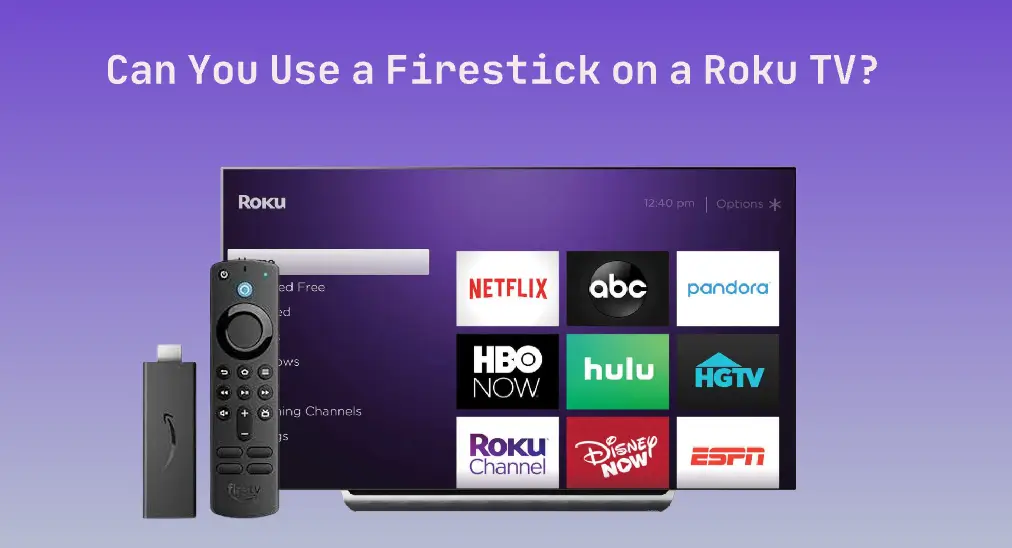
Understanding the Platforms: Fire TV vs. Roku
Before diving into the “installation” process, it’s crucial to understand what each platform represents and how they function. This will illuminate why a direct “installation” in the traditional software sense isn’t what typically happens.
Amazon Fire TV Stick: An Amazon Ecosystem Hub
The Amazon Fire TV Stick is a line of digital media players developed by Amazon. These devices plug directly into your TV’s HDMI port and connect to your Wi-Fi network. Their primary purpose is to stream digital content from various online services, including Amazon’s own Prime Video, Netflix, Hulu, Disney+, and many others.
Key Features and Ecosystem Integration:
- Amazon Services Integration: The Fire Stick is deeply integrated with the Amazon ecosystem. This means seamless access to Prime Video, Amazon Music, Kindle books, and Alexa voice control. Alexa is a core component, allowing users to search for content, control playback, and even manage smart home devices using voice commands.
- App Store (Amazon Appstore): Fire Sticks utilize the Amazon Appstore, which offers a wide range of streaming apps, games, and utilities. While many popular streaming services are available, the selection might differ slightly from other platforms.
- Hardware: Fire Sticks come in various models, each offering different capabilities like 4K streaming, HDR support, and enhanced processing power. They are self-contained streaming devices that connect to any HDMI-compatible TV.
- User Interface: The Fire TV interface is designed around Amazon’s branding and services, with prominent placement for Prime Video and recommendations tailored to Amazon’s algorithms.
Roku TV: A Standalone Smart TV Platform
Roku TV, on the other hand, refers to televisions that have the Roku operating system built directly into the television’s hardware. Instead of buying a separate streaming stick or box, you get the Roku experience integrated into your TV. This means the TV itself acts as the smart streaming hub.
Key Features and Ecosystem:
- Roku Operating System (Roku OS): Roku OS is known for its simplicity, user-friendliness, and vast selection of streaming channels (apps). It’s praised for its uncluttered interface and straightforward navigation.
- Roku Channel Store: Similar to the Amazon Appstore, Roku has its own Channel Store where users can find and download streaming apps. Roku boasts one of the largest selections of streaming channels available.
- No Separate Hardware Needed: The primary advantage of a Roku TV is that the streaming hardware is already built-in. You don’t need an external device; you just need an internet connection and your TV.
- Live TV Options: Roku has also made strides in providing access to live TV through its own “The Roku Channel” and partnerships with various live TV streaming services.
- Interface: The Roku interface is generally considered intuitive and customizable, allowing users to arrange their favorite channels on the home screen.
Why Connect Fire Stick to Roku TV? Clarifying the “Installation”
Given the above, the phrase “how to install Fire Stick on Roku TV” is a bit of a misnomer. You don’t “install” a Fire Stick onto a Roku TV like you would install a software application. Instead, you are essentially connecting an external streaming device (the Fire Stick) to a television that already has its own streaming capabilities (the Roku TV).
The desire to do this typically stems from one of a few reasons:
1. Accessing Fire Stick Exclusive Content or Features
- Alexa Voice Integration: If you are heavily invested in the Amazon Alexa ecosystem and want to use voice commands to control your TV and streaming experience, you might prefer the Fire Stick’s Alexa integration. While Roku has voice search, it’s not the same as the full Alexa assistant experience.
- Specific Amazon Services: While most major streaming services are available on both platforms, there might be niche apps or features exclusive to the Amazon Appstore that you want to access.
- Prime Video Experience: Although Prime Video is available on Roku TVs, some users might prefer the specific interface, recommendations, or features offered by the Fire Stick version.
- Gaming: Amazon offers its Luna cloud gaming service, which is accessible via Fire TV devices. If you are a gamer interested in this service, you would need a Fire Stick.
2. Migrating or Using Existing Hardware
- You Already Own a Fire Stick: You might have an older TV without smart capabilities, and you’ve now upgraded to a Roku TV. Instead of buying a new streaming device, you want to utilize the Fire Stick you already possess.
- Trialing Platforms: You might be curious about the Fire Stick experience and want to try it out on your Roku TV before committing to buying a dedicated Fire TV device.
3. Troubleshooting or Preference
- Alternative Streaming Option: In rare cases, a user might experience issues with their Roku TV’s built-in streaming apps or interface and want to use the Fire Stick as an alternative.
- User Interface Preference: Despite the quality of Roku OS, some users might simply prefer the look and feel of the Fire TV interface.
Connecting and Using the Fire Stick on Your Roku TV
The process of connecting a Fire Stick to a Roku TV is straightforward and identical to connecting it to any other HDMI-compatible television. The Roku TV simply acts as the display and audio output for the Fire Stick.
Step 1: Ensure You Have the Necessary Components
- Amazon Fire TV Stick: This can be any generation of Fire Stick (e.g., Fire TV Stick Lite, Fire TV Stick, Fire TV Stick 4K, Fire TV Stick Max).
- Roku TV: Any television with the Roku OS built-in.
- HDMI Port: Your Roku TV must have at least one available HDMI port.
- Wi-Fi Network: A stable internet connection is essential for streaming.
- Power Source: The Fire Stick will come with a power adapter. You can often power it via USB directly from the TV, but using the provided adapter is recommended for optimal performance.
- Amazon Account: You will need an Amazon account to set up and use the Fire Stick.
Step 2: Physical Connection
- Locate an HDMI Port: On the back or side of your Roku TV, find an available HDMI port. These are typically labeled “HDMI 1,” “HDMI 2,” etc.
- Connect the Fire Stick:
- If your Fire Stick has a flexible HDMI extender cable, plug the extender into the HDMI port on the TV, and then plug the Fire Stick into the other end of the extender. This is useful for getting a better fit if the TV’s ports are recessed.
- If your Fire Stick plugs directly into the HDMI port, insert it firmly.
- Connect Power: Plug the USB cable from the Fire Stick into its power adapter, and then plug the adapter into a wall outlet. Alternatively, if your TV has a powered USB port and the Fire Stick’s power requirements are met, you can try connecting the USB cable directly to the TV’s USB port. However, using the wall adapter is generally more reliable for power delivery.
Step 3: Configure Your Roku TV
- Turn on Your Roku TV: Power on your television.
- Select the Correct HDMI Input: Using your Roku TV’s remote control, press the “Input” or “Source” button. This button might be labeled with an icon resembling a rectangle with an arrow pointing into it.
- Navigate to the HDMI Port: Cycle through the available inputs until you select the HDMI port where you connected the Fire TV Stick. For example, if you plugged it into HDMI 2, select HDMI 2.
Step 4: Fire Stick Setup and Configuration
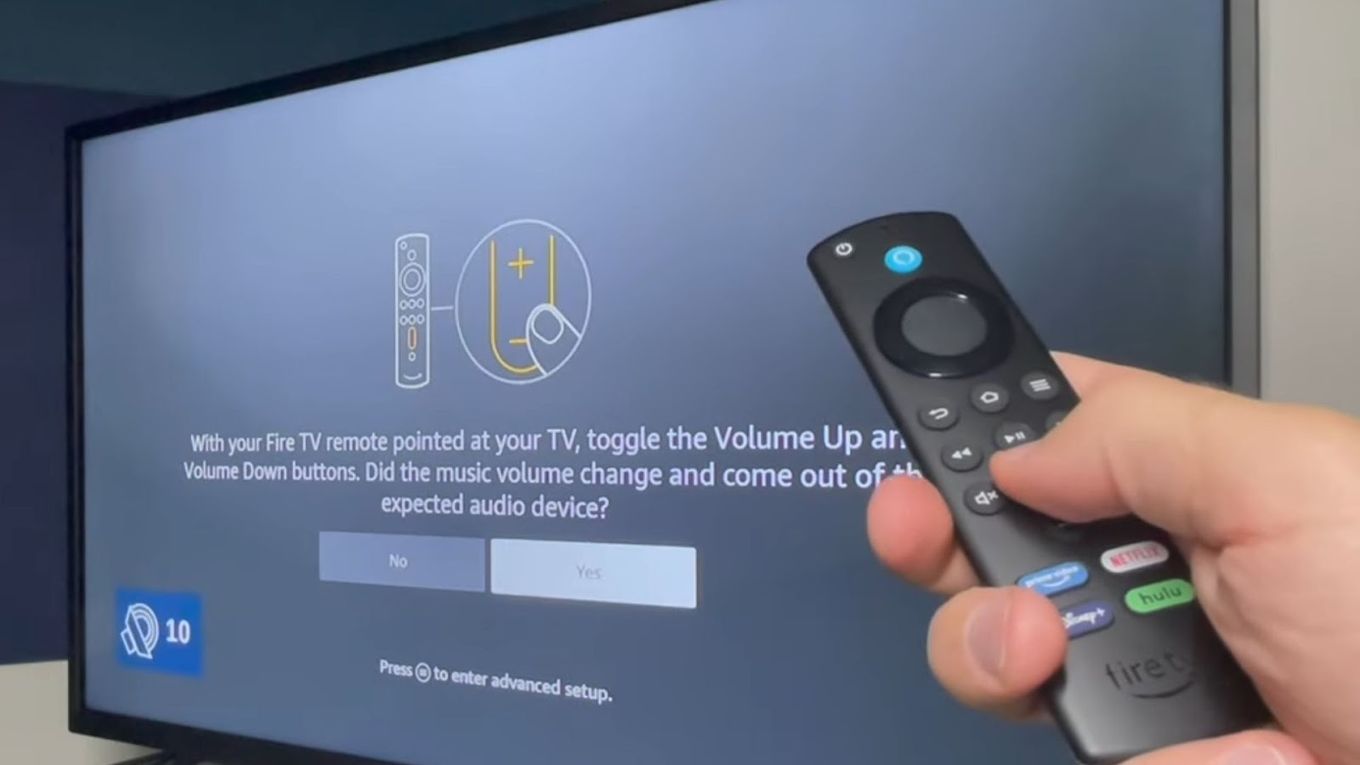
Once you have selected the correct HDMI input, your Roku TV screen should now display the Amazon Fire TV setup screen.
- Language Selection: The Fire Stick will prompt you to select your preferred language. Use your Fire Stick remote to navigate and select.
- Connect to Wi-Fi: The Fire Stick will scan for available Wi-Fi networks. Select your home Wi-Fi network from the list and enter your Wi-Fi password using the on-screen keyboard.
- Amazon Account Login: You will be prompted to log in with your Amazon account credentials (email and password). If you don’t have an Amazon account, you can create one on a computer or mobile device.
- Pairing the Remote: Your Fire Stick remote should automatically attempt to pair with the device. Follow any on-screen prompts.
- System Updates: The Fire Stick will likely check for and install any available software updates. This is important for security and performance.
- App Downloads and Customization: Once the initial setup is complete, you will be taken to the Fire TV home screen. From here, you can navigate the Amazon Appstore to download your favorite streaming apps (Netflix, Hulu, Disney+, etc.). You can also customize your Fire TV home screen, set parental controls, and configure other settings.

Navigating Between Roku TV and Fire Stick
This is where the concept of “installation” truly becomes about using two separate devices that share a display. You are not merging the operating systems; you are switching between them.
- Switching to Fire Stick: To use your Fire Stick, simply turn on your Roku TV and select the correct HDMI input where the Fire Stick is connected. You will then use the Fire Stick remote to navigate its interface and apps.
- Switching back to Roku TV: To use your Roku TV’s built-in operating system and apps, simply press the “Input” or “Source” button on your Roku TV remote and select the TV’s internal tuner or its dedicated Roku input (if available). You will then use your Roku TV remote.
Important Considerations:
- Remote Control Management: You will now have two remotes to manage: the Roku TV remote and the Fire Stick remote. It’s helpful to keep them organized. Some universal remotes might be able to control both devices, but this often requires advanced programming.
- Audio: Both devices will output audio through your Roku TV’s speakers. If you have a soundbar or home theater system connected to your TV, the audio will be routed through that.
- Performance: The performance of the Fire Stick will depend on its model and your Wi-Fi speed. Similarly, the Roku TV’s performance will depend on its internal hardware and internet connection. Using both simultaneously or switching frequently might require patience.
- Not a Merger: It’s crucial to reiterate that this setup does not merge the Fire TV operating system with the Roku TV’s operating system. You are essentially using your Roku TV as a display for two different streaming devices. The Fire Stick runs its own software, and the Roku TV runs its own.
In essence, “installing” a Fire Stick on a Roku TV is about connecting an external HDMI device. The Roku TV’s role is simply to receive the video and audio signal from the Fire Stick and display it. This allows users to leverage the unique features of both platforms on a single television screen. While it might seem like a workaround, it’s a common and effective way for users to maximize their entertainment options and utilize the hardware they already own.
aViewFromTheCave is a participant in the Amazon Services LLC Associates Program, an affiliate advertising program designed to provide a means for sites to earn advertising fees by advertising and linking to Amazon.com. Amazon, the Amazon logo, AmazonSupply, and the AmazonSupply logo are trademarks of Amazon.com, Inc. or its affiliates. As an Amazon Associate we earn affiliate commissions from qualifying purchases.