
In today’s digitally saturated world, the browser you choose is more than just a gateway to the internet; it’s a critical tool that shapes your online experience, influences your productivity, and even impacts your digital security. Among the plethora of options available, Mozilla Firefox has consistently stood out for its commitment to user privacy, open-source principles, and a robust set of features designed to empower users. Whether you’re a tech novice looking to set up a new device or an experienced user seeking a more secure and customizable browsing environment, understanding how to install Firefox is a fundamental skill.
This guide will walk you through the straightforward process of installing Firefox on various operating systems, delve into its core benefits, and touch upon how its features can seamlessly integrate with your broader tech, brand, and even financial strategies. We’ll explore how this seemingly simple act can unlock a more efficient, secure, and personalized digital life.
Getting Started: Downloading and Installing Firefox
The beauty of Firefox lies in its accessibility. It’s a free, open-source browser, meaning anyone can download and use it without cost. The installation process is designed to be user-friendly, ensuring that even those with limited technical expertise can get up and running quickly.
For Windows Users: A Seamless Installation Experience
Windows users have it incredibly easy when it comes to installing Firefox. The process is typically a few clicks away.
-
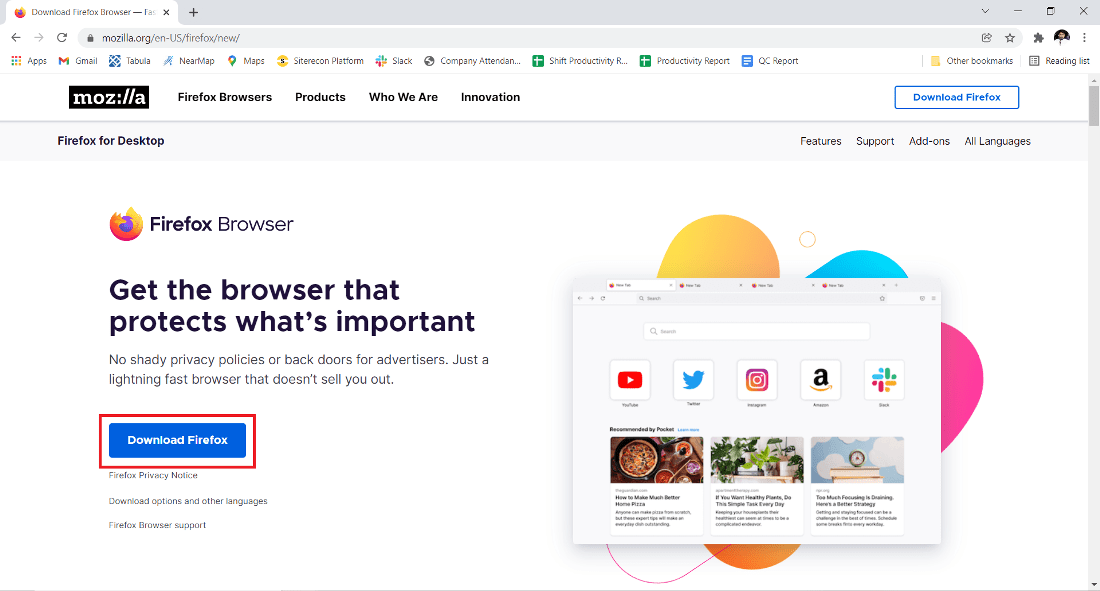
Navigate to the Official Firefox Website: The first and most crucial step is to download Firefox from its official source. This ensures you are getting the genuine software and not a potentially compromised version. Open your current browser (like Microsoft Edge, which comes pre-installed on Windows) and type
mozilla.org/firefoxinto the address bar. Press Enter. -
Initiate the Download: On the Firefox homepage, you’ll likely see a prominent “Download Firefox” button. Click this button. The website will automatically detect your operating system (Windows) and offer the correct download.
-
Run the Installer: Once the download is complete, locate the downloaded file (usually in your “Downloads” folder). The file will typically be named something like
Firefox Installer.exe. Double-click this file to launch the installer. -
Follow the On-Screen Prompts: The Firefox installer is very intuitive. You’ll be presented with a series of options.
- Standard Installation: For most users, the “Standard” installation is recommended. This installs Firefox with its default settings, which are already optimized for performance and security. Simply click “Next” or “Install” to proceed.
- Custom Installation (Optional): If you’re an advanced user and want more control, you might see an option for “Custom” installation. This allows you to choose the installation location on your hard drive or select specific components to install. For beginners, it’s best to stick with the standard option.
-
Completion: The installer will then download the necessary files and install Firefox onto your computer. This process is usually quite fast. Once it’s finished, you’ll typically see a “Finish” button. Clicking this will usually launch Firefox automatically, and you’ll be greeted with the Firefox start page.
For macOS Users: A Quick and Intuitive Setup
Installing Firefox on a Mac is just as straightforward, following a similar pattern of download and drag-and-drop.
-
Visit the Firefox Download Page: Open your current browser on your Mac (e.g., Safari) and go to
mozilla.org/firefox. -
Download the macOS Version: Click the “Download Firefox” button. The website should automatically identify that you’re using macOS and offer the correct version.
-
Open the Downloaded File: Once the download is complete, you’ll have a
.dmgfile (disk image). Locate this file in your “Downloads” folder and double-click it. -
Drag to Applications: A new window will appear, showing the Firefox application icon and a shortcut to your “Applications” folder. To install Firefox, simply drag the Firefox icon into the Applications folder icon.
-
Launch Firefox: You can now find Firefox in your “Applications” folder. Double-click it to launch. The first time you open it, macOS might ask for confirmation that you want to open an application downloaded from the internet. Click “Open.”
For Linux Users: Leveraging Package Managers or Direct Downloads
Linux users have multiple ways to install Firefox, often benefiting from their distribution’s package management system, which simplifies updates and dependencies.
-
Using Your Distribution’s Package Manager (Recommended): This is the most common and often the easiest method for Linux users.
- Debian/Ubuntu-based systems (e.g., Ubuntu, Mint): Open a terminal and run:
bash

sudo apt update

sudo apt install firefox
- Fedora: Open a terminal and run:
bash

sudo dnf install firefox
- Arch Linux: Open a terminal and run:
bash

sudo pacman -S firefox
Your package manager will handle downloading Firefox and placing it in the correct system directories, as well as ensuring it’s integrated with your desktop environment.
- Debian/Ubuntu-based systems (e.g., Ubuntu, Mint): Open a terminal and run:
-
Downloading Directly from Mozilla (Advanced): If you prefer to install Firefox manually or if it’s not available in your distribution’s repositories, you can download a tarball from the Mozilla website.
- Go to
mozilla.org/firefox. - Download the Linux version.
- Extract the downloaded archive (e.g.,
tar xjf firefox-*.tar.bz2). - Navigate into the extracted directory and run the
firefoxexecutable. You might need to create a desktop shortcut manually.
- Go to
Beyond Installation: Why Choose Firefox?
Installing Firefox is just the first step. Its enduring popularity stems from a core philosophy that prioritizes users, offering a blend of advanced features, robust security, and extensive customization options. This makes it an excellent choice for individuals looking to enhance their digital security, streamline their productivity, and even bolster their online brand presence.
Enhanced Digital Security and Privacy Features
In an era where data breaches and online surveillance are increasingly common, Firefox stands out for its strong commitment to user privacy. It’s built with several key features to protect your online activities.
- Enhanced Tracking Protection: By default, Firefox blocks a significant portion of known trackers that monitor your browsing habits across different websites. This means fewer companies can build detailed profiles of your online behavior, leading to a more private browsing experience. You can further customize these settings, choosing from “Standard,” “Strict,” or “Custom” levels of protection.
- Container Tabs: This innovative feature allows you to segment your online life. For example, you can create a “Work” container, a “Personal” container, and a “Shopping” container. Each container has its own cookies and site data, meaning a website visited in your “Shopping” container won’t be able to see your activity in your “Work” container. This is invaluable for maintaining separation between different aspects of your digital identity and preventing cross-site tracking.
- Regular Security Updates: Mozilla is dedicated to quickly patching vulnerabilities. Firefox automatically checks for and prompts you to install updates, ensuring you have the latest security protections against emerging threats.
- Privacy-Focused Search Engine Options: Firefox makes it easy to set DuckDuckGo, Startpage, or other privacy-respecting search engines as your default, further minimizing your digital footprint.
Customization and Productivity Tools
Firefox isn’t just about security; it’s also a powerful platform for boosting productivity and personalizing your browsing experience.
- Add-ons and Extensions: The Firefox Add-ons collection is vast and diverse. From ad blockers and password managers to note-taking tools and project management integrations, there’s an extension for almost every need. These extensions can significantly enhance your workflow and make your online tasks more efficient. For instance, using an ad blocker can speed up page loading times and reduce distractions, while a password manager can securely store and autofill your credentials, saving you time and frustration.
- Customizable Interface: Firefox allows you to tailor its appearance to your liking. You can change themes, rearrange toolbars, and even pin frequently used websites to the bookmarks bar for quick access. This level of personalization can make your browsing experience feel more intuitive and less cluttered.
- Reader View: This feature strips away distracting elements like ads and sidebars from web pages, presenting you with a clean, easy-to-read article format. It’s perfect for focused reading and research, minimizing visual noise and helping you concentrate on the content.
- Picture-in-Picture Mode: For videos, Firefox offers a Picture-in-Picture mode that allows you to detach a video from its webpage and play it in a floating window that stays on top of other applications. This is incredibly useful for multitasking, allowing you to watch a video while working on another task.
Firefox and Your Digital Identity: Brand and Online Presence
While Firefox is primarily a tool for accessing the internet, its features can also subtly support your personal or professional brand and online presence.
- Consistent Branding: If you use Firefox across multiple devices, you can synchronize your settings, bookmarks, and even themes. This creates a consistent browsing environment, which can be a small but significant aspect of maintaining a unified digital identity, especially if you’re managing a personal brand or a small business online.
- Productivity for Content Creation: For individuals involved in content creation, marketing, or online business, Firefox’s productivity features are invaluable. Efficiently researching topics, managing social media through extensions, and quickly accessing your online tools all contribute to a more streamlined workflow. A faster, more organized browsing experience directly translates to more productive time spent on building and managing your brand.
- Secure Access to Online Tools: Many aspects of brand building and online business rely on web-based tools for design, marketing, and communication. Firefox’s focus on security ensures that your access to these crucial platforms remains protected. Using a secure browser for managing your online presence builds a foundation of trust and reliability.
Financial Benefits of Using Firefox
Even in the realm of personal finance and online income, Firefox can play a supporting role.
- Secure Online Banking and Transactions: Firefox’s robust security features are paramount when conducting financial activities online. Its protection against malware and phishing attempts helps safeguard your sensitive financial information, reducing the risk of unauthorized access to your bank accounts or credit card details.
- Researching Investments and Financial Opportunities: When exploring investment opportunities, side hustles, or personal finance advice, you’ll be visiting numerous websites. Firefox’s ability to quickly load pages (especially with ad blockers) and its secure browsing environment make the research process more efficient and safer.
- Utilizing Online Income Tools: Many platforms for earning online income, managing freelance projects, or tracking expenses are accessed via web browsers. Firefox’s reliability and security ensure that you can interact with these tools with confidence, minimizing the risk of disruptions or data compromise.

Conclusion: Empowering Your Online Journey with Firefox
The act of installing Firefox browser is more than just a technical step; it’s an investment in a safer, more private, and more productive online experience. From its user-friendly installation across Windows, macOS, and Linux, to its powerful suite of privacy controls and customization options, Firefox offers a compelling alternative to mainstream browsers.
By choosing Firefox, you’re aligning yourself with a philosophy that champions user rights and an open web. Whether you’re leveraging its features for enhanced digital security, streamlining your workflow, supporting your professional brand, or safeguarding your financial activities, Firefox provides a robust and reliable platform. Take a few moments to download and install Firefox today, and begin to experience the difference of browsing with privacy and power at your fingertips.
aViewFromTheCave is a participant in the Amazon Services LLC Associates Program, an affiliate advertising program designed to provide a means for sites to earn advertising fees by advertising and linking to Amazon.com. Amazon, the Amazon logo, AmazonSupply, and the AmazonSupply logo are trademarks of Amazon.com, Inc. or its affiliates. As an Amazon Associate we earn affiliate commissions from qualifying purchases.