
In the intricate landscape of modern networking, the Dynamic Host Configuration Protocol (DHCP) stands as a foundational pillar, orchestrating the seamless assignment of IP addresses and related network configuration parameters to devices. Without DHCP, the administrative overhead of manually configuring every single device on a network—from laptops and smartphones to servers and IoT devices—would be an insurmountable task, riddled with errors and inefficiencies. This tutorial aims to demystify the process of installing and configuring a DHCP server, providing a comprehensive guide for network administrators and enthusiasts alike. By the end of this article, you will possess the knowledge to establish a robust and reliable DHCP service, ensuring your network devices acquire their necessary configurations effortlessly.

Understanding DHCP: The Backbone of Network Addressing
Before diving into the installation specifics, it’s crucial to grasp what DHCP is and why it holds such an indispensable position in network management.
What is DHCP and Why is it Essential?
DHCP, or Dynamic Host Configuration Protocol, is a network management protocol used on Internet Protocol (IP) networks for dynamically distributing network configuration parameters, such as IP addresses, for interfaces and services. Utilizing a client-server architecture, DHCP eliminates the need for manual IP address assignment, which is a laborious, error-prone, and unsustainable task in any network of significant size.
When a device (DHCP client) connects to a network, it sends a broadcast request (DHCP Discover) to locate a DHCP server. The DHCP server then offers an IP address and other configuration details (DHCP Offer). The client requests the offered address (DHCP Request), and the server acknowledges the assignment (DHCP ACK), completing the process. This dynamic allocation ensures that every device receives a unique and valid IP address, along with essential network parameters like the subnet mask, default gateway, and Domain Name System (DNS) server addresses. Without DHCP, managing IP addresses would quickly devolve into a chaotic mess of conflicts and misconfigurations, halting network communication.
Key Benefits of Implementing DHCP
Implementing a DHCP server offers a multitude of advantages that streamline network operations and enhance efficiency:
-
Automation and Reduced Administrative Overhead: The primary benefit of DHCP is automation. It eliminates the need for network administrators to manually configure IP addresses for each device, saving countless hours and reducing human error. This is particularly valuable in environments with frequent device changes or large numbers of clients.
-
Efficient IP Address Management: DHCP intelligently manages the pool of available IP addresses, leasing them out to devices for a specified duration. When a lease expires or a device leaves the network, the IP address is automatically reclaimed and made available for other devices. This efficient recycling of addresses prevents wastage and ensures optimal utilization of your IP range.
-
Minimization of IP Address Conflicts: Manual IP assignment is highly susceptible to conflicts, where two devices inadvertently end up with the same IP address, leading to network disruptions. DHCP inherently prevents such conflicts by ensuring each assigned IP address is unique within its defined scope.
-
Enhanced Network Mobility: For users who frequently move between different network segments or use mobile devices, DHCP simplifies connectivity. As they connect to a new segment, their device automatically obtains the correct IP configuration for that location without any manual intervention.
-
Centralized Configuration Control: DHCP allows administrators to manage and distribute all critical network configuration parameters from a single, centralized server. Any changes to DNS servers, default gateways, or other options can be made once on the DHCP server and automatically propagated to all clients, ensuring consistency across the network.
Prerequisites and System Preparation
Before you begin the installation process, a certain level of preparation and understanding of your network environment is necessary to ensure a smooth deployment.
Choosing Your Operating System (Linux vs. Windows Server)
DHCP servers can be deployed on various operating systems, with Windows Server and Linux distributions being the most common choices. Your selection often depends on your existing infrastructure, familiarity, and specific requirements.
-
Windows Server: Microsoft Windows Server includes a robust DHCP server role that integrates seamlessly with Active Directory and other Windows services. It offers a graphical user interface (GUI) for easy management, making it a popular choice for organizations already invested in the Microsoft ecosystem.
-
Linux (ISC DHCP Server): For those favoring open-source solutions, the Internet Systems Consortium (ISC) DHCP server is the de facto standard on Linux distributions like Ubuntu, Debian, CentOS, and Red Hat. It’s highly configurable, powerful, and typically managed via command-line interface, offering significant flexibility for advanced users.
Regardless of the OS, ensure your server has sufficient resources (minimal CPU/RAM/disk for just DHCP, but depends on other roles) and a stable network connection. It’s often recommended to dedicate a server or virtual machine to core network services like DHCP for stability and security.
Network Planning and IP Address Scoping
Careful planning of your network infrastructure and IP address scheme is paramount for an effective DHCP deployment.
-
Identify Network Segments: Understand your network topology. Are you using VLANs or multiple subnets? Each subnet will likely require its own DHCP scope or a DHCP relay agent to forward requests to a central server.
-
Determine IP Address Range: Based on the number of devices you anticipate, define the start and end IP addresses for your DHCP pool within each subnet. Ensure this range does not overlap with any statically assigned IP addresses (e.g., for servers, routers, managed switches) or other DHCP servers on the network.
-
Gather Essential Network Parameters: You will need the following information for your DHCP configuration:
-
Subnet Mask: Defines the network and host portions of an IP address.
-
Default Gateway: The IP address of the router that connects your network segment to other networks (e.g., the internet).
-
DNS Server Addresses: The IP addresses of your primary and secondary DNS servers, which translate domain names into IP addresses.
-
Domain Name: The local domain name for your network (e.g.,
yourcompany.local).
-
-
Plan Exclusions and Reservations:
-
Exclusions: Identify specific IP addresses within your defined DHCP scope that you do not want the DHCP server to assign dynamically. These are typically used for devices with static IPs that fall within the dynamic range.
-
Reservations: For devices that require a consistent IP address (e.g., network printers, specific servers) but still benefit from DHCP management, you can create reservations. This links a specific MAC address to a fixed IP address, ensuring that device always receives the same IP from the DHCP server.
-
Step-by-Step Installation Guides
With the preparations complete, we can now proceed with the actual installation of the DHCP server role on your chosen operating system.
Installing DHCP Server on Windows Server
The installation of the DHCP role on Windows Server is a straightforward process, primarily leveraging the Server Manager GUI.
Adding the DHCP Role
-
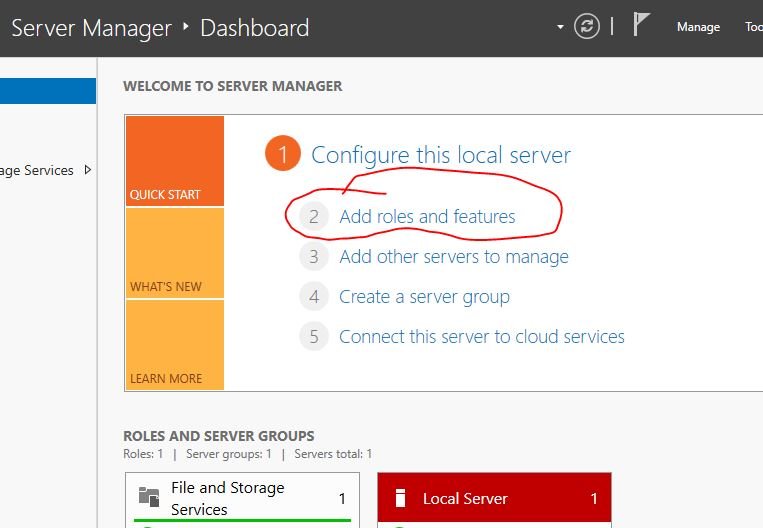
Open Server Manager: From your Windows Server desktop, open Server Manager (it usually launches automatically upon login).
-
Add Roles and Features: Click “Manage” in the top-right corner, then select “Add Roles and Features.”
-
Before You Begin: Click “Next.”
-
Installation Type: Select “Role-based or feature-based installation” and click “Next.”
-
Server Selection: Choose the server you wish to install DHCP on (typically the local server) and click “Next.”
-
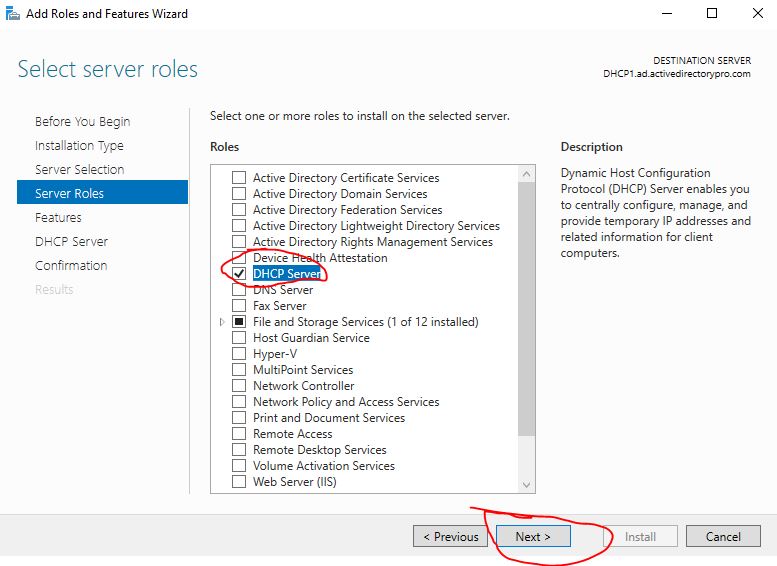
Server Roles: In the list of roles, check the box next to “DHCP Server.” A pop-up will appear asking to “Add features that are required for DHCP Server.” Click “Add Features,” then click “Next.”
-
Features: Click “Next” (no additional features are usually needed for basic DHCP).
-
DHCP Server: Read the description and click “Next.”
-
Confirmation: Review your selections and click “Install.” The installation process will begin.
-
Results: Once the installation is complete, click “Close.”
Authorizing the DHCP Server
After installation, the DHCP server needs to be authorized within your Active Directory environment (if applicable) before it can start leasing IP addresses. This prevents rogue DHCP servers from operating on your network.
-
Complete DHCP Configuration: In Server Manager, a notification flag will appear near the top-right. Click it, then click “Complete DHCP configuration.”
-
Description: Click “Next.”
-
Authorization: You will be prompted for credentials to authorize the DHCP server. Use enterprise administrator credentials. Click “Commit.”
-
Summary: Click “Close.”
-
Open DHCP Console: To manage the server, open the DHCP console from Server Manager (Tools > DHCP) or by typing
dhcpmgmt.mscin Run. Right-click on your server name, and ensure it shows as “Authorized.” If not, right-click and select “Authorize.”
Installing ISC DHCP Server on Linux (e.g., Ubuntu/Debian)
For Linux systems, the ISC DHCP server is typically installed via the package manager and configured through command-line editing of text files.
Package Installation
-
Update Package List:
sudo apt update -
Install ISC DHCP Server:
sudo apt install isc-dhcp-serverFor CentOS/RHEL, use
sudo yum install dhcporsudo dnf install dhcp.
Initial Configuration File Setup
-
Identify Network Interface: The DHCP server needs to know which network interface it should listen on for DHCP requests. Edit the default configuration file:
sudo nano /etc/default/isc-dhcp-serverFind the line
INTERFACESv4=""and add your network interface name (e.g.,eth0,enp0s3). If your server has multiple interfaces, specify the one connected to the network segment where clients will request IPs.INTERFACESv4="eth0"Save and exit (Ctrl+X, Y, Enter for Nano).
-
Backup Original Configuration: It’s good practice to back up the default DHCP configuration file before making changes:
sudo cp /etc/dhcp/dhcpd.conf /etc/dhcp/dhcpd.conf.bak -
Edit Main Configuration File: Now, you will edit the primary configuration file to define your DHCP scope and options. This will be covered in the next section.
sudo nano /etc/dhcp/dhcpd.conf
Configuring Your DHCP Scope and Options
Once the DHCP server is installed, the next critical step is to configure its scopes, options, and special assignments. This defines the IP addresses and other parameters that clients will receive.
Defining a DHCP Scope (IP Ranges, Subnet Mask)
A DHCP scope is a full, or partial, contiguous range of possible IP addresses that can be leased to DHCP clients on a particular subnet.
-
On Windows Server:
-
Open the DHCP console (
dhcpmgmt.msc). -
Expand your server, then right-click on “IPv4” and select “New Scope.”
-
Follow the “New Scope Wizard”:
-
Welcome: Click “Next.”
-
Scope Name: Provide a descriptive name (e.g., “Main Office LAN”). Click “Next.”
-
IP Address Range: Enter the “Start IP address” and “End IP address” for your pool. Specify the “Subnet mask” (e.g., 255.255.255.0). Click “Next.”
-
Add Exclusions and Delay: (Optional) If you have IP addresses within your range that should not be leased dynamically, enter them here. Click “Next.”
-
Lease Duration: Set how long clients keep their assigned IP addresses (e.g., 8 days). Click “Next.”
-
Configure DHCP Options: Select “Yes, I want to configure these options now” and click “Next.” (This leads to the next section).
-
-
-
On Linux (ISC DHCP Server):
Edit
/etc/dhcp/dhcpd.conf. You’ll typically add asubnetdeclaration block.# Global parameters (optional, can be overridden by subnet-specific ones) default-lease-time 600; max-lease-time 7200; ddns-update-style none; # Recommended for simplicity initially # Declare a subnet subnet 192.168.1.0 netmask 255.255.255.0 { range 192.168.1.100 192.168.1.199; # IP address pool option routers 192.168.1.1; # Default gateway option domain-name-servers 8.8.8.8, 8.8.4.4; # DNS servers option domain-name "yourdomain.local"; # Your local domain name # Optional: Add exclusions within the range if needed, e.g., for static IPs: # range 192.168.1.100 192.168.1.149; # range 192.168.1.151 192.168.1.199; # This effectively excludes 192.168.1.150 }After editing, save the file and restart the DHCP service:
sudo systemctl restart isc-dhcp-serverCheck its status:
sudo systemctl status isc-dhcp-server
Setting Up DHCP Options (DNS Servers, Gateway)
DHCP options provide clients with additional configuration parameters beyond just an IP address.
-
On Windows Server:
-
Router (Default Gateway): In the “Router (Default Gateway)” step of the New Scope Wizard (or under Scope Options in the DHCP console), enter the IP address of your default gateway.
-
Domain Name and DNS Servers: In the “Domain Name and DNS Servers” step, enter your parent domain (e.g.,
yourdomain.local) and the IP addresses of your primary and secondary DNS servers. -
WINS Servers (Optional): If you use WINS, you can configure it here.
-
Activation: Choose “Yes, I want to activate this scope now” and click “Next,” then “Finish.”
-
-
On Linux (ISC DHCP Server):
As shown in the
dhcpd.confexample above, these options are defined directly within thesubnetblock:-
option routers 192.168.1.1; -
option domain-name-servers 8.8.8.8, 8.8.4.4; -
option domain-name "yourdomain.local";
-
Creating Reservations and Exclusions
-
Reservations:
-
Windows Server: In the DHCP console, navigate to your scope, right-click “Reservations,” and select “New Reservation.” Enter a “Reservation name,” the desired “IP address,” and the client’s “MAC address.”
-
Linux (ISC DHCP Server): Within the
subnetblock indhcpd.conf, addhostentries:host printer { hardware ethernet 00:11:22:33:44:55; # MAC address fixed-address 192.168.1.50; # Reserved IP }
-
-
Exclusions:
-
Windows Server: In the DHCP console, navigate to your scope, right-click “Address Pool,” and select “New Address Range Exclusion.” Specify the start and end IP addresses of the range you wish to exclude.
-
Linux (ISC DHCP Server): As mentioned, you can define multiple
rangedirectives to create gaps or simply ensure that any static IPs are outside the definedrange.
-
Verifying Your DHCP Installation and Best Practices
Installation and configuration are only part of the journey. Verifying that your DHCP server is functioning correctly and adhering to best practices ensures a stable and secure network environment.
Testing DHCP Functionality
After configuring your DHCP server, it’s crucial to test its functionality thoroughly.
-
Connect a Client: Connect a client device (e.g., a laptop, desktop PC, or virtual machine) to the network segment where the DHCP server is configured to operate. Ensure the client’s network adapter is set to obtain an IP address automatically.
-
Release/Renew IP:
-
Windows Client: Open Command Prompt (
cmd) and typeipconfig /releasefollowed byipconfig /renew. -
Linux Client: Use
sudo dhclient -rfollowed bysudo dhclient.
-
-
Verify IP Address: Check the client’s network configuration to confirm it has received an IP address from your DHCP server.
-
Windows Client:
ipconfig /all -
Linux Client:
ip addr showorifconfig(if installed)
Confirm that the assigned IP address falls within your configured scope, and that the subnet mask, default gateway, and DNS servers are correct.
-
-
Test Connectivity: From the client, attempt to ping the default gateway, your DNS servers, and external websites (e.g.,
ping google.com) to ensure full network connectivity. -
Check Server Logs: Review the DHCP server logs for lease offers, acknowledgments, and any error messages.
-
Windows Server: Event Viewer -> Applications and Services Logs -> Microsoft -> Windows -> DHCP-Server -> Microsoft-Windows-DHCP Server/Operational.
-
Linux (ISC DHCP Server): Logs are typically found in
/var/log/syslogor/var/log/daemon.logand can be filtered withgrep dhcpd.
-
Common Troubleshooting Tips
Encountering issues during or after DHCP setup is not uncommon. Here are some troubleshooting steps:
-
DHCP Service Not Running: Ensure the DHCP server service is started.
-
Windows: Check “Services” (
services.msc) and ensure “DHCP Server” is running and set to “Automatic.” -
Linux:
sudo systemctl status isc-dhcp-serverandsudo systemctl start isc-dhcp-serverif not running.
-
-
Firewall Blocking DHCP: DHCP uses UDP ports 67 (server) and 68 (client). Ensure your server’s firewall (e.g., Windows Defender Firewall, UFW on Linux) allows inbound traffic on port 67.
-
Incorrect Configuration: Double-check your
/etc/dhcp/dhcpd.conffile (Linux) or DHCP scope settings (Windows) for typos, incorrect IP ranges, subnet masks, or gateway addresses. -
Rogue DHCP Servers: Another DHCP server on your network (e.g., a misconfigured router or another server) could be causing conflicts. Use network scanning tools to identify rogue DHCP servers.
-
Network Connectivity: Verify that the DHCP server’s network interface is correctly configured and has connectivity to the network segment it is serving.
-
IP Address Exhaustion: If your clients are not getting IPs, your DHCP scope might be exhausted. Increase the IP range or shorten lease times.
Security Considerations and Maintenance
A well-configured DHCP server is crucial, but maintaining its security and reliability is an ongoing process.
-
Prevent Rogue DHCP Servers: Unauthorized DHCP servers can cause significant network disruption by assigning incorrect IP addresses. Implement DHCP snooping on your network switches, which allows only trusted ports to forward DHCP responses.
-
Secure Server Access: Restrict physical and remote access to your DHCP server. Follow the principle of least privilege for accounts that manage the DHCP service.
-
Firewall Configuration: Ensure the server’s firewall is correctly configured to allow only necessary traffic (UDP 67/68 for DHCP, and other ports for management or other services).
-
Regular Backups: Regularly back up your DHCP server configuration and database.
-
Windows: Export the DHCP database or use Windows Server Backup.
-
Linux: Backup
/etc/dhcp/dhcpd.confand/var/lib/dhcp/dhcpd.leases.
-
-
Monitoring and Logging: Monitor DHCP server logs for unusual activity, IP address conflicts, lease failures, or other errors. Utilize network monitoring tools for proactive alerts.
-
Redundancy and Failover: For critical environments, consider deploying a secondary DHCP server.
-
Windows: DHCP Failover using load balancing or hot standby mode.
-
Linux: Configure two ISC DHCP servers in failover mode.
-
-
Patch Management: Keep your operating system and DHCP server software updated with the latest security patches to protect against vulnerabilities.
-
Lease Times: Adjust lease times based on your network’s needs. Shorter leases are suitable for highly dynamic networks (e.g., Wi-Fi hotspots), while longer leases are better for stable networks.
By diligently following these steps, you can successfully install, configure, and maintain a robust DHCP server, ensuring your network clients receive their essential IP configurations efficiently and reliably. DHCP is not just a convenience; it’s a fundamental component that underpins the stability and scalability of almost every modern IP network.
aViewFromTheCave is a participant in the Amazon Services LLC Associates Program, an affiliate advertising program designed to provide a means for sites to earn advertising fees by advertising and linking to Amazon.com. Amazon, the Amazon logo, AmazonSupply, and the AmazonSupply logo are trademarks of Amazon.com, Inc. or its affiliates. As an Amazon Associate we earn affiliate commissions from qualifying purchases.