
Navigating the world of Linux can sometimes feel like deciphering an ancient script, especially when you encounter files and packages from different distributions. While both Ubuntu and Debian are fantastic, community-driven operating systems based on the Linux kernel, they have their own package management systems and often, different package formats. This can lead to a common question for users: “How do I install a Debian file in Ubuntu?”
This guide aims to demystify the process, providing clear, actionable steps for installing Debian packages (.deb files) on your Ubuntu system. We’ll explore why this is often necessary, the primary methods for installation, potential pitfalls, and best practices to ensure a smooth and successful experience. Whether you’re a seasoned Linux user or just starting, this tutorial will equip you with the knowledge to confidently manage these cross-distribution package installations.

Understanding Debian Packages and Their Relevance in Ubuntu
Before we dive into the “how,” let’s briefly touch upon the “why.” Debian Package (.deb) files are the standard package format for the Debian operating system and its derivatives. Ubuntu, being a direct descendant of Debian, shares this fundamental package management system. This is why, in many cases, .deb files meant for Debian can be directly installed on Ubuntu.
However, the relationship isn’t always one-to-one. Ubuntu often introduces its own versions of software, libraries, and kernel configurations that may differ slightly from those found in Debian’s stable releases. This divergence can sometimes lead to dependency issues or compatibility problems when attempting to install a Debian package directly onto Ubuntu, especially if the package relies on specific library versions or system configurations that aren’t present or are different in your Ubuntu version.
Why You Might Need to Install Debian Files
There are several scenarios where you might find yourself needing to install a .deb file sourced from Debian on your Ubuntu system:
- Access to Newer or Specific Software Versions: Sometimes, a particular piece of software might be available in a more recent version or a specialized build on Debian’s repositories before it makes its way into Ubuntu’s official channels. This is particularly common for bleeding-edge software or developer tools.
- Proprietary Software: Certain software vendors might provide their applications as
.debpackages directly, and these might be built primarily with Debian in mind. - Custom or Community-Packaged Software: Developers or communities might create custom
.debpackages for specific purposes, and these might be distributed independently of any official repository. - Troubleshooting and Development: In some development or troubleshooting scenarios, you might need to test software compatibility or specific versions of libraries that are readily available as
.debfiles from Debian.
Understanding these reasons helps contextualize the process and highlights the importance of approaching such installations with a degree of caution.
The Primary Methods for Installing .deb Files in Ubuntu
Fortunately, Ubuntu provides several straightforward ways to install .deb files. These methods leverage the power of the Advanced Packaging Tool (APT), which is the backbone of Debian-based systems.
Method 1: Using the dpkg Command (The Foundation)
The dpkg command is the low-level package manager for Debian and its derivatives. While it can install .deb files directly, it doesn’t automatically handle dependency resolution. This means if the package requires other software that isn’t already installed on your system, dpkg will report an error.
Steps:
- Open a Terminal: You can usually find the terminal application by searching for “Terminal” in your application menu.
- Navigate to the Directory: Use the
cdcommand to navigate to the directory where you downloaded the.debfile. For example, if it’s in your “Downloads” folder, you would type:
bash

cd ~/Downloads
- Install the Package: Use the
dpkgcommand with the-iflag (for install) followed by the filename of the.debpackage. You’ll likely need administrator privileges, so prepend the command withsudo.
bash

sudo dpkg -i your_package_name.deb
Replaceyour_package_name.debwith the actual name of the file.
Handling Dependency Errors with dpkg:
If dpkg reports dependency errors (e.g., “package X depends on package Y; however: Package Y is not installed.”), you can often resolve them by telling APT to fix broken dependencies. After attempting installation with dpkg, run:
sudo apt --fix-broken install
This command will scan your system for unmet dependencies and attempt to download and install them from your configured repositories. This often resolves the issues caused by the initial dpkg installation.
Method 2: Using apt (The Recommended Approach)
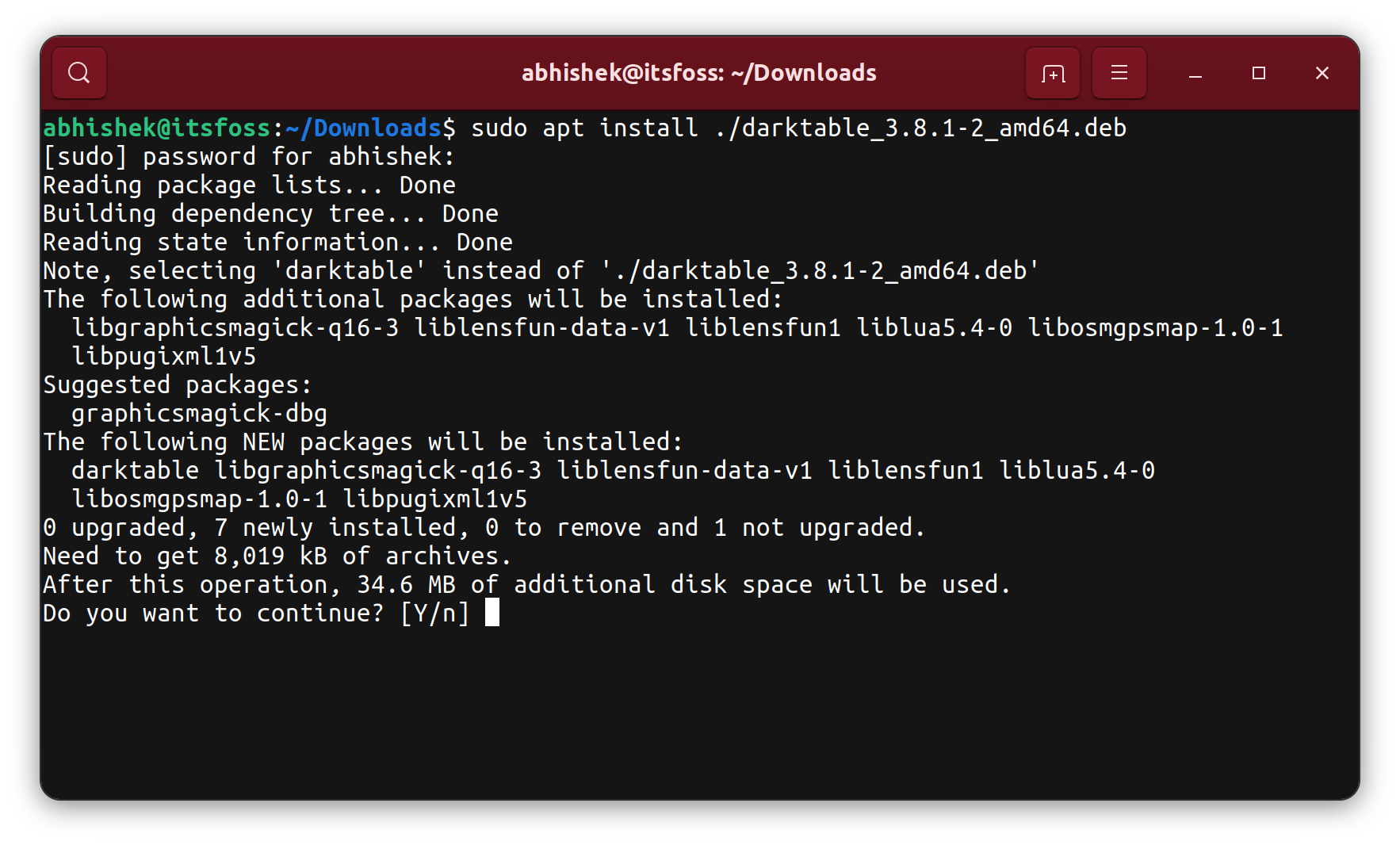
The apt command is a higher-level package management tool that builds upon dpkg. Its primary advantage is its ability to automatically resolve and install dependencies. When you use apt to install a local .deb file, it will automatically check for and install any required packages from your system’s repositories.
Steps:
- Open a Terminal.
- Navigate to the Directory: As with
dpkg, usecdto go to the folder containing the.debfile.
bash

cd ~/Downloads
- Install the Package: Use the
apt installcommand followed by the path to the.debfile. Again,sudois required.
bash

sudo apt install ./your_package_name.deb
The./is important here as it tellsaptto look for the file in the current directory.
This is generally the preferred method for installing local .deb files on Ubuntu because it simplifies the process by handling dependencies automatically.
Method 3: Using a Graphical Package Installer
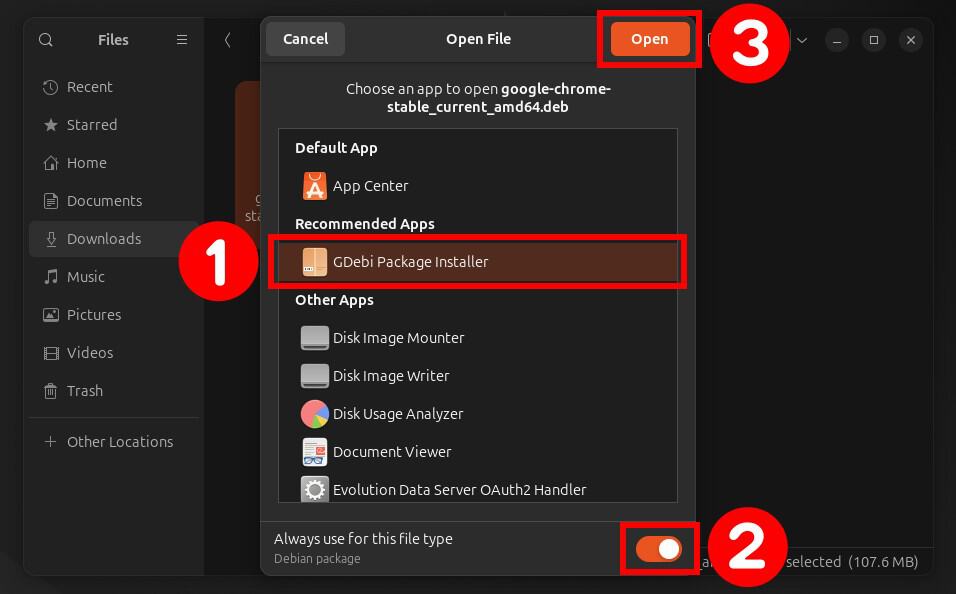
For users who prefer a visual interface, Ubuntu (and many other Debian-based distributions) comes with a graphical package installer. This tool provides a user-friendly way to open and install .deb files.
Steps:
- Locate the
.debfile: Open your file manager (e.g., Nautilus). - Double-Click the
.debfile: In most cases, double-clicking a.debfile will open it with the default software installer application (often called “Software” or “GDebi Package Installer”). - Click “Install”: The graphical installer will display information about the package, including its description and installed size. You’ll see an “Install” button. Click it.
- Enter Your Password: You will be prompted to enter your administrator password to authorize the installation.
Note on Graphical Installers: While convenient, sometimes graphical installers might not be as verbose about dependency issues as the command-line tools. If you encounter problems, switching to the terminal methods is often more informative.
Potential Challenges and Troubleshooting
While installing Debian files on Ubuntu is often seamless, you might occasionally run into roadblocks. Understanding these common issues and how to tackle them will save you time and frustration.
Dependency Hell
This is the most frequent culprit. A .deb file might require specific versions of libraries or other software that are not present on your Ubuntu system, or your system has incompatible versions installed.
Troubleshooting:
- Use
sudo apt --fix-broken install: As mentioned earlier, this is your first line of defense. - Manually Identify and Install Dependencies: If
apt --fix-broken installdoesn’t work, you might need to manually identify the missing dependencies. The error messages fromdpkgoraptare crucial here. Once you know the names of the missing packages, you can try to install them individually usingsudo apt install <dependency_package_name>. - Consider Newer Ubuntu Releases: Sometimes, older
.debpackages are designed for older Debian or Ubuntu versions. If you’re on a very recent Ubuntu release, you might be missing older dependencies. Conversely, a very new.debpackage might expect newer system libraries than what’s available on an older Ubuntu. - Backports and PPAs: If the required dependencies are available in Ubuntu’s “backports” repository or through a Personal Package Archive (PPA), you can enable those and then try installing the
.debfile again.
Architecture Mismatches
Software is compiled for specific processor architectures (e.g., amd64 for 64-bit Intel/AMD processors, i386 for 32-bit processors, arm64 for ARM 64-bit). If you try to install a .deb file compiled for a different architecture than your Ubuntu system, it will not work.
Troubleshooting:
- Check the Package Architecture: Look at the filename of the
.debfile. It often includes architecture information (e.g.,package_name_1.2.3_amd64.deb). Ensure it matches your system’s architecture. You can check your system’s architecture with the commanddpkg --print-architecture. - Download the Correct Version: If you downloaded the wrong architecture, find and download the correct one for your Ubuntu system.
Configuration File Conflicts
When installing or upgrading packages, there’s a possibility of conflicts with existing configuration files. The package manager will usually prompt you about this, offering options to keep your current configuration, install the package maintainer’s version, or view the differences.
Troubleshooting:
- Read the Prompts Carefully: Pay close attention to the messages displayed during installation.
- Backup Configuration Files: Before attempting a potentially problematic installation, consider backing up any relevant configuration files.
- Choose Wisely: If unsure, opting to keep your current configuration is often safer. You can then manually merge changes from the new configuration file if needed.
Best Practices for Installing Debian Files
To ensure a smooth and safe experience when installing Debian files on Ubuntu, follow these best practices:
- Understand the Source: Always download
.debfiles from trusted and reputable sources. Unofficial or unknown sources can be a vector for malware. - Check for Official Ubuntu Repositories: Before resorting to installing a
.debfile, always check if the software is available in Ubuntu’s official repositories or through a PPA. This is the safest and most integrated method. - Read Documentation: If the software comes with documentation, review it. It might contain specific instructions or warnings related to installation on different distributions.
- Update Your System Regularly: Keep your Ubuntu system up-to-date with the latest security patches and software updates. This minimizes the chances of encountering missing dependencies.
- Use
aptWhenever Possible: As highlighted,apt install ./package.debis generally the most robust method for handling local.debfiles due to its automatic dependency resolution. - Be Cautious with
dpkg: While powerful,dpkg -ishould be used with an understanding that you might need to manually resolve dependencies afterward. - Consider the Stability: Be aware that software from Debian’s testing or unstable branches, or even newer packages, might be less stable than what’s officially provided in Ubuntu’s stable repositories.
- Clean Up: After successful installation, you can often remove the downloaded
.debfile if you no longer need it.
By adhering to these guidelines, you can confidently leverage the flexibility of installing .deb files while minimizing potential risks and ensuring your Ubuntu system remains stable and secure. This knowledge empowers you to access a wider range of software and tools, enhancing your productivity and customization options on your Linux journey.