
Ubuntu has established itself as one of the most user-friendly and robust Linux distributions available today. For many users transitioning from Windows or macOS, the shift to a Linux environment introduces a new paradigm of software management. While the Ubuntu Software Center and the Snap Store provide a curated, “app store-like” experience, there are numerous instances where the software you need—whether it be Google Chrome, Discord, or a specialized development tool—is provided as a standalone .deb file.
A .deb file is a software package format used by Debian and its derivatives, including Ubuntu. Understanding how to handle these files is a fundamental skill for any Linux user. This guide provides a professional, deep-dive into the various methods of installing .deb files, ranging from graphical user interfaces (GUI) to the power of the Command Line Interface (CLI), while ensuring your system remains secure and stable.

Understanding the .deb Package Format and Ubuntu’s Ecosystem
Before diving into the “how-to,” it is essential to understand what a .deb file actually is. Unlike a Windows .exe or .msi file, which often contains all the necessary components to run a program, a .deb file is a compressed archive that contains the application’s executable files, configuration files, and, crucially, a list of dependencies.
What is a .deb File?
The term “.deb” is derived from “Debian,” the foundational operating system upon which Ubuntu is built. These files are essentially Ar archives that contain two main compressed tarballs: one for control information (metadata like versioning and dependencies) and one for the actual installable data. When you install a .deb package, the system reads these files to determine where to place binaries and what other software libraries are required for the application to function correctly.
The Role of Package Management in Linux
Ubuntu manages software through a system known as APT (Advanced Package Tool). APT tracks installed software and ensures that when you install a new package, all its requirements—referred to as “dependencies”—are met. One of the primary challenges when manually installing .deb files is “dependency hell,” a situation where a package requires other software that isn’t currently installed on your system. Modern installation methods in Ubuntu have been refined to mitigate this issue effectively.
GUI-Based Installation Methods for Ease of Use
For users who prefer a visual approach, Ubuntu offers several intuitive ways to install .deb packages without touching the terminal. These methods are ideal for quick installations and for users who are still acclimating to the Linux environment.
Using the Ubuntu Software Center
The most straightforward method for most users is the built-in Ubuntu Software Center (often labeled simply as “Software” or “App Center” in newer versions).
- Download the file: Locate the
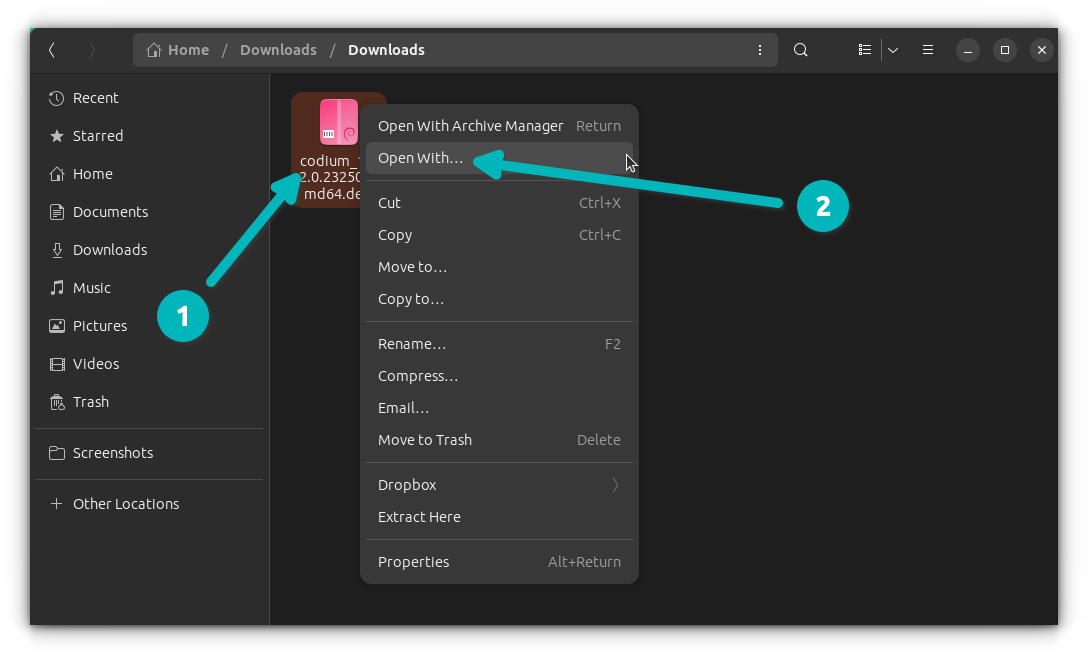
.debfile in your Downloads folder. - Right-click and Open: Right-click the file and select “Open with Software Install.”
- Install: The Software Center will open a page displaying the application’s details. Click the green “Install” button.
- Authenticate: You will be prompted to enter your administrative password. Once entered, the system handles the extraction and placement of files.
While simple, the Software Center can occasionally be slow or fail to report specific dependency errors, which is why power users often turn to dedicated utilities.
The GDebi Package Installer: A Power User’s Shortcut
GDebi is a lightweight, specialized tool designed specifically for installing local .deb files. Unlike the default Software Center, GDebi is widely praised for its efficiency in identifying and downloading missing dependencies automatically from the official repositories.
To use GDebi, you must first install it (as it is not always included by default):
- Open your terminal and type:
sudo apt install gdebi
Once installed, you can simply right-click any .deb file, select “Open with GDebi Package Installer,” and click “Install Package.” GDebi provides a more transparent look at what is happening under the hood, showing you exactly which dependencies are being added.
Mastering the Command Line Interface (CLI)
For those seeking speed, precision, and automation, the terminal is the ultimate tool. Installing software via the CLI provides immediate feedback and allows you to troubleshoot issues in real-time.
Installing via the apt Command
In modern versions of Ubuntu (16.04 and later), the apt command has been optimized to handle local .deb files. This is currently the recommended terminal method because apt manages dependencies automatically.
To install a package, navigate to the directory containing your file and run:
sudo apt install ./filename.deb
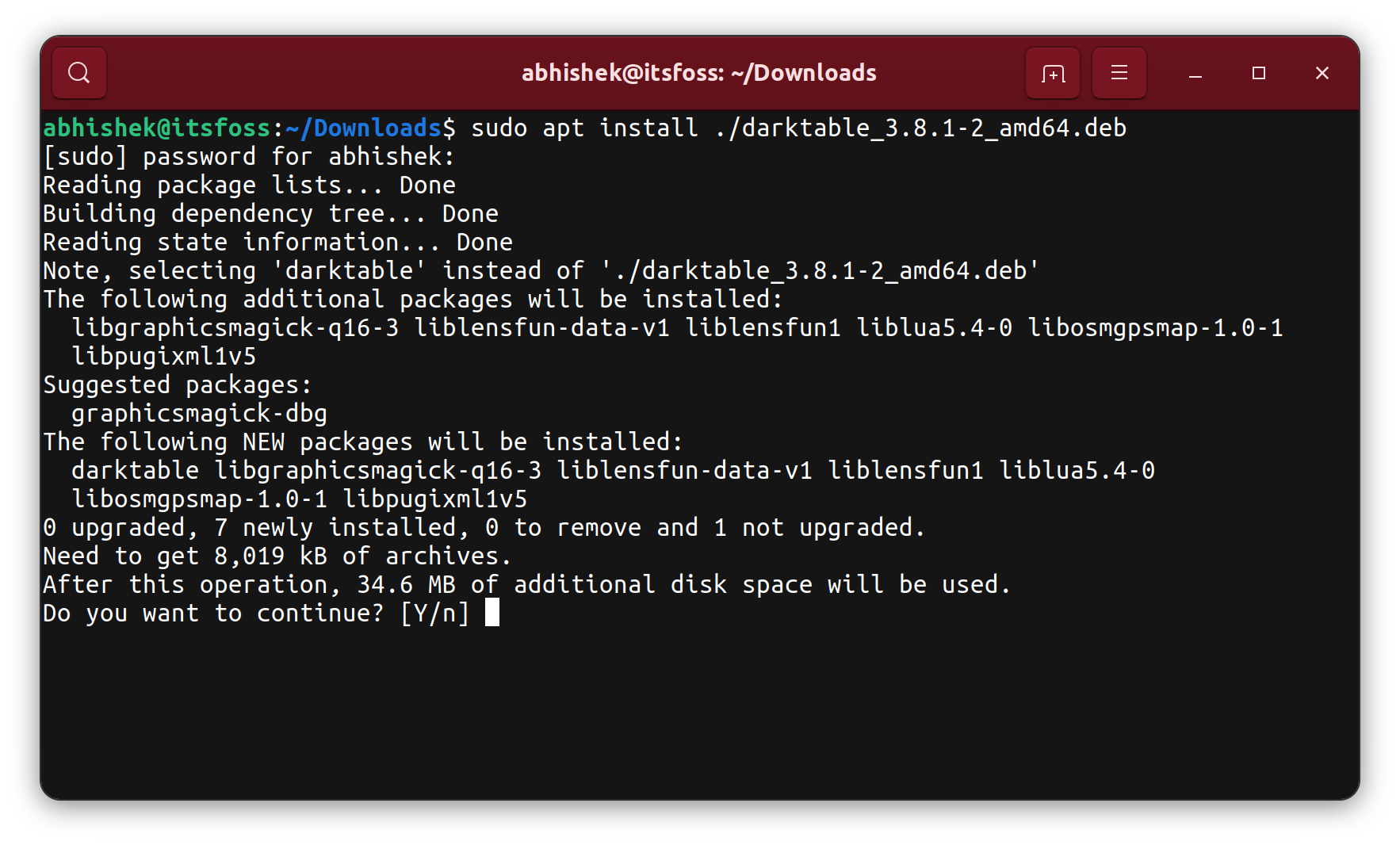
The ./ is critical; it tells the system that the file is located in the current directory rather than in the remote online repositories. If the package requires additional libraries, apt will list them and ask for your permission to download and install them alongside your software.
Using the dpkg Tool
The dpkg (Debian Package) utility is the low-level engine that powers package management in Ubuntu. While powerful, it does not have the ability to reach out to the internet to fetch missing dependencies.
The command is:
sudo dpkg -i filename.deb
The -i flag stands for “install.” If you use dpkg and the installation fails due to missing dependencies, the software will be left in an “unconfigured” state. This leads us to the most important troubleshooting command in a Linux user’s arsenal.
Resolving Dependency Issues with apt --fix-broken install
If a dpkg installation leaves your system with broken dependencies, do not panic. You can resolve the issue by running:
sudo apt install -f or sudo apt --fix-broken install
This command instructs APT to scan the system for missing pieces and automatically download them from the official Ubuntu mirrors to complete the installation of your .deb package.
Best Practices for System Stability and Security
Installing software from outside the official Ubuntu repositories carries inherent risks. To maintain a healthy and secure digital environment, users should adhere to specific best practices.
Verifying Source Credibility
Unlike the curated Software Center, anyone can package software into a .deb file. Before running an installation command, ensure the file comes from a trusted source (e.g., the official website of Google, Valve, or Microsoft). Malicious packages can execute scripts with root privileges, potentially compromising your entire system. If possible, verify the SHA256 checksum of the downloaded file to ensure it hasn’t been tampered with during transit.
Keeping Software Updated
One disadvantage of manual .deb installations is that they often do not receive automatic updates through the standard system update process. When you install an app via apt get, the repository handles updates. When you install a standalone .deb, you are often responsible for checking the developer’s website for newer versions and manually re-installing them. However, some high-profile packages (like Google Chrome) add their own repository to your system during the initial installation, ensuring they stay up to date automatically.
Advanced Management and Comparison
Efficient system administration involves not just installing software, but managing its lifecycle and knowing when to use alternative formats.
Removing and Managing Installed .deb Packages
If you no longer need an application installed via a .deb file, you can remove it easily using the terminal. You do not need the original .deb file to uninstall it; you only need the package name.
To find the exact package name, you can list all installed packages:
dpkg -l | grep 'application-name'
Once identified, remove it using:
sudo apt remove package-name
If you wish to remove the configuration files along with the application, use:
sudo apt purge package-name
When to Choose .deb Over Snaps or Flatpaks
In the current Linux landscape, you often have choices: .deb, Snap, or Flatpak.
- Choose
.debwhen you need a lightweight installation with minimal overhead and deep integration into the system components..debfiles are generally faster to launch and take up less disk space than Snaps. - Choose Snap or Flatpak when you need the absolute latest version of an app that isn’t yet available in the Ubuntu repositories, or when you want to run an application in a “sandboxed” environment for extra security.
Conclusion
The ability to install .deb files is a gateway to the full potential of the Ubuntu operating system. Whether you prefer the simplicity of the Software Center, the efficiency of GDebi, or the granular control of the terminal through apt and dpkg, you now possess the knowledge to expand your software library safely. By following best practices—verifying sources, managing dependencies, and understanding the underlying package structure—you ensure that your Ubuntu experience remains fast, secure, and tailored to your specific technological needs.