
In the dynamic world of digital content creation, having access to powerful, professional-grade tools is no longer a luxury but a necessity. DaVinci Resolve, developed by Blackmagic Design, stands out as a colossal force in video editing, color correction, visual effects, and audio post-production. What began as an industry-standard color grading suite has evolved into a comprehensive, all-in-one post-production powerhouse, offering capabilities that rival (and often surpass) its paid competitors. The most remarkable aspect? Its highly capable free version makes professional-level tools accessible to everyone, from aspiring YouTubers and independent filmmakers to seasoned professionals and small businesses.
As part of our commitment to empowering you with the latest in Tech, helping you build your Brand, and enhancing your financial acumen through smarter tools and strategies (Money), this guide will walk you through the essential steps of installing DaVinci Resolve 20. Understanding how to correctly set up this software is the crucial first step to unlocking its immense potential, whether you’re aiming to produce captivating content, refine your personal brand’s visual storytelling, or even launch a lucrative career in video production. This guide ensures you’re equipped for a seamless entry into the world of high-quality video editing, minimizing technical hurdles so you can focus on creativity and productivity.
Preparing for Installation: Ensuring a Seamless Experience
Before you dive into downloading and installing DaVinci Resolve 20, a little preparation can save you a significant amount of time and frustration. Like any high-performance software, DaVinci Resolve thrives on robust hardware. Ensuring your system meets the recommended specifications is key to a smooth editing workflow, preventing crashes, lags, and ultimately, boosting your productivity.
Understanding DaVinci Resolve 20’s System Requirements
DaVinci Resolve is a resource-intensive application, especially when handling high-resolution footage, complex effects, or advanced color grading. Meeting or exceeding the system requirements isn’t just about getting the software to run; it’s about achieving optimal performance, which directly impacts your efficiency and the quality of your output. Overlooking these details can lead to bottlenecks that waste precious time, a direct hit to your ‘Money’ through lost productivity and potentially missed deadlines.
Here’s a general overview of what you’ll typically need, though these can vary slightly with each major release (always check Blackmagic Design’s official website for the absolute latest specifications):
- Operating System:
- Windows: Windows 10 or 11 (64-bit)
- macOS: macOS 11 Big Sur or later
- Linux: CentOS 7.3 or later (or supported derivatives like Rocky Linux/AlmaLinux)
- Processor (CPU): Intel Core i7 or AMD Ryzen 7 (or better). For more demanding tasks, an Intel Core i9 or AMD Ryzen 9, or Apple Silicon (M1/M2/M3 series) for Mac users, is highly recommended. More cores and higher clock speeds directly translate to faster rendering and smoother real-time playback.
- Random Access Memory (RAM): A minimum of 16GB is required, but 32GB or more is strongly recommended for serious 4K editing, complex effects, or larger projects. Insufficient RAM is a common cause of performance issues.
- Graphics Card (GPU): This is perhaps the most critical component for DaVinci Resolve. You’ll need a dedicated GPU with at least 4GB of VRAM (Video RAM). For optimal performance, especially with 4K projects, Fusion effects, or advanced color grading, 8GB or more of VRAM is highly recommended. NVIDIA, AMD, and Apple Silicon GPUs are all supported, but ensure your drivers are up-to-date.
- Storage: A Solid State Drive (SSD) is crucial for both your operating system and, more importantly, for storing your media files and project cache. The speed of an SSD dramatically reduces loading times, improves playback, and accelerates rendering. Ensure you have ample free space – several hundred gigabytes at least – as video files and cache can quickly consume storage.
By investing in (or at least checking) adequate hardware, you’re not just buying components; you’re investing in uninterrupted workflow, faster project completion, and the ability to handle more complex and visually stunning productions, which is vital for maintaining a competitive edge and growing your ‘Brand’.
Choosing Your Version: Free vs. Studio
DaVinci Resolve offers two primary versions: the robust Free version and the feature-rich Studio version. For many, especially those new to professional editing or operating on a tighter budget, the free version is an incredible starting point and often all you’ll ever need. It includes almost all the core editing, color grading, Fusion VFX, and Fairlight audio tools. This accessibility aligns perfectly with our ‘Money’ theme, offering a zero-cost entry into a high-value skill.
However, the DaVinci Resolve Studio version unlocks additional professional capabilities such as advanced noise reduction, film grain, stereoscopic 3D tools, team collaboration features, more extensive neural engine capabilities (AI tools), and support for more hardware encoders/decoders. It’s a one-time purchase, which many professionals find to be a worthwhile investment given its power and lack of subscription fees.
Consider your current needs and future aspirations:
- Start Free: If you’re learning, experimenting, or producing content for platforms like YouTube or social media, the free version is an excellent choice. It allows you to develop your skills and build your portfolio without upfront software costs, supporting your ‘Brand’ and saving ‘Money’.
- Upgrade When Necessary: If you find yourself frequently needing specific advanced features, working on high-end client projects, or collaborating in a professional studio environment, the Studio version becomes a justifiable investment. The return on investment (ROI) often comes from increased efficiency, expanded creative options, and the ability to take on more demanding projects, directly impacting your earning potential.
Downloading DaVinci Resolve 20: Getting the Software
Once your system is ready and you’ve decided on the version that suits your needs, the next step is to acquire the software. It’s imperative to download DaVinci Resolve only from the official source to ensure you receive a legitimate, untampered version, protecting your system from malware and ensuring software stability. This is a critical aspect of ‘Digital Security’ within our ‘Tech’ focus.
Navigating the Official Blackmagic Design Website
The process is straightforward:
- Visit the Official Website: Open your web browser and go to
www.blackmagicdesign.com/products/davinci-resolve/. This is the trusted hub for all things DaVinci Resolve. - Locate the Download Section: On the product page, you’ll typically see prominent buttons or links for “Free Download Now” or “Download DaVinci Resolve.” Click on the appropriate button.
- Choose Your Operating System: A new page or pop-up will appear, presenting you with download options for Windows, macOS, and Linux. Select the version corresponding to your operating system. Ensure you pick “DaVinci Resolve 20” (or the latest stable version available). You’ll usually see options for both the Free and Studio versions – select the one you decided on earlier.
- Registration: Blackmagic Design requires a brief registration. You’ll need to fill out a form with your name, email address, and country. This helps them understand their user base and potentially send you updates (which you can often opt out of). Don’t worry, this is a standard practice for many software providers.
- Initiate Download: After filling out the form, click “Register & Download.” The download of the installer file (a
.zipfor Windows,.dmgfor macOS, or.runfor Linux) will begin automatically. The file size can be several gigabytes, so be prepared for it to take some time.
The Importance of a Stable Internet Connection
Given the large file size of the DaVinci Resolve installer, ensure you have a stable and reasonably fast internet connection. A dropped connection during download could corrupt the file, requiring you to start the process over. If you have any bandwidth limitations, plan your download during off-peak hours.
Step-by-Step Installation Across Operating Systems
The installation process varies slightly depending on your operating system. Follow the instructions carefully for your specific platform to ensure DaVinci Resolve 20 is set up correctly and ready to use.
Installing DaVinci Resolve 20 on Windows
- Extract the Installer: The downloaded file will likely be a
.ziparchive. Locate the file (usually in your “Downloads” folder), right-click on it, and select “Extract All…” to unpack its contents to a new folder. - Run the Installer: Navigate into the extracted folder and double-click the
DaVinci_Resolve_20_xxx_Win.exefile (wherexxxrepresents the version number). This will launch the DaVinci Resolve installer wizard. - Follow On-Screen Prompts:
- Click “Next” on the Welcome screen.
- Read and “Accept” the End-User License Agreement (EULA).
- Choose the components to install. It’s generally recommended to leave all components selected by default, as they often include essential drivers and utilities (like the Fairlight Audio Accelerator Utility or the DaVinci Resolve panels driver) that enhance functionality.
- Select the installation destination. The default location is usually fine, but you can change it if you prefer.
- Click “Install” to begin the installation process.
- Wait for Completion: The installer will copy files and configure DaVinci Resolve. This can take several minutes depending on your system’s speed.
- Finish: Once the installation is complete, click “Finish” or “Close.” You might be prompted to restart your computer. It’s always a good idea to restart to ensure all changes take effect properly.
Installing DaVinci Resolve 20 on macOS
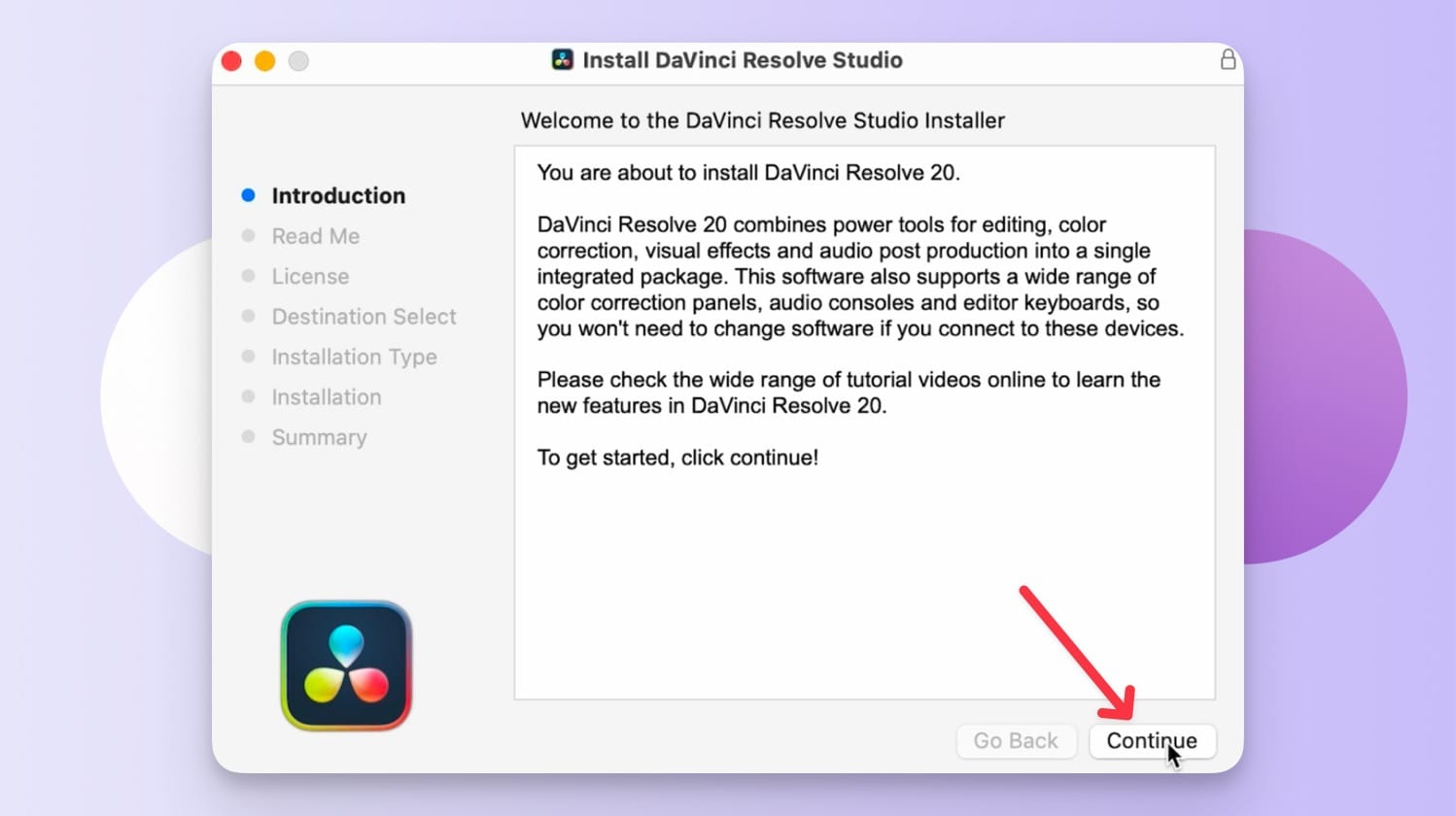
- Open the DMG File: Locate the downloaded
DaVinci_Resolve_20_xxx_Mac.dmgfile. Double-click it to mount the disk image. - Drag to Applications: A window will appear, typically showing the DaVinci Resolve application icon and an alias to your “Applications” folder. Drag the DaVinci Resolve icon directly into the “Applications” folder. This copies the application to your system.
- Security Permissions (if prompted): Depending on your macOS Gatekeeper settings, you might be asked to confirm that you want to open an application downloaded from the internet when you first launch it. Click “Open” if prompted.
- Close and Eject: Close the installer window. To maintain a tidy desktop, right-click the “DaVinci Resolve” virtual disk icon on your desktop (or in the Finder sidebar) and select “Eject ‘DaVinci Resolve’.”
Installing DaVinci Resolve 20 on Linux
Installing DaVinci Resolve on Linux can be slightly more involved due to varying distributions and dependencies, but it’s manageable. The official Blackmagic Design installer is usually a .run file.
- Open Terminal: Navigate to the directory where you downloaded the
.runfile using the terminal. For example,cd ~/Downloads. - Make Executable: The
.runfile needs executable permissions. Use the command:
chmod +x DaVinci_Resolve_Studio_20.x.x_Linux.run(Replace20.x.xwith the actual version number).
If you downloaded the free version, the filename might beDaVinci_Resolve_20.x.x_Linux.run. - Run the Installer: Execute the installer using
sudoto ensure it has the necessary permissions:
sudo ./DaVinci_Resolve_Studio_20.x.x_Linux.run - Follow Graphical Installer: A graphical installer wizard will launch. Follow the on-screen prompts, which are typically similar to the Windows installation: “Next,” “Accept EULA,” select components (default is recommended), and choose the installation directory.
- Dependency Management: On some Linux distributions, you might need to manually install certain dependencies (like specific video codecs or libraries) if the installer identifies them as missing. Blackmagic Design often provides documentation for common dependencies. For popular distributions like Ubuntu, there are community guides available if you encounter issues.
Post-Installation: First Launch, Optimization, and Troubleshooting
Congratulations! You’ve successfully installed DaVinci Resolve 20. Now, let’s get it ready for action, understand common issues, and set it up for optimal performance to maximize your ‘Productivity’ and creative output.
Your First Launch and Quick Setup Wizard
Upon launching DaVinci Resolve 20 for the first time, you’ll be greeted by a “Welcome” screen or a “Quick Setup” wizard. This wizard is designed to help you configure essential settings based on your system and preferences.
- Database Setup: DaVinci Resolve uses a database to store your project files. The Quick Setup will prompt you to create a new database. For most users, a “Disk Database” (local on your computer) is sufficient. Give it a meaningful name (e.g., “DaVinci Resolve Projects”) and choose a location on a fast drive (preferably an SSD). For larger studios or collaborative environments, PostgreSQL databases are an option, but that’s beyond the scope of a basic installation.
- Media Storage: You’ll be asked to specify your media storage locations. Add the folders or drives where your video footage, audio, and other project assets are stored. Having these pre-defined makes importing media much faster.
- Performance Optimization: The wizard will detect your GPU and suggest optimal settings. It might ask about your preferred project frame rate and resolution. Generally, accept the recommended settings for your hardware. You can always adjust these later in the Project Settings.
Common Installation Issues and Solutions
Even with careful planning, sometimes issues arise. Here are a few common problems and their solutions:
- Installation Failed/Rollback:
- Solution: Ensure you have enough free disk space. Temporarily disable your antivirus software (remember to re-enable it afterward). Download the installer again to rule out a corrupted file. Run the installer as an administrator (Windows) or with
sudo(Linux).
- Solution: Ensure you have enough free disk space. Temporarily disable your antivirus software (remember to re-enable it afterward). Download the installer again to rule out a corrupted file. Run the installer as an administrator (Windows) or with
- DaVinci Resolve Won’t Launch:
- Solution: Update your graphics card drivers to the absolute latest version directly from NVIDIA, AMD, or Apple. Ensure your system meets the minimum RAM and VRAM requirements. Check the DaVinci Resolve logs (usually in
C:ProgramDataBlackmagic DesignDaVinci ResolveSupportlogson Windows, or similar locations on Mac/Linux) for error messages.
- Solution: Update your graphics card drivers to the absolute latest version directly from NVIDIA, AMD, or Apple. Ensure your system meets the minimum RAM and VRAM requirements. Check the DaVinci Resolve logs (usually in
- Poor Performance/Lagging:
- Solution: While not strictly an installation issue, this often appears post-install. Ensure your media is on a fast SSD. Check your GPU drivers. Allocate more RAM to Resolve if possible (though Resolve usually manages this well). Close other resource-intensive applications. In Resolve, enable “Performance Mode” in the Playback menu, and consider generating optimized media or proxies for heavy footage.
- “No CUDA/OpenCL device found” (Windows/Linux):
- Solution: This almost always points to outdated or incorrect GPU drivers. Reinstall the latest drivers, ensuring they match your specific GPU model.
- Permissions Issues (macOS/Linux):
- Solution: On macOS, ensure DaVinci Resolve has full disk access in System Settings > Privacy & Security. On Linux, ensure the directories Resolve needs to write to (like for caches and databases) have appropriate user permissions.
Optimizing DaVinci Resolve for Peak Performance
Beyond installation, configuring Resolve for optimal performance is crucial for ‘Productivity’.
- Project Settings: Always start a new project by setting its resolution and frame rate to match your source footage to avoid unnecessary scaling or frame rate conversions.
- Cache Management: Designate a fast SSD for your render cache and proxy generation. Regularly clean old cache files from within Resolve’s preferences or project settings.
- Optimized Media & Proxies: For very high-resolution or demanding codecs, generate “Optimized Media” or “Proxies” (lower-resolution versions of your footage) within Resolve. Edit with these, and Resolve will automatically switch back to the original media for final export.
- GPU Configuration: In DaVinci Resolve preferences (Preferences > System > Memory and GPU), ensure your dedicated GPU is selected and recognized. If you have multiple GPUs, ensure the most powerful one is prioritized for Resolve’s processing tasks.
Beyond Installation: Why DaVinci Resolve 20 Empowers Your Creative and Professional Journey
Installing DaVinci Resolve 20 is more than just adding another piece of software to your computer; it’s a gateway to professional-grade creative possibilities. Its power, accessibility, and comprehensive toolset are invaluable assets for enhancing your ‘Brand’ and boosting your ‘Money’ potential in the digital economy.
Elevating Your Content and Brand
In today’s visually-driven world, high-quality video content is paramount for establishing and maintaining a strong brand. Whether you’re a content creator, a small business, or a marketing professional, the visual appeal of your videos directly reflects on your brand’s professionalism and credibility.
- Professional Polish: DaVinci Resolve’s industry-leading color grading tools allow you to achieve cinematic looks and consistent branding across all your video content. Its advanced editing features, robust visual effects (Fusion), and comprehensive audio post-production (Fairlight) mean you can craft a truly polished and captivating final product. This level of quality is essential for standing out in a crowded digital landscape.
- Storytelling Power: The intuitive interface and integrated workflow enable you to focus on the narrative. By streamlining the technical aspects of post-production, Resolve empowers you to tell more compelling stories, evoke stronger emotions, and ultimately, connect more deeply with your audience. This strengthens your ‘Personal Branding’ or reinforces your ‘Corporate Identity’ through high-impact visual communication.
- Creative Freedom: With so many tools under one roof, you’re not limited by software constraints. This creative freedom allows you to experiment, innovate, and push the boundaries of your visual style, fostering a unique identity that becomes synonymous with your ‘Brand’.
Unlocking Career Opportunities and Financial Growth
Proficiency in DaVinci Resolve 20 is a highly sought-after skill in the media industry. Learning and mastering this software can directly translate into tangible financial benefits and career advancement, aligning perfectly with our ‘Money’ theme.
- High Demand for Skills: As more productions adopt DaVinci Resolve, the demand for editors, colorists, and VFX artists skilled in the platform continues to grow. From Hollywood feature films to corporate videos and online content, these skills are valuable across the board.
- Freelance Potential: The free version of Resolve lowers the barrier to entry for aspiring freelancers. You can start taking on client projects, building a portfolio, and earning income without initial software investment. As your skills and client base grow, investing in the Studio version becomes a strategic business decision, allowing you to tackle more complex and higher-paying jobs.
- Monetizing Content: For YouTubers, social media influencers, and online educators, producing high-quality content is directly linked to audience engagement and monetization. Resolve helps you create the visually stunning videos that attract and retain viewers, increasing ad revenue, sponsorships, and product sales.
- Cost-Effective Solution for Businesses: For small businesses, Resolve offers a powerful alternative to expensive subscription-based software, allowing them to produce professional marketing videos, training materials, and internal communications without significant ongoing software costs, contributing directly to their ‘Business Finance’.
Conclusion
Installing DaVinci Resolve 20 is the first and most critical step on a rewarding journey into the world of professional video production. By following this comprehensive guide, you’ve not only successfully set up a powerhouse piece of software but also laid the groundwork for enhanced creativity, productivity, and professional growth.
From understanding vital system requirements and navigating the secure download process to executing a flawless installation across different operating systems, we’ve covered every detail. We’ve also equipped you with the knowledge to troubleshoot common issues and optimize your setup for peak performance, ensuring your valuable time is spent creating, not debugging.
Beyond the technicalities, remember that mastering DaVinci Resolve 20 empowers you to craft compelling visual stories, elevate your personal or corporate brand, and unlock significant financial opportunities in a rapidly expanding digital landscape. Embrace this incredible tool, dive into its vast capabilities, and start transforming your creative visions into stunning realities. The next generation of professional video content awaits your touch!
aViewFromTheCave is a participant in the Amazon Services LLC Associates Program, an affiliate advertising program designed to provide a means for sites to earn advertising fees by advertising and linking to Amazon.com. Amazon, the Amazon logo, AmazonSupply, and the AmazonSupply logo are trademarks of Amazon.com, Inc. or its affiliates. As an Amazon Associate we earn affiliate commissions from qualifying purchases.