
In the dynamic landscape of PC gaming, modification (modding) stands as a testament to creativity, community, and the boundless potential of player-driven content. For countless enthusiasts across titles like Minecraft, World of Warcraft, and myriad others, mods aren’t just additions; they’re transformative elements that reshape gameplay, introduce new mechanics, and breathe fresh life into beloved virtual worlds. At the heart of this vibrant ecosystem lies CurseForge, a premier platform and client that simplifies the often-intimidating process of discovering, installing, and managing game modifications. This guide delves into the technical intricacies and practical steps required to leverage CurseForge, empowering you to unlock new dimensions of your favorite games with ease and confidence.
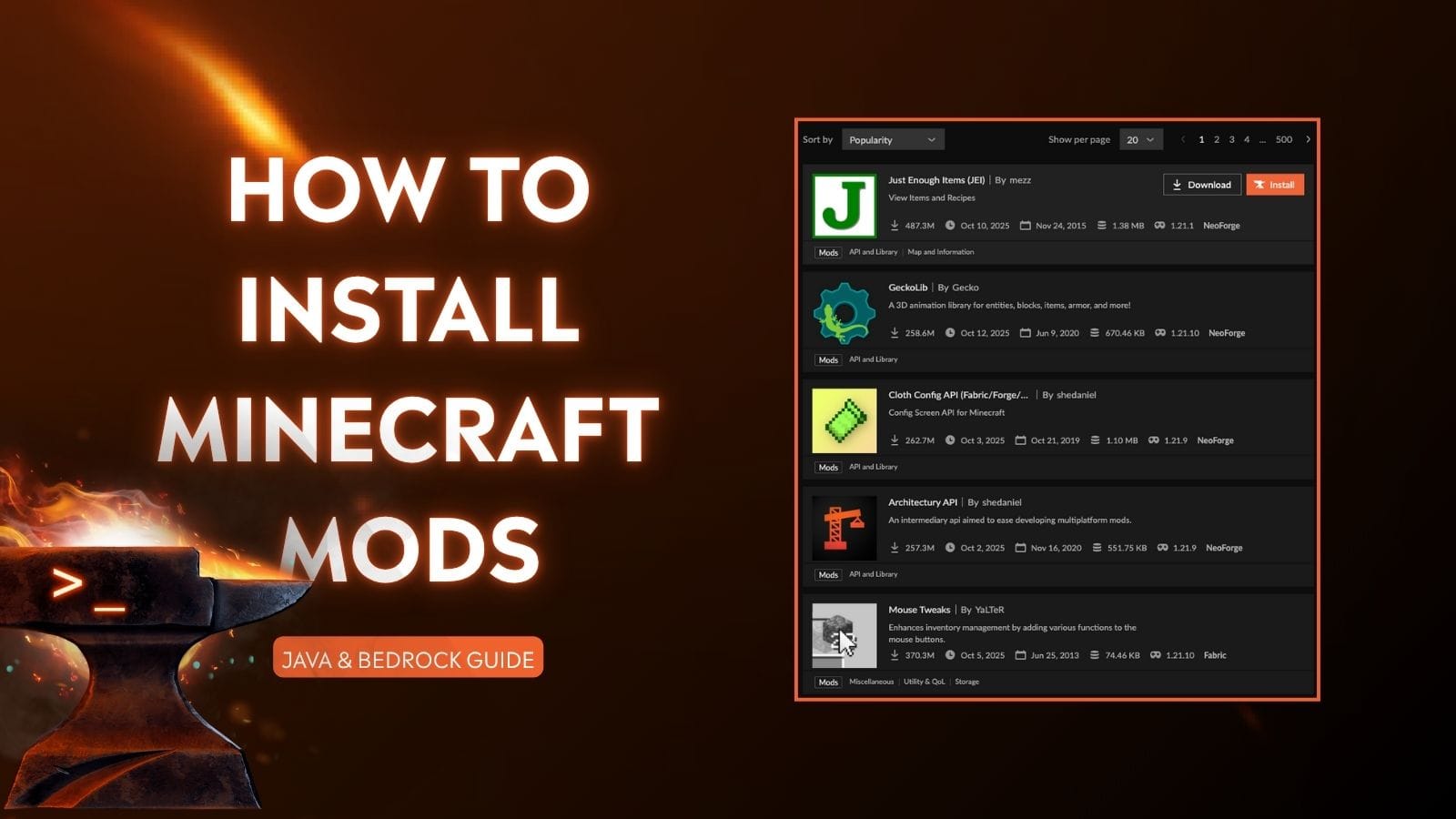
Understanding the CurseForge Ecosystem and Its Advantages
Before diving into the installation process, it’s crucial to grasp what CurseForge is, its role in the modding community, and why it has become the go-to solution for millions of gamers. This understanding forms the foundation for a seamless and secure modding journey.
What is CurseForge and How Does It Function?
CurseForge is a digital distribution platform and a client application designed primarily for game modifications. Originally an independent platform, it was acquired by Twitch, then later by Overwolf, which currently manages its operations. It serves as a centralized hub where mod developers can upload their creations and players can browse, download, and manage them. The CurseForge client, available for desktop, integrates directly with supported games, automating many of the complex steps traditionally associated with manual mod installation. This includes handling dependencies, resolving conflicts, and ensuring compatibility.
At its core, CurseForge streamlines the modding experience by:
-
Centralized Repository: Providing a vast, organized database of mods and modpacks.
-
Automated Management: Simplifying installation, updates, and removal of mods.
-
Dependency Resolution: Automatically identifying and installing required supplementary mods.
-
Version Control: Ensuring mods are compatible with your specific game version.
-
Community Hub: Facilitating interaction between mod developers and users.
The Undeniable Benefits of Using CurseForge for Modding
The appeal of CurseForge extends far beyond mere convenience. For both novice and seasoned modders, the platform offers significant advantages that enhance the overall gaming and modding experience.
-
Simplicity and Accessibility: The most compelling benefit is undoubtedly the ease of use. Gone are the days of manually dragging and dropping files into obscure game directories, wrestling with complicated file structures, or deciphering arcane installation instructions. CurseForge automates much of this, making modding accessible to a broader audience.
-
Safety and Security: Mods downloaded from official CurseForge channels are generally vetted for malicious code, offering a safer alternative to downloading files from unknown or untrusted websites. The platform acts as a gatekeeper, contributing to a more secure modding environment.
-
Compatibility and Stability: CurseForge helps maintain game stability by allowing users to easily install mods compatible with their specific game versions. It also facilitates the installation of modpacks—pre-configured collections of mods designed to work together harmoniously, minimizing conflicts and crashes.
-
Updates and Maintenance: The client automatically notifies users when updates for their installed mods are available and can often apply them with a single click. This keeps your modded game current and secure, without the manual effort of tracking multiple mod authors.
-
Rich Ecosystem and Community Support: With millions of downloads and a vast community, CurseForge fosters an active environment where users can find support, share experiences, and discover new content. This vibrant ecosystem continually drives innovation and expands the possibilities within games.
Key Terminology for the Aspiring Modder
To navigate the world of CurseForge effectively, a grasp of essential terminology is beneficial:
-
Mod (Modification): A piece of software that alters a game’s content, code, or behavior.
-
Modpack: A curated collection of multiple mods packaged together, often designed around a specific theme or gameplay experience. CurseForge simplifies the installation of entire modpacks.
-
Game Instance/Profile: Within CurseForge, this refers to a specific configuration of a game (e.g., a Minecraft profile running a particular modpack or game version).
-
Overwolf: The parent company that owns and operates CurseForge. The CurseForge client is integrated into the Overwolf platform.
-
Dependencies: Other mods or libraries that a particular mod requires to function correctly. CurseForge often handles these automatically.
Essential Prerequisites Before You Begin
While CurseForge simplifies much of the modding process, a few foundational elements must be in place before you can begin enhancing your games. Ensuring these prerequisites are met will prevent common issues and pave the way for a smooth installation.
Game Client Installation and Verification
The most fundamental requirement is having the base game installed and functional on your system. CurseForge supports a variety of titles, with Minecraft and World of Warcraft being the most prominent.
-
For Minecraft: Ensure you have a legitimate copy of Minecraft installed via the official Minecraft Launcher. It’s crucial that the game can launch and run correctly without any mods first. CurseForge typically manages different Minecraft versions, but a working base installation is non-negotiable.
-
For World of Warcraft: Similarly, verify that your World of Warcraft client (e.g., Retail, Classic, Wrath of the Lich King Classic) is fully installed and up-to-date through the Battle.net client. CurseForge integrates directly with WoW’s addon directory.
-
Other Supported Games: For other titles, confirm that the game is installed and updated through its respective platform (e.g., Steam, Epic Games Launcher, etc.)
It’s also advisable to run the game at least once after installation to ensure all initial setup processes are complete and the necessary game directories are created.
Java Runtime Environment (JRE) for Minecraft Modding
For Minecraft modding specifically, the Java Runtime Environment (JRE) is an indispensable component. Minecraft itself runs on Java, and most Minecraft mods (especially older ones or those not bundled directly into modern launchers) require a compatible Java installation to execute.
-
Checking Your Java Version: You can check if Java is installed and its version by opening your command prompt (CMD) or terminal and typing
java -version. -
Installation/Update: If Java is not installed or if it’s an outdated version, you might need to install or update it. Minecraft versions often have specific Java requirements. For newer Minecraft versions (1.17+), Java 16 or later is typically required. For older versions, Java 8 is common.
-
Where to Get Java: Download Java directly from the official Oracle website or adoptium.net (for OpenJDK builds). Always download from reputable sources to avoid security risks.
-
64-bit Java: Ensure you install the 64-bit version of Java if your operating system is 64-bit (which most modern systems are). This is crucial for performance and compatibility with larger modpacks.
System Requirements and Best Practices
While mods can enhance your gaming experience, they also add overhead. Being mindful of your system’s capabilities and following some best practices can prevent performance issues.
-
RAM (Memory): Modded games, especially Minecraft with extensive modpacks, can be very memory-intensive. Ensure you have sufficient RAM (8GB minimum, 16GB or more recommended for heavier modpacks). You’ll often need to allocate more RAM to the game through the CurseForge client settings.
-
CPU and GPU: A capable processor and graphics card are also important, particularly for graphically intensive mods or those that add complex new world generation.
-
Storage: Mods consume disk space. Ensure you have ample free space on your primary drive, especially if you plan to install multiple modpacks or games.
-
Internet Connection: A stable internet connection is necessary for downloading the CurseForge client, mods, and updates.
-
Antivirus/Firewall: Ensure your antivirus or firewall is not overly aggressive and doesn’t block CurseForge or game-related processes. Temporarily disabling them for installation if you encounter issues, then re-enabling, might be necessary, but always exercise caution.
Step-by-Step Guide to Installing CurseForge and Mods
With the prerequisites handled, you’re ready to embark on the core process: downloading the CurseForge client, setting it up, and finally, installing your desired mods or modpacks. This section breaks down each stage into actionable steps.

Downloading and Installing the CurseForge Client
The journey begins with acquiring the CurseForge client itself. It’s crucial to download it from the official source to ensure authenticity and security.
-
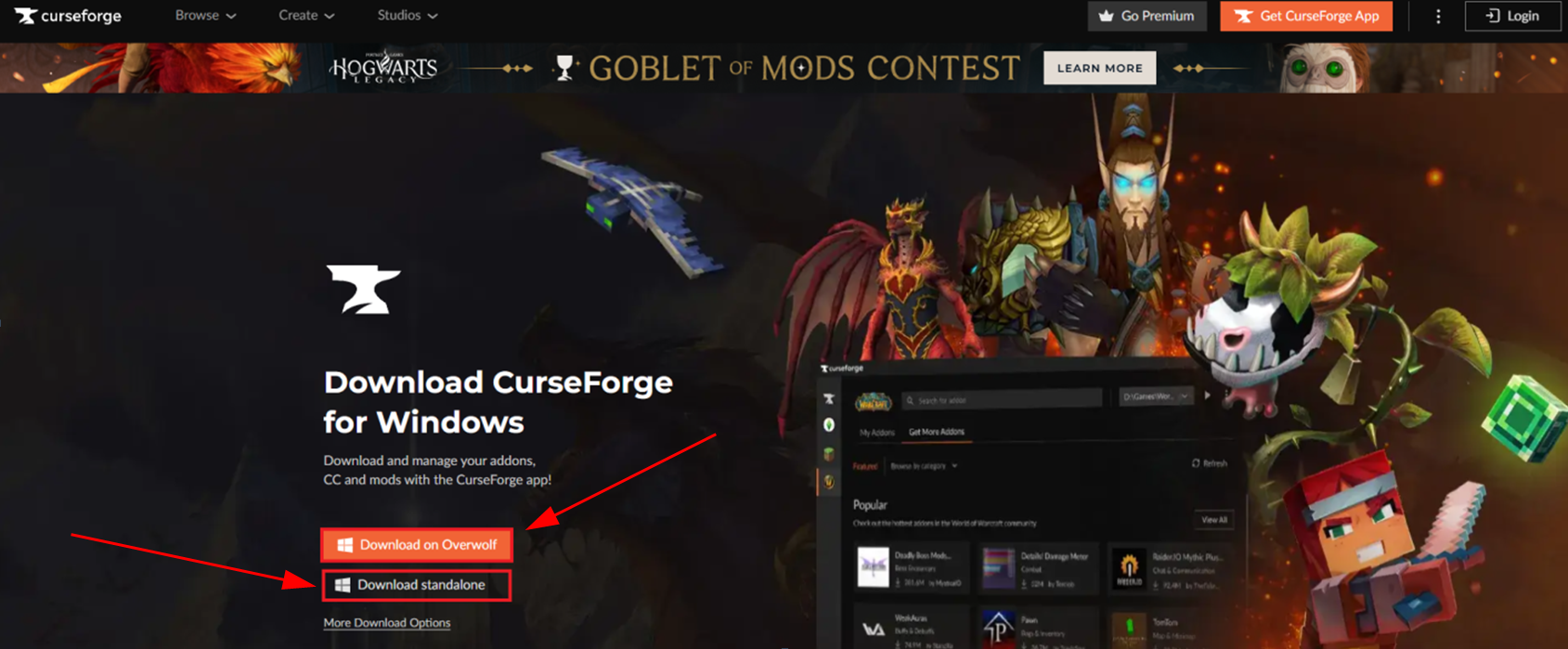
Navigate to the Official CurseForge Website: Open your web browser and go to
curseforge.overwolf.com. -
Download the Client: Locate the prominent “Download” button, usually tailored for your operating system (Windows or macOS). Click to download the installer.
-
Run the Installer: Once the download is complete, locate the
.exe(Windows) or.dmg(macOS) file in your downloads folder and double-click to run it. -
Follow On-Screen Prompts: The installer will guide you through the process. Accept the license agreement, choose your installation directory (the default is usually fine), and allow the installation to complete.
-
Overwolf Integration: The CurseForge client is built on the Overwolf platform. During or after installation, Overwolf will also install alongside CurseForge. You may need to log in to an Overwolf account or create one if you don’t have one already. This account manages your CurseForge profiles and settings.
Setting Up Your Game Profile in CurseForge
Once the client is installed, the next step is to configure it to recognize your installed games. This allows CurseForge to manage mods specific to those games.
-
Launch CurseForge: Open the newly installed CurseForge client from your desktop shortcut or start menu.
-
Select Your Game: Upon first launch, CurseForge will typically scan your system for supported games. If it finds them, it will present a list. Click on the game you wish to mod (e.g., Minecraft, World of Warcraft).
-
Automatic Detection: For most games, CurseForge will automatically detect the installation path. If it struggles, you may be prompted to manually locate the game’s installation directory. For Minecraft, this is usually the
.minecraftfolder. For WoW, it’s the main game folder (e.g.,_retail_,_classic_). -
Create a Profile/Instance (Minecraft Specific): For Minecraft, CurseForge allows you to create separate “instances” for different modpacks or game versions. Click “Create Custom Profile” to set up a new Minecraft instance with a specific version of Minecraft and Forge/Fabric (mod loaders). For World of Warcraft, CurseForge directly manages addons within your existing game client.
Discovering and Installing Mods/Modpacks Directly
This is where the magic happens – finding and installing the content that will transform your game.
-
Browse Modpacks/Mods: Within your selected game’s section in CurseForge, you’ll see options to browse “Modpacks” or “Mods.”
-
For Minecraft: You’ll primarily browse “Modpacks” which are comprehensive collections. You can also browse individual “Mods” if you prefer a more granular approach, though installing individual mods requires more attention to compatibility and dependencies.
-
For World of Warcraft: You’ll browse “Addons” (WoW’s term for mods).
-
-
Filter and Search: Use the search bar and filters (by popularity, category, game version, etc.) to narrow down your choices. Read descriptions, check reviews, and view screenshots to find mods that pique your interest.
-
Install Modpack/Mod:
-
For Modpacks (Minecraft): Once you find a modpack you like, click on its entry and then click the “Install” button. CurseForge will download all necessary mods, dependencies, and configure the game instance. This can take some time depending on the size of the modpack and your internet speed.
-
For Addons (WoW): Locate the desired addon, click on it, and then click “Install.” CurseForge will automatically place the addon files into the correct WoW directory.
-
-
Launch Your Modded Game: After installation, a “Play” button will appear next to your modpack instance (Minecraft) or within the game’s section (WoW). Click this to launch your game with the newly installed mods.
Updating and Managing Installed Mods
Mods are frequently updated. CurseForge makes keeping them current simple.
-
Updates: The CurseForge client will typically notify you when updates are available for your installed mods or modpacks. You can usually update them with a single click from the “My Modpacks” or “My Addons” section.
-
Disabling/Uninstalling: To temporarily disable a mod or addon without uninstalling it, you can often find an option to do so within the mod’s details or in the “My Addons” list (for WoW). To fully uninstall, look for an “Uninstall” or “Delete Instance” option.
Troubleshooting Common Issues and Optimizing Your Modding Experience
While CurseForge significantly reduces the complexity of modding, issues can still arise. Knowing how to troubleshoot and optimize your setup is key to a smooth and enjoyable experience.
Game Crashes and Conflicts
Crashes are the most common headache in modded games. They typically stem from incompatible mods, missing dependencies, or insufficient resources.
-
Check Crash Logs: When a game crashes, it usually generates a crash log (e.g.,
crash-report-*.txtfor Minecraft in your game instance folder). These logs contain valuable information about what went wrong, often pointing to the specific mod or error. -
Mod Conflicts: If you’re installing individual mods, conflicts are common.
-
Isolate the Issue: Try disabling recently installed mods one by one to identify the culprit.
-
Check Mod Descriptions: Always read mod descriptions for known incompatibilities with other popular mods.
-
Use Modpacks: This is a key advantage of modpacks—they are designed for compatibility.
-
-
Resource Allocation: For Minecraft, ensure you’ve allocated enough RAM to the game instance within CurseForge settings (usually under “Profile Options”). Too little RAM is a frequent cause of crashes, especially with large modpacks.
-
Java Version: Verify your Java version matches the modpack’s requirements.
Performance Lag and Optimization Tips
A heavily modded game can tax your system, leading to lag and low frame rates.
-
Allocate More RAM: As mentioned, increased RAM allocation is crucial. However, don’t allocate all your RAM, as your operating system also needs some. A good rule of thumb for a 16GB system running a heavy Minecraft modpack is 8-10GB.
-
Graphics Settings: Reduce in-game graphics settings (render distance, fancy graphics, shadows, particles).
-
Performance Mods: Install specific performance-enhancing mods like OptiFine or Rubidium/Oculus (for Forge) or Sodium/Iris (for Fabric) in Minecraft. These can significantly boost FPS.
-
Update Drivers: Ensure your graphics card drivers are up-to-date. Outdated drivers can lead to suboptimal performance.
-
Close Background Applications: Free up system resources by closing unnecessary applications running in the background.
Ensuring Mod Compatibility and Safe Practices
Maintaining a stable modded environment requires attention to compatibility and security.
-
Game Version Matching: Always ensure your mods are compatible with your specific game version (e.g., Minecraft 1.18.2 mods will not work on 1.19). CurseForge helps with this, but manual checks are good practice.
-
Mod Loader (Minecraft): Understand if a mod requires Forge or Fabric. Do not mix Forge and Fabric mods in the same instance unless explicitly stated by a compatibility layer. CurseForge modpacks generally handle this for you.
-
Read Mod Comments/Reviews: Community feedback on CurseForge mod pages can often highlight compatibility issues or performance concerns.
-
Backup Your Saves: Before undertaking significant modding, especially with new modpacks or individual mods, always back up your game saves. This is your safety net against corrupted worlds or irreversible changes.
-
Source Verification: While CurseForge is generally safe, be wary of downloading mods from third-party sites claiming to host CurseForge content, as they might contain malware. Stick to the official CurseForge client.
Leveraging the Community for Support
The modding community is a vast resource for troubleshooting.
-
CurseForge Forums/Discord: Many modpacks and individual mods have dedicated Discord servers or forum sections where you can ask for help directly from developers or experienced users.
-
Game-Specific Subreddits: Subreddits for Minecraft, World of Warcraft, etc., are active communities where you can find answers to common issues.
-
Documentation: Many popular modpacks have wikis or extensive documentation that detail common problems and solutions.
By understanding these potential pitfalls and applying proactive troubleshooting and optimization strategies, you can minimize downtime and maximize your enjoyment of a richly modded gaming experience. CurseForge, coupled with your informed approach, provides a robust framework for endlessly customizable gameplay.
aViewFromTheCave is a participant in the Amazon Services LLC Associates Program, an affiliate advertising program designed to provide a means for sites to earn advertising fees by advertising and linking to Amazon.com. Amazon, the Amazon logo, AmazonSupply, and the AmazonSupply logo are trademarks of Amazon.com, Inc. or its affiliates. As an Amazon Associate we earn affiliate commissions from qualifying purchases.