
Cricut cutting machines have revolutionized the world of DIY crafting, design, and personalized production, empowering hobbyists and small business owners alike to bring intricate visions to life. At the heart of this creative ecosystem lies Cricut Design Space – the essential software that acts as the command center for your Cricut machine. Without it, your powerful cutting device is merely a sophisticated paperweight. This comprehensive guide will walk you through the entire installation process, ensuring you can seamlessly set up Design Space on your computer and unlock its full potential, transforming your digital designs into tangible creations. We’ll delve into the necessary prerequisites, offer step-by-step instructions for both Windows and macOS users, troubleshoot common pitfalls, and provide insights into optimizing your creative workflow.
Understanding Cricut Design Space and Its Importance
Before diving into the technicalities of installation, it’s crucial to grasp what Cricut Design Space is and why it’s an indispensable tool for anyone operating a Cricut machine. It’s more than just a driver; it’s a feature-rich design platform that bridges the gap between your imagination and your machine’s capabilities.
What is Cricut Design Space?
Cricut Design Space is a proprietary software application developed by Cricut for designing, editing, and sending projects to Cricut cutting machines, such as the Cricut Explore, Maker, and Joy series. It functions as a powerful digital canvas where users can create designs from scratch, upload their own images, or utilize Cricut’s vast library of fonts, images, and ready-to-make projects. The software allows for intricate manipulation of text and graphics, including sizing, layering, welding, slicing, attaching, and flattening, all essential functions for preparing designs for precise cutting, drawing, scoring, or foiling with a Cricut machine. It’s also the interface through which you calibrate your machine, manage materials, and execute cuts, making it the central hub for all Cricut-related activities.
Why Installation Matters for Creativity
The installation of Cricut Design Space isn’t just a technical formality; it’s the gateway to your creative endeavors. A properly installed and configured Design Space ensures reliable communication between your computer and your Cricut machine, preventing errors that could disrupt your workflow or damage your materials. An updated and correctly functioning installation guarantees access to the latest features, bug fixes, and machine firmware updates, enhancing both performance and security. Without a successful installation, users are effectively locked out of their Cricut machine’s functionality, rendering them unable to create, modify, or send projects. Therefore, understanding and meticulously following the installation process is the foundational step for any Cricut user looking to unleash their creative potential and leverage their machine to its fullest extent.
Pre-Installation Checklist: Ensuring a Smooth Setup
To guarantee a hassle-free installation experience, it’s advisable to perform a quick pre-installation check. Meeting the minimum system requirements and preparing your device will prevent most common installation roadblocks, allowing for a swift and successful setup.
System Requirements for Windows
For Windows users, ensuring your PC meets the specifications is paramount. Cricut Design Space is resource-intensive, especially when handling complex designs or large image files.
-
Operating System: Windows 10 or later (64-bit). While older versions might allow the software to run, Cricut officially supports and optimizes for Windows 10 and newer, ensuring better performance and compatibility.
-
CPU: Intel Core i3 or equivalent AMD processor. Faster processors will naturally lead to smoother performance, especially during complex design operations.
-
RAM: 8 GB of RAM is recommended, though 4 GB is the stated minimum. For optimal multi-tasking and handling large project files, 8 GB or more is highly advisable.
-
Free Disk Space: 4 GB of available disk space. This accounts for the software itself and temporary project files.
-
Internet Connection: Broadband internet connection (minimum 2-3 Mbps download, 1-2 Mbps upload). An active internet connection is required for initial installation, software updates, syncing projects to the cloud, and accessing Cricut’s online image library.
-
Display: 1024px x 768px screen resolution. Higher resolutions offer a better user experience for design work.
-
Ports: USB port (for connecting older machines) or Bluetooth connectivity (for newer machines).
System Requirements for macOS
Mac users also have specific requirements to consider for an optimal Design Space experience:
-
Operating System: macOS 11 (Big Sur) or later. Similar to Windows, ensuring your macOS is up-to-date will yield the best results.
-
CPU: 1.83 GHz (or equivalent) Dual-core processor. Apple Silicon (M1/M2/M3 chips) are fully supported and often provide superior performance.
-
RAM: 8 GB of RAM is recommended, with 4 GB being the minimum. Investing in more RAM will significantly enhance responsiveness.
-
Free Disk Space: 4 GB of available disk space.
-
Internet Connection: Broadband internet connection (minimum 2-3 Mbps download, 1-2 Mbps upload).
-
Display: 1024px x 768px screen resolution.
-
Ports: USB port (for connecting older machines) or Bluetooth connectivity (for newer machines).
Preparing Your Device
Beyond system requirements, a few preparatory steps can further streamline the installation:
-
Administrative Rights: Ensure you have administrator privileges on your computer. Installation often requires permission to modify system files.
-
Internet Connection Stability: Verify your internet connection is stable and strong. A fluctuating connection can lead to corrupted downloads or interrupted installations.
-
Close Other Applications: Close any unnecessary applications running in the background. This frees up RAM and CPU resources, dedicating them to the installation process.
-
Antivirus/Firewall Check: Temporarily disabling your antivirus software or firewall might be necessary in rare cases if it interferes with the download or installation. Remember to re-enable them immediately after installation is complete for security.
-
Disk Cleanup: For older systems, performing a quick disk cleanup can free up valuable space and improve overall system responsiveness.
Step-by-Step Installation Guide
With your device prepared, you’re ready to download and install Cricut Design Space. The process is straightforward, but attention to detail can prevent common errors.
Downloading the Design Space Application
The first step is to obtain the official installer. Always download the software directly from Cricut’s official website to ensure you’re getting the latest, most secure version.
-
Navigate to Cricut’s Website: Open your web browser and go to
design.cricut.com. -
Initiate Download: The website should automatically detect your operating system (Windows or macOS) and present a prominent “Download” button or prompt to download the Cricut Design Space desktop application. Click on this button.
-
Save the Installer: Your browser will prompt you to save the installer file. Choose a location that’s easy to remember, such as your “Downloads” folder or desktop. The file name will typically be something like
CricutDesignSpace.exefor Windows orCricut_Design_Space.dmgfor macOS. The download size can be several hundred megabytes, so be patient.

Installing on Windows
Once the installer (CricutDesignSpace.exe) is downloaded:
-
Locate the Installer: Navigate to the folder where you saved the installer file.
-
Run as Administrator: Right-click on
CricutDesignSpace.exeand select “Run as administrator.” This ensures the installer has the necessary permissions. -
Follow On-Screen Prompts:
-
A security warning might appear, asking if you want to allow the app to make changes to your device. Click “Yes.”
-
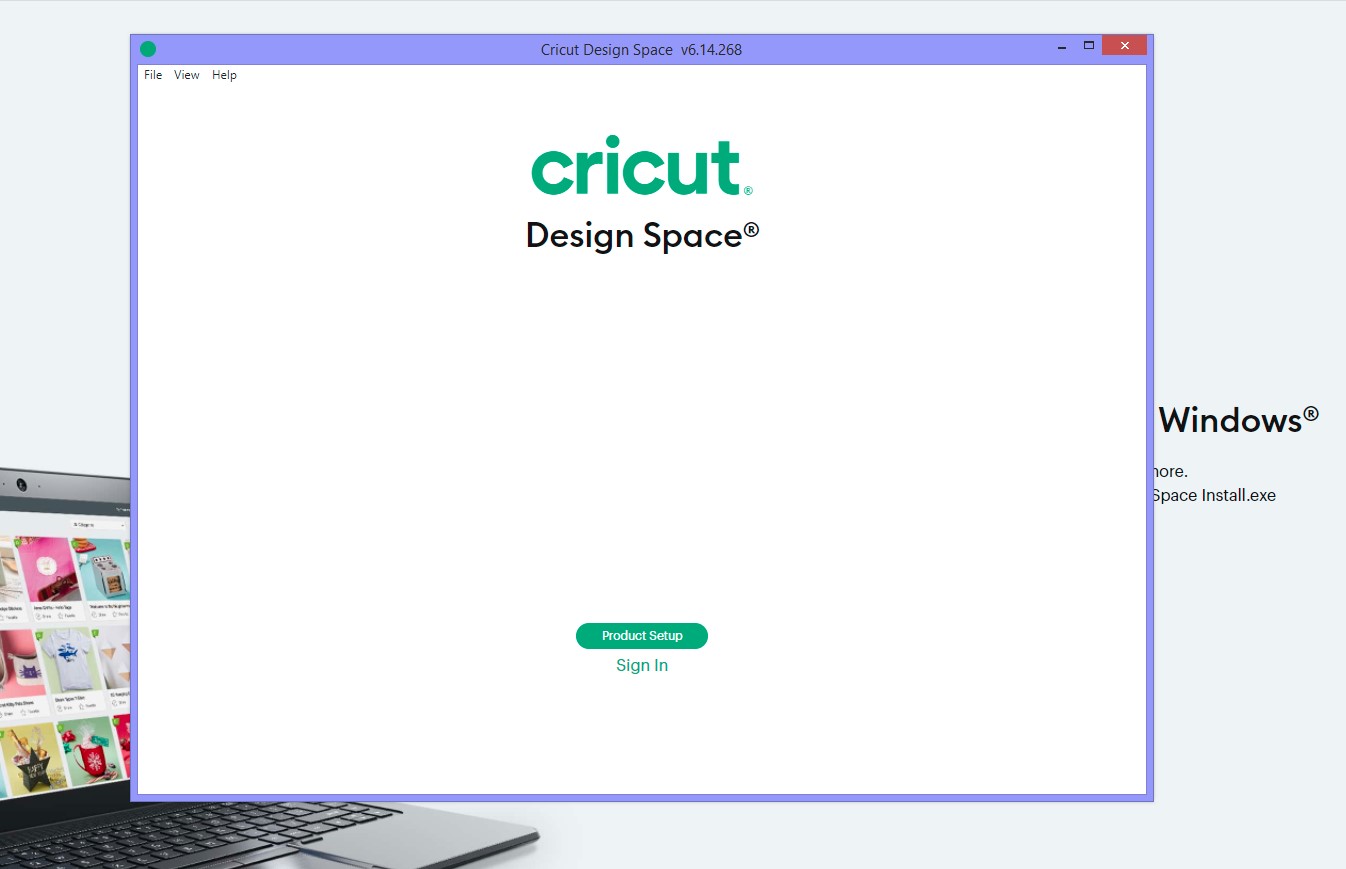
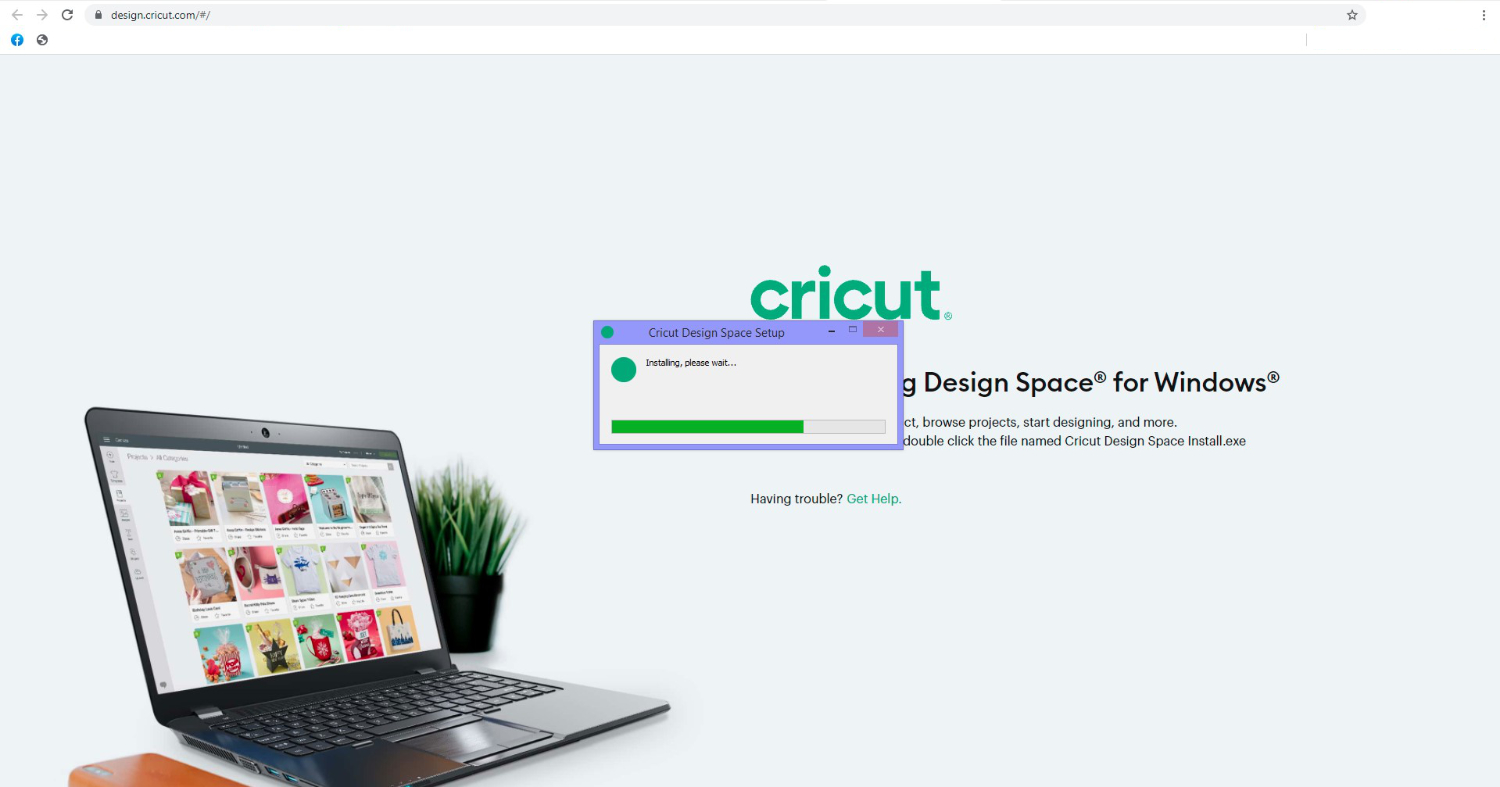
The Cricut Design Space installer window will appear, displaying a progress bar as it extracts files and installs the application. This process is largely automated.
-
Once the installation is complete, Design Space will typically launch automatically, and a shortcut icon will be placed on your desktop.
-
-
First Launch and Updates: Design Space may perform an initial update upon its first launch to ensure all components are current. Allow this process to complete.
Installing on macOS
For Mac users, the process involves mounting a disk image:
-
Locate the Disk Image: Navigate to the folder where you saved
Cricut_Design_Space.dmg. -
Open the Disk Image: Double-click the
.dmgfile. This will mount a virtual disk image and open a new Finder window showing the Cricut Design Space application icon and an “Applications” folder alias. -
Drag to Applications: Drag the “Cricut Design Space” application icon into the “Applications” folder alias. This copies the application to your Applications directory.
-
Eject the Disk Image: After the copy is complete, drag the “Cricut Design Space” disk image icon from your desktop (or the Finder sidebar) to the Trash to eject it, or right-click and select “Eject.” This cleans up your desktop.
-
Launch Design Space: Go to your “Applications” folder and double-click the “Cricut Design Space” icon to launch the application.
-
Security Prompt (First Launch): The first time you launch it, macOS might ask for confirmation, stating that the app was downloaded from the internet. Click “Open.”
-
Initial Updates: Similar to Windows, Design Space might download and install updates on its first run.
Initial Launch and Account Setup
After installation, the first launch requires a few more steps:
-
Sign In or Create Cricut ID: You will be prompted to sign in with your Cricut ID. If you already have one, enter your email and password. If you’re new to Cricut, select “Create Cricut ID” and follow the prompts to set up your free account. This ID is crucial for saving projects, accessing your purchased content, and linking your machine.
-
Accept Terms and Conditions: Read and accept the Cricut Design Space Terms of Use and Privacy Policy.
-
Connect Your Machine (Optional, but Recommended): While not strictly part of the software installation, this is the logical next step. Design Space will guide you through connecting your Cricut machine via USB or Bluetooth. This step often includes registering your machine and performing any necessary firmware updates.
Troubleshooting Common Installation Issues
Even with careful preparation, technical glitches can occur. Knowing how to troubleshoot common installation problems can save significant time and frustration.
Addressing Download Failures
-
Corrupted Download: If the installer file appears to be incomplete or gives an error when you try to run it, delete the downloaded file and try downloading it again. A stable internet connection is crucial here.
-
Slow Internet/Connection Loss: Ensure your internet connection is robust. If downloads are consistently failing, try restarting your modem/router or connecting directly via Ethernet cable if you’re on Wi-Fi.
-
Browser Issues: Try downloading using a different web browser (e.g., Chrome, Firefox, Edge). Sometimes browser extensions or settings can interfere.
Resolving Installation Errors
-
Administrator Privileges: The most common installation error on Windows is often related to insufficient permissions. Always “Run as administrator” for the installer. On macOS, ensure your user account has administrator rights.
-
Antivirus/Firewall Interference: If the installation fails repeatedly, temporarily disable your antivirus software and firewall (remember to re-enable them immediately after installation). These security tools can sometimes incorrectly flag legitimate software installations.
-
System Requirements Not Met: Double-check that your computer meets all minimum system requirements, especially RAM and operating system version. An outdated OS can lead to compatibility issues.
-
Previous Installation Remnants: If you had a previous version of Design Space installed that was uninstalled improperly, leftover files might cause issues. For Windows, go to “Add or Remove Programs” and ensure “Cricut Design Space” is not listed. For Mac, check your Applications folder and Library folders for any Cricut-related files. In severe cases, a clean uninstall tool (for Windows) or manual deletion of specific application support files (for Mac) might be needed.
-
Disk Space: Verify you have enough free disk space. A full hard drive can prevent installation.
Post-Installation Challenges (e.g., software not launching)
-
Software Not Launching:
-
Restart Your Computer: A simple restart can often resolve minor software glitches.
-
Check Task Manager (Windows) / Activity Monitor (macOS): See if Design Space is listed as running in the background. If so, end the process and try launching again.
-
Update Graphics Drivers: Outdated graphics drivers can sometimes prevent applications from launching. Ensure your graphics card drivers are up to date.
-
Reinstallation: As a last resort, uninstall Design Space completely and perform a fresh installation.
-
-
Login Issues: If you can’t log in, double-check your Cricut ID email and password. Use the “Forgot Password” option if necessary. Ensure your internet connection is active, as login requires authentication.
-
Machine Connection Problems: If Design Space installs but won’t connect to your Cricut machine, ensure the machine is powered on, USB cable is securely connected (if applicable), or Bluetooth is enabled on both devices and paired correctly.
Optimizing Your Cricut Design Space Experience
Installation is just the first step. To truly get the most out of your Cricut machine, maintaining and optimizing your Design Space software is key to a seamless creative workflow.
Keeping Your Software Updated
Cricut regularly releases updates for Design Space, which include new features, performance enhancements, bug fixes, and critical firmware updates for your machine.
-
Automatic Updates: By default, Design Space is configured to check for and install updates automatically upon launch. It’s crucial to allow these updates to complete. Never force-quit Design Space during an update, as this can corrupt the installation.
-
Manual Check for Updates: You can manually check for updates within Design Space by going to the menu (usually three horizontal lines in the top left corner) and looking for an “Updates” or “Settings” section that allows you to trigger a check.
-
Firmware Updates: Design Space also facilitates firmware updates for your Cricut machine. When prompted, always perform these updates. Firmware updates improve machine performance, add new capabilities, and ensure compatibility with the latest software.
Leveraging Online Resources and Community Support
The Tech landscape around Cricut Design Space is rich with resources designed to help users at every stage of their journey.
-
Cricut Help Center: The official Cricut Help Center on their website is an invaluable resource, featuring detailed articles, FAQs, and troubleshooting guides for virtually every aspect of Design Space and Cricut machines.
-
Cricut Community Forums: Engaging with the vibrant Cricut community forums can provide solutions to niche problems, inspiration for projects, and tips from experienced users.
-
YouTube Tutorials and Blogs: Countless content creators offer free tutorials on YouTube and crafting blogs, demonstrating specific Design Space functions, project walkthroughs, and advanced techniques.
-
Cricut Access: Consider a Cricut Access subscription for unlimited access to a growing library of images, fonts, and ready-to-make projects directly within Design Space. This significantly expands your creative toolkit.
By meticulously following these installation steps and adopting best practices for software maintenance, you’ll ensure that your Cricut Design Space runs smoothly, providing a stable and efficient platform for all your crafting and design endeavors. The tech behind Cricut machines is powerful, and with the right setup, your creative possibilities are limitless.
aViewFromTheCave is a participant in the Amazon Services LLC Associates Program, an affiliate advertising program designed to provide a means for sites to earn advertising fees by advertising and linking to Amazon.com. Amazon, the Amazon logo, AmazonSupply, and the AmazonSupply logo are trademarks of Amazon.com, Inc. or its affiliates. As an Amazon Associate we earn affiliate commissions from qualifying purchases.