
In the ever-evolving world of personal computing, the quest for optimal performance and system longevity often leads enthusiasts and professionals alike to explore advanced cooling solutions. While traditional air coolers have long served as the staple, the rise of powerful processors and the demands of intensive tasks like gaming, video editing, and 3D rendering have propelled liquid cooling, specifically All-In-One (AIO) liquid coolers, into the mainstream. Installing a CPU liquid cooler might seem daunting at first glance, but with the right guidance, it’s a straightforward process that can significantly enhance your system’s capabilities. This guide will walk you through every step, ensuring a smooth and successful installation.
Why Choose Liquid Cooling for Your CPU?
Before diving into the mechanics of installation, it’s beneficial to understand why liquid cooling has become such a popular choice. Its advantages extend beyond mere aesthetics, impacting performance, noise levels, and even the lifespan of your components.
Superior Thermal Performance
The primary reason users opt for liquid cooling is its unmatched ability to dissipate heat. Liquid, particularly water, has a much higher specific heat capacity than air, meaning it can absorb and transfer more heat energy away from the CPU more efficiently. The coolant circulates through a cold plate that sits directly on the CPU, absorbs the heat, and then moves to a radiator where the heat is transferred to the ambient air via fans. This continuous cycle keeps CPU temperatures lower, especially under heavy loads, preventing thermal throttling and maintaining peak performance for longer durations. This is crucial for high-end CPUs from Intel and AMD, which can generate substantial heat when operating at their maximum clock speeds or when overclocked.
Aesthetic Appeal and Noise Reduction
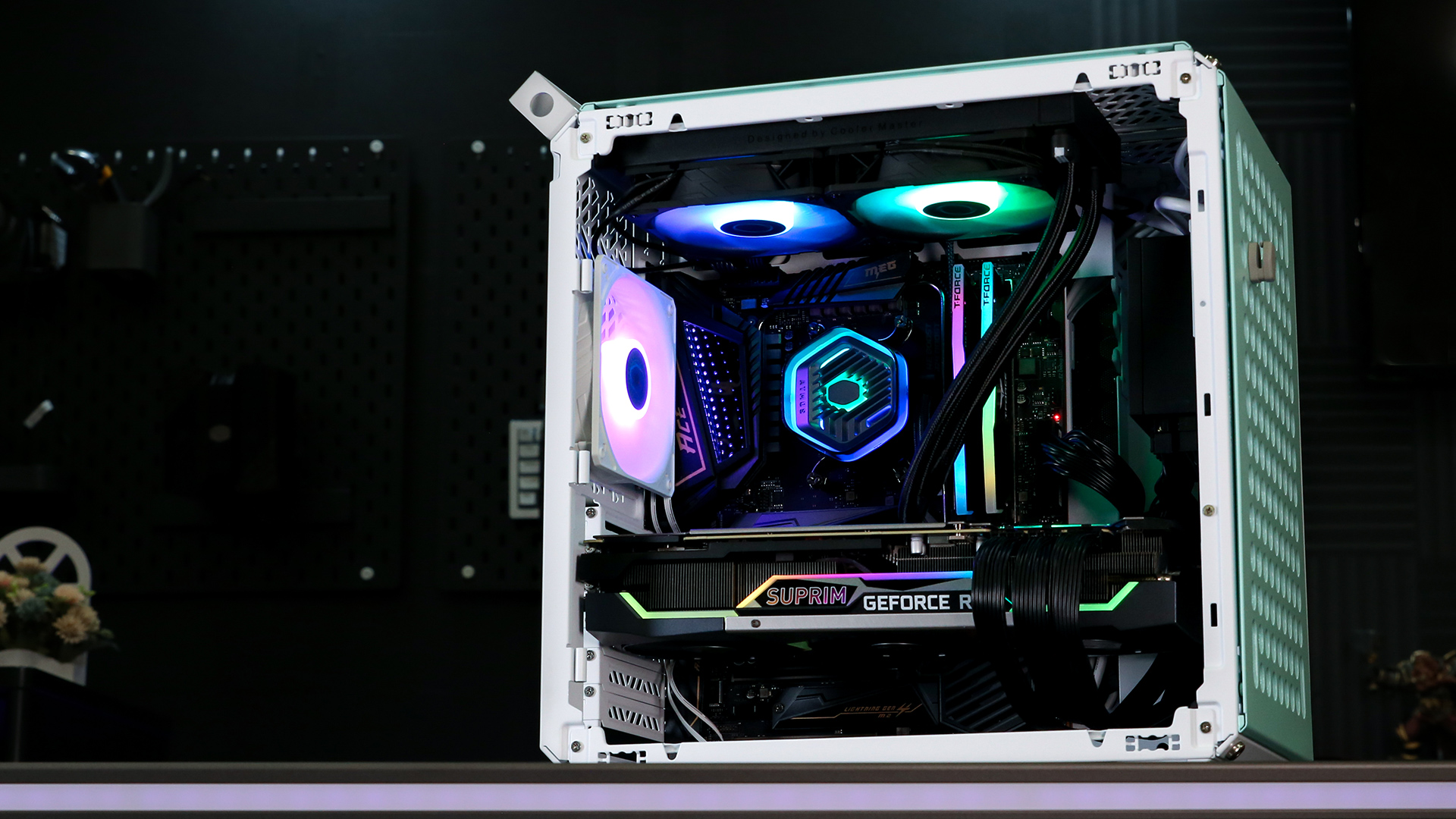
Beyond pure performance, liquid coolers often contribute significantly to the visual appeal of a PC build. Modern AIO coolers feature sleek designs, often incorporating RGB lighting in the pump head and fans, allowing for stunning visual customization. The clean lines of the tubing and the often less bulky appearance compared to large air coolers can create a more streamlined and professional-looking interior. Furthermore, while air coolers can sometimes become quite loud when their fans spin up to dissipate heat, AIO liquid coolers, with their larger radiator surfaces and often slower-spinning fans, can achieve better cooling with less noise. The pump itself is usually very quiet, resulting in a generally quieter system operation, which is a major benefit for anyone sensitive to fan noise.
Overclocking Potential
For enthusiasts looking to push their CPUs beyond stock speeds, liquid cooling is almost a prerequisite. Overclocking significantly increases the heat output of a processor. An efficient cooling solution is essential to maintain stability and prevent damage. With lower baseline temperatures provided by liquid cooling, users have more thermal headroom to increase clock speeds and voltages, extracting every last bit of performance from their silicon. This opens up possibilities for achieving higher benchmarks, faster render times, and a snappier overall computing experience that would be impossible or unstable with less capable cooling.
Essential Preparations Before Installation
A successful installation begins long before you unscrew the first component. Proper preparation not only streamlines the process but also prevents potential issues and ensures the safety of your hardware.
Gathering Your Tools and Components
Before you begin, ensure you have all the necessary items on hand. You’ll need your AIO liquid cooler kit, which typically includes the radiator with integrated fans (or separate fans to be mounted), the pump/cold plate assembly, mounting brackets for various CPU sockets (Intel and AMD), screws, and often a small tube of thermal paste (though many cold plates come pre-applied with thermal paste). In terms of tools, a Phillips head screwdriver is usually sufficient. You might also find a micro-fiber cloth and isopropyl alcohol useful for cleaning the CPU surface, especially if you’re replacing an old cooler. Double-check your AIO box against the parts list in the manual to confirm everything is present.
Safety First: Disconnecting Power and Grounding
Working inside a computer requires adherence to basic safety protocols. Always disconnect your PC from the main power outlet before opening the case. This prevents electrical shock and accidental shorts. Additionally, it’s crucial to ground yourself to discharge any static electricity that could damage sensitive components. You can do this by periodically touching an unpainted metal surface on your PC case or by wearing an anti-static wrist strap connected to a grounded point. Static electricity is an invisible threat that can permanently fry your motherboard or CPU.
Preparing Your Motherboard and Case
Before installing the cooler, you may need to prepare your motherboard. If you’re replacing an existing cooler, carefully remove it, clean off any old thermal paste from the CPU’s integrated heat spreader (IHS) using isopropyl alcohol and a lint-free cloth. If you’re installing on a new build, ensure your CPU is already seated in its socket and the CPU retention arm is locked down. Most AIO coolers require a backplate to be installed on the rear of the motherboard to secure the pump. Consult your cooler’s manual to determine if your specific CPU socket (e.g., LGA 1700, AM5) requires a specific backplate and how to install it. Also, consider the placement of your radiator within your case. Common locations include the top, front, or rear, depending on your case’s design and radiator size (e.g., 240mm, 360mm). Plan your tubing path to avoid kinks and ensure components aren’t obstructed.
Step-by-Step Installation Guide for Your AIO Liquid Cooler
With preparations complete, you’re ready to begin the physical installation. This section will guide you through the process, broken down into manageable steps.
Mounting the Radiator and Fans
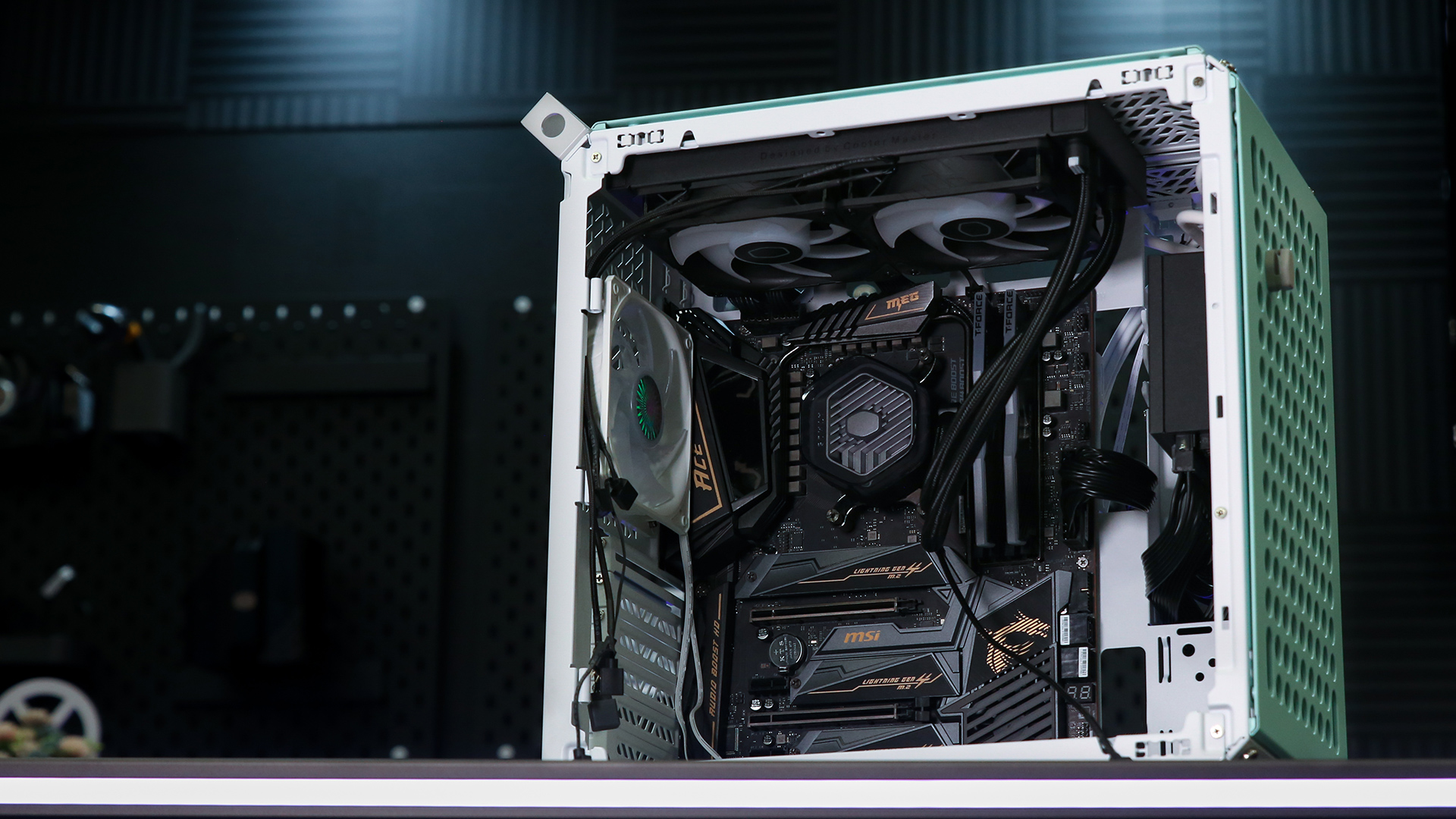
The first major step is to install the radiator and its accompanying fans into your PC case. Decide on your preferred mounting location (top, front, or rear) keeping in mind airflow. For optimal cooling, generally, it’s recommended to mount the radiator where it can exhaust hot air out of the case (e.g., top exhaust, rear exhaust) or pull cool air in (front intake).
-
Attach Fans to Radiator: If your fans are separate, use the longer screws provided to attach them to the radiator. Ensure the fan orientation is correct for your chosen airflow (usually air flows out the side with the fan cage supports, and the logo indicates the front/intake side).
-
Mount Radiator to Case: Position the radiator assembly against the appropriate mounting points in your case. Use the shorter, finer-threaded screws to secure the radiator to the case frame. Do not overtighten, as this can strip the threads or damage the radiator. Ensure the tubing is oriented such that it can reach the CPU socket without excessive strain or kinking.
Preparing the CPU and Cold Plate
This step is critical for efficient heat transfer.
-
Clean CPU Surface: If there’s old thermal paste on your CPU, use a small amount of isopropyl alcohol on a lint-free cloth to thoroughly clean the surface until it’s mirror-smooth. Even new CPUs can benefit from a quick wipe to remove any manufacturing residue.
-
Apply Thermal Paste: If your AIO cold plate does not have pre-applied thermal paste, you’ll need to apply it now. The most common and effective method for most thermal pastes is the “pea-sized dot” method in the center of the CPU IHS. As you mount the cold plate, the pressure will spread the paste evenly. Avoid applying too much, as this can reduce efficiency, but ensure enough to cover the entire contact area.
Securing the Pump/Cold Plate Assembly
This is where the heart of your liquid cooler connects to your CPU.
-
Attach Mounting Brackets: Depending on your CPU socket (Intel or AMD), select the correct mounting brackets for the pump head. These usually twist or clip onto the pump assembly.
-
Position on CPU: Carefully align the pump/cold plate assembly over the CPU. The screws or standoffs should line up with the holes on your motherboard or the installed backplate.
-
Tighten Screws: Begin tightening the mounting screws in a cross pattern (e.g., top-left, bottom-right, top-right, bottom-left) to ensure even pressure distribution. Tighten until the screws are snug, but again, do not overtighten. The goal is firm contact without crushing the CPU or motherboard. Uneven pressure can lead to poor thermal contact and higher temperatures.
Connecting the Cables
Proper cable management and connection are crucial for the cooler to function.
-
Pump Power: The pump typically connects to a dedicated “CPUFAN” header or sometimes a “AIOPUMP” or “PUMP_FAN” header on your motherboard. Refer to your motherboard manual for the correct header. This ensures the motherboard can monitor pump speed and provide consistent power.
-
Fan Power: The radiator fans usually connect to a fan hub (if provided with the AIO) which then connects to a single motherboard fan header (often “CPU_OPT” or another “FAN” header), or they can be connected individually to available fan headers on your motherboard. If your AIO has RGB lighting, connect the RGB cables to your motherboard’s RGB header or a dedicated RGB controller.
-
Sleeving and Management: Neatly route the cables, using zip ties or Velcro straps, to keep them tidy and out of the way of other components and airflow.
Post-Installation Checks and First Boot
You’ve completed the physical installation, but the job isn’t quite done. A few critical checks will ensure everything is working correctly before you close up your case.
Visual Inspection for Leaks and Proper Connections
Before powering on, take a moment to carefully inspect your entire liquid cooling loop. Look closely at all tubing connections, the pump head, and the radiator for any signs of leaks. While AIOs are factory-sealed and leaks are rare, a quick check can prevent potential disaster. Also, double-check that all cables (pump, fans, RGB) are securely plugged into their respective headers. Ensure no cables are snagged in fan blades or obstructing components.
BIOS/UEFI Settings and Software Monitoring
Once you’re satisfied with your visual inspection, power on your PC. Immediately enter your motherboard’s BIOS/UEFI settings.
-
Fan/Pump Speed Control: Verify that your motherboard is detecting the pump and fan speeds. Many motherboards offer fan control profiles; ensure your pump is set to run at its full speed or a constant speed as recommended by the AIO manufacturer (often labelled “DC Mode” or “PWM Mode” at 100% or “Full Speed”). Fans can be adjusted based on temperature curves for a balance of cooling and noise.
-
Temperature Monitoring: Once in Windows, install your AIO cooler’s proprietary software (if available) or use a third-party monitoring tool like HWMonitor or AIDA64. Monitor your CPU temperatures at idle and under light load. Compare these to typical values for your CPU to ensure the cooler is functioning effectively.
Initial Temperature Testing
To truly test your new liquid cooler, perform a stress test. Use software like Prime95, AIDA64, or Cinebench R23 to put your CPU under 100% load. Monitor temperatures closely during this period.
-
Expected Temperatures: Under full load, CPU temperatures typically rise. For most modern CPUs, temperatures under 80-85°C during intense load are considered very good, with many liquid coolers keeping them well below 70°C. If temperatures rapidly climb above 90°C, immediately stop the test and investigate.
-
Troubleshooting High Temps: Abnormally high temperatures during stress testing usually indicate a problem with thermal paste application (too little, uneven spread, or air bubbles) or improper mounting pressure. Re-seat the cooler, re-apply thermal paste, and ensure mounting screws are evenly tightened. It could also indicate a pump failure, in which case you might not see any pump RPM in your monitoring software.
Troubleshooting Common Issues and Maintenance Tips
Even with careful installation, issues can sometimes arise. Knowing how to troubleshoot and maintain your cooler will ensure its long-term performance and reliability.
Addressing High Temperatures or Pump Failure
As mentioned, high temperatures are often due to poor thermal contact. If re-seating and re-applying paste doesn’t help, verify the pump is actually running. Listen for a faint hum and check pump RPM in your BIOS or monitoring software. If the pump shows 0 RPM or very low RPM, ensure it’s properly connected to the correct motherboard header and that the header is supplying power. In rare cases, a pump might be faulty and require replacement. Another cause could be air bubbles trapped in the pump, which can sometimes be dislodged by gently tilting the PC case while it’s running.
Preventing Leaks and Optimizing Performance
While rare, preventing leaks is paramount. Always handle the cooler carefully during installation, avoiding sharp bends or excessive pulling on the tubing. Once installed, avoid unnecessary movement of the cooler or tubing. For optimal performance, ensure your case has good airflow, and regularly clean dust filters. Dust buildup inside the radiator fins can significantly impede heat transfer.
-
Airflow Direction: Experiment with fan orientation (intake vs. exhaust) on your radiator. While top exhaust is common, front intake can sometimes provide cooler air to the radiator, depending on your case’s internal layout.
-
Fan Curves: Fine-tune your fan curves in the BIOS or through software. Set them to spin faster when temperatures rise, and slower at idle for quiet operation.

Regular Maintenance for Longevity
AIO liquid coolers are relatively low maintenance compared to custom loops, but a few simple steps can ensure their longevity and efficiency:
-
Dust Cleaning: Every few months, power down your PC and use compressed air to blow dust out of the radiator fins and fan blades. Dust is the enemy of cooling.
-
Inspect Tubing and Connections: Periodically check the tubing for any signs of wear, kinks, or slight discoloration, especially near connections. Ensure the connections to the pump and radiator are still secure.
-
Monitor Temperatures: Keep an eye on your CPU temperatures over time. If you notice a gradual increase in idle or load temperatures without any other changes to your system, it might indicate a decrease in cooling performance, perhaps due to dust or the thermal paste degrading over a very long period.
Installing a CPU liquid cooler is a rewarding upgrade that can significantly benefit your system’s performance, acoustics, and aesthetics. By following these steps carefully, you can enjoy the enhanced capabilities and peace of mind that a well-installed liquid cooling solution provides.
aViewFromTheCave is a participant in the Amazon Services LLC Associates Program, an affiliate advertising program designed to provide a means for sites to earn advertising fees by advertising and linking to Amazon.com. Amazon, the Amazon logo, AmazonSupply, and the AmazonSupply logo are trademarks of Amazon.com, Inc. or its affiliates. As an Amazon Associate we earn affiliate commissions from qualifying purchases.