
The Amazon Firestick has revolutionized how millions access digital entertainment, transforming any TV into a smart hub for streaming. Its compact design, intuitive interface, and access to a vast ecosystem of apps make it a household favorite. While the official Amazon Appstore offers a plethora of popular streaming services like Netflix, Hulu, and Disney+, a growing number of users seek to expand their entertainment horizons even further by “sideloading” third-party applications. Among these, Cinema APK stands out as a highly sought-after app, promising access to an extensive library of movies and TV shows, often free of charge.
This comprehensive guide will walk you through every step of installing Cinema APK on your Firestick, from preparing your device to optimizing your viewing experience. We’ll delve into the technical aspects of sideloading, highlight crucial security considerations like using a Virtual Private Network (VPN), and address common issues you might encounter. Whether you’re a tech-savvy enthusiast or new to the world of Firestick customization, this article aims to provide clear, actionable instructions, ensuring you can unlock a universe of digital content right from your living room.
Understanding Cinema APK and Firestick Basics
Before diving into the installation process, it’s essential to understand what Cinema APK is, why it’s popular, and the fundamental steps required to prepare your Firestick for unofficial apps. This foundational knowledge will not only facilitate a smoother installation but also empower you to make informed decisions about your digital security and entertainment choices.
What is Cinema APK? Unveiling a World of Content
Cinema APK, often referred to as Cinema HD, is a third-party streaming application designed for Android-based devices, including the Amazon Firestick. Unlike apps found in official app stores, Cinema APK aggregates links from various sources across the internet, allowing users to stream movies and TV shows, often including new releases and popular series. Its appeal lies in its user-friendly interface, vast content library, and, for many, the cost-free access to entertainment that would otherwise require multiple subscriptions.
The app itself does not host any content; instead, it acts as a sophisticated search engine, scanning public domains and open directories for streaming links. Users can then select their preferred link and play the content through an integrated or external media player. This model has made Cinema APK a popular alternative for those looking to diversify their streaming options beyond mainstream platforms, offering a robust solution for discovering both blockbusters and niche content. Understanding this aggregation model is key to appreciating its functionality and also its inherent differences from licensed streaming services.
Why Use a VPN with Cinema APK? Prioritizing Your Digital Security
The practice of streaming content from unofficial sources, even through an aggregator like Cinema APK, carries certain risks. Chief among these are privacy concerns and potential legal ramifications, depending on your geographic location and the content you access. Internet Service Providers (ISPs) often monitor user activity, and streaming from sources that might host copyrighted material can potentially lead to legal notices or even bandwidth throttling, which can significantly degrade your streaming quality.
This is where a Virtual Private Network (VPN) becomes an indispensable tool. A VPN encrypts your internet connection and routes your online traffic through a server in a location of your choosing, effectively masking your real IP address and making your online activities anonymous. For Cinema APK users, a VPN serves several critical functions:
- Enhanced Privacy: It prevents your ISP from seeing what you’re streaming, protecting your online anonymity.
- Bypassing Geo-Restrictions: While Cinema APK primarily aggregates content, some of the underlying sources or even the app itself might have geo-blocks that a VPN can circumvent.
- Preventing Throttling: By encrypting your traffic, your ISP cannot detect if you’re streaming heavily from “unauthorized” sources, thus preventing them from deliberately slowing down your connection.
- Security against Malicious Links: While Cinema APK itself is generally considered safe, some of the aggregated links might lead to less reputable sites. A VPN adds an extra layer of security, protecting your device from potential threats.
Investing in a reputable VPN service is a crucial step towards responsible and secure streaming when using third-party apps like Cinema APK. It transforms a potentially risky activity into a much safer and more private experience, aligning with the “Digital Security” aspect of modern tech usage.
Preparing Your Firestick for Sideloading: Unlocking Developer Options
The Amazon Firestick, by default, is configured to only allow installations from its official Appstore. To install applications like Cinema APK, which are not available through Amazon, you’ll need to enable a feature called “sideloading.” This process involves tweaking your Firestick’s settings to allow the installation of apps from “unknown sources.”
Here’s how to prepare your Firestick:
- Navigate to Settings: From your Firestick’s home screen, go to the rightmost section and select “Settings.”
- Access My Fire TV: Within Settings, scroll down and select “My Fire TV” (or “Device” on older Fire OS versions).
- Open Developer Options: Click on “Developer Options.” If you don’t see “Developer Options,” you’ll need to enable it first. To do this, go back to “My Fire TV,” select “About,” and then repeatedly click on your “Fire TV Stick” (or “Fire TV Cube,” etc.) seven times until a message appears saying “No need, you are already a developer!” or “You are now a developer!” Then, go back to “My Fire TV,” and “Developer Options” should now be visible.
- Enable ADB Debugging: Inside Developer Options, toggle “ADB Debugging” to “ON.” This allows external tools (like the Downloader app) to interact with your Firestick.
- Enable Apps from Unknown Sources: In the same “Developer Options” menu, toggle “Apps from Unknown Sources” to “ON.” You will receive a warning message about installing apps from unknown sources; acknowledge and confirm by selecting “Turn On.” This is the critical step that permits sideloading.
By completing these steps, your Firestick is now ready to securely download and install applications not found in the Amazon Appstore, paving the way for Cinema APK and other custom software.
Step-by-Step Guide: Installing Cinema APK on Firestick
With your Firestick prepared for sideloading, the next phase involves acquiring and installing the Cinema APK file. The most straightforward and recommended method for this is using the Downloader app, a powerful tool designed specifically for sideloading on Firestick devices.
Method 1: Using the Downloader App (Recommended for Simplicity and Security)
The Downloader app, developed by AFTVnews, is a free and extremely popular application found in the Amazon Appstore. It provides a simple browser and file manager, making it ideal for downloading APK files directly to your Firestick without needing another device.
Here’s the detailed procedure:
- Install the Downloader App:
- From your Firestick’s home screen, navigate to the “Find” tab.
- Select “Search.”
- Type “Downloader” into the search bar.
- Select the “Downloader” app from the search results (it typically has an orange icon).
- Click “Download” or “Get” to install it.
- Once installed, click “Open.”
- Grant Permissions to Downloader:
- The first time you open Downloader, it will request permission to access photos, media, and files on your device. Select “Allow” to grant these permissions.
- You might also see a quick start guide. Read it if you wish, then click “OK.”
- Enter the Cinema APK Download URL:
- In the Downloader app, you’ll see a home screen with a URL input field.
- In this field, you need to enter the direct URL to download the Cinema APK file. It is crucial to use a trusted source for the APK to avoid malware. A common and reputable source for Cinema HD APK updates is usually found through a quick search for “Cinema HD APK official download” or “Cinema APK latest version.” For the purpose of this guide, let’s use a placeholder for a common direct download shortened URL (e.g.,
bit.ly/cinemaapknew– Note: This is an example URL and may not be current or valid. Always verify the latest official download link from a reputable source.) - Carefully type the URL into the field and click the “Go” button.
- Download the APK File:
- Downloader will now connect to the URL and begin downloading the Cinema APK file. This process may take a few moments, depending on your internet speed and the file size.
- Once the download is complete, Downloader will automatically prompt you to install the application.
- Install Cinema APK:
- An installation screen will appear, showing the permissions the app requires. Review them if you wish, then scroll down and click “Install.”
- The installation process will proceed. Once finished, you’ll see a confirmation message: “App installed.”
- Delete the APK File (Optional but Recommended):
- After installation, you’ll have two options: “Done” or “Open.” Select “Done.”
- Downloader will then ask if you want to delete the APK file. It’s highly recommended to select “Delete” to free up valuable storage space on your Firestick, as the installed app no longer needs the installer file. Confirm the deletion.
- Launch Cinema APK:
- To find Cinema APK, return to your Firestick’s home screen.
- Go to “Your Apps & Channels” (usually found by holding the home button or navigating to the apps icon).
- Scroll to the end, and Cinema APK should be listed there. You can hold down the “Options” button (three horizontal lines) on your remote and select “Move” to place it closer to the front of your app list for easier access.
- Click on the Cinema APK icon to launch it for the first time.
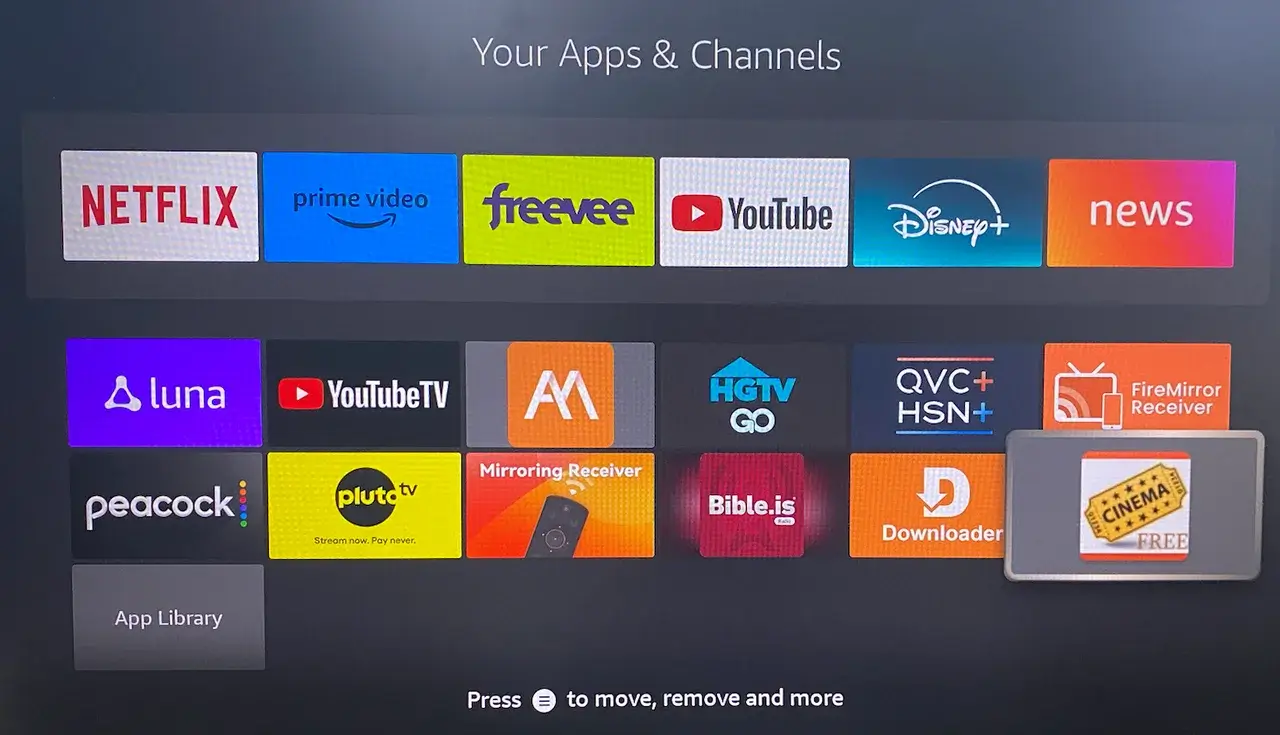
Upon first launch, Cinema APK might ask for storage permissions and present a changelog or update notices. Grant necessary permissions and dismiss any pop-ups to begin exploring its content.
Post-Installation Setup and Optimization
Once Cinema APK is successfully installed, a few additional steps can significantly enhance your streaming experience, making it more efficient and enjoyable.
- Navigating the Interface and Initial Settings:
- Familiarize yourself with Cinema APK’s layout. You’ll typically find categories for movies, TV shows, genres, and a search function.
- Access the app’s settings (usually via a menu icon or gear icon) to customize preferences. This might include default video player, subtitle settings, and more.
- Integrating an External Video Player:
- While Cinema APK often has an integrated player, using a dedicated external player like MX Player or VLC Media Player is highly recommended. These players offer superior performance, better codec support, and more advanced playback controls.
- To integrate: Install MX Player (or VLC) from the Amazon Appstore using the search function. Then, in Cinema APK’s settings, set your preferred external player as the default. When you select a stream, Cinema APK will then prompt you to open it with your chosen external player.
- Considering Real-Debrid for Premium Links:
- For users seeking higher quality streams, faster buffering, and more reliable links, integrating a service like Real-Debrid can be a game-changer. Real-Debrid is a premium unrestricted downloader that allows users to download files hosted on various file-sharing services at maximum speed. When integrated with Cinema APK, it provides access to exclusive, high-quality streaming links that are often more stable and buffer-free.
- This is typically a paid subscription service but can greatly elevate your streaming experience, offering a premium feel without the cost of multiple streaming subscriptions. The setup usually involves linking your Real-Debrid account through Cinema APK’s settings, which provides you with an authorization code to enter on the Real-Debrid website.
- Keeping Cinema APK Updated:
- Like any software, Cinema APK receives regular updates to fix bugs, improve performance, and add new features. The app will often notify you when a new version is available.
- To update, you usually download the new APK file using the Downloader app, similar to the initial installation. When you run the new APK, it will offer to update the existing app, retaining your settings.
Troubleshooting Common Issues and Optimizing Performance
Even with a detailed guide, you might encounter minor hurdles or seek to further refine your Firestick’s performance. Addressing these proactively ensures a smooth and continuous streaming experience.
Common Installation and Streaming Problems
- “App Not Installed” Error:
- Cause: This usually indicates insufficient storage space on your Firestick or a corrupted APK file.
- Solution: Check your Firestick’s storage (Settings > My Fire TV > About > Storage). Delete unnecessary apps, clear caches (Settings > Applications > Manage Installed Applications > [App Name] > Clear Cache & Clear Data), and delete old APK files. If storage isn’t the issue, try downloading the APK again from a different, trusted source.
- Download Failures in Downloader:
- Cause: Incorrect URL, unstable internet connection, or the server hosting the APK is temporarily down.
- Solution: Double-check the URL for typos. Ensure your Firestick has a stable internet connection. If the issue persists, search for an alternative download link for Cinema APK.
- App Crashing or Freezing:
- Cause: Accumulated cache data, outdated app version, or insufficient RAM.
- Solution: First, try clearing Cinema APK’s cache (Settings > Applications > Manage Installed Applications > Cinema HD > Clear Cache). If that doesn’t work, ensure you’re running the latest version of the app. Restarting your Firestick (Settings > My Fire TV > Restart) can also resolve temporary glitches.
- No Links Found / Poor Quality Links:
- Cause: The movie/show is very new, less popular, or the free sources are overloaded/taken down.
- Solution: Try again later. Ensure your internet connection is robust. Consider integrating Real-Debrid for access to more reliable, high-quality links. Always connect your VPN, as some links might be blocked in your region.
Optimizing Cinema APK for the Best Experience
Beyond troubleshooting, several practices can significantly enhance your long-term Cinema APK usage:
- Regular Cache Clearing: Over time, streaming apps accumulate large amounts of cache data, which can slow down performance. Make it a habit to clear Cinema APK’s cache every few weeks.
- Maintain the Latest Version: Always update Cinema APK when a new version is available. Updates often bring performance improvements, bug fixes, and access to new content sources.
- Fast and Stable Internet Connection: Streaming high-definition content demands a good internet connection. If you frequently experience buffering, consider upgrading your internet plan or moving your Firestick closer to your Wi-Fi router. For older Firestick models, an Ethernet adapter might offer greater stability.
- Consider Firestick Hardware: If you frequently stream 4K content or demand snappy performance, upgrading to a newer Firestick model (e.g., Firestick 4K Max or Fire TV Cube) can provide a noticeable improvement in speed and processing power compared to older, entry-level models.
- VPN Always On: For privacy and to potentially bypass geo-restrictions on some links, ensure your VPN is active before launching Cinema APK. Many VPN apps can be set to auto-connect on Firestick startup.
- Customize Settings: Dive into Cinema APK’s settings. You can often adjust things like default video quality, subtitle preferences, and filter out unwanted links, tailoring the experience to your exact needs.
The Broader Context: Digital Entertainment and Security
The journey of installing Cinema APK on your Firestick extends beyond a simple tutorial; it touches upon broader themes of digital autonomy, the evolving landscape of online entertainment, and the paramount importance of cybersecurity in a connected world.
The Ecosystem of Third-Party Streaming Apps
The rise of apps like Cinema APK highlights a significant shift in how consumers access media. While official streaming services offer convenience and legitimacy, they also come with monthly subscription fees and often fragmented content libraries. Third-party apps, while operating in a legal grey area due to their aggregation model, provide an alternative for users seeking a more consolidated and cost-effective approach to content consumption. This phenomenon demonstrates consumer demand for comprehensive and affordable entertainment solutions, pushing the boundaries of traditional content distribution.
However, this accessibility comes with the responsibility of understanding the implications. Users engage with these apps by making a conscious choice to explore beyond curated app stores, embracing a certain level of technical engagement and often, a greater emphasis on personal digital security. It’s a testament to the “Tech” aspect of our digital lives, where knowing how to manipulate your devices and software can unlock new possibilities.
Staying Secure and Private Online: A Core Tenet
As we’ve emphasized, the most crucial takeaway from this guide, especially when dealing with sideloaded apps, is the non-negotiable need for a robust VPN. In a world where data privacy is increasingly under threat, and online activities are constantly monitored, a VPN acts as your primary shield. It safeguards your anonymity, protects your digital footprint from ISPs and potential snoops, and helps maintain the integrity of your personal data.
Beyond a VPN, general digital hygiene is vital:
- Source Vigilance: Always download APKs from trusted, reputable sources to minimize the risk of malware.
- App Permissions: Be mindful of the permissions you grant to any installed app.
- Software Updates: Keep your Firestick’s operating system and all installed apps (including your VPN) updated to benefit from the latest security patches.
Embracing tools and practices that enhance digital security isn’t just about protecting yourself from risks; it’s about exercising control over your online presence and fostering a safer, more private digital experience. This empowerment aligns perfectly with the website’s focus on “Tech” and “Digital Security,” ensuring users are not just consumers but informed and secure participants in the digital realm.

Conclusion
Installing Cinema APK on your Amazon Firestick is a rewarding endeavor for those looking to expand their streaming options and tap into a vast, free library of movies and TV shows. By following this detailed guide, you’ve learned how to prepare your Firestick, safely sideload the application using the reliable Downloader tool, and optimize your setup for an unparalleled viewing experience.
Remember, the power of an expanded content library comes with the responsibility of securing your digital presence. Always prioritize your privacy and security by using a reputable VPN service. This not only protects your anonymity but also enhances your overall streaming performance.
With Cinema APK now at your fingertips, your Firestick transforms into an even more versatile entertainment hub, offering a diverse array of content that caters to every taste. Enjoy exploring new films, catching up on popular series, and experiencing digital entertainment on your terms, all while staying informed and secure in your tech journey. Happy streaming!
aViewFromTheCave is a participant in the Amazon Services LLC Associates Program, an affiliate advertising program designed to provide a means for sites to earn advertising fees by advertising and linking to Amazon.com. Amazon, the Amazon logo, AmazonSupply, and the AmazonSupply logo are trademarks of Amazon.com, Inc. or its affiliates. As an Amazon Associate we earn affiliate commissions from qualifying purchases.