
In today’s digital landscape, a reliable and efficient web browser is the cornerstone of online productivity, communication, and entertainment. Among the myriad options available, Google Chrome stands out as a dominant force, renowned for its speed, robust feature set, extensive customization options, and deep integration with Google’s vast ecosystem. For anyone looking to enhance their browsing experience, installing Chrome is a foundational step.
This comprehensive guide will walk you through every aspect of installing Google Chrome, from initial preparation and system requirements to the step-by-step installation process, essential post-installation setups, and common troubleshooting tips. Whether you’re a seasoned tech enthusiast or a first-time user, our aim is to ensure a smooth and successful installation, setting you up for a superior online journey. We’ll also touch upon why Chrome remains a top choice, connecting its features to key aspects of technology, digital security, and productivity that are central to our website’s mission.

Preparing for Your Chrome Installation: Ensuring a Smooth Setup
Before diving into the installation process, a little preparation can go a long way in preventing potential roadblocks and ensuring a seamless experience. This initial phase focuses on checking your system’s readiness and backing up any essential data from your current browsing environment.
Understanding Chrome’s System Requirements
Google Chrome is designed to run efficiently on a wide range of devices, but it does have minimum system requirements. Ensuring your computer meets these specifications will guarantee optimal performance and prevent compatibility issues.
- Operating System: Chrome supports various operating systems.
- Windows: Windows 7 or later (64-bit recommended for newer versions). An Intel Pentium 4 processor or later that is SSE2 capable is also required.
- macOS: macOS Catalina 10.15 or later.
- Linux: 64-bit Ubuntu 18.04+, Debian 10+, openSUSE 15.2+, or Fedora Linux 32+. An Intel Pentium 4 processor or later that is SSE2 capable is also required.
- Android/iOS: Chrome is available on most modern Android devices (Android 7.0 Nougat or later) and Apple devices (iOS 15.0 or later). These typically involve app store installations, which are simpler and outside the scope of this desktop-focused guide.
- Processor: A modern processor (Intel Core i3 or equivalent AMD processor recommended for best performance). While older processors might work, they could lead to slower browsing.
- RAM: At least 4GB of RAM is generally recommended for a smooth experience, especially when running multiple tabs or resource-intensive web applications. While 2GB might suffice for basic browsing, you’ll notice significant performance gains with more RAM.
- Hard Disk Space: At least 300MB of available disk space for the installation. More space will be needed over time for browser cache, extensions, and downloads.
- Internet Connection: A stable and reliable internet connection is crucial for downloading the installer and for subsequent updates.
It’s a good practice to check your system’s specifications before proceeding. On Windows, you can typically find this information by right-clicking “This PC” or “My Computer” and selecting “Properties.” On macOS, click the Apple menu and select “About This Mac.”
Backing Up Your Current Browser Data
If you’re switching from another browser (like Firefox, Edge, or Safari) and wish to retain your bookmarks, saved passwords, and browsing history, it’s wise to export this data before installing Chrome. Most modern browsers offer an export feature, usually found within their settings or bookmark manager.
- Bookmarks: Look for an “Export Bookmarks” option, often saving them as an HTML file.
- Passwords: Some browsers allow you to export passwords in a CSV file (though this is less common and might require specific browser extensions). Alternatively, many password managers can sync across browsers, or you can use Google’s password manager directly once you sign into Chrome.
- History: Browsing history is less commonly imported, but some browsers offer this functionality.
This step ensures that you can seamlessly transition your personalized browsing environment into Chrome, reducing the friction of adopting a new browser. Chrome itself offers an option to import data from other browsers during its initial setup, but having a manual backup provides an extra layer of security.
Step-by-Step Installation Guide for Google Chrome
With your system prepped and any essential data backed up, you’re now ready for the main event: installing Google Chrome. The process is straightforward and typically takes only a few minutes.
1. Downloading the Chrome Installer
The first and most crucial step is to download the official Chrome installer. Always download Chrome from the official Google website to ensure you’re getting a legitimate, virus-free version. Avoid third-party download sites, as they may bundle malware or offer outdated versions.
- Open your current web browser (e.g., Microsoft Edge, Firefox, Safari).
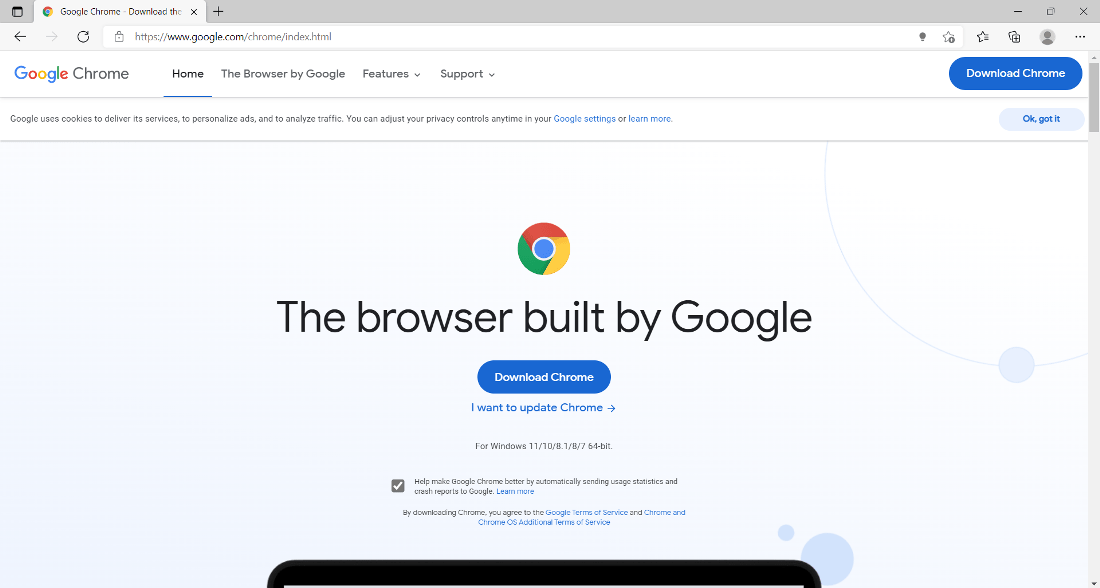
- Navigate to the official Google Chrome download page: Type
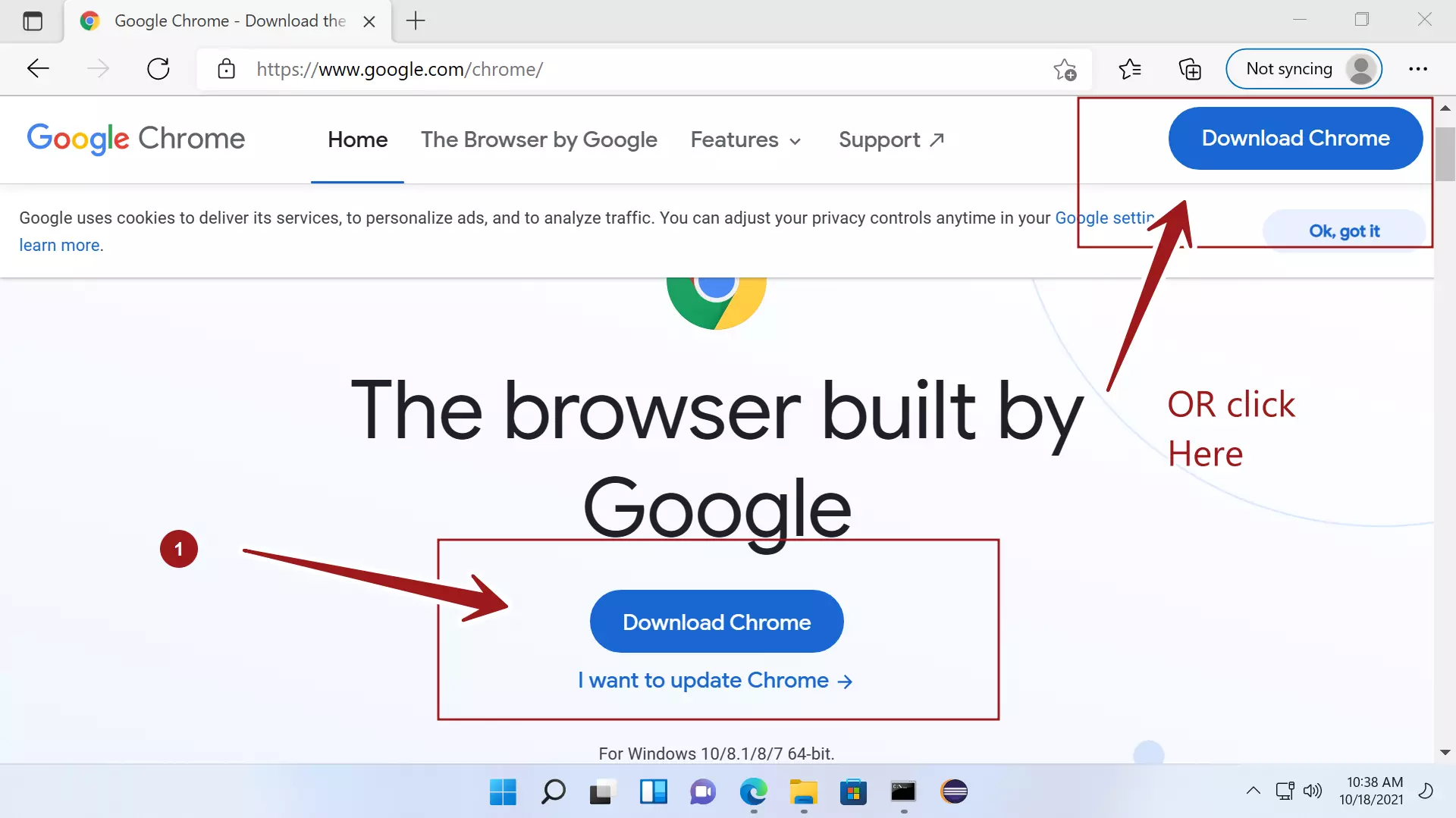
google.com/chromeinto the address bar and press Enter. - Click the “Download Chrome” button. The website will automatically detect your operating system and offer the appropriate installer.
- Read the Terms of Service (optional but recommended).
- Click “Accept and Install” or “Download Chrome” again. The download will begin, and a small installer file (usually named
ChromeSetup.exeon Windows orgooglechrome.dmgon macOS) will be saved to your default downloads folder.
2. Running the Installer
Once the download is complete, locate the installer file and run it.
- On Windows:
- Find
ChromeSetup.exein your Downloads folder or in the downloads bar of your current browser. - Double-click the file to run it.
- If prompted by User Account Control (UAC), click “Yes” to allow the program to make changes to your device.
- The installer will automatically connect to the internet, download the full Chrome browser, and install it. A progress bar will indicate the status.
- Find
- On macOS:
- Find
googlechrome.dmgin your Downloads folder. - Double-click the file to open the disk image.
- A new window will appear, typically showing the Google Chrome icon and an Applications folder shortcut.
- Drag the Google Chrome icon into the Applications folder shortcut. This will copy Chrome to your applications directory.
- Once copied, eject the “Google Chrome” disk image from the Finder sidebar or by dragging its icon to the Trash. You can then delete the
googlechrome.dmgfile if you wish.
- Find
- On Linux:
- After downloading the
.deb(for Debian/Ubuntu) or.rpm(for Fedora/openSUSE) package, open your terminal. - Navigate to your Downloads folder using the
cdcommand (e.g.,cd ~/Downloads). - For
.debfiles:sudo dpkg -i google-chrome-stable_current_amd64.debfollowed bysudo apt install -fto fix any dependencies. - For
.rpmfiles:sudo dnf install google-chrome-stable_current_x86_64.rpmorsudo zypper install google-chrome-stable_current_x86_64.rpm. - Alternatively, most Linux distributions allow you to double-click the downloaded package file, and your system’s package manager will handle the installation through a graphical interface.
- After downloading the
3. First Launch and Initial Setup
After the installation is complete, Chrome will usually launch automatically.
- Welcome Screen: You’ll be greeted by a welcome screen.
- Sign in to Chrome: It’s highly recommended to sign in with your Google Account. This enables synchronization of your bookmarks, history, passwords, extensions, and settings across all your devices, making your browsing experience consistent and personalized. This also ties into Google’s productivity ecosystem, offering seamless access to Gmail, Drive, Calendar, and more.
- Set as Default Browser (Optional): Chrome will likely ask if you want to set it as your default browser. If you want all web links to open in Chrome, click “Set as default” and follow the on-screen prompts from your operating system.
- Import Bookmarks and Settings (Optional): If you backed up data from another browser, or if Chrome detects another browser, it might offer to import your bookmarks, history, and passwords. This is where your earlier backup becomes useful, or Chrome can often do a direct import.
Congratulations! Google Chrome is now successfully installed and ready for use.
Post-Installation Essentials: Optimizing Your Chrome Experience
Installing Chrome is just the beginning. To truly harness its power and make it your own, a few post-installation steps can significantly enhance your browsing experience, focusing on customization, security, and performance.
Customizing Chrome for Enhanced Productivity
Chrome’s strength lies in its flexibility. Taking a few moments to personalize your browser can drastically improve your workflow and user satisfaction.
- Extensions: The Chrome Web Store offers thousands of extensions that add new functionalities to your browser. From ad blockers and password managers to productivity tools and grammar checkers, extensions can tailor Chrome to your specific needs. Look for extensions that align with your productivity goals, such as Trello, Todoist, or screen capture tools.
- Themes: Change Chrome’s visual appearance with themes from the Chrome Web Store.
- Settings Exploration: Dive into Chrome’s settings (
chrome://settings/) to configure privacy options, search engine preferences, startup pages, download locations, and more. Familiarizing yourself with these settings allows you to fine-tune the browser to your personal preferences and security comfort levels. - Bookmarks Bar: Enable the bookmarks bar (Ctrl+Shift+B or Cmd+Shift+B) and organize your most frequently visited sites for quick access.
Enhancing Security and Privacy
In the age of digital threats, keeping your browser secure is paramount. Chrome offers numerous features to protect your data and privacy.
- Regular Updates: Chrome automatically updates itself to the latest version, which includes critical security patches and performance improvements. Ensure this feature is enabled (it is by default).
- Incognito Mode: Use Incognito mode (Ctrl+Shift+N or Cmd+Shift+N) for private browsing sessions where your history, cookies, and site data are not saved. Ideal for temporary browsing on public computers or accessing sensitive information without leaving a trace.
- Privacy and Security Settings:
- Safe Browsing: Ensure Safe Browsing is enabled in your settings (Privacy and security > Security). This protects you from dangerous sites and downloads.
- Site Settings: Manage permissions for individual websites (like camera, microphone, location access) under Privacy and security > Site settings.
- Enhanced Protection: Consider enabling Enhanced Protection for even stronger security against phishing, malware, and other web-based threats.
- Password Manager: Chrome has a built-in password manager that securely stores your login credentials. When signed in, these are synced across your devices. For critical financial or business accounts, consider using a dedicated third-party password manager for added security.
Optimizing Performance
Even a fast browser like Chrome can sometimes slow down. Here are tips to keep it running smoothly:
- Close Unused Tabs: Each tab consumes system resources. Close tabs you’re not actively using.
- Manage Extensions: Too many extensions can slow down Chrome. Review and disable or remove extensions you no longer need.
- Clear Cache and Cookies: Regularly clearing your browser’s cache and cookies can resolve performance issues and free up space. Go to Settings > Privacy and security > Clear browsing data.
- Hardware Acceleration: Ensure hardware acceleration is enabled in Chrome’s system settings (
chrome://settings/system). This allows your GPU to handle graphics tasks, improving performance. - Chrome Task Manager: If Chrome feels sluggish, open its built-in Task Manager (Shift+Esc) to identify and close resource-hogging tabs or extensions.
Troubleshooting Common Installation Issues
While the Chrome installation process is generally robust, occasional issues can arise. Here’s how to address some common problems.
Download Errors
- Internet Connection: Check your internet connection. A patchy connection can interrupt downloads.
- Firewall/Antivirus: Temporarily disable your firewall or antivirus software, as they might be blocking the download. Remember to re-enable them immediately after installation.
- Disk Space: Ensure you have enough free disk space.
- Try Again: Sometimes, simply restarting your browser or computer and trying the download again can resolve transient issues.
Installation Failures
- Administrator Privileges: On Windows, ensure you are running the installer as an administrator. Right-click the
ChromeSetup.exefile and select “Run as administrator.” - Restart Computer: A simple restart can often clear up background processes that might be interfering with the installation.
- Conflicting Software: Check if any other software is interfering. Some older browser versions or security software might conflict.
- Corrupted Installer: Delete the downloaded installer file and download a fresh copy from the official Google Chrome website. The previous download might have been corrupted.
- System Requirements: Double-check that your system meets Chrome’s minimum requirements.
Chrome Won’t Open After Installation
- Restart Computer: Again, a restart is often the first troubleshooting step.
- Reinstall Chrome: If it still doesn’t open, try uninstalling Chrome (from your system’s Programs and Features on Windows, or by dragging to Trash on macOS) and then reinstalling it from scratch.
- Antivirus Interference: Your antivirus software might be preventing Chrome from launching. Check your antivirus settings or temporarily disable it for testing.
- User Profile Corruption: In rare cases, your Chrome user profile might be corrupted. You can try resetting it (this will delete your bookmarks, history, etc., so back them up first). To do this, close Chrome, navigate to your user data directory (e.g.,
C:Users<YourUsername>AppDataLocalGoogleChromeUser DataDefaulton Windows), and rename the “Default” folder to “BackupDefault.” Chrome will create a new default profile upon next launch.
Why Choose Chrome? Connecting to Our Website’s Core Themes
Beyond just installation, understanding why Chrome is such a popular choice reinforces its value, especially in the context of our website’s focus on Tech, Brand, and Money.
Tech: Innovation, Integration, and AI Tools
Chrome is at the forefront of web technology. Its continuous updates introduce the latest web standards, ensuring compatibility with cutting-edge websites and web applications. Its deep integration with the Google ecosystem means seamless access to AI-powered tools like Google Search, Google Assistant, and various intelligent features within Google Workspace. For those interested in technology trends, Chrome often serves as a testing ground for new browser functionalities and performance optimizations, making it a powerful tool for tech enthusiasts and professionals. Its developer tools are also considered best-in-class, crucial for web developers and designers.
Brand: Professionalism, Productivity, and Digital Security
For individuals and businesses alike, brand perception and productivity are key. Chrome contributes to this in several ways:
- Productivity: With extensions for project management, note-taking, and communication, Chrome transforms into a highly productive workstation. Its sync feature ensures that all your work-related bookmarks and tools are available across devices, boosting efficiency.
- Digital Security: Google invests heavily in Chrome’s security infrastructure. Features like Safe Browsing, site isolation, and regular security updates protect users from phishing, malware, and other cyber threats. This robust security is essential for protecting personal and corporate data, which is directly linked to maintaining a strong digital brand and financial security.
- Professionalism: A fast, reliable browser that integrates well with professional tools (like Google Workspace) enhances a user’s professional image and capability.
Money: Online Income, Business Finance, and Financial Tools
While Chrome doesn’t directly earn you money, it’s an indispensable tool for those involved in online income generation, managing business finances, or utilizing financial tools.
- Online Income & Side Hustles: Whether you’re a freelancer, an e-commerce entrepreneur, or a content creator, Chrome provides the platform to access marketplaces, manage social media, run analytics, and conduct research efficiently. Its vast array of extensions can streamline tasks, saving time and indirectly boosting earning potential.
- Business Finance & Financial Tools: Cloud-based accounting software, online banking portals, investment platforms, and financial news sites all rely on a modern, secure browser. Chrome’s performance and security features ensure that sensitive financial transactions are conducted safely and efficiently, minimizing risks associated with online finance.
Conclusion
Installing Google Chrome is a straightforward process that unlocks a world of efficient, secure, and customizable web browsing. By following the steps outlined in this guide – from preparing your system and carefully executing the installation to optimizing settings and troubleshooting potential issues – you can ensure a smooth transition to one of the most powerful browsers available.
Chrome’s blend of speed, security, extensive features, and deep integration with the Google ecosystem makes it an invaluable tool for anyone navigating the digital realm. Whether your focus is on staying ahead with the latest technology, enhancing your personal or corporate brand through productivity and security, or efficiently managing your finances and online income streams, Chrome provides the robust foundation you need. Embrace the full potential of your online experience by making Google Chrome your browser of choice today.
aViewFromTheCave is a participant in the Amazon Services LLC Associates Program, an affiliate advertising program designed to provide a means for sites to earn advertising fees by advertising and linking to Amazon.com. Amazon, the Amazon logo, AmazonSupply, and the AmazonSupply logo are trademarks of Amazon.com, Inc. or its affiliates. As an Amazon Associate we earn affiliate commissions from qualifying purchases.