
The advent of large language models (LLMs) like OpenAI’s ChatGPT has revolutionized how we interact with technology, offering unprecedented capabilities for natural language understanding and generation. While ChatGPT is inherently a cloud-based service, accessible primarily through a web browser, the desire for a more integrated, native-feeling desktop experience on Windows is widespread. Users often seek the convenience of an application icon, faster access, and a dedicated interface without the distractions of a full browser window. This guide delves into the various methods available to bring ChatGPT closer to your Windows desktop, ranging from simple browser tricks to more sophisticated third-party solutions and API integrations, ensuring you can harness the power of AI efficiently and effectively.

Understanding ChatGPT’s Native Access and Its Nuances
Before diving into installation methods, it’s crucial to grasp the fundamental nature of ChatGPT’s availability. Unlike traditional software applications that you download and install directly onto your operating system, ChatGPT operates predominantly as a service in the cloud. This distinction is key to understanding why “installing” it on Windows isn’t always a straightforward process of downloading an executable file.
The Web-Based Reality of ChatGPT
OpenAI designed ChatGPT as a web application. This means its core functionality – the massive AI model, its training data, and the computational power required to run it – resides on OpenAI’s servers. When you interact with ChatGPT, you’re sending your queries to these servers, and they send back the responses. Your web browser acts as the window through which this communication happens. This architecture has several advantages: it ensures universal accessibility across various devices and operating systems, simplifies updates (as OpenAI updates the model directly on their servers), and centralizes resource management. Consequently, OpenAI does not provide a standalone, official desktop application for Windows that you can download and install like Microsoft Office or Adobe Photoshop. Any direct “installation” attempts from unofficial sources should be treated with extreme caution due to potential security risks.
Why Seek a “Desktop” Experience?
Despite its web-based nature, the appeal of a desktop application for ChatGPT is undeniable for many users. The primary drivers for this desire include:
-
Convenience and Speed: A dedicated icon on the taskbar or Start Menu allows for quicker access than navigating to a browser, typing in the URL, and potentially logging in.
-
Reduced Distractions: A standalone application window can minimize browser clutter, tabs, and notifications, creating a more focused environment for AI interaction.
-
Native Feel and Integration: Users often prefer applications that integrate seamlessly with their operating system, offering features like system notifications, clipboard integration, and consistent UI/UX.
-
Offline Functionality (Perceived): While true offline functionality for ChatGPT isn’t possible given its cloud-dependent nature, some users hope for desktop solutions that might cache conversations or provide other local utilities.
-
Enhanced Productivity: For power users, having ChatGPT readily available as a distinct application can streamline workflows, especially when multitasking across various applications.
These reasons underscore the demand for solutions that bridge the gap between ChatGPT’s web-based reality and the user’s desire for a desktop-centric experience.
Unofficial Desktop Solutions and Wrappers for Windows
Given the absence of an official OpenAI desktop app, the tech community has developed several ingenious workarounds and third-party solutions to provide a more app-like experience on Windows. These methods typically fall into two categories: leveraging browser capabilities or utilizing community-driven wrapper applications.
Browser-Based Desktop Applications (PWAs)
Modern web browsers like Google Chrome and Microsoft Edge offer robust features that allow users to “install” web applications directly to their operating system. These are often referred to as Progressive Web Apps (PWAs) or simply as desktop shortcuts that run in a dedicated, minimalist browser window. This method offers a secure and simple way to get a desktop icon for ChatGPT, as it relies entirely on the official web interface.
-
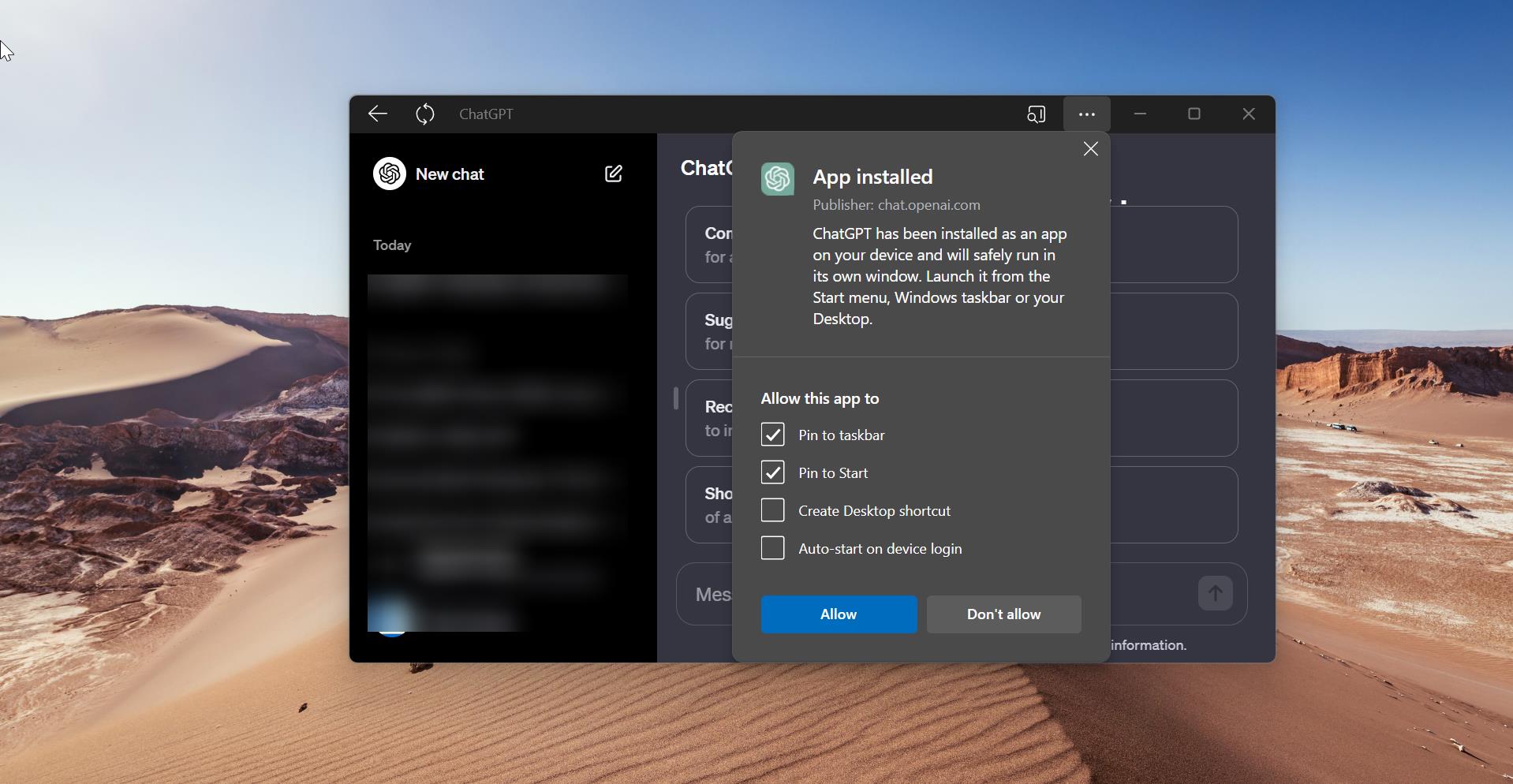
How it Works: When you “install” ChatGPT as a PWA, the browser creates a shortcut that launches the ChatGPT website in a dedicated window, free from browser tabs and address bars. It behaves much like a native application, appearing in your Start Menu and allowing pinning to the taskbar.
-
Advantages: This is the safest method as it uses the official OpenAI website, requires no additional software downloads, and is maintained by your web browser. It’s also lightweight and uses minimal system resources.
-
Limitations: It’s still fundamentally a web page; it doesn’t offer true offline capabilities or deeply integrated system features beyond what the browser provides.
Third-Party Desktop Clients and Open-Source Projects
The open-source community, recognizing the demand for a dedicated desktop client, has developed various applications that wrap the ChatGPT web interface or interact directly with the OpenAI API. These projects vary greatly in terms of features, reliability, and security.
-
Wrapper Applications: Many projects on platforms like GitHub are essentially “wrappers” that embed the ChatGPT web interface within a desktop application framework (e.g., Electron). These apps often add features like system tray integration, custom themes, or hotkeys.
-
Examples: While specific project names can change rapidly, a search for “ChatGPT desktop app Windows GitHub” will yield numerous results. Always scrutinize the project’s activity, issues, and contributor community before downloading.
-
Considerations: The primary concern with these applications is security. Since they are unofficial, you are trusting the developers with your OpenAI login credentials (if the app requires them) or with running potentially malicious code. Always download from reputable sources, check for recent updates, and read user reviews.
-
-
API-Driven Clients: Some more sophisticated third-party clients might not just wrap the web interface but instead interact directly with the OpenAI API. This allows for deeper customization and integration, but typically requires users to obtain their own API key from OpenAI, which may incur costs based on usage.
-
Advantages: Greater flexibility, potential for unique features not available on the web interface, and better performance for some tasks.
-
Limitations: Requires an API key, potentially complex setup, and still carries security risks if the application itself is not trustworthy.
-
Using OpenAI API for Custom Local Applications
For developers and advanced users, the most native and customizable “installation” involves building a custom application that interfaces with the OpenAI API. This method provides the ultimate control over the user interface, functionality, and integration with other local tools.
-
Process: This involves using programming languages (like Python, JavaScript with Electron, C#) to write an application that sends requests to the OpenAI API and displays the responses.
-
Benefits: Complete control over the user experience, potential for offline storage of prompts/responses (though interaction with the AI remains online), and integration with proprietary workflows.
-
Requirements: Programming knowledge, an OpenAI API key, and understanding of API rate limits and costs. This is not a plug-and-play solution for the average user.
Step-by-Step Guides for Common “Installation” Methods
Here, we’ll walk through the most accessible and secure methods for getting a ChatGPT-like experience on your Windows desktop.
Method 1: Pinning ChatGPT to Your Taskbar/Start Menu (PWA Approach)
This is the recommended approach for most users due to its security and simplicity. It works best with Chromium-based browsers like Google Chrome and Microsoft Edge.
-
Open ChatGPT in Your Browser: Launch Google Chrome or Microsoft Edge and navigate to
chat.openai.com. Log in to your ChatGPT account. -
Install as an App (Chrome):
-
In Chrome, look for an “Install app” icon in the address bar (it often looks like a computer monitor with an arrow pointing down).
-
Click this icon, then click “Install” in the pop-up.
-
Chrome will create a standalone application window for ChatGPT.
-
-
Install as an App (Edge):
-
In Edge, click the three-dot menu (
...) in the top-right corner. -
Go to “Apps” -> “Install this site as an app.”
-
Give it a name (e.g., “ChatGPT”) and click “Install.”
-
Edge will create a standalone application window.
-
-
Pin to Taskbar/Start Menu:
-
Once the app window appears, right-click its icon on your Windows taskbar.
-
Select “Pin to taskbar” for quick access.
-
To add it to your Start Menu, search for “ChatGPT” in the Start Menu, right-click the app, and select “Pin to Start.”
-
Method 2: Installing a Third-Party Wrapper Application (Use with Caution)
This method involves downloading an unofficial client. Exercise extreme caution and only proceed if you understand the associated risks.
-
Identify a Reputable Project: Search GitHub for “ChatGPT desktop app Windows” or similar queries. Look for projects with:
-
A high number of stars/forks.
-
Recent commit history (indicating active maintenance).
-
Clear documentation and an open-source license.
-
Positive community feedback.
-
Example (hypothetical, as specific recommendations can quickly become outdated): Projects like “ChatGPT-Desktop” might be available.
-
-
Download the Installer: Navigate to the project’s “Releases” section on GitHub. Download the
.exeor.msiinstaller file specifically for Windows.- Verify File Integrity: If available, compare the downloaded file’s checksum (SHA-256) with what the developer provides.
-
Run the Installer: Double-click the downloaded file and follow the on-screen instructions. Grant necessary permissions if prompted.
-
Launch and Configure: Once installed, launch the application from your Start Menu or desktop shortcut. You will likely be prompted to log in to your OpenAI account. Some apps might require you to input an OpenAI API key instead.
-
Test Functionality: Test the application thoroughly to ensure it works as expected and doesn’t exhibit any suspicious behavior.
Method 3: Accessing ChatGPT via Microsoft Copilot (Integrated AI)
For Windows 11 users, a native AI experience that leverages similar underlying technologies (including aspects of OpenAI’s models) is built directly into the operating system through Microsoft Copilot. While not directly ChatGPT from OpenAI, it offers a deeply integrated AI assistant.
-
Ensure Windows 11 is Updated: Make sure your Windows 11 installation is up-to-date to have the latest Copilot features.
-
Launch Copilot:
-
Click the Copilot icon on your taskbar (it looks like two overlapping ellipses).
-
Alternatively, press
Win + C.
-
-
Interact with Copilot: A sidebar will appear on your desktop. You can type natural language prompts, ask questions, summarize content, or even change system settings directly through Copilot.
-
Understanding the Distinction: While Copilot provides a powerful AI experience, it’s Microsoft’s integrated AI and not a direct portal to OpenAI’s ChatGPT. It leverages various AI models, including some from OpenAI, but its features and scope are tailored for Windows integration.
Optimizing Your ChatGPT Desktop Experience
Once you have a method for accessing ChatGPT on your desktop, there are further steps you can take to enhance your experience and ensure security.
Customizing Shortcuts and Launch Options
For maximum efficiency, tailor your access points:
-
Pin to Taskbar/Start: As mentioned, pinning your PWA or third-party app to the taskbar or Start Menu ensures one-click access.
-
Desktop Shortcut: You can create a desktop shortcut for your PWA or third-party app by dragging its icon from the Start Menu to your desktop.
-
Keyboard Shortcuts: Some third-party wrapper apps or even browser-based solutions might allow you to assign global keyboard shortcuts to launch ChatGPT or perform specific actions within the app. Check the app’s settings or your browser’s extensions for such options.
Managing Multiple AI Tools
In today’s AI-driven landscape, you might be using multiple AI tools alongside ChatGPT. Consider how they integrate:
-
Centralized Launchers: Tools like PowerToys Run (for Windows) can provide quick access to all your installed applications, including your ChatGPT desktop client.
-
Browser Profiles: If you’re using the PWA method, consider dedicating a browser profile specifically for AI tools to keep your work separate and organized.
-
Workflow Integration: Explore browser extensions or third-party tools that allow you to send selected text to ChatGPT for summarization or rephrasing directly from other applications.
Security Best Practices
Given the prevalence of unofficial solutions, security must be a paramount concern:
-
Use Official Sources: Prioritize the official web interface (
chat.openai.com) and browser PWA features. These are the most secure methods. -
Vet Third-Party Apps Thoroughly: If opting for a third-party wrapper:
-
Source Verification: Only download from official project repositories (e.g., GitHub, developer’s website). Avoid obscure download sites.
-
Reviews & Reputation: Check reviews, community discussions, and the developer’s track record.
-
Open Source Advantage: Open-source projects allow for community scrutiny of the code, which can increase trustworthiness.
-
Permissions: Be wary of applications that request excessive system permissions that seem unrelated to their function.
-
Antivirus Scan: Always scan downloaded executables with up-to-date antivirus software before running them.
-
-
Strong Passwords & 2FA: Regardless of the access method, use strong, unique passwords for your OpenAI account and enable two-factor authentication (2FA) for an added layer of security.
-
Stay Updated: Keep your browser, operating system, and any third-party ChatGPT applications updated to benefit from the latest security patches.
In conclusion, while a direct, official “installable” version of ChatGPT for Windows from OpenAI doesn’t exist, users have several viable options to integrate this powerful AI tool into their desktop workflow. From the secure and simple PWA approach to more feature-rich (but riskier) third-party wrappers, the choice depends on your comfort level with unofficial software and your desired level of integration. By understanding the underlying architecture and adhering to security best practices, you can effectively bring ChatGPT’s capabilities right to your Windows desktop, enhancing your productivity and interaction with AI.
aViewFromTheCave is a participant in the Amazon Services LLC Associates Program, an affiliate advertising program designed to provide a means for sites to earn advertising fees by advertising and linking to Amazon.com. Amazon, the Amazon logo, AmazonSupply, and the AmazonSupply logo are trademarks of Amazon.com, Inc. or its affiliates. As an Amazon Associate we earn affiliate commissions from qualifying purchases.