
The C programming language is often referred to as the “mother of all languages.” Developed in the early 1970s at Bell Labs, it has remained the foundational bedrock of modern computing. Whether you are interested in operating system development, embedded systems, high-performance game engines, or simply want to understand how software interacts with hardware, learning C is an essential rite of passage.
However, unlike many modern interpreted languages like Python or JavaScript, C is a compiled language. This means you cannot simply write code and run it instantly through an interpreter. You need a compiler to translate your human-readable source code into machine code that your computer’s processor can execute. This guide provides a comprehensive, deep dive into the technical process of installing C on various operating systems, configuring your environment, and preparing you for a journey into low-level programming.

Understanding the Basics of the C Development Ecosystem
Before we dive into the installation steps, it is vital to understand the components involved in a C development environment. Because C is so close to the hardware, the tools you use are often specific to your operating system’s architecture.
What is a C Compiler?
A compiler is a specialized piece of software that transforms source code written in a high-level language (like C) into object code or executable binaries. For the C language, the most prominent compilers are:
- GCC (GNU Compiler Collection): The industry standard for Linux and many other Unix-like systems.
- Clang: A high-performance compiler used heavily in the macOS ecosystem and increasingly in Windows.
- MSVC (Microsoft Visual C++): The proprietary compiler integrated into Microsoft Visual Studio, optimized for Windows development.
The Role of an IDE vs. a Text Editor
While you can write C code in a simple text editor like Notepad or TextEdit, most developers use an Integrated Development Environment (IDE) or a sophisticated code editor. An IDE like Visual Studio or Code::Blocks combines a text editor, a compiler, and a debugger into a single interface. Alternatively, many modern developers prefer “lightweight” setups using editors like Visual Studio Code (VS Code) paired with standalone compilers, which offers a balance of speed and functionality.
The Importance of Environment Variables
On Windows especially, simply downloading a compiler isn’t enough. You must often manually add the compiler’s “bin” (binary) folder to your system’s PATH environment variable. This allows your terminal or command prompt to recognize commands like gcc or clang from any directory on your computer.
Installing C on Windows: Navigating the Options
Windows does not come with a C compiler pre-installed. Developers on Windows generally have three main paths: using a lightweight GCC-based setup, using the professional Visual Studio suite, or utilizing the Windows Subsystem for Linux (WSL).
Setting Up MinGW-w64
MinGW-w64 (Minimalist GNU for Windows) is one of the most popular ways to get the GCC compiler on Windows. It provides a complete open-source programming toolset.
- Download: Visit the official MinGW-w64 website or use an installer like MSYS2, which simplifies the management of packages.
- Installation: Follow the setup wizard. If using MSYS2, you will run a command like
pacman -S mingw-w64-x86_64-gccin the MSYS2 terminal to install the compiler. - Path Configuration: This is the most critical step. You must go to “System Properties” > “Environment Variables” and edit the “Path” variable to include the location of your MinGW
binfolder (usuallyC:msys64mingw64bin). - Verification: Open a new Command Prompt and type
gcc --version. If successful, the version details of the compiler will appear.
Using Microsoft Visual Studio
For those looking for a professional, “all-in-one” experience, Microsoft Visual Studio (not to be confused with VS Code) is the go-to choice.
- Download: Download the Visual Studio Installer (Community Edition is free).
- Workload Selection: During installation, you must check the box that says “Desktop development with C++.” Even though you are focusing on C, this package includes the C compiler and necessary libraries.
- Project Setup: Once installed, you can create a “New Project” and select a “C++ Console App,” then rename your source files from
.cppto.cto write standard C code.
Windows Subsystem for Linux (WSL)
If you want a Linux-like development experience without leaving Windows, WSL is the best choice. It allows you to run a full Linux distribution (like Ubuntu) inside Windows. Once WSL is installed via the Microsoft Store, you can follow the Linux installation steps (found in the next section) within your WSL terminal.
Installing C on macOS: Leveraging Unix Power
macOS is built on a Unix-based core (Darwin), making it an excellent environment for C development. Apple provides its own set of development tools that make the process relatively straightforward.
Installing Xcode Command Line Tools
Most macOS users do not need the full Xcode IDE (which is several gigabytes) just to compile C programs. Instead, you can install the Command Line Tools.
- Open the Terminal app.
- Type
xcode-select --installand hit Enter. - A pop-up will appear asking if you’d like to install the tools. Click “Install” and agree to the terms.
- Once finished, verify the installation by typing
gcc --versionorclang --version. Note that on macOS,gccis often an alias forclang.
Using Homebrew for Advanced Package Management
For developers who want to manage multiple versions of compilers or other libraries, Homebrew is the “missing package manager for macOS.”
- Install Homebrew by pasting the installation script from
brew.shinto your terminal. - Once Homebrew is set up, you can install the latest version of the GNU compiler by typing
brew install gcc. - This is particularly useful if you need features from a specific version of the GCC suite that Apple’s Clang might handle differently.
Setting Up C on Linux: The Native Environment
Linux is the natural habitat of the C language. Most Linux distributions make it incredibly easy to install development tools directly from their official repositories.
Using the APT Package Manager (Debian/Ubuntu/Mint)
On Debian-based systems, there is a convenient package called build-essential that contains everything you need: the GCC compiler, the G++ compiler, and the make utility.
- Open your terminal.
- Update your package list:
sudo apt update. - Install the tools:
sudo apt install build-essential. - Confirm the installation by checking the version:
gcc --version.
Installation on Other Distributions
- Fedora/Red Hat: Use
sudo dnf groupinstall "Development Tools". - Arch Linux: Use
sudo pacman -S base-devel. - openSUSE: Use
sudo zypper install -t pattern devel_basis.
Linux systems generally place the compiler in /usr/bin/, which is already in the system PATH, meaning there is no manual configuration required after the installation command finishes.
Configuring Your Development Environment
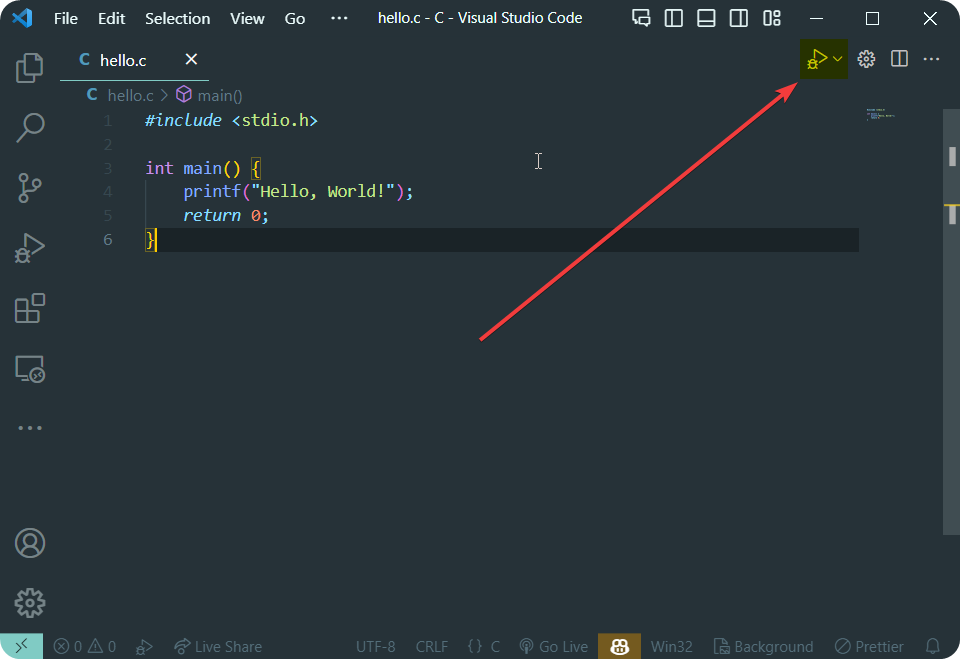
Now that the compiler is installed, you need a place to write your code and a way to run it. Visual Studio Code (VS Code) is currently the most popular choice for C developers due to its flexibility.
Setting Up Visual Studio Code
- Install VS Code: Download and install it from the official website.
- Install the C/C++ Extension: Click on the Extensions icon in the sidebar and search for the “C/C++” extension by Microsoft. This provides IntelliSense (code completion) and debugging support.
- Create a Workspace: Open a folder where you intend to save your projects. Create a new file named
hello.c.
Writing and Running Your First Program
To ensure everything is working correctly, write a simple “Hello, World!” program:
#include <stdio.h>

int main() {
    printf("Hello, World!n");
    return 0;
}
To run this code:
- Open the Terminal: In VS Code, go to Terminal > New Terminal.
- Compile: Type
gcc hello.c -o hello. This tells the compiler to takehello.cand create an output file (-o) namedhello. - Execute: On Windows, type
hello.exe. On macOS or Linux, type./hello.

Conclusion: Starting Your C Programming Journey
Installing C is more than just downloading a file; it is about setting up a robust ecosystem that allows you to interact with your computer at a fundamental level. Whether you chose the GCC path on Linux, the Clang path on macOS, or the MSVC path on Windows, you now have the tools necessary to build high-performance software.
The transition from “installing” to “programming” involves understanding the compilation lifecycle—preprocessing, compiling, assembling, and linking. As you move forward, explore tools like GDB for debugging and Makefiles for managing larger projects. C is a demanding language that requires precision and memory management skills, but the reward is a level of control over technology that few other languages can offer. With your environment now successfully configured, the world of systems programming is officially open to you.
aViewFromTheCave is a participant in the Amazon Services LLC Associates Program, an affiliate advertising program designed to provide a means for sites to earn advertising fees by advertising and linking to Amazon.com. Amazon, the Amazon logo, AmazonSupply, and the AmazonSupply logo are trademarks of Amazon.com, Inc. or its affiliates. As an Amazon Associate we earn affiliate commissions from qualifying purchases.