
In our increasingly interconnected digital world, wireless connectivity is no longer a luxury but a fundamental necessity. Among the various wireless technologies, Bluetooth stands out for its convenience and versatility, allowing seamless communication between devices over short distances. From connecting wireless headphones and speakers to syncing game controllers, keyboards, mice, and even transferring files between your PC and smartphone, Bluetooth transforms your computing experience by cutting the cords. Yet, despite its ubiquity, many users find themselves asking, “How do I install Bluetooth on my PC?” This comprehensive guide will walk you through every step, whether your computer lacks Bluetooth entirely, has an outdated version, or simply needs a bit of troubleshooting to get it working perfectly. We’ll delve into checking your current setup, choosing the right hardware, installing drivers, and optimizing your wireless performance, ensuring you unlock the full potential of your PC’s connectivity.

Understanding Your PC’s Bluetooth Status
Before embarking on any installation process, the first and most crucial step is to determine whether your PC already has Bluetooth capabilities. Many modern laptops come with built-in Bluetooth, often alongside Wi-Fi, while some desktop PCs, especially older models or custom builds, might not. Knowing your starting point will save you time and prevent unnecessary purchases.
Checking for Built-in Bluetooth
There are several straightforward ways to ascertain if your computer is already equipped with Bluetooth:
- Using Windows Settings:
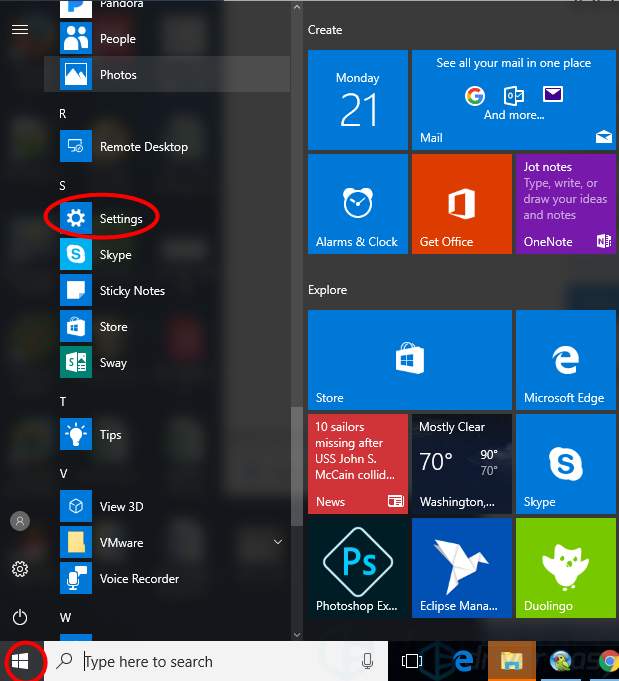
- Open the Start Menu and click on the Settings icon (the gear).
- Navigate to Bluetooth & devices (or “Devices” on older Windows versions).
- Look for a toggle switch labeled “Bluetooth.” If you see it, your PC has Bluetooth. You might also see a list of paired devices or an option to “Add device.”
- Using Device Manager:
- Right-click on the Start Menu (or press
Windows Key + X) and select Device Manager. - In the Device Manager window, look for a category named “Bluetooth” or “Bluetooth Radios.”
- Expand this category. If you see entries like “Generic Bluetooth Adapter,” “Intel Wireless Bluetooth,” “Realtek Bluetooth Adapter,” or similar, then your PC has Bluetooth. If you don’t see this category at all, it’s a strong indication that Bluetooth is absent.
- Sometimes, an unrecognized or problematic Bluetooth adapter might appear under “Other devices” with a yellow exclamation mark.
- Right-click on the Start Menu (or press
- Looking for the System Tray Icon:
- Check the system tray in the bottom-right corner of your taskbar (you might need to click the
^“Show hidden icons” arrow). - A small Bluetooth icon (a stylized “B”) indicates that Bluetooth is present and active. Right-clicking this icon often provides quick access to Bluetooth settings.
- Check the system tray in the bottom-right corner of your taskbar (you might need to click the
Enabling and Managing Existing Bluetooth
If your checks confirm that your PC indeed has built-in Bluetooth, the next step is to ensure it’s enabled and functioning correctly.
- Turning Bluetooth On/Off:
- From the Settings > Bluetooth & devices page, simply toggle the Bluetooth switch to the “On” position.
- Alternatively, open the Action Center (by clicking the speech bubble icon in the taskbar or pressing
Windows Key + A) and click the “Bluetooth” quick setting tile. It should light up blue when active.
- Pairing a Device (Brief Overview):
- With Bluetooth enabled, click “Add device” in the Bluetooth settings.
- Select “Bluetooth” from the options.
- Put your desired Bluetooth device (headphones, mouse, etc.) into pairing mode (refer to the device’s manual for specific instructions, usually involves holding a power or pairing button).
- Your PC should detect the device. Click on its name, and follow any on-screen prompts (like entering a PIN, though often not required for common devices).
- Initial Troubleshooting for Built-in Bluetooth:
- If Bluetooth is present but not working, try toggling it off and on again.
- Restart your PC. Sometimes a simple reboot can resolve temporary glitches.
- Ensure your Bluetooth drivers are up to date (we’ll cover this in more detail later).
Installing Bluetooth via a USB Adapter (The Most Common Solution)
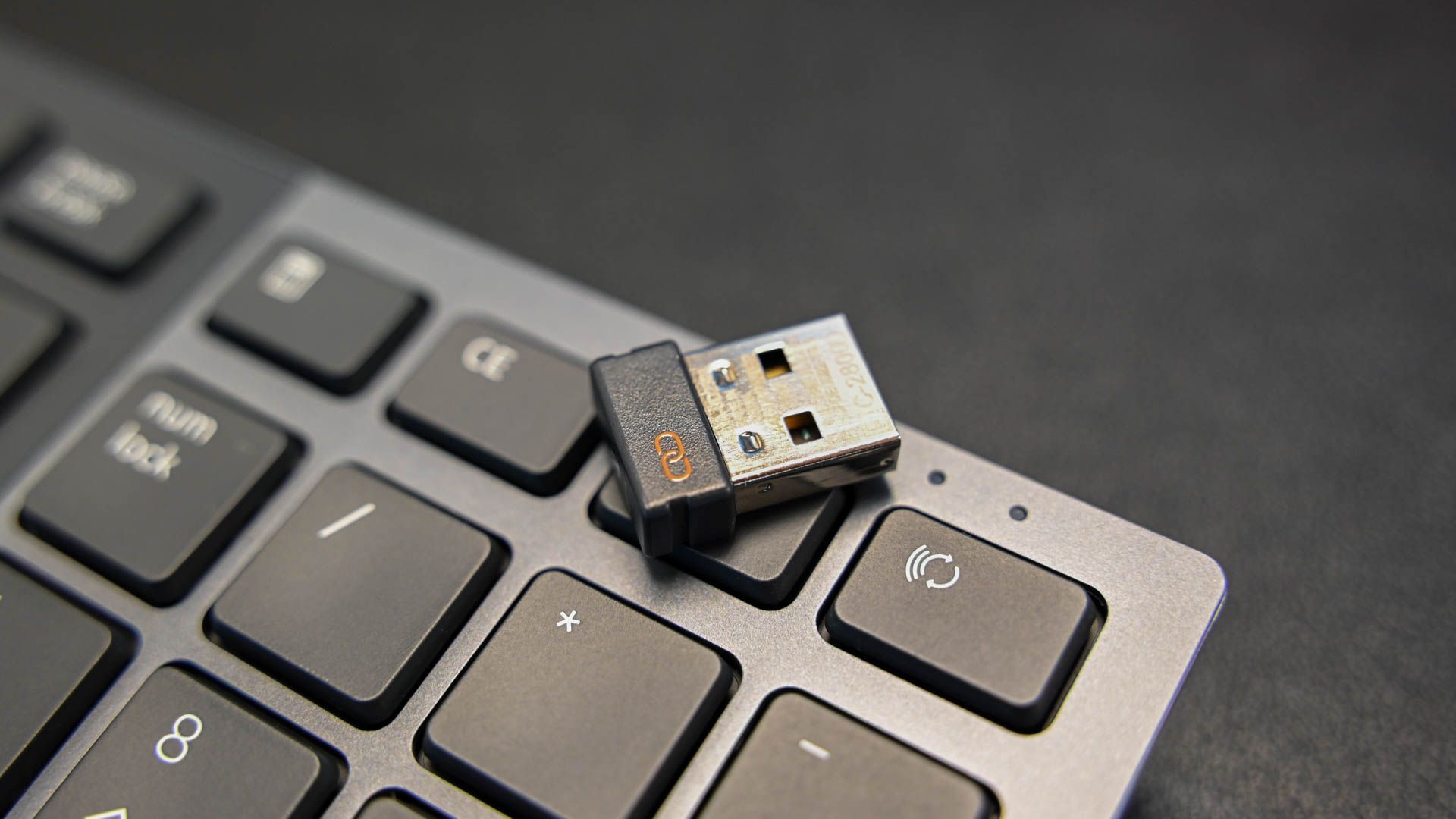
If your PC lacks built-in Bluetooth, or if its existing Bluetooth module is outdated or faulty, the easiest and most popular solution is to use a USB Bluetooth adapter. These small, dongle-like devices plug into an available USB port and instantly grant your computer Bluetooth capabilities.
Why a USB Bluetooth Adapter?
USB Bluetooth adapters offer several compelling advantages:
- Cost-Effectiveness: They are generally inexpensive, providing a budget-friendly way to add Bluetooth to any desktop or laptop.
- Ease of Installation: Most modern adapters are “plug-and-play,” meaning you simply insert them into a USB port, and Windows automatically installs the necessary drivers.
- Upgrade Path: If your PC has an older Bluetooth version (e.g., Bluetooth 2.1 or 3.0), a new USB adapter can upgrade you to the latest standard (like Bluetooth 5.0 or 5.3), offering improved range, speed, and energy efficiency.
- Portability: They are small and unobtrusive, making them easy to move between different PCs if needed.
Choosing the Right USB Bluetooth Adapter
While most USB adapters will get the job done, selecting the right one can significantly enhance your experience. Consider the following factors:
- Bluetooth Version:
- Bluetooth 5.0/5.1/5.3: This is the current standard. Adapters with these versions offer superior range (up to 4x that of older versions), faster speeds (up to 2x), and much lower power consumption, which is beneficial for both your PC and connected devices. They also support advanced features like LE Audio. Always aim for the latest version compatible with your budget.
- Backward Compatibility: Don’t worry about older devices; newer Bluetooth versions are always backward compatible with older ones, meaning a Bluetooth 5.3 adapter will still connect to a Bluetooth 4.0 headset.
- Range and Class:
- Class 1 (100 meters/330 feet): Typically found in more robust adapters, suitable for larger homes or offices.
- Class 2 (10 meters/33 feet): The most common type, perfectly adequate for personal use within a single room.
- Class 3 (1 meter/3 feet): Less common and generally insufficient for most modern uses.
- Operating System Compatibility: Ensure the adapter explicitly states compatibility with your version of Windows (e.g., Windows 10, Windows 11). Most reputable brands support all recent Windows versions.
- Brand Reputation: Stick with known brands like TP-Link, Asus, Zexmte, or Ugreen for better driver support and reliability. Reading user reviews can also provide valuable insights.
- Antenna (Optional): Some larger adapters feature an external antenna. While not strictly necessary for most users, these can offer improved range and signal stability, especially in environments with a lot of interference.
Step-by-Step Installation of a USB Adapter
Once you’ve chosen your adapter, installation is typically straightforward:
- Unpack the Adapter: Carefully remove the adapter from its packaging. Some might come with a mini-CD containing drivers, though this is less common with modern plug-and-play devices.
- Plug into a USB Port: Insert the Bluetooth adapter into an available USB port on your PC. For best results, use a USB 2.0 or 3.0 port directly on the motherboard (rear ports on a desktop) rather than a front-panel hub, which can sometimes introduce interference or power issues.
- Automatic Driver Installation (Plug & Play):
- For most recent adapters and Windows versions, your PC will automatically detect the new hardware and attempt to install the necessary drivers. You might see a notification like “Setting up a device” or “Device driver software installed successfully.”
- Allow a few moments for this process to complete.
- Manual Driver Installation (If Needed):
- If Windows doesn’t automatically install the drivers, or if you encounter issues, you may need to install them manually.
- From Manufacturer’s Website: This is the recommended method. Visit the website of your adapter’s manufacturer (e.g., TP-Link, Asus). Navigate to the support or downloads section, find your specific adapter model, and download the latest drivers for your Windows version. Run the installer and follow the on-screen prompts.
- From Included CD/DVD: If your adapter came with a driver disc, insert it into your PC’s optical drive and run the setup program.
- Verification in Device Manager:
- After installation (automatic or manual), open Device Manager again.
- You should now see the “Bluetooth” category, with your new adapter listed (e.g., “Generic Bluetooth Radio” or the specific model name). If it appears without a yellow exclamation mark or question mark, it’s installed correctly.
- Enable Bluetooth and Start Pairing:
- Go to Settings > Bluetooth & devices. The Bluetooth toggle should now be visible and accessible.
- Ensure it’s turned On, and you’re ready to start pairing your Bluetooth devices!
Advanced Installation: Internal Bluetooth Cards (For Desktops)
While USB adapters are convenient, some users, particularly those with desktop PCs, might prefer a cleaner, more integrated solution: an internal Bluetooth card. These often come as PCIe expansion cards or M.2 modules, frequently combined with Wi-Fi functionality. This method is more involved as it requires opening your PC case, but it offers a seamless integration and avoids occupying a USB port.
When to Consider an Internal Card
- Aesthetics and Port Availability: If you want to keep all USB ports free and prefer a tidier internal setup.
- Combined Wi-Fi/Bluetooth: Many internal cards offer both Wi-Fi and Bluetooth on a single card, which can be an efficient upgrade if your PC also lacks modern Wi-Fi.
- Desktop PCs: This is primarily a desktop solution, as most laptops are not designed for easy internal card upgrades beyond their existing M.2 slots.
Key Considerations for Internal Cards
- Form Factor:
- PCIe: These cards plug into a PCI Express slot on your motherboard, much like a graphics card or sound card. They typically include external antennas that screw onto the back of your PC for better signal.
- M.2: Smaller M.2 modules (often called “E-key”) are used in some motherboards, particularly mini-ITX boards or laptops, and usually require antenna cables to be connected to the module and routed to external antenna mounts.
- Motherboard Compatibility: Ensure your motherboard has an available and compatible slot (e.g., a PCIe x1 slot for a PCIe card, or an M.2 E-key slot for an M.2 module).
- Antennas: Internal cards almost always require external antennas for optimal signal reception. Ensure the card comes with antennas or that you purchase compatible ones.
- Operating System Support: As with USB adapters, verify Windows compatibility.
General Installation Steps (Brief)
- Power Down and Disconnect: Completely shut down your PC, unplug the power cable, and disconnect all peripherals.
- Open the Case: Remove the side panel of your PC case to access the motherboard.
- Install the Card:
- PCIe: Locate an available PCIe slot. Remove the corresponding slot cover from the back of your case. Carefully insert the PCIe card into the slot until it clicks into place. Secure it with a screw.
- M.2: If using an M.2 module, install it into the appropriate M.2 E-key slot and secure it with the tiny screw provided by your motherboard or the card. Connect the antenna wires to the module.
- Connect Antennas: Screw the external antennas onto the designated connectors on the back of the PCIe card or the antenna mounts you routed the M.2 cables to.
- Close Case and Power On: Replace the side panel, reconnect all cables, and power on your PC.
- Driver Installation: Just like with USB adapters, you’ll need to install the drivers for the internal card. Always download the latest drivers from the manufacturer’s official website (e.g., Intel, Realtek, Asus, Gigabyte).
Driver Management and Troubleshooting Bluetooth Issues
Drivers are the essential software that allows your operating system to communicate with your hardware. Proper driver management is crucial for stable and optimal Bluetooth performance, and it’s often the key to resolving many common issues.
The Critical Role of Bluetooth Drivers
Think of a driver as a translator. Your Windows operating system speaks one language, and your Bluetooth hardware speaks another. The driver facilitates communication between them. Without the correct, up-to-date driver, your Bluetooth adapter might not function at all, perform poorly, or cause system instability. Keeping drivers updated often brings performance improvements, bug fixes, and enhanced compatibility with new devices.
How to Install or Update Bluetooth Drivers
There are several reliable methods for managing your Bluetooth drivers:
- Through Device Manager:
- Open Device Manager.
- Expand the “Bluetooth” category.
- Right-click on your Bluetooth adapter (e.g., “Intel Wireless Bluetooth,” “Generic Bluetooth Radio”) and select “Update driver.”
- Search automatically for updated driver software: Windows will search your computer and online for the latest drivers. This is often sufficient for basic updates.
- Browse my computer for driver software: If you’ve downloaded drivers from a manufacturer’s website, select this option and point to the folder where you saved the driver files.
- From Manufacturer Websites (Recommended):
- This is generally the most reliable method for obtaining the latest and most stable drivers.
- PC Manufacturer: If your PC has built-in Bluetooth, visit the support section of your computer manufacturer’s website (e.g., Dell, HP, Lenovo, Acer). Enter your PC’s model number or service tag and look for “Bluetooth” or “Wireless” drivers.
- Adapter Manufacturer: If you’re using a USB or internal Bluetooth card, go to that specific manufacturer’s website (e.g., TP-Link, Asus, Intel, Realtek). Find your exact adapter model and download the latest drivers for your Windows version.
- Chipset Manufacturer: In some cases, especially for internal cards, the driver might be provided by the chipset manufacturer (e.g., Intel for Intel-based modules).
- Always download drivers directly from official sources to avoid malware or corrupted files.
- Windows Update:
- Windows Update often delivers important driver updates along with operating system patches.
- Go to Settings > Windows Update and click “Check for updates.” Also, check “Advanced options” then “Optional updates” to see if any Bluetooth drivers are listed there.
- Caution about Third-Party Driver Software:
- While there are many third-party driver updater tools available, exercise extreme caution. Many can install incorrect or outdated drivers, bundle adware, or even introduce malware. It’s best to stick to Windows’ built-in tools and official manufacturer websites.
Comprehensive Bluetooth Troubleshooting Guide
Even with correct installation, Bluetooth can sometimes be finicky. Here’s a systematic approach to troubleshooting common issues:
- Toggle Bluetooth On/Off: The simplest fix. Sometimes, just resetting the connection can resolve minor glitches.
- Restart Your PC: A full system restart can clear temporary conflicts and refresh all services, including Bluetooth.
- Run Windows Bluetooth Troubleshooter:
- Go to Settings > System > Troubleshoot > Other troubleshooters.
- Find “Bluetooth” in the list and click “Run.” Follow the on-screen prompts. Windows will attempt to diagnose and fix common problems.
- Check for Conflicting Devices:
- If you have multiple wireless adapters (e.g., an older Wi-Fi/Bluetooth card and a new USB adapter), they might conflict.
- In Device Manager, right-click on any older or unused Bluetooth adapters and select “Disable device” to prevent conflicts.
- Reinstall Bluetooth Device/Driver:
- This is a powerful troubleshooting step. In Device Manager, right-click your Bluetooth adapter.
- Select “Uninstall device.” If prompted, check “Delete the driver software for this device.”
- Restart your PC. Windows will usually detect the hardware and attempt to reinstall the driver automatically. If not, manually install the driver using the manufacturer’s website.
- Verify Bluetooth Support Service Status:
- Press
Windows Key + R, typeservices.msc, and press Enter. - Find “Bluetooth Support Service” in the list.
- Ensure its “Startup type” is set to “Automatic” and its “Status” is “Running.” If not, right-click, select “Properties,” change the startup type, and click “Start.”
- Press
- Update Windows OS:
- Ensure your Windows operating system is fully up to date via Settings > Windows Update. OS updates often include critical bug fixes and updated drivers for various hardware components, including Bluetooth.
- Check for Physical Connection Issues:
- USB Adapter: Try plugging it into a different USB port. Ensure it’s fully seated.
- Internal Card: If you installed an internal card, power down your PC, open the case, and ensure the card is firmly seated in its slot and that any antenna connections are secure.
Optimizing Your Bluetooth Experience
Once Bluetooth is successfully installed and working, a few tips can help you get the most out of your wireless connections, ensuring stable performance and a smooth user experience.
Enhancing Performance and Range
- Proximity and Line of Sight: Bluetooth works best when devices are close to each other and have an unobstructed line of sight. Walls, furniture, and even your body can degrade the signal. Try to keep your PC and Bluetooth devices within reasonable range, especially for audio streaming.
- Minimizing Interference:
- Wi-Fi: Wi-Fi (especially 2.4 GHz) can sometimes interfere with Bluetooth, as they operate in similar frequency bands. If you experience issues, try moving your Wi-Fi router or your Bluetooth devices further apart. Using 5 GHz Wi-Fi on your PC can also help reduce interference.
- USB 3.0: Some older USB 3.0 ports and devices can generate electromagnetic interference that affects Bluetooth. If you’re using a USB Bluetooth adapter, try plugging it into a USB 2.0 port or use a short USB extension cable to move it away from any USB 3.0 ports or devices.
- Other Wireless Devices: Microwaves, cordless phones, and other wireless electronics can also cause interference.
- Keeping Devices Charged: Ensure your Bluetooth peripherals (headphones, mice, etc.) are sufficiently charged. Low battery levels can sometimes lead to connection drops or unstable performance.
- Avoid Overloading: While Bluetooth can handle multiple connections, connecting too many devices simultaneously, especially bandwidth-intensive ones like multiple audio streams, might lead to performance degradation.
Security and Privacy with Bluetooth
While highly convenient, it’s also wise to be mindful of Bluetooth security:
- Pair Only with Trusted Devices: Always ensure you are pairing with your own devices or those of trusted individuals. Avoid connecting to unknown Bluetooth devices.
- Disable Bluetooth When Not in Use: If you’re not actively using Bluetooth, consider turning it off. This conserves battery (especially on laptops) and reduces your PC’s visibility to other Bluetooth-enabled devices, mitigating potential (though rare) security risks.
- Awareness of Potential Vulnerabilities: While modern Bluetooth versions have robust security protocols, keeping your operating system and Bluetooth drivers updated helps patch any discovered vulnerabilities.
By following these guidelines, you can ensure a reliable and efficient Bluetooth experience on your PC, seamlessly integrating your wireless peripherals into your digital life.
With Bluetooth successfully installed and optimized on your PC, you’ve unlocked a world of wireless convenience. No more tangled cables, no more being tethered to your desk – just the freedom to connect your favorite headphones, speakers, game controllers, and a myriad of other devices with ease. Whether you opted for a simple USB dongle or a more integrated internal card, the process of bringing Bluetooth to your computer empowers you with greater flexibility and a streamlined digital workspace. Enjoy your newfound wireless freedom and the enhanced productivity and entertainment possibilities it brings!
aViewFromTheCave is a participant in the Amazon Services LLC Associates Program, an affiliate advertising program designed to provide a means for sites to earn advertising fees by advertising and linking to Amazon.com. Amazon, the Amazon logo, AmazonSupply, and the AmazonSupply logo are trademarks of Amazon.com, Inc. or its affiliates. As an Amazon Associate we earn affiliate commissions from qualifying purchases.