
In our increasingly interconnected digital world, Bluetooth technology stands as a silent workhorse, enabling seamless wireless communication between a myriad of devices – from headphones and keyboards to smartwatches and gaming controllers. Yet, beneath the magic of effortless pairing lies a critical component: the Bluetooth driver. Without the right drivers, your system might as well be living in the analog age, unable to speak the universal language of wireless connectivity. This comprehensive guide will walk you through everything you need to know about installing, updating, and troubleshooting Bluetooth drivers, ensuring your devices remain perfectly synchronized.
Understanding Bluetooth Drivers: The Gateway to Seamless Connectivity
Before diving into the “how-to,” it’s crucial to grasp what Bluetooth drivers are and why they play such a pivotal role in your computing experience.
What are Bluetooth Drivers and Why Are They Essential?
A driver is essentially a piece of software that allows your operating system (Windows, macOS, Linux) to communicate with a specific hardware component (in this case, your Bluetooth adapter). Think of it as a translator: your computer speaks one language, your Bluetooth hardware speaks another, and the driver translates commands and data between them.
Without the correct Bluetooth driver, your operating system wouldn’t know how to send signals to or receive data from your Bluetooth module. This means your computer wouldn’t even recognize the presence of Bluetooth hardware, let alone be able to connect to Bluetooth headphones, speakers, or any other peripheral. Proper drivers ensure that your Bluetooth adapter functions optimally, delivering stable connections, good range, and support for the latest Bluetooth standards (like Bluetooth 5.0, 5.2, or even 5.3). They are the unsung heroes that make wireless convenience a reality.
Common Scenarios Requiring Driver Installation or Update
While many modern operating systems automatically handle driver installation for common hardware, there are several situations where you might need to manually install or update your Bluetooth drivers:
- New Hardware Installation: If you’ve just installed a new internal Bluetooth card or plugged in an external USB Bluetooth adapter, your system might not have the necessary drivers pre-installed.
- Operating System Reinstallation: A fresh installation of Windows or another OS often means starting from scratch with drivers. While basic drivers might be included, performance-optimized or feature-rich drivers usually need to be added.
- Troubleshooting Connectivity Issues: If your Bluetooth devices aren’t pairing, connections are dropping frequently, or Bluetooth simply isn’t showing up as an option, outdated or corrupt drivers are often the prime suspects.
- Performance and Feature Enhancements: Hardware manufacturers frequently release updated drivers that improve performance, fix bugs, enhance security, or add support for new Bluetooth profiles and features.
- Upgrading Your OS: Sometimes, an OS upgrade might cause compatibility issues with older drivers, necessitating an update.
- After Major System Updates: Occasionally, a large Windows update or similar OS patch can inadvertently corrupt drivers or replace them with generic, less functional versions.
In any of these scenarios, knowing how to properly manage your Bluetooth drivers can save you a significant amount of frustration and restore seamless wireless functionality.
Pre-Installation Checklist: Ensuring Your System is Ready
Before you embark on the driver installation journey, a few preliminary checks can save you time and prevent potential headaches. These steps ensure that your system is indeed equipped for Bluetooth and that no simple toggle is preventing its operation.
Verifying Bluetooth Hardware Presence
The first and most fundamental step is to confirm that your computer actually has a Bluetooth adapter. Not all PCs, especially older desktops, come with built-in Bluetooth.
- For Windows:
- Right-click on the Start button and select “Device Manager.”
- Look for a section titled “Bluetooth” or “Bluetooth Radios.” If you see it, your hardware is likely present. If it’s missing, or if you see an “Unknown Device” with a yellow exclamation mark under “Other devices,” it might be present but lacking drivers.
- Alternatively, open “Settings” > “Devices” > “Bluetooth & other devices.” If you see a toggle to turn Bluetooth on or off, the hardware is there.
- For macOS:
- Click the Apple menu in the top-left corner and select “About This Mac.”
- Click “System Report…” (or “More Info…” then “System Report…”).
- In the left sidebar, under “Hardware,” find and click “Bluetooth.” If information about your Bluetooth hardware appears, it’s present.
- For Linux:
- Open a terminal and type
lsusbto list USB devices. Look for entries that mention “Bluetooth.” - You can also try
hciconfigorbluetoothctlcommands. If Bluetooth hardware is found, these commands will usually list it.
- Open a terminal and type
If your system lacks built-in Bluetooth, you’ll need to purchase a USB Bluetooth adapter, which typically comes with its own drivers or is plug-and-play.
Enabling Bluetooth in System Settings (Windows, macOS, Linux)
Even with hardware present, Bluetooth might be disabled in your operating system’s settings. This is a common oversight that can lead to unnecessary driver searches.
- For Windows:
- Go to “Settings” (Windows Key + I) > “Devices” > “Bluetooth & other devices.”
- Ensure the “Bluetooth” toggle switch is set to “On.”
- You can also find a quick toggle in the Action Center (Windows Key + A).
- For macOS:
- Click the Bluetooth icon in the menu bar (top right).
- Ensure “Bluetooth” is turned “On.”
- Alternatively, go to “System Settings” (or “System Preferences” on older macOS) > “Bluetooth.”
- For Linux:
- This varies depending on your desktop environment (GNOME, KDE, XFCE, etc.).
- Typically, you’ll find a Bluetooth manager in your system tray or through your system settings/control panel. Ensure it’s enabled.
- From the terminal, you can start the Bluetooth service using
sudo systemctl start bluetoothand enable it on boot withsudo systemctl enable bluetooth.
Initial System Health Checks
Before installing new drivers, it’s a good practice to perform a few basic system health checks:
- Restart Your Computer: A simple reboot can often resolve temporary glitches or clear out memory issues that might be affecting hardware recognition.
- Check for Physical Connections: If you’re using an external USB adapter, ensure it’s securely plugged into a functioning USB port. Try a different port if necessary. For internal cards, ensure they are seated correctly.
- Update Your Operating System: Major OS updates often include critical bug fixes and sometimes even updated generic drivers that could resolve your issue without manual intervention.
By completing these preliminary steps, you ensure you’re addressing the problem at the right level and aren’t chasing phantom issues.
Step-by-Step Guide to Installing and Updating Bluetooth Drivers
With your system checked and ready, let’s explore the various methods for installing and updating your Bluetooth drivers across different operating systems. Always remember to download drivers from official sources to ensure safety and compatibility.
For Windows Users: Multiple Pathways to Driver Nirvana
Windows offers several reliable ways to manage Bluetooth drivers, catering to different scenarios and user preferences.
Using Device Manager
The Device Manager is your primary hub for all hardware and driver management in Windows.
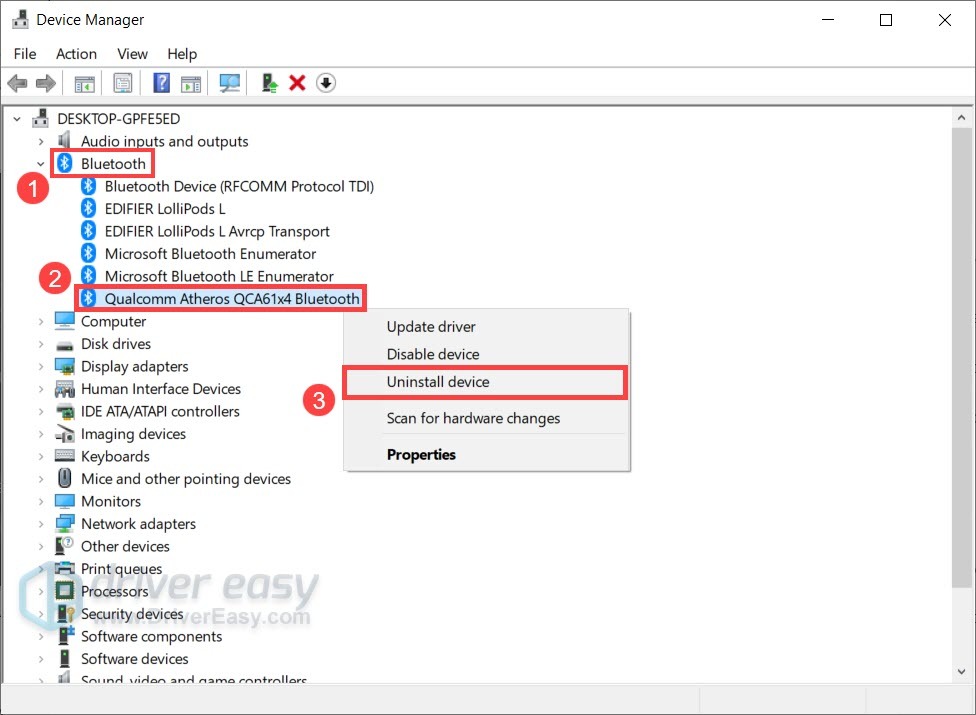
- Open Device Manager: Right-click on the Start button and select “Device Manager.”
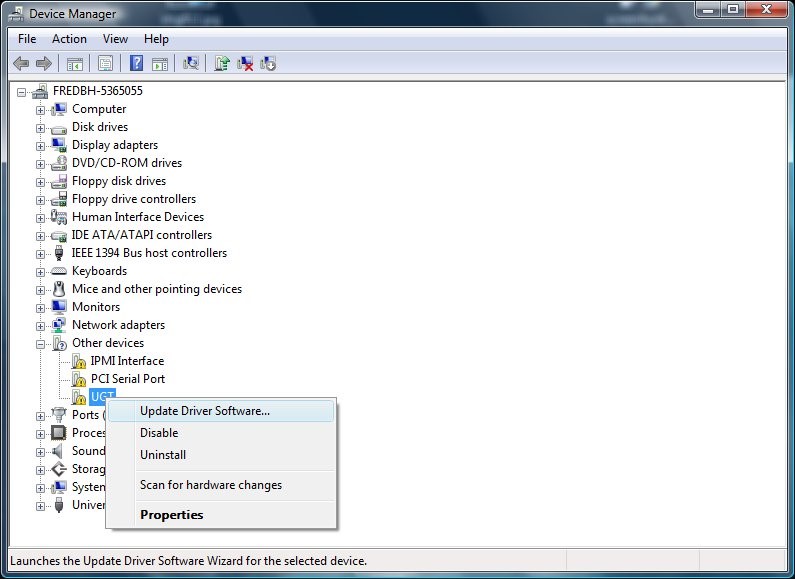
- Locate Bluetooth Device: Expand the “Bluetooth” section. You should see your Bluetooth adapter listed (e.g., “Intel(R) Wireless Bluetooth(R)”). If it’s missing or under “Other devices” with a yellow exclamation mark, it indicates a driver issue.
- Update Driver:
- Right-click on your Bluetooth adapter.
- Select “Update driver.”
- Choose “Search automatically for updated driver software.” Windows will attempt to find and install a driver from its own repository or through Windows Update.
- If that doesn’t work, select “Browse my computer for driver software.” This is useful if you’ve downloaded a driver file (usually a
.inffile or an executable) from a manufacturer’s website. Point it to the folder where you extracted the driver files.
- Uninstall and Reinstall: If updating doesn’t work, or if the device has an error, you might need a clean slate:
- Right-click on the Bluetooth adapter and select “Uninstall device.”
- Check the box that says “Delete the driver software for this device” if available and click “Uninstall.”
- Crucially, restart your computer. Upon reboot, Windows will usually detect the hardware and attempt to reinstall a generic driver. You can then try “Scan for hardware changes” in Device Manager (Action menu) if it doesn’t automatically detect.
Leveraging Windows Update
Windows Update isn’t just for OS patches; it also delivers driver updates, often including those for Bluetooth.
- Open Windows Update: Go to “Settings” (Windows Key + I) > “Update & Security” > “Windows Update.”
- Check for Updates: Click “Check for updates.”
- View Optional Updates: After checking, click on “View optional updates” (or “Advanced options” > “Optional updates” in Windows 11).
- Install Driver Updates: Look under “Driver updates” and check any relevant Bluetooth driver updates. Select them and click “Download and install.”
This method is generally safe as Microsoft has certified these drivers for your system.
Downloading from Manufacturer Websites (OEM vs. Component)
This is often the most reliable method for getting the absolute latest and most compatible drivers.
- Identify Your Hardware:
- For OEM (Dell, HP, Lenovo, ASUS, Acer, etc.): If you have a branded laptop or pre-built desktop, go to your computer manufacturer’s support website. Search for your specific model (you might need your serial number or service tag).
- For Component (Intel, Realtek, Broadcom, Qualcomm Atheros): If you’ve built your own PC or installed a specific brand of Bluetooth adapter, visit that component manufacturer’s website (e.g., Intel Support, Realtek Downloads).
- Navigate to Drivers/Support Section: Find the “Drivers,” “Support,” or “Downloads” section.
- Search for Bluetooth Drivers: Use keywords like “Bluetooth,” “Wireless,” or “Chipset” to find relevant drivers. Ensure you select the correct operating system version (e.g., Windows 10 64-bit).
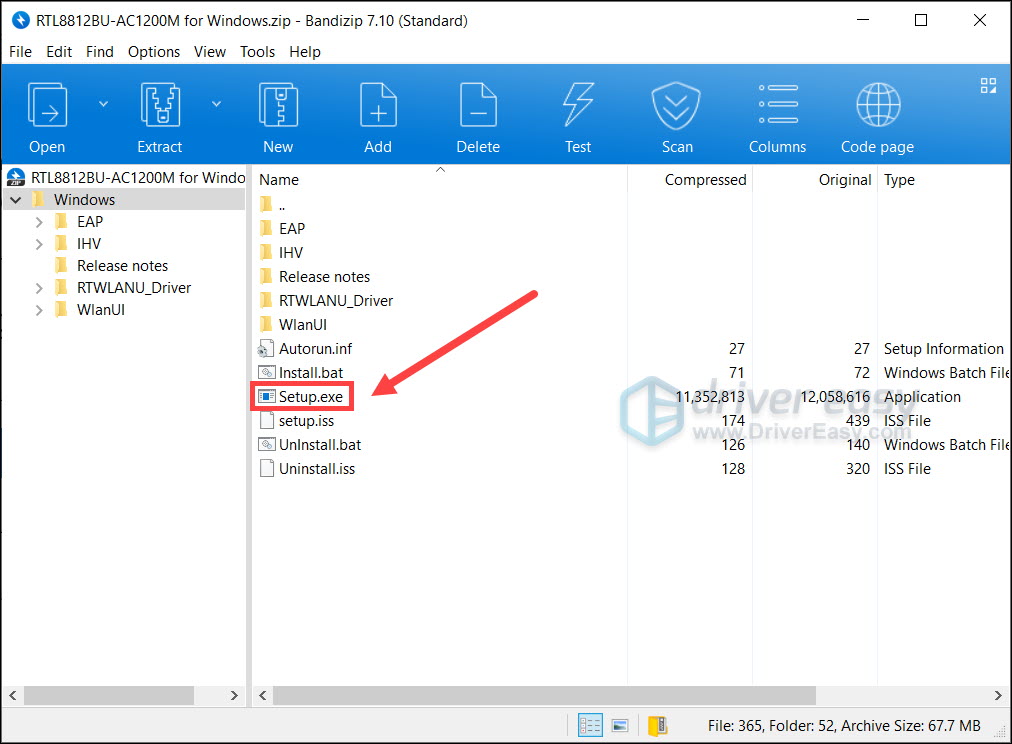
- Download and Install: Download the executable file (usually an
.exe). Run the installer and follow the on-screen prompts. It’s often recommended to uninstall the old driver via Device Manager first if you’re upgrading.
A Word on Third-Party Driver Tools
There are numerous third-party driver updater tools available online. While some can be convenient, exercise extreme caution. Many can bundle unwanted software, install incorrect drivers, or even introduce malware. It’s strongly recommended to stick to the official methods (Device Manager, Windows Update, Manufacturer Websites) for driver management. If you absolutely must use a third-party tool, choose a reputable one and be vigilant during the installation process.
For macOS Users: Simplicity and System Updates
macOS is known for its streamlined approach to hardware and drivers. Most Bluetooth drivers are integrated into the operating system and updated through system updates.
- System Updates:
- Go to “System Settings” (or “System Preferences” on older macOS) > “General” > “Software Update.”
- Install any available macOS updates. These often include updated drivers for Apple’s built-in hardware.
- Resetting the Bluetooth Module (Troubleshooting): If you’re experiencing issues, a quick fix can be to reset the Bluetooth module.
- While holding
Shift+Option(orAlt), click the Bluetooth icon in the menu bar. - Select “Reset the Bluetooth module” (or “Debug” then “Remove all devices” and “Reset the Bluetooth module”).
- Restart your Mac.
- While holding
- Resetting SMC/NVRAM: For persistent issues, resetting the System Management Controller (SMC) and/or NVRAM (Non-Volatile Random-Access Memory) can sometimes resolve hardware communication problems, including Bluetooth. The steps vary slightly depending on your Mac model, so refer to Apple’s support documentation.
For Linux Users: Command Line and Community Wisdom
Linux, being open-source and highly customizable, has a slightly different approach to drivers. Most modern Linux distributions include robust kernel support for common Bluetooth hardware, making driver installation often automatic.
- Verify Bluetooth Service Status:
- Open a terminal (Ctrl+Alt+T).
- Check the status of the Bluetooth service:
sudo systemctl status bluetooth. - If it’s not active, start it:
sudo systemctl start bluetooth. - Enable it to start on boot:
sudo systemctl enable bluetooth.
- Install Bluetooth Utilities and Firmware:
- Most distributions come with
bluez, the official Linux Bluetooth protocol stack. If not, install it:- Debian/Ubuntu:
sudo apt update && sudo apt install bluez bluez-utils blueman(blueman is a GUI manager). - Fedora:
sudo dnf install bluez bluez-tools - Arch:
sudo pacman -S bluez bluez-utils
- Debian/Ubuntu:
- Some Bluetooth adapters require specific firmware. These are often included in your kernel’s firmware package or can be installed separately:
- Debian/Ubuntu:
sudo apt install linux-firmware(This package usually covers most common firmware needs).
- Debian/Ubuntu:
- Most distributions come with
- Kernel Modules and Blacklisting:
- Sometimes, a conflicting module might be loaded. You can check loaded modules with
lsmod | grep bluetooth. - If you’re using a specific driver from a manufacturer (less common for Bluetooth, but possible for Wi-Fi/Bluetooth combo cards), you might need to compile it or ensure it’s not blacklisted.
- Sometimes, a conflicting module might be loaded. You can check loaded modules with
- Manufacturer Specific Drivers: For very new or niche Bluetooth hardware, you might need to visit the manufacturer’s website for Linux drivers, though this is less frequent than for Windows. These often come as source code that you’ll need to compile, or as pre-compiled
.debor.rpmpackages. - Community Support: The Linux community is incredibly resourceful. If you face issues, searching your distribution’s forums or wikis (e.g., Ubuntu Forums, ArchWiki) with your specific Bluetooth adapter model (from
lsusborlspci) is often the fastest way to find a solution.
Troubleshooting Common Bluetooth Driver Issues
Even with the correct drivers installed, Bluetooth can sometimes be finicky. Here are solutions to common problems.
When Bluetooth Disappears: Diagnosing Hardware and Software Conflicts
If Bluetooth is entirely absent from your settings or Device Manager, it could be a hardware or deep software conflict.
- Check BIOS/UEFI Settings: Some motherboards allow you to disable Bluetooth (and Wi-Fi) directly in the BIOS/UEFI firmware. Restart your computer, press the appropriate key (usually F2, Del, F10, or F12) to enter BIOS, and check under “Integrated Peripherals,” “Advanced,” or “Security” settings. Ensure Bluetooth is enabled.
- Power Management: In Device Manager (Windows), right-click your Bluetooth adapter > “Properties” > “Power Management.” Uncheck “Allow the computer to turn off this device to save power.”
- System Restore: If Bluetooth stopped working after a recent update or software installation, consider using System Restore to revert your system to an earlier point.
- Driver Rollback: If a recent driver update caused issues, you can go to Device Manager, right-click your Bluetooth adapter > “Properties” > “Driver” tab, and click “Roll Back Driver” (if available).
Pairing Problems and Connection Drops
These often point to driver integrity, interference, or device-specific issues.
- Forget and Re-pair Device: On your computer, remove the problematic Bluetooth device from the list of paired devices. Then, put the device back into pairing mode and attempt to connect again.
- Update Device Firmware: For some Bluetooth peripherals (especially headphones or keyboards), the manufacturer provides firmware updates that can improve connectivity and stability.
- Reduce Interference: Bluetooth operates on the 2.4 GHz frequency, which can be susceptible to interference from Wi-Fi routers, microwaves, and other wireless devices. Try to operate in a less congested area or move interfering devices away.
- Check Bluetooth Services (Windows): Open “Services” (type
services.mscin Run dialog or Start search). Ensure “Bluetooth Support Service” and “Bluetooth Audio Gateway Service” (if present) are running and set to “Automatic” startup type.
Dealing with Error Messages and Unknown Devices
Error codes or generic “Unknown Device” entries signal deeper driver or hardware problems.
- Error Code Lookup: If Device Manager shows an error code (e.g., Code 10, Code 28, Code 43), search for that specific code online with “Bluetooth Windows” to find targeted solutions.
- Verify Driver Signature: Unsigned or incorrectly signed drivers can cause issues. Windows typically prevents these from installing or flags them. Always download from trusted sources.
- Hardware Failure: In rare cases, if all software and driver solutions fail, your Bluetooth adapter might have physically failed. This is more common with older, built-in modules or very cheap USB dongles.
Best Practices for Maintaining Optimal Bluetooth Performance
Ensuring your Bluetooth drivers are always in top shape is key to a smooth, wireless experience.
The Importance of Official Sources and Regular Updates
Always, and without exception, download drivers from the official website of your computer manufacturer (for OEM systems) or the component manufacturer (for custom builds or external adapters). These sources provide drivers that are tested for compatibility and stability with your specific hardware. Regular updates not only patch security vulnerabilities but also often bring performance improvements, expanded device compatibility, and support for newer Bluetooth standards. Make it a habit to check for updates every few months, especially if you’re experiencing any minor connectivity glitches.
Creating System Restore Points: Your Safety Net
Before performing any significant driver updates or changes, especially if you’re venturing into manual driver installation, create a system restore point. This acts as a snapshot of your system’s working state. If a new driver causes unexpected issues or system instability, you can easily revert to the restore point and undo the changes without reinstalling your entire operating system. This simple precaution can save you hours of troubleshooting.
Understanding Bluetooth Versions and Compatibility
Bluetooth technology evolves, with new versions (e.g., 4.0, 4.2, 5.0, 5.2, 5.3) offering improved speed, range, energy efficiency, and features.
- Backward Compatibility: Generally, newer Bluetooth versions are backward compatible with older ones. A Bluetooth 5.0 adapter can connect to a Bluetooth 4.0 device.
- Feature Limitations: However, you’ll only benefit from the features of the lowest Bluetooth version in the connection. For instance, if you have a Bluetooth 5.2 adapter but connect to a Bluetooth 4.2 headset, you’ll only get Bluetooth 4.2 features and performance.
- Driver Impact: Having the latest drivers for your hardware ensures that it can fully utilize the capabilities of its Bluetooth version. An old driver might limit a new adapter to older Bluetooth functionality. Checking your adapter’s version in Device Manager (under “Advanced” tab in properties) can help you understand its potential.
By adhering to these best practices, you not only ensure stable Bluetooth connectivity but also contribute to the overall health and security of your computer system.
In conclusion, while Bluetooth often works seamlessly in the background, understanding how to manage its drivers is a fundamental skill for any computer user. Whether you’re troubleshooting a stubborn connection, upgrading hardware, or simply seeking peak performance, the steps outlined in this guide will empower you to maintain effortless wireless communication across all your devices. Keep your drivers updated, stay vigilant about official sources, and enjoy the freedom of a truly connected experience.
aViewFromTheCave is a participant in the Amazon Services LLC Associates Program, an affiliate advertising program designed to provide a means for sites to earn advertising fees by advertising and linking to Amazon.com. Amazon, the Amazon logo, AmazonSupply, and the AmazonSupply logo are trademarks of Amazon.com, Inc. or its affiliates. As an Amazon Associate we earn affiliate commissions from qualifying purchases.