
In the intricate world of computing, drivers stand as unsung heroes, silently facilitating the seamless communication between your operating system and the hardware components that make up your ASUS device. Whether you’re a gamer pushing your graphics card to its limits, a professional relying on stable system performance, or simply a daily user expecting a smooth experience, correctly installed and updated drivers are paramount. This comprehensive guide will walk you through everything you need to know about installing ASUS drivers, ensuring your system operates at its peak efficiency, stability, and security.
ASUS, a global technology powerhouse, prides itself on delivering cutting-edge hardware, from high-performance gaming rigs to sleek business laptops and robust motherboards. The integrity of their brand promise – innovation, quality, and performance – is inextricably linked to the proper functioning of these drivers. Without them, even the most advanced ASUS hardware can become a glorified paperweight, riddled with compatibility issues, performance bottlenecks, or even critical system failures. Understanding and mastering driver installation isn’t just a technical skill; it’s a fundamental aspect of digital literacy that protects your investment, optimizes your productivity, and secures your digital environment.
Understanding the Crucial Role of ASUS Drivers
Before diving into the “how-to,” it’s essential to grasp why drivers are so critical. Often overlooked until something goes wrong, drivers are the fundamental software components that dictate how your operating system interacts with every piece of hardware inside or connected to your computer.
The Bridge Between Hardware and Software
Imagine your computer’s operating system (like Windows 11) as a multilingual diplomat and your hardware (graphics card, Wi-Fi adapter, touchpad) as a collection of specialized experts, each speaking a unique language. A driver acts as the interpreter, translating the operating system’s commands into a language the hardware understands, and vice-versa. Without this linguistic bridge, the OS wouldn’t know how to send a signal to your Wi-Fi card to connect to a network, or how to instruct your graphics card to render a complex 3D scene. For an ASUS device, where hardware innovation is a core tenet, these custom-engineered drivers are precisely calibrated to unlock the full potential of their specific components.
Optimizing Performance and Stability
Incorrect, outdated, or corrupted drivers are a leading cause of system instability, slowdowns, and crashes. When a driver isn’t functioning correctly, the hardware component it controls might struggle to perform its tasks, leading to bottlenecks. For example, an outdated graphics driver might prevent your ASUS ROG laptop from running the latest games at optimal frame rates, or cause visual artifacts and freezing. Similarly, a faulty chipset driver can cause widespread system instability, affecting everything from USB port functionality to storage device recognition. Proper ASUS drivers ensure that each component operates efficiently, contributing to the overall speed, responsiveness, and reliability of your system, thereby directly impacting your productivity and user experience.
Security and Feature Enhancements
Drivers aren’t just about basic functionality; they often include critical security patches and performance enhancements. Hardware manufacturers, including ASUS, frequently release updated drivers to address newly discovered vulnerabilities that could be exploited by malicious software. Keeping your drivers current is therefore a vital part of your digital security strategy, reducing your system’s attack surface. Furthermore, new driver versions can unlock previously unavailable features, improve power management, or provide better compatibility with newer software and peripherals. Staying updated means your ASUS device continues to evolve and improve over time, extending its useful life and relevance in a rapidly changing tech landscape.
The ASUS Brand Promise and Driver Integrity
For a brand like ASUS, known for its innovation and quality, the integrity of its drivers is paramount. When you purchase an ASUS product, you’re investing in a certain level of performance, reliability, and support. Using official ASUS drivers ensures that your hardware performs as intended by the engineers who designed it. Relying on generic or unverified third-party drivers not only risks system instability and security breaches but also undermines the very promise of quality that the ASUS brand represents. The official drivers are extensively tested for compatibility and performance with specific ASUS hardware configurations, providing a level of assurance that generic alternatives simply cannot match. This alignment between hardware and software, facilitated by genuine drivers, is crucial for preserving the value and performance associated with the ASUS name.
Preparing for a Seamless Driver Installation
Before you begin the installation process, a few preparatory steps can save you significant headaches and potential data loss. Think of this as laying a solid foundation for your digital house – it prevents costly repairs down the line.
Identifying Your ASUS Device Model and Operating System
The first and most critical step is to accurately identify your ASUS device’s exact model number and the version of your operating system (e.g., Windows 10 Home 64-bit, Windows 11 Pro 32-bit). Drivers are highly specific; a driver for an ASUS ROG Strix G15 might not work for an ASUS VivoBook 15, and a Windows 10 driver won’t function correctly on a Windows 11 system.
- Finding your model number: Look for a sticker on the bottom or back of your laptop/desktop, inside the battery compartment, or on the original packaging. For custom-built desktops with an ASUS motherboard, the model number will be printed directly on the motherboard itself or found via software like CPU-Z.
- Checking your OS: Go to
Settings > System > Aboutin Windows to see your Windows edition, version, and system type (32-bit or 64-bit).
Accurate identification is the cornerstone of finding the correct drivers, preventing compatibility issues that could lead to system instability or even hardware damage.
Backing Up Your System
While driver installation is generally straightforward, unforeseen issues can arise. A corrupted driver or an incompatible update could render your system unbootable or cause data loss. Therefore, backing up your critical data is not just a recommendation; it’s a financially prudent decision. The cost of losing irreplaceable family photos, important work documents, or financial records far outweighs the time investment of a backup.
- Cloud Services: OneDrive, Google Drive, Dropbox.
- External Drives: USB hard drives or SSDs for a full system image or file backup.
- Windows Backup Tools: File History or creating a system image.
This precautionary step acts as an insurance policy, protecting your valuable digital assets and saving you from potential recovery costs or the irreparable loss of data.
Creating a System Restore Point
A System Restore Point is a snapshot of your operating system’s state at a particular time, including system files, installed programs, Windows Registry, and driver settings. If a driver installation goes wrong, you can easily revert your system to a previous stable state without affecting your personal files.
- How to create one: Search for “Create a restore point” in the Windows search bar. In the System Properties window, ensure system protection is on for your main drive, then click “Create…”. Give it a descriptive name (e.g., “Before ASUS Driver Update”).
This simple step provides a safety net, allowing you to experiment with new drivers or troubleshoot issues with confidence, knowing you have an easy way back.
Disconnecting from the Internet (Optional, but Recommended for Specific Scenarios)
In some cases, especially when dealing with problematic existing drivers or attempting to install older, specific versions, temporarily disconnecting from the internet can be beneficial. This prevents Windows Update from automatically downloading and installing generic drivers or an unwanted newer version that might conflict with what you’re trying to achieve. Once your specific drivers are installed and verified, you can reconnect.
Comprehensive Methods for Installing ASUS Drivers
With your preparations complete, you’re ready to tackle the actual installation. We’ll explore the most reliable methods, prioritizing official sources for optimal performance and security.
Method 1: The Official ASUS Support Website (Recommended)
This is hands down the most reliable and recommended method for obtaining ASUS drivers. It ensures you get drivers specifically designed and tested for your hardware, directly from the manufacturer. This approach reinforces the ASUS brand’s commitment to quality and compatibility.
- Navigate to the ASUS Support Site: Open your web browser and go to
www.asus.com/support/. - Locate Your Product:
- Use the search bar at the top of the page. Enter your exact product model name (e.g., “ROG Strix G15 G513QR”, “TUF Gaming A15 FA506QM”).
- Alternatively, use the navigation menus to browse by product type (Laptops, Desktops, Motherboards, etc.) and then select your series and model.
- Go to the Driver & Utility Section: Once on your product’s support page, look for a section or tab labeled “Driver & Utility” or “Support.”
- Select Your Operating System: Critically important! Use the dropdown menu to select your specific Windows version (e.g., Windows 11 64-bit). If your OS isn’t listed, it might mean ASUS doesn’t officially support that OS version for your device, or you might need to use drivers for a previous compatible version (e.g., Windows 10 drivers on Windows 11, with caution).
- Identify Required Drivers: ASUS typically categorizes drivers by type (Chipset, Audio, Graphics, LAN, Wi-Fi, Bluetooth, BIOS, etc.). Prioritize “critical” drivers like Chipset, Graphics, and Network (Wi-Fi/LAN) if you’re doing a fresh install or troubleshooting major issues. For general updates, focus on components you want to improve or troubleshoot.
- Download the Drivers: Click the “Download” button next to each driver. It’s advisable to download them to a dedicated folder on your desktop for easy access.
- Install the Drivers:
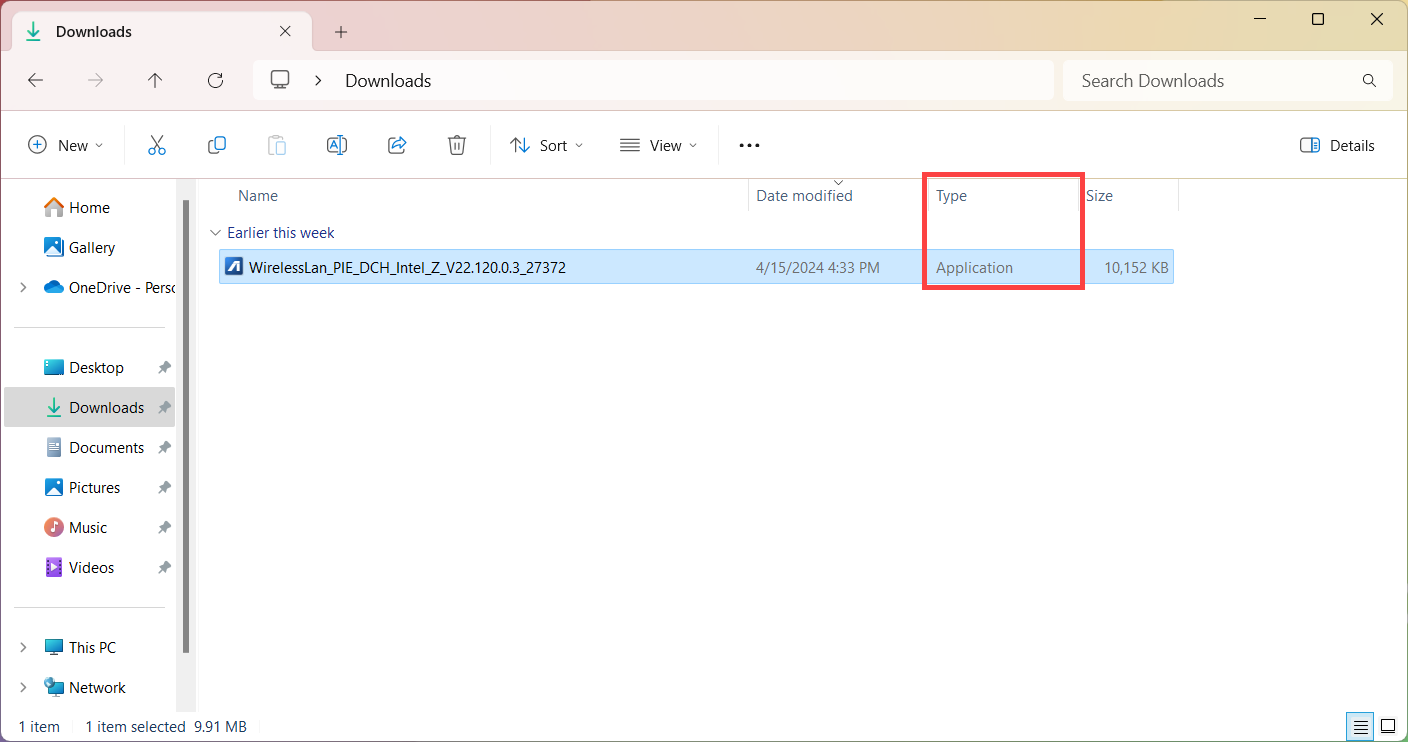
- Most downloaded drivers come as
.exefiles. Simply double-click them to run the installer. Follow the on-screen prompts, typically clicking “Next,” “Agree,” and “Install.” - Some drivers might be in
.ziparchives. You’ll need to extract them first to a folder and then look for anSetup.exeorInstall.exefile within the extracted folder. - Important: After installing some drivers (especially chipset, graphics, or BIOS), the system might require a reboot. Save your work and allow the system to restart.
- Most downloaded drivers come as
Method 2: Utilizing Windows Device Manager
The Windows Device Manager provides a built-in way to manage your hardware drivers. It’s useful for checking driver status, updating individual drivers, or dealing with devices that aren’t functioning correctly.
- Open Device Manager: Right-click the Start button and select “Device Manager.”
- Identify the Device: Expand the categories to find the hardware component for which you want to install or update a driver. Devices with a yellow exclamation mark indicate a problem.
- Update Driver:
- Right-click on the specific device.
- Select “Update driver.”
- Option A: Search automatically for drivers: Windows will attempt to find a driver online via Windows Update. This is convenient but might not always fetch the latest or the most optimized ASUS-specific driver.
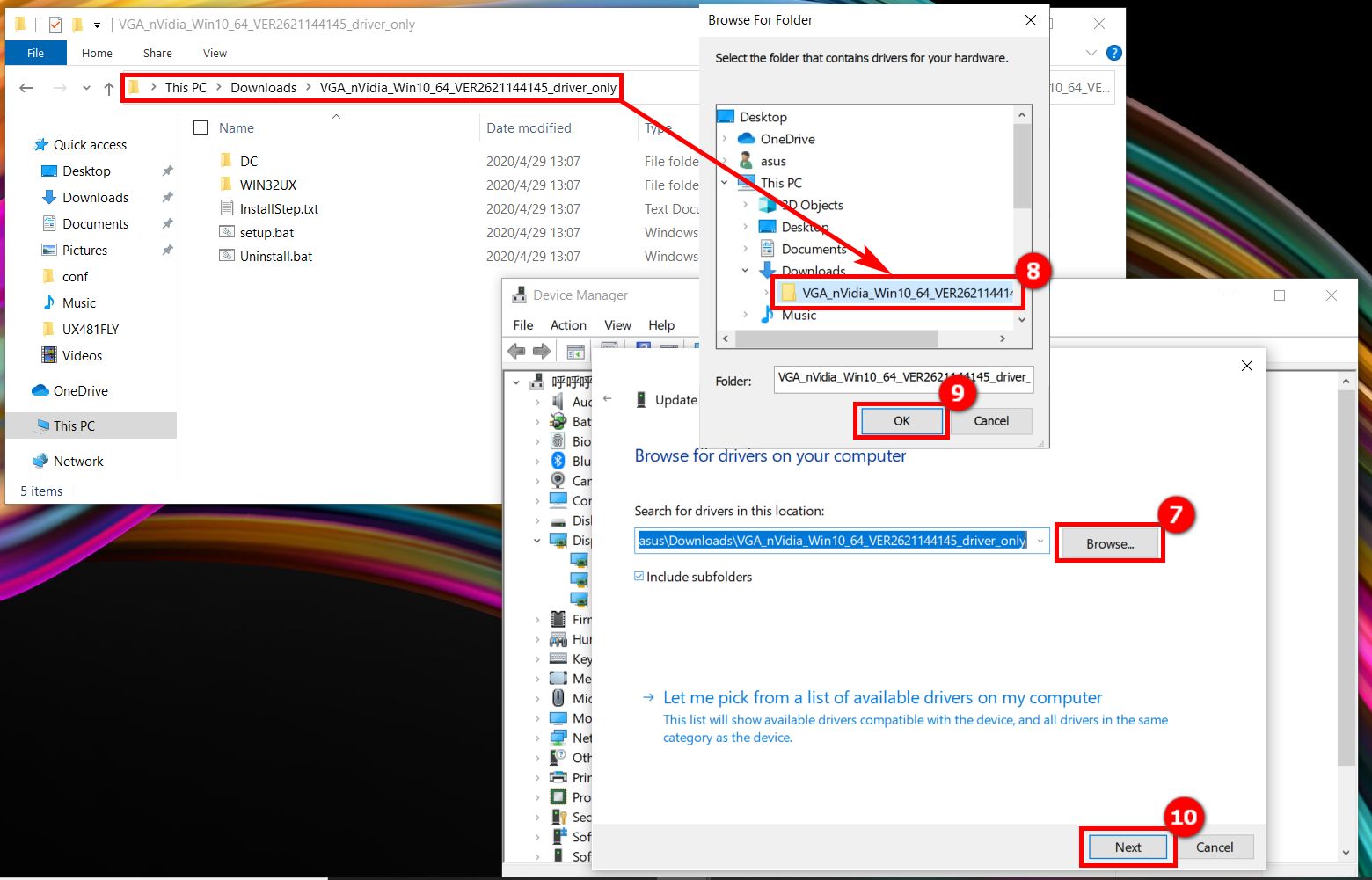
- Option B: Browse my computer for drivers: Select this if you have already downloaded the drivers from the ASUS website (as described in Method 1). Click “Browse” and navigate to the folder where you saved the extracted driver files. Ensure “Include subfolders” is checked, then click “Next.” Windows will search for and install the appropriate driver.
Method 3: Leveraging ASUS Utility Software (e.g., MyASUS, Armoury Crate, ASUS Live Update)
ASUS often provides proprietary software utilities designed to manage your system, including driver updates. These tools are typically pre-installed on new ASUS devices or can be downloaded from the ASUS support site.
- MyASUS: This is a comprehensive utility available on most modern ASUS laptops and desktops. It often includes a “Customer Support” or “Live Update” section where you can check for and install the latest drivers, BIOS updates, and other utilities specific to your model. It simplifies the process by automatically identifying your device and recommending relevant updates.
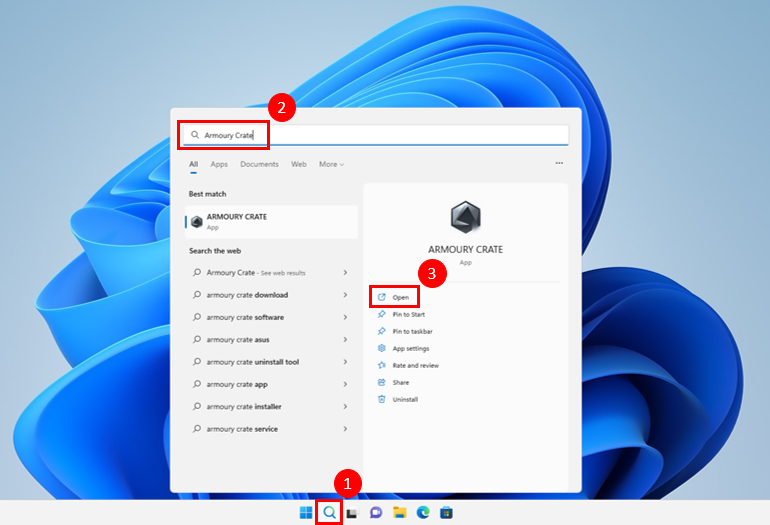
- Armoury Crate: Primarily for ASUS Republic of Gamers (ROG) and TUF Gaming devices, Armoury Crate is a control center for performance tuning, lighting effects, and also includes a “Update Center” for drivers and firmware.
- ASUS Live Update: An older utility, still found on some legacy ASUS systems, designed specifically for driver and BIOS updates.
These tools streamline the update process, making it easier to keep your system current without manual searching. They embody the “Tech” aspect of convenience and productivity.
Method 4: Installation from Original Media (CD/DVD/USB)
While less common with modern devices, older ASUS computers or motherboards might have come with a driver CD or USB stick. This method is primarily useful for fresh OS installations where you don’t have internet access yet, or for very specific legacy hardware.
- Insert the Media: Place the CD/DVD in your optical drive or plug in the USB stick.
- Run the Installer: The disc/USB often has an auto-run feature that launches an installer menu. If not, open “This PC,” navigate to the drive, and look for an
Setup.exeorInstall.exefile. - Follow On-Screen Instructions: The installer will guide you through selecting and installing the drivers.
- Caution: Drivers on original media are almost certainly outdated. Use them to get your system functional (especially network drivers) and then immediately proceed to Method 1 to download and install the latest versions.
Post-Installation and Troubleshooting Common Issues
Installing drivers is sometimes an iterative process. It’s crucial to verify your installation and know how to address common problems that might arise.
Verifying Driver Installation
After installing drivers, always confirm that they have been applied correctly:
- Check Device Manager: Open Device Manager (Right-click Start > Device Manager). Ensure there are no yellow exclamation marks or red X’s next to any devices.
- Check Driver Properties: Right-click on a specific device (e.g., your graphics card) in Device Manager, select “Properties,” then go to the “Driver” tab. Here, you can see the “Driver Date” and “Driver Version.” Compare these with the versions you intended to install or the latest versions available on the ASUS website.
- Test Functionality: For example, if you updated your audio driver, play some music. If you updated your Wi-Fi driver, ensure you can connect to networks.
Rolling Back a Driver
If a newly installed driver causes issues (crashes, instability, features not working), Windows allows you to revert to the previous driver.
- Open Device Manager: Right-click Start > Device Manager.
- Locate the Device: Find the problematic device.
- Roll Back Driver: Right-click the device, select “Properties,” go to the “Driver” tab, and click “Roll Back Driver.” You’ll be asked to provide a reason. If the button is greyed out, it means Windows doesn’t have a previous driver to revert to.
Dealing with Unrecognized Devices or Yellow Exclamation Marks
These indicators in Device Manager usually mean a device either has no driver installed or the installed driver is corrupted or incompatible.
- No Driver: Right-click the unknown device, select “Update driver,” and try “Search automatically.” If that fails, manually install the correct driver from the ASUS website (Method 1).
- Corrupted/Incompatible Driver: First, try “Roll Back Driver.” If that’s not an option, uninstall the driver (right-click device > “Uninstall device”), then reboot your system. Windows will often try to reinstall a basic driver, or you can then proceed to manually install the correct ASUS driver.
Resolving Driver Conflicts and System Instability
Driver conflicts can be tricky. They often manifest as BSODs (Blue Screen of Death), freezes, or general system sluggishness.
- One by One Installation: If you’re doing a fresh OS install, install drivers one by one (starting with chipset, then graphics, then network) and test after each, to pinpoint which driver might be causing an issue.
- Safe Mode: If your system is too unstable to operate normally, boot into Safe Mode (Windows key + R, type
msconfig, go to Boot tab, check Safe boot). In Safe Mode, you can uninstall problematic drivers or perform a System Restore. - Event Viewer: For advanced troubleshooting, the Windows Event Viewer (
eventvwr.msc) can provide clues about which driver or service is failing, often logging errors related to driver issues.
When to Seek Professional Help
Sometimes, despite your best efforts, driver issues can persist or lead to more complex hardware problems. Knowing when to escalate to professional help is a smart financial decision. Continually troubleshooting an issue that’s beyond your expertise can waste valuable time (which is money) and potentially cause further damage. If your ASUS device is still under warranty, contact ASUS support directly. Otherwise, consider a reputable local computer repair shop. They have specialized tools and experience to diagnose deeply embedded driver conflicts or underlying hardware malfunctions that might mimic driver problems.
Best Practices for Driver Management and System Longevity
Proactive driver management is key to maintaining a healthy, high-performing ASUS system.
Regular Driver Updates: A Balancing Act
While it’s important to keep drivers updated, it’s also a balancing act. You don’t necessarily need to update every driver the moment a new version is released.
- Prioritize Critical Updates: Focus on graphics drivers (for gamers/creators), chipset drivers, and network drivers, as these often contain performance improvements or critical security patches.
- Read Release Notes: Before updating, quickly check the release notes on the ASUS website. They often detail what bugs are fixed, what features are added, and if there are any known issues.
- Stable vs. Bleeding Edge: If your system is stable and performing well, sometimes it’s better to stick with a slightly older, proven driver rather than immediately jumping to the newest, potentially untested version. Wait a week or two after a major release to see if others report issues.
Avoiding Unofficial Driver Sources
This is a critical security and performance warning. Never download drivers from unofficial, third-party driver websites or use generic “driver updater” software that isn’t directly from ASUS or a reputable hardware component manufacturer.
- Security Risk: Unofficial drivers can be bundled with malware, adware, or viruses, compromising your digital security and leading to costly data breaches or system infections.
- Performance Risk: Generic drivers might not be optimized for your specific ASUS hardware, leading to reduced performance, instability, or even permanent damage. They also invalidate your ASUS warranty if they cause problems.
- Brand Reputation: Unofficial drivers dilute the positive user experience associated with the ASUS brand. When problems arise from non-official drivers, it can unfairly reflect negatively on the hardware manufacturer. Always stick to
www.asus.com/support/.
The Financial Impact of Proactive Maintenance
Thinking about driver management purely as a technical task misses its significant financial implications. Proactive maintenance, including regular driver updates, directly contributes to the longevity and performance of your ASUS device, saving you money in the long run.
- Avoid Costly Repairs: A stable system with updated drivers is less likely to experience crashes, component failures due to overheating (from unoptimized drivers), or software conflicts that require professional diagnosis and repair.
- Extended Hardware Lifespan: Optimal driver performance reduces wear and tear on components by ensuring they operate efficiently within their designed parameters. This delays the need for expensive hardware upgrades or replacement devices.
- Increased Productivity: A smoothly running computer is a productive computer. Downtime due to driver-related issues means lost work, missed deadlines, and a direct impact on your earnings or business operations. Investing a small amount of time in driver management is an investment in your productivity and financial well-being.
Integrating Driver Management into Your Digital Security Routine
Driver updates are not just about performance; they’re an integral part of your digital security posture. Just as you regularly update your operating system and antivirus software, checking for critical driver updates, especially for networking and graphics components, should be part of your routine. These updates often patch vulnerabilities that could be exploited by malicious actors. By ensuring your drivers are current and authentic, you reinforce the security of your ASUS system, protecting your personal data and financial information.
Conclusion
Installing and managing ASUS drivers is a fundamental aspect of owning an ASUS device, crucial for unlocking its full potential, ensuring system stability, and safeguarding your digital environment. By understanding their critical role, taking preparatory steps, and following the recommended installation methods from official ASUS sources, you empower yourself to maintain a high-performing, secure, and reliable machine.
Remember, your ASUS device is an investment, and proper driver management is a form of digital maintenance that protects that investment. It ensures you maximize performance, minimize downtime, and avoid costly repairs, all while enjoying the cutting-edge technology and robust reliability that the ASUS brand is known for. Embrace these practices, and your ASUS system will serve you faithfully for years to come, keeping you productive, entertained, and secure in our ever-evolving technological landscape.
aViewFromTheCave is a participant in the Amazon Services LLC Associates Program, an affiliate advertising program designed to provide a means for sites to earn advertising fees by advertising and linking to Amazon.com. Amazon, the Amazon logo, AmazonSupply, and the AmazonSupply logo are trademarks of Amazon.com, Inc. or its affiliates. As an Amazon Associate we earn affiliate commissions from qualifying purchases.