
Assetto Corsa, the highly acclaimed racing simulator, offers an unparalleled level of realism and immersion. While its base game provides a robust driving experience, the true magic of Assetto Corsa lies in its thriving modding community. From meticulously crafted cars to expansive new tracks and performance enhancements, mods can transform your virtual racing world into something truly spectacular. However, for newcomers, the prospect of installing these modifications can seem daunting. This guide will demystify the process, breaking down the essential steps and providing you with the knowledge to customize your Assetto Corsa experience like never before. We’ll cover everything from understanding the different types of mods to troubleshooting common issues, ensuring you can hit the virtual tarmac with your desired enhancements.
Understanding Assetto Corsa Mods: What You Need to Know
Before diving into the installation process, it’s crucial to understand what constitutes an Assetto Corsa mod and where to find them. The modding community for Assetto Corsa is incredibly active, producing a wide array of content that extends far beyond the game’s original offerings.
The Diverse World of Assetto Corsa Mods
Assetto Corsa mods can broadly be categorized into several key types, each offering a unique way to enhance your gameplay:
- Car Mods: These are perhaps the most popular type of mod. Car mods introduce new vehicles to the game, ranging from hypercars and classic racers to obscure prototypes and even fictional vehicles. The quality can vary, but many community-created cars are meticulously modeled and textured, often with accurate physics and sound profiles that rival official content. You’ll find everything from iconic Formula 1 machines to legendary JDM heroes and powerful American muscle cars.
- Track Mods: Beyond the game’s official circuits, a vast library of community-created tracks exists. These can be recreations of famous real-world race tracks, historical venues, or entirely original circuits designed for specific racing disciplines. The detail and accuracy of these tracks can be astonishing, offering new challenges and environments to test your driving skills.
- UI Mods and Tools: These mods focus on improving the user interface and overall user experience within Assetto Corsa. This can include enhanced racing statistics displays, improved car selection menus, more informative HUDs (Heads-Up Displays), and even tools for managing your mod collection. Some UI mods aim to provide more data during a race, while others focus on streamlining navigation.
- Physics and Handling Mods: While less common for direct installation by beginners, some advanced users might explore mods that tweak car physics and handling. These can alter tire models, suspension, aerodynamics, and engine characteristics to achieve a more specific or realistic driving feel. However, it’s generally recommended to start with car and track mods before venturing into deeper physics modifications.
- Graphics and Weather Mods: These mods aim to enhance the visual fidelity of Assetto Corsa. This can include improved lighting, weather effects (rain, fog, dynamic time of day), custom shaders, and higher-resolution textures. These can significantly elevate the immersion and realism of your racing sessions.
Where to Find Reliable Assetto Corsa Mods
The internet is brimming with Assetto Corsa mods, but it’s essential to source them from reputable platforms to avoid malware or broken files. Here are some of the most popular and reliable locations:
- AC Fansite: This is a well-established community hub where modders share their creations. You’ll find a vast collection of cars, tracks, and other content.
- RaceDepartment: Another prominent racing simulation community, RaceDepartment hosts a dedicated section for Assetto Corsa mods. It’s a great place to find high-quality content and engage with other sim racers.
- Official Assetto Corsa Forums: While less of a direct download hub, the official forums can sometimes point you towards excellent community mods and discussions about new releases.
- Individual Modder Websites/Patreon Pages: Many talented modders have their own websites or Patreon pages where they release their work, sometimes offering early access or exclusive content to supporters.
Important Note on Mod Quality: It’s worth reiterating that the quality of mods can vary significantly. Some are incredibly polished and professional, while others may be less refined. Always check comments, reviews, and download counts to gauge the general reception of a mod.
The Installation Process: Step-by-Step Guide
Installing Assetto Corsa mods is generally a straightforward process, primarily involving copying and pasting files into specific game directories. There are two main methods: manual installation and using mod managers. We’ll focus on the manual method first, as it’s fundamental to understanding how mods are integrated.
Manual Installation: The Foundation
Manual installation is the most direct way to add mods to Assetto Corsa. It requires you to locate the game’s installation folder and then place the mod files in their correct subfolders.
Step 1: Locate Your Assetto Corsa Installation Folder
The default location for Assetto Corsa on Windows is usually:
C:Program Files (x86)Steamsteamappscommonassettocorsa
If you purchased the game through a different platform or installed it in a custom location, you’ll need to find that specific directory. On Steam, you can easily find this by:
- Opening your Steam Library.
- Right-clicking on “Assetto Corsa.”
- Selecting “Properties.”
- Going to the “Local Files” tab.
- Clicking “Browse Local Files.”
Step 2: Understand the Mod File Structure
When you download a mod, it will typically come in a compressed file format, such as a .zip or .rar file. You’ll need to extract these files using a program like WinRAR or 7-Zip. Once extracted, you’ll find a folder structure that mirrors the game’s own directories. The most common subfolders you’ll encounter within a mod’s extracted files are:
cars: This folder contains all the files for car mods.tracks: This folder contains all the files for track mods.content: This is a broader category that might contain other types of content like driver suits, helmets, or even specific track elements.
Step 3: Copy and Paste the Mod Files
Now, it’s time to integrate the mod into your game.
For Car Mods:
- Open the extracted car mod folder. You should see a folder with the name of the car (e.g., “ferrari_f40”).
- Navigate into your Assetto Corsa installation folder and go to the
assettocorsacontentcarsdirectory. - Simply copy the car’s folder from your downloaded mod and paste it directly into the
carsfolder within your Assetto Corsa installation.
For Track Mods:
- Open the extracted track mod folder. You should see a folder with the name of the track (e.g., “monza_1970”).
- Navigate into your Assetto Corsa installation folder and go to the
assettocorsacontenttracksdirectory. - Simply copy the track’s folder from your downloaded mod and paste it directly into the
tracksfolder within your Assetto Corsa installation.
Step 4: Launch Assetto Corsa and Enjoy!
After copying the files, launch Assetto Corsa. You should now be able to find the new car in the car selection screen or the new track in the track selection screen. It might be listed under an “Other” category or alphabetically by its name.
Using Mod Managers: Simplifying the Process
While manual installation is straightforward, for those who plan to install a large number of mods, mod managers can be incredibly helpful. These tools automate the process, manage your mod library, and can sometimes help resolve conflicts.
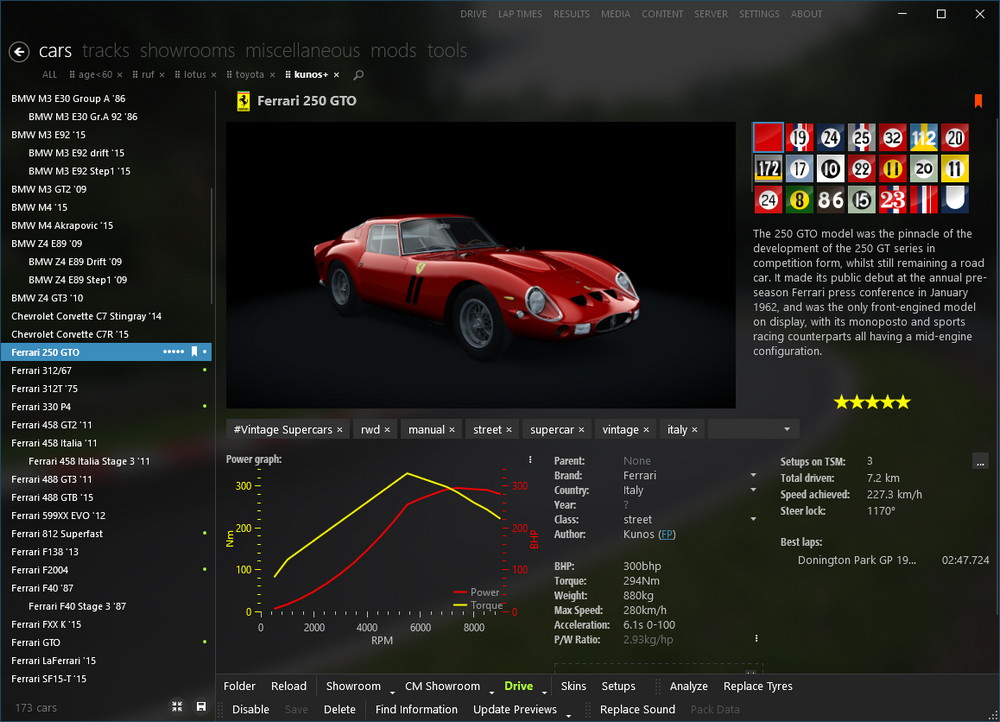
- Content Manager: Developed by Ac.Bel (the creator of the Custom Shaders Patch), Content Manager is the de facto standard for managing Assetto Corsa content. It’s a powerful standalone application that integrates with the game and offers a graphical interface for installing, uninstalling, and organizing cars, tracks, and other mods. It also provides access to the Custom Shaders Patch and other useful tools.
How to Use Content Manager (General Workflow):
- Download and Install Content Manager: You can usually find the latest version on forums like RaceDepartment.
- Point Content Manager to Your Assetto Corsa Installation: When you first launch it, Content Manager will likely ask you to locate your game directory.
- Install Mods Through Content Manager: Most mods designed for Content Manager can be directly dragged and dropped into the manager’s interface. It will then handle the installation process for you. Content Manager often recognizes mod archives (
.zip,.rar) and can extract and place them correctly. - Launch the Game Through Content Manager: It’s recommended to launch Assetto Corsa through Content Manager for optimal integration.
Using a mod manager like Content Manager significantly streamlines the process, especially as your mod collection grows. It also makes it much easier to uninstall mods if you encounter issues or want to free up space.
Troubleshooting Common Mod Installation Issues
Even with the best intentions, you might occasionally run into problems when installing mods. Here are some common issues and how to address them:
Mod Not Appearing in Game
This is a frequent problem for beginners. Several factors could be at play:
- Incorrect Folder Placement: Double-check that you’ve copied the mod’s folder into the correct
carsortrackssubfolder withinassettocorsacontent. Ensure you’re not pasting the archive file itself, but rather the extracted folder. - Corrupted Download: The mod file might have been corrupted during download. Try re-downloading the mod from a different source or mirror if available.
- Incomplete Extraction: Ensure that all files within the mod archive have been fully extracted. Sometimes, a missing file can prevent the game from recognizing the mod.
- Game Version Compatibility: While most mods are backward compatible to some extent, very old mods might have issues with the latest game patches. Similarly, some new mods might require the latest game version or specific content packs.
- Missing Dependencies: Some complex mods might require other mods or specific game updates to function correctly. Always read the mod’s description and installation notes carefully for any listed dependencies.
Game Crashing or Freezing
If Assetto Corsa crashes or freezes after installing a mod, it’s a strong indicator of a conflict or a faulty mod.
- Identify the Culprit Mod: The easiest way to do this is to remove recently installed mods one by one and test the game after each removal. If the crashing stops, you’ve found the problematic mod.
- Check for Conflicts: Sometimes, two mods might conflict with each other. This is more common with UI mods or those that alter core game files.
- Faulty Mod: The mod itself might be poorly made or contain errors. Again, re-downloading or seeking a different version might help.
- Overlapping Files: In rare cases, if you’ve manually installed multiple mods that modify the same game files (which is generally discouraged without careful management), conflicts can arise. Mod managers are better at handling these situations.
- Custom Shaders Patch Issues: If you’re using the Custom Shaders Patch (highly recommended for enhanced graphics), ensure it’s up to date and compatible with your game version and other mods. Sometimes, specific graphics settings within the CSP can also cause issues.
Performance Issues (Lag, Stuttering)
Adding a lot of high-quality mods, especially graphically intensive ones, can impact game performance.
- Graphics Settings: Lowering in-game graphics settings like texture quality, shadows, and anti-aliasing can help.
- Mod Optimization: Some mods are better optimized than others. Highly detailed car models or complex track objects can strain your system.
- Custom Shaders Patch Settings: The Custom Shaders Patch offers a vast array of graphical options. While it can improve visuals, certain settings can be resource-intensive. Experiment with disabling some of the more demanding features.
- Background Applications: Ensure no other demanding applications are running in the background while you’re playing Assetto Corsa.
- Hardware Limitations: Ultimately, your PC’s hardware will dictate how many mods and how demanding they can be. If you have an older system, you may need to be more selective with your mod choices.
Best Practices for Modding Assetto Corsa
To ensure a smooth and enjoyable modding experience, consider these best practices:
- Read Installation Instructions: Always, always read the readme files or installation instructions provided with a mod. They often contain crucial information about dependencies, known issues, or specific installation steps.
- Backup Your Game Files: Before installing any significant mods, consider backing up your
assettocorsafolder. This is a lifesaver if something goes wrong and you need to revert to a clean state. - Use Content Manager: As mentioned, Content Manager is invaluable for organizing and managing your mods. It simplifies installation, uninstallation, and can even help diagnose issues.
- Keep Mods Organized: If you’re not using a mod manager, create your own system for keeping track of installed mods and their sources.
- Start Small: If you’re new to modding, begin with a few car or track mods and gradually add more as you become comfortable with the process.
- Stay Updated: Keep your Assetto Corsa game, Content Manager, and Custom Shaders Patch updated to ensure compatibility and access to the latest features.
- Be Wary of Untrusted Sources: Only download mods from reputable websites and communities to avoid malware and ensure you’re getting well-maintained content.
By following these guidelines and understanding the fundamental steps, you can unlock the full potential of Assetto Corsa. The ability to customize your game with a near-infinite variety of cars and tracks is what makes Assetto Corsa a perpetually evolving and deeply engaging racing simulator. So, dive in, experiment, and enjoy the thrill of racing with your perfectly tailored virtual garage and circuit lineup!
aViewFromTheCave is a participant in the Amazon Services LLC Associates Program, an affiliate advertising program designed to provide a means for sites to earn advertising fees by advertising and linking to Amazon.com. Amazon, the Amazon logo, AmazonSupply, and the AmazonSupply logo are trademarks of Amazon.com, Inc. or its affiliates. As an Amazon Associate we earn affiliate commissions from qualifying purchases.