
The landscape of home entertainment has dramatically evolved, moving far beyond simple channel surfing. Modern Smart TVs are no longer just display devices; they are sophisticated hubs of digital content, streaming services, and interactive experiences, all powered by a rich ecosystem of applications. Whether you’re looking to binge-watch the latest series, stream music, catch up on news, or even play games, installing the right apps is crucial to unlocking the full potential of your Smart TV. This comprehensive guide will walk you through everything you need to know, from understanding your TV’s operating system to troubleshooting common issues, ensuring you can customize your entertainment experience with ease.
Understanding Your Smart TV Ecosystem
Before diving into the “how-to,” it’s essential to grasp what makes a Smart TV smart and why applications are the lifeblood of these devices. This foundational understanding will help you navigate your TV’s interface more effectively and make informed choices about your app library.
What Makes a Smart TV Smart?
At its core, a Smart TV is an internet-connected television that comes with an integrated operating system (OS). Unlike traditional TVs that solely relied on external sources like cable boxes or DVD players, Smart TVs can access online content directly. This connectivity opens up a world of possibilities, transforming your television into a powerful multimedia center. The operating system, much like on your smartphone or computer, provides the interface, manages hardware, and most importantly, supports the installation and execution of various applications.
Different Smart TV brands often utilize distinct operating systems, each with its own app store, user interface, and unique features. Common examples include:
- Android TV / Google TV: Found on brands like Sony, Philips, TCL, and Hisense. Leverages the vast Google Play Store.
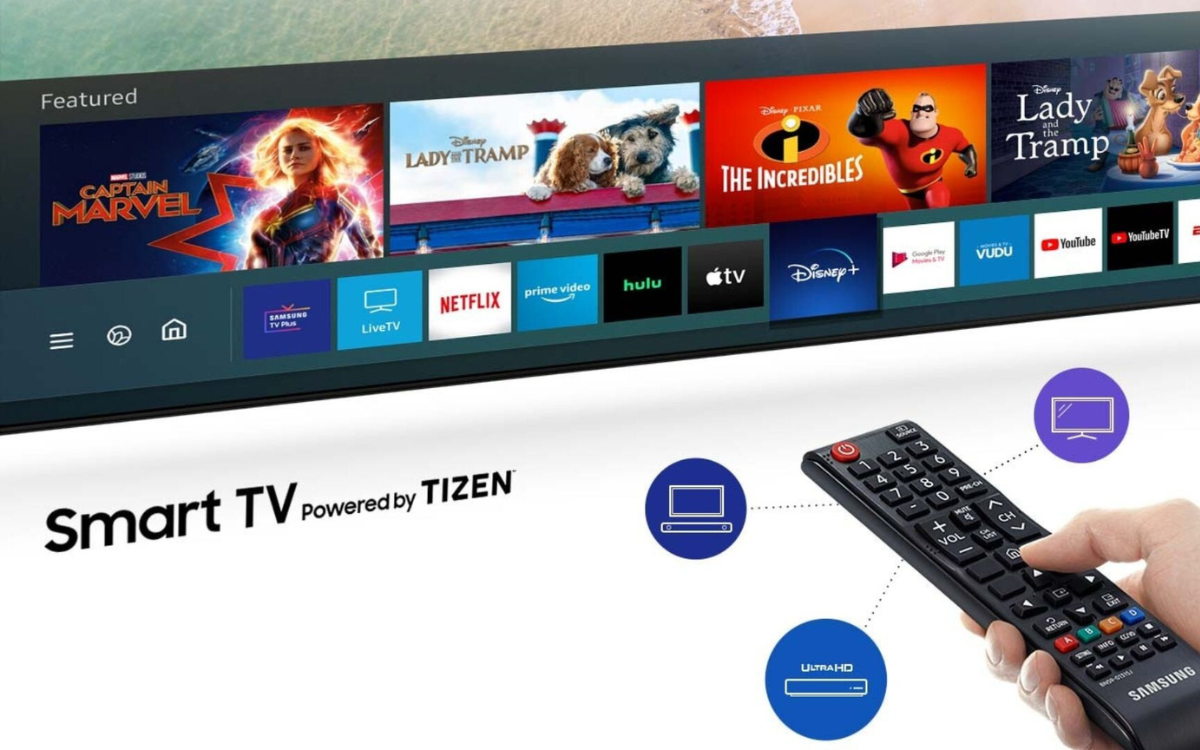
- Samsung Tizen: Samsung’s proprietary OS, known for its clean interface and integration with Samsung’s ecosystem.
- LG webOS: LG’s acclaimed OS, praised for its intuitive ‘Magic Remote’ and user-friendly web-like card interface.
- Roku TV: Integrated into TVs from brands like TCL, Hisense, and Sharp, offering Roku’s familiar and extensive channel store.
- Amazon Fire TV Edition: Found on brands like Insignia and Toshiba, bringing the Fire TV experience directly to the television.
Understanding which OS your TV runs on is the first step towards mastering app installation, as the specific steps and available apps can vary significantly between platforms.
Why Apps are Essential for Your Smart TV Experience
Apps are the bridge between your Smart TV’s hardware and the digital content you wish to consume. Without them, your Smart TV is merely an expensive display. They are the gateways to:
- Streaming Services: Netflix, Disney+, Amazon Prime Video, Hulu, HBO Max, YouTube, Apple TV+, and countless others. These apps are the primary reason many people invest in a Smart TV, offering an unparalleled on-demand library of movies, TV shows, and documentaries.
- Music Streaming: Spotify, Pandora, Apple Music, and other audio platforms allow you to turn your living room into a concert hall or a personalized radio station.
- News and Information: Stay updated with dedicated news apps, weather channels, and financial market trackers.
- Gaming: While not as powerful as dedicated consoles, many Smart TVs offer casual games and even cloud gaming services, transforming your TV into an entertainment console for lighter gameplay.
- Fitness and Lifestyle: Access workout routines, meditation guides, cooking classes, and travel inspiration directly from your TV screen.
- Productivity Tools: Although less common, some TVs offer basic web browsers, cloud storage viewers, and even video conferencing tools, subtly blurring the lines between home entertainment and home office technology.
In essence, apps empower you to tailor your Smart TV to your specific interests and needs, making it a truly personalized and dynamic entertainment device.
Step-by-Step Guide to Installing Apps on Major Smart TV Platforms
While each Smart TV operating system has its nuances, the general principle for installing apps remains consistent: navigate to an app store, search, select, and install. This section will break down the process for the most popular Smart TV platforms, ensuring you can find and download your desired applications regardless of your TV’s brand.
General Principles for App Installation
Before we delve into specific platforms, here’s a universal checklist that applies to almost all Smart TVs:
- Ensure Internet Connection: Your Smart TV must be connected to the internet (either via Wi-Fi or Ethernet) to access app stores and download applications.
- Log In to Your Account: Many platforms require you to be logged into a specific account (e.g., Google Account for Android TV, Samsung Account for Tizen, LG Account for webOS) to download apps. If you don’t have one, you’ll usually be prompted to create it.
- Navigate to the App Store: Every Smart TV OS has a dedicated “App Store,” “Content Store,” “Channel Store,” or “Play Store” where you can browse and download applications.
- Search or Browse: Use the search function or browse categories to find the app you want.
- Select and Install: Choose the app, then select the “Install” or “Get” button.
- Accept Permissions (if prompted): Some apps may request access to certain TV features; review and accept if you’re comfortable.
Installing Apps on Android TV / Google TV
Android TV and its newer iteration, Google TV, are popular choices for their seamless integration with Google services and access to the vast Google Play Store.
- Home Screen Access: From your TV’s home screen, locate and select the “Apps” tab or icon. On Google TV, you might see “For You” or “Apps” tabs at the top.
- Open Google Play Store: Look for the “Google Play Store” app icon. Select it to open.
- Search for Apps: Use the search icon (often a magnifying glass) to type the name of the app you want. Alternatively, browse through categories like “Entertainment,” “Games,” or “Lifestyle.”
- Select and Install: Once you find the desired app, select it. You’ll see an “Install” button. Click it.
- Wait for Download: The app will download and install automatically. A progress bar will usually indicate its status.
- Open the App: After installation, you can often select “Open” directly from the Play Store, or find the new app icon on your home screen or in your app library.
Pro Tip: Ensure you’re logged into the correct Google Account associated with your TV, as this is essential for downloading and managing your apps.
Navigating Samsung’s Tizen OS for Apps
Samsung’s Tizen OS is known for its intuitive Smart Hub interface and swift performance.
- Access Smart Hub: Press the “Home” button on your Samsung remote. This will bring up the Smart Hub ribbon at the bottom of the screen.
- Open the Apps Section: Navigate to the “Apps” icon (it often looks like four squares or has the text “Apps”). Select it.
- Enter Samsung App Store: This will open the Samsung App Store. You’ll see featured apps, categories, and a search option.
- Find Your App: Use the search bar (magnifying glass icon) to type in the app’s name, or browse the various categories.
- Download and Install: Select the app you wish to install. On the app details page, click the “Install” button.
- Launch the App: Once installed, the app will appear in your “Apps” section of the Smart Hub, and you can launch it from there. You can also reorder apps for easier access.
Note: You may need to sign in to your Samsung Account to download apps.
Exploring LG’s webOS for App Downloads
LG’s webOS is recognized for its unique ‘Launcher Bar’ and ‘Magic Remote’ (if available), which makes navigation a breeze.
- Access Launcher Bar: Press the “Home” button on your LG Magic Remote (or standard remote). This will bring up the Launcher Bar at the bottom of the screen.
- Open LG Content Store: Scroll through the apps on the Launcher Bar until you find the “LG Content Store” icon (often a shopping bag or an icon with the LG logo). Select it.
- Browse or Search: Inside the Content Store, you can browse popular apps, explore different categories (Movies & TV, Games, Lifestyle, etc.), or use the search function (magnifying glass) to find a specific app.
- Select and Install: Click on the app you want. On the app’s details page, select the “Install” button.
- Run the App: After installation, the new app will appear on your Launcher Bar. You can reorder its position for quick access.
Tip: An LG Account is typically required for app downloads and management.
Adding Apps to Roku TVs and Sticks
Roku TVs (from various manufacturers) and Roku streaming sticks operate on the user-friendly Roku OS, known for its extensive “Channel Store.”
- Home Screen Access: From the Roku TV home screen, navigate to the left-hand menu.
- Select “Streaming Channels”: Scroll down and select “Streaming Channels.” This is Roku’s equivalent of an app store.
- Browse or Search: You can browse “Featured” channels, explore categories, or use the “Search Channels” option to find a specific app.
- Add Channel: Once you find the app (Roku calls them “channels”), select it. Then, choose the “Add channel” button.
- Confirmation and Launch: The channel will be added to the end of your home screen channel list. You’ll get a confirmation message. You can then select “Go to channel” or find it on your home screen to launch.
Note: Roku doesn’t require a separate account for each app download, but you do need an active Roku account linked to your device.
Getting Apps on Fire TV Edition Smart TVs
Fire TV Edition Smart TVs integrate Amazon’s Fire TV experience, offering access to Amazon’s vast app library, often with Alexa voice integration.
- Home Screen Navigation: From the Fire TV home screen, you’ll see various tabs at the top (Home, Live, My Videos, Apps, Settings). Navigate to the “Apps” tab.
- Explore or Search: In the “Apps” section, you can browse featured apps, explore categories, or use the search icon (magnifying glass) to find a specific application.
- Select and Get: Click on the desired app. On the app’s detail page, select the “Get” or “Download” button.
- Open the App: Once downloaded and installed, the button will change to “Open.” You can launch the app directly or find it under “Your Apps & Channels” on the home screen.

Integration: Fire TV devices are deeply integrated with your Amazon account. Ensure you’re signed in to access your apps and purchases. Alexa voice search can also be used to find and launch apps quickly.
Advanced App Installation and Management
Beyond the basic installation, there are more advanced considerations for managing your Smart TV’s app ecosystem, from exploring non-traditional installation methods to ensuring your apps remain optimized.
Sideloading Apps: When and How (with caveats)
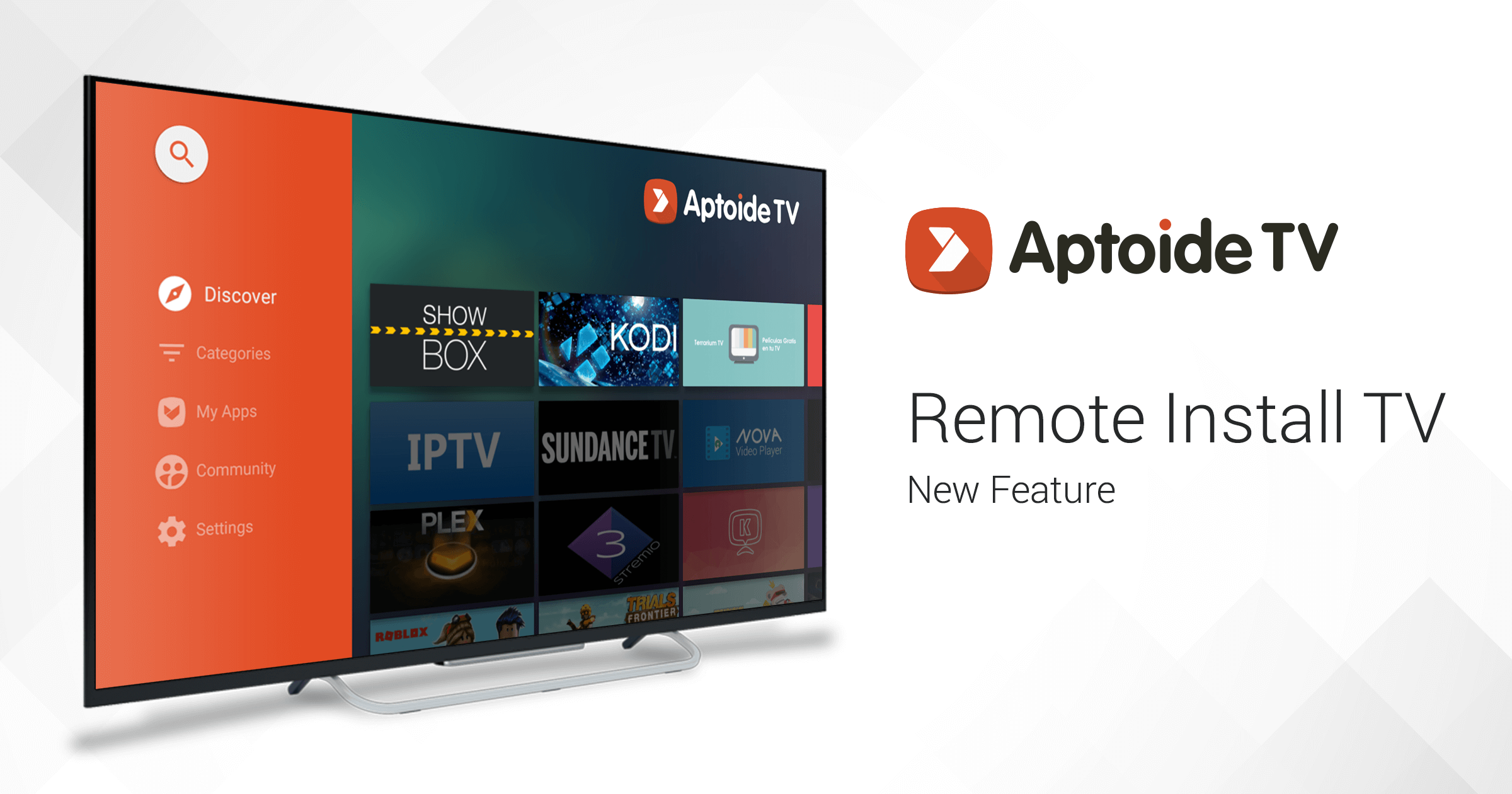
Sideloading refers to installing apps from sources other than the official app store. This is primarily relevant for Android TV devices and can be useful for accessing niche apps not available in the Play Store, or for beta testing.
How to Sideload (Android TV Example):
- Enable “Unknown Sources”: Go to your TV’s Settings > Device Preferences > Security & Restrictions > Unknown Sources. Enable this option. Warning: This makes your TV vulnerable to potentially malicious software if you download from untrusted sources.
- Install a File Manager: Download a file manager app (e.g., File Commander, X-plore) from the Google Play Store on your TV.
- Transfer APK File: Download the
.apkfile (Android Application Package) of the app you want to sideload onto a USB drive or a cloud storage service. - Install via File Manager: Insert the USB drive into your TV or access your cloud storage via the file manager app. Navigate to the
.apkfile and select it to install. - Disable “Unknown Sources”: After installation, it’s highly recommended to disable “Unknown Sources” again for security.
Caveats of Sideloading:
- Security Risks: Sideloaded apps are not vetted by Google, Samsung, or LG. They can contain malware, viruses, or spyware. Only download APKs from highly trusted sources.
- Compatibility: Apps designed for smartphones or tablets might not be optimized for a TV interface (no touch screen, remote navigation issues).
- Stability: Sideloaded apps might be unstable, crash frequently, or not receive official updates.
- Warranty: Installing unauthorized software could potentially void your TV’s warranty in some cases.
Recommendation: Only sideload if you understand the risks and absolutely need an app unavailable through official channels. For the vast majority of users, sticking to the official app stores is the safest and most reliable approach.
Keeping Your Smart TV Apps Updated
App developers frequently release updates to introduce new features, improve performance, fix bugs, and patch security vulnerabilities. Keeping your apps updated is crucial for a smooth and secure experience.
- Automatic Updates: Most Smart TV platforms have an option for automatic app updates. It’s highly recommended to enable this in your TV’s settings or within the app store settings.
- Manual Updates: If you prefer manual control, you can usually check for updates within the app store itself. Navigate to the app store, find the “My Apps” or “Downloads” section, and look for an “Update All” or “Check for Updates” option.
- System Software Updates: Regularly updating your TV’s operating system (firmware) is equally important, as these updates often contain improvements that benefit all installed applications and enhance overall system security.
Managing Your App Library: Uninstalling and Reordering
Over time, you might accumulate apps you no longer use, or you might want to organize them for quicker access.
- Uninstalling Apps:
- Navigate to Apps: Go to your TV’s home screen or app library.
- Select App: Hover over the app you wish to uninstall.
- Access Options: Depending on your TV, press and hold the “OK” button, press a specific “Options” button on your remote, or navigate to a “Delete” or “Uninstall” option in a contextual menu.
- Confirm: Confirm your choice to remove the app. This frees up storage space.
- Reordering Apps: Most Smart TVs allow you to customize the order of apps on your home screen or in your app drawer. This is usually done by selecting an app, holding the “OK” button, and then dragging it to a new position. Prioritize your most frequently used apps for convenience.
Troubleshooting Common App Installation Issues
Even with a clear guide, you might encounter bumps in the road. Here’s how to address some of the most common problems users face when installing apps on their Smart TV.
Connectivity Problems
- No Internet Connection: Ensure your TV is connected to your Wi-Fi network or via an Ethernet cable. Go to your TV’s network settings to check the connection status.
- Weak Wi-Fi Signal: If your TV is far from your router, the signal might be weak, leading to slow downloads or connection drops. Consider moving the router, using a Wi-Fi extender, or connecting via Ethernet.
- Router Issues: Restart your home router and modem. Sometimes a simple reboot can resolve network glitches.
Insufficient Storage
- “Not Enough Storage” Error: Apps and their associated data consume storage space. If you encounter this error, you’ll need to free up space.
- Clear App Cache/Data: Go to your TV’s settings, find the “Apps” or “Applications” section, select an app, and look for options to “Clear Cache” or “Clear Data.” Clearing cache is generally safe; clearing data will delete login info and settings for that app.
- Uninstall Unused Apps: As discussed above, remove any apps you no longer use to free up significant space.
- External Storage: Some Android TVs allow you to expand storage using a USB drive, though not all apps can be moved to external storage.
App Not Found or Incompatible
- Geographical Restrictions: Some apps are only available in specific regions due to licensing agreements. You might need to change your TV’s region settings (if allowed by your TV and legal in your area, often involves resetting the TV) or use a VPN (Virtual Private Network) if your TV supports it.
- Platform Incompatibility: An app might not be available for your specific Smart TV operating system (e.g., an LG webOS app won’t be in the Samsung Tizen store).
- Outdated OS: Very old Smart TV models might not support newer apps that require a more recent version of the operating system. Ensure your TV’s firmware is up to date.
- App Withdrawn: Occasionally, developers pull apps from stores, making them unavailable for download.
Software Updates and Their Importance
- Outdated TV Firmware: An old TV operating system can prevent new apps from installing or cause existing apps to malfunction. Check your TV’s settings for “Software Update” or “System Update” and install any pending updates.
- App-Specific Issues: If only one app is misbehaving after installation, try uninstalling and reinstalling it. Sometimes a fresh installation resolves corrupted files.
- Factory Reset (Last Resort): If all else fails and your TV is experiencing widespread app issues, a factory reset can sometimes fix deep-seated software problems. Be aware this will erase all your settings, downloaded apps, and user data, requiring you to set up your TV from scratch.
Maximizing Your Smart TV Experience: Tips and Security
Beyond installation and troubleshooting, a few key practices can help you get the most out of your Smart TV and ensure your digital security.
Leveraging Voice Commands for App Access
Many modern Smart TVs come with voice assistants built-in (e.g., Google Assistant for Android TV, Alexa for Fire TV, Bixby for Samsung, ThinQ AI for LG). Learn to use voice commands to quickly find, launch, and even search within apps. For example, “Open Netflix” or “Find action movies on Prime Video” can save you significant navigation time. This technology trend enhances productivity by reducing clicks and offering a more natural interaction with your gadget.
The Importance of Official App Stores for Security
As tempting as sideloading might seem for certain apps, the official app stores provided by your TV manufacturer or OS provider (Google Play Store, Samsung App Store, LG Content Store, Roku Channel Store, Amazon Appstore) are your primary line of defense against malicious software. These stores vet applications for security and compatibility, drastically reducing the risk of downloading viruses, spyware, or apps that compromise your digital security. Always prioritize downloading from these trusted sources. This protects your personal data and the integrity of your device.
Exploring New App Categories (Gaming, Fitness, Productivity)
Don’t limit your app exploration to just streaming services. Dive into other categories that can enrich your Smart TV experience:
- Cloud Gaming Apps: Services like NVIDIA GeForce NOW or Xbox Cloud Gaming (on select TVs) can turn your Smart TV into a gaming machine without needing a powerful console.
- Fitness Apps: Many popular fitness platforms offer TV apps that guide you through workouts, yoga sessions, or meditation, making your living room a personal gym.
- Educational Apps: Explore apps that offer documentaries, language lessons, or skill-building courses, transforming your TV into a learning hub.
- Digital Art and Ambiance Apps: Discover apps that display stunning artwork, simulate fireplaces, or create relaxing ambient sounds, enhancing your living space.
By regularly exploring the app stores and staying updated with technology trends, you can continuously discover new ways to enjoy and utilize your Smart TV, making it an indispensable part of your smart home ecosystem. In conclusion, mastering app installation and management on your Smart TV is a fundamental skill that unlocks a world of personalized entertainment and utility, ensuring you get the absolute best out of your investment.
aViewFromTheCave is a participant in the Amazon Services LLC Associates Program, an affiliate advertising program designed to provide a means for sites to earn advertising fees by advertising and linking to Amazon.com. Amazon, the Amazon logo, AmazonSupply, and the AmazonSupply logo are trademarks of Amazon.com, Inc. or its affiliates. As an Amazon Associate we earn affiliate commissions from qualifying purchases.