
Chromebooks have revolutionized personal computing by offering a unique blend of simplicity, speed, and security. Designed primarily for web-centric tasks, they’ve evolved significantly, now capable of running a diverse ecosystem of applications that extend far beyond the browser. If you’re a new Chromebook owner or just looking to unlock more potential from your device, understanding how to install different types of apps is crucial for maximizing productivity, enhancing entertainment, and personalizing your digital experience.
Gone are the days when Chromebooks were considered limited internet terminals. Today’s Chromebooks can seamlessly integrate Android apps, robust Linux software, and even sophisticated Progressive Web Apps (PWAs), transforming them into versatile machines for work, study, creativity, and play. This guide will walk you through every major method of installing applications on your Chromebook, from the familiar Google Play Store to the more advanced Linux environment, ensuring you can tailor your device to perfectly suit your needs. We’ll delve into the ‘how-to’ for each method, discuss their benefits, and offer essential tips for managing your apps and maintaining security.

Unlocking Your Chromebook’s Potential: The Primary App Installation Methods
The beauty of a modern Chromebook lies in its layered app compatibility. While built on the Chrome OS, it cleverly leverages several distinct platforms to bring you a vast array of software. These primary methods cater to different types of applications and user preferences, making your Chromebook incredibly adaptable.
Google Play Store: The Android App Ecosystem
For most users, the Google Play Store is the go-to destination for expanding their Chromebook’s functionality. This integration brings the massive library of Android applications directly to your laptop, allowing you to run many of your favorite smartphone and tablet apps on a larger screen with keyboard and mouse input.
Why it’s important: The Play Store significantly broadens a Chromebook’s utility. Need to edit photos with Snapseed, stream movies with Netflix, manage your finances with a banking app, or play popular mobile games? The Google Play Store makes it possible. This integration has been a game-changer, transforming Chromebooks from mere web browsers into truly versatile computing devices.
How to Install Android Apps:
- Check for Compatibility: Most modern Chromebooks support the Google Play Store out of the box. If yours doesn’t, ensure your operating system is up to date (Settings > About Chrome OS > Check for updates). Some older or lower-end models might not support it.
- Enable Google Play Store:
- Open your Chromebook’s Settings (click the time on the bottom right and then the gear icon).
- Scroll down to the “Apps” section and look for “Google Play Store.”
- Click “Turn on.” You’ll need to agree to the terms of service.
- Browse and Install:
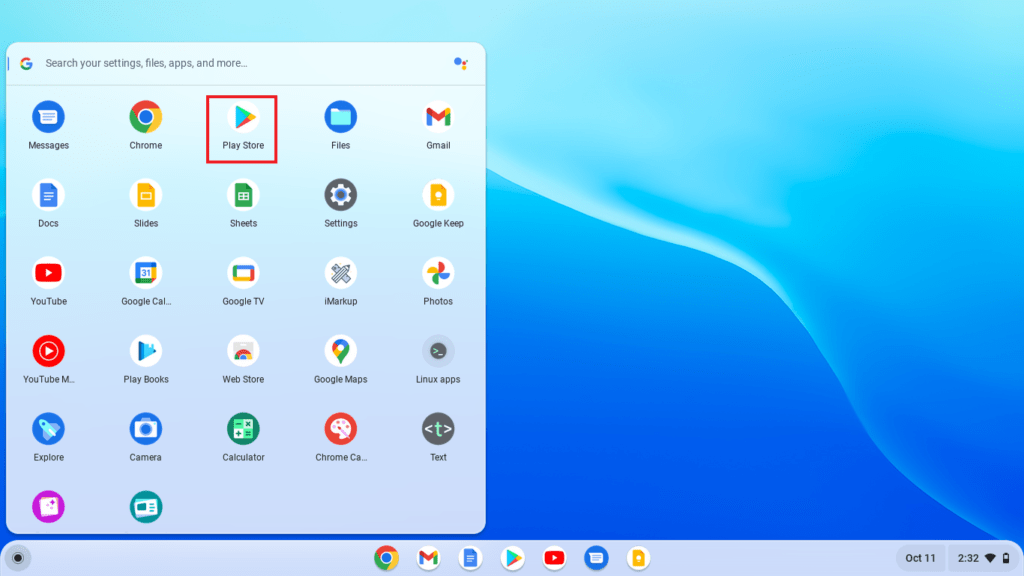
- Once enabled, the Google Play Store icon will appear in your app launcher (the circle icon in the bottom left).
- Open the Play Store app, and it will feel very similar to using it on an Android phone or tablet.
- Use the search bar to find specific apps, or browse by categories.
- When you find an app, click “Install.”
- The app will download and install, and its icon will then appear in your app launcher.
Benefits of Android Apps on Chromebooks:
- Vast Library: Access to millions of apps, from productivity tools to games and entertainment.
- Familiar Interface: If you’re an Android user, the experience is largely intuitive.
- Offline Access: Many Android apps function perfectly even without an internet connection.
- Regular Updates: Apps are continuously updated with new features and security patches.
Considerations:
- Optimization: Not all Android apps are perfectly optimized for a laptop interface. Some might still feel like mobile apps, especially if they expect touch input exclusively.
- Performance: While most run well, very graphics-intensive games might strain lower-end Chromebooks.
- Storage: Android apps consume local storage, so keep an eye on your device’s capacity.
Chrome Web Store: Extensions and Web Applications
Before the advent of Android app support, the Chrome Web Store was the primary hub for expanding a Chromebook’s capabilities. It remains an essential resource, though its focus is slightly different: it primarily offers browser extensions, themes, and web-based applications that enhance your Chrome browser experience.
Why it’s important: The Chrome Web Store is indispensable for customizing your browser, adding features that boost productivity, and securing your online activities. Extensions can block ads, manage passwords, take screenshots, translate pages, and integrate with cloud services. Many “apps” here are essentially shortcuts to web services that are designed to run within the Chrome browser.
How to Install Chrome Web Store Items:
- Access the Store: Open your Chrome browser and navigate to
chrome.google.com/webstore. You can also find a shortcut in your app launcher or by searching “Chrome Web Store.” - Browse or Search: Use the search bar to find specific extensions or apps, or explore categories like “Productivity,” “Photos,” or “Security.”
- Add to Chrome:
- Once you find an item you want, click on it to view its details page.
- Click the “Add to Chrome” button.
- A confirmation dialog will appear, listing the permissions the extension or app requires. Read these carefully.
- Click “Add extension” (or “Add app”) to confirm.
- Extensions will usually appear as small icons to the right of your address bar. Web apps will appear in your app launcher.
Benefits of Chrome Web Store Apps/Extensions:
- Browser Enhancement: Directly improves your web browsing experience with ad blockers, password managers, and more.
- Lightweight: Most extensions are very small and don’t take up much storage or system resources.
- Seamless Integration: Designed to work perfectly with the Chrome browser.
- Security Focused: Google rigorously vets submissions to the Chrome Web Store, making it generally safe, though vigilance is always recommended.
Considerations:
- Browser Dependent: These apps and extensions are tied to the Chrome browser. They aren’t standalone desktop applications in the traditional sense.
- Permissions: Always review the permissions an extension requests, as some might access sensitive data.
- Overload: Installing too many extensions can sometimes slow down your browser.
Progressive Web Apps (PWAs): Web Experiences That Feel Native
Progressive Web Apps (PWAs) represent an exciting evolution in web technology. They are websites that have been built with special capabilities, allowing them to function much like native applications. On a Chromebook, PWAs can be “installed” to run in their own window, separate from the main browser, offering an app-like experience with features such as offline access, push notifications, and desktop shortcuts.
Why it’s important: PWAs bridge the gap between web services and traditional desktop apps. For many popular services, a PWA offers a user experience that is virtually indistinguishable from a dedicated app, often with better performance and less resource consumption than their Android counterparts. They are lightweight, secure, and update automatically.
How to Install PWAs:
- Identify PWA-Compatible Sites: Many popular websites now support PWA functionality. You’ll typically see a small install icon (often a plus sign within a circle, or a computer monitor with a down arrow) in the address bar of your Chrome browser when visiting such a site. Examples include Twitter, Spotify, Google Docs, Starbucks, and many news sites.
- Install the PWA:
- When you see the install icon in the address bar, click it.
- A prompt will appear, usually saying “Install [Website Name]?”
- Click “Install” (or “Open as window”).
- The PWA will launch in its own window and its icon will be added to your app launcher.
Benefits of PWAs:
- Native Feel: They run in their own dedicated window, without browser UI elements like tabs or the address bar, making them feel like traditional apps.
- Offline Capabilities: Many PWAs can cache data, allowing them to function even when you’re offline.
- Push Notifications: They can deliver notifications just like native apps.
- Resource Efficient: Tend to use fewer system resources (RAM, CPU) compared to Android apps for the same service.
- Always Up-to-Date: Because they are web-based, you always have the latest version without manual updates.
Considerations:
- Feature Parity: While excellent, some PWAs might not offer every single feature found in a full-fledged native desktop or Android app.
- Availability: Not all websites are built as PWAs, though their adoption is growing rapidly.
Advanced App Installation: Expanding Horizons with Linux
For users who require more powerful desktop software, development tools, or specialized applications not available via the Play Store or as PWAs, Chromebooks offer the ability to run a full Linux environment. This feature, known as “Crostini” (or “Linux (Beta)”), provides access to a vast world of open-source software, making Chromebooks surprisingly capable for a wider range of tasks.
Running Linux Applications (Beta)
The Linux (Beta) feature on Chromebooks essentially runs a virtual machine with Debian Linux. This allows you to install and run many traditional desktop Linux applications alongside your Chrome OS and Android apps. It’s a powerful tool for developers, students, researchers, and anyone needing specialized software like GIMP for image editing, LibreOffice for productivity, or various coding environments.
Why it’s important: This capability significantly expands the scope of what a Chromebook can do. Need a full-featured image editor, a robust IDE, or specific scientific software? Linux (Beta) makes it accessible. It transforms your Chromebook into a lean, mean, multi-platform machine.
How to Install Linux Apps:
- Enable Linux (Beta):
- Open your Chromebook’s Settings.
- Scroll down to the “Developers” section and look for “Linux development environment (Beta).”
- Click “Turn on.”
- Follow the on-screen prompts to set up your Linux container. You’ll choose a username and allocate disk space (at least 10GB is recommended for general use). This process can take several minutes.
- Open the Linux Terminal: Once enabled, a “Terminal” app will appear in your app launcher. Open it. This is your command-line interface to the Linux environment.
- Update Linux Packages: It’s good practice to update your package lists and installed software immediately:
bash

sudo apt update

sudo apt upgrade
Enter your Linux password when prompted. - Install Linux Applications: You can now install software using the
aptpackage manager. For example:- GIMP (Image Editor):
sudo apt install gimp - LibreOffice (Office Suite):
sudo apt install libreoffice - Visual Studio Code (IDE): You might need to download a
.debpackage from the VS Code website and install it usingsudo dpkg -i package_name.debfollowed bysudo apt install -f. - After installation, most graphical Linux applications will appear in your Chrome OS app launcher, making them easy to launch like any other app.
- GIMP (Image Editor):
Benefits of Linux Apps on Chromebooks:
- Extensive Software Library: Access to thousands of open-source applications not available elsewhere.
- Development Power: Ideal for programming, web development, and running command-line tools.
- Desktop-Grade Functionality: Run powerful applications like GIMP, Inkscape, or various IDEs.
- Customization: Full control over your Linux environment for advanced users.
Considerations:
- Technical Skill: Requires some familiarity with the Linux command line.
- Resource Usage: The Linux container uses additional disk space and RAM, which can impact performance on lower-spec Chromebooks.
- Beta Status: While generally stable, it’s still officially in “Beta,” meaning occasional quirks might occur.
- Graphics Performance: While improving, intensive 3D graphics applications might not run as smoothly as on a dedicated Linux machine.
Beyond the Mainstream: Sideloading and Enterprise Solutions
While the Google Play Store, Chrome Web Store, PWAs, and Linux cover the vast majority of app installation needs, there are a couple of other scenarios worth mentioning. These are typically for niche use cases or managed environments.
Sideloading Android Apps (Developer Mode – Use with Caution)
Sideloading refers to installing Android application packages (APK files) from sources other than the Google Play Store. While technically possible on Chromebooks by enabling Developer Mode, it comes with significant caveats and security risks, making it generally not recommended for the average user.
Why it’s important (and why to be careful): Sideloading might be necessary for specific, niche apps not available on the Play Store, or for developers testing their own applications. However, APKs from unknown sources can contain malware, expose your device to security vulnerabilities, and compromise your privacy.
Brief Overview of the Process (and Strong Warnings):
- Enable Developer Mode: This is a drastic step. It involves a “powerwash” (erasing all local data) and disables several security features of Chrome OS. Your Chromebook will also show a warning screen every time you boot, requiring you to press Ctrl+D to proceed.
- Enable Unknown Sources: Once in Developer Mode, you can usually find an option in Android settings (within Chrome OS settings) to allow installation from unknown sources.
- Install via
adb: You would then typically use the Android Debug Bridge (adb) command-line tool (often run from the Linux container) to push and install APKs onto your device.
Warnings and Risks:
- Security Vulnerabilities: APKs from untrusted sources are a major security risk.
- Stability Issues: Sideloaded apps might not be optimized for Chrome OS and could be unstable.
- Voids Warranty (Potentially): Enabling Developer Mode can impact your device’s warranty.
- Data Wipe: Reverting from Developer Mode to standard mode will factory reset your Chromebook.
- No Automatic Updates: Sideloaded apps won’t receive automatic updates from the Play Store.
Recommendation: Only consider sideloading if you are a developer testing your own apps, fully understand the risks, and have a strong need that cannot be met by other methods. For daily use, stick to the Google Play Store.
Managed Devices: Enterprise and Education Deployments
For Chromebooks managed by an organization – such as a school district or a corporate IT department – app installation is often controlled by administrators. In these environments, users might not have free rein to install whatever they want.
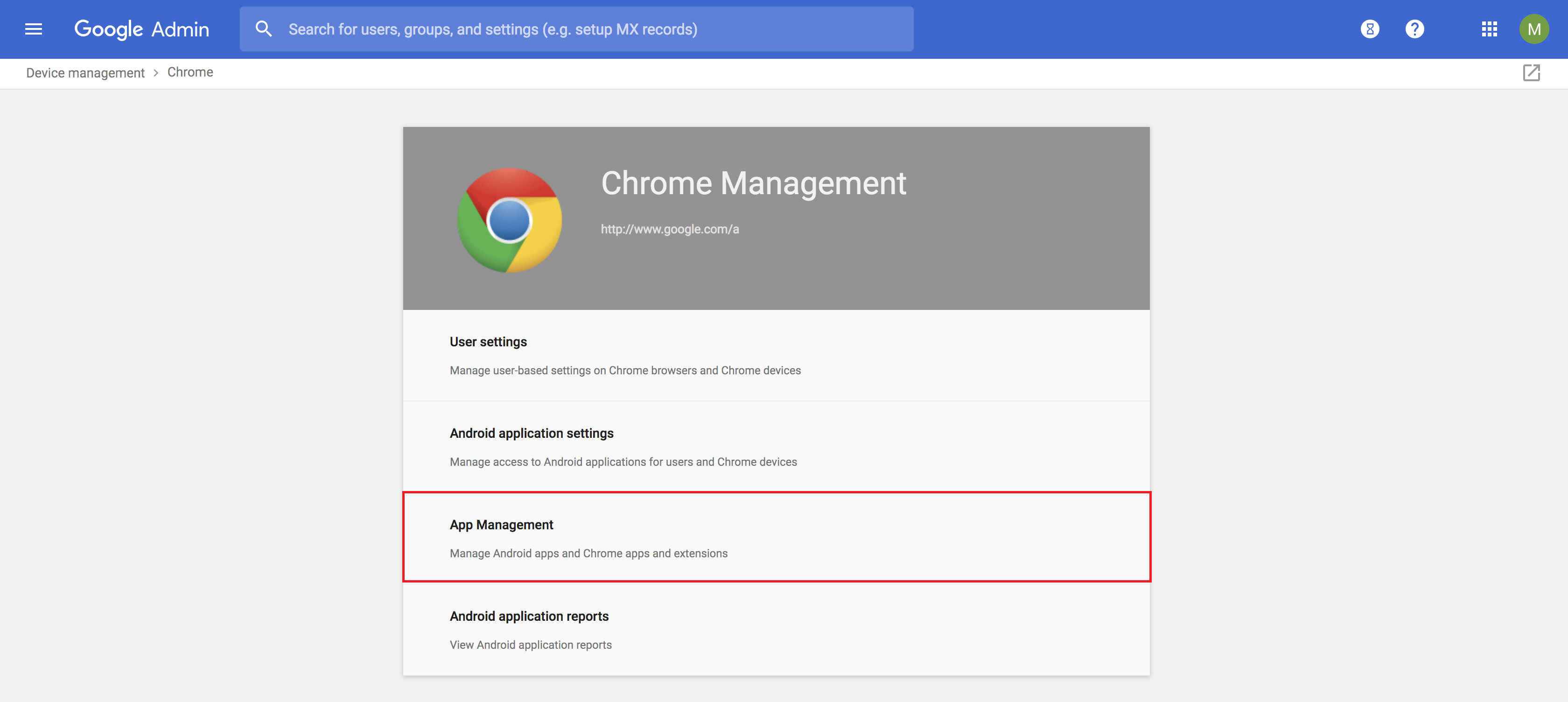
Why it’s important: Organizations utilize the Google Admin console to pre-install specific apps (Android, Chrome Web Store, or PWAs), block certain applications, or whitelist approved software. This ensures compliance, security, and consistent user experiences across many devices.
Relevance to Users: If you’re using a Chromebook provided by your school or employer, you might find that some settings are locked down, or certain apps are already installed or unavailable. In such cases, your IT administrator is the one who controls the app deployment strategy. You might need to contact them for assistance or to request specific software.
Optimizing Your App Experience and Staying Secure
Installing apps is just the first step. To ensure your Chromebook remains fast, secure, and tailored to your preferences, managing your applications effectively is key.
Managing Your Apps and Storage
As you install more apps, it’s essential to keep them organized and monitor your device’s resources.
- Uninstalling Apps:
- Android/PWA/Linux Apps: Right-click the app icon in your launcher or shelf, then select “Uninstall” (or “Remove from Chrome”). For Android apps, you can also go to Settings > Apps > Manage your apps. For Linux apps, use
sudo apt remove app_namein the terminal. - Chrome Extensions: Right-click the extension icon in your browser toolbar, then select “Remove from Chrome.” You can also manage them via
chrome://extensions.
- Android/PWA/Linux Apps: Right-click the app icon in your launcher or shelf, then select “Uninstall” (or “Remove from Chrome”). For Android apps, you can also go to Settings > Apps > Manage your apps. For Linux apps, use
- Organizing: Create folders in your app launcher by dragging one app icon onto another, just like on a smartphone. This helps declutter your launcher.
- Monitoring Storage: Go to Settings > Device > Storage management to see how much space your apps, downloads, and Linux environment are consuming. If space is low, consider uninstalling unused apps or moving files to cloud storage.
- Performance: Close apps you’re not using, especially Android and Linux apps, to free up RAM and CPU resources.
Security Best Practices for App Installation
Security is a cornerstone of the Chromebook experience. Adhering to these practices will help maintain it:
- Stick to Trusted Sources: For Android apps, exclusively use the Google Play Store. For web apps and extensions, rely on the Chrome Web Store. For Linux, use official package repositories. Avoid downloading APKs or unfamiliar Linux packages from random websites.
- Review App Permissions: Before installing any app, pay attention to the permissions it requests. Does a simple calculator app really need access to your camera and microphone? If permissions seem excessive or unrelated to the app’s function, reconsider installing it.
- Keep Your Chromebook Updated: Google regularly releases Chrome OS updates that include security patches and performance improvements. Ensure your device is always running the latest version (Settings > About Chrome OS > Check for updates).
- Keep Apps Updated: Android apps update automatically via the Play Store (unless you’ve disabled it). Linux apps need manual updates via the terminal (
sudo apt update && sudo apt upgrade). Updated apps often have critical security fixes. - Be Wary of “Free” Software: If an app promises something too good to be true, it often is. Malicious actors frequently disguise malware as tempting free tools.
Choosing the Right App for Your Needs
With so many options, how do you decide between a PWA, an Android app, or a Linux app for a particular task?
- Web App/PWA First: For most common tasks (social media, streaming, light productivity), check if a PWA is available. They are generally the most resource-efficient and seamlessly integrated.
- Android App Second: If a PWA isn’t sufficient or available, look to the Google Play Store. Many Android apps offer more features than their PWA counterparts and are great for mobile-first experiences. Prioritize apps specifically optimized for larger screens or Chromebooks.
- Linux App for Power Users/Specialized Tasks: If you need specific desktop software (e.g., GIMP for advanced image editing, a particular IDE for coding, niche scientific software) that isn’t available as a PWA or Android app, then the Linux environment is your best bet. Be prepared for a steeper learning curve.
Conclusion
Chromebooks have truly come into their own, evolving into incredibly adaptable and powerful personal computing devices. Far from being limited to just web browsing, they now offer a rich tapestry of application ecosystems that cater to nearly every need. Whether you’re a casual user seeking entertainment, a student focused on productivity, or a developer pushing boundaries, your Chromebook has the tools to support you.
From the familiar convenience of the Google Play Store to the browser-enhancing power of the Chrome Web Store, the modern sophistication of Progressive Web Apps, and the deep capabilities of the Linux development environment, installing apps on your Chromebook is a straightforward process that unlocks a world of possibilities. By understanding each method, utilizing best practices for management and security, and choosing the right app for the job, you can transform your Chromebook into a personalized powerhouse, proving once and for all that simplicity doesn’t mean sacrificing functionality. Embrace the versatility, explore the options, and make your Chromebook truly your own.
aViewFromTheCave is a participant in the Amazon Services LLC Associates Program, an affiliate advertising program designed to provide a means for sites to earn advertising fees by advertising and linking to Amazon.com. Amazon, the Amazon logo, AmazonSupply, and the AmazonSupply logo are trademarks of Amazon.com, Inc. or its affiliates. As an Amazon Associate we earn affiliate commissions from qualifying purchases.