
In an increasingly digital world, our smartphones have evolved from simple communication devices into powerful pocket computers, capable of handling virtually any task we throw at them. At the heart of this transformation lies the vast ecosystem of mobile applications, or “apps.” For Android users, understanding how to effectively install, manage, and secure these apps is fundamental to unlocking the full potential of their device, whether it’s a cutting-edge gadget or a reliable everyday phone. From boosting productivity with AI tools to securing your digital life, apps are the software that define your Android experience. This comprehensive guide will walk you through every method of app installation on your Android phone, empowering you to customize your device to perfectly fit your needs, all while prioritizing digital security.

The Gateway to Android’s Potential: Understanding App Installation
Android’s open-source nature has fostered an incredibly rich and diverse app ecosystem, making it a powerful platform for innovation and personalization. Apps are the lifeblood of any smartphone, transforming a mere piece of hardware into a personalized hub for communication, entertainment, work, and education. Whether you’re looking for advanced AI tools to streamline your workflow, a new game to pass the time, or a robust digital security solution, the ability to install apps is your key.
The process of installing apps on an Android phone might seem straightforward, but there are multiple avenues, each with its own nuances, benefits, and security considerations. While the Google Play Store remains the primary and safest gateway, understanding alternative methods like third-party app stores and sideloading is crucial for advanced users or for accessing specific software unavailable through official channels. Our focus will be on providing clear, step-by-step tutorials for each method, coupled with essential advice on maintaining your device’s security and optimizing its performance.
Method 1: The Official Route – Google Play Store
For the vast majority of Android users, the Google Play Store is the go-to destination for discovering and installing apps. It’s Google’s official digital distribution service, offering millions of apps, games, movies, books, and more. It stands as the safest and most convenient method due to Google’s stringent security checks and seamless integration with your Android device.
Navigating the Play Store Interface
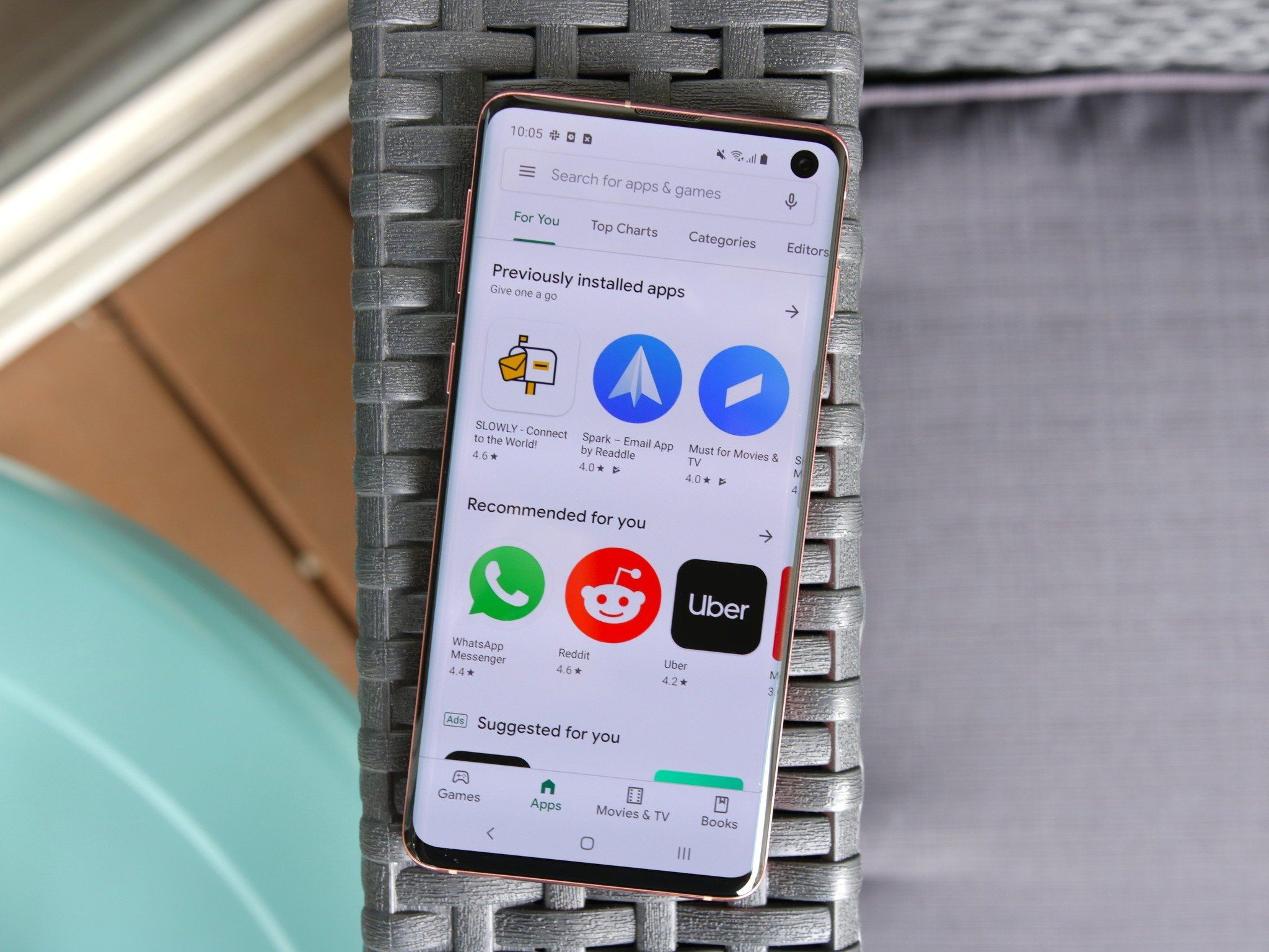
Finding the perfect app on the Google Play Store is an intuitive experience designed for ease of use.
- Opening the Play Store: Locate and tap the “Play Store” icon on your home screen or in your app drawer. It typically looks like a colorful triangle.
- Searching for Apps: At the top of the Play Store interface, you’ll find a search bar. Tap it and type in the name of the app you’re looking for, or keywords related to its function (e.g., “photo editor,” “productivity tool,” “AI assistant”).
- Exploring Categories and Recommendations: Below the search bar, you’ll see various tabs like “Games,” “Apps,” “Movies & TV,” and “Books.” Tapping “Apps” will reveal subcategories, curated lists, editor’s picks, and trending applications, making discovery simple. The “For you” section often provides personalized recommendations based on your past downloads and interests.
- Understanding App Listings: Once you tap on an app, you’ll be taken to its dedicated page. This page provides critical information:
- Description: A detailed overview of the app’s features and functionality.
- Ratings and Reviews: User feedback, often accompanied by a star rating, which is a good indicator of an app’s quality and reliability.
- Screenshots and Videos: Visual previews of the app in action.
- Permissions: Crucially, this section details what aspects of your phone the app requests access to (e.g., camera, location, contacts). Always review these carefully for digital security.
- Developer Info: Information about the creator of the app.
The Seamless Installation Process
Once you’ve found an app you wish to install, the process is straightforward:
- Tap “Install”: On the app’s listing page, you’ll see a prominent green “Install” button. Tap it.
- Accept Permissions (if prompted): For older Android versions, you might be asked to review and accept the app’s requested permissions before installation begins. For newer Android versions, permissions are often requested contextually after the app is installed and launched for the first time. Pay close attention to these requests; they are vital for your digital security and privacy.
- Download and Automatic Installation: The app will begin downloading. Its size will determine the download time, which is also influenced by your internet connection speed. Once downloaded, the Play Store automatically installs the app on your device.
- Launch Your New App: After installation, the “Install” button will change to “Open.” You can tap this to launch the app immediately, or find its icon in your app drawer or on your home screen.
Keeping Your Apps Current: Updates via Play Store
Keeping your apps updated is as critical as the initial installation, serving multiple purposes from digital security to enhanced productivity.
- Why Updates Are Crucial:
- Security Patches: Developers frequently release updates to fix vulnerabilities that could be exploited by malicious actors. Staying updated is a primary defense against malware and unauthorized access.
- Bug Fixes: Updates resolve glitches, crashes, and performance issues, ensuring the app runs smoothly.
- New Features and Improvements: Developers often add new functionalities, improve existing ones, and enhance the user interface, boosting your productivity and overall experience.
- Managing Updates:
- Automatic Updates: To ensure your apps are always current, you can enable automatic updates. In the Play Store, tap your profile icon (top right) > “Settings” > “Network preferences” > “Auto-update apps.” You can choose to auto-update over any network or Wi-Fi only to save mobile data.
- Manual Updates: If you prefer more control, you can update apps manually. Go to your profile icon > “Manage apps & device” > “Updates available.” Here you can choose to update individual apps or “Update all.”
Method 2: Exploring Beyond Google – Third-Party App Stores
While the Google Play Store is the primary hub, it’s not the only one. Android’s open nature allows for alternative app marketplaces, often referred to as third-party app stores. These can offer unique advantages, such as device-specific apps, different pricing models, or a focus on niche software.
Alternative Marketplaces: When and Why to Use Them
Several reputable third-party app stores exist, each serving a slightly different purpose:
- Samsung Galaxy Store: Pre-installed on Samsung devices, this store offers exclusive apps, themes, fonts, and often special deals for Samsung users. It’s an excellent resource for optimizing your Samsung gadget.
- Amazon Appstore: Primarily known for its integration with Amazon’s Fire tablets, it also offers a vast selection of Android apps. Users often find unique deals or apps that are part of the Amazon ecosystem.
- F-Droid: This store focuses exclusively on Free and Open Source Software (FOSS). It’s popular among users who prioritize transparency, privacy, and control over their software, offering a curated collection of secure and community-audited apps.
- Specific Manufacturer Stores: Other manufacturers like Huawei or Xiaomi may have their own app stores, especially in regions where Google services are restricted.
Reasons to use these stores include accessing exclusive apps, taking advantage of unique promotions, or supporting specific software ideologies (like FOSS). However, always ensure the third-party store itself is reputable to mitigate digital security risks.
Installation Through Alternative Stores
The process for installing apps from third-party stores is generally very similar to the Google Play Store, with one crucial prerequisite:
- Install the Store App (if not pre-installed): For stores like Amazon Appstore or F-Droid, you first need to download and install their respective app store application from their official website (often via an APK file, which we’ll cover in the next section). Pre-installed stores like Samsung Galaxy Store don’t require this step.
- Enable “Install Unknown Apps” (for the store app itself): When installing the store application as an APK, your phone will prompt you to grant permission to your browser or file manager to “Install unknown apps.” This is a critical security setting; grant it only temporarily and only for trusted sources.
- Navigate and Install: Once the third-party app store is installed, open it. Its interface will be similar to the Play Store, allowing you to search, browse categories, and view app listings.
- Tap “Install”: Find the desired app and tap its “Install” button. The store will handle the download and installation.
- Grant Permissions: Like with the Play Store, you may be prompted to grant specific permissions to the app during or after installation.
Method 3: Advanced Installation – Sideloading Apps via APK Files
Sideloading refers to installing applications on your Android device from sources other than official app stores, typically by directly downloading and running an Android Package Kit (APK) file. This method offers unparalleled flexibility but comes with increased digital security risks if not handled correctly.
What are APK Files and Their Purpose?
An APK (Android Package Kit) file is the package file format used by the Android operating system for distribution and installation of mobile apps and middleware. Essentially, an APK file is like an .exe file on Windows; it contains all the elements an app needs to install correctly on your device.
Scenarios where sideloading an APK might be necessary or beneficial include:
- Apps Not Available in Play Store: Some niche apps, regional apps, or older versions of apps may not be on the Play Store.
- Beta Versions: Accessing beta or unreleased versions of apps for testing.
- Geo-restricted Apps: Installing apps that are not officially available in your country.
- Privacy-Focused Alternatives: Using alternative versions of popular apps that are modified for enhanced privacy or features not available in official releases.
- Custom ROMs and Development: Developers and advanced users often sideload apps when working with custom Android ROMs.
Enabling “Install Unknown Apps” for Sideloading
Before you can sideload an APK, you must grant your device permission to install apps from “unknown sources.” This is a significant security setting, as it bypasses Google’s security checks. Proceed with caution and only for sources you explicitly trust.
Steps to enable “Install Unknown Apps”:
- For Android 8.0 (Oreo) and newer:
- Go to Settings > Apps & notifications (or “Apps” or “App Management”).
- Tap Special app access (you might need to tap “Advanced” or “three dots” menu first).
- Select Install unknown apps.
- You will see a list of apps (e.g., your browser, file manager). Choose the app you’ll use to download or open the APK (e.g., Chrome, Files by Google).
- Toggle the switch to Allow from this source (or “Allow app installs”). This grants permission only to that specific app to install unknown apps.
- For Android 7.0 (Nougat) and older:
- Go to Settings > Security (or “Lock screen and security”).
- Find and toggle on Unknown sources.
- A warning message will appear; read it carefully and tap OK to confirm. This grants permission to any app to install unknown apps, making it less secure than the newer method.
Important Digital Security Note: It is highly recommended to disable “Install unknown apps” or “Unknown sources” immediately after you have finished installing your desired APK, especially for older Android versions, to minimize potential security vulnerabilities.
The Sideloading Process: Downloading and Installing APKs
Once you’ve adjusted the security settings, you can proceed with sideloading:
- Find a Reliable APK Source: This is the most critical step for digital security. Only download APKs from highly reputable websites. Examples include:
- APKMirror: Known for hosting free and safe APKs, often verified from the Play Store. Excellent for finding older versions or beta releases.
- Official Developer Websites: Some developers offer direct APK downloads from their own sites.
- F-Droid: (As mentioned previously) A store specifically for FOSS APKs.
- AVOID: Random websites, unofficial forums, or torrent sites, as these are common vectors for malware.
- Download the APK File: Using your phone’s browser, navigate to the trusted source and download the APK file. Your browser might warn you that “This type of file can harm your device.” This is a generic warning for any executable file; if you trust the source, proceed with the download.
- Locate and Install the APK:
- Open your phone’s file manager app (e.g., “Files,” “My Files,” “Google Files”).
- Navigate to the “Downloads” folder.
- Tap on the downloaded APK file.
- Your system will prompt you to install the app. Review the permissions again (if shown) and tap “Install.”
- The app will install, and you’ll see a confirmation message once complete.
Sideloading: Risks, Rewards, and Best Practices for Digital Security
While sideloading offers flexibility, it’s paramount to be aware of the inherent risks and how to mitigate them.
- Malware and Security Risks: The biggest risk is installing malicious software. APKs downloaded from untrusted sources can contain viruses, spyware, or other malware that can compromise your data, privacy, and device security. Unlike the Play Store, there’s no official vetting process.
- Compatibility Issues: Sideloaded apps might not be optimized for your specific device or Android version, leading to crashes or poor performance.
- Lack of Automatic Updates: Sideloaded apps generally do not receive automatic updates via the Google Play Store. You’ll need to manually download and install newer APK versions, which can be cumbersome and further increases the risk of installing a compromised file.
Best Practices for Digital Security:
- Verify Sources Rigorously: Only download APKs from widely recognized and trusted platforms. Cross-reference information to ensure legitimacy.
- Check Permissions Carefully: Before and during installation, meticulously review the permissions the app requests. If an app asks for excessive or irrelevant permissions (e.g., a calculator app requesting camera access), it’s a red flag.
- Use Security Software: Consider installing a reputable antivirus or mobile security app on your Android device. These tools can scan APK files for known threats before installation.
- Disable “Install Unknown Apps” Promptly: After sideloading, revert your “Install unknown apps” setting to its secure default, especially on older Android versions where the permission is system-wide.
- Stay Informed: Keep abreast of digital security news and common Android vulnerabilities.
Managing Your App Ecosystem: Beyond Installation
Installing apps is just the beginning. Effective app management is crucial for maintaining your Android phone’s performance, digital security, and ensuring a productive user experience.
Uninstalling Apps: Reclaiming Storage and Performance
Over time, you might accumulate apps you no longer use, which can consume valuable storage space and potentially run in the background, impacting performance.
- Standard Uninstall:
- From App Drawer/Home Screen: Long-press the app icon. A menu will usually appear with options like “App info” and “Uninstall.” Tap “Uninstall.”
- From Settings: Go to Settings > Apps & notifications (or “Apps” or “App Management”). Tap on the app you wish to remove, then tap “Uninstall.”
- Uninstalling System Apps: Some pre-installed apps cannot be uninstalled through standard methods as they are considered part of the system software. You might only have the option to “Disable” them, which stops them from running and removes them from your app drawer, but doesn’t free up storage. True uninstallation of system apps often requires “rooting” your device, a complex process with significant risks that should only be attempted by advanced users.
Mastering App Permissions: Your Digital Security Shield
App permissions are at the forefront of your device’s digital security and your personal privacy. They dictate what information and hardware features an app can access.
- Understanding Permission Types: Permissions range from harmless (e.g., network access for an online game) to highly sensitive (e.g., location, microphone, camera, contacts, SMS).
- Reviewing and Revoking Permissions:
- Go to Settings > Apps & notifications (or “Apps”).
- Tap on the specific app, then select Permissions.
- You’ll see a list of permissions granted and denied. You can toggle individual permissions on or off.
- Alternatively, go to Settings > Privacy > Permission manager (or “App permissions”). This allows you to view all apps that have requested a specific permission (e.g., all apps with camera access) and manage them centrally.
- Impact on Privacy and Security: Regularly review app permissions. An app requesting permissions that seem unrelated to its function (e.g., a calculator asking for location data) could be a privacy concern or a digital security risk. Revoking unnecessary permissions can significantly enhance your device’s security profile.
Optimizing Your Android Experience: Storage, Updates, and Productivity
Beyond installation and uninstallation, several practices ensure your Android experience remains smooth, secure, and productive.
- Clearing Cache and Data: Over time, apps accumulate cache files and user data. Clearing the cache (Settings > Apps > App Name > Storage & cache > Clear cache) can free up space and sometimes resolve app performance issues without losing app data. Clearing data (same path > Clear storage/Clear data) will reset the app to its fresh-install state, deleting all user data associated with it.
- Background App Usage: Many apps continue to run in the background, consuming battery and resources. Android’s adaptive battery features often manage this automatically, but you can manually restrict background activity for specific apps via their App Info page in Settings.
- Leveraging Apps for Productivity: Explore apps that enhance your daily life. From AI-powered note-takers and calendar organizers to secure messaging platforms and financial management tools, the right software can transform your Android gadget into a powerhouse of productivity and digital security. Keep an eye on technology trends for new and innovative app releases.
- Device Updates: Beyond app updates, regularly update your Android operating system. These system updates often include critical security patches, performance enhancements, and new features that protect your device and improve its overall functionality.

Conclusion: Empowering Your Android Experience Securely
The journey of installing apps on your Android phone is more than just tapping an “Install” button; it’s about intelligently curating your digital environment. By understanding the different installation methods – from the reliable Google Play Store to the flexible but riskier sideloading of APKs – you gain control over your device’s capabilities.
Remember, the cornerstone of a powerful Android experience is robust digital security. Always prioritize reputable sources for your software, meticulously review app permissions, and keep both your apps and operating system updated. Embrace the vast world of Android apps, from innovative AI tools to essential productivity software, but do so with an informed and security-conscious approach. By following these guidelines, you’ll not only unlock the full potential of your Android gadget but also safeguard your digital life, ensuring a seamless, productive, and secure mobile journey.
aViewFromTheCave is a participant in the Amazon Services LLC Associates Program, an affiliate advertising program designed to provide a means for sites to earn advertising fees by advertising and linking to Amazon.com. Amazon, the Amazon logo, AmazonSupply, and the AmazonSupply logo are trademarks of Amazon.com, Inc. or its affiliates. As an Amazon Associate we earn affiliate commissions from qualifying purchases.