
In an increasingly digital world, our smartphones and tablets have become central to our lives, housing everything from essential productivity tools to entertainment apps and cherished memories. However, the finite internal storage of these devices often becomes a bottleneck, leading to frustrating “storage full” notifications, sluggish performance, and the constant dilemma of deciding which apps or files to delete. Fortunately, for many Android users, the humble SD card offers a powerful and cost-effective solution to this pervasive problem. By strategically utilizing an SD card, you can significantly expand your device’s capacity, improve its performance, and ensure a smoother, more enjoyable mobile experience.

This comprehensive guide delves into the various methods of installing and moving applications to an SD card, exploring the benefits, potential pitfalls, and best practices to help you make the most of your device’s storage. We’ll navigate through native Android features, advanced “Adoptable Storage” options, and even touch upon third-party solutions, equipping you with the knowledge to efficiently manage your digital real estate.
Understanding the “Why”: Benefits and Considerations of SD Card App Installation
Before diving into the “how,” it’s crucial to understand why moving apps to an SD card can be a game-changer for your device, as well as the important factors to consider before you begin. The decision isn’t always straightforward, and an informed approach will lead to the best outcomes.
The Clear Advantages: Why Move Apps to SD?
The primary motivation for relocating apps to an SD card is almost always about storage expansion and management. Many mid-range and budget smartphones come with limited internal storage (e.g., 32GB or 64GB), which can quickly fill up with system files, OS updates, app installations, and ever-growing media libraries. An SD card, which can range from 64GB to over 1TB, offers a dramatic increase in available space without the need to purchase a new device.
By moving less critical or larger applications to the SD card, you free up valuable internal storage. This not only prevents those irritating “storage full” warnings but also allows the operating system to run more efficiently. Internal storage, especially the portion dedicated to the OS, benefits from having ample free space, often translating to snappier performance, faster app launches for apps remaining on internal storage, and smoother multitasking.
Furthermore, for users who frequently switch devices or perform factory resets, having some apps and their data on an SD card can offer a degree of portability and convenience. While not all apps are designed for easy transfer between devices, media-heavy apps or certain games might benefit from this setup, potentially simplifying the restoration process after a device refresh.
Important Considerations: The Nuances and Potential Drawbacks
While the benefits are compelling, moving apps to an SD card isn’t without its nuances and potential drawbacks. Awareness of these factors is key to avoiding frustration.
Firstly, performance can be a significant concern. Internal storage (UFS or eMMC) is inherently faster than even the highest-grade SD cards. If an app relies heavily on frequent read/write operations (e.g., demanding games, video editing apps), placing it on a slower SD card can lead to noticeable lag, slower loading times, and a less responsive user experience. Choosing a high-speed SD card (UHS Speed Class 3/V30 or A2 rated) is paramount to mitigate this issue.
Secondly, app compatibility is not universal. Not all Android apps are designed to run effectively, or even at all, from an SD card. System apps, widgets, apps with background processes, or those requiring high security often cannot be moved. Developers frequently hardcode apps to expect specific file paths on internal storage. Attempting to move incompatible apps might result in them crashing, failing to launch, or behaving erratically.
Finally, SD card reliability and lifespan are factors. SD cards, especially cheaper or older ones, can be prone to failure, corruption, or wear and tear over time. If an SD card fails while housing critical apps, it can lead to data loss or device instability. Additionally, physically removing an SD card without proper unmounting can corrupt data, potentially rendering apps unusable until the card is reinserted or formatted. These factors underscore the importance of choosing quality storage and understanding proper handling procedures.
Laying the Groundwork: Prerequisites and SD Card Preparation
Before you embark on the journey of moving apps, a few essential steps are necessary to ensure a smooth and successful transition. This includes selecting the right SD card and preparing it for integration with your device.
Choosing the Right SD Card: Speed, Capacity, and Reliability
The quality of your SD card directly impacts the performance of apps moved to it. Skimping on cost here can lead to a sluggish experience that negates the benefits of storage expansion. Look for the following specifications:
- Speed Class: For apps, aim for a UHS Speed Class 3 (U3) or Video Speed Class 30 (V30). These cards offer a minimum sequential write speed of 30 MB/s, which is crucial for app performance. A slower Class 10 (C10) or UHS Speed Class 1 (U1) might suffice for photos and videos, but will likely result in noticeable delays for apps.
- Application Performance Class (A-rating): Modern Android devices benefit greatly from A1 or, even better, A2 rated SD cards. These ratings specifically indicate the card’s ability to handle random read/write operations (IOPS), which is critical for running applications. An A2 card offers significantly better performance than an A1 card, making apps feel much snappier.
- Capacity: Select a card that meets your needs without being excessive. While 1TB cards exist, a 128GB, 256GB, or 512GB card often strikes a good balance between cost and utility for app storage.
- Brand Reputation: Stick to reputable brands like SanDisk, Samsung, Kingston, or Lexar. These brands generally offer better reliability and performance, and often come with warranties.
Formatting Your SD Card for Optimal Use
Once you have your SD card, it’s vital to format it within your Android device. Formatting prepares the card for use with your specific phone or tablet and ensures compatibility.
- Insert the SD card: Gently insert the microSD card into the designated slot on your device.
- Access Storage Settings: Go to your device’s “Settings” app, then navigate to “Storage” (or “Storage & Memory,” “Device Care,” depending on your Android version and manufacturer).
- Select the SD Card: Tap on the “SD card” option.
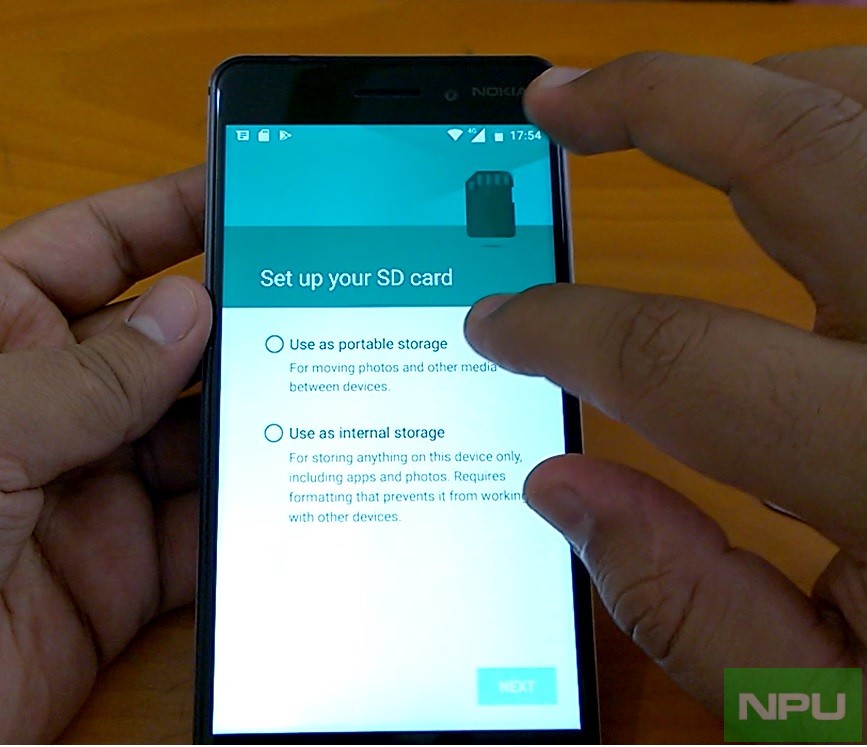
- Format Option: You will typically see an option to “Format,” “Format as portable,” or “Format as internal storage” (more on this later). For standard app movement, “Format as portable storage” is usually the default and most straightforward. If you’re planning to use Adoptable Storage, select “Format as internal storage.”
- Confirm and Proceed: Confirm the formatting process. Be aware that formatting will erase all existing data on the SD card, so ensure you’ve backed up anything important beforehand.
Diverse Paths to Expansion: Methods for Installing Apps to SD Card
Android offers a few distinct ways to leverage an SD card for app storage, ranging from simple native features to more integrated, but also more complex, solutions.
1. Moving Apps Natively: Android’s Built-in Feature
The most straightforward method for moving apps to an SD card utilizes Android’s native settings. This feature has been available for many versions of Android, though its effectiveness is limited to apps specifically coded by their developers to support this functionality.
How to Move Apps Natively:
- Open Settings: Go to your device’s “Settings” app.
- Navigate to Apps: Find and tap on “Apps & notifications” or simply “Apps” (the exact name may vary).
- Select the App: Scroll through your list of installed applications and tap on the specific app you wish to move.
- Access Storage Information: On the App Info page, tap on “Storage & cache” or “Storage.”
- Change Storage Location: If the app supports it, you will see a “Change” button next to “Storage used” or “Internal shared storage.” Tap “Change.”
- Select SD Card: Choose “SD card” as the new storage location.
- Confirm Move: Tap “Move” or “OK” to confirm the action.
Limitations:
As mentioned, this method only works for apps that explicitly permit it. Even when an app is moved, often only a portion of its data and files are transferred, leaving some core components on internal storage. This is why you might only see a modest reduction in internal storage usage after moving a large app.
2. Embracing Adoptable Storage: Android Marshmallow and Beyond
Introduced with Android 6.0 Marshmallow, “Adoptable Storage” is a more radical approach that allows an SD card to be treated as an extension of the device’s internal storage. When an SD card is adopted, it is encrypted and formatted to seamlessly integrate with the internal memory, effectively creating a single, larger storage pool. This means all apps, by default, can utilize this combined storage without needing to be explicitly moved.
How to Set Up Adoptable Storage:
- Insert SD Card: Insert your high-quality SD card (A1/A2 rated recommended) into your device.
- Access Storage Settings: Go to “Settings” > “Storage.”
- Select SD Card: Tap on the newly inserted SD card.
- Format as Internal/Adoptable Storage: You will usually see an option like “Format as internal,” “Use as internal storage,” or “Adopt as internal.” Select this option.
- Confirm Formatting and Migration: Read the warnings carefully. The card will be encrypted and formatted. You may also be prompted to migrate existing data from internal storage to the newly adopted SD card. This process can take some time.
Pros of Adoptable Storage:
- Seamless Integration: Apps automatically utilize the expanded storage.
- Larger Combined Storage: Effectively merges internal and external storage into one logical unit.
- All Apps Can Benefit: Overcomes the app compatibility limitations of native moving.
Cons of Adoptable Storage:
- Performance Dependency: The overall performance of your device becomes heavily reliant on the speed of your SD card. A slow card will slow down your entire phone.
- Card is Encrypted & Inseparable: Once adopted, the SD card is encrypted to your specific device and cannot be easily used in other devices or removed without potentially losing data or causing system instability.
- Data Loss Risk: If the SD card fails, all data on it (including apps and user data) will be lost, potentially rendering your device unusable until a factory reset.
- Not Available on All Devices: Some manufacturers (e.g., Samsung on some models) have disabled Adoptable Storage, citing potential performance issues or user confusion.
3. Third-Party Solutions and Root Access: Advanced Control
For users seeking more granular control or whose devices lack robust native options, third-party apps and root methods offer alternatives.
Third-Party Apps (No Root Required):
Apps like AppMgr III (App 2 SD, Hide & Freeze Apps) simplify the native app-moving process. They scan your device, identify apps that can be moved to the SD card, and provide a convenient interface to manage them. They often also offer additional features like hiding, freezing, or managing app caches. While useful, they still operate within the constraints of Android’s native permissions and cannot move apps that Android itself doesn’t allow.
Root Access Solutions (Advanced Users Only):
For advanced users comfortable with rooting their Android device (a process that grants superuser permissions), tools like Link2SD or Apps2SD offer much greater flexibility. These apps can:
- Move almost any app: By creating symbolic links, they can trick the Android system into thinking apps are still on internal storage, even when their actual data resides on a dedicated partition of the SD card.
- Move more app data: They can move larger portions of an app’s data, including
dalvik-cacheanddatafiles, significantly freeing up internal space.
Caveats of Rooting:
- Voids Warranty: Rooting typically voids your device’s warranty.
- Security Risks: Increases potential security vulnerabilities if not done carefully.
- Brick Risk: Improper rooting can “brick” your device, rendering it unusable.
- Requires Technical Expertise: Not recommended for casual users.
If you choose this path, thorough research and understanding of the risks are absolutely essential.
Important Considerations and Troubleshooting
Regardless of the method you choose, understanding potential pitfalls and implementing best practices is crucial for a stable and efficient setup.
App Compatibility and Performance: A Balancing Act
As highlighted earlier, not all apps are good candidates for SD card placement. Prioritize moving large, less frequently used apps or media-heavy games to your SD card. Keep essential system apps, widgets, launchers, and frequently used productivity tools on internal storage for optimal speed and reliability.
Monitor your device’s performance after moving apps. If you notice significant slowdowns or crashes for an app, it might be better to move it back to internal storage or reconsider your SD card’s speed.
Data Security and SD Card Lifespan
SD cards are more prone to physical damage and accidental removal than internal storage. Always unmount your SD card properly through “Settings” > “Storage” before physically removing it to prevent data corruption.
For Adoptable Storage, the encryption provides a layer of security if your phone is lost or stolen, but it also means the card is tied to your device. Regularly back up important data from your SD card to a cloud service or computer, especially if it houses critical app data or personal files. SD cards have a finite number of write cycles; using them constantly for demanding apps can shorten their lifespan.
What to Do When Apps Don’t Move
If you encounter an app that refuses to move using native methods, or if Adoptable Storage isn’t an option, you have a few choices:
- Clear Cache/Data: For apps that store a lot of temporary data (like social media or browsers), clearing their cache and data from “App Info” can free up internal space without moving the app itself.
- Offload Media: Move photos, videos, and music files to the SD card instead. These files often consume the most space and benefit greatly from SD card storage without impacting app performance.
- Uninstall Seldom-Used Apps: Periodically review your app list and uninstall any applications you no longer use.
- Consider a Factory Reset: As a last resort, a factory reset can reclaim significant internal storage, especially if your device is bogged down by system junk. Just remember to back up everything first!
Optimizing SD Card Usage and Best Practices
To ensure a seamless experience and prolong the life of your SD card, adopt these best practices:
Regular Maintenance and Monitoring
- Check SD Card Health: Some file managers or third-party apps can provide insights into your SD card’s health. Monitor it for any signs of corruption or failure.
- Clean Unnecessary Files: Periodically use your device’s built-in storage cleaner (often found in “Settings” > “Storage” or “Device Care”) to remove junk files from both internal and SD card storage.
- Update Firmware: Keep your Android OS updated, as updates often bring improvements to storage management and SD card compatibility.
Backup Strategies for Peace of Mind
Even with the most reliable SD card, failures can occur. Implement a robust backup strategy:
- Cloud Backups: For photos, videos, and documents, use cloud services like Google Photos, Google Drive, Dropbox, or OneDrive.
- Device Backups: Regularly back up your entire device to your Google account (for app data, Wi-Fi passwords, etc.) and consider connecting to a PC for full system backups if supported by your device manufacturer.
- Manual Transfers: For critical files on your SD card, periodically connect your device to a computer and copy the files directly.
The Hybrid Approach: Balancing Internal and External Storage
For most users, the most effective strategy involves a hybrid approach. Reserve your device’s faster internal storage for:
- Operating System files
- Frequently used apps
- Performance-critical apps (e.g., intensive games, camera apps)
- Apps with widgets or background processes
Utilize your SD card primarily for:
- Large media files (photos, videos, music, podcasts)
- Offline maps data
- Less frequently used apps or games that don’t demand high performance
- Documents and downloaded files
This balanced strategy allows you to maximize storage, maintain optimal device performance, and leverage the benefits of both storage types.
Conclusion: Empowering Your Mobile Experience
The ability to install apps on an SD card remains a vital feature for many Android users struggling with limited internal storage. Whether you opt for Android’s native app-moving feature, embrace the integrated power of Adoptable Storage, or even venture into the advanced realm of rooted solutions, understanding the mechanisms, benefits, and critical considerations is paramount.
By carefully selecting a high-speed SD card, correctly formatting it, and strategically managing your applications, you can transform your device’s storage woes into a seamless and expanded mobile experience. Remember to balance performance needs with storage capacity, prioritize app compatibility, and always maintain a vigilant backup strategy. With these insights, you’re now equipped to reclaim your device’s full potential, ensuring your favorite apps and essential files always have a place to call home.
aViewFromTheCave is a participant in the Amazon Services LLC Associates Program, an affiliate advertising program designed to provide a means for sites to earn advertising fees by advertising and linking to Amazon.com. Amazon, the Amazon logo, AmazonSupply, and the AmazonSupply logo are trademarks of Amazon.com, Inc. or its affiliates. As an Amazon Associate we earn affiliate commissions from qualifying purchases.