
Chromebooks have revolutionized personal computing by offering a streamlined, secure, and often more affordable alternative to traditional laptops. Built on Google’s Chrome OS, they prioritize cloud-based operations, simplicity, and speed. However, one of the most persistent misconceptions about Chromebooks is their supposed limitation in terms of app availability. Far from being restricted to just browser-based tools, modern Chromebooks are incredibly versatile machines capable of running a wide array of applications, from familiar Android apps to powerful Linux software and even Progressive Web Apps that blur the lines between websites and native programs.

This guide aims to demystify the process of installing apps on your Chromebook, transforming it from a simple web-browsing device into a robust productivity and entertainment hub. We’ll explore the various methods available, from the intuitive Google Play Store to advanced Linux environments, providing step-by-step instructions, benefits, and considerations for each approach. Whether you’re a new Chromebook owner or a long-time user looking to unlock new capabilities, understanding these installation methods is key to maximizing your device’s potential and tailoring it to your specific needs, perfectly aligning with the “Tech” focus on software, apps, and tutorials.
Embracing the Ecosystem: Core Methods for App Installation
At its heart, the Chromebook experience is deeply integrated with Google’s ecosystem. This integration extends seamlessly to app installation, providing users with familiar and secure pathways to expand their device’s functionality. These core methods are typically the first avenues most users explore, offering a broad spectrum of applications suitable for everyday tasks, entertainment, and light productivity.
The Google Play Store: Your Gateway to Android Apps
For many, the biggest game-changer for Chromebooks was the introduction of Google Play Store support. This feature effectively turned Chromebooks into large-screen Android tablets, granting access to millions of Android applications directly from the familiar app marketplace. This dramatically expanded the utility of Chromebooks, bridging the gap between mobile convenience and laptop productivity.
What it is and Why it Matters: The Google Play Store is the official app store for Android, housing an enormous collection of apps ranging from games and social media to productivity suites and creative tools. For Chromebooks, this means you can install and run your favorite mobile apps like WhatsApp, Instagram, Microsoft Word for Android, various streaming services, and countless games, often leveraging the larger screen, keyboard, and trackpad for an enhanced experience. This integration leverages the same underlying Android framework that powers smartphones and tablets, bringing a vast ecosystem of software directly to your Chrome OS device.
How to Enable and Use It: Most modern Chromebooks come with the Google Play Store enabled by default. If it’s not, or if you need to confirm, follow these simple steps:
- Open your Chromebook’s Settings app (click the clock/status area in the bottom-right corner, then the gear icon).
- In the left-hand menu, scroll down and click on Apps.
- Find the Google Play Store section. If it’s not turned on, click Turn on next to “Install apps and games from Google Play on your Chromebook.” You’ll be prompted to agree to terms of service.
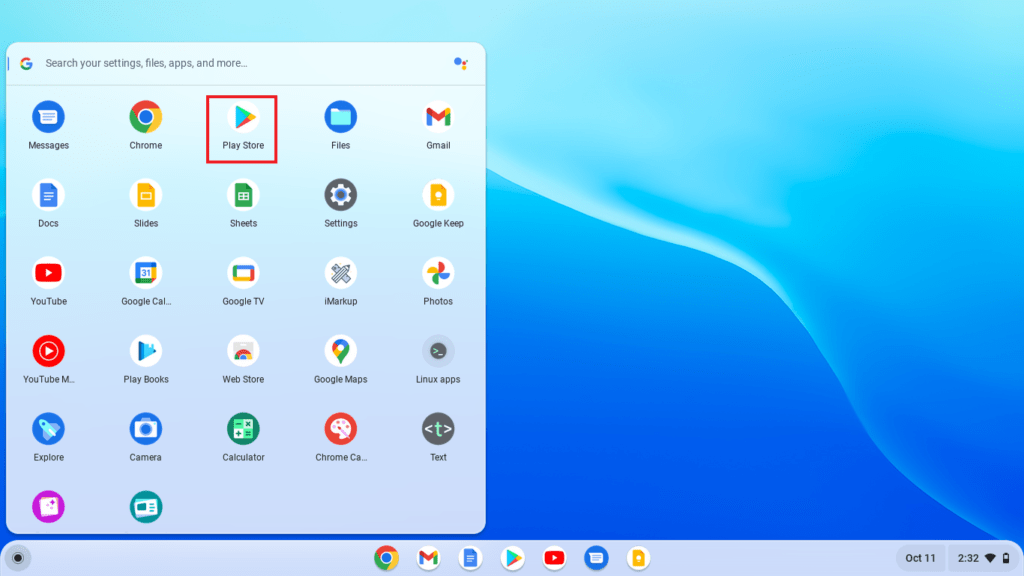
Once enabled, you can find the Play Store icon in your app launcher, just like any other app. Open it, and you’ll be greeted with an interface very similar to what you’d find on an Android phone or tablet. You can browse categories, search for specific apps, view ratings and reviews, and install them with a single click.
Benefits and Considerations: The primary benefit is the sheer volume and variety of apps available. This includes many applications that desktop Linux or Chrome Web Store alternatives might not offer, such as popular mobile games, specific social media clients, and Android-optimized versions of productivity tools. However, it’s important to remember that not all Android apps are perfectly optimized for a laptop form factor or a mouse and keyboard. Some apps might perform better with touch input, and others might not scale perfectly to larger screens. Performance can also vary depending on your Chromebook’s specifications. Despite these minor considerations, the Play Store remains an indispensable resource for expanding your Chromebook’s capabilities, transforming it into a versatile device capable of handling a wide range of tasks and entertainment.
The Chrome Web Store: Powering Your Browser Experience
Before Android apps graced Chromebooks, the Chrome Web Store was the primary source of additional functionality. While it might seem less exciting than its Android counterpart, the Chrome Web Store remains a vital resource for enhancing your browsing experience, boosting productivity, and accessing lightweight web-based applications.
What it is and Why it Matters: The Chrome Web Store is Google’s official marketplace for Chrome extensions, themes, and web-based applications. Unlike Android apps, which run in their own container, most items from the Chrome Web Store operate within or alongside the Chrome browser. Extensions are small software programs that customize the browsing experience, adding new features, blocking ads, enhancing security, or integrating with other services. Web apps, on the other hand, are essentially advanced bookmarks that open specific websites in a dedicated window, often with some offline capabilities or enhanced integration with Chrome OS. These tools are incredibly powerful for tailoring your browser to your workflow, enhancing productivity, and streamlining tasks, making them a crucial aspect of Chrome OS’s “Software” and “Productivity” features.
How to Access and Use It:
- Open the Chrome browser on your Chromebook.
- Navigate directly to
chrome.google.com/webstore. Alternatively, you can click the three-dot menu in the top-right corner of Chrome, go to “More tools,” and then select “Extensions” to manage existing ones, or click the menu icon within the Extensions page to open the Web Store.
Once on the Chrome Web Store site, you can browse categories, search for specific extensions or themes, and read reviews. Installation is as simple as clicking the “Add to Chrome” button. Extensions will typically add an icon to your browser’s toolbar, allowing for quick access and management. Web apps, once installed, will appear in your app launcher alongside other applications.
Benefits and Considerations: The main advantages of Chrome Web Store offerings are their lightweight nature, seamless integration with the Chrome browser, and often excellent performance. Extensions can profoundly impact your productivity by adding features like password managers, screenshot tools, grammar checkers, and tab managers. Web apps provide quick access to popular online services like Gmail, Google Docs, or Spotify, often in a more focused, app-like window without the browser’s typical clutter. However, it’s essential to be mindful of the number of extensions you install, as too many can sometimes impact browser performance. Always check reviews and permissions requested by extensions to ensure digital security and privacy. While powerful for browser-centric tasks, they are not designed to be full-fledged desktop applications in the same way Android or Linux apps are.
Installing Progressive Web Apps (PWAs): Seamless Web Integration
Progressive Web Apps (PWAs) represent a fascinating evolution in web technology, offering an experience that blurs the lines between a traditional website and a native application. For Chromebook users, PWAs are a fantastic way to get app-like functionality for many online services without needing to go through an app store.
What PWAs Are: PWAs are websites that are built using specific web technologies to behave like native applications. This means they can be installed to your home screen or app launcher, run offline, send notifications, and access some device hardware, all while being delivered directly via the web browser. They combine the best aspects of the web (cross-platform compatibility, always up-to-date, no installation friction) with the best aspects of native apps (fast, reliable, engaging). Many popular services, like Twitter, Spotify’s web player, Outlook, and countless news sites, offer PWA versions. This technology highlights “Technology Trends” and “Apps” in action, showcasing how web standards are evolving to deliver richer user experiences.
How to Identify and Install Them: Identifying a PWA is often straightforward on a Chromebook. When you visit a website that supports PWA functionality, you’ll typically see a small “Install” icon (often a plus sign within a circle or an arrow pointing down) in the address bar of the Chrome browser.
To install a PWA:
- Navigate to the website you wish to install as a PWA (e.g.,
web.whatsapp.com,twitter.com). - Look for the “Install” icon in the address bar (usually near the bookmark star or right-click menu).
- Click the “Install” icon. A small prompt will appear asking if you want to install the app.
- Click “Install” again.
The PWA will then appear in your Chromebook’s app launcher, just like any other installed application. When you launch it, it will open in its own dedicated window, often without the typical browser chrome (address bar, tabs), giving it a truly native app feel.
Benefits and Considerations: The benefits of PWAs are numerous for Chromebook users. They are incredibly lightweight, consuming minimal storage and system resources. They are always up-to-date, as they are essentially loading the latest version of the website. They are cross-platform by nature, meaning the same PWA works across Chrome OS, Windows, macOS, and Linux, ensuring consistent functionality. Furthermore, many offer offline capabilities, allowing you to continue working or browsing even without an internet connection. Security is also a strong point, as they run within the browser’s sandbox environment. The main consideration is that not all websites offer PWA support, and their functionality is limited to what web technologies can provide. However, for everyday online services, PWAs are an excellent, resource-friendly way to integrate web-based tools directly into your Chromebook’s app ecosystem, boosting “Productivity” without bloat.
Advanced App Installation: Unlocking Linux and Beyond
While the Google Play Store, Chrome Web Store, and PWAs cover a vast range of user needs, Chromebooks offer even more power for those willing to venture into slightly more advanced territory. The ability to run Linux applications fundamentally transforms a Chromebook into a development machine or a platform for desktop-grade creative software, offering a new dimension of versatility.
Linux (Beta) on Chromebooks: The Power of Open Source
The integration of a Linux environment, often referred to by its project name “Crostini,” is arguably the most significant feature for power users and developers on Chromebooks. This allows users to run full-fledged Linux applications alongside their Chrome OS and Android apps, opening up a world of possibilities for complex tasks. This aligns perfectly with “Tech” topics like “Software” and “AI Tools” (as Linux is often used for development in these areas).
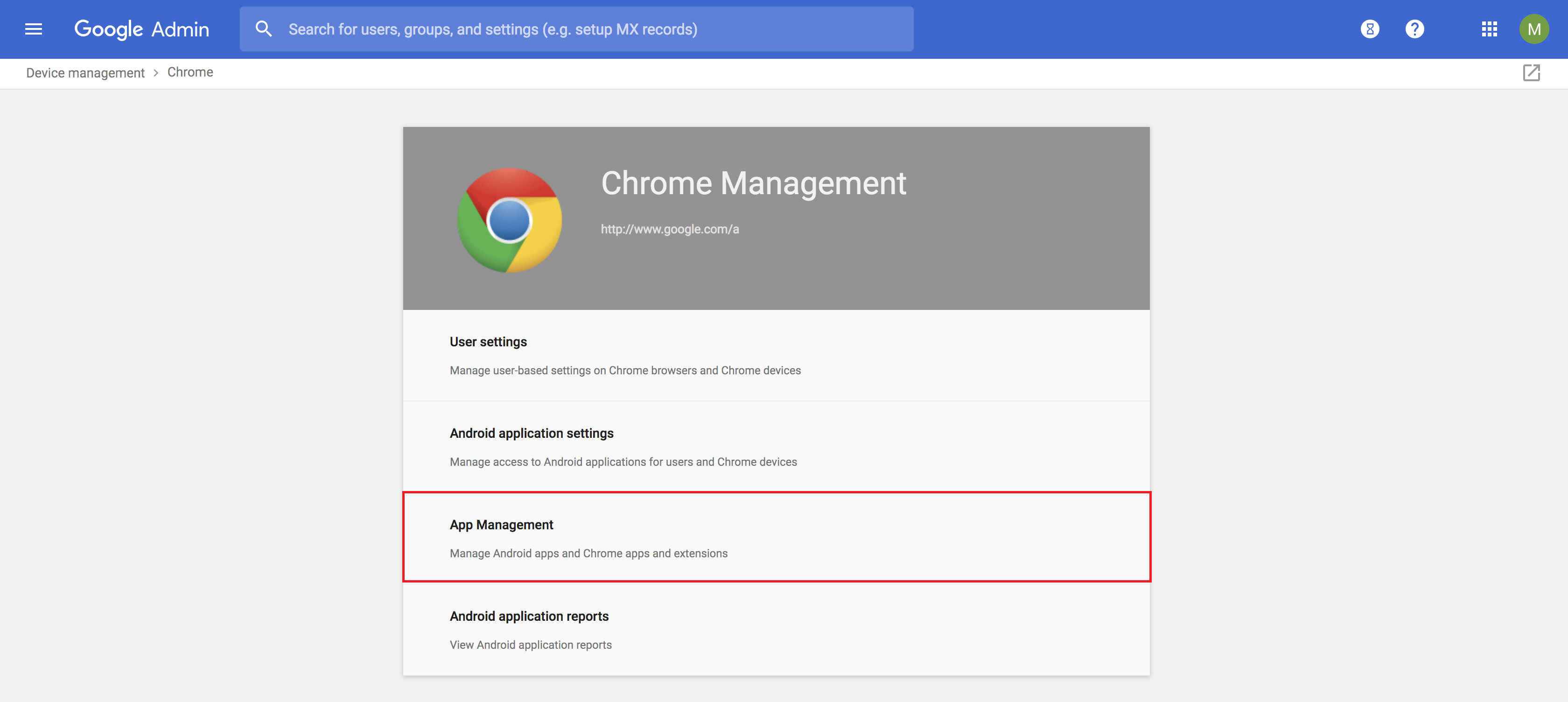
What Crostini Is and Why it Matters: Crostini creates a secure virtual machine environment on your Chromebook, running a Debian-based Linux distribution (typically Debian 11 “Bullseye”). This virtualized container allows you to install and run thousands of traditional desktop Linux applications that are not available through the Google Play Store or Chrome Web Store. Think of powerful image editors like GIMP, vector graphics software like Inkscape, robust code editors like Visual Studio Code, or even full office suites like LibreOffice. For developers, it means access to programming languages, compilers, and development tools that are standard in the open-source world. This capability drastically expands the “Software” and “Apps” scope of your Chromebook, turning it into a truly versatile machine.
How to Enable and Use It:
- Open your Chromebook’s Settings app.
- In the left-hand menu, scroll down and click on Linux (Beta).
- Click Turn on next to “Develop software with Linux.”
- Follow the on-screen prompts, which will guide you through setting up your Linux environment. You’ll be asked to choose a username and allocate disk space (it’s recommended to give it at least 10 GB if you plan to install several apps). This process may take several minutes.
Once enabled, a “Terminal” app will appear in your app launcher. Opening the Terminal gives you a command-line interface, which is where you’ll install Linux apps.
To install a common Linux application (e.g., GIMP): - Open the Terminal app.
- First, update your package lists:
sudo apt update - Then, install the desired application:
sudo apt install gimp - Type
Yand press Enter when prompted to confirm the installation.
After installation, Linux apps will appear in your Chrome OS app launcher, often within a “Linux apps” folder, allowing you to launch them just like any other application.
Benefits and Considerations: The most significant benefit is access to professional-grade desktop software. This is invaluable for creative professionals, developers, and users who require specific applications not available through other channels. It effectively transforms a Chromebook into a powerful multi-platform device. However, there are considerations: Linux (Beta) can be resource-intensive, consuming more RAM and storage than typical Chrome OS operations. The initial setup and app installation primarily involve the command line, which can have a learning curve for new users. While “Beta,” the Linux environment is generally stable, but occasional glitches can occur. Furthermore, not all Linux applications are optimized for Chromebook hardware or touchscreens, and some graphical applications might feel slightly less responsive than their native counterparts. Despite these, for those who need it, Linux on a Chromebook is a game-changer.
Sideloading Android Apps (APK Files): Proceed with Caution
While the Google Play Store provides a secure and managed way to install Android apps, it’s technically possible to “sideload” apps onto your Chromebook by installing Android Package Kit (APK) files directly. This method bypasses the Play Store and is generally not recommended for most users due to significant security and compatibility risks. However, for specific niche cases (e.g., testing custom apps, accessing geo-restricted apps with legitimate APKs), it offers an alternative.
What Sideloading Is: Sideloading refers to the process of installing applications on a device from sources other than the official app store. For Android on Chromebooks, this means downloading an APK file (the package format for Android apps) from a website or other source and installing it manually. This method directly challenges “Digital Security” best practices, emphasizing the need for extreme caution.
How it Can Be Done (and Why It’s Risky): To sideload an APK on a Chromebook, you typically need to enable Developer Mode on your device, which comes with its own set of warnings (e.g., reduces security, wipes your device on activation). Once in Developer Mode, you can enable “Unknown sources” for app installation in the Android settings within Chrome OS, similar to an Android phone. Then, you can download an APK file from a source (like APKMirror, or your own build) and install it using a file manager or ADB (Android Debug Bridge) commands.
Crucial Warning: This method is fraught with risks:
- Security Vulnerabilities: APKs from unknown sources can contain malware, viruses, or spyware that could compromise your data and privacy. Unlike the Play Store, there’s no vetting process for sideloaded apps.
- Compatibility Issues: Apps sideloaded might not be optimized for Chrome OS or your specific Chromebook’s hardware. They could crash, perform poorly, or not work at all.
- Stability Problems: Sideloading can lead to system instability, conflicts with other apps, or unexpected behavior.
- No Automatic Updates: Sideloaded apps do not receive automatic updates from the Google Play Store, meaning you’d have to manually download and install new versions, which is inconvenient and can leave you with unpatched security flaws.
When It Might Be Considered (Very Rarely): Sideloading is almost exclusively for advanced users, developers testing their own applications, or those with a very specific, legitimate need for an app not available in the Play Store AND obtained from a highly trusted, verified source. For the vast majority of users, it is strongly advised to stick to the Google Play Store for Android apps to ensure digital security, stability, and ease of use. This topic serves as a crucial “Digital Security” warning within the broader “Tech” discussion.
Optimizing Your Chromebook App Experience
Installing a variety of applications is just the first step. To truly make your Chromebook a personalized and efficient tool, it’s essential to understand how to manage your apps, optimize performance, and maintain a secure digital environment. These practices ensure that your expanded app library enhances productivity rather than creating clutter or security risks.
Managing and Organizing Your Apps
A cluttered app launcher can quickly diminish the benefits of having many apps. Chrome OS provides intuitive ways to keep your applications organized and accessible.
App Drawer and Shelf: All installed apps (from Play Store, Chrome Web Store, PWAs, and Linux) appear in your Chromebook’s app launcher (accessed by clicking the circle icon in the bottom-left corner). From here, you can:
- Pin to Shelf: For frequently used apps, right-click the icon in the launcher or on the shelf itself and select “Pin to shelf.” This makes them instantly accessible from the bottom bar of your screen.
- Create Folders: Drag one app icon onto another in the launcher to create a folder. You can then name the folder (e.g., “Productivity,” “Games,” “Utilities”) and drag more apps into it, helping to categorize your software and reduce visual clutter, a key aspect of “Productivity.”
- Rearrange: Simply drag and drop app icons within the launcher or on the shelf to arrange them in an order that suits your workflow.
Uninstalling Apps: If an app is no longer needed or performing poorly, uninstalling it is straightforward:
- Android or PWA: Right-click the app icon in the launcher or on the shelf, then select “Uninstall.” Confirm your choice.
- Chrome Extension: Go to
chrome://extensionsin your browser, or click the puzzle piece icon in the toolbar, then the three dots next to the extension you want to remove, and select “Remove from Chrome.” - Linux App: Open the Linux Terminal and use the command
sudo apt remove [app-name](e.g.,sudo apt remove gimp). This command removes the application package. To also remove configuration files, usesudo apt purge [app-name].
Permissions Management: For Android apps especially, managing permissions is crucial for privacy and security. You can review and adjust permissions (e.g., access to camera, microphone, location) for individual Android apps by going to your Chromebook’s Settings > Apps > Manage your apps. Select the app, and then navigate to its permissions section. Regularly reviewing these permissions ensures “Digital Security” and peace of mind.
Performance and Security Considerations
With great app versatility comes the responsibility of maintaining your device’s performance and security. Chromebooks are inherently secure, but user habits play a significant role.
Regular Updates: Ensure your Chromebook is always running the latest version of Chrome OS. Google frequently releases updates that include performance enhancements, new features, and critical security patches. Similarly, keep your Android apps updated via the Google Play Store, and regularly update your Linux packages using sudo apt update followed by sudo apt upgrade in the Terminal. These practices are fundamental to “Digital Security” and overall system health.
Source Credibility: Always prioritize installing apps from official and trusted sources:
- Google Play Store: Your primary source for Android apps.
- Chrome Web Store: For extensions and web apps.
- Reputable PWA-enabled websites: For Progressive Web Apps.
- Official Linux Repositories: When installing Linux apps via
apt, you’re usually pulling from trusted Debian repositories. Avoid adding untrusted third-party repositories unless you know exactly what you’re doing.
As highlighted previously, avoid sideloading APKs from unknown sources. This is the single biggest security risk when it comes to app installation.
Resource Management: While powerful, Chromebooks still have finite resources.
- Too Many Extensions/Apps: Running an excessive number of Chrome extensions can slow down your browser. Similarly, having dozens of active Android apps or very demanding Linux applications running concurrently can impact overall system performance. Regularly review and disable/uninstall unused extensions and apps.
- Linux Overhead: The Linux (Beta) environment, being a virtual machine, consumes a dedicated portion of your RAM and CPU. If you notice your Chromebook slowing down, consider closing unused Linux applications or even shutting down the Linux container when not actively using it (right-click the Terminal icon on the shelf and select “Shut down Linux”).
Utilizing Cloud Services: Remember that Chromebooks are designed for the cloud. Wherever possible, leverage cloud-based versions of apps and services (e.g., Google Workspace, Microsoft 365 web apps, cloud storage like Google Drive or Dropbox) instead of relying solely on local installations. This often provides the best performance, collaboration features, and ensures your data is backed up and accessible from anywhere, further enhancing “Productivity” and aligning with “Technology Trends.”
Conclusion
The journey through “how to install apps in chromebook” reveals a far more capable and adaptable device than many initially perceive. From the familiar embrace of the Google Play Store offering a universe of Android applications, to the productivity-enhancing Chrome Web Store extensions, and the seamless integration of Progressive Web Apps, Chromebooks offer a rich and varied app ecosystem for everyday users. For those with more specialized needs, the powerful Linux (Beta) environment unlocks a realm of professional-grade software, turning a lightweight laptop into a formidable development or creative workstation.
By understanding and utilizing these diverse app installation methods, you can tailor your Chromebook precisely to your workflow, hobbies, and educational pursuits. Remember to prioritize official sources for digital security, manage your applications for optimal performance, and explore the vast possibilities that Chrome OS now offers. Far from being limited, your Chromebook is a gateway to a flexible, powerful, and increasingly versatile digital experience, ready to adapt to whatever tasks you throw its way, truly embodying the spirit of modern “Tech.”
aViewFromTheCave is a participant in the Amazon Services LLC Associates Program, an affiliate advertising program designed to provide a means for sites to earn advertising fees by advertising and linking to Amazon.com. Amazon, the Amazon logo, AmazonSupply, and the AmazonSupply logo are trademarks of Amazon.com, Inc. or its affiliates. As an Amazon Associate we earn affiliate commissions from qualifying purchases.